
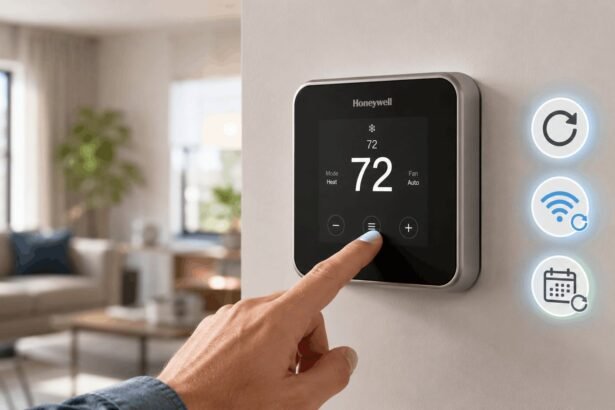


A Honeywell thermostat reset is not always the same thing as restoring the thermostat to factory defaults. Depending on the model and the problem, you may only need to restart the device, clear its Wi-Fi connection, restore its schedule, or reset a smart-home pairing.
The most important step is identifying your thermostat before following any reset sequence. Honeywell Home publishes different procedures for the T5/T6, T9, T10, Smart/Lyric Round, Wi-Fi 9000, FocusPRO 6000, and VisionPRO families.
Quick Takeaway: A Honeywell thermostat reset can mean restarting the thermostat, clearing Wi-Fi, restoring the schedule, removing HomeKit pairing, or returning the device to factory defaults. The correct option depends on your model and problem, so identify the thermostat first and use the least disruptive reset that solves the issue.
Which Honeywell Thermostat Reset Do You Need?
Do not jump straight to a factory reset. Honeywell Home separates factory, Wi-Fi, schedule, and HomeKit resets on several supported models because each serves a different purpose.
| Your problem | Best first action |
| Thermostat is temporarily frozen or unresponsive | Restart or power-cycle it where the model instructions allow |
| You changed your router or Wi-Fi password | Wi-Fi reset/change network |
| An unwanted program keeps changing the temperature | Schedule reset |
| Apple Home pairing is the problem | HomeKit reset on a supported model |
| You want to clear all programming and start again | Factory reset |
| Thermostat screen is completely blank | Check power or batteries before resetting |
| Heating/cooling still fails after a reset | Check configuration, power, wiring, and HVAC equipment |
For example, the T5/T5+/T6 family has separate Factory, Schedule, Wi-Fi, and HomeKit reset options. A factory reset clears the thermostat’s programming, while the Wi-Fi reset specifically clears its current wireless connection and begins the pairing process.
Before Resetting Your Honeywell Thermostat
Find the model number first
The reset procedure depends on the thermostat family.
Honeywell Home says model numbers commonly begin with letters such as TH, T, RTH, RCHT, CT, TL, or RLV. For many modern thermostats, the model number is printed on the back of the detachable thermostat faceplate. It may also appear on the product ID card, packaging, or supplied literature.
If you need to remove a thermostat from its wall plate, do not force it. Some models pull straight away from the wall, while others use different attachment methods. Consult the correct manual if the thermostat does not release normally.
Record important settings before a factory reset
If your thermostat still works well enough to navigate its menus, take photos of its important settings before erasing anything.
On T5/T5+/T6 Pro Wi-Fi models, Honeywell Home specifically recommends recording the current Installer Setup, or ISU, configuration before a factory reset because the reset clears thermostat programming and returns the unit to factory defaults.
Useful details to preserve can include:
- heating and cooling system configuration;
- programmed temperatures and schedules;
- Wi-Fi network information;
- installer settings;
- smart-home pairings;
- any special heat-pump or HVAC configuration.
Safety warning
Resetting a thermostat through its menus is different from changing thermostat or HVAC wiring. If troubleshooting requires exposing or moving wires, turn off power to the heating and cooling equipment first.
Honeywell Home warns that incorrect thermostat wiring or configuration can cause unintended HVAC operation and may result in property damage or injury. If you are unsure about the system type or wiring, use a qualified HVAC professional.
Honeywell Thermostat Reset by Model
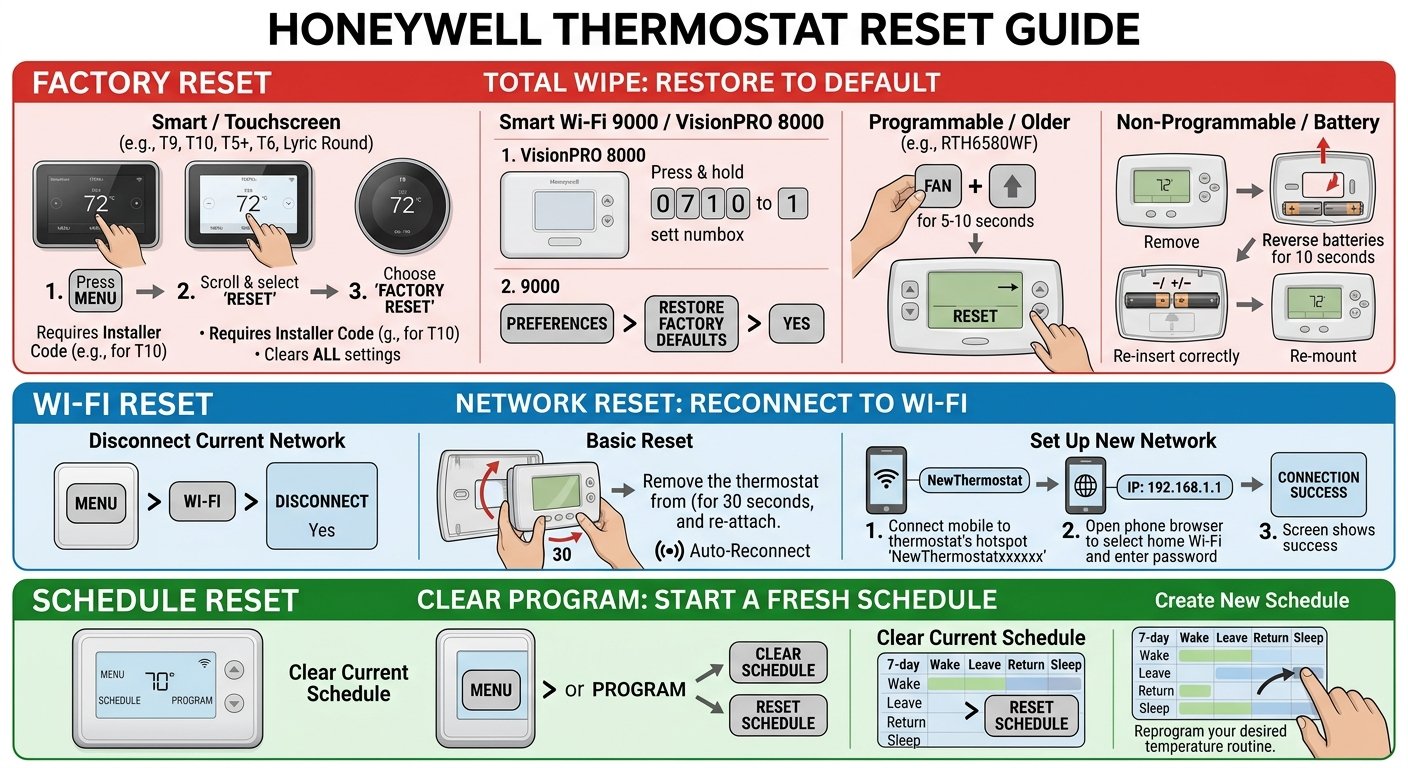
How to Reset Honeywell T5, T5+ and T6 Thermostats
Honeywell Home’s current reset instructions cover T5/T5+/T6 models including RCHT8610WF, RCHT8612WF, TH6320WF2, and TH6220WF2.
Factory reset
- Press and hold Menu.
- Move through the options until Reset appears.
- Select Reset.
- Continue until Factory Reset appears.
- Select it and follow the thermostat’s prompts.
Afterward, compatible models can be configured again on the thermostat or through the Resideo app.
Wi-Fi reset
- Press and hold Menu.
- Navigate to Reset.
- Select WiFi.
- Complete the reconnection process.
Honeywell Home says the Wi-Fi reset clears the existing Wi-Fi connection and begins the pairing process.
Schedule reset
Navigate through:
Menu → Reset → Schedule
The schedule reset restores the thermostat’s scheduling rather than performing a complete factory wipe.
HomeKit reset
On supported versions, use:
Menu → Reset → HomeKit Reset
A HomeKit reset removes the existing Apple Home pairing without requiring you to choose a full factory reset simply for a HomeKit issue.
How to Reset a Honeywell T9 Thermostat
For T9 models RCHT9510WF and RCHT9610WF, Honeywell Home provides separate paths for factory, Wi-Fi, schedule, and HomeKit resets.
Factory reset
Use:
Menu → Advanced Setup → Reset → Factory Reset
Change or reset Wi-Fi
Use:
Menu → WiFi → Change Network
Then select the required network and enter its password.
Schedule reset
Use:
Menu → Advanced Setup → Reset → Schedule Reset
HomeKit reset
Use:
Menu → Advanced Setup → Reset → HomeKit Reset
These menu paths are specific to the T9 family, which is why using instructions from a T5, VisionPRO, or older thermostat can lead you to the wrong controls.
How to Reset a Honeywell T10 Thermostat
The T10 uses a different procedure for several advanced reset functions. Honeywell Home’s instructions for the THX321WF require the thermostat’s date code to access Installer Options.
Factory reset
- Open Menu.
- Select Thermostat Information.
- Write down the displayed Date Code.
- Go back and open Installer Options.
- Enter the date code when requested.
- Select Reset.
- Select Factory Reset.
The current T10/T10+ installer documentation also lists schedule, sensor, HomeKit, factory, and Wi-Fi reset functions inside the Reset area.
Wi-Fi reset or network change
For the THX321WF procedure documented by Honeywell Home:
Menu → WiFi → Change Network
Choose the required network and enter its password.
Schedule reset
Open Thermostat Information, record the date code, enter Installer Options, then choose:
Reset → Schedule Reset.
HomeKit reset
Follow the same Installer Options process and select the HomeKit reset option.
How to Reset a Honeywell Smart/Lyric Round Thermostat
For the Smart/Lyric Round TH8732WFH, the controls differ from the T-series menu system.
Factory reset
- Press and hold the Cloud icon.
- Use the information control until Reset appears.
- Select Reset.
After a factory reset, the thermostat can be configured again through the Resideo app or its on-screen installation process.
Wi-Fi reset
Press and hold the Cloud icon, navigate to WiFi, then continue to Setup.
Schedule reset
Use:
Menu → Preferences → Restore Default Schedule.
HomeKit reset
Press and hold the Cloud icon and navigate to HomeKit Reset.
How to Reset a Honeywell Smart Wi-Fi 9000
For Smart Wi-Fi 9000 models such as RTH9580WF, RTH9585WF, and TH9320WF, Honeywell Home documents a different touchscreen-based procedure.
Factory reset
Use:
Menu → Preferences → Restore Factory Defaults → Yes.
Wi-Fi reset or network change
Open Menu, select WiFi Setup, choose Change Network, select the required wireless network, and enter its password.
Schedule reset
Use:
Menu → Preferences → Restore Default Schedule.
Honeywell Home describes factory and schedule reset options separately on this thermostat, so clearing an unwanted schedule does not require wiping the entire device.
How to Reset a Honeywell FocusPRO 6000
The Wi-Fi FocusPRO 6000 family uses numbered setup functions rather than the touchscreen menu paths found on newer models.
For TH6320WF1 and RTH6580WF models, Honeywell Home lists these reset values:
| Reset | Procedure |
| Factory | Hold Up + Fan, set left value to 90 and right value to 1, then press Done |
| Wi-Fi | Hold Up + Fan, set left value to 39 and right value to 0, then press Done |
| Schedule | Hold Up + Fan, set left value to 85 and right value to 1, then press Done |
The Wi-Fi procedure can place the thermostat back into Wi-Fi setup mode so it can be reconnected.
Do not use these numbered functions on a different thermostat family unless its own manual specifically calls for them.
How to Reset a Honeywell VisionPRO 8000
For VisionPRO 8000 models TH8320WF and RTH8580WF, Honeywell Home provides model-specific installer functions.
| Reset | Function setting |
| Factory reset | 0710 → 1 |
| Wi-Fi reset | 0900 → 0 |
| Schedule reset | 0165 → 1 |
To reach these functions, press System, press and hold the blank center area, select the required values, then press Done.
These numbers are not universal Honeywell reset codes. They belong to the documented VisionPRO procedure.
How to Reset a Honeywell VisionPRO TH8321WF
The TH8321WF has yet another process.
Factory reset
- Press Menu.
- Open Dealer Information.
- Record the date code.
- Return to the menu.
- Open Installer Options.
- Enter the date code.
- Choose Reset to Defaults.
- Confirm the reset.
Wi-Fi reset
Use Menu → WiFi Setup.
Schedule reset
Use the Preferences menu and select the default schedule option.
What About Older Honeywell Thermostats?
There is no responsible universal reset sequence for every older Honeywell thermostat.
Honeywell Home maintains separate manuals for thermostat families including the 1000, 2000, 4000, 6000, 7000, 8000, 9000, VisionPRO, and Lyric/T-series ranges. Its support guidance directs users to identify the exact thermostat and use its model-specific manual.
Avoid using an internet battery trick or button combination simply because it worked on a visually similar thermostat.
Factory Reset vs Wi-Fi Reset vs Schedule Reset
Choosing the correct reset can save substantial reconfiguration.
| Reset type | What it affects | Good use case |
| Restart/power cycle | Restarts operation without intentionally selecting a settings wipe | Temporary freezing or setup trouble |
| Wi-Fi reset | Existing wireless connection | New router, password, or connection problem |
| Schedule reset | Programmed temperature schedule | Unwanted or confusing schedule |
| HomeKit reset | Existing Apple Home pairing on supported models | HomeKit pairing issue |
| Factory reset | Broad programming and device configuration | Starting over after configuration problems or ownership changes |
On the T5/T5+/T6 Pro Wi-Fi family, Honeywell Home explicitly states that Factory Reset clears thermostat programming, Schedule Reset restores the default schedule, Wi-Fi Reset clears the current Wi-Fi connection, and HomeKit Reset disables the existing HomeKit pairing.
That makes a factory reset a poor first choice when the only problem is a changed Wi-Fi password or an unwanted schedule.
How to Reset Honeywell Thermostat Wi-Fi
A thermostat going offline does not automatically mean it needs to be factory-reset.
For a T5, T5+, or T6 Pro Wi-Fi thermostat that was previously connected and then lost its connection without any home-network changes, Honeywell Home recommends troubleshooting before completing a full Wi-Fi reset.
If you changed your router or password
Use the model’s Wi-Fi Reset or Change Network function rather than erasing all thermostat settings.
The exact menu varies by model. T9 and T10 thermostats provide a Change Network option in the Wi-Fi menu, while the Wi-Fi 9000 uses its own WiFi Setup screen.
Reconnecting T5/T5+/T6 through the Resideo app
For registered T5/T5+/T6 Pro Wi-Fi thermostats, Honeywell Home says you can select the thermostat in the Resideo app, open its settings, and use Reset WiFi. If the device no longer appears correctly in the account, the app’s Add a New Device flow can also be used for setup.
If Wi-Fi setup keeps failing
For T5/T5+/T6 Pro Wi-Fi setup problems, Honeywell Home recommends a thermostat power cycle as one troubleshooting step: remove the thermostat from the wall plate for 30 seconds, then reattach it. This instruction is model-specific and should not be assumed to apply identically to every thermostat.
Honeywell Home also says its connected Honeywell Home thermostats operate on the 2.4 GHz Wi-Fi band, so network visibility or configuration can matter during setup.
What Happens After a Factory Reset?
A factory reset can leave you with more work than a simple Wi-Fi or schedule reset.
Depending on the thermostat, you may need to:
- configure the HVAC system again;
- restore installer settings;
- recreate preferred temperatures or schedules;
- reconnect Wi-Fi;
- reconnect the mobile app;
- restore compatible smart-home integrations.
Honeywell Home confirms that T5/T5+/T6 models can be configured again through the Resideo app or thermostat after a factory reset, and it recommends recording the existing ISU configuration beforehand.
On more complex T10/T10+ configurations, factory resetting can also clear system settings and connected RedLINK devices in certain equipment-interface-module scenarios.
Practical tip: If the thermostat is still accessible before you reset it, photograph every configuration page you might need later.
Honeywell Thermostat Reset Not Working? Try These Fixes
A reset only addresses certain thermostat settings or software states. It cannot restore electrical power or repair failed HVAC hardware.
Thermostat screen is blank
Do not repeatedly factory-reset a thermostat that has no display.
Honeywell Home’s troubleshooting instructions for multiple models tell users to check batteries where applicable, the circuit breaker, the heating/cooling equipment power switch, and whether the furnace door is securely closed.
For compatible hardwired thermostats, loss of C-wire power can also leave the display unpowered. Honeywell Home says its Resideo Wi-Fi thermostats require a C-wire for continuous power.
If you need to inspect wiring and are not comfortable working around HVAC controls, use a qualified technician rather than experimenting with energized wires.
Thermostat powers on but heating or cooling does not respond
First check the basics:
- thermostat is in the correct Heat or Cool mode;
- the requested temperature actually calls for heating or cooling;
- HVAC breaker and equipment power are on;
- furnace or air-handler access panels are properly closed;
- system configuration has not been changed incorrectly during a reset.
Honeywell’s T6 Pro troubleshooting instructions recommend checking mode, temperature setpoint, breaker, HVAC power, and furnace-door closure when heating or cooling does not respond. They also note that some equipment may intentionally delay operation before restarting.
If the same heating problem existed before the thermostat was changed or reset, the fault may be in the HVAC equipment rather than the thermostat. Honeywell Home recommends professional HVAC service when basic thermostat and power checks do not solve such a problem.
Thermostat keeps changing the temperature
Before clearing everything, determine whether the thermostat is following an existing schedule.
On T5/T5+/T6 models, Honeywell Home provides both temporary/permanent hold functions and a dedicated schedule-reset option. A schedule reset is therefore more targeted than a factory reset if programmed periods are the only issue.
Wi-Fi still will not reconnect
Confirm that:
- the home router is operating;
- the correct network is selected;
- the Wi-Fi password is correct;
- the thermostat is actually in setup/reconnection mode;
- you are following the procedure for your exact model.
Honeywell Home recommends confirming that the router is powered and broadcasting when reconnecting a thermostat.
Factory reset changed how the HVAC system behaves
A factory reset can restore configuration values as well as user-facing preferences on supported models. If the thermostat begins controlling heating, cooling, a heat pump, or auxiliary heat incorrectly afterward, stop changing random installer settings.
Use your previously recorded configuration or the official manual for the exact model. Honeywell Home warns that improper configuration can cause unintended HVAC operation.
Common Honeywell Thermostat Reset Mistakes
- Factory-resetting before checking power
A blank display is often a reason to investigate power or batteries first, not proof that the software needs resetting.
- Following instructions for the wrong model
T9, T10, T5/T6, FocusPRO, VisionPRO, and Wi-Fi 9000 thermostats do not all use the same menus or reset codes.
- Treating every reset as a factory reset
Many connected models provide separate Wi-Fi, schedule, and HomeKit reset choices.
- Failing to save installer settings
Honeywell Home specifically recommends recording the ISU configuration before factory-resetting T5/T5+/T6 Pro Wi-Fi thermostats.
- Using another model’s numbered reset code
Codes such as the FocusPRO and VisionPRO reset values belong to their documented model families. Always match the procedure to the exact thermostat.
- Assuming a reset can fix damaged equipment
Resetting configuration does not restore a tripped power source, dead batteries, disconnected wiring, or malfunctioning HVAC hardware. Honeywell’s own troubleshooting guidance separates those power and equipment checks from thermostat reset procedures.
Smart-Home Connections After a Reset
Resideo app
Compatible T5/T5+/T6 models can be configured with the Resideo app after a factory reset, and the app also supports a dedicated Wi-Fi reset flow for registered thermostats.
Apple HomeKit
Several Honeywell Home thermostat families, including documented T5/T6, T9, T10, and Smart/Lyric Round models, provide a separate HomeKit reset function. If HomeKit pairing is the only issue, use that model-specific option before considering a full factory reset.
Alexa and Google Home
Support varies by thermostat model. For example, Honeywell Home lists Amazon Alexa and Google Assistant support for the Wi-Fi 9000 Color Touchscreen Thermostat.
After changing thermostat or network configuration, check the relevant integration to make sure the thermostat is still available and linked correctly.
Frequently Asked Questions
How do I reset my Honeywell thermostat?
First identify the exact model and decide whether you need a factory, Wi-Fi, schedule, or smart-home reset. Honeywell Home provides different procedures for models including the T5/T6, T9, T10, Smart/Lyric Round, Wi-Fi 9000, FocusPRO 6000, and VisionPRO series.
How do I reset a Honeywell thermostat without a reset button?
Many Honeywell Home thermostats do not rely on a dedicated physical reset button. Their resets are performed through menus, touch controls, or model-specific installer functions. The exact sequence depends on the thermostat model.
Will resetting my Honeywell thermostat erase my schedule?
It depends on which reset you perform. On T5/T5+/T6 Pro Wi-Fi thermostats, a factory reset clears programming, while a dedicated schedule reset restores the schedule and a Wi-Fi reset targets the network connection.
How do I reset the Wi-Fi on my Honeywell thermostat?
Use the Wi-Fi reset or Change Network procedure for your exact model. For example, T9 and T10 models use Menu → WiFi → Change Network, while T5/T5+/T6 models offer a dedicated Wi-Fi reset in their Reset menu.
Why is my Honeywell thermostat not working after a reset?
Check whether the thermostat has power, whether the correct HVAC mode and configuration were restored, and whether the heating/cooling equipment itself is operating. Honeywell troubleshooting guidance recommends checking batteries where applicable, breakers, HVAC power switches, furnace-door closure, and system settings.
Should I factory-reset a Honeywell thermostat with a blank screen?
Not as the first step. A blank screen can indicate dead batteries or loss of HVAC power, depending on the model. Check the relevant power source, batteries, breaker, equipment switch, and furnace or air-handler door before assuming a factory reset is needed.
Final Verdict: Use the Least Destructive Reset First
A Honeywell thermostat reset works best when you know both the model and the problem you are trying to solve. A Wi-Fi issue does not automatically require a factory reset, and an unwanted temperature schedule may only need the schedule-reset function.
Identify the model, preserve important configuration details, and use the narrowest reset option available. If the thermostat has no power or the HVAC system still fails after the correct reset and basic troubleshooting, move away from repeated resets and investigate the power, wiring, or equipment instead.
Disclaimer
The information provided on TechInVein.com is for general informational and educational purposes only. While we aim to keep our smart home content accurate and helpful, we do not guarantee that all information will always be complete or up to date. Always follow the official instructions provided by the device manufacturer.