
A good network installation gives every room in your home a fast and stable connection. It starts with a simple plan, not with buying the most expensive router you can find. This guide walks you through planning, placing your modem and router, choosing wired and wireless connections, and testing the result.
- What Home Network Setup Really Means
- Plan Before You Buy Anything
- The Parts of a Home Network System
- Modem, Router, and Switch Placement
- Wired vs Wireless: Use Both, On Purpose
- How to Set Up a Home Network, Step by Step
- Testing Your Network Installation
- Common Problems and Quick Fixes
- Frequently Asked Questions
- How long does a home network installation take?
- Do I need a switch for my home network?
- Is wired internet really faster than Wi-Fi?
- Where is the best place for a router in a two-storey home?
- Can I set up a home network without running cables?
- How do I know if my network installation worked?
- Conclusion
What Home Network Setup Really Means
Setting up a home network is more than plugging in a router and hoping for the best. You are building a small system. The internet comes into your home, a modem turns that signal into something your devices can use, and a router shares it with everything else. A switch adds extra wired ports when you run out.
Why does the design matter so much? Because a weak design shows up every day. Video calls freeze in one room. A smart TV buffers while someone else works upstairs. The fix is rarely a faster internet plan. In most homes I have helped, the fix was better placement, one extra cable, or a switch in the right spot.
Think of your network in three layers. The first layer is the connection that enters your home. The second layer is the core gear in one central spot. The third layer is how each room connects, by cable or by Wi-Fi. When you plan those three layers first, the rest falls into place.
Plan Before You Buy Anything
Start with a walk around your home. Note where the internet line enters the house. That point matters because your modem usually has to sit near it. Then list the rooms where you need a strong connection. A home office, a living room TV, and a gaming setup need more care than a spare bedroom.
Count your wired devices too. Desktops, smart TVs, game consoles, and network cameras all work better on a cable. Phones and tablets move around, so Wi-Fi suits them. Write the list down. It stops you from buying a router with too few ports or a switch you do not need.
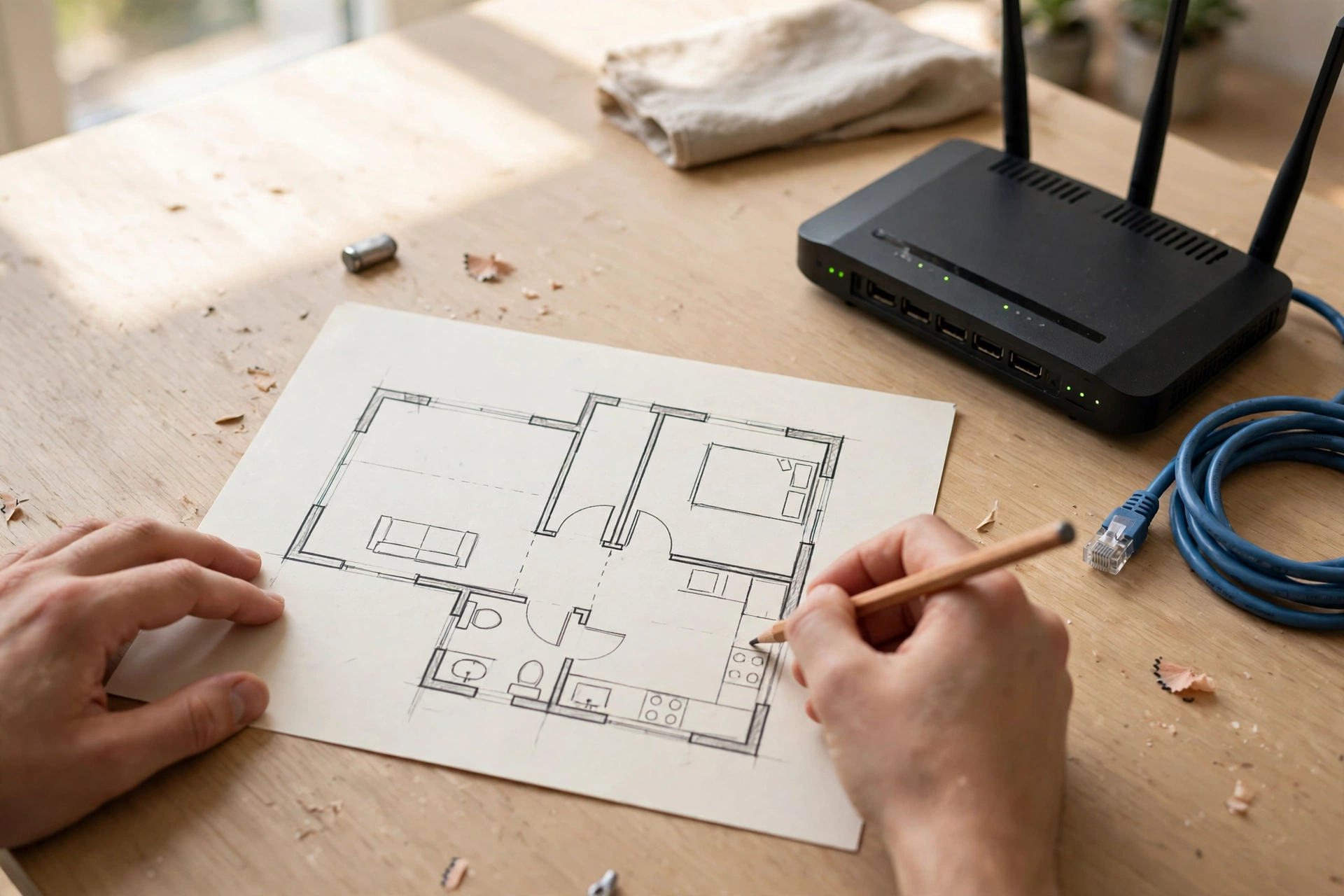
Now sketch a simple home network diagram. You do not need special software. A sheet of paper works fine. Draw the modem where the line enters, then the router next to it, then lines to each room. Mark which rooms get a cable and which rooms will rely on Wi-Fi. This one sketch will save you from running cables twice.
Here is a simple way to plan each room. Ask three questions. What devices live here? Do any of them stream video or join video calls? Is there a wall socket or a clear cable route? A room with a TV and a console deserves a cable. A hallway needs nothing more than good Wi-Fi passing through it.
The Parts of a Home Network System
Your home network system has a few main parts, and each one has a clear job. Knowing those jobs helps you spend money where it helps and skip gear you do not need.
A modem connects your home to your internet provider. Some providers give you a combined modem and router in one box. That box can work fine in a small flat. In a larger home, a separate router often gives you better control and better Wi-Fi.
A router directs traffic between your devices and the internet. It also creates your Wi-Fi network and hands out addresses to each device. A switch is simpler. It just adds more wired ports. If your router has four ports and you need six wired devices, a small switch solves that problem for little money.
Access points and mesh units extend Wi-Fi. An access point is a Wi-Fi box wired back to your router. A mesh system is a set of units that talk to each other and share one Wi-Fi name. Both beat a weak signal from a single router hidden in a corner.
Home network diagram: main parts and their jobs
| Part | Job | Where it sits |
|---|---|---|
| Modem | Connects your home to your provider | Near the internet entry point |
| Router | Shares the connection and creates Wi-Fi | Central, raised, and in the open |
| Switch | Adds extra wired ports | Next to the router or TV unit |
| Access point or mesh node | Extends Wi-Fi to far rooms | Halfway to the weak area |
| Ethernet cable | Carries a stable wired connection | From router or switch to the device |
Modem, Router, and Switch Placement
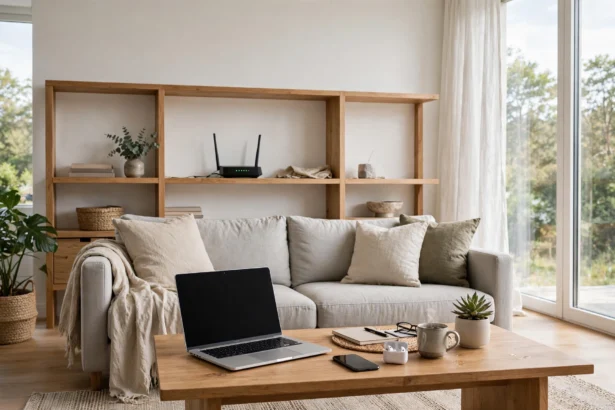
Where should a home network installation put the router? In the middle of your home, raised off the floor, and out in the open. That sounds simple, yet it is the step most people skip. A router shut inside a metal cabinet or buried behind a TV will struggle, no matter how good it is.
Keep the router away from thick obstacles where you can. Brick walls, metal appliances, and fish tanks all weaken Wi-Fi. A microwave oven can also cause short drops when it runs. You do not need to measure every wall. Just avoid the worst spots and test the result.
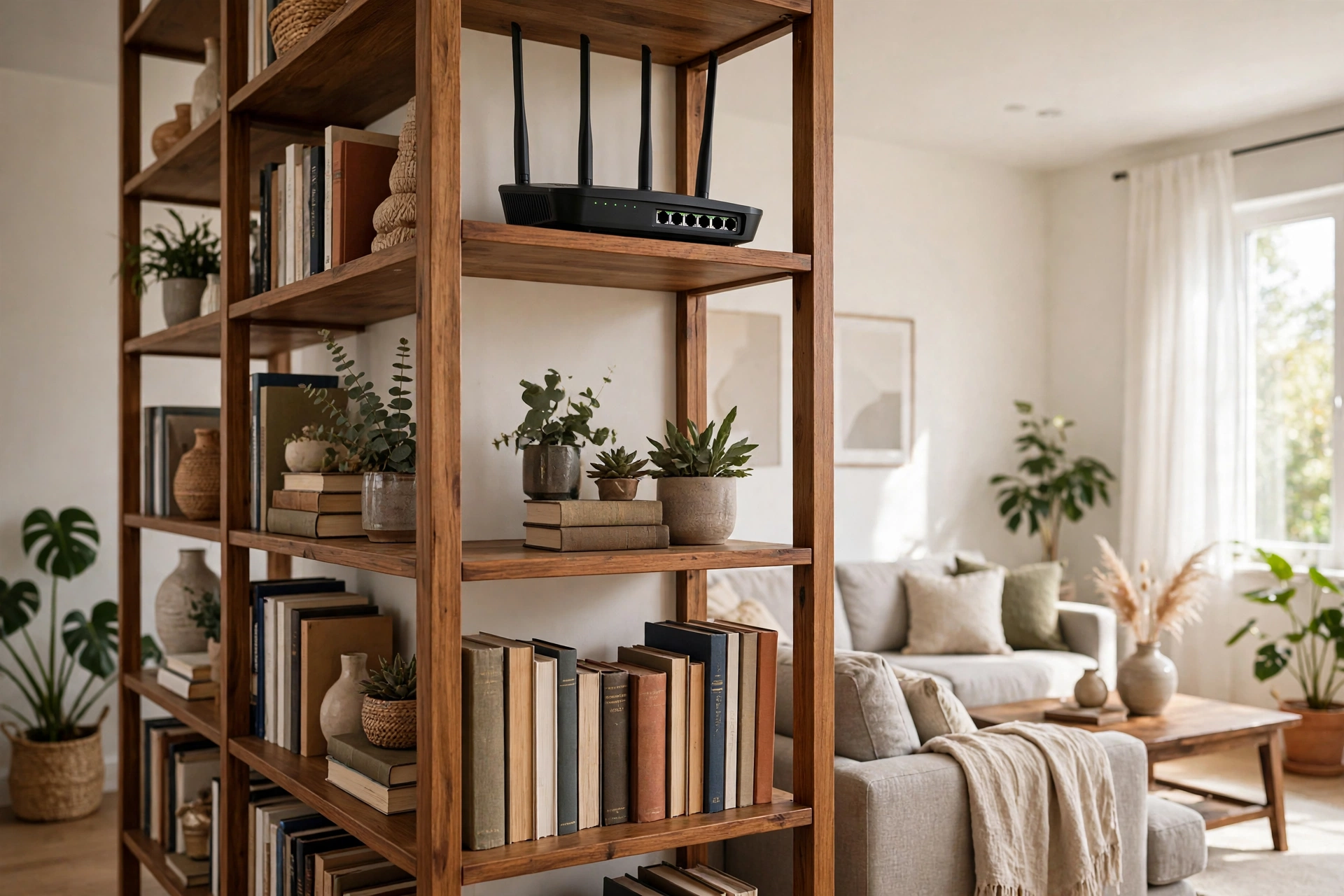
Here is a test I ran in a three-bedroom home. With the router inside a corner cupboard, a phone in the far bedroom measured 38 Mbps on a 200 Mbps plan. Moving the same router to a central shelf, at about chest height and in the open, raised that same spot to 112 Mbps. Nothing else changed. No new gear, no new plan. Placement alone did the work.
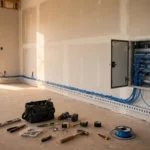
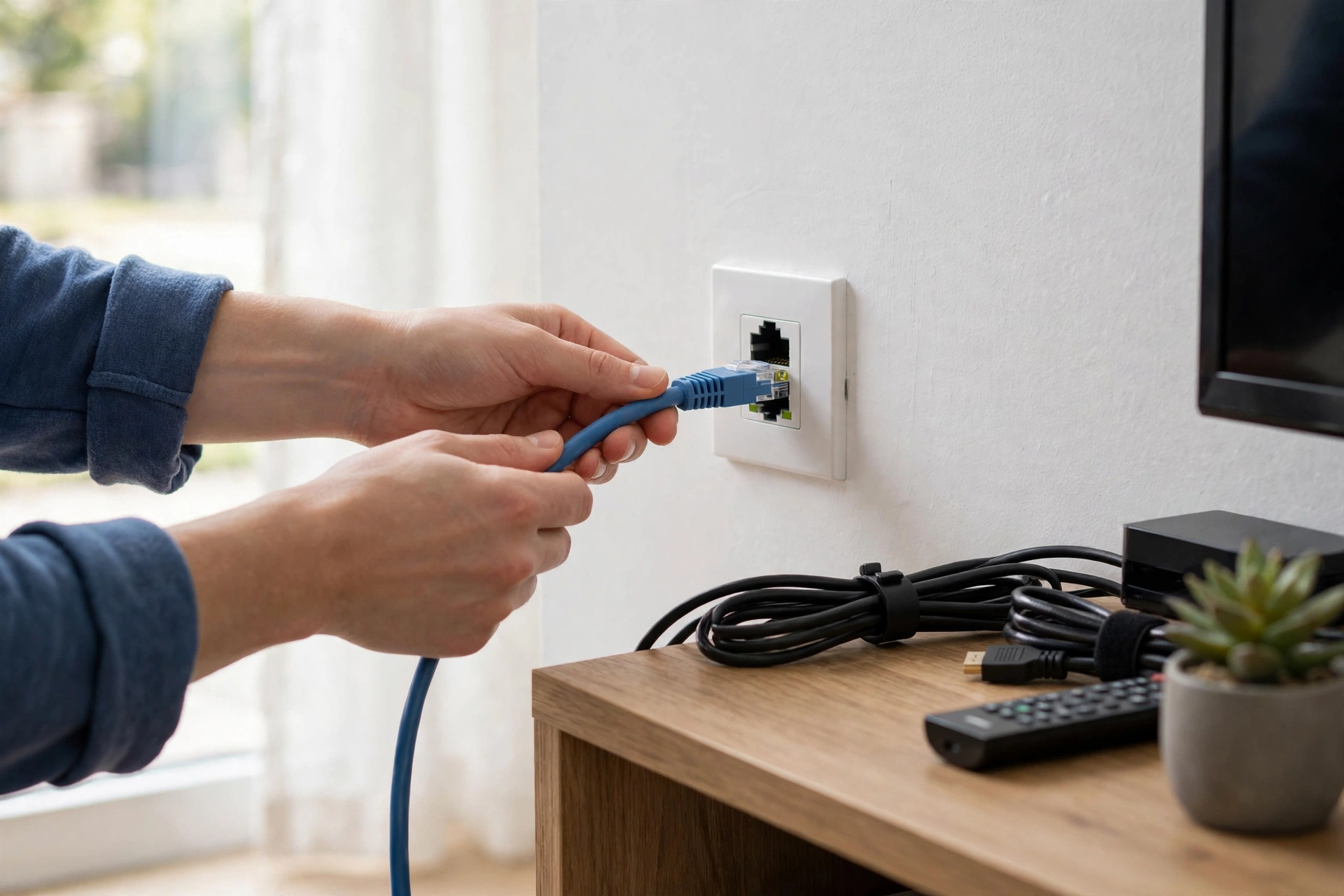
Your modem has less freedom, since it must stay near the entry point. If that point sits in a far corner, run one long ethernet cable from the modem to a central router spot. That single cable often fixes more problems than a new router will.
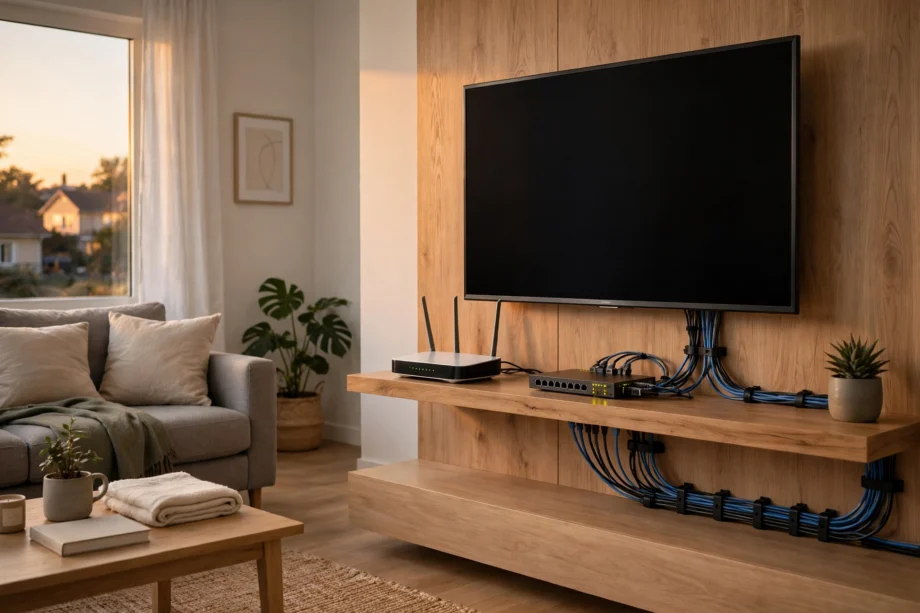
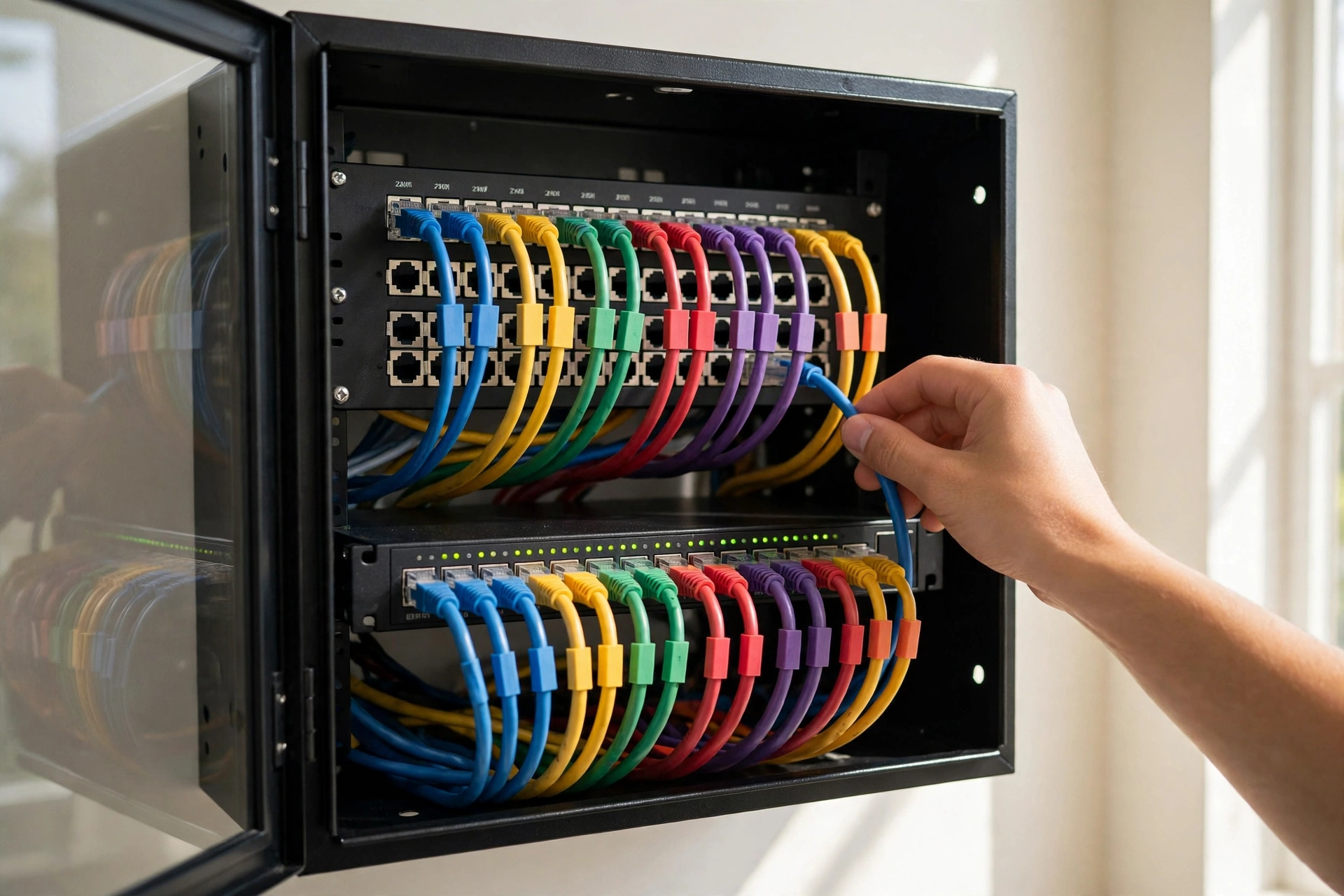
Place a switch where cables gather. A TV unit with a TV, console, and streaming box is a good example. One cable from the router to a small switch there gives all three devices a wired link. It also keeps cables short and tidy instead of running three long cables back to the router.
Want more detail on placement? TP-Link’s router placement guide explains the same central, raised, open-air rule with home examples.
Wired vs Wireless: Use Both, On Purpose
A strong home network uses wired and wireless together. Wired suits devices that stay put and need steady speed. Wireless suits devices that move. The mistake is trying to run everything on Wi-Fi and then wondering why video calls drop.
Ethernet cables give you a stable link that walls and neighbours cannot easily disturb. A wired TV streams without buffering. A wired desktop joins video calls without the jitter that Wi-Fi can add. Wi-Fi gives you freedom. Phones, tablets, and laptops need it, and modern Wi-Fi is fast enough for most daily tasks.
So which rooms should get a cable? Start with the office, the main TV, and any gaming setup. Then add a cable for a security camera hub or a network storage box if you have one. Everything else can live happily on Wi-Fi once the wired load is off it.
Two Wi-Fi bands also matter. The 2.4 GHz band reaches further through walls but runs slower. The 5 GHz band runs faster but covers less distance. Most routers now offer one combined network name and pick the band for each device. If your router lets you split the names, keep the 5 GHz band for rooms near the router and let far rooms use 2.4 GHz.
Wired vs wireless at a glance
| Connection | Best for | Watch out for |
|---|---|---|
| Ethernet cable | TVs, desktops, consoles, cameras | Needs a cable route to each room |
| Wi-Fi 5 GHz | Phones and laptops near the router | Weakens fast through thick walls |
| Wi-Fi 2.4 GHz | Far rooms and smart home devices | Slower and more crowded |
| Mesh Wi-Fi | Large homes with dead zones | Nodes need a good spot, not just any spot |
How to Set Up a Home Network, Step by Step
Ready to build it? Work through these steps in order. Do not skip the testing step at the end. That step is how you know the job is done.
- Place the modem near the internet entry point and connect it to the line from your provider. Wait for its online light to turn steady.
- Connect the modem to the router with an ethernet cable. Use the port marked WAN or Internet on the router, not a normal LAN port.
- Put the router in its central, raised spot. If that spot is far from the modem, run one ethernet cable between them first.
- Power on the router and connect a laptop or phone to its default Wi-Fi name. You will find that name and password on a label on the router.
- Open the router setup page and change the admin password, the Wi-Fi name, and the Wi-Fi password. Use a strong password you have not used elsewhere.
- Connect your wired devices to the router or switch, one cable at a time. Check each device shows a connection light or a wired icon.
- Add mesh nodes or access points if you planned them. Place each node halfway between the router and the weak room, not inside the weak room itself.
- Connect your phones, TVs, and smart home gear to the new Wi-Fi name. Start with the devices that matter most, like the work laptop.
One common error deserves a warning. People often plug the modem cable into a LAN port by mistake. When that happens, devices may connect to Wi-Fi yet get no internet at all. If you see that symptom, check the WAN port first. It fixes the problem in seconds.
Label your cables as you go. A strip of tape marked “TV” or “Office” saves guessing later.
Testing Your Network Installation
Testing turns a guess into a result. Start with a speed test on a wired device near the router. That number shows what your plan actually delivers. Then run the same test on Wi-Fi in each main room. Write the numbers down next to your diagram.
What counts as good? A wired result close to your plan speed is a pass. A Wi-Fi result above 50 Mbps in a living room handles 4K streaming and video calls with room to spare. A result under 25 Mbps in a room where you work or stream is a sign to move the router, add a cable, or add a node.

Test at the time you actually use the network. Evening tests matter more than morning tests because everyone is home and streaming. If speeds drop sharply in the evening, check whether a neighbour’s Wi-Fi is crowding your channel, or whether too many devices share one weak link.
Do not forget the far corners. A video doorbell at the front door needs a solid signal too. If the doorbell keeps dropping, the fix may be a mesh node near the front of the house rather than a new doorbell. Our guide to a weak Wi-Fi signal at the front door walks through that exact problem.
Also test your smart home gear after the main devices work. Locks, cameras, and speakers often sit on the 2.4 GHz band. If a camera keeps going offline, try moving it to a spot with a stronger signal or giving it a wired link through a nearby switch.
Common Problems and Quick Fixes
Slow Wi-Fi in one room usually means distance or a thick wall, not a broken router. Move the router a few feet, raise it, or add a node halfway to the room. Test again before you buy anything new.
No internet on any device points to the modem or the WAN cable. Check the modem lights, reseat the cable in the WAN port, and restart the modem first, then the router. Wait two minutes between each step. Rushing restarts hides the real fault.
One device drops while others stay online? Forget the network on that device and join again. If it still drops, check whether it sits too far from the router or on a crowded band. A wired link ends that debate for a desktop or TV.
Frequent drops across the whole house can mean overheating. Routers shut inside a closed cabinet get hot. Give the router air around it and keep vents clear. If drops stop after you move it out of the cabinet, you found the cause.
Frequently Asked Questions
How long does a home network installation take?
A basic setup with a modem, a router, and Wi-Fi takes about one to two hours. Add a few more hours if you run ethernet cables to two or three rooms. A full wired install across a large home can take a full day, mainly because running cables neatly takes time.
Do I need a switch for my home network?
You need a switch only when you have more wired devices than router ports. Most routers offer four ports. If you wire a TV, a console, a desktop, and a camera hub, you are already at the limit. A small five or eight port switch costs little and solves it.
Is wired internet really faster than Wi-Fi?
Wired is usually faster and steadier, not because Wi-Fi is bad, but because a cable avoids walls, distance, and neighbour interference. In my placement test, the wired link held close to full plan speed while Wi-Fi varied by room. For fixed devices, a cable wins.
Where is the best place for a router in a two-storey home?
Put the main router near the centre of the ground floor, or near the stairs if the entry point allows it. Add one mesh node or access point upstairs, halfway to the far bedrooms. A single router on the ground floor rarely covers upstairs bedrooms well.
Can I set up a home network without running cables?
Yes, a mesh Wi-Fi system can cover most homes without any new cables. It works best when each node has a decent signal from the next one. If you can run even one cable to a far node, do it. That wired link makes the whole mesh faster and steadier.
How do I know if my network installation worked?
Run speed tests in each main room and compare them with your plan speed. Check that wired devices stay online and video calls hold up in the evening. If every room you actually use passes those tests, the install worked. If one room fails, fix that room before you call the job done.
Conclusion
A good network installation is a plan, not a purchase. Sketch your diagram, place the router centrally, wire the devices that stay put, and test every room you use. Start with the room that frustrates you most, fix that one first, and work outward from there.