
Seeing a “smart lock calibration failed” message means your lock could not learn where “locked” and “unlocked” are on your door. The usual causes are a misaligned deadbolt, friction in the bolt path, or weak batteries. In most cases you can fix it yourself in about fifteen minutes by checking alignment, clearing the bolt path, and running calibration again.
- What “Smart Lock Calibration Failed” Actually Means
- Why Calibration Fails: The Six Usual Causes
- 1. Deadbolt and Strike Plate Misalignment
- 2. Friction or Obstruction in the Bolt Path
- 3. Low or Wrong Batteries
- 4. Over-Tightened Screws and Warped Doors
- 5. Calibration Ran in the Wrong Door Position
- 6. Firmware or App Glitches
- How to Fix It: Step-by-Step
- Brand-Specific Calibration Notes
- When Calibration Still Fails
- How to Stop It Happening Again
- Frequently Asked Questions
- What does ‘smart lock calibration failed’ mean?
- Can I use my smart lock without calibrating it?
- Why does the smart lock calibration failed error appear when the door looks fine?
- Does changing batteries trigger smart lock calibration failed?
- How often should I recalibrate my smart lock?
- Will a factory reset fix calibration failure?
- The Bottom Line
Calibration sounds technical, but it is really just the lock getting to know your door. If these devices are new to you, our guide to how smart front door locks work covers the basics first. This guide explains what calibration does, why it fails, and the exact steps to get past the error on August, Yale, Schlage, Kwikset, and Wyze locks.
What “Smart Lock Calibration Failed” Actually Means
During calibration, the lock drives its motor through a full lock and unlock cycle while watching position sensors. It records how far the deadbolt travels and how much force it needs. Those two numbers become its map of your door. Every future lock and unlock command follows that map.
When the process fails, the lock is telling you it could not complete that learning cycle. The bolt may have jammed halfway. The sensors may have disagreed about the position. Or the motor may have run out of power mid-cycle. The lock refuses to guess, because a wrong map means a door that reports “locked” while the bolt sits half out of the frame. That is a security problem, so the lock stops and asks you to fix the underlying issue.
This matters more than it looks. A lock that skipped calibration, or one calibrated on a door that later shifted, can show the wrong status in your app. You think the door is locked. It is not fully. Getting calibration right is worth the trouble.
Why Calibration Fails: The Six Usual Causes
Almost every calibration failure comes down to one of these. Work through them in order and you will find your culprit fast.
1. Deadbolt and Strike Plate Misalignment
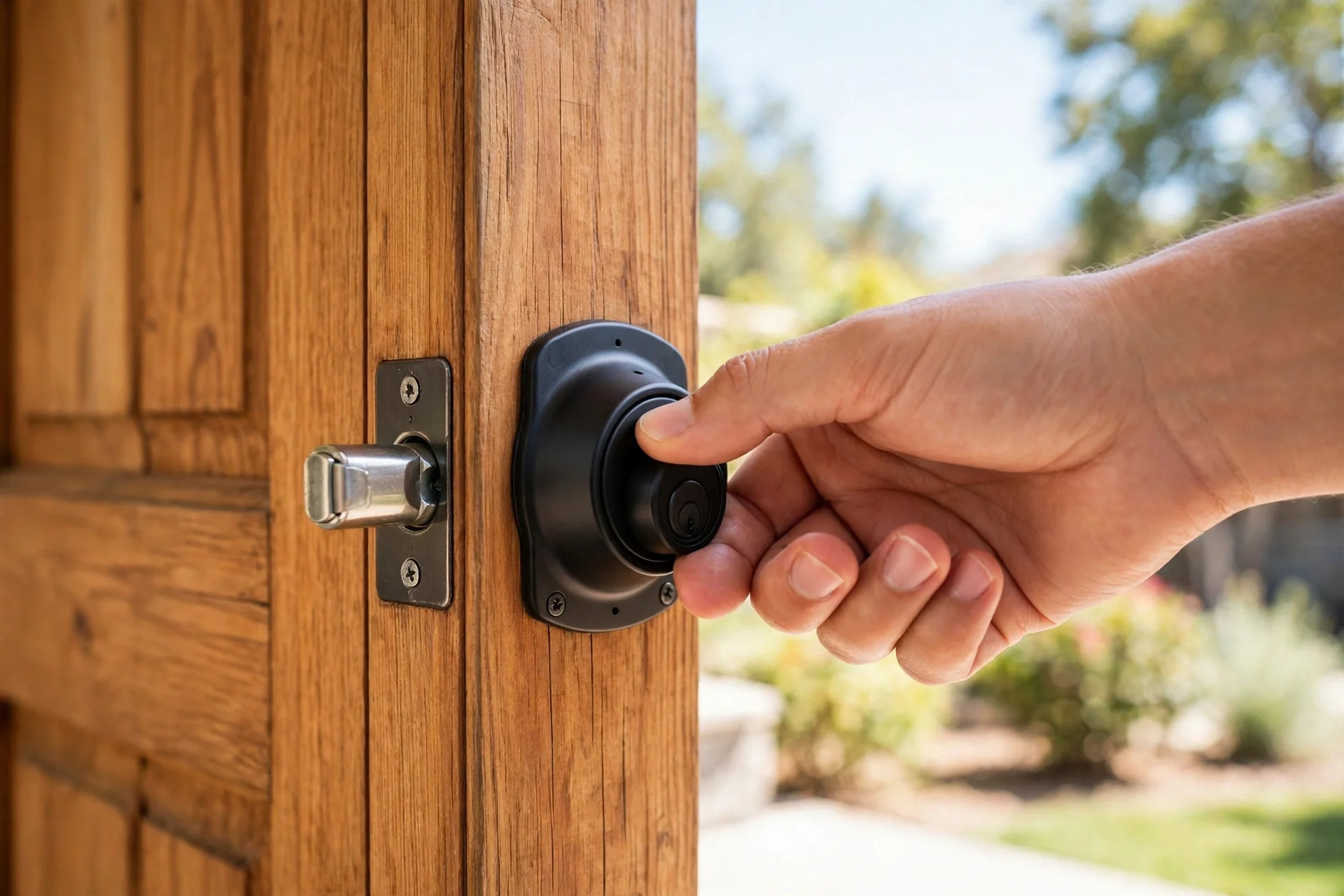
This is the top cause by a wide margin. If the deadbolt scrapes the strike plate even slightly, the motor feels unexpected resistance and aborts the learning cycle. The tricky part is that misalignment can be tiny. A gap of a millimeter is enough to confuse the position sensors on some locks.
Here is a quick diagnostic you can do right now. Close the door and throw the bolt by hand. Does it glide smoothly, or do you have to push or pull the door to get it through? If you need to lean on the door, your strike plate needs adjusting. Loosen its screws, shift it until the bolt enters cleanly, and retighten. Many “failed calibration” errors vanish the moment the bolt path is smooth.
2. Friction or Obstruction in the Bolt Path
Even a perfectly aligned lock fails calibration if something blocks the bolt. Check the strike box in the door frame for paint buildup, wood shavings, or debris. On older doors the latch bore may be too shallow for the bolt to fully extend, which reads as a jam to the lock.
Test with the door open. If the bolt extends fully and smoothly with the door open but struggles when closed, the problem is the frame side, not the lock. A light coat of silicone or graphite lubricant on the bolt helps with minor friction. Do not use heavy oils; they attract dust and make things worse over months.
3. Low or Wrong Batteries
Calibration is one of the most power-hungry things a smart lock does. The motor runs multiple full cycles while the radio stays active to talk to your phone. Weak batteries that handle normal locking fine can still die mid-calibration, and the lock reports the failure as a calibration error rather than a battery error.
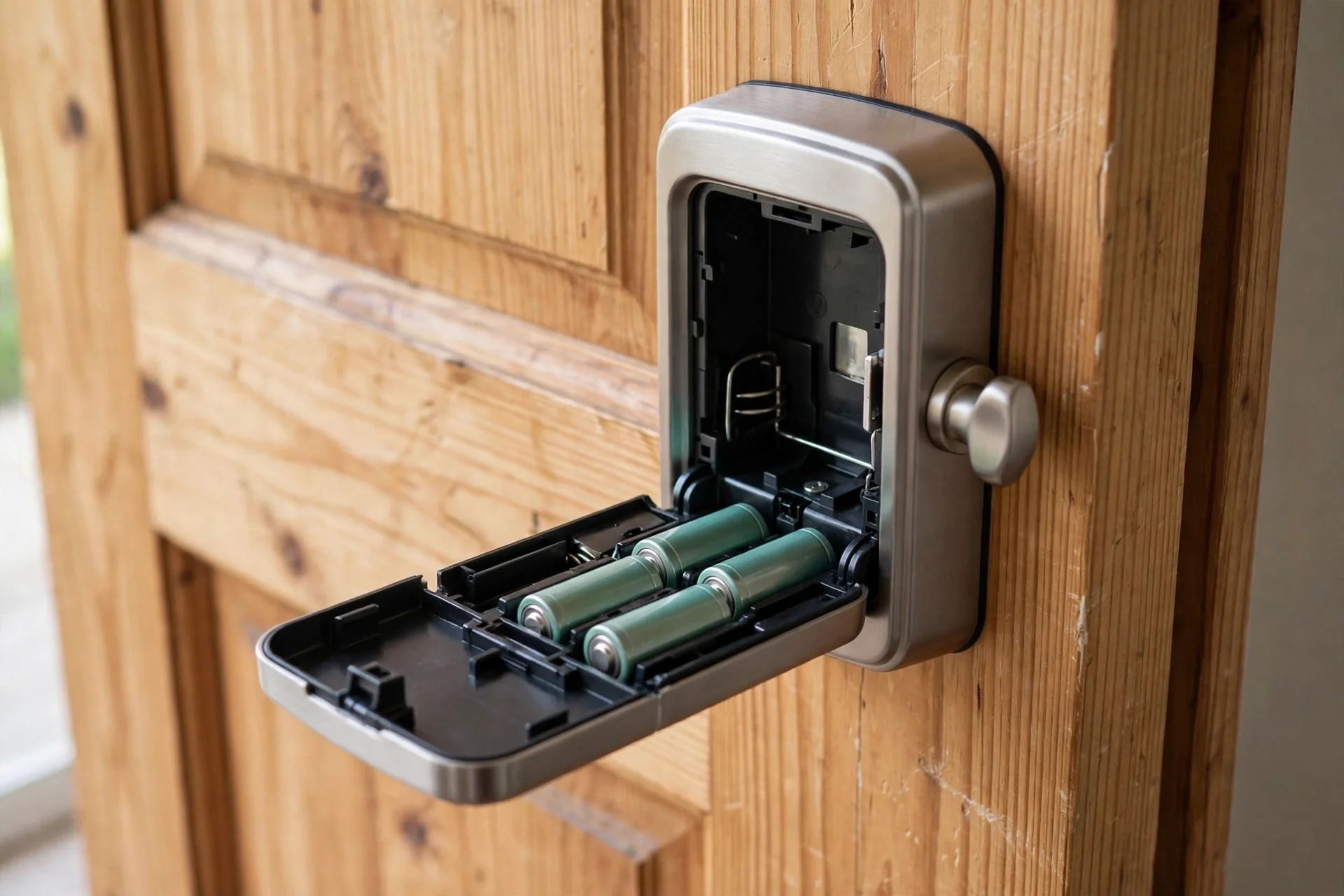
Put in fresh batteries before you retry, and use the right type. Disposable alkaline or lithium cells at full 1.5V are what these locks expect. Rechargeable NiMH cells output only 1.2V, which can trigger false low-battery behavior during the power-hungry calibration cycle. If your lock has been acting sluggish in other ways too, read our guide to smart lock battery drain before you go further.
4. Over-Tightened Screws and Warped Doors
Cranking the mounting screws down hard can twist the lock body just enough to bind the internal mechanism. The bolt then drags inside its own housing. If calibration started failing right after installation or after you remounted the lock, back the screws off a quarter turn and try again.
Doors themselves move. Temperature swings and humidity changes warp wood doors over seasons, and a door that calibrated perfectly in spring can bind by winter. If calibration worked before and fails now with no other changes, suspect the door, not the lock. Check the bolt path by hand first.
5. Calibration Ran in the Wrong Door Position
Some locks need the door closed during calibration. Others need it open at a wide angle so internal sensors can learn the open position. Wyze locks, for example, use a gyroscope to detect the door’s open position, and the door must swing to at least 90 degrees during setup. If you rush through the prompts or move the door when the app says not to, the lock learns garbage positions and fails.
The fix is simple but requires patience: start over and follow the on-screen prompts literally. Do not touch the door until the app tells you to. Keep your phone close to the lock during the process so Bluetooth does not drop mid-cycle.
6. Firmware or App Glitches
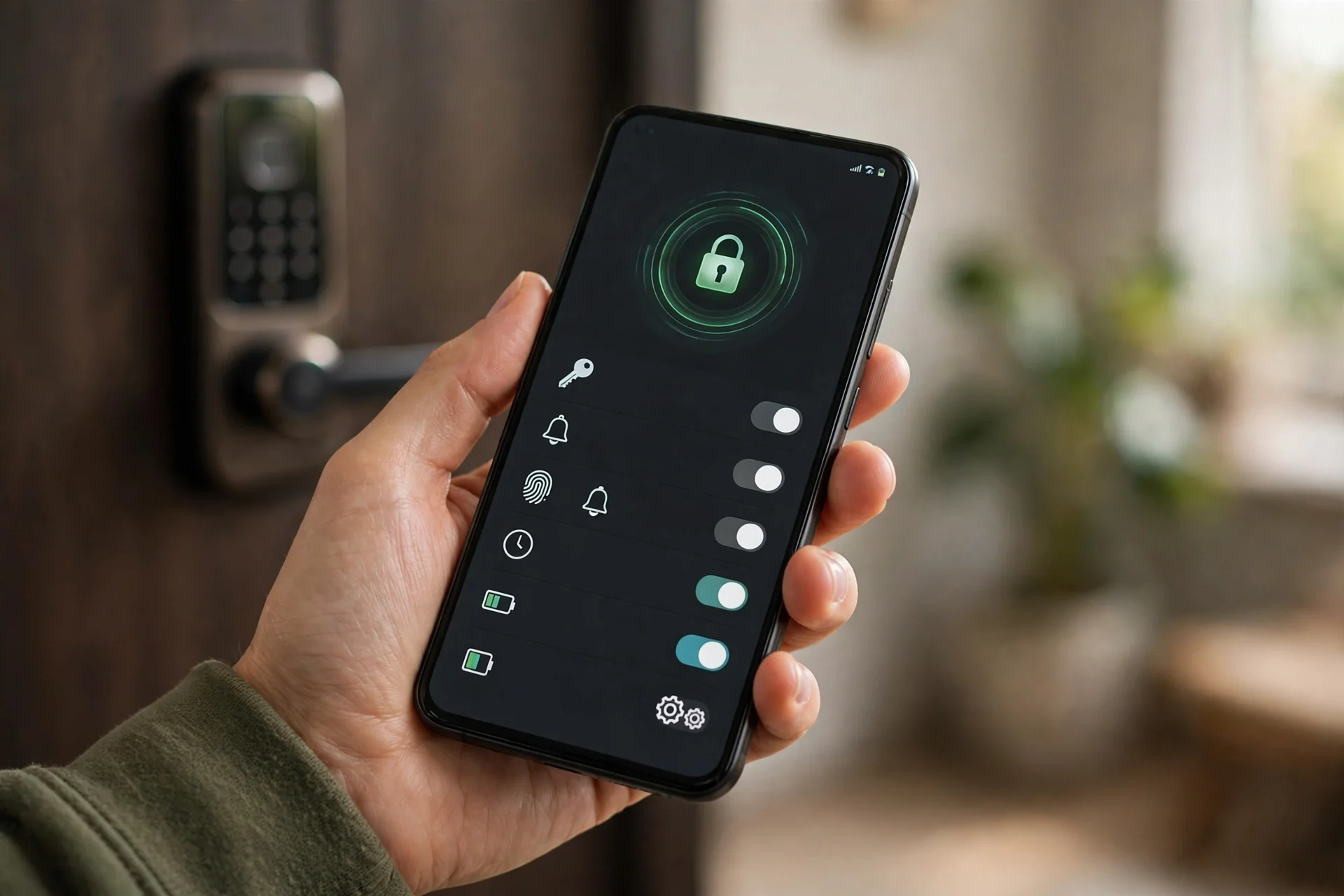
Sometimes the hardware is fine and the software is confused. A corrupted settings state after a failed update, or stale Bluetooth pairing data, can block calibration even on a perfectly installed lock. This is more common than people expect, especially right after a factory reset.
Update the lock’s firmware and your phone’s app to the latest versions, then power-cycle the lock by removing a battery for thirty seconds. If the app still misbehaves, log out and back in, or reinstall the app entirely. These steps clear the corrupted state that blocks the calibration routine.
How to Fix It: Step-by-Step
Follow these in order. Most people are fixed by step five and never need the rest.
- Put in fresh batteries. Use new disposable alkaline or lithium cells. Do not mix old and new.
- Test the bolt by hand. With the door closed, extend and retract the deadbolt manually. It must move smoothly with no scraping. Adjust the strike plate until it does.
- Clear the bolt path. Check the strike box for debris and paint. Make sure nothing blocks full extension.
- Loosen the mounting screws slightly. If they are cranked down hard, back them off a quarter turn so the lock body is not twisted.
- Update firmware and the app. Install every pending update for both the lock and the phone app.
- Power-cycle the lock. Remove one battery, wait thirty seconds, and reinstall it.
- Run calibration again. Open the app, find the calibration or lock settings option, and follow each prompt exactly. Keep the door in the position the instructions specify and do not touch it until told.
- Verify with several cycles. Lock and unlock three or four times from the app. Watch the bolt travel fully each time and confirm the app status matches reality.
If step seven fails again, note exactly when it fails. Does the bolt jam at the same point every time? That points to a physical obstruction. Does it fail at random points? That points to power or a failing motor. The pattern tells you where to look next.
Brand-Specific Calibration Notes
Every brand handles calibration a little differently. Here is what to know for the most common ones.
August. Open the August app, select your lock, and go to Lock Settings, then Calibrate Lock. Follow the on-screen prompts for the locked and unlocked positions. If your model uses DoorSense, keep the door closed during calibration when instructed. August locks are sensitive to weak batteries during this process, so fresh cells matter.
Yale. Many Yale deadbolts auto-detect bolt length and door handing on first power-up. You can usually re-run the handing process from the app or with a programming sequence at the keypad. If a Yale lock gets stuck on “finishing calibration,” a battery pull and retry usually clears it.
Schlage. Several Schlage smart deadbolts run a bolt travel test during installation. If you changed door hardware or the door shifted, check the manual for how to trigger that test again rather than guessing at settings.
Kwikset. Kwikset calls this process “handing.” It normally runs once when batteries are first installed. If handing failed, you can trigger it manually: open the interior cover, remove the battery pack, press and hold the program button, reinsert the pack, and release after three seconds. A green LED means success.
Wyze. The Wyze app walks you through calibration with voice prompts. Critical details: the door must be the right thickness (1 3/8 to 2 1/8 inches), the positioning plug must have been removed before mounting the interior assembly, and the door must open to at least 90 degrees during the gyroscope step. Miss any of these and calibration fails. Wyze publishes a dedicated troubleshooting guide for calibration failures worth reading if you own one.
Knowing the basics of how a smart lock maps its motor to your door helps here too, because calibration is really just the lock learning your specific deadbolt travel.
When Calibration Still Fails
If you have worked through every step and the error persists, the problem is likely hardware. A failing motor draws uneven current that the position sensors cannot interpret. Stripped internal gears slip, so the bolt never reaches the expected endpoint. In both cases the lock behaves exactly like a misalignment that you cannot fix by adjusting the strike plate.
Before you replace the lock, try one full factory reset and a from-scratch setup. This wipes any corrupted calibration data that a normal retry does not clear. If it still fails on a clean setup with fresh batteries and a smooth bolt path, the lock itself is the problem. Check your warranty. Most major brands cover electronic failures for at least a year, and some extend further.
A locksmith can help when the issue is the door rather than the lock: a badly warped door, a frame that has settled, or a bore drilled off-center. These are carpentry problems, and no amount of app troubleshooting fixes them. If you are replacing the lock entirely, our best front door smart lock picks cover models with the smoothest setup process.
How to Stop It Happening Again
Calibration is not a one-time event. Doors move, batteries weaken, and firmware updates occasionally reset learned positions. A little maintenance keeps you from seeing the error again.
Check the bolt path by hand twice a year, ideally in spring and fall when doors shift most. Replace batteries proactively rather than waiting for warnings. After any firmware update, run one manual lock cycle and confirm the app status is correct. And if you remount the lock for any reason, rerun calibration immediately instead of assuming the old map still fits. For locks that track door position with a separate sensor, our door and window sensor guide explains how those sensors can drift too.
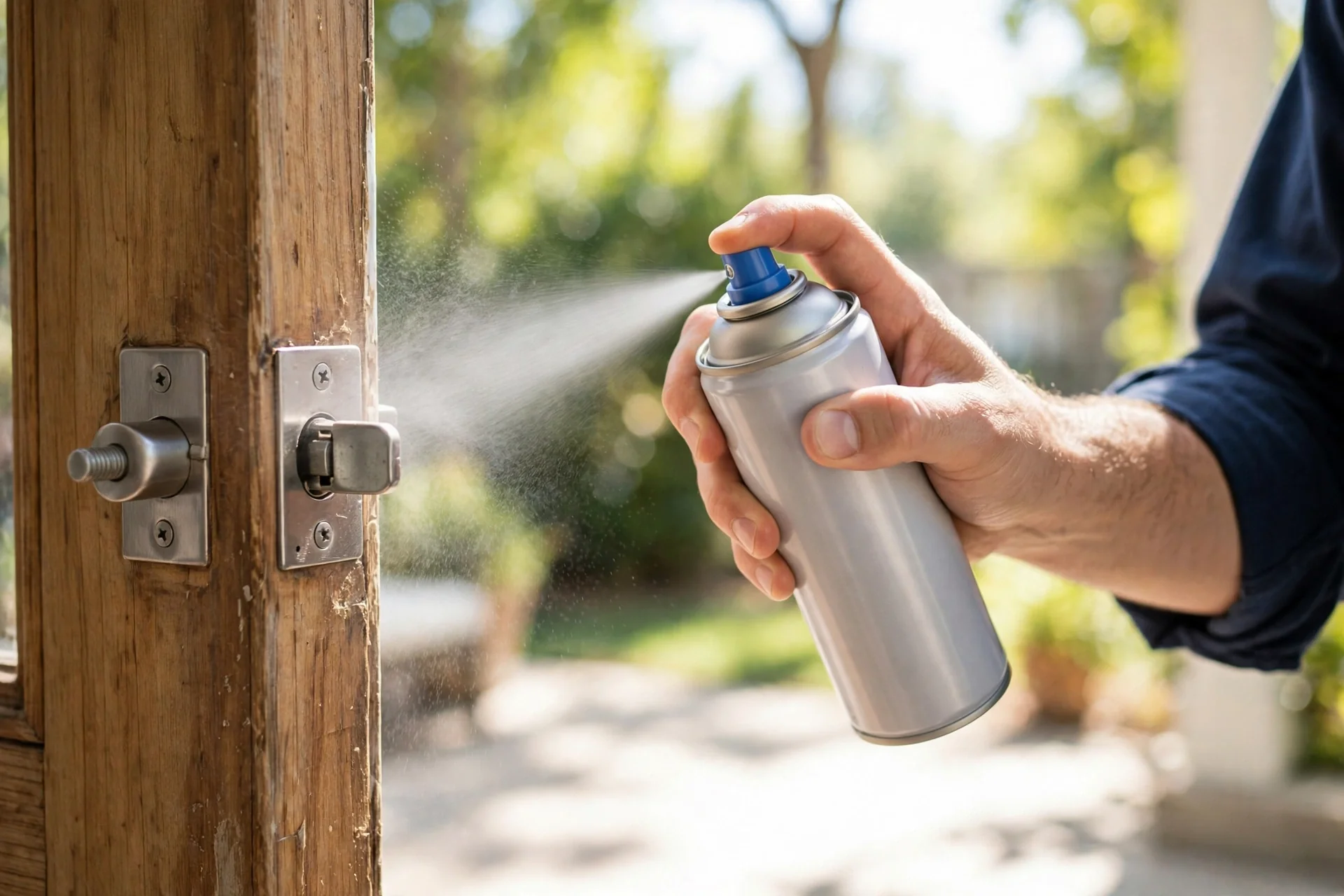
One more tip for renters and anyone with an older door: if your door needs seasonal strike plate tweaks, note the summer and winter positions with a pencil mark on the frame. Next year the adjustment takes thirty seconds.
Frequently Asked Questions
What does ‘smart lock calibration failed’ mean?
It means the lock could not complete its learning cycle to map the locked and unlocked positions of your deadbolt. The bolt likely jammed, the sensors disagreed, or the batteries died mid-process. The lock stops rather than guessing, because a wrong map could report your door as locked when it is not.
Can I use my smart lock without calibrating it?
Some locks allow basic manual operation, but smart features like auto-lock, correct locked/unlocked status, and remote commands depend on calibration. Running uncalibrated also risks the motor stalling against unexpected resistance, which drains batteries and wears the gears. Calibrate before relying on the lock.
Why does the smart lock calibration failed error appear when the door looks fine?
Tiny misalignments invisible to the eye are enough. A bolt that scrapes the strike plate by a millimeter creates resistance the motor cannot overcome during the sensitive learning cycle. Test by throwing the bolt by hand with the door closed. Any drag you feel, the lock feels worse.
Does changing batteries trigger smart lock calibration failed?
Usually not. Battery swaps do not erase calibration data on most locks. But if the lock behaved oddly on dying batteries, or if you removed the lock from the door during the swap, run calibration again to be safe. It takes two minutes and prevents silent status errors.
How often should I recalibrate my smart lock?
Recalibrate after any physical change: remounting the lock, adjusting the strike plate, replacing the deadbolt, or after a factory reset. Otherwise, a quick manual bolt-path check twice a year is enough. Recalibrate immediately if the app status ever disagrees with the actual bolt position.
Will a factory reset fix calibration failure?
It can, when the cause is corrupted settings or stale pairing data rather than a physical problem. A reset wipes the old calibration map and forces a clean learning cycle. But if the real issue is misalignment or weak batteries, the reset changes nothing. Fix the physical causes first, then reset as a last resort.
The Bottom Line
A “smart lock calibration failed” message looks scary but usually points at something simple: a scraping strike plate, a blocked bolt path, or tired batteries. Test the bolt by hand, clear and align the path, put in fresh cells, and follow the app prompts patiently. That fixes the large majority of cases. If it still fails after all that, you are likely looking at a hardware fault, and it is time to use the warranty. Either way, do not ignore the error. A lock with a bad position map is a lock you cannot trust.