
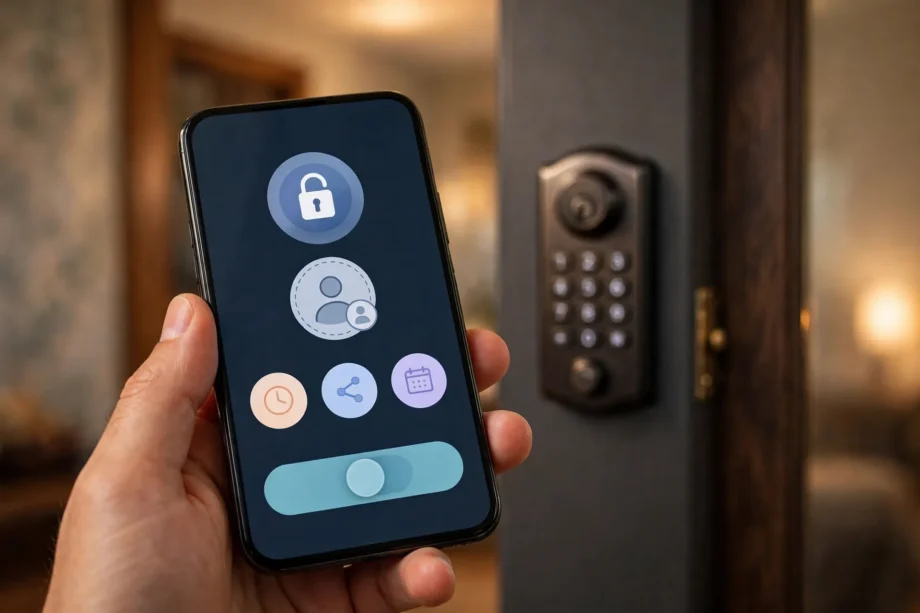
Adding a guest code takes about two minutes in your lock’s app. Open the app, pick your lock, create a named user code, and set it to expire on a schedule. If you want to know how to add guest code to smart lock temporary access on Schlage, Yale, Kwikset, or Ultraloq, the steps are nearly identical across brands. This tutorial walks through each one, plus the code types to use and the security rules that matter.
- The four types of guest codes
- How to add guest code to smart lock temporary access in the Schlage app
- Adding a guest code in the Yale Access app
- Adding a guest code in the Kwikset app
- Adding a guest code on Ultraloq
- Adding a code without the app at all
- Name your codes like you will forget them
- Guest code security rules that actually matter
- When a guest code does not work
- Frequently asked questions
- How to add guest code to smart lock temporary access remotely while away?
- How many guest codes can a smart lock hold?
- Do temporary codes work if the Wi-Fi goes down?
- Can a guest change or delete my codes?
- What happens if two guests get the same code by accident?
- How to add guest code to smart lock temporary access for a long stay: permanent or temporary?
- Conclusion
The four types of guest codes
Before you create anything, pick the right code type. Most smart lock apps offer the same four options, just with slightly different names. Using the right one means you never have to remember to delete a code later.
A one-time code works exactly once and then dies. Hand it to a delivery driver or a neighbor grabbing your mail. A temporary code works during a fixed window, like Friday 2 PM to Sunday 11 AM, which is perfect for weekend guests and Airbnb stays. A recurring code works on a repeating schedule, such as weekdays 9 AM to 5 PM for a housekeeper. A permanent user code works until you delete it, and belongs to household members only.
Table 1: Guest code types and when to use each one
| Code type | How long it works | Best for | Remember to delete it? |
|---|---|---|---|
| One-time | A single unlock | Deliveries, one-off visits | No, it expires itself |
| Temporary | A fixed start and end date | Weekend guests, vacation stays | No, it expires itself |
| Recurring | Repeating days and hours | Cleaners, dog walkers, nannies | Only when the arrangement ends |
| Permanent | Until deleted | Family and housemates | Yes, delete when they move out |
How to add guest code to smart lock temporary access in the Schlage app
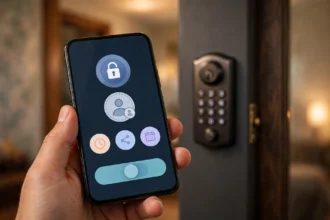
Open the Schlage Home app and select your lock. If the lock belongs to a home profile, tap the home name first. Then tap the three dots next to the lock name and choose Manage Access. This is the single screen where all code creation happens.
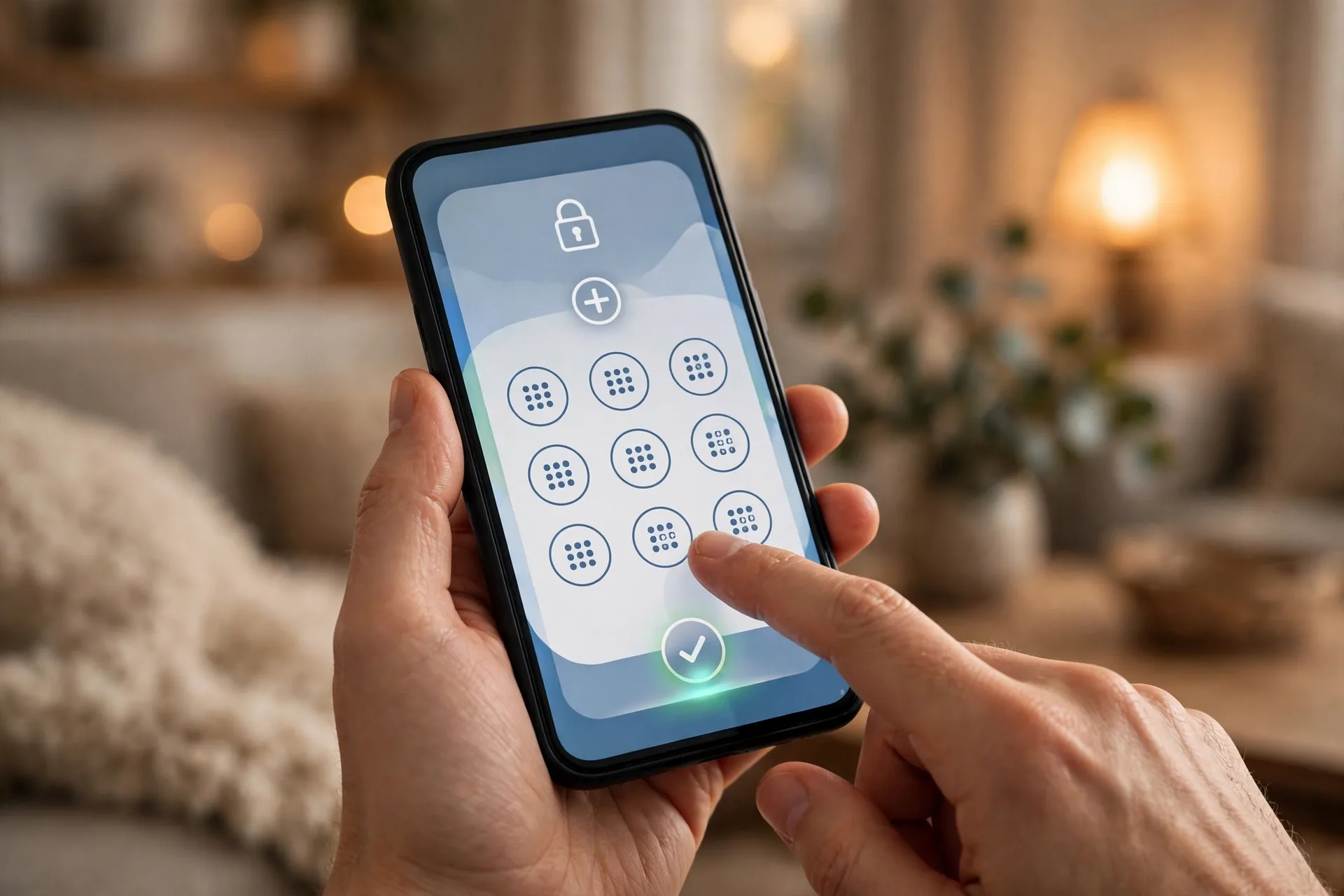
Tap the plus icon in the top right corner. Enter an access code name that tells you who this is for, like “Cleaner Maria” or “Weekend Guest.” Type the access code itself, four to eight digits. Avoid birthdays and sequences. Then set the schedule: Always means the code works until you remove it, Recurring means specific days and times, and Temporary means a fixed date range. For a guest, choose Temporary and enter the start and end.
Decide whether you want a notification each time the code is used, then press Save in the top right. The code syncs to the lock within seconds. Test it at the keypad before the guest arrives. Schlage’s official documentation covers the same flow in their guide to scheduling codes in the Schlage Home app.
Adding a guest code in the Yale Access app
Yale splits guest access into two flavors, and the choice matters. Open the Yale Access app, select your lock, and go to the Guest List screen. Tap the Invite icon. You can invite someone with App Access, which asks them to install the Yale app, or Entry Code Only, which just texts them a code. For guests, Entry Code Only is almost always the right call. Nobody wants to install an app for a weekend visit.
Enter the guest’s first and last name. Set the access level to Guest, then set the PIN access schedule to Always, Temporary, or Recurring. For temporary access, pick Temporary and set the dates. Create a unique entry code for the guest and save it. The app then offers to text the code directly to the guest’s phone number.
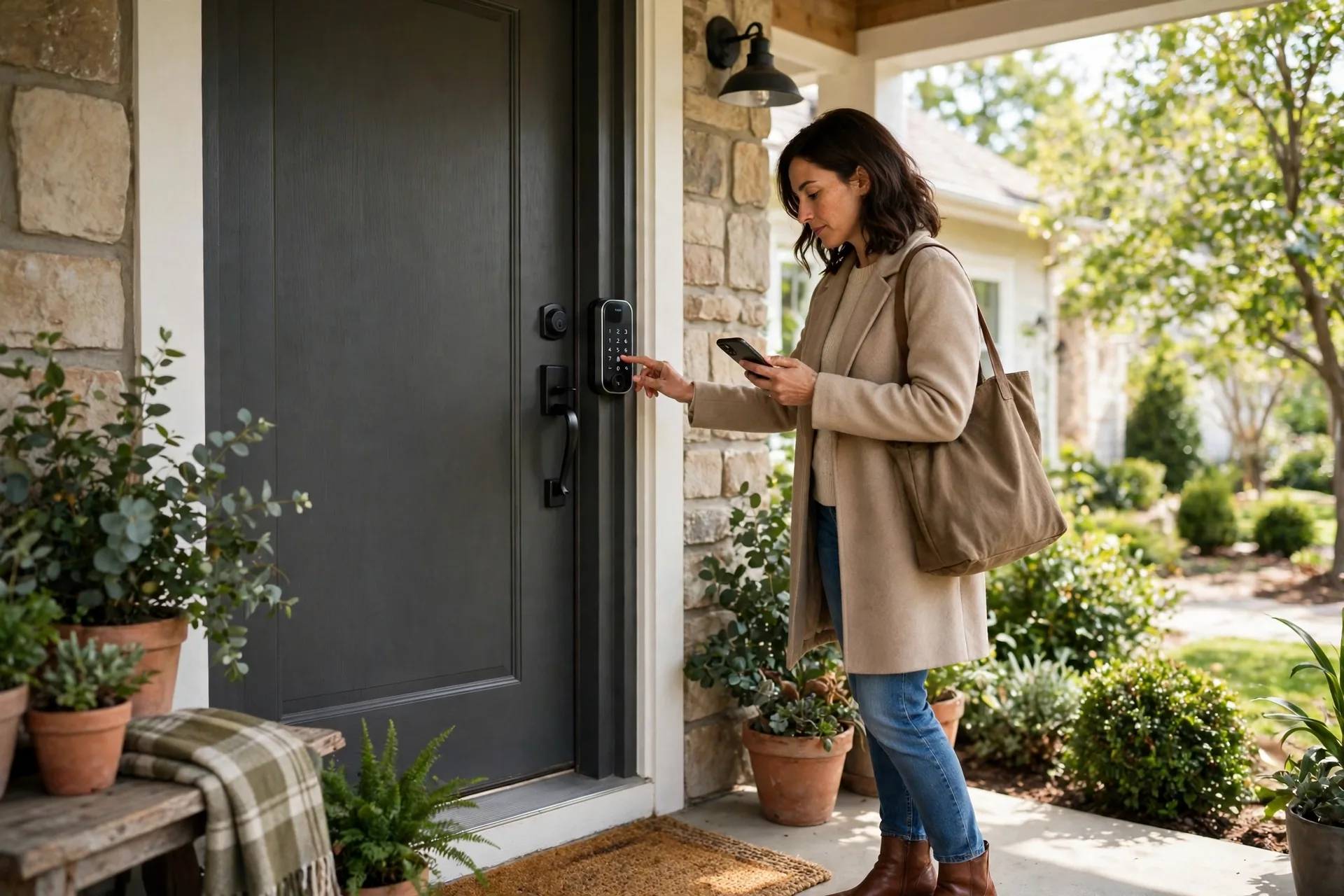
One Yale detail worth knowing: the schedule options apply per guest, not per code. If the same cleaner comes every Tuesday, set Recurring once and the code follows that rhythm until you change it. The activity feed in the app shows exactly when each guest code was used, which is useful for confirming a cleaner actually showed up.
Adding a guest code in the Kwikset app
Open the Kwikset app and select your lock. Navigate to the Users section. Choose to add a new user, then follow the prompts: enter a name for the code, type a four to eight digit code, and set an access schedule if you want one. Save, and the code is live.
Kwikset keeps the flow deliberately short. The trade-off is fewer schedule options than Schlage or Yale on some models, so check your specific lock’s app screen. If you only see basic user codes without scheduling, your lock may need a firmware update or may simply not support time-based codes. In that case, create a plain user code for the guest and set a phone reminder to delete it on the end date.
Adding a guest code on Ultraloq
In the U Home app, go to your lock, open the user list, and add a new user. You can give them a code, a fingerprint, or both. For guests, choose the Temporary User role and set the scheduled time window. Temporary users can only unlock during their window, which makes this the closest thing to a self-deleting code.
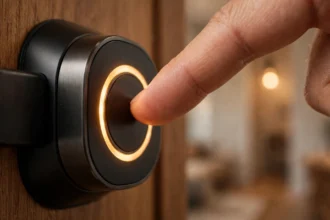
No app handy? Ultraloq locks also work in standalone mode from the keypad. Hold the ULTRALOQ button for three seconds, enter your admin code, and follow the voice prompts to add a user code. Standalone codes do not get schedules, so write down the date and delete them manually afterward.
Adding a code without the app at all
Every keypad lock can add codes directly on the keypad, which is handy when your phone is dead or the Wi-Fi is down. The pattern is the same everywhere: wake the keypad, enter the master or programming code to open the programming menu, choose the add-user option, type the new code, and confirm.
On Schlage keypads, enter the six-digit programming code, wait for the orange lights, press the Schlage button, press 1, enter the new four to eight digit code, and wait for the double beep. On Kwikset SmartCode models, press the Program button once, enter the new code, and press the checkmark. These keypad-created codes are permanent until deleted, so they suit household members better than guests. For true temporary access, use the app.
Name your codes like you will forget them
This is the small habit that separates organized households from chaos. Name every code after the person and the purpose: “Maria cleaner Tue,” “Guest room weekend,” “Plumber Jan 24.” When you scroll the user list six months later, you will know exactly what each code is and whether it should still exist.
Once a month, spend two minutes auditing the list. Delete every temporary code whose window has passed and every recurring code for an arrangement that ended. Most apps show the last time each code was used, so a code with no activity in three months is a code you can safely remove. This is also the moment to notice codes you do not recognize, which should never happen but occasionally does on shared household accounts.
Never reuse a deleted guest’s code for the next guest. It costs nothing to create a fresh code, and reusing codes means the old guest’s code might still work if you mistyped the deletion. Fresh codes also give you a clean activity log per guest, which matters for rentals. If you are choosing a lock partly for its guest code features, our best front door smart locks roundup compares which models handle this best.
Guest code security rules that actually matter
Rule one: never give anyone your master code. The master code opens the programming menu, which means anyone holding it can add their own permanent code and you would never know. Create a user code for every guest, every time. The master code stays with you.
Rule two: one code per person. Shared codes destroy your activity log because the lock cannot tell who used it. When the cleaner quits, you want to delete exactly one code, not change the code everyone shares.
Rule three: prefer expiring codes over codes you must remember to delete. Human memory is the weakest link in access control. A temporary code with an end date cannot be forgotten into a security hole. For a deeper look at what wiping codes does and does not do, see how a factory reset handles your door lock codes.
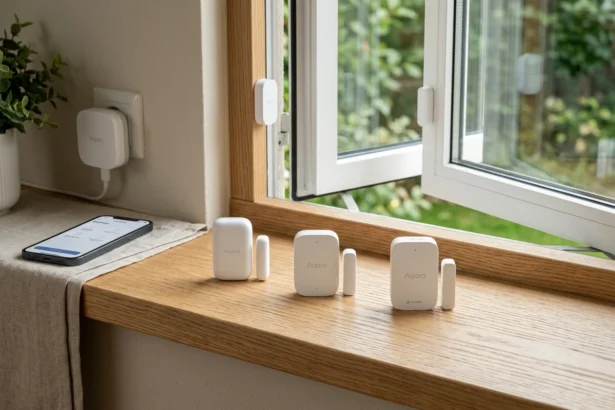
Rule four: tell guests how entry works before they arrive. Send the code, the check-in time it activates, and one backup method, like the 9V battery trick or a lockbox key. Guests who know the plan do not call you at midnight. Pairing code access with an alarm contact sensor on the door also lets you confirm the door closed properly after each guest.
When a guest code does not work
It happens: the guest is at the door and the code fails. Work through this order. First, check the schedule. Temporary codes only work inside their window, and a code set for Friday will not open the door on Thursday night. Time zone mistakes are the classic cause, especially when the host sets the code from a different time zone than the property.
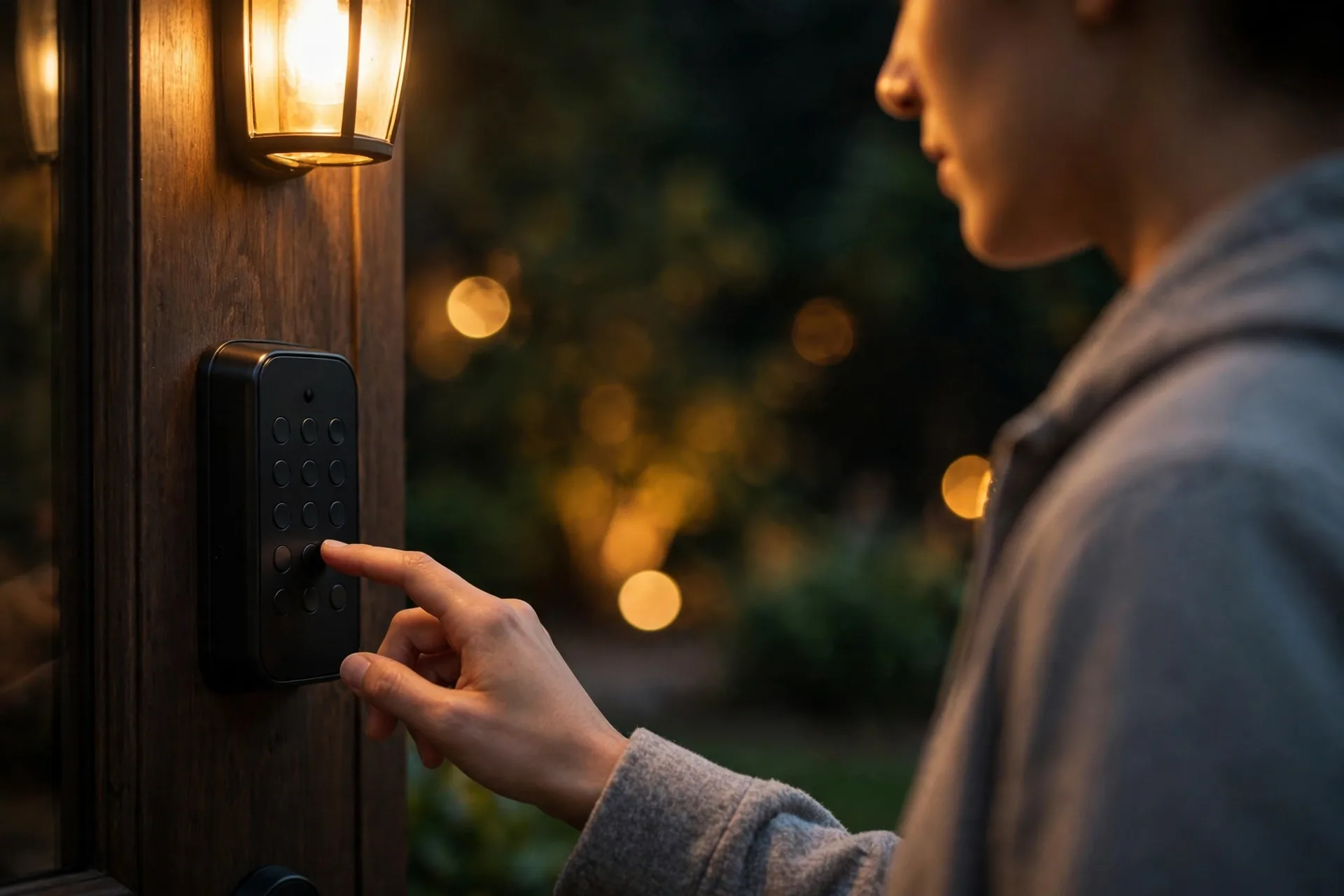
Second, confirm the code was typed correctly and the keypad did not time out between digits. Most keypads give you only a few seconds between presses. Third, check that the app actually synced. Open the app and look at the user list. If the code shows as pending or the lock shows offline, the code never reached the lock. Stand closer to the lock with Bluetooth on, or check that the lock’s Wi-Fi is connected.
If everything looks right and it still fails, delete the code and create a fresh one with a slightly different number. Corrupted code entries are rare but real, and a fresh code takes thirty seconds. Keep your own permanent code secret through all of this. Never read your master code aloud to a guest over the phone to “help troubleshoot.”
Frequently asked questions
How to add guest code to smart lock temporary access remotely while away?
Yes, if your lock has Wi-Fi. Open the app from anywhere, create the code with a temporary schedule, and text it to your guest. The code syncs to the lock over the internet within seconds. Bluetooth-only locks need you within range, so Wi-Fi models are the practical choice for remote hosting.
How many guest codes can a smart lock hold?
It depends on the model. Yale Assure Lock 2 holds up to 250 codes, Schlage Encode holds up to 100, and ULTRALOQ Bolt SE holds 50. For a family home, any of these is plenty. For a busy rental, higher capacity means you can keep a code history instead of reusing slots.
Do temporary codes work if the Wi-Fi goes down?
Yes. Once a scheduled code is stored on the lock, the lock enforces the schedule locally with its own clock. Wi-Fi outages do not affect codes that are already programmed. You only need the connection to create, change, or delete codes remotely.
Can a guest change or delete my codes?
No. Guest codes only unlock the door. The programming menu requires the master code, which guests never see. As long as you keep the master code private and the lock’s interior assembly secure, guests cannot touch your code list.
What happens if two guests get the same code by accident?
Nothing dangerous, but your activity log becomes useless because the lock cannot tell them apart. Delete the duplicate and create a fresh unique code for each guest. Most apps warn you if you try to reuse an existing code, which is a good reason to create codes in the app rather than on the keypad.
How to add guest code to smart lock temporary access for a long stay: permanent or temporary?
Use a temporary code with an end date matching checkout, even for month-long stays. A permanent code for a guest is a code you must remember to delete, and long stays are exactly the ones people forget. Set the end date a few hours after checkout to cover late departures.
Conclusion
Adding a guest code is a two-minute job in any major lock app: pick the lock, create a named user code, and set a Temporary or Recurring schedule so it expires on its own. The real skill is the habit around it. One code per person, expiring schedules instead of memory, and a monthly two-minute audit. Do that and your lock manages guest access itself. If you want to understand the full picture of what these locks can do, read how smart front door locks work and what to buy.