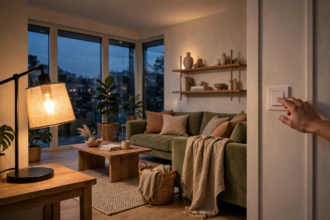


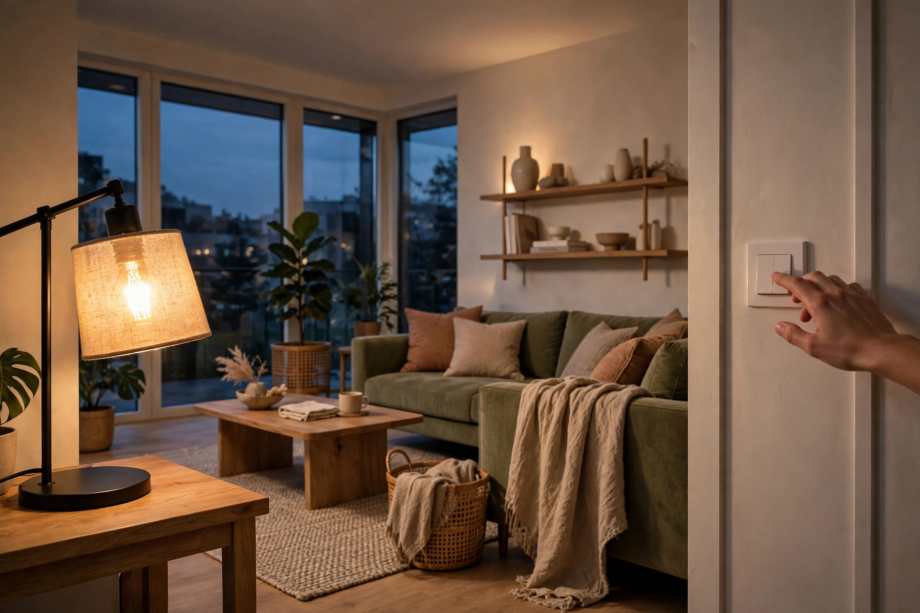
Leaving light switch on with smart bulb setups is the right way to run them. The wall switch must stay on, or the bulb loses power and every smart feature dies. You turn the light itself off in the app or by voice. Here’s what happens when the switch gets flipped, what it costs, and how to stop it.
- Why Leaving Light Switch On With Smart Bulb Setups Is Required
- What Happens When Someone Flips the Switch Off
- “Off” in the App Still Uses a Little Power
- What Always-On Standby Actually Costs You
- Four Fixes That Keep the Switch On
- 1. Switch guards and covers
- 2. A smart dimmer made for smart bulbs
- 3. Smart switches with a smart-bulb mode
- 4. Wire the switch always-on
- Check the Power-On Behavior Setting
- Never Pair a Smart Bulb With an Old Dimmer
- Quick Checklist Before You Finish
- FAQs
- Do I have to leave the light switch on for a smart bulb?
- What happens if I turn off the switch by accident?
- Do smart bulbs waste electricity when they are off?
- Can I still use the wall switch with a smart bulb?
- Will leaving the switch on damage the bulb?
- Should I buy a smart switch instead of smart bulbs?
- Do smart bulbs work with dimmer switches?
- The Bottom Line
Why Leaving Light Switch On With Smart Bulb Setups Is Required
Think of a smart bulb as a tiny computer with a radio inside. In fact, the wall switch is its power plug. Cut the power and the computer dies. As a result, you get no app control, no voice commands, and no schedules. Nothing. The bulb becomes a very expensive regular bulb that cannot even turn itself on.
This catches almost everyone. You’ve used light switches your whole life. Flip up, light on. Flip down, light off. Smart bulbs break that habit because they need power even when the light looks off. When you tap off in the app, for instance, the LEDs stop glowing but the bulb’s radio keeps listening for your next command.
Manufacturers are clear about this. A smart bulb only stays smart while power reaches it. Flip the switch off, and the bulb drops off your network within seconds. That won’t damage the bulb, however. Power cycling a smart LED is harmless. Yet while it has no power, it’s just glass and metal.
The setup itself is the easy part. If you have not paired your first bulb yet, this smart bulb setup guide for Google Home walks you through the whole install in minutes. First, get the bulb paired. Then the only rule is simple: leave the wall switch alone.
What Happens When Someone Flips the Switch Off
First, the bulb vanishes from your app. Most apps, for example, mark it unreachable or offline. Voice assistants will tell you the light is not responding. Your schedules stop too. In other words, a sunset routine or a wake-up fade cannot run if the bulb has no power.
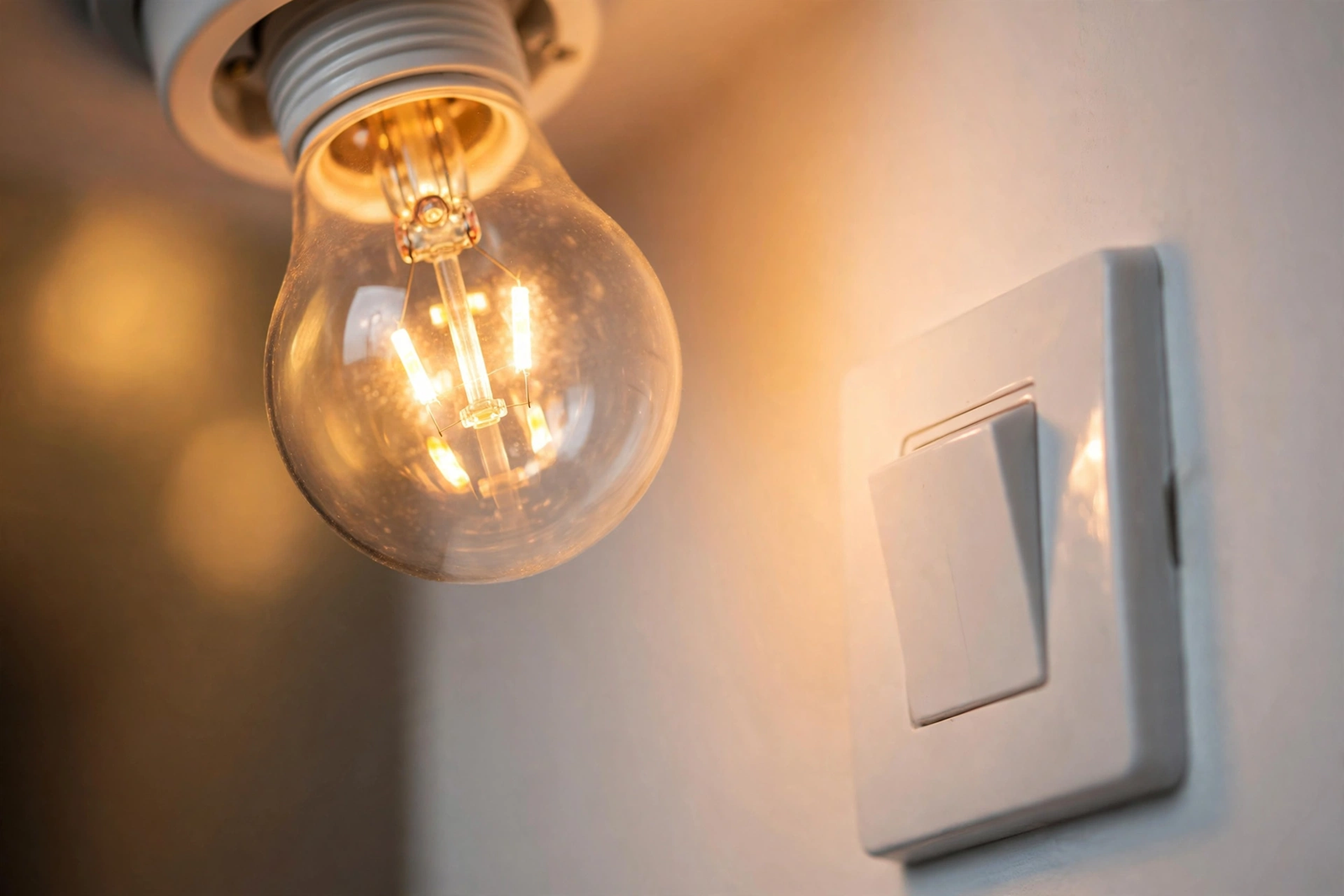
Flip the switch back on and the bulb boots up like a tiny computer restarting. Next, most Wi-Fi bulbs reconnect within 30 seconds. Zigbee bulbs rejoin their mesh network instead, which can take a full minute. During that gap, your app shows the bulb as offline even though power is back.
Here’s the mistake I see most often. Someone sets the bulb’s power-on behavior to restore its last state. Then the light is off in the app when a guest flips the switch. Later the switch gets flipped back on, and the room stays dark. As a result, everyone assumes the bulb is broken. It isn’t. The bulb faithfully restored its last state, which was off. Indeed, a two-minute settings check would have prevented the whole drama.
Frequent power cycling does one more annoying thing. Specifically, some bulbs enter pairing mode after several quick on-off cycles. Flip the switch a few times in a row, and the bulb may reset itself and drop from your network. Finally, you have to set it up again from scratch.
“Off” in the App Still Uses a Little Power
Ready for the part people dislike? A smart bulb that is off in the app is not fully off. Instead, its radio stays awake, listening for commands. That listening costs electricity. Engineers call this standby power, and regular folks call it vampire draw.
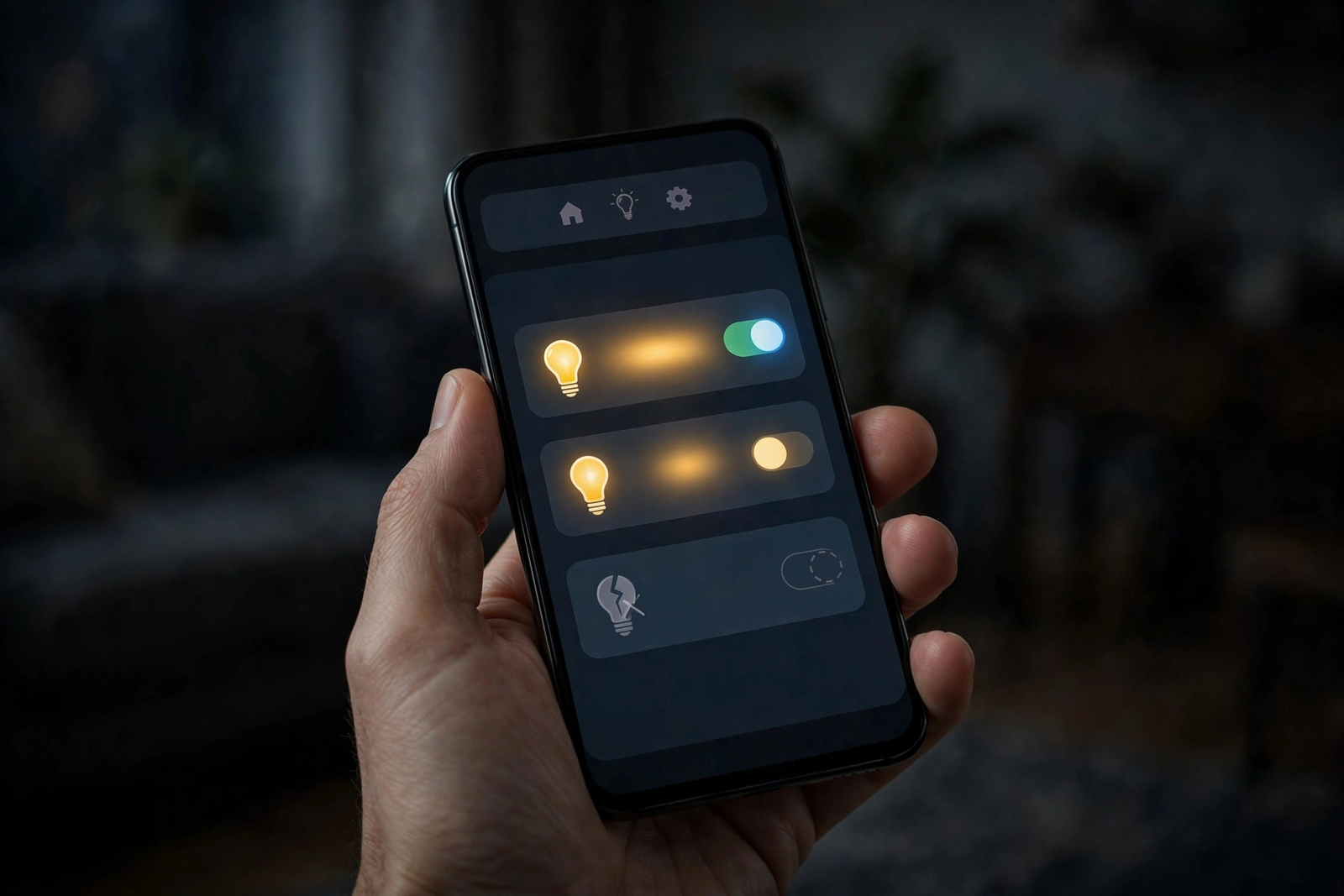
The numbers are small. Philips Hue states most of its modern bulbs draw under 0.5 watts in standby. Meanwhile, independent testing of LIFX bulbs measured around 0.3 watts. TP-Link’s Tapo bulbs advertise about 0.2 watts. Sengled says its motion-sensing bulb uses under 0.2 watts while waiting.
Regulators have noticed too. The EU caps smart lighting standby at 0.5 watts, and California sets the limit at 0.2 watts. Sengled’s own support page confirms its sensor bulb stays under that 0.2-watt limit while it waits for motion. These limits exist because millions of always-on bulbs add up across a country.
Yes, the bulb sips power all day long. But the sip is tiny. What does it actually cost you? The next section answers exactly that.
What Always-On Standby Actually Costs You
Let us do the math on one bulb. First, take 0.3 watts of standby draw, the figure measured for a LIFX bulb. Multiply that by 24 hours and 365 days. That gives 2,628 watt-hours, or about 2.6 kilowatt-hours per year. At 15 cents per kilowatt-hour, in other words, that’s roughly 39 cents a year. Per bulb.
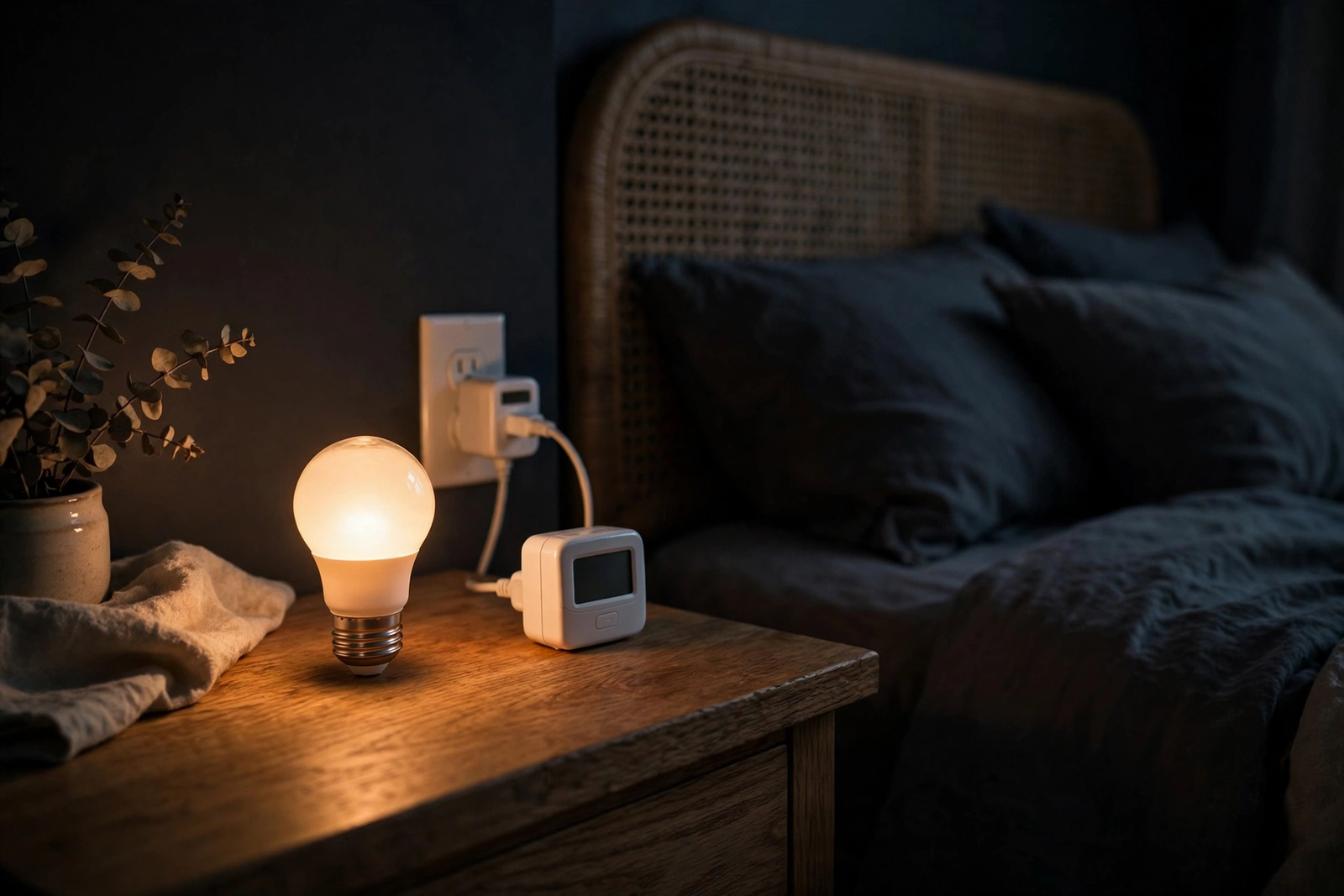
Independent coverage of smart-bulb energy use puts the yearly standby cost between about 35 cents and $1.30 per bulb, depending on your electricity rate. For example, ten smart bulbs running around the clock cost somewhere between $4 and $13 a year. That’s less than a pizza.
Schedules can even save you money in return. A bulb that turns itself off at midnight and on at sunset, for instance, wastes fewer lit hours than a dumb bulb you forgot about. In fact, the tiny standby cost is usually offset by lights that never stay on all night by accident.
Table: standby power and yearly cost by common bulb type
| Bulb type | Standby draw | Energy per year | Cost per year at $0.15/kWh |
|---|---|---|---|
| A popular Wi-Fi color bulb | ~0.3 W | ~2.6 kWh | ~$0.39 |
| A Zigbee bulb (Hue style) | ~0.4 W | ~3.5 kWh | ~$0.53 |
| A budget smart bulb | ~0.5 W | ~4.4 kWh | ~$0.66 |
These are estimates built from published standby figures, not lab measurements of your exact bulb. Your rate and your bulb will shift the numbers a little. Yet the point stands: keeping the switch on costs almost nothing.
Four Fixes That Keep the Switch On
Knowing the rule is one thing. Getting guests, kids, and your own muscle memory to follow it is another. Finally, here are the four fixes that actually work, from the cheapest to the most permanent.
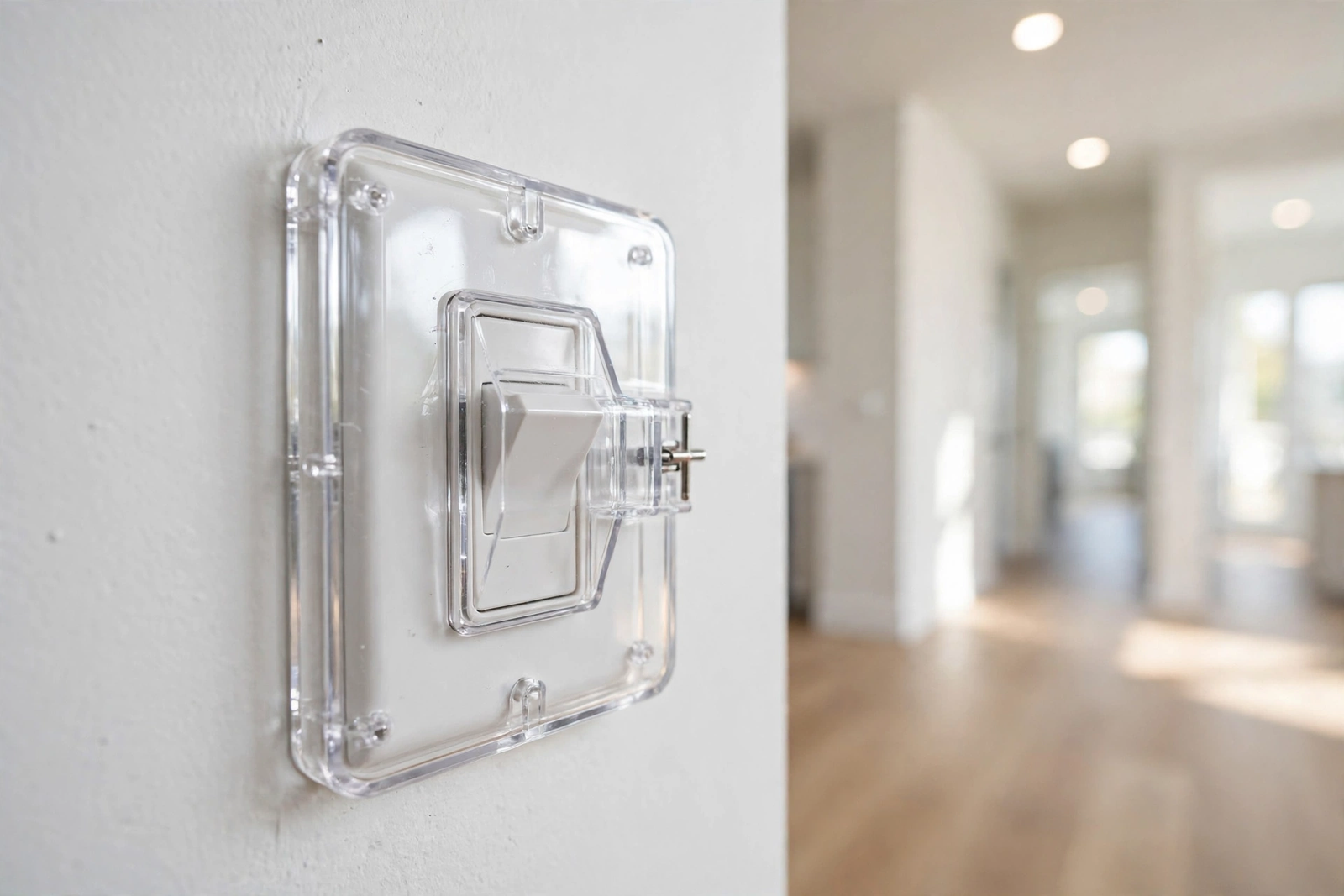
1. Switch guards and covers
A switch guard is a small plastic cover that sits over your existing toggle switch and locks it in the on position. It costs a few dollars and installs in a minute. Nobody can flip the switch by accident, yet you can lift the guard in a real emergency.
The downside is looks. A plastic cover on every switch will not win design awards. It also will not stop a determined toddler. Still, for a rental or a quick fix, guards are the fastest answer you can buy.
2. A smart dimmer made for smart bulbs
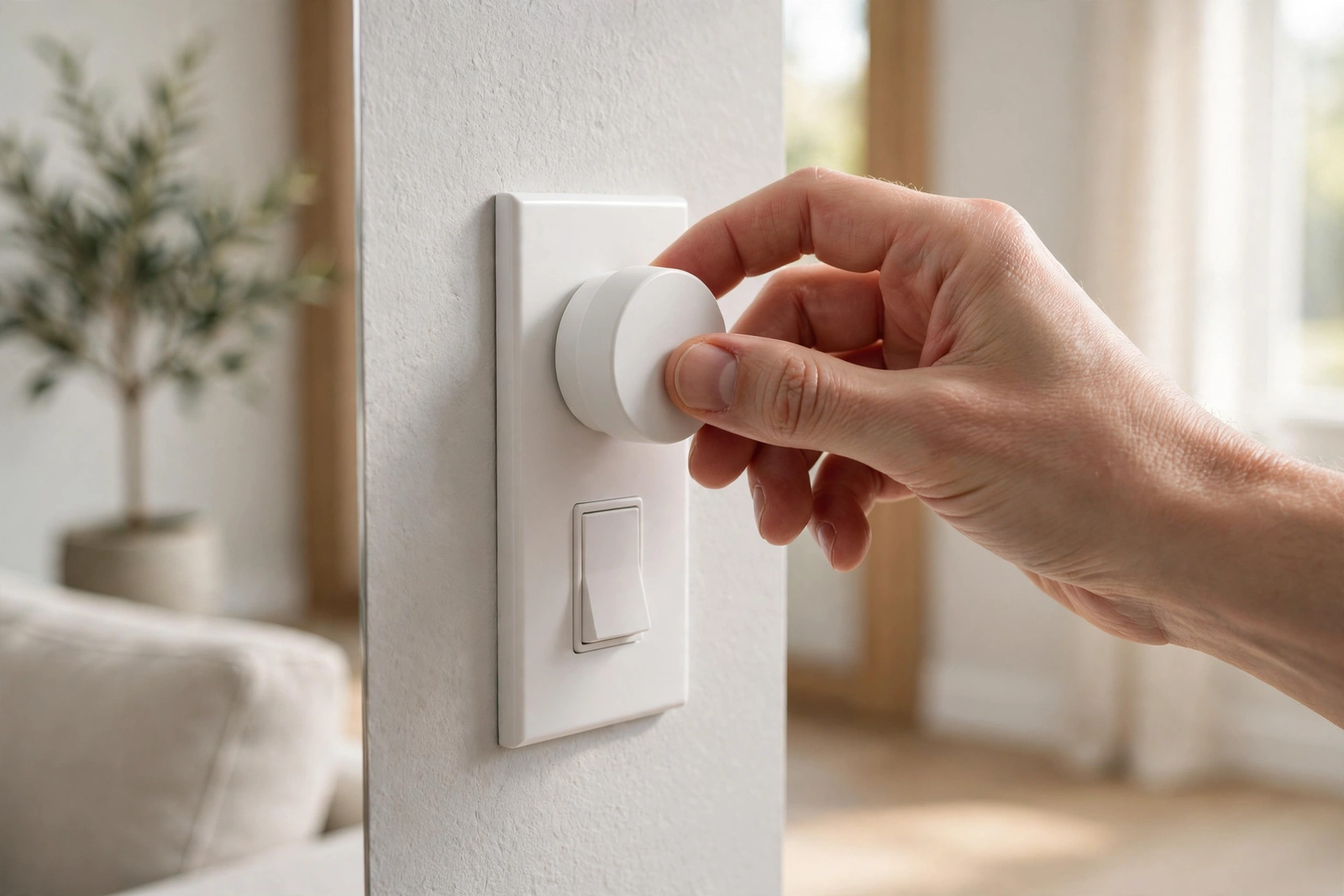
The Lutron Aurora is the classic example for Philips Hue. A mounting bracket locks your toggle switch in the on position, and a wireless knob snaps over it. Press the knob to turn lights on or off, and rotate it to dim. Since the switch never cuts power, the bulbs stay smart the whole time.
Hue’s own dimmer switch works in a similar way. It is a wireless remote that can sit in a wall plate where your old switch was. Anyone walking into the room gets a familiar switch to press. Meanwhile, the bulb keeps its power without interruption.
3. Smart switches with a smart-bulb mode
Some wired smart switches have a dedicated smart-bulb mode. The switch stays powered and connected, but pressing it sends a wireless command to the bulb instead of cutting the circuit. You get a real wall-switch feel with zero power interruption.
This is also the cleanest path if you control lights by voice. Pick a switch that works with your platform of choice. If you are on Apple’s side, start by learning what Apple Home is and how its automations handle lights, then buy switches and bulbs that speak the same language.
4. Wire the switch always-on
The permanent fix is electrical. An electrician connects the two wires in the switch box so the circuit stays live, then covers the box with a blank plate or a wireless remote. The bulb gets uninterrupted power forever, and there’s no switch left to flip.
Don’t do this yourself unless you know your way around a breaker panel. It’s a small job for an electrician and usually takes under half an hour. In a rental, skip this one and stick with a guard.
Check the Power-On Behavior Setting
Every major smart bulb app has a setting that decides what the bulb does when power returns after an outage. Specifically, the options are usually three: turn on, stay off, or restore the last state.
After a storm or a tripped breaker, the wrong choice gets weird fast. For example, bulbs set to turn on will blast at full brightness at 3 a.m. Bulbs set to last state may stay dark when power returns if they were off at the time. Therefore, pick what suits each room. Bedrooms usually want stay off or last state. Hallways usually want turn on.
The exact menu differs by brand, so look in your light’s settings for “power-on behavior” or “power loss recovery.” And if you are still choosing bulbs, check platform support before you buy. For one popular brand, here is whether Govee works with Apple Home so you know what you are getting into.
Never Pair a Smart Bulb With an Old Dimmer
Old-school dimmer switches chop up the electricity to dim a bulb. Smart bulbs, however, need clean, full power and do their own dimming internally. The two don’t mix at all.
Symptoms include flickering, buzzing, and bulbs that keep dropping off the network. In rare cases, a dimmer running below full power can shorten a smart bulb’s life. As a result, if the room has a dimmer, replace it with a standard on/off switch or a smart dimmer rated for smart bulbs, and do all dimming inside the app.
Quick Checklist Before You Finish
- The wall switch stays in the on position, always.
- Control the light through the app, your voice, or a wireless remote.
- Set the power-on behavior for every bulb in the app.
- Add a switch guard or a smart dimmer in busy rooms.
- Never use old dimmer switches with smart bulbs.
- Confirm each bulb shows as online in the app after setup.
FAQs
Do I have to leave the light switch on for a smart bulb?
Yes. The switch must stay on to keep the bulb powered. You turn the light itself off through the app, a voice command, or a wireless remote. Flipping the wall switch cuts power completely, which disconnects the bulb from your network and disables every smart feature until the switch goes back on.
What happens if I turn off the switch by accident?
Nothing breaks. The bulb simply goes offline and stops responding to the app, voice commands, and schedules. Flip the switch back on and the bulb will reconnect, usually within a minute. If it stays offline, check that the bulb is screwed in tightly and give your hub or router a moment to catch up.
Do smart bulbs waste electricity when they are off?
They use a tiny amount. A bulb that is off in the app keeps its radio awake to hear commands, drawing roughly 0.2 to 0.5 watts. That works out to well under a dollar a year for a single bulb at high electricity rates. In contrast, a forgotten light left burning all night wastes far more energy.
Can I still use the wall switch with a smart bulb?
Only if it stays on. A regular switch works fine as a power source, but you should not flip it for daily control. If you want a physical switch, use a smart dimmer or a wireless remote made for smart bulbs. These send commands without cutting power. Therefore, the bulb stays connected the whole time.
Will leaving the switch on damage the bulb?
No. Smart bulbs are designed to stay powered around the clock. The LEDs only light when you tell them to, and the standby circuit is built for continuous use. Power cycling from the switch is harmless too, though it will knock the bulb offline. Do it repeatedly, however, and the bulb may enter pairing mode.
Should I buy a smart switch instead of smart bulbs?
It depends on the room. Smart switches are better for main ceiling lights that everyone uses, since guests can flip them like normal switches. Smart bulbs are better for lamps and accent lighting where you want color and scenes. Many homes use both. For instance, put switches in shared rooms and bulbs in personal spaces.
Do smart bulbs work with dimmer switches?
Not with old-style dimmers. Traditional dimmers reduce the voltage going to the bulb, which causes flickering, buzzing, or dropped connections with smart bulbs. Replace the dimmer with a standard on/off switch or a smart dimmer designed for smart bulbs, and handle all dimming inside the app.
The Bottom Line
Leaving the light switch on is not a quirk. In fact, it is how smart bulbs work. Keep the power flowing, control the light with your app or voice, and add a guard or a smart dimmer where people keep flipping the switch. Your next step: open your bulb’s app today, check the power-on behavior setting, and put a switch guard on the busiest switch in the house.