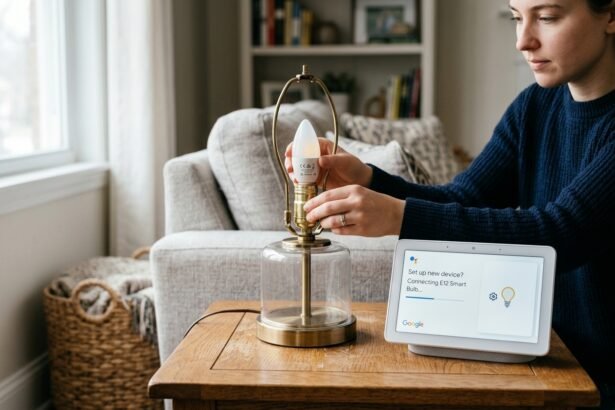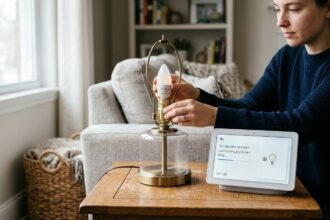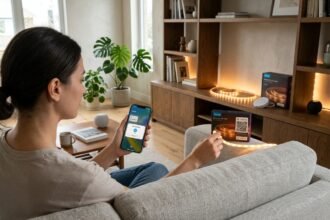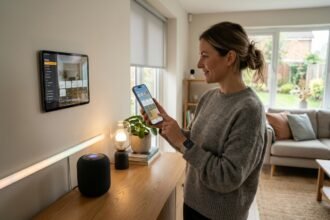



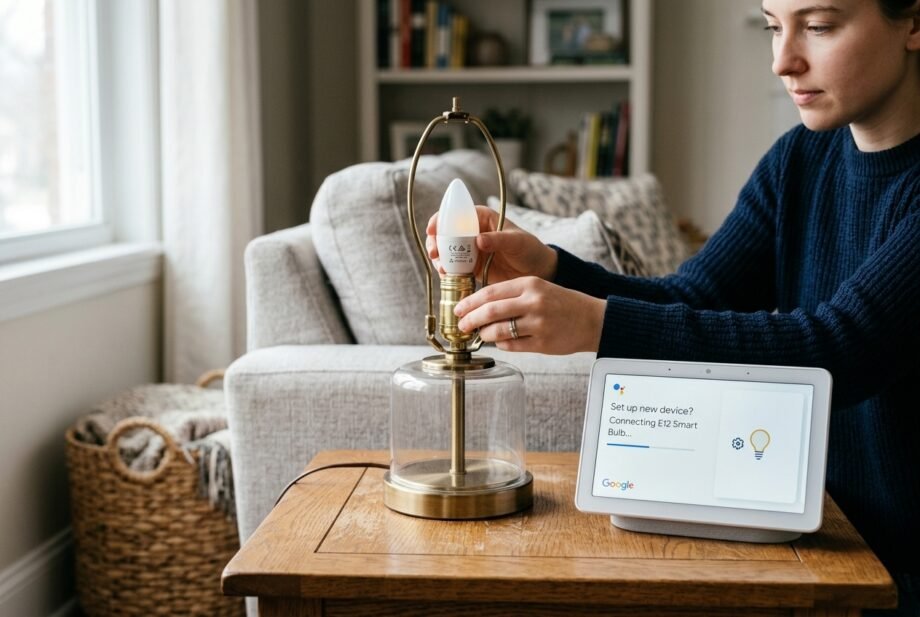
An E12 smart bulb Google Home setup can be straightforward, but only after you identify how the bulb actually connects. E12 describes the small candelabra screw base; it does not tell you whether the bulb uses Wi-Fi, Matter, Zigbee, Thread, Bluetooth, or a manufacturer-specific cloud integration.
That distinction matters because two E12 bulbs can fit the same chandelier yet require completely different Google Home setup procedures.
Quick Answer
An E12 smart bulb Google Home setup works if the exact bulb supports Google Home, Matter, or a compatible bridge integration. E12 only identifies the physical screw base. Depending on the model, setup may use the manufacturer’s app, direct Matter commissioning, or a separate hub or bridge.
Does an E12 Smart Bulb Work With Google Home?
Yes, many E12 smart bulbs can work with Google Home, but E12 compatibility does not automatically mean Google Home compatibility.
E12 refers to the physical Edison screw base, commonly used in chandeliers, sconces, ceiling fans, and decorative lamps. Smart-home connectivity is a separate specification.
Before buying a bulb, check both sides:
- Physical compatibility: E12 base, bulb dimensions, voltage, fixture rating, and enclosure restrictions.
- Smart-home compatibility: Google Home support, Matter support, Wi-Fi requirements, required app, and any hub or bridge dependency.
Google recommends checking the exact product for a Works with Google Home or Matter compatibility indication before setup.
This is why searching for an E12 smart bulb Google Home product by socket size alone can lead to the wrong purchase. A standard E12 LED bulb may have no smart functionality at all, while another E12 bulb may work through Wi-Fi, Matter, or a dedicated bridge.
How E12 Smart Bulbs Connect to Google Home
There are three common architectures worth understanding before you start pairing.
Wi-Fi Bulb Through a Manufacturer App
A traditional Wi-Fi smart bulb often follows this path:
Bulb → Wi-Fi → manufacturer platform → Google Home
You normally add the bulb to its manufacturer’s app first. After the bulb works there, you link that service to Google Home.
Google’s current third-party device instructions specifically say that a non-Matter device should be set up in the manufacturer’s app before being connected to Google Home. Google’s third-party smart device setup instructions
This architecture may depend on the manufacturer’s cloud service for Google Home commands.
Matter-Over-Wi-Fi E12 Bulb
A Matter-over-Wi-Fi bulb uses a different path:
Bulb → local Wi-Fi/IP network → Matter controller → Google Home
Matter provides a standardized interoperability layer rather than relying entirely on a traditional manufacturer-to-Google cloud integration.
Google currently requires a Matter-enabled hub for Google Home and IPv6 on the home network for its documented Matter setup. Wi-Fi Matter devices use the normal home Wi-Fi network; Thread hardware is only required for Matter devices that actually use Thread. Google’s Matter setup requirements
TechInVein’s guide to Roborock Matter support also illustrates the broader difference between traditional account linking and native Matter commissioning. Matter versus conventional smart-home integration
Bridge-Based Smart Bulb
Some bulbs use a local radio such as Zigbee and communicate with a bridge:
Bulb → Zigbee/other radio → bridge → IP network → Google Home
The bulb itself may never join your Wi-Fi.
This distinction appears across other smart-home devices too. TechInVein’s guide to contact sensor compatibility explains how devices can depend on Zigbee hubs, Z-Wave base stations, Matter controllers, or Thread Border Routers even though the final controls appear in the same smart-home app. Hub, controller, and protocol compatibility explained
E12 Smart Bulb Google Home Compatibility Checklist
Check the exact model before installation.
| Check | What to Verify | Why It Matters |
| Base | E12 | Confirms socket fit |
| Voltage | Manufacturer rating | Prevents electrical incompatibility |
| Google Home | Explicit support | Confirms ecosystem integration |
| Matter | Exact model support | Determines Matter setup options |
| Wi-Fi | Supported bands | Affects onboarding |
| Hub/bridge | Required or not | May require extra hardware |
| Controls | Brightness, color, white temperature | Capabilities vary |
| Fixture | Size, enclosure and dimmer restrictions | Prevents installation problems |
Do not assume another bulb in the same product family has identical connectivity. Manufacturers sometimes sell visually similar versions with different protocols.
How to Connect an E12 Smart Bulb to Google Home
First determine whether you have a conventional manufacturer-integrated bulb or a Matter bulb.
Method 1: Manufacturer App + Google Home
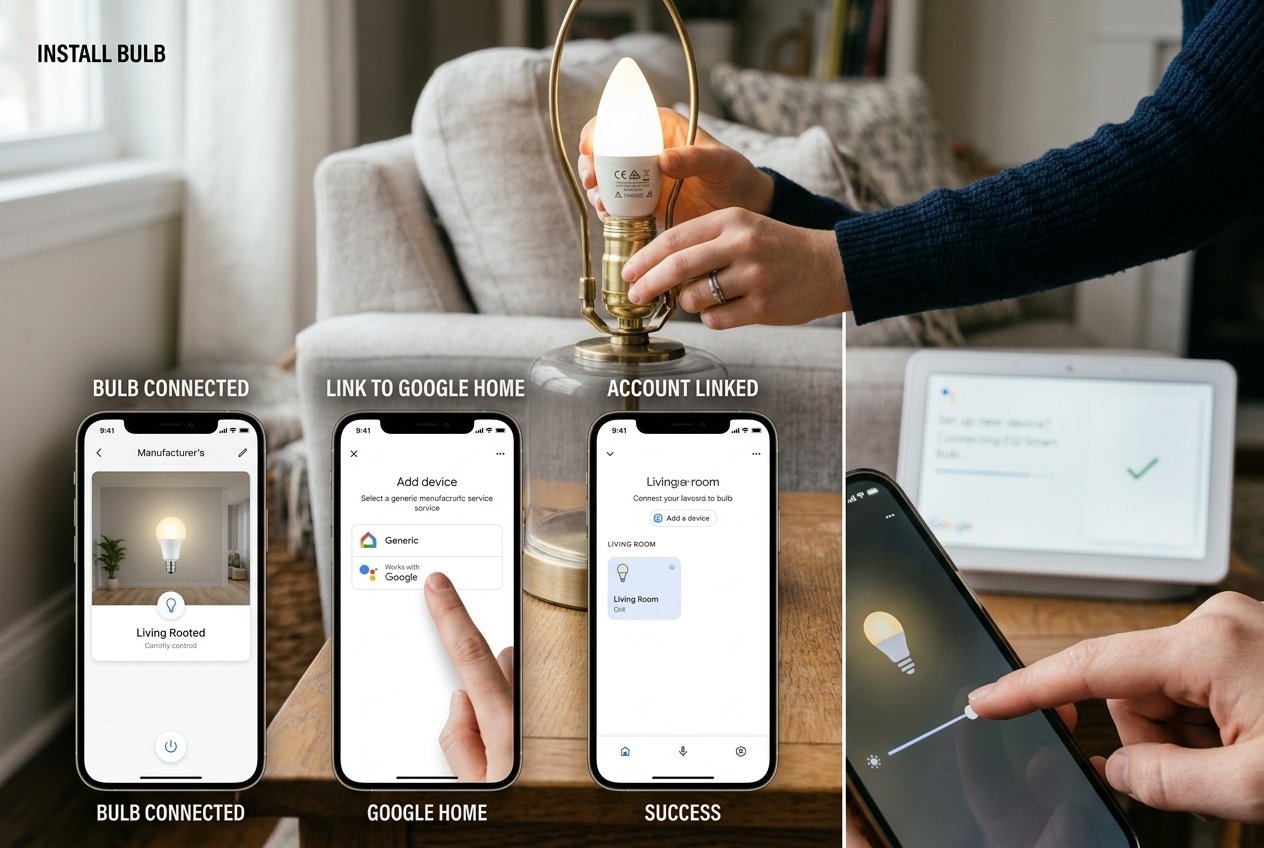
For a conventional Wi-Fi E12 smart bulb Google Home installation:
- Turn off the fixture and install the E12 bulb.
- Restore power.
- Put the bulb into its documented pairing mode.
- Install the manufacturer’s app.
- Add the bulb using the manufacturer’s instructions.
- Connect it to the required Wi-Fi network.
- Confirm that on/off control works inside the manufacturer app.
- Open Google Home.
- Choose the option to add a device.
- Search for the bulb manufacturer or its associated service.
- Link and authorize the account.
- Assign the bulb to the correct room.
- Test power, brightness, and any supported color controls.
Google’s current workflow can also expose options to scan a setup code, select a brand, link an app, or check for devices depending on the accessory type.
A useful troubleshooting rule follows from this architecture:
If the bulb works correctly in its manufacturer app but not in Google Home, do not immediately factory-reset it.
At that point, basic bulb-to-network connectivity is probably functioning. Investigate the Google Home integration, account authorization, synchronization, or feature exposure first.
Method 2: Matter E12 Smart Bulb
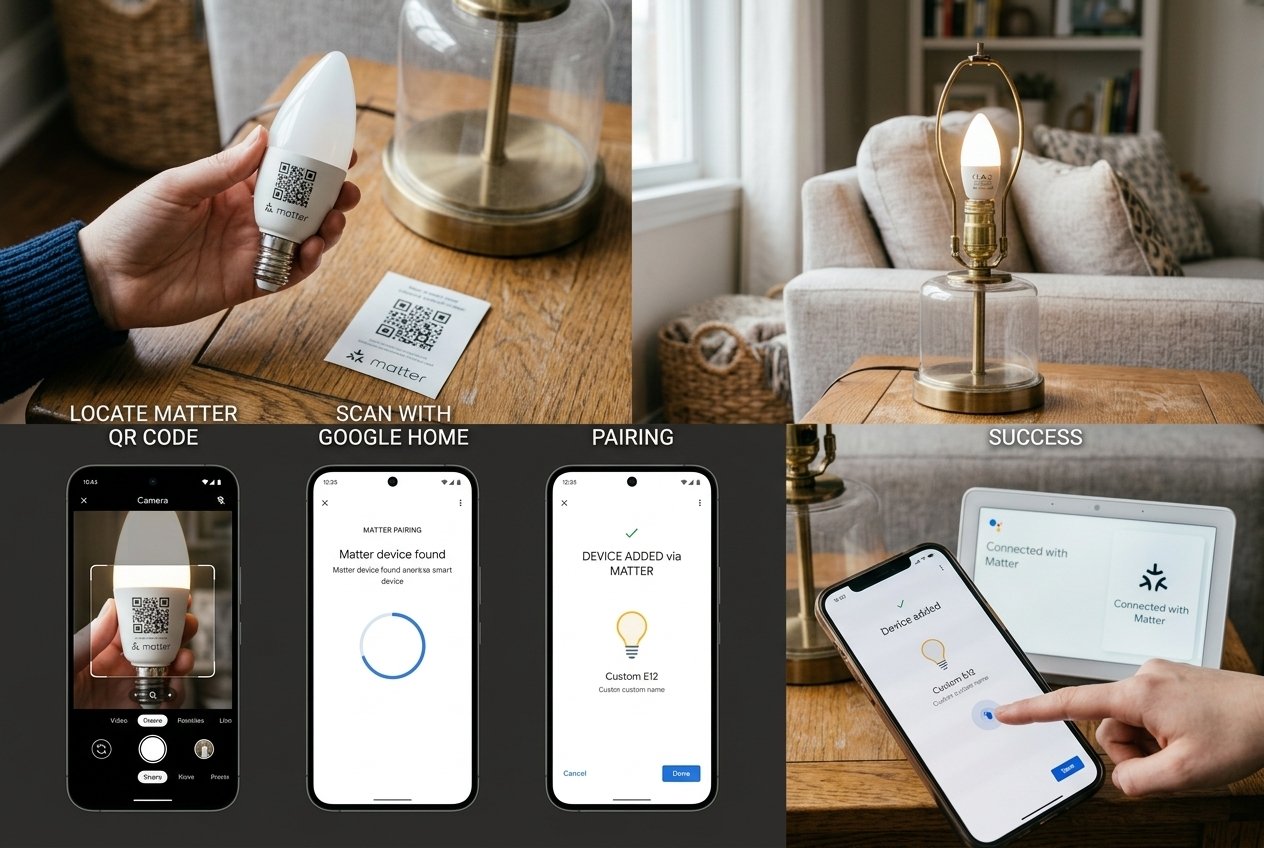
For a Matter-enabled E12 smart bulb Google Home setup:
- Verify Matter support for the exact model.
- Keep the Matter QR code or numeric setup code available.
- Update the manufacturer app and bulb firmware if required.
- Put the bulb into pairing or commissioning mode.
- Open Google Home.
- Start the Matter-enabled device setup flow.
- Scan the Matter QR code or enter its setup key.
- Complete commissioning.
- Assign the bulb to a room.
- Give it a clear name.
- Test the supported controls.
Google also supports adding a Matter device from a manufacturer’s app and sharing compatible Matter accessories between ecosystems through Multi-Admin.
That cross-platform behavior is similar to the architecture discussed in TechInVein’s guide to Govee and Apple Home, where Matter support is separated from the underlying Wi-Fi transport and manufacturer-specific features. Matter lighting and cross-platform compatibility
Does an E12 Smart Bulb Need 2.4 GHz Wi-Fi?
Many Wi-Fi smart bulbs use 2.4 GHz, but E12 itself has nothing to do with wireless frequency.
Check the specifications of the exact bulb.
If the manufacturer requires 2.4 GHz, a combined 2.4/5 GHz network may still work normally. Modern routers frequently use one SSID with band steering. Do not automatically disable 5 GHz unless the bulb manufacturer or your troubleshooting evidence gives you a reason.
If pairing fails, check:
- the bulb’s supported Wi-Fi band;
- correct SSID and password;
- router signal strength;
- guest-network restrictions;
- wireless client or AP isolation;
- manufacturer-app permissions.
Google recommends keeping a device around 15–20 feet from the Wi-Fi router during initial setup where practical.
For devices using Google’s Seamless Setup, Google also specifically calls out AP isolation as a setting that should be disabled for compatible Wi-Fi smart devices. Google Seamless Setup network requirements
E12 Smart Bulb Not Connecting to Google Home? Fix It in This Order
Random resets often make troubleshooting slower. Identify which layer is failing.
1. The Bulb Will Not Enter Pairing Mode
Start with the manufacturer’s instructions for the exact model.
Reset sequences are not universal. One bulb may require several power cycles; another may use an app command or a different timing sequence.
Verify that:
- the fixture is supplying stable power;
- the bulb is supported in that fixture;
- you are using the correct reset procedure;
- the bulb shows the documented pairing indication.
2. The Bulb Cannot Join Wi-Fi
If the manufacturer app cannot discover or configure the bulb, focus on the local setup layer.
Check:
- pairing mode;
- Wi-Fi-band requirement;
- password accuracy;
- router distance;
- guest-network isolation;
- AP/client isolation;
- phone permissions;
- whether the bulb is still registered to an old account.
A factory reset is reasonable once simpler checks fail, but it should not be the first response to every connectivity issue.
3. The Bulb Works in Its App but Not Google Home
This narrows the problem considerably.
Check the:
- linked manufacturer account;
- correct Google Home household;
- integration authorization;
- device synchronization;
- room assignment;
- duplicate device entries;
- manufacturer’s service status.
The Wi-Fi connection is less likely to be the first fault if the native app can still control the bulb.
4. Google Home Finds the Bulb but Some Controls Are Missing
Successful discovery does not guarantee full feature parity.
Google notes that third-party device capabilities can vary; a light may expose on/off control but not every brightness or color function through Google Home.
Advanced scenes, animated effects, firmware settings, music synchronization, or manufacturer-specific modes may remain available only in the bulb maker’s app.
5. Matter Pairing Fails
For a Matter E12 smart bulb Google Home setup, check:
- correct Matter model;
- QR/setup code;
- pairing state;
- Google Home Matter hub;
- IPv6;
- Bluetooth during commissioning;
- firmware;
- whether the accessory was previously commissioned elsewhere.
Google warns that without IPv6, Matter setup can sometimes appear to succeed before device control later fails.
If the bulb already belongs to another Matter ecosystem, use the supported sharing/Multi-Admin process rather than assuming it must be factory-reset.
Matter, Thread, and Google Home Are Different Things
These terms are often mixed together, which leads to unnecessary hardware purchases.
| Technology or Role | Function |
| Matter | Interoperability/application standard |
| Wi-Fi | IP network transport |
| Thread | Low-power IPv6 mesh network |
| Matter controller | Commissions and controls Matter devices |
| Thread Border Router | Connects Thread devices to the broader IP network |
| Google Home | Smart-home platform and user interface |
A Matter-over-Wi-Fi E12 bulb does not need a Thread Border Router merely because it supports Matter.
A Matter-over-Thread accessory does.
One device can perform several infrastructure roles, but those roles are still technically distinct. TechInVein’s explanation of Apple Home hub and Thread requirements provides another example of why a home hub, Matter controller, bridge, and Thread Border Router should not be treated as interchangeable terms. Smart-home hub and Thread role differences
What Happens if the Internet Goes Down?
The answer depends heavily on the bulb architecture.
A traditional cloud-linked bulb may depend on both Google’s services and the manufacturer’s cloud for voice control, remote commands, synchronization, or automations.
Google describes this conventional path as commands traveling through cloud services before reaching the manufacturer’s platform.
Matter is designed differently. Supported Matter commands can travel locally over the home’s Wi-Fi or Thread network rather than requiring the command to make a cloud round trip. Google’s explanation of local Matter communication
That does not mean every function remains available during an internet outage. Remote access, cloud automations, account services, voice processing, or manufacturer-specific functions may have separate dependencies.
What Controls Can You Expect in Google Home?
A compatible E12 smart bulb Google Home integration may expose:
- on/off control;
- brightness;
- RGB color;
- white color temperature;
- rooms and groups;
- automations;
- voice control.
The exact list is product-specific.
Do not treat successful pairing as proof that every function in the manufacturer app will appear in Google Home. A proprietary lighting scene or animation can remain manufacturer-specific even if basic Matter or Google Home lighting commands work correctly.
Check the Fixture Before Installing the Bulb
Smart-home compatibility is only half of the installation.
Confirm the E12 Socket
Do not confuse E12 with E14 or another Edison screw size.
Check Physical Clearance
Decorative fixtures can have narrow shades or tight chandelier spacing. Confirm the bulb’s diameter and height, not merely the base size.
Verify Voltage
Use the bulb only at its manufacturer-specified input voltage.
An E12 base is used in different markets, so socket fit alone does not prove electrical compatibility.
Be Careful With Wall Dimmers
Smart bulbs contain their own electronics and generally expect stable power. A conventional wall dimmer can cause flickering, buzzing, unstable startup, or loss of connectivity unless the bulb manufacturer explicitly supports that arrangement.
If you want smart dimming, the safest configuration is usually to follow the bulb manufacturer’s documented power and switching requirements.
Quick E12 Smart Bulb Google Home Troubleshooting Checklist
| Symptom | First Check |
| Bulb will not enter pairing mode | Exact manufacturer reset procedure |
| Manufacturer app cannot find it | Pairing mode and Wi-Fi requirements |
| Native app works but Google Home fails | Linked service/account |
| Matter pairing fails | Matter hub, IPv6, setup code |
| Bulb frequently goes offline | Power and Wi-Fi stability |
| On/off works but colors do not | Exposed Google Home capabilities |
| Bulb flickers | Fixture/dimmer compatibility |
Frequently Asked Questions
Do E12 smart bulbs work with Google Home?
Some do. E12 describes the screw base, not the smart-home platform. Check the exact bulb for Google Home, Matter, or a supported bridge integration before buying.
How do I connect an E12 smart bulb to Google Home?
For a conventional Wi-Fi bulb, configure it in the manufacturer’s app first and then link that service to Google Home. For a Matter bulb, follow the Google Home Matter commissioning flow using the product’s QR code or setup code.
Why won’t my E12 smart bulb connect to Google Home?
First identify where the failure occurs. If the bulb cannot join its manufacturer’s app, investigate pairing and Wi-Fi. If the manufacturer app works but Google Home does not, check account linking and synchronization. Matter failures can additionally involve the Matter hub, IPv6, commissioning state, or setup code.
Do E12 smart bulbs need a hub?
Not always. A direct Wi-Fi bulb may not need a dedicated bridge. A Zigbee model may require its manufacturer’s hub, while a Matter device needs the infrastructure required by its specific connection method and Google Home setup.
Does an E12 Google Home smart bulb need 2.4 GHz Wi-Fi?
Many Wi-Fi smart bulbs require 2.4 GHz, but it is not an E12 or universal Google Home requirement. Check the exact model’s network specifications before changing router settings.
Final Verdict: Check the Architecture Before Troubleshooting
A reliable E12 smart bulb Google Home setup starts with identifying what you actually bought.
First confirm the E12 base, voltage, physical size, and fixture requirements. Then verify Google Home or Matter compatibility for that exact model. Finally, determine whether the bulb uses direct Wi-Fi, Matter, or a bridge.
That architecture tells you where to troubleshoot.
If the manufacturer app cannot control the bulb, start with the bulb and local network. If the app works but Google Home does not, focus on the integration layer. For Matter, check the Matter controller, IPv6, commissioning state, and transport requirements separately.
Following the failing layer is usually far more effective than repeatedly resetting the bulb.
Disclaimer
Switch the light fixture off before installing or removing a bulb, and follow the manufacturer’s voltage, fixture, and dimmer requirements. Do not modify mains wiring, lamp holders, switches, or electrical circuits unless you are qualified to perform that work; use a licensed electrician where required.