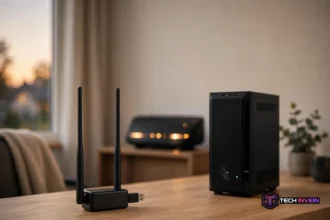


A zigbee hub is a small box or USB stick. It lets your Zigbee lights, plugs, and sensors talk to your phone and to each other. Your router can’t speak Zigbee on its own. So the hub acts as the translator and the boss of the network. This guide explains what it does and how to pick the right one.
- What Is a Zigbee Hub?
- How the Mesh Works
- Do You Need One?
- Hub vs Coordinator: What Is the Difference?
- The Main Types of Hubs
- How to Pick the Right One
- Setting Up Your First Hub
- Fixing Common Problems
- Smart Plugs and Energy Monitoring
- FAQs
- What is one used for?
- Do I need one for smart lights?
- What is the difference between a hub and a coordinator?
- Can it work without the internet?
- How many devices can one handle?
- Is Zigbee better than Z-Wave?
- Conclusion
What Is a Zigbee Hub?
A zigbee hub is the central controller for a Zigbee smart home. It starts the network, lets devices join it, and passes commands between your devices and your app or voice assistant. Without one, a Zigbee bulb or sensor has no way to reach your phone. Phones and routers don’t have a Zigbee radio built in.
Think of it as a translator at a border crossing. Your phone speaks Wi-Fi, while your sensors speak Zigbee. The hub listens on both sides and converts each message into the right language.
Zigbee is an open standard for low-power smart home devices, and it is managed by the Connectivity Standards Alliance. A certified Zigbee 3.0 device should work with any certified hub. In practice, some brand hubs still limit third-party devices, so check compatibility before you buy.
How the Mesh Works
Zigbee runs on the 2.4 GHz band, the same band as most Wi-Fi networks. It sends data at around 250 kbps, which sounds slow. Yet it is plenty for a sensor that only needs to say “door open” or a bulb that only needs to hear “turn on”.
Every Zigbee network has exactly one coordinator, and that role usually lives inside the hub. The coordinator picks the network ID and the radio channel, then decides which devices may join. It also acts as the trust center, so it hands out the network key that keeps traffic encrypted with 128-bit security.
Mains-powered devices do a second job as routers. A smart plug or a wired bulb passes messages along for other devices, and each hop extends the range of the network. Battery sensors do not route at all, because routing would drain their batteries.
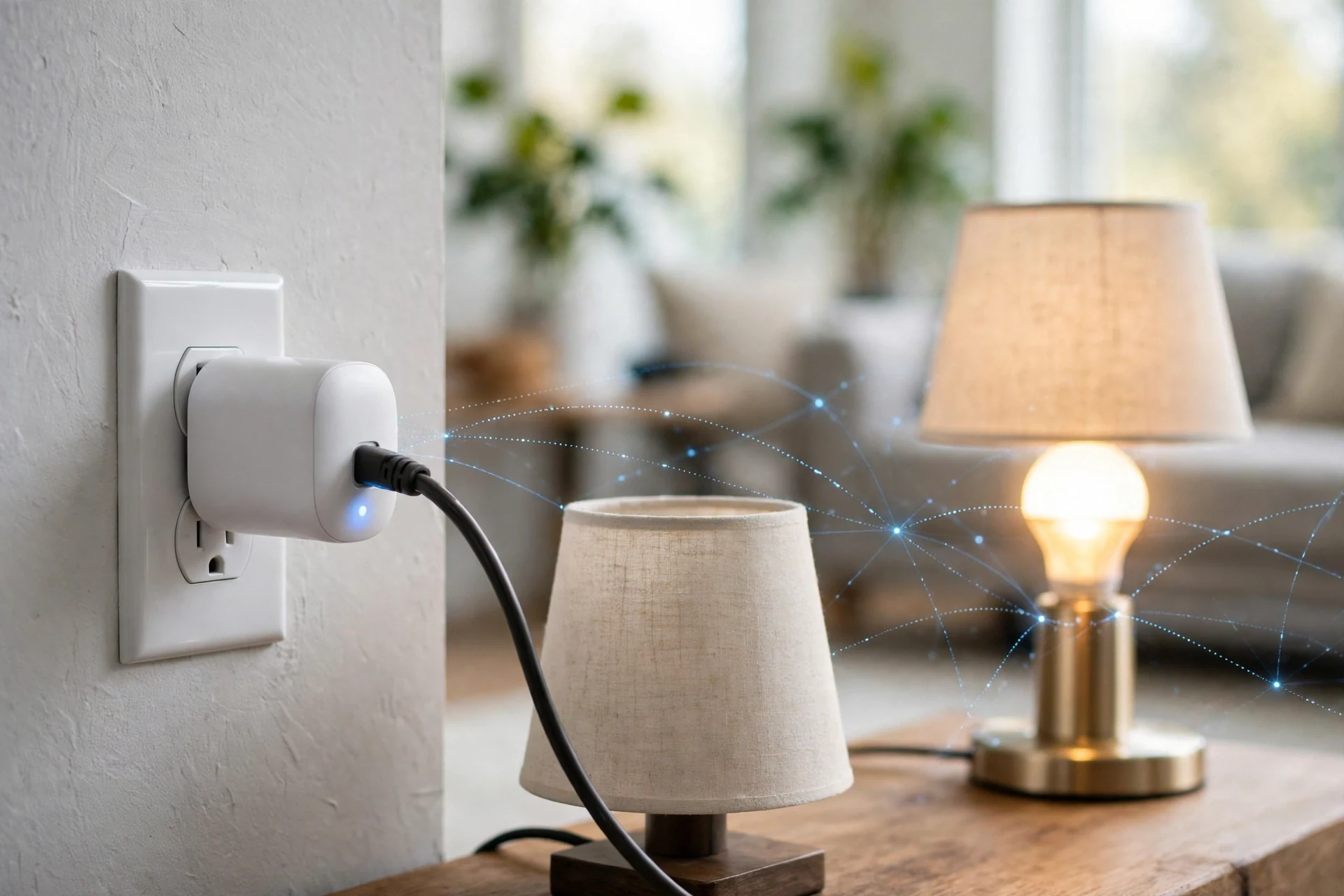
This mesh design is why a Zigbee network gets stronger as it grows. A sensor in a far bedroom may sit too far from the hub. Yet its signal can hop through a plug in the hall and a bulb on the landing. If one path fails, the mesh finds another route on its own.
Do You Need One?
You need one if you own Zigbee devices, or if you plan to buy them. A Zigbee bulb, plug, or sensor cannot join your Wi-Fi network directly. Your phone cannot talk to it without a hub in the middle. Some voice speakers hide a Zigbee radio inside, and that counts as a hub too. If you already own an Echo with a built-in Zigbee radio, you may not need a separate box at all.
You can skip a hub if every device you own uses Wi-Fi or Bluetooth. Wi-Fi plugs and bulbs connect straight to your router, and Bluetooth devices pair with your phone. That setup works fine for two or three gadgets in one room.
So the real question is how big your smart home will get. A hub earns its place once you pass a handful of devices, or once you want sensors that run for months on a battery. It also helps when you want automations that keep working without the internet.
Hub vs Coordinator: What Is the Difference?
The confusion here is fair, because sellers use both words for the same product. In plain terms, a coordinator is a role, and a hub is a product. Every Zigbee network needs one coordinator, and a standalone hub contains a coordinator plus software, an app, and a link to your home network.
A USB coordinator is the bare version of the same idea. It is only a radio on a stick, so it needs software on another device to do anything useful. Home Assistant users plug one into a Raspberry Pi or a mini PC, then run ZHA or Zigbee2MQTT to manage the network. Our guide to the Zigbee coordinator explains that setup in full, with the dongles that work best.
So which one should you buy? Pick a standalone hub if you want an app and a simple setup with no extra computer. Pick a USB coordinator if you already run Home Assistant, or if you plan to. Then your server becomes the hub, and the stick is only its radio. A coordinator also gives you the widest device support, since open software pairs with almost any Zigbee 3.0 device.
One warning applies to both choices. You cannot move a Zigbee network between hubs, so switching later means pairing every device again from scratch. That is why the first pick matters more than the price gap. Choose the platform you can live with for years, not the cheapest box on the shelf today.
The Main Types of Hubs
Standalone hubs are the simplest option. You plug one into power and your router, open its app, and pair devices. The Aqara Hub M2 and M3, the SONOFF Zigbee Bridge Pro, and the Philips Hue Bridge all sit in this group. They suit people who want one brand and a short setup, yet they can limit third-party devices.
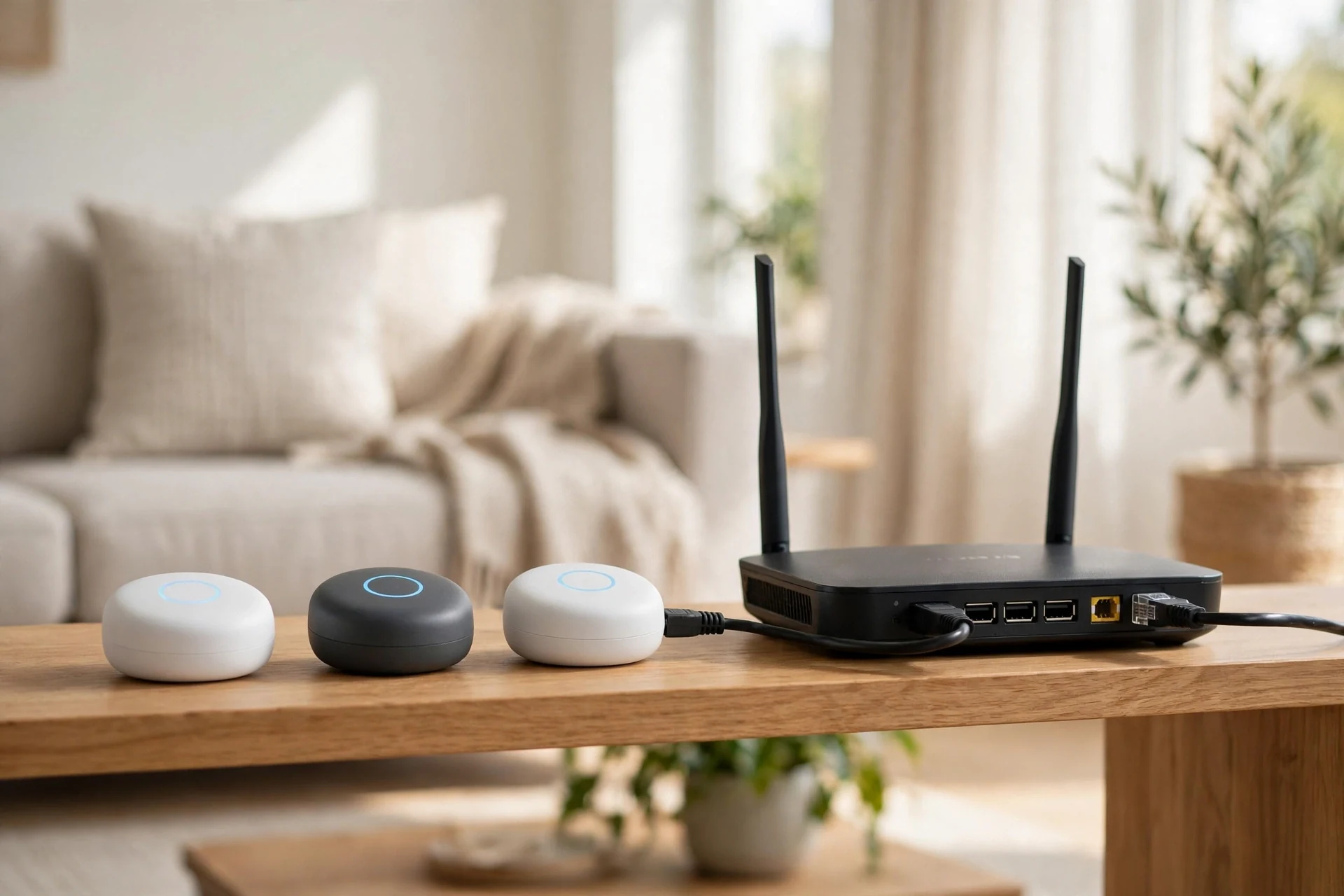
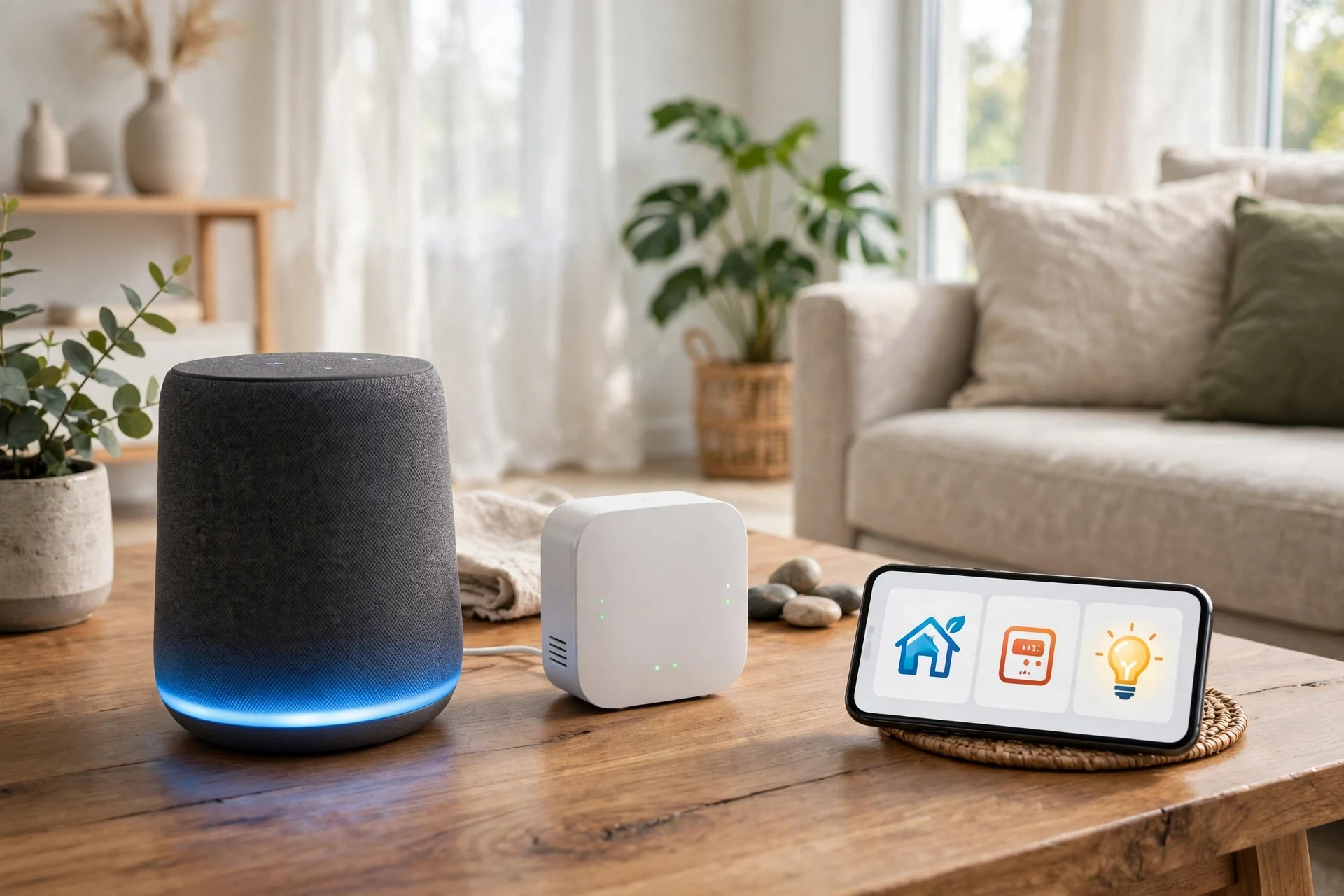
Voice speakers with a built-in radio are the easy middle ground. Some Amazon Echo models include a Zigbee radio, so the speaker you already own may do the job. Pairing happens in the Alexa app, and voice control works out of the box. The trade-off is depth, since advanced settings like binding or custom device handlers stay out of reach.
Multi-protocol hubs cover more than Zigbee. Hubitat Elevation and Homey Pro add Z-Wave, and newer models add Matter and Thread too. These boxes run automations locally, and they suit homes that mix device types. If you also own Z-Wave gear, our guide to the Z-Wave hub shows how that side of the network works and when a combined hub makes sense.
USB and network coordinators are the open option. A SONOFF Zigbee 3.0 USB Dongle Plus plugs into a computer running Home Assistant, while a network coordinator like the SMLIGHT SLZB-06 sits on Ethernet and can live far from the server. Both need software to run, yet they pair with the widest range of devices.
Table: Hub types at a glance
| Type | Best for | Setup effort | Device freedom |
|---|---|---|---|
| Standalone brand hub | One brand, simple app | Low | Limited |
| Voice speaker with radio | Alexa homes, first hub | Low | Basic |
| Multi-protocol hub | Mixed Zigbee and Z-Wave homes | Medium | Good |
| USB coordinator | Home Assistant users | Medium | Wide |
| Network coordinator | Large homes, remote radio | Medium | Wide |
How to Pick the Right One
Start with the devices you already own. List every smart bulb, plug, and sensor in your home, then check which hub supports them. A hub that covers your current gear matters more than a spec sheet, because an unsupported device is just a paperweight. Most makers publish a compatibility list, so search it before you spend anything.
Next, match the hub to your platform. Alexa homes do well with an Echo that has a Zigbee radio or an Aeotec Smart Home Hub running SmartThings. Apple homes do well with an Aqara hub, since it speaks HomeKit natively. Home Assistant homes need a coordinator, not a closed hub, because the server already does the thinking.
Then weigh local control against cloud features. A hub that runs automations on the device keeps your lights and sensors working when the internet drops. A cloud hub may offer a nicer app, yet its routines stop when the service stops. For a front-door sensor or a leak alert, local control is worth more than a pretty dashboard.
Device limits matter too. Some small hubs cap out near 32 or 64 devices, while bigger ones handle 128 or more. Count your future devices, not just today’s, because a mesh grows fast once you start adding sensors.
Setting Up Your First Hub
Setup takes about half an hour for most hubs, and the steps stay the same across brands. Start by picking a spot for the hub, then plug it in and let it boot fully before you open the app.
- Place the hub near the center of your home, at least a metre from your router and away from thick metal or mirrors.
- Connect it to power and to your router by Ethernet if the hub offers a port, since a wired link is steadier than Wi-Fi.
- Open the maker app, create an account if needed, and add the hub by scanning its code or searching your network.
- Update the hub firmware first, then pair your nearest mains-powered device, because it becomes a router for the rest.
- Pair the next devices one room at a time, moving outward from the hub so the mesh grows in order.
- Test each device in the app, rename it clearly, and then build one simple automation to confirm the network works.
Pairing order is the detail most guides skip, yet it shapes your whole network. If you pair the farthest sensor first, it may connect with a weak link and stay stuck on it. Pair the nearest plug first, and the mesh builds strong links outward. That one habit saves a lot of troubleshooting later.
Home Assistant users follow a similar path with one extra step. Plug the coordinator into a USB 2.0 port, or use a short USB extension cable to move it away from the computer, since USB 3.0 ports can drown out the Zigbee signal. Then add the ZHA integration and let it form the network. The official Zigbee Home Automation docs list the supported coordinators and the setup steps.
After setup, run a simple range test before you add more gear. Trigger the farthest sensor from its real spot. Watch for a fast response in the app. If it lags, add a smart plug halfway between the hub and the sensor, then retest. A plug costs little, and it doubles as a repeater for every device near it.
Fixing Common Problems
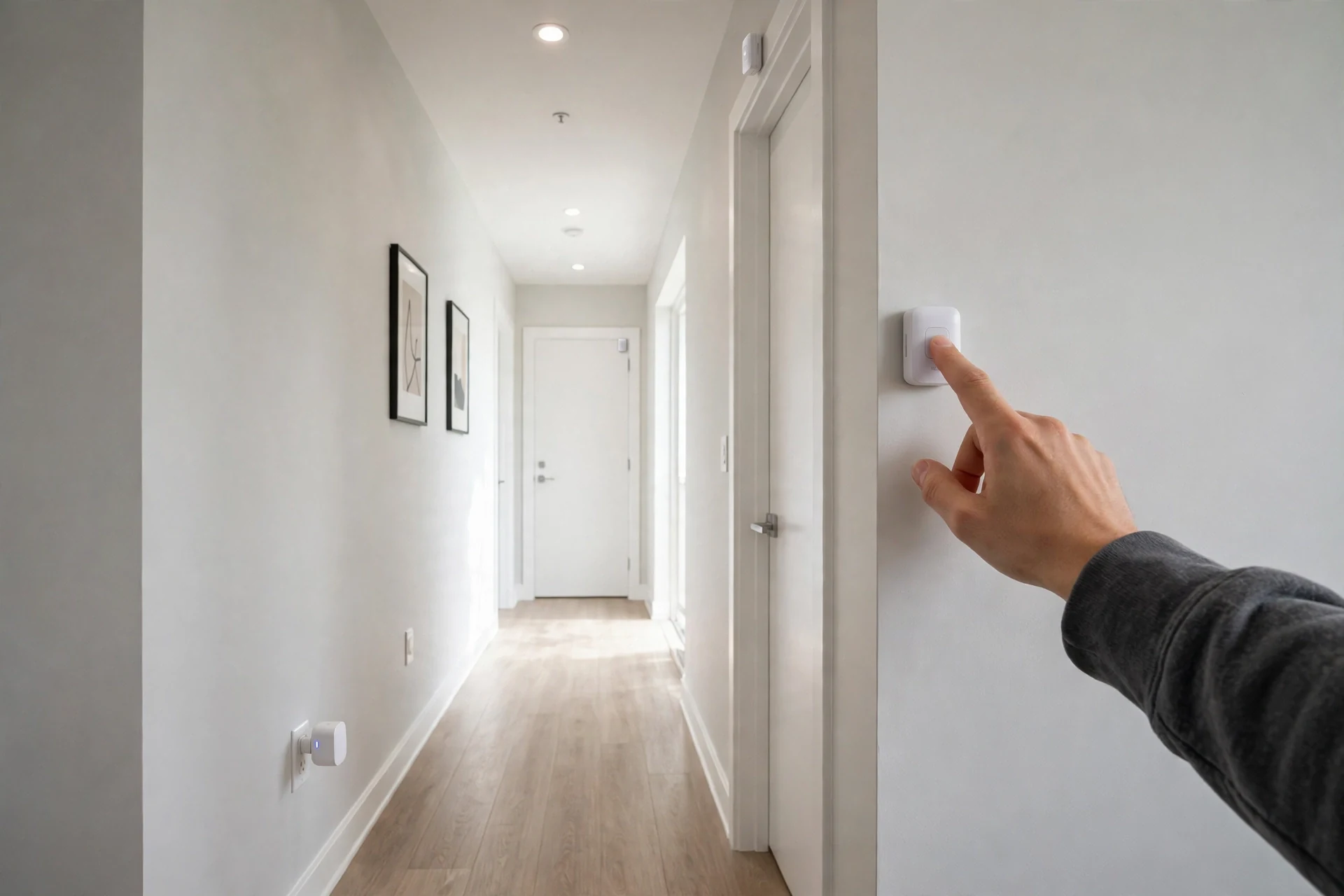
Devices that drop off the network usually point to a thin mesh, not a broken hub. A battery sensor with only one route to the hub loses its link when that path weakens. Add a mains-powered router device between the sensor and the hub, then re-pair the sensor from its real spot so it picks the stronger route.
Wi-Fi interference is the next common cause. Zigbee and Wi-Fi share the 2.4 GHz band, so a busy Wi-Fi channel can crowd out Zigbee traffic. If your router lets you pick channels, move Wi-Fi to channel 1 or 6 and leave Zigbee on channel 15, 20, or 25.
Pairing failures often come from timing. Most Zigbee devices stay in pairing mode for only a minute or two, so start the search in the app first and then put the device into pairing mode. If it still fails, reset the device to factory settings and try again from closer to the hub. A device that joined a different network before will not pair until it is reset.
Smart Plugs and Energy Monitoring
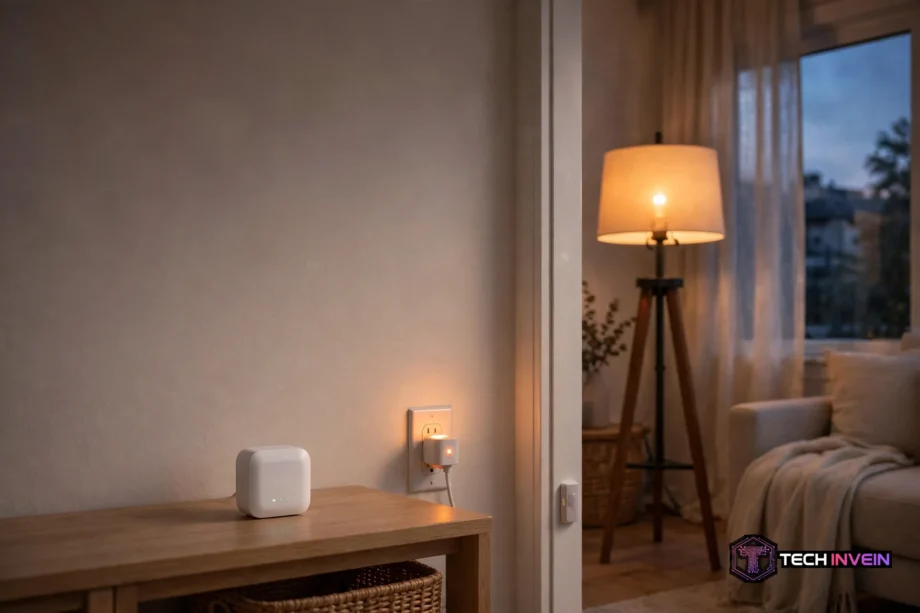
A smart plug is the hardest-working device on a Zigbee mesh, because it does two jobs at once. It switches a lamp or a fan on and off, and it also repeats Zigbee signals for nearby sensors. That makes plugs the cheapest way to fix a weak mesh, since each one adds a new route for the rest of the network. Our guide to the Zigbee smart plug covers which plugs repeat well and which ones only switch.
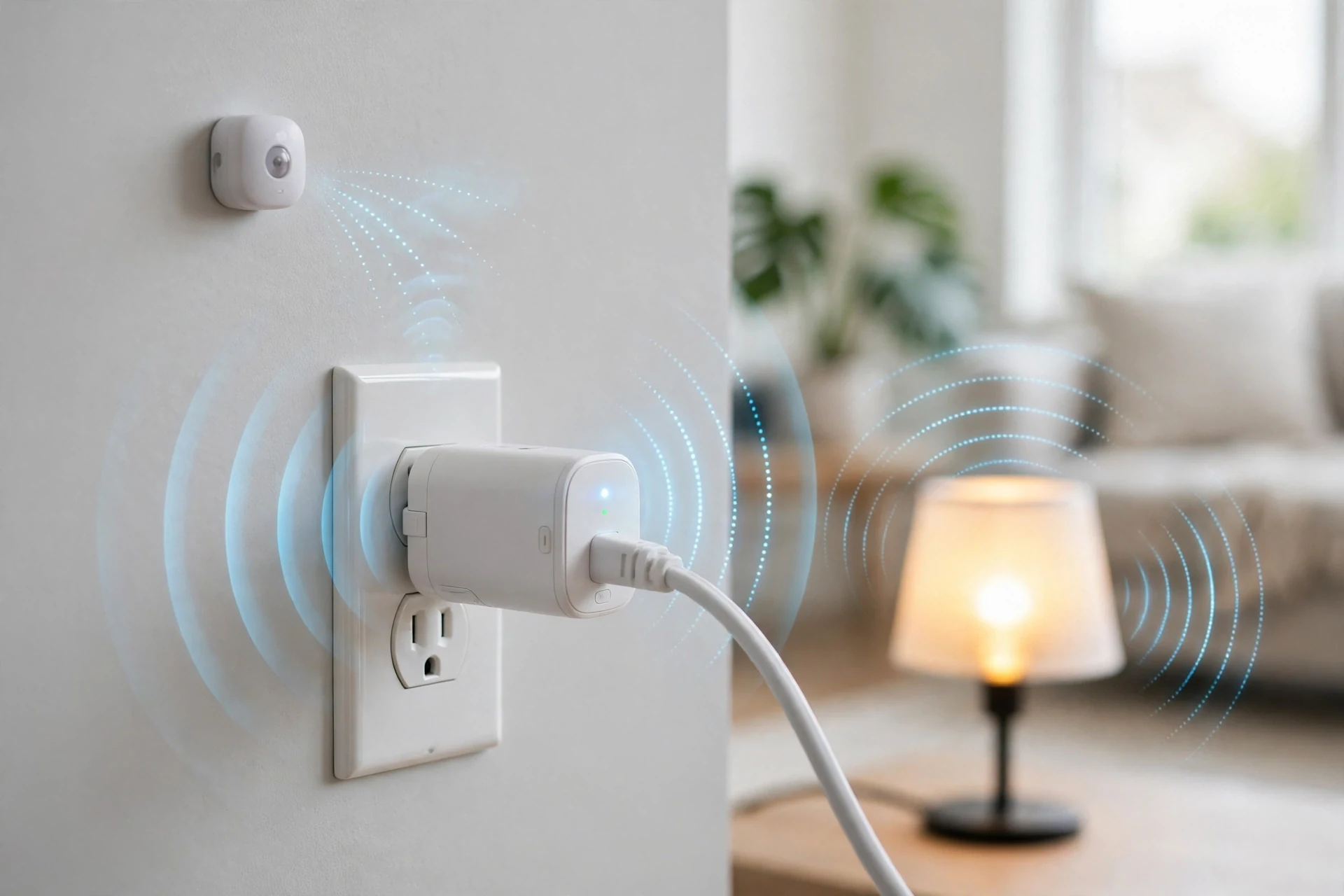
Place plugs with intent instead of scattering them at random. One plug in a hallway can link a bedroom sensor to the hub, while a plug behind the TV helps the living room devices. Think of them as stepping stones across your home.
Some plugs also track power use, and that data gets more useful once it flows through a hub. A whole-home monitor goes further by watching the main supply. Our guide to the home energy monitor explains how it tracks total use and which circuits waste the most power.
FAQs
What is one used for?
A Zigbee hub connects your Zigbee lights, plugs, and sensors into one network. It links that network to your phone, voice assistant, or home automation system. It starts the network, lets devices join, passes commands between them, and runs automations. Without a hub, Zigbee devices cannot talk to Wi-Fi gear or to your phone at all.
Do I need one for smart lights?
You need a hub if your smart lights use Zigbee, because your phone and router cannot speak that protocol on their own. Wi-Fi bulbs skip the hub and connect straight to your router, so they suit small setups. Once you own several Zigbee bulbs or want sensor-driven lighting, a hub keeps the network fast, local, and reliable.
What is the difference between a hub and a coordinator?
A coordinator is the radio role that starts and manages one Zigbee network. A hub is the product you buy, and it contains a coordinator plus software and an app. A USB coordinator is only a radio, so it needs Home Assistant or similar software to work. A standalone hub has the radio and the software in one box.
Can it work without the internet?
Yes, if the hub runs automations locally. Local hubs like Hubitat and Home Assistant keep lights, sensors, and routines working when the internet drops, though remote access from outside the home stops. Cloud-based hubs need the internet for most automations, so check where your hub runs its rules before you buy it.
How many devices can one handle?
It depends on the hub, but most small hubs handle 32 to 64 devices, while larger ones manage 128 or more. The real limit is often the mesh itself, not the hub count. A network with enough mains-powered routers can support far more devices than a sparse one, so add plugs or wired bulbs to strengthen it.
Is Zigbee better than Z-Wave?
Neither wins outright, since they suit different homes. Zigbee offers cheaper devices, more choice, and a large ecosystem, yet it shares the crowded 2.4 GHz band with Wi-Fi. Z-Wave uses a quieter sub-GHz band with longer range, but its devices cost more. Many homes run Zigbee for sensors and lights, and add Z-Wave only where range matters.
Conclusion
A zigbee hub is the piece that turns a pile of smart gadgets into one system that works together. Pick the type that fits your platform, place it centrally, and build the mesh outward with plugs as repeaters. Then start small: pair one room, test it for a week, and add the next room only when the first one runs without fuss.