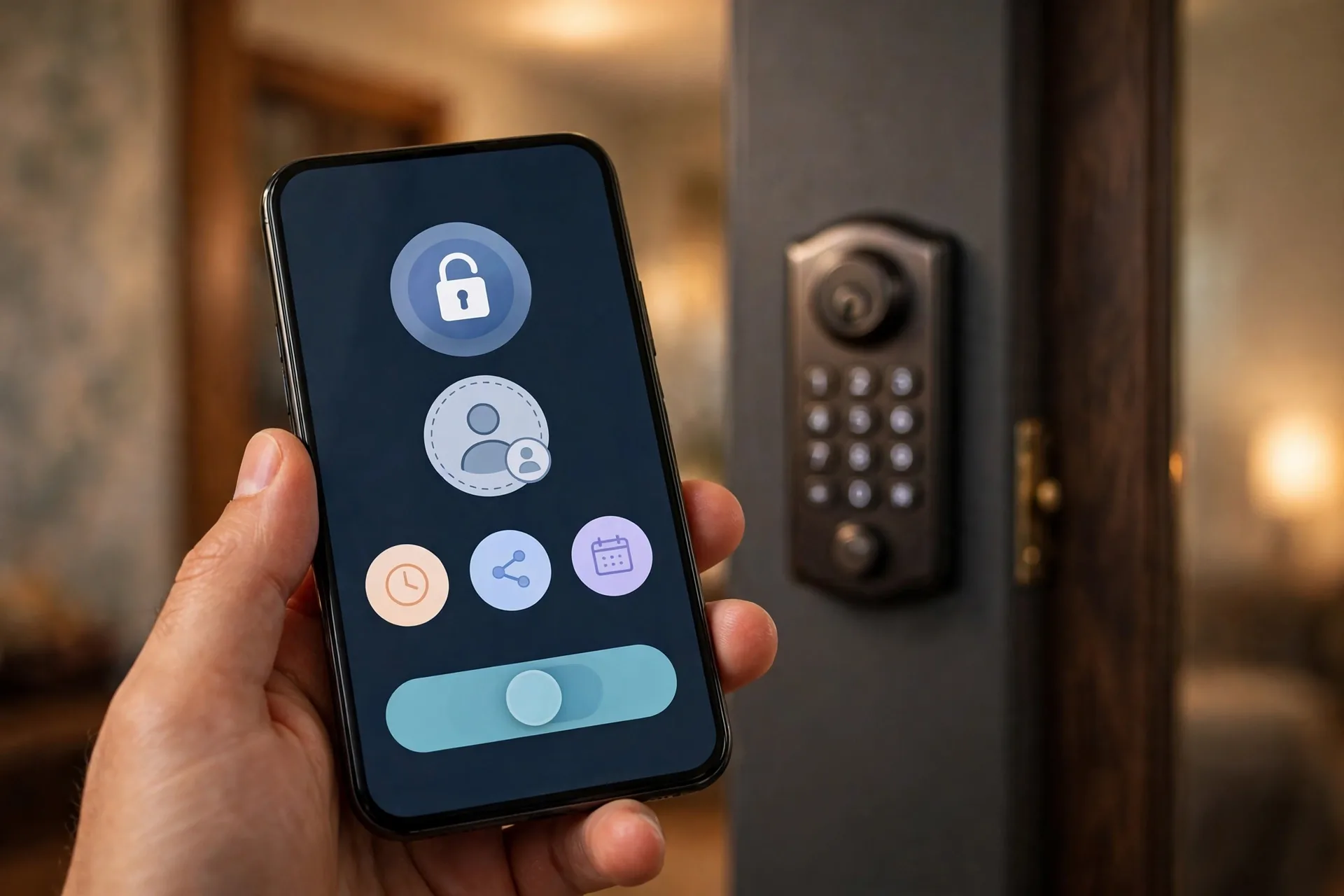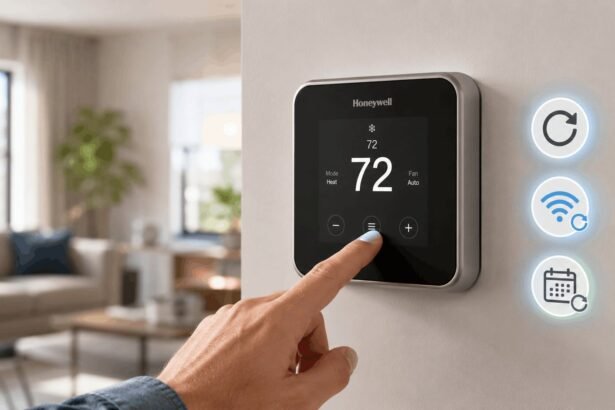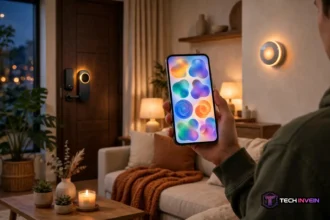

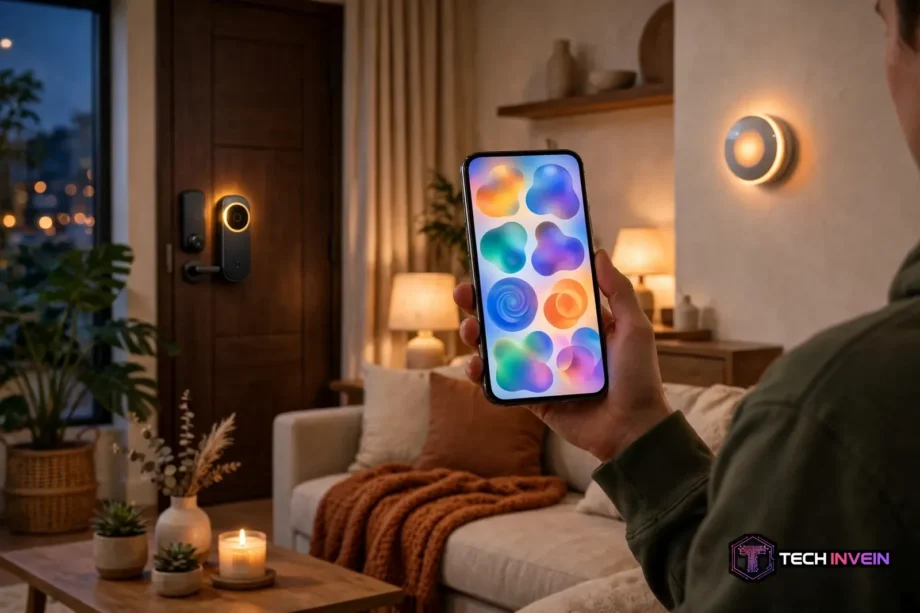
A connected home is a home where everyday devices link to one control system, so you can run them by app, voice, or automatic routine. Lights, locks, thermostats, cameras, and sensors talk to each other instead of working alone. You don’t need dozens of gadgets to qualify. A few devices that work together count.
- What a Connected Home Is
- The Four Parts Every Setup Shares
- How the Big Ecosystems Compare
- Protocols in Plain English
- Do You Need a Hub?
- Your First Connected Home Setup
- Common Mistakes That Break a Good Setup
- Privacy, Internet Outages, and Local Control
- FAQs
- What do I need to start a smart home?
- Is a hub required for every smart device?
- Can devices from different brands work together?
- Does a smart home keep working without internet?
- Which ecosystem should a beginner pick first?
- Is Matter worth caring about as a beginner?
- Final Thoughts
Most buyers, however, start in the wrong place. They buy a bulb here and a camera there, and end up with five apps and no real system. This guide fixes that order. It covers the parts, the ecosystems, and the protocols. Then it gives you a starter setup that grows without a rebuild.
What a Connected Home Is
Think of it as four layers stacked on top of each other. At the bottom sit the devices: bulbs, plugs, sensors, locks, and speakers. Above them sits the network that carries their messages. Then comes the controller, which is the app or hub that sends commands. Finally, at the top sit routines, such as “lock the door and dim the lights at 10 pm.”
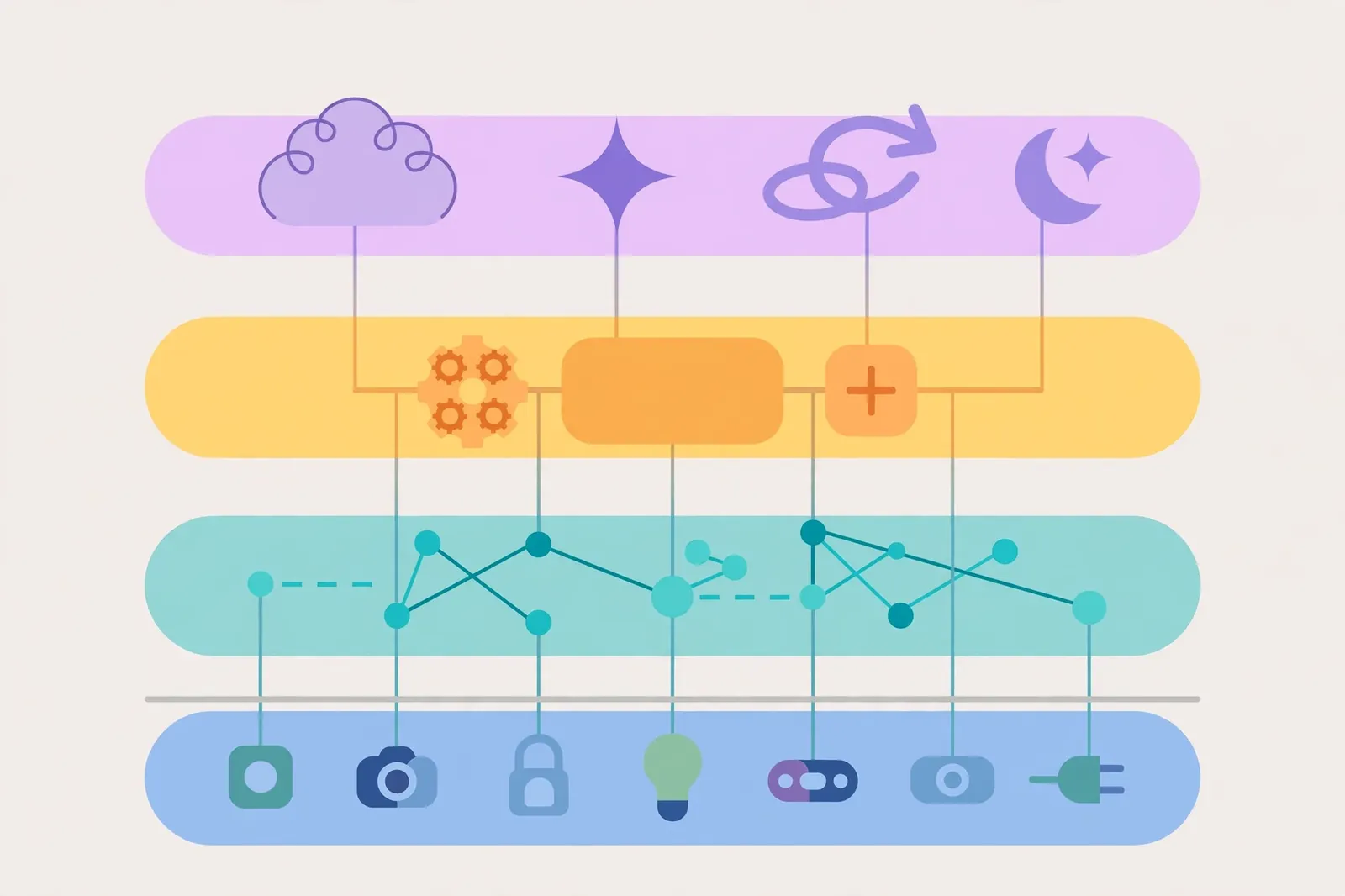
When one layer is weak, the whole setup feels flaky. For example, a bulb with poor Wi-Fi will lag no matter how good your app is. Similarly, a routine built across three rival apps will break when one app changes. So the goal is not more gadgets. Instead, the goal is a short chain where each part does its job well.
The Four Parts Every Setup Shares
First, devices do the physical work. A smart plug switches power, a sensor reports motion or temperature, and a lock secures a door. Pick devices for the job they do, not for the novelty of phone control. A plug on a lamp you use daily beats a clever gadget you touch once a month.
Second, the network carries commands between devices and the controller. Wi-Fi suits cameras and speakers that move lots of data. Low-power mesh networks, on the other hand, suit bulbs and sensors that send tiny messages. Your home may end up using both, and that is normal.
Third, the controller gives you one place to act. It may be an app, a voice speaker, a wall panel, or a small hub box. Also, good controllers show every device in one list and let you group them by room.
Fourth, routines turn control into automation. In fact, a routine links a trigger to one or more actions. The trigger may be a time, a sensor reading, a voice phrase, or your phone arriving home. Start with one routine that solves a daily annoyance.
How the Big Ecosystems Compare
An ecosystem is the family of apps, speakers, and rules your devices live inside. The four names you will meet most are Amazon Alexa, Google Home, Apple Home, and Home Assistant. Each can run a good home. They differ, however, in ease of setup, privacy approach, device choice, and how much control they give you.

Alexa suits homes that want broad device support and cheap voice speakers in several rooms. Google Home, meanwhile, suits homes already deep in Android and Google speakers. Apple Home suits homes where most people carry iPhones and value tight privacy controls. Home Assistant, finally, suits keen users who want local control and deep custom routines, and who do not mind a steeper setup.
Also, pick one main ecosystem before you buy much. Also check that each device lists your chosen ecosystem on its box or product page. “Works with” claims vary by model, so check the exact model, not just the brand.
Table: Main ecosystems at a glance
| Ecosystem | Best for | Watch out for |
|---|---|---|
| Amazon Alexa | Wide device choice, low-cost speakers | Many settings live in the cloud |
| Google Home | Android homes, voice routines | Some features need a Google account |
| Apple Home | iPhone homes, privacy focus | Needs Apple hardware for some features |
| Home Assistant | Local control, deep routines | Setup takes more time and care |
If your household runs on iPhones, Apple Home deserves a close look before you commit elsewhere. Our guide to what Apple Home is explains how its hubs, rooms, and automations fit together. Read it before you buy Apple-only gear, since some features need a home hub such as a HomePod or Apple TV.
Protocols in Plain English
A protocol is just the language devices use to talk. You don’t need to master any of them. You only need to know enough to buy gear that can reach your controller. Here is the short version of each one you will see on boxes.
Wi-Fi is the network your router already runs. It handles cameras, speakers, and plugs well, but each Wi-Fi device takes a slot on your router. A home with dozens of Wi-Fi gadgets can crowd a weak router. If lights lag at night, first check your Wi-Fi coverage before you blame the bulb.
Similarly, Zigbee and Z-Wave are low-power mesh networks built for small devices. Each powered device can relay messages for its neighbours, so range grows as you add plugs and bulbs. Both need a hub or coordinator that speaks their language. They sip power, which is why battery sensors often use them.
Meanwhile, Thread is a newer low-power mesh network with a similar job. It carries internet-style traffic, and it needs a Thread border router to link it to the wider home network. That router may already sit inside a newer speaker, display, or hub.
Also, Bluetooth suits short-range setup and nearby control, such as unlocking a lock from your porch. Its range is short, so it rarely runs a whole-home system alone. Many devices, in fact, use Bluetooth only for first setup, and switch to Wi-Fi or Thread for daily use.
Matter is not a radio at all. Instead, it is a shared standard that runs over Wi-Fi, Ethernet, or Thread and lets certified devices work across major ecosystems. A Matter badge means the device passed a common test, not that every feature works in every app. Check the feature list for your ecosystem before you buy. The official Matter FAQ from the Connectivity Standards Alliance is the best place to confirm what the badge covers.
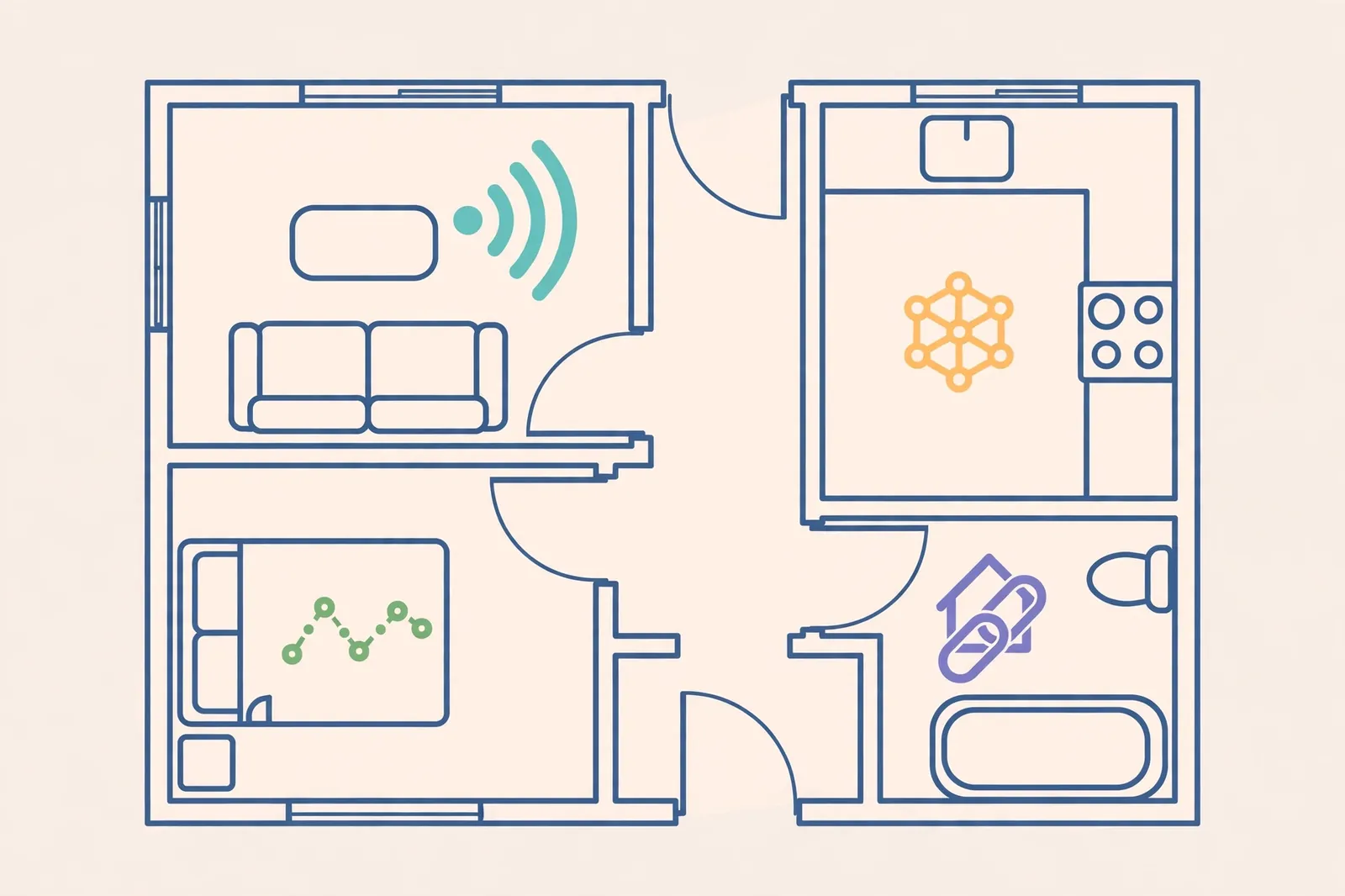
Table: Protocols at a glance
| Protocol | Good for | Needs |
|---|---|---|
| Wi-Fi | Cameras, speakers, plugs | Strong router coverage |
| Zigbee | Bulbs, sensors, plugs | A Zigbee hub or coordinator |
| Z-Wave | Locks, sensors, switches | A Z-Wave controller |
| Thread | Sensors, bulbs, locks | A Thread border router |
| Bluetooth | Setup, nearby control | Phone or hub close by |
| Matter | Cross-brand control | A Matter controller |
Finally, one buying rule covers most mistakes: match the radio to the room. A battery sensor at the far end of the house will struggle on Wi-Fi alone. A camera that streams video all day, meanwhile, will strain a low-power mesh. Buy for the job, and check the radio fits your controller.
Do You Need a Hub?
Short answer: not on day one, but probably later. If your opening devices are Wi-Fi bulbs and plugs, your phone app and router can run them. No extra box is needed. That’s the cheapest way to learn what you actually use.
However, you need a hub when you add Zigbee, Z-Wave, or Thread devices, or when you want routines that keep working during an internet outage. A hub also helps when you want one app for many brands. It speaks several radios and runs your rules at home, not in a distant data centre.
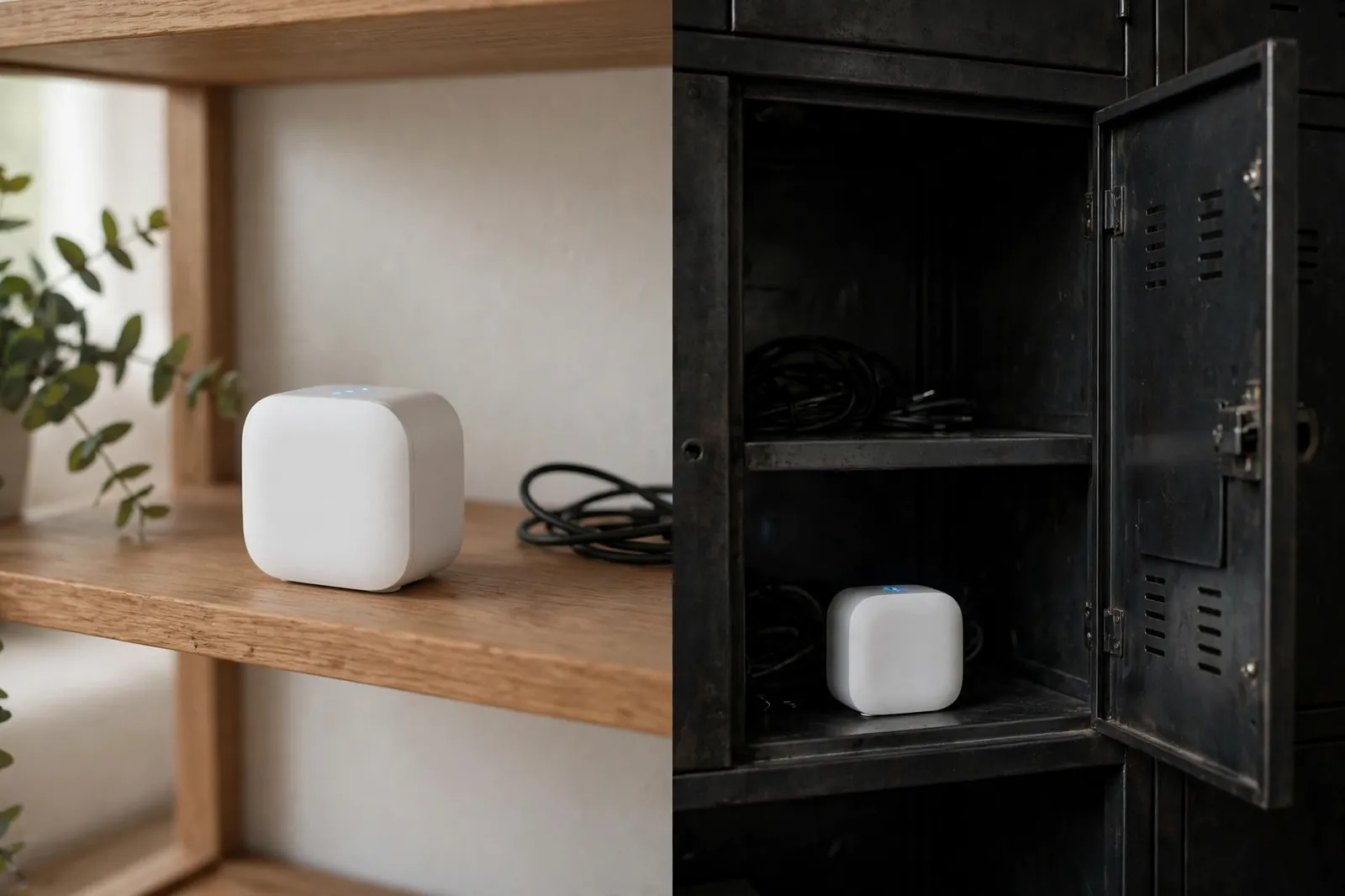
Also, place the hub with care. Put it near the centre of your home, out in the open, and away from metal cabinets and thick walls, because a weak mesh signal in that spot will make every distant bulb and sensor look faulty even when the devices themselves work fine. A hub locked inside a media cupboard will give weak mesh coverage, and you’ll blame the bulbs. This one placement choice, in fact, fixes more “unreliable” setups than any settings tweak.
Your First Connected Home Setup
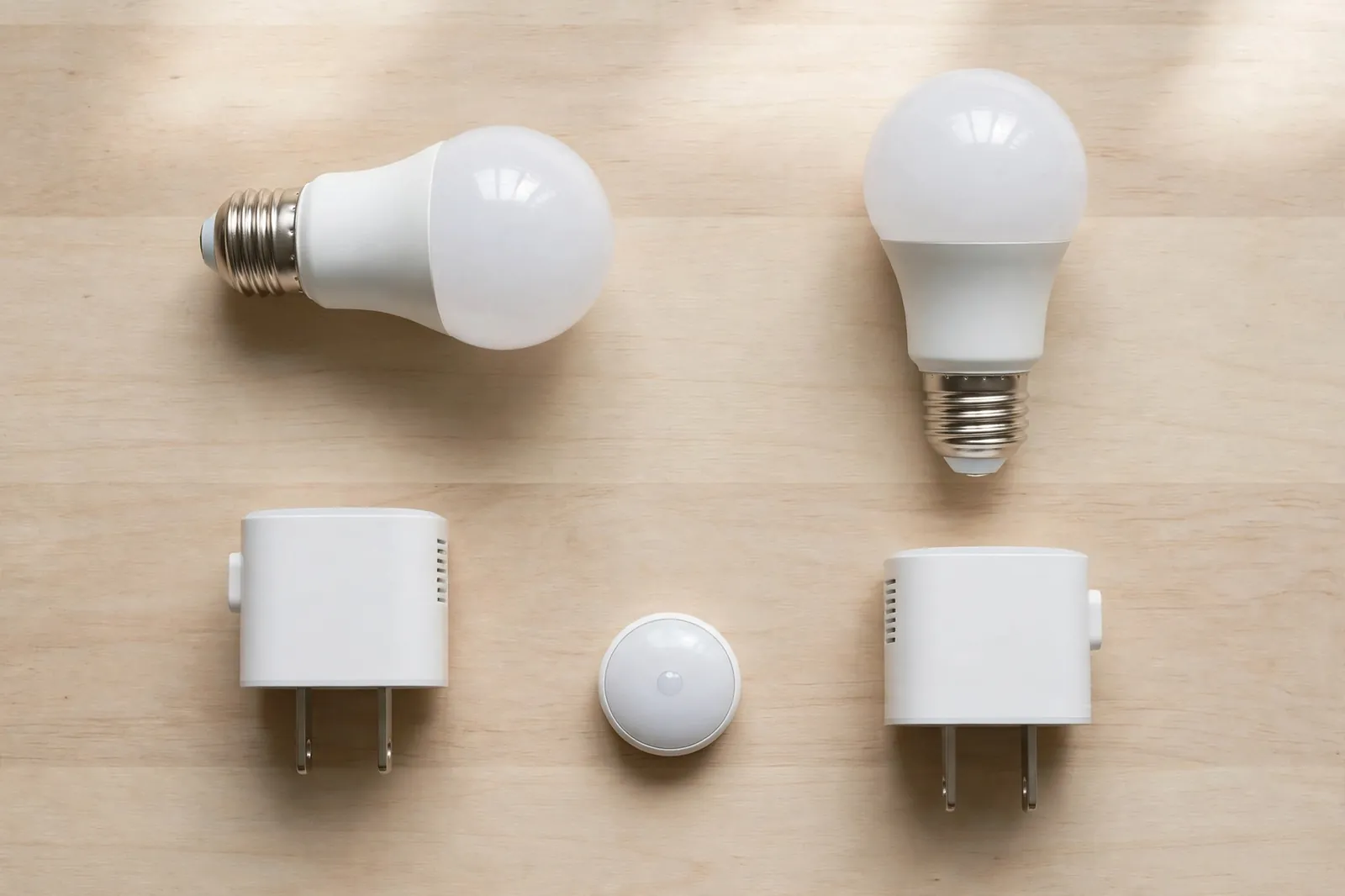
Here is a starter plan that works in most homes and stays cheap. It uses one ecosystem, three device types, and two routines. You can finish it in a weekend. Start small.
- Pick one ecosystem and stick with it for your opening ten devices.
- Check Wi-Fi strength in each room where a device will live.
- Buy two smart bulbs for the room you use most at night.
- Add two smart plugs for lamps or fans you switch daily.
- Add one motion or door sensor in the spot where it solves a real daily annoyance, such as a dark hallway.
- Build two routines, then stop.
- Live with that setup for two weeks before you buy more.
That two-week pause is the most useful step in this guide. It shows which routines you actually use and which devices just sit there. Your usage pattern, not a shopping list, should drive the next purchase.
Wi-Fi strength deserves its own check before you spend anything. Walk to each planned device spot with your phone and look at the signal. If video stutters there, a Wi-Fi bulb will lag too. Our home network installation guide walks through router placement and coverage fixes that help every later device. Fix the network first. Add gadgets after that.
Next, match the bulb to the lamp. Screw bases differ by region and lamp, and a wrong base wastes a return trip. Also check the bulb’s app and ecosystem listing before you open the box.
For a concrete example of that setup flow, our walkthrough for an E12 smart bulb with Google Home shows the app steps and common pairing faults for one small bulb type. Read it once. Pair your own bulb with fewer surprises.
Now build your two routines. An evening routine might dim the living room lights, switch on a lamp by plug, and lock the front door. A morning routine might raise the lights slowly and switch off the night plug. Also, keep each routine to three or four actions at first.
Scenes are the next step after routines click. A scene sets several lights to chosen levels with one tap, such as “movie night” or “reading.” Our guide to creating lighting scenes in the Google Home app shows how to group lights, name scenes clearly, and avoid duplicate names that confuse voice control.
Common Mistakes That Break a Good Setup
The biggest mistake is buying six brands before picking an ecosystem. Each brand adds an app, an account, and a password. Routines then span apps that never quite agree. Pick the ecosystem first, and buy devices that list it.
The second mistake is hiding the hub. I once helped a friend who had placed his hub inside a closed metal media cabinet, then spent weeks blaming his bulbs for dropping off. We moved the hub to an open shelf near the centre of the house, and every bulb and sensor stayed online from that day on. No settings changed. Only the shelf changed.
The third mistake is automating everything at once. Ten routines built on day one will clash, and you won’t know which one fired. Build one routine, test it for a few days, and add the next.
Privacy, Internet Outages, and Local Control
Every smart device sends some data somewhere. Cloud systems send commands through the maker’s servers, which makes remote control easy but ties your home to their uptime. Local systems, on the other hand, run rules inside your house, so basic routines keep working when broadband drops.
Also, ask three questions about any camera or microphone device. Where does its video or audio go? Can you store it locally? Can you turn its cloud features off? If the maker hides those answers, treat that as an answer.
Also, for lights, locks, and sensors, local control is worth favouring when you can get it. A light that needs a distant server to switch on will fail during an outage. A lock should always work by key or code, even if its app is down.
Home Assistant users often choose it for exactly this reason: rules run at home and stay private by design. Our guide to a circadian lighting setup in Home Assistant shows what local automation looks like in practice, with lights that shift through the day without a cloud round trip.
FAQs
What do I need to start a smart home?
You need a phone, a working router, one ecosystem app, and one or two devices that solve a daily annoyance. A smart bulb or plug is a fine early buy. Add a hub only when you buy Zigbee, Z-Wave, or Thread gear, or when you want routines that run without the internet.
Is a hub required for every smart device?
No, many Wi-Fi devices run straight from their app with no hub at all. Hubs become useful when you add low-power mesh devices, mix several brands, or want local routines. Start without one, and add one when your device count or routine needs justify the extra box.
Can devices from different brands work together?
Yes, if they share an ecosystem or a standard such as Matter. Check the exact model for your ecosystem before you buy, since brand-level claims can mislead. A shared app or controller is what turns rival brands into one system, not the fact that both boxes say “smart.”
Does a smart home keep working without internet?
It depends on how each device and routine is built. Local routines on a hub often keep running during an outage, while cloud routines stop. Voice control usually needs the cloud too. Keep physical switches and keys working so an outage stays an annoyance, not a lockout.
Which ecosystem should a beginner pick first?
Pick the one that matches the phones and speakers your household already uses. iPhone homes often suit Apple Home, Android homes often suit Google Home, and Alexa suits homes that want wide device choice. One main ecosystem keeps routines in one place and cuts app clutter fast.
Is Matter worth caring about as a beginner?
Yes, but only as a buying check, not as a reason to replace working gear. When you buy new devices, favour Matter-certified models that list your ecosystem. That choice keeps future switching easier. It does not fix a weak router, a bad hub spot, or a routine you never use.
Final Thoughts
A good setup is small, tidy, and built around one ecosystem. Start with a few devices in one room, fix your Wi-Fi first, and let two simple routines prove their worth. Keep it simple.
Your next step is simple. Pick your ecosystem today, check Wi-Fi in your main living room tonight, and order your first bulb or plug. Start tonight. Two weeks from now, your usage will tell you what to buy next, and that is a far better guide than any shopping list.