
Setting up a home office for remote work means a proper desk, a chair that supports your back, and fast and reliable internet. It also means a video-call setup that looks and sounds good. You don’t need a spare room or a big budget. You need a dedicated spot, the right basics, and a routine marking work hours.
- Pick the Right Spot First
- Your Desk and Chair: The Two Things Worth Spending On
- Set Up Your Work From Home Computer
- Internet: The Backbone of Remote Work
- Power Backup: Don’t Let a Cut End Your Day
- Video-Call Setup That Makes You Look Professional
- Lighting and Sound for Long Days
- Storage, Cables, and the Small Stuff
- Remote Work Routine: The Part People Skip
- Setting Up a Home Office for Remote Work: What It Costs
- Common Home Office Mistakes to Avoid
- FAQs
- How much space do I need for a home office?
- What internet speed do I need for remote work?
- Do I need a second monitor for remote work?
- How do I stop work from taking over my home?
- What is the best chair position for long work days?
- Can I set up a home office in a small flat?
- Conclusion
Working from the sofa feels fine for a day. By week two, your neck aches and your laptop overheats on a cushion. Every call sounds like you are phoning from a cave. A real setup fixes all three problems at once.
Pick the Right Spot First
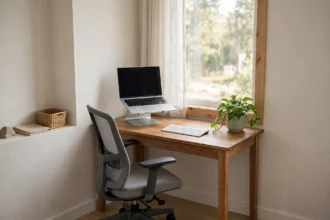
Where should your office go? Look for the quietest corner you have, near a power outlet and as close to your router as you can manage. A spare bedroom is ideal, but a corner of a living room or a wide hallway landing works too. The key is that the spot belongs to work during work hours, even if the room does other jobs at night.
Natural light helps, but don’t sit facing a bright window. Your webcam will turn you into a silhouette, and glare will wash out your screen. Sit beside the window instead, with light falling across your face from the side. That one move improves both your mood and your video calls.
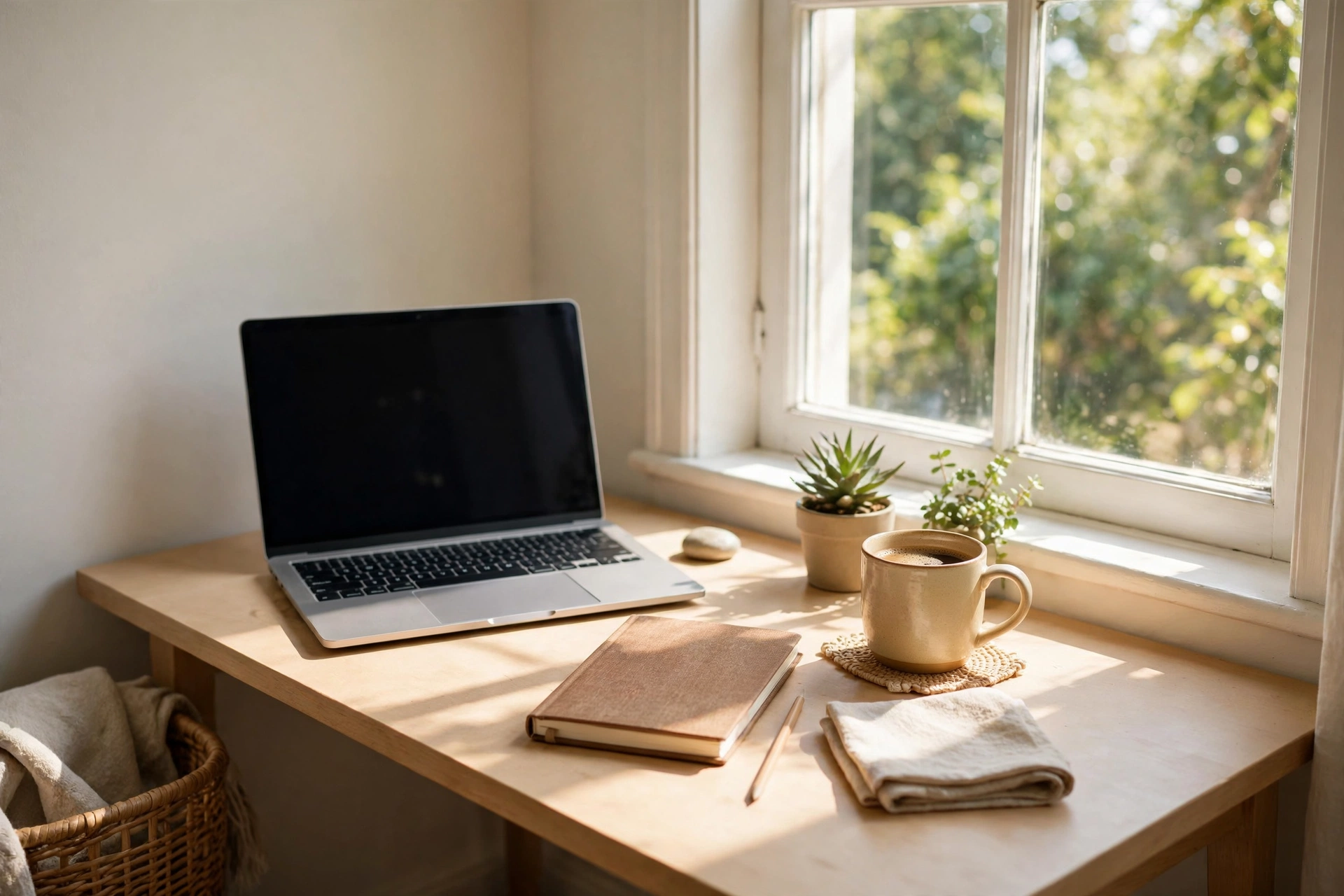
Noise matters more than most people admit. If your spot sits next to the kitchen or the front door, every blender and delivery bell lands on your calls. A door you can close beats a bigger desk every time. Without one, noise-cancelling headphones and an “on a call” sign do a surprising amount of good.
Your Desk and Chair: The Two Things Worth Spending On
Start with the chair. You will sit in it for eight hours a day, so a dining chair will punish you within a week. Look for adjustable height, lower back support, and armrests that let your elbows rest near a right angle. A mid-range chair that fits your height beats an expensive one built for someone taller.
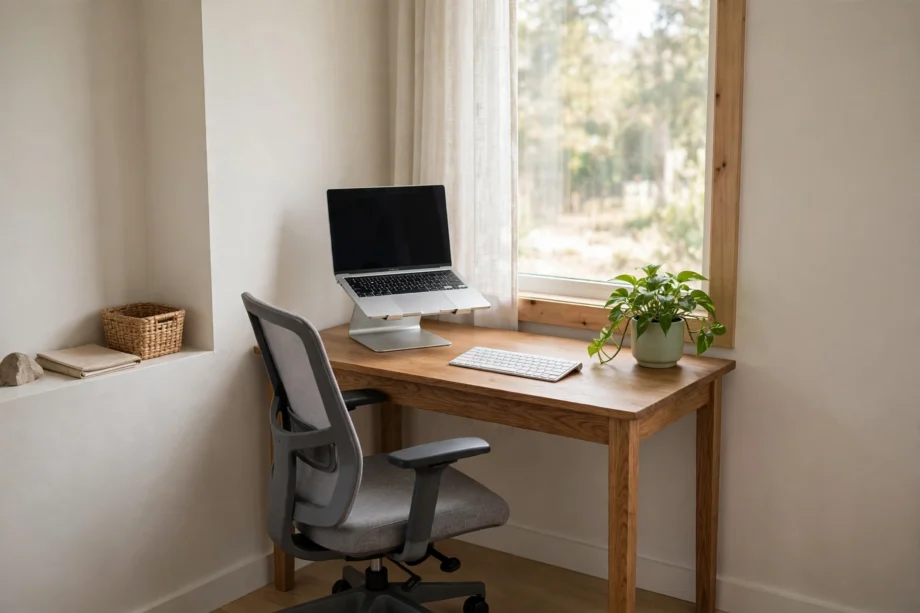
Your desk needs to be deep enough for a laptop or monitor plus a keyboard, with room for your forearms. About 60 cm of depth is a good minimum. If your desk is too high, your shoulders creep up toward your ears by lunch. If it is too low, you hunch. A stack of books under a monitor, or a cheap monitor stand, fixes height problems fast while you decide on better gear.
Set your screen so the top sits at or just below eye level, and keep it about an arm’s length away. Your elbows should rest close to your body, and your feet should sit flat on the floor. These are the same basics in OSHA’s computer workstation guidance, and they exist because small posture errors add up over months, not days.
Set Up Your Work From Home Computer
A work from home computer does not have to be new, but it does have to be reliable. Before your first remote week, update the operating system, update your browser, and check that your work apps open without a fuss. Nothing kills a Monday morning like a forced update at 8:55.
Keep work and personal stuff apart, even on one machine. Use a separate user account or at least a separate browser profile for work. Your bookmarks, passwords, and tabs stay clean, and you stop accidentally sharing a personal tab on a screen share.
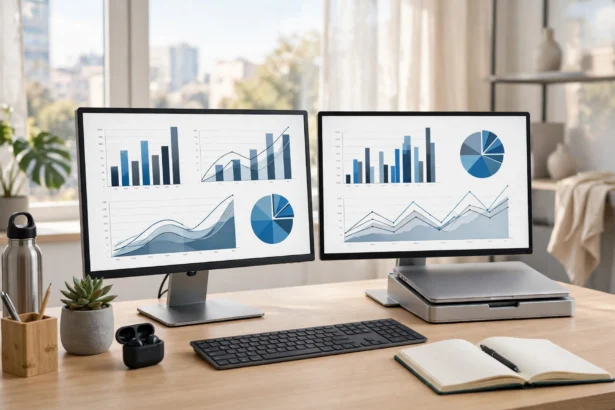
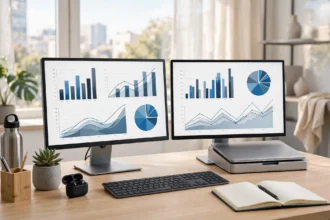
What about a second screen? A second monitor helps a lot for comparing documents or keeping a call open while you work. It is a topic of its own, with its own hardware and display settings. This guide sticks to the full office setup, and a dedicated dual-screen guide covers monitor arrangement in detail. If you only have a laptop for now, a laptop stand plus a separate keyboard and mouse gives you most of the comfort gain for very little money.
Internet: The Backbone of Remote Work
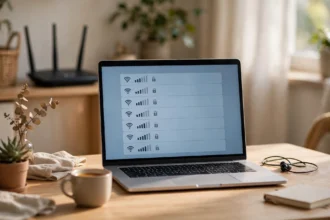
Your internet connection is your office lifeline. Test it before you commit to a desk spot. Run a speed test at your desk, not next to the router. A connection that reads 100 Mbps in the hallway can drop to 20 Mbps behind two walls, and video calls notice the difference.
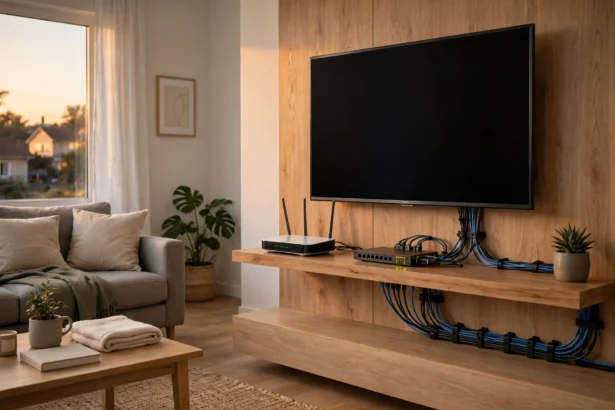
Wired beats wireless whenever you can manage it. A single ethernet cable from your router to your laptop or a small switch removes most call freezes and dropouts. If running a cable is not practical, a mesh Wi-Fi unit in the room next to your office is the next best fix. The same dead-zone tricks that fix a weak Wi-Fi signal at the front door apply here too. Move the router out from behind a TV cabinet and away from thick brick walls.
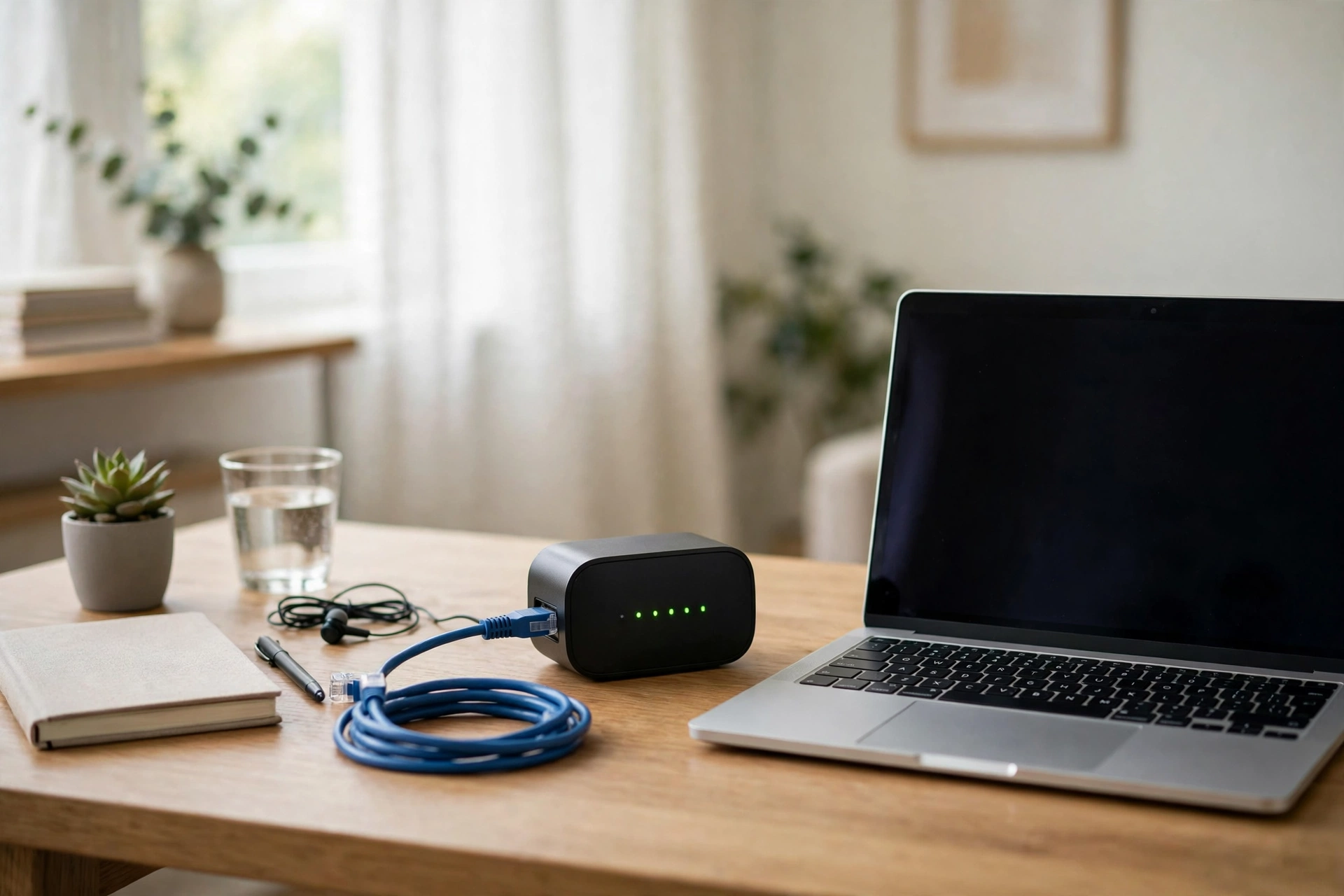
How fast is fast enough? For video calls and normal office work, a steady 25 Mbps down and 5 Mbps up covers one person well. A household with two remote workers and kids streaming needs more, so aim for 100 Mbps or above if several people work and stream at once. Consistency matters more than the headline number, so test at 9 am and again at 7 pm.
Power Backup: Don’t Let a Cut End Your Day
A power cut during a client call is every remote worker’s nightmare. You can’t prevent cuts, but you can ride through short ones. A small UPS, the battery box that sits under a desk, keeps your router and laptop running for 15 to 30 minutes. That is enough to finish a call and save your work.
Your laptop battery is your second line of defence. Keep it charged above 50 percent during work hours, and don’t leave it plugged in on a hot cushion where it overheats. A phone hotspot is your third line. Test it once before you need it, so you know the steps and the speed. A hotspot will not run a full day of video calls comfortably, but it will save one important meeting.
Keep a power strip with surge protection at your desk, and plug your monitor, laptop charger, and router backup into it. One switch then powers your whole office down at night, which saves energy and stops charger bricks humming in the dark.
Video-Call Setup That Makes You Look Professional
Good video calls come down to three things: light, camera height, and sound. Fix those and you will look better than most people on the call, even with a basic laptop webcam.
Put your camera at eye level. A laptop on a flat desk films up your nose, which flatters nobody. Raise the laptop on a stand or a stack of books, and use a separate keyboard. Face a window or a cheap ring light, and never sit with a bright window behind you. Your face should be lit, not your background.
For sound, use a headset or earbuds with a microphone for important calls. Laptop microphones pick up every keystroke and every room echo. A basic wired headset often sounds better than an expensive wireless one, because it never runs out of battery mid-sentence. Test yourself once: record a 20-second clip and listen back. You will hear the echo and background noise your colleagues hear.
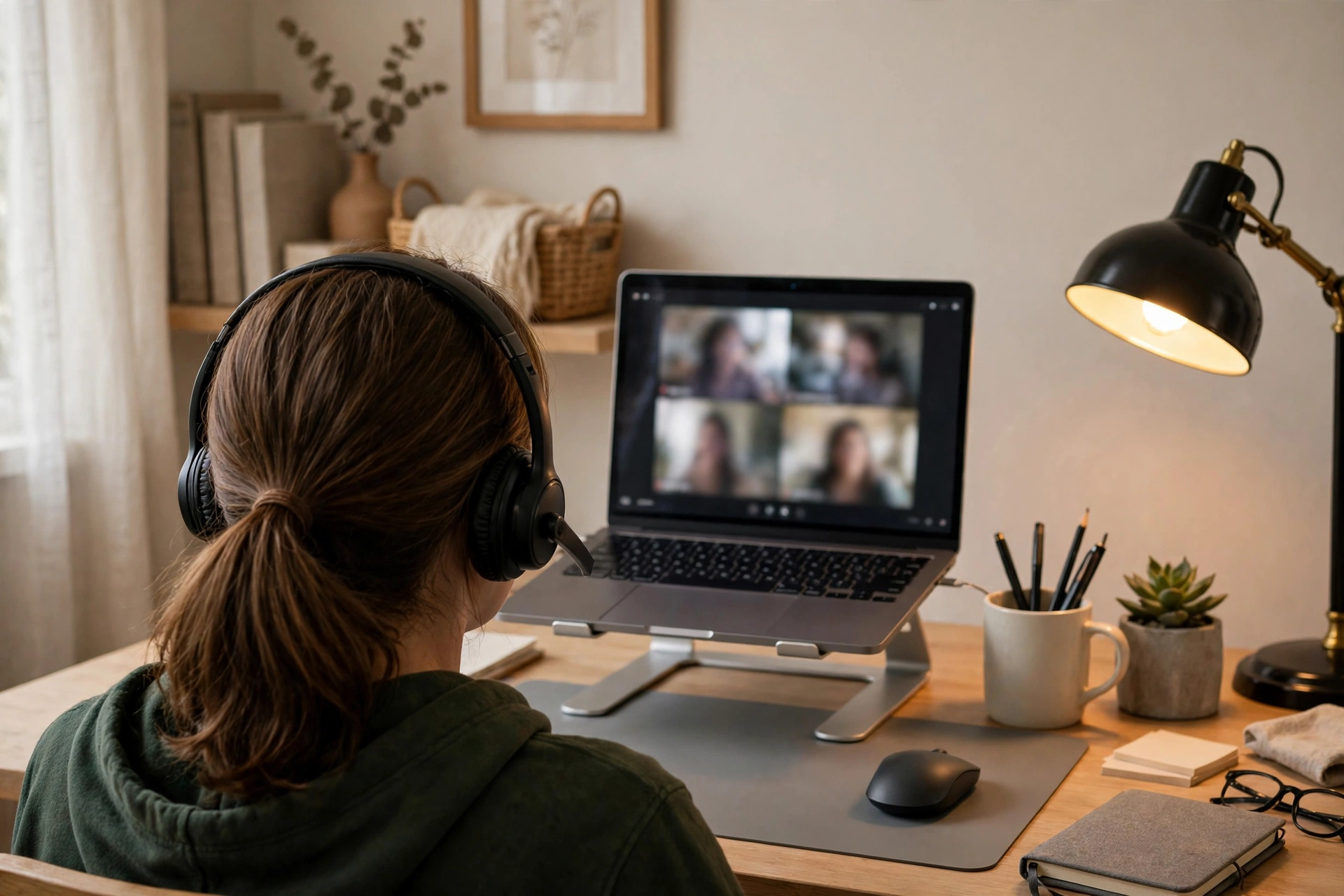
Your background deserves a quick tidy too. A plain wall, a bookshelf, or a blurred virtual background all work. Just check what sits behind you before the call, not during it.
Lighting and Sound for Long Days
Overhead room lights alone make for tired eyes and dull video. Add a desk lamp with warm white light for paperwork, and keep your screen brightness matched to the room, not blazing at full power. If your eyes ache by afternoon, the screen is usually too bright for the room, not the other way round.
Sound matters when you are not on calls too. A quiet room with a closed door beats any playlist trick. If traffic or family noise leaks in, soft background music through one earbud helps focus, but keep the volume low enough to hear a doorbell or a call alert. Smart lighting can help mark work hours as well. A guide to creating lighting scenes in the Google Home app shows how one tap can switch your office from bright work light to a softer evening scene when the day ends.
Storage, Cables, and the Small Stuff
Clutter creeps back fast, so give everything a home on day one. A cable tray or a few clips under the desk keep wires off the floor and away from your feet. A small drawer or box holds chargers, notebooks, and pens.
Keep a notebook and pen on the desk even if you love digital notes. Quick call notes and sketches land faster on paper, and a paper list survives a dead battery. Keep a water bottle on the desk too. Remote workers drink less than office workers, and dehydration shows up as an afternoon headache.
Remote Work Routine: The Part People Skip
Here is the honest truth: the best office setup fails without a routine. Your brain needs signals that work has started and ended, or the workday bleeds into every evening. Set a start time, a lunch break, and a finish time, and defend the finish time like a meeting.
Start each day with a two-minute plan: the three things that matter today, in order. Check messages once, then do the hardest task first, before the inbox pulls you into small jobs. Take a real lunch break away from the desk.
End the day with a shutdown ritual. Write tomorrow’s top three tasks, close your work tabs, and switch the desk light off or change the lighting scene. That small ritual tells your brain the office is closed. Without it, you will answer “one quick email” at 10 pm, and then another.

Setting Up a Home Office for Remote Work: What It Costs
You can set up a decent home office at several price levels. The table below shows what to buy first at each level, based on what actually changes comfort and call quality. Check current prices before you buy, since they move often.
Table: Home office setup budget levels compared
| Item | Starter setup | Comfort setup |
|---|---|---|
| Desk | Existing table, cleared properly | Dedicated desk, 120 cm wide or more |
| Chair | Best chair in the house plus a cushion | Adjustable office chair with lumbar support |
| Screen setup | Laptop on a stand, separate keyboard | Laptop stand plus an external monitor |
| Internet | Wi-Fi tested at the desk | Ethernet cable or mesh Wi-Fi unit |
| Power backup | Phone hotspot tested and ready | Small UPS for router and laptop |
| Video calls | Wired earbuds, window light | Headset, ring light, laptop stand |
Buy in this order if money is tight: chair, laptop stand with keyboard, headset, then everything else. A good chair and a screen at eye level fix the aches that make people quit remote work setups early. The fancy monitor arm can wait.
Common Home Office Mistakes to Avoid
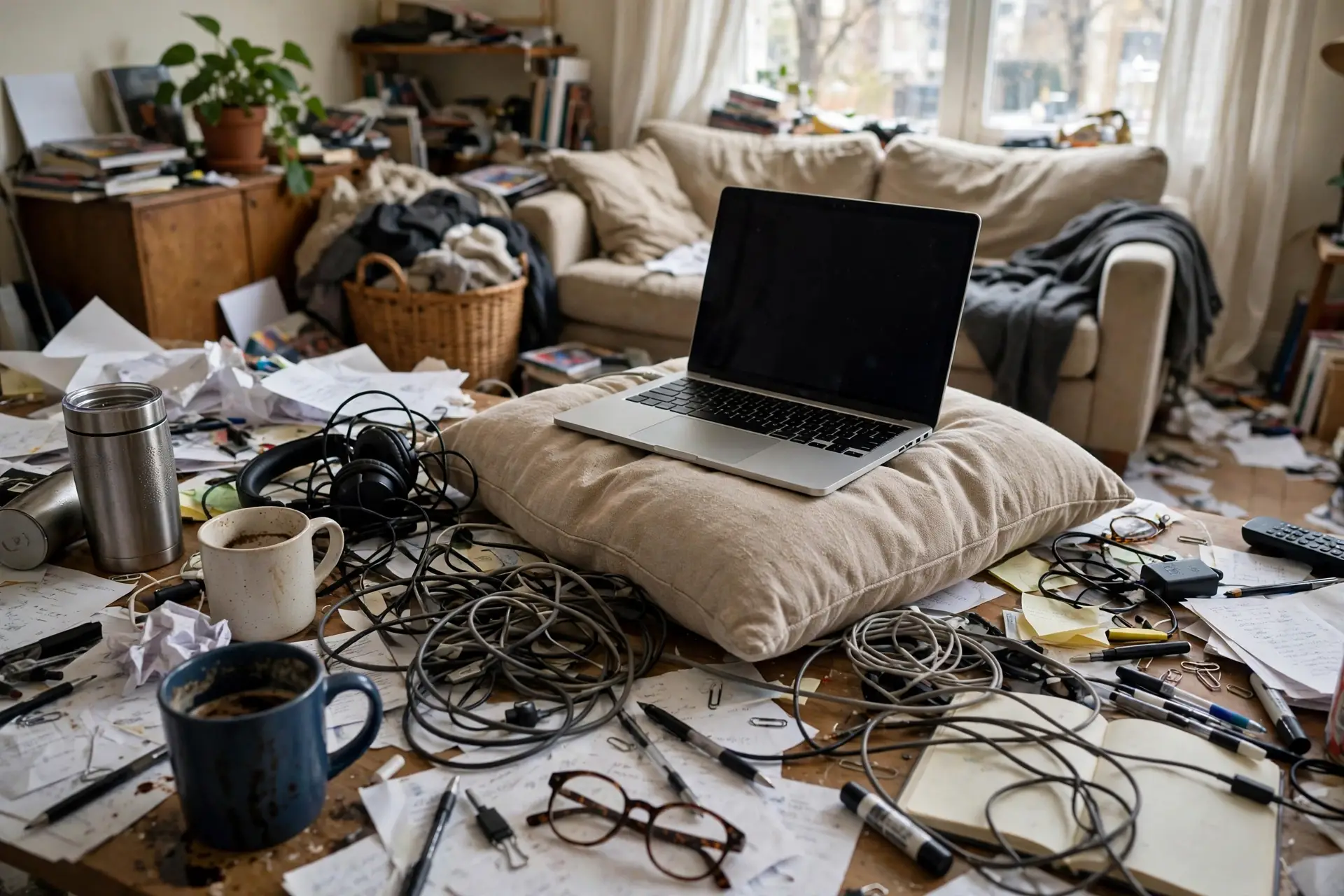
The first mistake is working where you relax. A bed or sofa desk feels cozy and wrecks your back, your focus, and your sleep, because your brain stops knowing which place means rest. Even a small dedicated corner beats the comfiest sofa for daily work.
The second mistake is buying gear before fixing the basics. A 4K webcam will not save a call on a weak Wi-Fi signal, and a standing desk will not fix a chair you never adjusted. Test your internet, set your chair height, and raise your screen first. Gear comes after.
The third mistake is skipping breaks. Remote workers take fewer breaks than office workers, because no one walks over for a chat. Set a timer if you must: stand, stretch, and look out the window every hour. Five minutes away from the screen pays for itself in the next hour’s focus. In a real test week, I moved my desk from a dark hallway corner to a spot beside a window. My afternoon headaches dropped from most days to almost none. The desk, chair, and laptop were exactly the same. Only the light and the view changed.
FAQs
How much space do I need for a home office?
You need enough room for a desk about 120 cm wide and a chair you can push back in, which fits in most spare corners. A dedicated room is nice but not required. What matters more is a spot you can leave set up, so you are not building and packing your office away every single day.
What internet speed do I need for remote work?
A steady 25 Mbps down and 5 Mbps up handles video calls, email, and documents for one person. Two remote workers plus streaming in the same house should aim for 100 Mbps or more. Test the speed at your desk at work hours, since the number beside the router tells you very little about your office corner.
Do I need a second monitor for remote work?
No, but it helps once your work involves comparing documents or keeping a call open while you type. Start with a laptop stand and a separate keyboard, which fixes posture cheaply. Add a monitor later when you notice yourself flipping between windows all day, since that switching is the real sign you need one.
How do I stop work from taking over my home?
Use a shutdown ritual every evening: write tomorrow’s top three tasks, close work tabs, and switch off the desk light. Keep work gear in one spot and avoid checking email after your finish time. A physical boundary, like closing the office door or covering the monitor, signals to your brain that the day is done.
What is the best chair position for long work days?
Sit with your feet flat on the floor, knees near a right angle, and your lower back supported by the chair. Keep the top of your screen at or just below eye level, and your elbows close to your body. Stand and stretch every hour, since even a perfect chair causes stiffness if you never move.
Can I set up a home office in a small flat?
Yes. A wall-mounted folding desk, a laptop stand, and a chair that slides under the desk fit in a hallway nook or a bedroom corner. Use a shelf for books and chargers, and a cable tray under the desk so a small space stays tidy. Routine matters even more here, since work and rest share the same rooms.
Conclusion
Setting up a home office for remote work comes down to a quiet spot, a supportive chair, and a screen at eye level. Add reliable internet with a backup plan, and a video-call setup that shows you at your best. Your next step: pick your spot today, test the internet there, and move your laptop to a stand.