
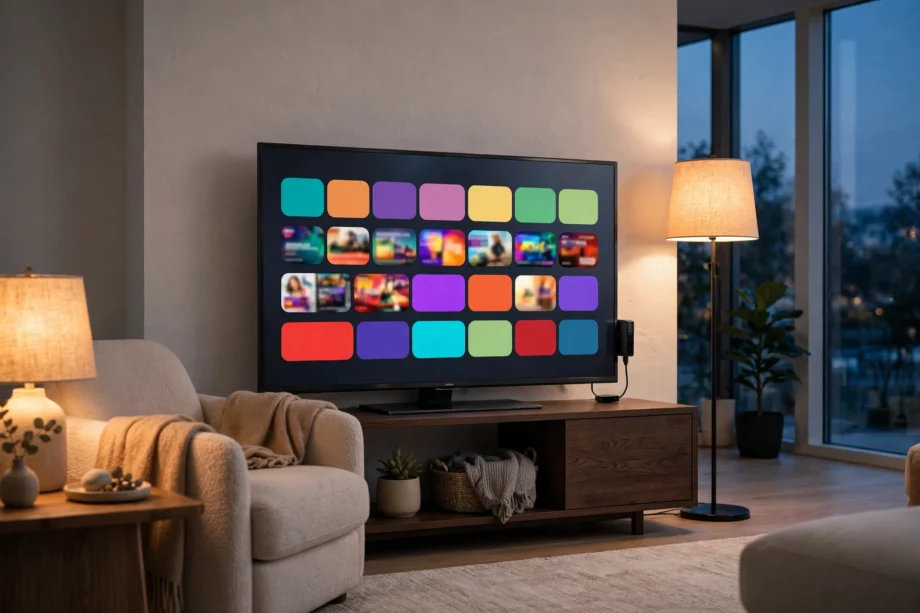
Wondering how to setup a Fire TV Stick? Plug the stick into an HDMI port, connect the power adapter to a wall outlet, pair the remote, join your Wi-Fi network, and sign in to your Amazon account. The whole job usually takes about 15 minutes, and most of that time is just waiting for updates to download.
- What You Need Before You Start
- How to Setup a Fire TV Stick Step by Step
- Step 1: Plug in the stick and power it up
- Step 2: Pair the remote
- Step 3: Pick your language and connect to Wi-Fi
- Step 4: Sign in to your Amazon account
- Step 5: Set up equipment control
- Step 6: Let updates download, then explore the home screen
- Setting Up Your Apps and Home Screen
- Profiles, Parental Controls, and Storage
- Fire TV Setup Tips That Save Time Later
- How Do You Use an Android TV Box?
- Outdoor TV Setup: What Changes Outside
- Two TV Setup: One Stick or Two?
- Fixing Common Fire TV Stick Setup Problems
- After Setup: Getting the Best Picture and Sound
- FAQs
- How long does it take to setup a Fire TV Stick?
- Do I need an Amazon Prime subscription to use a Fire TV Stick?
- Can I use a Fire TV Stick on a non-smart TV?
- Why does my Fire TV Stick keep buffering?
- Can I move my Fire TV Stick to another TV?
- What should I do if the remote stops working after setup?
- Conclusion
If this is your first streaming stick, don’t worry. You don’t need any tools, and you don’t need to know anything about home networks. The TV walks you through each step on screen, and this guide follows that same order.
What You Need Before You Start
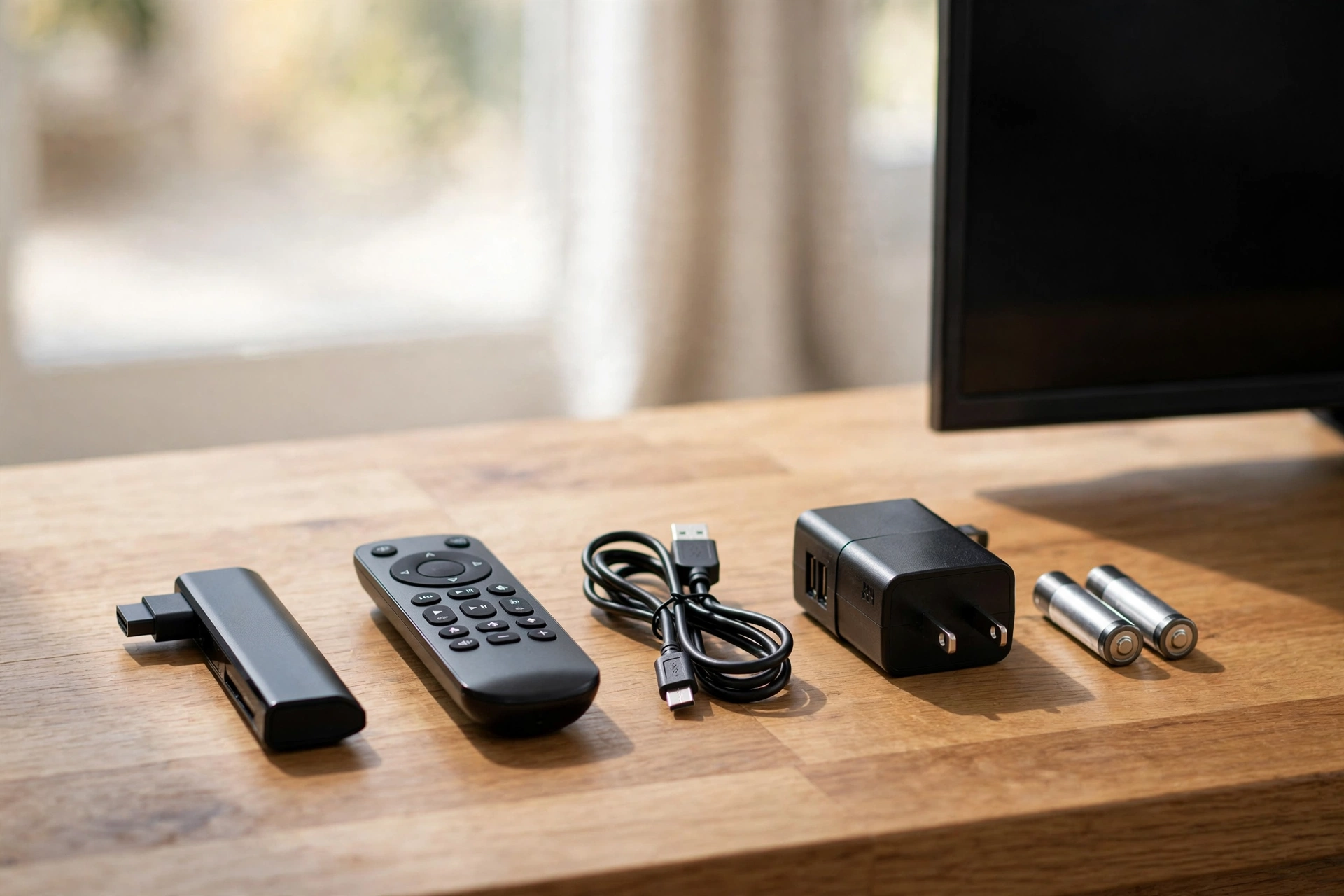
Get everything in one place before you plug anything in, so you are not hunting for batteries halfway through setup. You need the Fire TV Stick itself, the remote, the USB power cable, the power adapter, and the HDMI extender that came in the box.
- A TV with a free HDMI port
- Your Wi-Fi network name and password
- Your Amazon account email and password, or your phone for the QR code sign-in
- Two AAA batteries for the remote (usually included in the box)
- A wall outlet near the TV, not just a USB port on the TV
Why a wall outlet? The stick can draw more power than many TV USB ports supply. A weak power supply causes random restarts and a frozen screen, and it looks exactly like a broken stick. Plug the adapter into the wall and skip that headache.
How to Setup a Fire TV Stick Step by Step
Work through these steps in order. Menus change a little between models, but the order stays the same: power, remote, language, Wi-Fi, sign-in, then apps.
Step 1: Plug in the stick and power it up
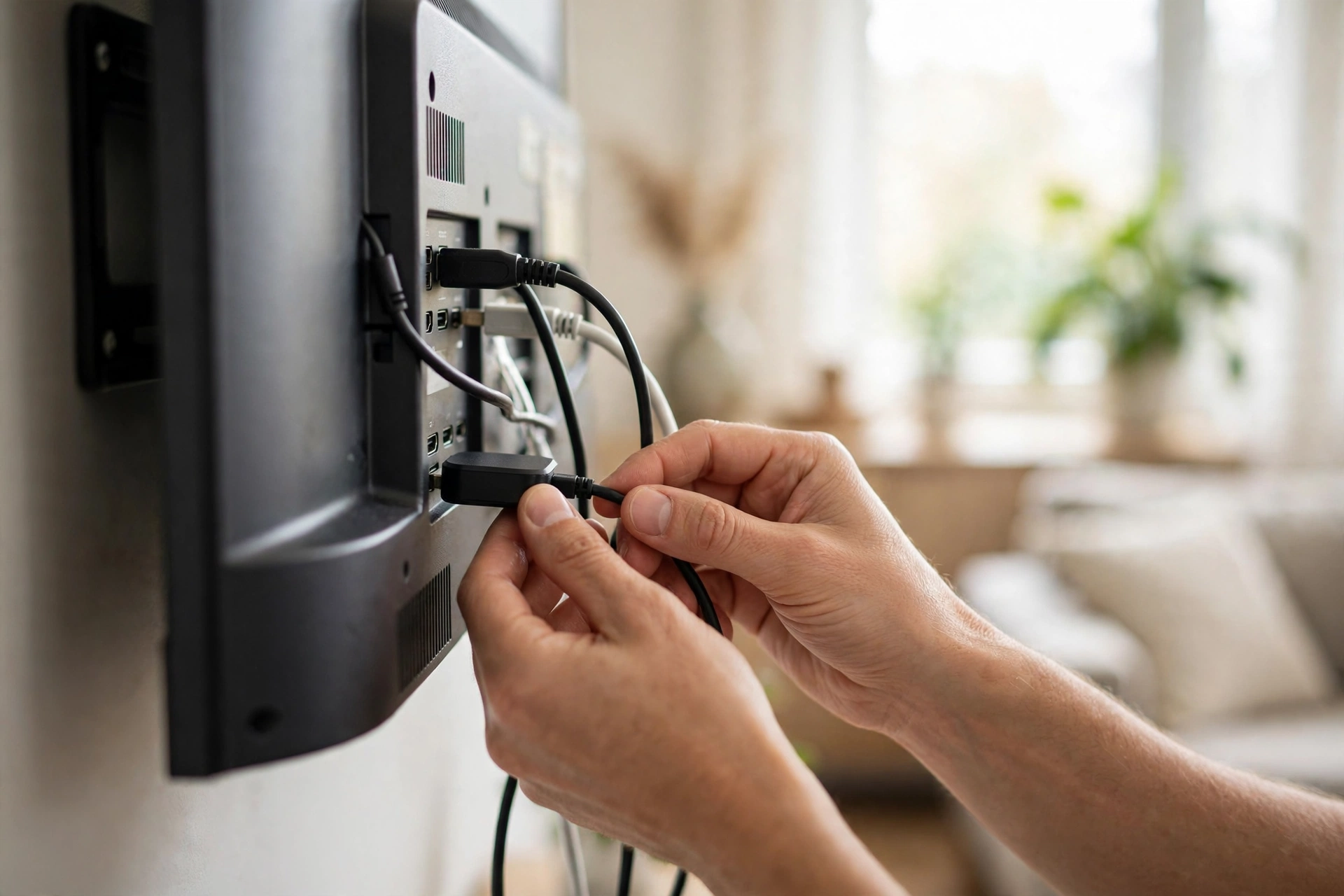
Push the Fire TV Stick into a free HDMI port on the back or side of your TV. If the stick sits tight against the wall or another cable blocks it, use the short HDMI extender from the box. It gives the stick room to breathe and helps the Wi-Fi signal, since the stick is no longer hidden behind a metal TV back.
Next, connect the USB cable to the stick and to the power adapter, then plug the adapter into a wall outlet. Turn the TV on and switch to the correct HDMI input with your TV remote. You should see the Fire TV logo within a few seconds.
Step 2: Pair the remote
Put the batteries in the Fire TV remote and hold it near the TV. In most cases it pairs on its own within a few seconds. If nothing happens, press and hold the Home button for about 10 seconds until the pairing screen appears.
Still no luck? Move closer to the TV, check the batteries are facing the right way, and try the Home button again. A remote that won’t pair is almost always a battery problem, not a broken remote. Fresh batteries fix it nine times out of ten.
Step 3: Pick your language and connect to Wi-Fi
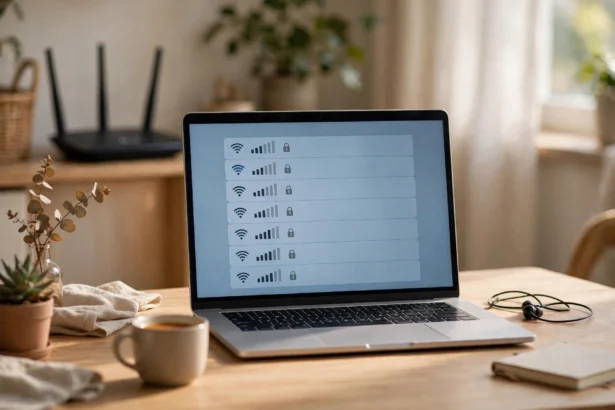
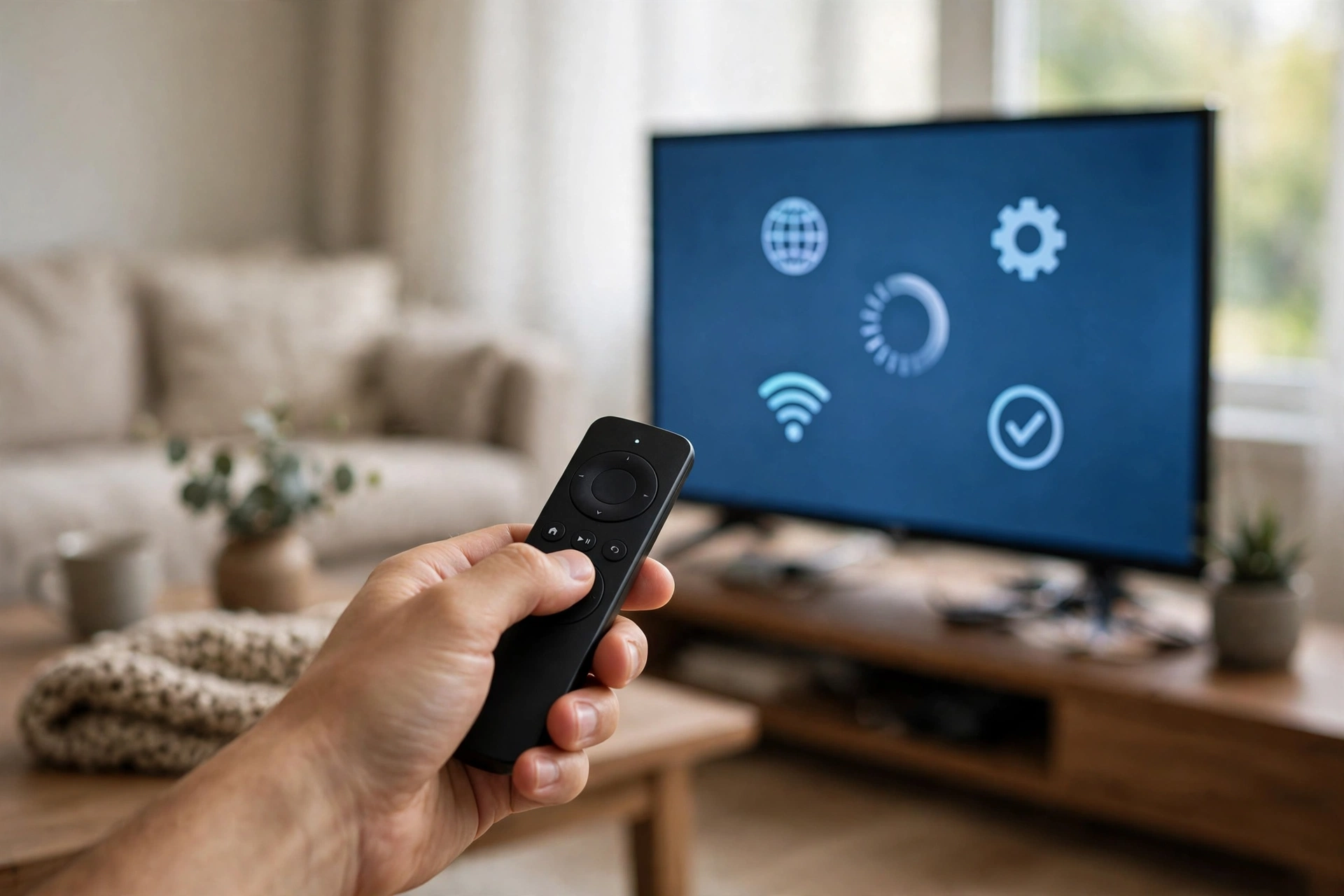
Choose your language, then pick your Wi-Fi network from the list. Type the password carefully with the on-screen keyboard. Passwords are case sensitive, so one wrong capital letter fails the whole attempt.
Newer Fire TV Sticks can also set up Wi-Fi by scanning a QR code with your phone. That saves a lot of fiddly typing. If your network does not show up at all, move the router a little closer or restart the stick and try again. A guide to fixing a weak Wi-Fi signal at the front door covers the same dead-zone tricks.
Step 4: Sign in to your Amazon account
Now the stick asks you to register it to an Amazon account. Type your email and password with the remote, or scan the QR code on screen with your phone. The phone route is faster and avoids typing a long password letter by letter.
Some accounts show a verification code on the TV. Open amazon.com/code on your phone or computer, sign in, and type in the code exactly as shown. That links the stick to your account. If you don’t have an Amazon account yet, create one free during this step. You only pay when you buy or rent something, or choose Prime later.
Step 5: Set up equipment control
The setup screens will ask about controlling your TV and soundbar with the Fire TV remote. Say yes if you want one remote for power and volume. The stick plays test sounds and asks if you heard them. Answer honestly, or the volume buttons may stop working and you’ll be back in settings later.
Step 6: Let updates download, then explore the home screen
Your stick will check for a software update. Let it finish. In a test setup on a 50 Mbps home connection, the first update took about 4 minutes, and the stick restarted once during it. Don’t unplug it while the progress bar is moving.
When the home screen appears, you are done with the core setup. Press the microphone button and say the name of a show to try voice search. It feels odd the first time, and then you will use it every day.
Setting Up Your Apps and Home Screen
Open the app store and install the services you actually use, like Netflix, YouTube, Disney+, or local catch-up apps. Search by name, pick the app, and select Get or Download. Sign in once, and the stick remembers you after that.
Install your top five apps first and add more later. A cluttered home screen makes the stick feel slow, even when it is not. Move apps by highlighting one, pressing the menu button, and choosing Move, then put your daily apps in the first row.
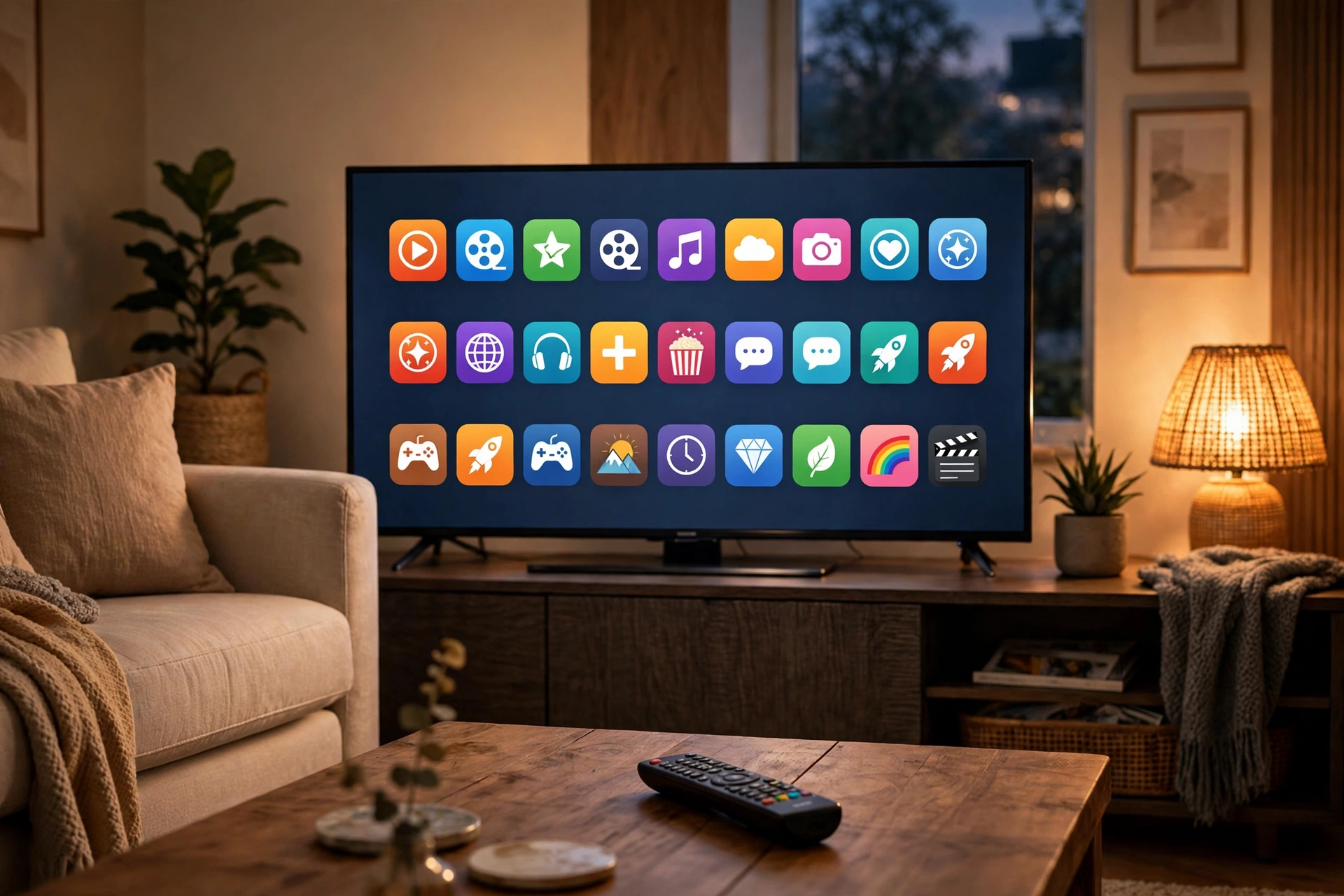
Want a cleaner home screen? Turn off autoplay video previews in Settings, then Display and Sounds. Previews eat bandwidth and startle you at night. While you are there, set display resolution to Auto so the stick picks the best picture your TV supports.
Profiles, Parental Controls, and Storage
Fire TV lets you add profiles, so each person gets their own watch list and recommendations. Go to Settings, then Account and Profile Settings, and add one per family member. Kids get a kids profile with age-appropriate content only.
For purchases, set a PIN under Preferences and Parental Controls. Without one, anyone holding the remote can rent a movie in two clicks. The PIN takes thirty seconds to set and saves an awkward billing surprise.
Storage is the quiet limit on cheaper sticks. If yours starts feeling slow, go to Settings, then Applications, and clear the cache on apps you rarely open. Uninstall apps you stopped using. You can reinstall them later for free.
Fire TV Setup Tips That Save Time Later
Turn on automatic app updates so you never open an app to a forced update screen. Link your Alexa account if you use one, so you can ask for the weather on screen. Set a sleep timer under Display and Sounds if you fall asleep to shows, so the TV is not glowing all night.
How Do You Use an Android TV Box?
An Android TV box is a close cousin of the Fire TV Stick. It plugs into the same HDMI port, but it runs Google TV or Android TV instead of Amazon’s Fire OS. Setup is nearly the same: plug it in, pair the remote, join Wi-Fi, and sign in with a Google account instead of an Amazon one.
Which one should you pick? If you live inside Amazon’s world with Prime Video and Alexa, the Fire TV Stick fits better. If you use Google services, YouTube TV, and Google Home, an Android TV box feels more natural. Both play the same big streaming apps, and both cost about the same at the budget end.
Fire TV setup vs Android TV box setup: the table below sums up the real differences.
Table: Fire TV Stick vs Android TV box setup compared
| Feature | Fire TV Stick | Android TV box |
|---|---|---|
| Account needed | Amazon account | Google account |
| Voice assistant | Alexa built in | Google Assistant built in |
| App store | Amazon Appstore | Google Play Store |
| Typical setup time | About 15 minutes | About 15 minutes |
| Best for | Prime Video and Alexa homes | Google and YouTube TV homes |
Can you use both? Sure. Some homes keep a Fire TV Stick on the main TV and an Android TV box on a second TV, since the steps are the same and only the account and app store change.
Outdoor TV Setup: What Changes Outside
Thinking about a TV on the patio? The stick itself works the same outdoors, but everything around it needs more care. Sun glare is the first problem. A shaded spot or a TV with a brighter screen matters more than any setting on the stick.
Wi-Fi is the second problem. Outdoor walls eat signal fast, so test the signal at the exact patio spot with your phone before you mount anything. If it is weak, a mesh Wi-Fi unit near the back door usually fixes it.
Power and weather need care too. Use a weatherproof outdoor outlet cover, and never leave a regular indoor TV out in rain. A proper outdoor TV survives heat, dust, and damp in a way an indoor set does not. A guide to motion sensor porch light automation shows how outdoor lights can switch on at dusk for evening viewing.
Two TV Setup: One Stick or Two?
Can one Fire TV Stick run two TVs? Not well with a simple cable split. An HDMI splitter can mirror the same picture to both TVs, but both TVs then show the same show, and the remote only controls one room. That works for a bar or a shop window, but it is a poor setup for a home.
The better answer for most homes is one stick per TV. Sticks are cheap, each TV keeps its own apps and watch list, and anyone can watch what they want. Sign both sticks into the same Amazon account and your purchases carry across, so you only buy a movie once.
Want the same show in two rooms for a party? Start it on both sticks and pick the same episode. Each room then keeps its own volume and pause control.
Fixing Common Fire TV Stick Setup Problems
Most setup problems have boring causes, and boring causes have quick fixes. Work through this table before you assume the stick is faulty.
Table: Common Fire TV Stick setup problems and fixes
| Problem | Likely cause | Fix |
|---|---|---|
| Blank screen after plugging in | Wrong HDMI input selected | Cycle through TV inputs with the TV remote |
| Remote will not pair | Flat or wrong-way batteries | Fit fresh AAA batteries and hold Home for 10 seconds |
| Wi-Fi password rejected | Capital letter or typo | Retype slowly and check caps lock on the keyboard |
| Stick keeps restarting | Power from TV USB port too weak | Use the wall adapter that came in the box |
| Buffering on every video | Weak Wi-Fi at the TV spot | Move the router closer or add a mesh unit |
| Apps missing after setup | Wrong account region | Check the account country matches your location |
If a restart loop survives the wall adapter fix, unplug the stick for 30 seconds and plug it back in. That full power cycle clears more glitches than any menu reset. A factory reset, under Settings, then My Fire TV, is the last resort, since it wipes your apps and sign-ins.
After Setup: Getting the Best Picture and Sound
Once apps are installed, open a show you know well and check the picture. If faces look orange or washed out, your TV picture mode is the cause, not the stick. Switch the TV to Movie or Cinema mode for films, and turn off motion smoothing if movement looks oddly smooth, like a soap opera.
For sound, even a basic soundbar beats TV speakers by a wide margin. Connect it by HDMI ARC if your TV has that port, so one cable carries sound both ways and the Fire TV remote controls its volume.
FAQs
How long does it take to setup a Fire TV Stick?
About 15 minutes for most people, including the first software update. Plugging in and pairing the remote takes under 5 minutes. The update is the slow part, and it depends on your internet speed. Budget 30 minutes if your connection is slow, so you are not rushed.
Do I need an Amazon Prime subscription to use a Fire TV Stick?
No. You need a free Amazon account to register the stick, but Prime is optional. Free apps like YouTube and Pluto TV work without Prime. Prime adds Prime Video and some extra perks, but the stick itself works fine with any mix of free and paid apps you choose.
Can I use a Fire TV Stick on a non-smart TV?
Yes, and that is one of its best uses. Any TV with an HDMI port becomes a smart TV with a Fire TV Stick attached. The stick supplies the apps, the interface, and the voice remote. Your old TV only needs to display the picture, so even a ten-year-old set works well.
Why does my Fire TV Stick keep buffering?
Buffering almost always means weak Wi-Fi at the TV or a slow connection during peak hours. Move the router closer, use the HDMI extender to pull the stick out from behind the TV, or add a mesh unit. If every device buffers at once, call your internet provider, since the problem sits beyond the stick.
Can I move my Fire TV Stick to another TV?
Yes. Unplug it, plug it into the new TV, and sign in stays put. You may need to redo equipment control so the remote handles the new TV’s volume, but your apps and account carry over. This makes the stick a handy travel companion for holidays and second homes too.
What should I do if the remote stops working after setup?
Change the batteries first, even if they feel new. Then hold the Home button for 10 seconds to re-pair. If that fails, unplug the stick for 30 seconds and try again once it restarts. Amazon’s official forum walks through the same Fire TV Stick setup steps if you want to compare your screens against the official guide.
Conclusion
You now know how to setup a Fire TV Stick from unboxing to first stream. Plug it in with wall power, pair the remote, join Wi-Fi, and sign in. Your next step: install your five favourite apps tonight and try a voice search.