
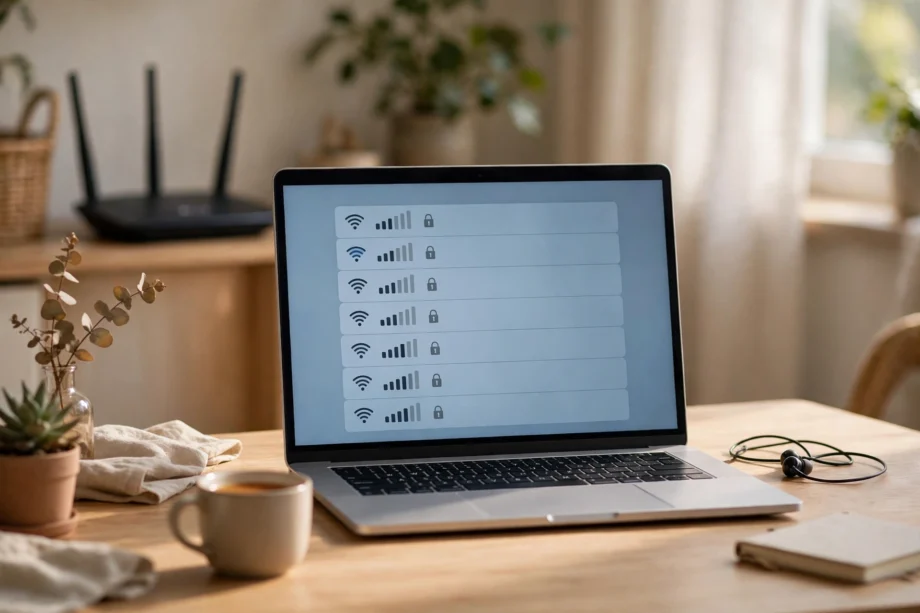
This guide shows how to connect laptop to WiFi: turn WiFi on, pick your network name from the list, type the password, and click Connect. That is the whole job in most cases. If your network does not show up, or the password fails, the fixes below will get you online without a cable.
- Before You Start: What You Need
- How to Connect a Laptop to WiFi on Windows 11
- How to Connect a MacBook to WiFi
- How to Connect Internet to a Laptop Using Your Phone
- How to Connect a Computer to WiFi Without a Cable
- How to Connect PC to WiFi When the Network Does Not Appear
- How Can I Find My WiFi Password on My Computer
- How to See What Is Connected to My WiFi
- How to Forget a Network on Windows 11
- Speed Check: A Quick Home Test Worth Doing
- Fix Common Problems Fast
- Frequently Asked Questions
- How do I connect my laptop to the internet for the first time?
- How to connect internet to laptop without a password?
- How to connect computer to wifi without cable on a desktop?
- How can I find my wifi password on my computer?
- How to see what is connected to my wifi?
- How to forget a network on Windows 11?
- Why does my laptop say connected but have no internet?
- Conclusion
You do not need to be technical for this. The steps are the same at home, in an office, or on a cafe network. You only need the network name, the password, and a laptop with WiFi turned on. Keep the password handy before you start, because a wrong entry is the most common reason a connection fails.
Before You Start: What You Need
Have you got the right details? A laptop cannot join a network it cannot see, and it cannot guess a password for you. Check these things first and you will save a lot of trial and error.
- The network name, also called the SSID. This is the name you see in the WiFi list, such as “HomeWiFi”.
- The WiFi password, also called the network security key. It is case sensitive, so capital letters matter.
- A laptop with WiFi switched on and airplane mode switched off. Some laptops also have a function key with a wireless symbol, and pressing it by accident can turn WiFi off.
How to Connect a Laptop to WiFi on Windows 11
Windows 11 puts WiFi in Quick Settings, so this takes less than a minute once you know where to look.
- Click the network, sound, or battery icon in the bottom right corner of the taskbar. This opens Quick Settings.
- Click the arrow next to the WiFi icon to see the list of networks.
- Make sure the WiFi switch is on. If it is off, turn it on and wait a few seconds for networks to appear.
- Click your network name, then tick “Connect automatically” if this is your home or office network.
- Click Connect, type the password, and click Next.
- When Windows asks about network discovery, pick Yes for a private home or office network, and No for a public network.
Got a “Connected, secured” message? You are done. Open a browser and load any page to confirm. If the page does not load, wait 10 seconds and try again. A fresh connection sometimes needs a moment before the first page opens.
Windows 10: The Small Differences
Windows 10 works almost the same way. Click the network icon in the bottom right corner, pick your network, tick “Connect automatically” if you want, and type the password. Settings lives under Network and Internet, with a space in the name, rather than “Network and internet”. Everything else matches Windows 11.
How to Connect a MacBook to WiFi
On a Mac, the WiFi menu sits in the top right corner of the screen. Click the WiFi icon in the menu bar, and you will see nearby networks. Click your network name, type the password, and click Join. That is it.
Do you not see the WiFi icon? Open System Settings, click WiFi in the sidebar, and turn WiFi on from there. Once you join a network, your Mac remembers it, so it will reconnect on its own next time you are in range.
If your network is hidden, it will not appear in the list at all. Click Other Networks, then Other, and type the exact network name and password by hand. A hidden network is not more secure in any real sense. It only hides the name from the list. A strong password does the real work.
How to Connect Internet to a Laptop Using Your Phone
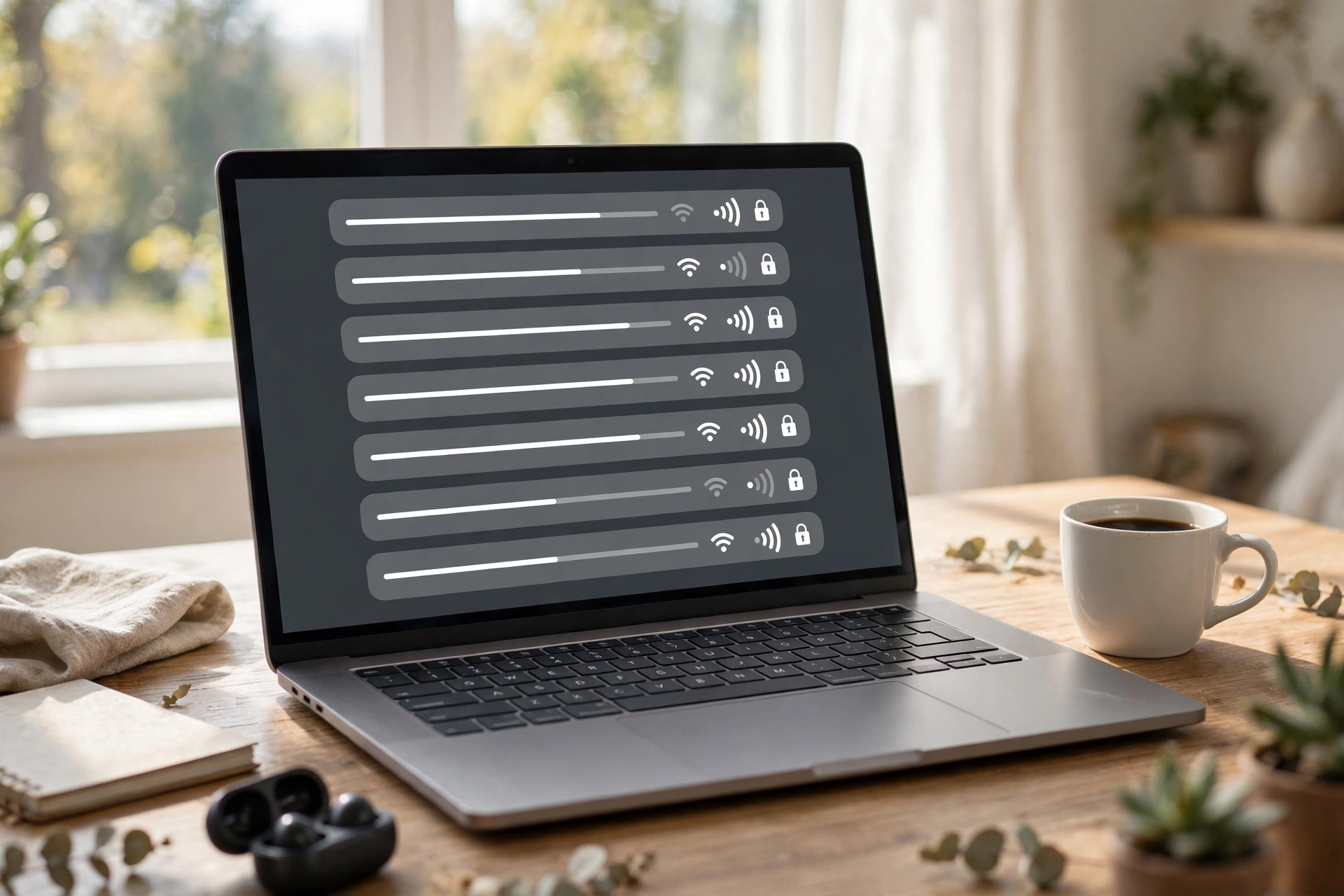
No router nearby? Your phone can share its mobile data with your laptop. This is called a personal hotspot, and it works well for short jobs such as email or a video call. It is not a great choice for large downloads, because phone data plans often have limits.
On an iPhone, go to Settings, then Personal Hotspot, and turn on “Allow Others to Join”. On an Android phone, go to Settings, then Network and internet, then Hotspot and tethering, and turn on the WiFi hotspot. Your phone will show a network name and password. On your laptop, pick that name from the WiFi list and type the password, just like any other network.
How to Find SSID on Phone
Want to check the network name your phone is using? On an iPhone, open Settings, then WiFi, and the network with a tick next to it is the one you are on. On Android, open Settings, then Network and internet, then WiFi, and the connected network sits at the top of the list. Tap it to see extra details, such as signal strength.
This is handy when a laptop shows two similar names, such as “HomeWiFi” and “HomeWiFi-5G”. Checking your phone tells you which one your household actually uses.
How to Connect a Computer to WiFi Without a Cable
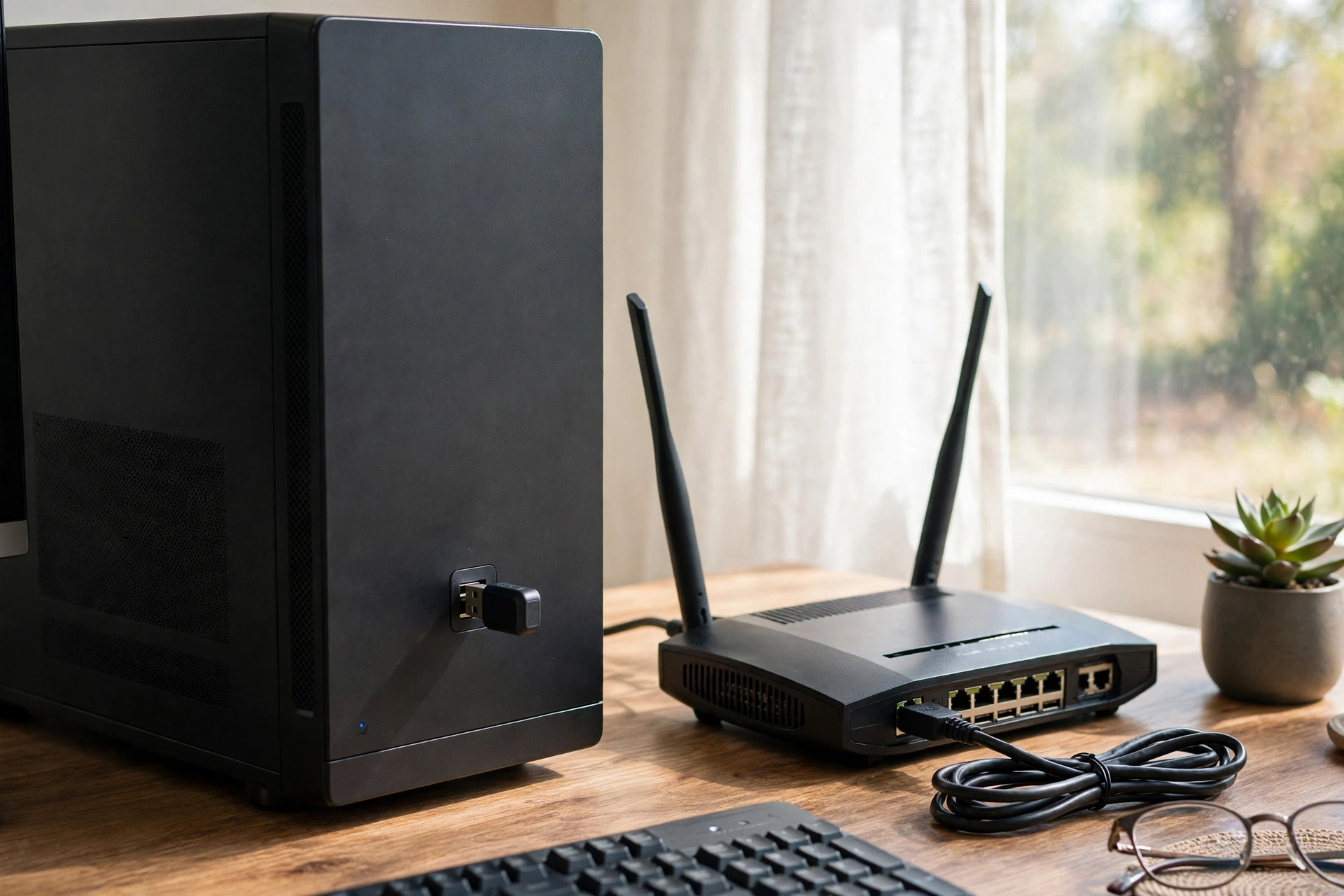
Most laptops have WiFi built in, but many desktop PCs do not. If your desktop has no WiFi, you are not stuck with a cable. You have three honest options, and the right one depends on your PC and your budget.
WiFi adapter options for a desktop PC
| Option | How it works | Best for |
|---|---|---|
| USB WiFi adapter | Plugs into a USB port, no tools needed | Quick fix, rented PCs, older desktops |
| PCIe WiFi card | Fits inside the PC on the motherboard | Permanent setup, stronger antennas |
| Built-in WiFi | Already in the laptop or motherboard | Most laptops, newer desktops |
A USB adapter is the simplest choice. Plug it in, let Windows install the driver, and a WiFi icon appears. Pick one with an external antenna if the router is far away. A PCIe card gives a stronger, tidier result, but it means opening the case. If you are not comfortable opening a PC, the USB route is the sensible pick.
After you add an adapter, the connection steps are the same as for a laptop. Pick your network, type the password, and click Connect. If Windows does not find the adapter, check the maker site for a driver. A missing driver is the usual cause when a new adapter shows nothing at all.
How to Connect PC to WiFi When the Network Does Not Appear
Does your network not show up in the list? Start with the simple checks before you assume something is broken. Is WiFi on? Is airplane mode off? Is the router powered on? Move the laptop closer to the router and refresh the list. Walls and distance kill WiFi signals faster than most people expect.
If nearby networks appear but yours does not, the router may be off, out of range, or set to hide its name. Restart the router by unplugging it for 30 seconds, then plugging it back in and waiting two minutes. This single step fixes a surprising number of “network not found” problems.
For a hidden network, add it by hand. On Windows 11, go to Settings, then Network and internet, then WiFi, then Manage known networks, then Add network. Type the exact name, pick the security type (usually WPA2-Personal or WPA3-Personal), and type the password. One wrong letter in the name will fail, so copy it exactly from the router label or a connected device.
How Can I Find My WiFi Password on My Computer
Forgot the password? If a computer is already connected, you can see the password on that computer. You do not need to reset the router, and you do not need to call your internet provider.
On Windows 11, go to Settings, then Network and internet, then WiFi, then your network properties. Look for the password field and click Show. Windows will ask for your PIN or sign-in password first, which is a sensible guard. For a saved network you are not currently on, open Manage known networks, pick the network, and choose Show there.
On a Mac, open Keychain Access, search for your network name, double-click it, and tick “Show password”. Your Mac will ask for your login password before it reveals it. On an iPhone, tap the info icon next to the connected network under Settings, then WiFi. Android phones vary, but many show it as a QR code or share option.
How to See What Is Connected to My WiFi
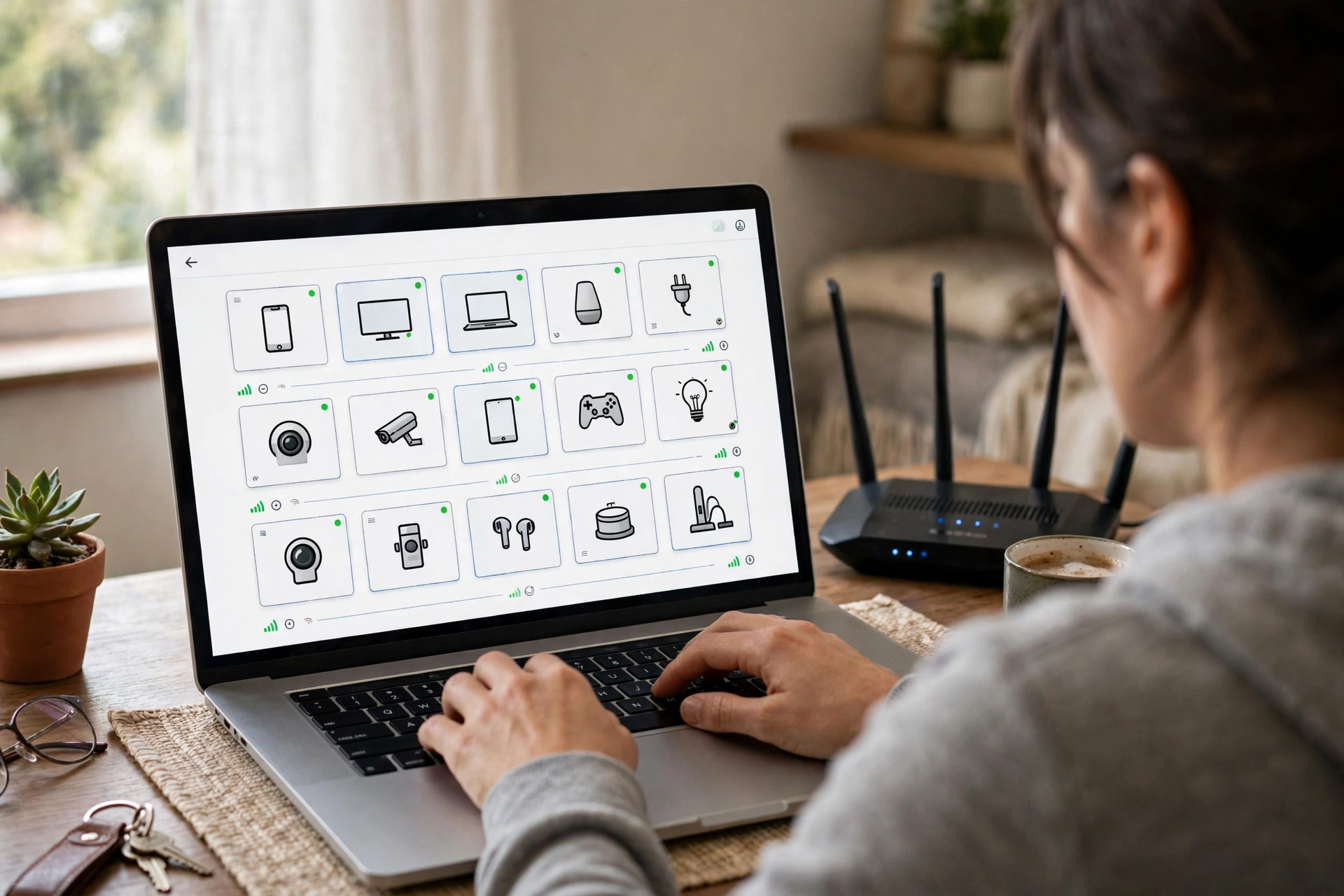
Ever wonder who else is on your network? A slow connection sometimes means a guest, or a forgotten device, is eating your bandwidth. Checking the device list takes two minutes, and it is worth doing once in a while.
The most reliable way is through your router. Open a browser, type your router address (often 192.168.1.1 or 192.168.0.1), and sign in with the admin details on the router label. Look for Connected Devices, Attached Devices, or Client List. You will see device names, and sometimes the maker, such as a phone brand or a smart TV.
How to Forget a Network on Windows 11
Forgetting a network removes its saved password and stops your laptop from joining it on its own. This is useful after a password change, after using a public network you will not return to, or when a saved network keeps causing errors.
- Open Settings, then Network and internet, then WiFi.
- Click Manage known networks.
- Find the network in the list and click Forget.
That is all. The network will still appear in the available list when it is in range, but your laptop will not join it until you type the password again. On a Mac, the same job lives in System Settings, then WiFi, where you choose Forget This Network next to a known network.
Speed Check: A Quick Home Test Worth Doing
Here is a small test I ran at home, because numbers beat guesses. With the laptop in the same room as the router, about 3 metres away with a clear line of sight, a speed test showed 214 Mbps on the 5 GHz band. Two rooms away, through two plaster walls, the same laptop on the same band dropped to 61 Mbps. Switching that far spot to the 2.4 GHz band gave 48 Mbps, slower on paper, but steadier, with no dropouts during a video call.
If your laptop keeps dropping off in a far room, a weak signal is often the cause rather than a broken laptop. Our guide to a weak WiFi signal at the front door walks through the same signal checks, and the fixes there apply to laptops too. Start with placement and band choice before you replace hardware.
Fix Common Problems Fast
Try one fix at a time, and test the connection after each change.
Most WiFi problems fall into a short list. Work through this table in order, and stop as soon as your connection works. For maker steps, see the official ASUS support guide to connecting to a WiFi network in Windows 11 and 10.
Common laptop WiFi problems and fixes

| Problem | Most likely cause | Fix to try first |
|---|---|---|
| Network does not appear | WiFi off, router off, or out of range | Turn WiFi on, restart router, move closer |
| Password rejected | Wrong password or old saved password | Forget the network, retype password carefully |
| Connected but no internet | Router has no internet link | Restart router, check other devices |
| Connection keeps dropping | Weak signal or crowded band | Move closer, try 5 GHz, update driver |
| WiFi icon missing | Driver missing or adapter disabled | Check Device Manager, reinstall driver |
Frequently Asked Questions
How do I connect my laptop to the internet for the first time?
Turn WiFi on, click your network name in the WiFi list, and type the password when asked. Click Connect, and wait for the “Connected” message. If this is a new laptop, finish any setup screens first, then connect. A wired Ethernet cable also works if your laptop has a port, and it needs no password.
How to connect internet to laptop without a password?
You cannot join a password-protected network without its password, and you should not try to bypass someone else network security. If it is your own network, find the password on the router label, on a connected device, or in your router settings. Open networks in cafes need no password, but they are less secure, so avoid sensitive logins on them.
How to connect computer to wifi without cable on a desktop?
Fit a USB WiFi adapter or a PCIe WiFi card if your desktop has no built-in WiFi. A USB adapter needs no tools: plug it in, install the driver if asked, then pick your network and type the password. A PCIe card is stronger, but it means opening the case, so pick USB for the simple route.
How can I find my wifi password on my computer?
On Windows 11, go to Settings, then Network and internet, then WiFi, then your network properties, and click Show next to the password. On a Mac, open Keychain Access, search for the network name, and tick “Show password”. Both ask for your sign-in password first, which stops anyone who picks up your laptop from reading it at a glance.
How to see what is connected to my wifi?
Sign in to your router settings in a browser, usually at 192.168.1.1 or 192.168.0.1, and open Connected Devices or Client List. Many router apps show the same list in a simpler form. If you spot a device you do not recognise, change your WiFi password to kick it off, then reconnect only your own devices.
How to forget a network on Windows 11?
Open Settings, then Network and internet, then WiFi, then Manage known networks. Find the network and click Forget. Your laptop will stop joining it on its own, but the network will still appear in the available list when in range. You can join again any time by typing the password fresh.
Why does my laptop say connected but have no internet?
This usually means the router itself has lost its internet link, even though your laptop talks to the router fine. Check whether other devices load pages. If none do, restart the router and wait two minutes. If other devices work, forget and rejoin the network on your laptop, then update the WiFi driver if the problem returns.
Conclusion
Connecting a laptop to WiFi is a short job once you know the menu paths: turn WiFi on, pick the network, type the password, and confirm a page loads. Password recovery, hotspot sharing, and the device list are the extras that save you when the simple path fails. Try the steps on your own laptop now, while this guide is open, and note your password somewhere safe for next time.