
Wondering how do i access my router? Connect your device to your router network, type the router IP address into a browser address bar, then sign in with the admin details on the router label. From there you can change Wi-Fi settings, passwords, and security options.
- What Does Access Router Mean?
- Find Router IP Address First
- How to Access Router Setup in a Browser
- How Login to Router Works on Each Brand
- NETGEAR Default Password and Nighthawk Router Setup
- Linksys Router Setup and Other Brands
- Spectrum Router Setup: What Is Different?
- How to Access Router Settings From Phone
- How to Change Router Settings Safely
- Default Passwords: Why You Must Change Them
- Locked Out? Reset and Recovery Steps
- Frequently Asked Questions
- How do I access my router if I forgot the IP address?
- What is the default username and password for my router?
- Can I access router settings from my phone?
- Why does my router login page not load?
- Is it safe to use the default password for a while?
- What should I do after a factory reset?
- How do I change my Wi-Fi password safely?
- Conclusion
That sounds simple, and it is, once you know the right address. Most failed logins happen because people type the address in a search box, use the wrong network, or try a password that was changed long ago. This guide fixes each of those traps in order.
What Does Access Router Mean?
To access router settings means to open the router admin page, also called the web interface or admin panel. It is a small website that lives inside your router, not on the internet. You reach it only from a device connected to your own home network, which is why you cannot open it from a cafe Wi-Fi and change your home settings.
The admin page is different from your Wi-Fi settings on your phone. Your phone Wi-Fi page only joins or forgets a network. The admin page controls the network itself: its name, password, security type, connected devices, and firmware.
Find Router IP Address First
Every router has an IP address on your home network, often called the default gateway. That address is the key to the admin page. The most common ones are 192.168.1.1 and 192.168.0.1, but your router may use a different one, so check before you guess.
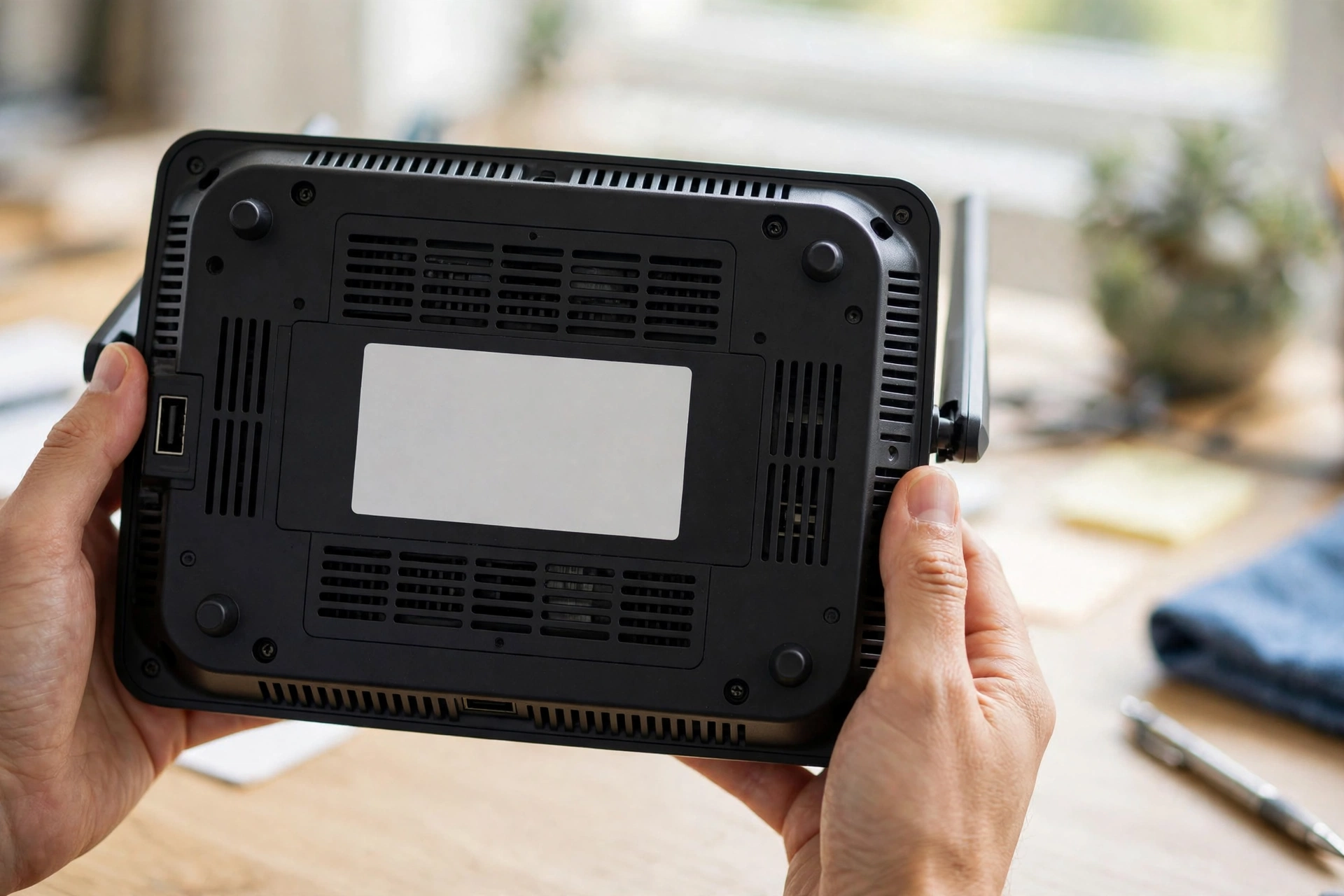
The fastest place to look is the label on the bottom or back of the router. Many labels print the login address, admin username, and default password right there. Take a photo of the label with your phone, so you have it even if the router sits in an awkward spot.
Can you find it on your device instead? Yes, and here is how on each system.
How to find your router IP address
| Device | Where to look | What it is called |
|---|---|---|
| Windows | Settings, Network, Wi-Fi properties | IPv4 DNS or gateway |
| Mac | System Settings, Network, Wi-Fi details | Router |
| iPhone | Settings, Wi-Fi, tap the network name | Router |
| Android | Settings, Network, Wi-Fi details | Gateway |
On Windows you can also open Command Prompt and type ipconfig, then look for the Default Gateway line. On a Mac, open Terminal and type netstat -nr | grep default. Either way, the number you get is the address to type into your browser.
One warning here. Some routers use a word address instead of numbers, such as routerlogin.net, tplinkwifi.net, or myrouter.local. Those are local addresses, not real websites. Type them in the address bar only, never as a search, and never click a search result that claims to be your router login page.
How to Access Router Setup in a Browser
Follow these steps, in order, and you should reach the login page in under a minute.
- Connect your phone or laptop to your router Wi-Fi network, or plug in an Ethernet cable.
- Open a browser such as Chrome, Edge, or Firefox.
- Type the router IP address into the address bar at the top, not the search box.
- Press Enter and wait for the login page to load.
- Enter the admin username and password from the router label.
- If the router asks you to create a new admin password, do that now and write it down.
Still no page? Try the other common IP address, try a different browser, and try an Ethernet cable. A cable rules out Wi-Fi trouble in one step. Also check that you are not on a VPN, which can send your browser traffic away from your home network and hide the router page.
How Login to Router Works on Each Brand
Login steps are much the same across brands, but the address and the default details change. Always check your own label first, since provider versions of the same model can differ. The table below gives the common starting points, not a promise for every model.
Common router login starting points
| Brand | Common address | Common default login |
|---|---|---|
| NETGEAR | routerlogin.net | admin, then password on label or factory default |
| TP-Link | tplinkwifi.net | Newer: password you create; older: admin / admin |
| Linksys | myrouter.local | Password on label or set at first setup |
| ASUS | router.asus.com | admin / admin on older models |
| Spectrum (provider router) | Address on router label | Admin details on router label |
Read that table with care. A default password is a starting point for first setup only. It is not a password to keep. The next sections explain why, and what to change it to.
NETGEAR Default Password and Nighthawk Router Setup
For many NETGEAR routers, the classic default admin login is username admin with the password password. Newer NETGEAR models moved away from that pattern and print a unique password on the router label instead. Check the label before you try the classic pair, since repeated wrong tries can lock the page for a short time.
Nighthawk router setup follows the same path, with one extra choice. You can use a browser at routerlogin.net, or you can use the Nighthawk app on your phone. The app walks you through setup with large steps and handles firmware checks for you. Either route reaches the same settings, so pick the one you find easier.
If you use the app, still write down the admin password you set. Apps change, phones get replaced, and the day you need a browser login is the day you will be glad you kept that note. For the official steps, see the NETGEAR router login guide.
Linksys Router Setup and Other Brands
Linksys router setup usually starts at myrouter.local or the IP address on the label. Newer Linksys routers often use a single password you set during first setup, rather than a shared factory password. The Linksys app can also handle setup and later changes, which suits people who prefer a phone over a browser.
ASUS routers often answer at router.asus.com, and older models use the admin pair noted in the table above. TP-Link routers answer at tplinkwifi.net, and newer models ask you to create an admin password on first login. That change is a good thing, since a password only you know beats a factory password anyone can look up.
For TP-Link models, the TP-Link router login support page gives the official login steps. If your brand is not listed here, search the maker support site for your exact model number. Model numbers matter, since one brand can ship very different login pages across its range.
Spectrum Router Setup: What Is Different?
Spectrum router setup trips people up because Spectrum supplies the router, so the details live on the Spectrum label, not on a generic brand page. If you have a Spectrum router, start with that label and ignore generic default lists. The label gives the login address, the admin details, and the Wi-Fi name and password.
Some Spectrum routers also offer setup through the Spectrum app, which can change the Wi-Fi name and password without opening a browser page. That is handy for a quick Wi-Fi password change. For deeper settings, such as port forwarding or DNS changes, you may still need the browser admin page.
How to Access Router Settings From Phone
Wondering how to access router settings from phone? The steps match the browser steps, with a smaller screen. Connect to your home Wi-Fi, open your phone browser, type the router IP address in the address bar, and sign in. Do not type the address into a search app, since that will just show web search results.
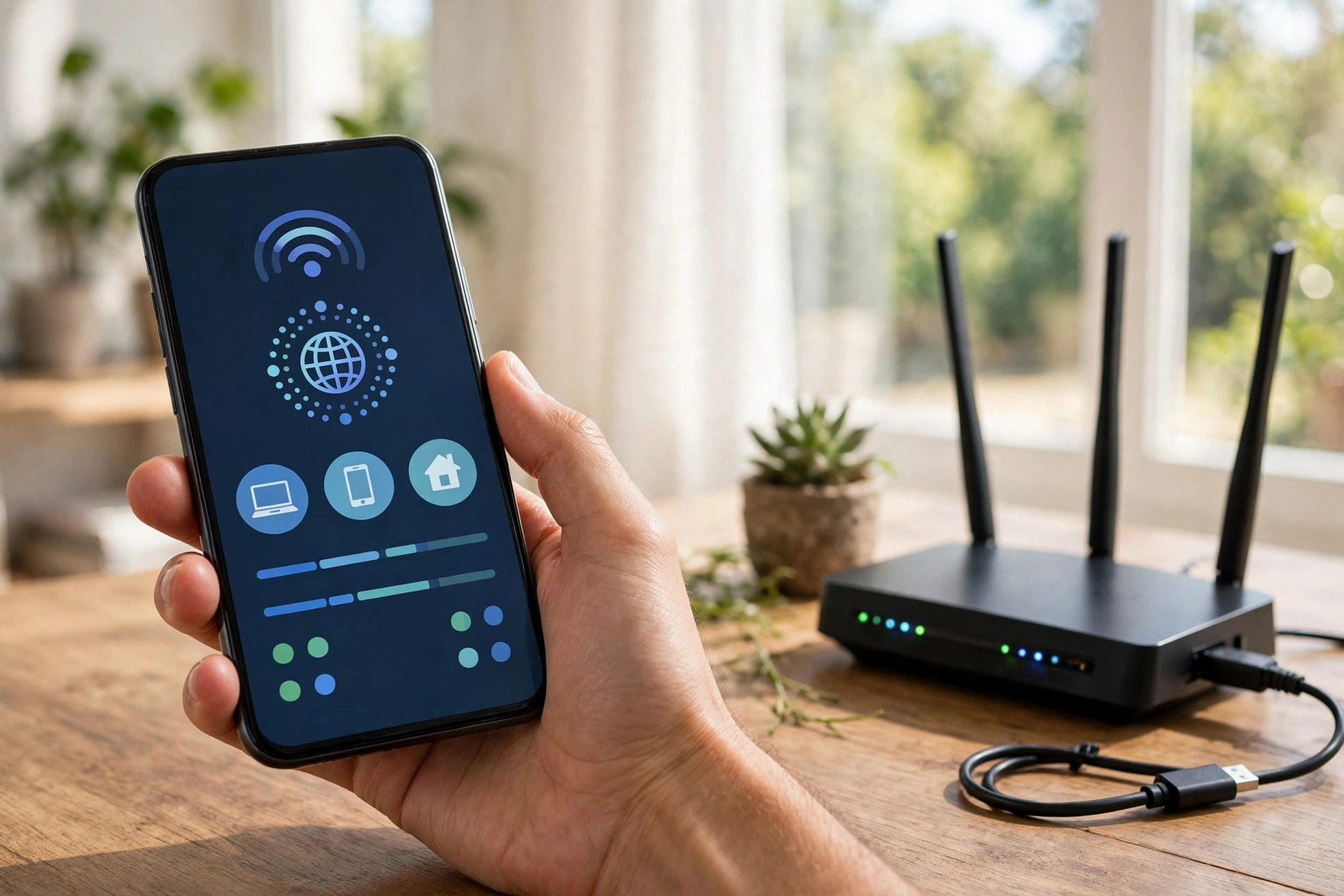
Brand apps are a fair alternative on a phone. The Nighthawk app, Linksys app, TP-Link Tether app, and ASUS Router app all manage common settings with big touch controls. Apps suit quick changes such as a Wi-Fi password or a guest network. Browsers suit deeper changes, since every setting is usually there, even if the app hides it.
How to Change Router Settings Safely
Once you are in, change one setting at a time and save after each change. Changing five things at once, then losing the connection, leaves you guessing which change broke it. Slow and steady wins here.
Start with these safe, high-value changes.
- Change the admin password to a strong password only you know.
- Change the Wi-Fi password if it is still the factory one on the label.
- Set Wi-Fi security to WPA2 or WPA3, never WEP or open.
- Turn on automatic firmware updates, or check for an update now.
- Set up a guest network for visitors, with its own password.
Here is a real detail from my own setup that shows why notes matter. I once changed the DNS setting on a router to test a new service, forgot about it, and spent a week blaming the provider for slow video. The fix took two minutes once I found my old note. The lesson stuck: write down every advanced change, with the date.
Default Passwords: Why You Must Change Them
Let us be blunt. A default password is public knowledge. Anyone who knows your router brand can look up its factory password in seconds. If that password still guards your admin page, anyone on your Wi-Fi, or anyone who tricks a device onto it, could change your settings, lock you out, or redirect your traffic.
So never keep a default password as your permanent admin password. Use it only to get in the first time, or after a factory reset, then change it at once. The same rule applies to the factory Wi-Fi password on the label. Change that too, and do not share the new admin password with visitors. Guests only need the Wi-Fi password, or better, the guest network password.
Locked Out? Reset and Recovery Steps
Forgot the admin password you set? Try the password manager or note where you stored it first. Try the label details too, in case you never actually changed them. If none of those work, a factory reset is the only way back in.
- Find the small reset hole on the back or bottom of the router.
- With the router powered on, press and hold it with a pin for about 10 seconds.
- Wait for the router lights to restart, which takes a few minutes.
- Sign in with the label details, then set the router up again.
- Change the admin password and Wi-Fi password at once, and write them down.
A factory reset wipes every setting, including Wi-Fi names, passwords, and port rules. That is why it is a last resort, not a first step. After a reset, every device in your home will need to join the network again, unless you reuse the old Wi-Fi name and password.
If the login page itself will not load, work through this short checklist. Are you on the router network? Is mobile data off? Did you type the address in the address bar? Have you tried an Ethernet cable and a different browser? Has the router fully booted? One of those answers fixes most cases, and a weak signal at the far end of the house can also look like a login failure. If a doorbell or camera at the front of the house keeps dropping, our guide to a video doorbell with a weak Wi-Fi signal at the front door covers that side of the problem.
Frequently Asked Questions
How do I access my router if I forgot the IP address?
Check the label on the router first, since it often prints the login address. If not, look in your device network settings for the gateway or router entry, which is the same address. On Windows, the ipconfig command shows it as Default Gateway. Type that address into a browser address bar while connected to your home network.
What is the default username and password for my router?
It depends on the brand and model, and newer routers often print a unique password on the label instead of a shared default. Older NETGEAR models often use admin and password, and older TP-Link models often use admin and admin. Always check your own label first, and change any default password at once after you log in.
Can I access router settings from my phone?
Yes. Connect your phone to your home Wi-Fi, open a browser, and type the router IP address in the address bar. You can also use your brand app, such as Nighthawk, Linksys, Tether, or ASUS Router, for common changes. Switch mobile data off if the page will not load, since mobile data can hide the local router page.
Why does my router login page not load?
The usual causes are the wrong network, the address typed in a search box, a VPN sending traffic elsewhere, or a router that is still booting. Connect to the router network, use an Ethernet cable if you can, try a different browser, and wait two minutes after a restart. If it still fails, try the other common IP address.
Is it safe to use the default password for a while?
No. A default password is public, so it should never be your permanent password. Use it only for first login or after a factory reset, then change it right away to a strong, unique password. The same applies to a factory Wi-Fi password. Change both, store them safely, and never share the admin password with guests.
What should I do after a factory reset?
Sign in with the label details, run the setup wizard, and set a new Wi-Fi name and password. Change the admin password at once, update the firmware, and reconnect your devices. If you reuse the old Wi-Fi name and password, many devices will reconnect on their own, which saves a lot of manual setup time.
How do I change my Wi-Fi password safely?
Log in to the admin page, open the wireless or Wi-Fi settings, and type a new password of at least 12 characters. Save, then reconnect each device with the new password. If a device will not join, forget the old network on that device first, then join fresh. Tell guests the guest network password, not your main one.
Conclusion
You now know how do i access my router, from finding its IP address to signing in, changing settings safely, and recovering from a lockout. The key habits are simple: check the label, use the address bar, change every default password at once, and write down what you set. Your next step is to log in today, change the admin password if you have not yet, and check for a firmware update.