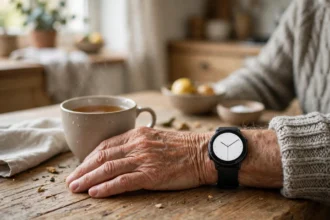

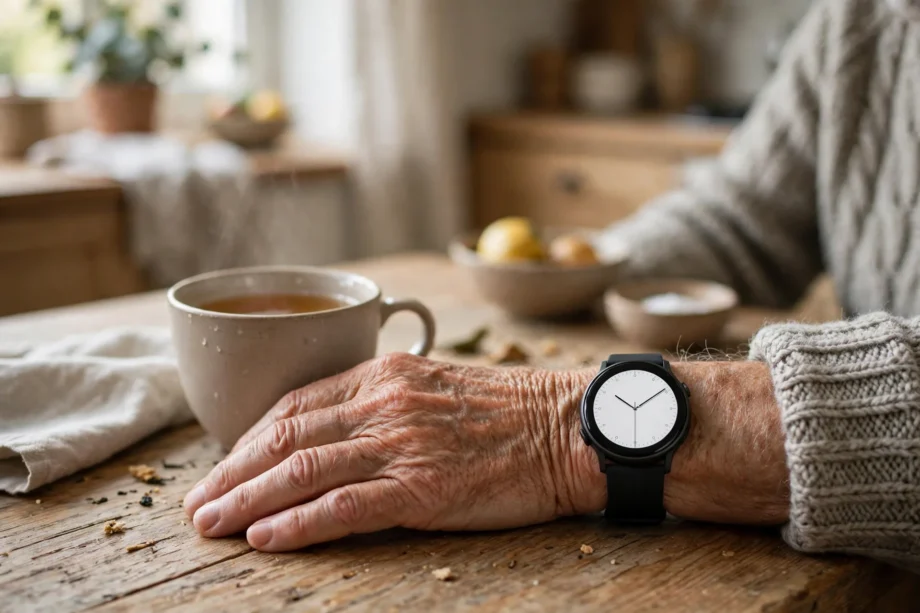
An Apple Watch for seniors can be a safety device, a phone on the wrist, and a health tracker in one small package. It can call for help after a hard fall, remind you to take medicine, and alert family in an emergency. This guide explains what it does well and how to set it up.
- Fall Detection: The Feature That Matters Most
- Which Apple Watch Should a Senior Get?
- Health Features Beyond Falls
- Setting Up an Apple Watch for a Senior
- Everyday Life With the Watch
- Apple Watch vs a Medical Alert Pendant
- Common Problems and Fixes
- Frequently Asked Questions
- Is Apple Watch good for elderly people?
- Does Apple Watch detect falls automatically?
- Do seniors need a cellular Apple Watch?
- Can family monitor a senior Apple Watch?
- Which Apple Watch is best for seniors with fall detection?
- Does Apple Watch work without an iPhone?
- Conclusion
Why consider a watch instead of a simple medical pendant? Many seniors refuse a pendant because it feels like a medical label. A watch looks like a normal watch. That matters. A safety device only helps if it is worn, and people wear things they do not feel embarrassed by.
Fall Detection: The Feature That Matters Most
Fall detection is the headline feature for seniors. On Apple Watch SE and Series 4 or later, and on Ultra models, the watch can sense a hard fall, tap your wrist, sound an alarm, and show an alert. If you respond, you can say you are fine or call emergency services. If you stay still for about a minute, the watch can call emergency services on its own.
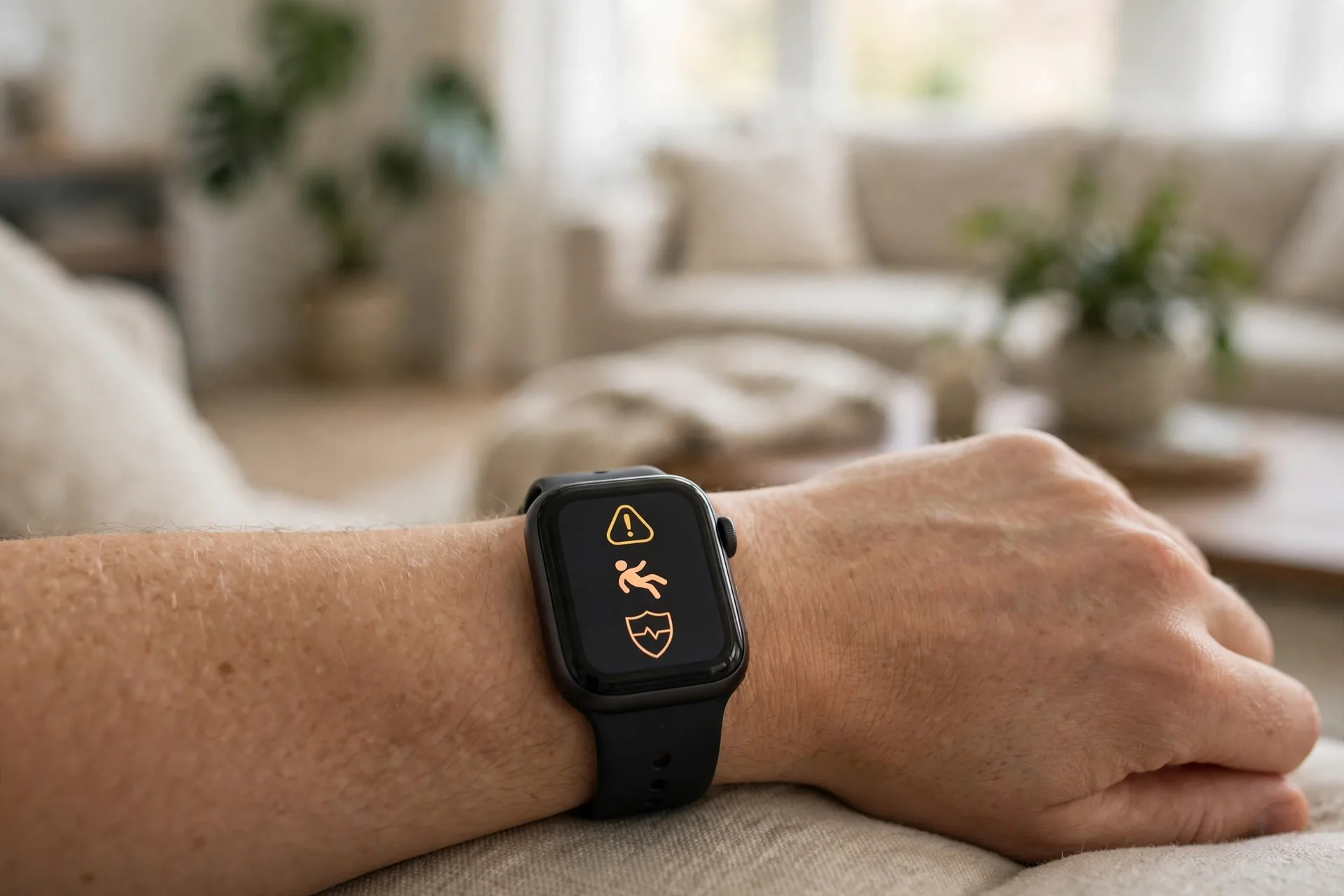
After the call, the watch can send a message to your emergency contacts with your location, letting them know a hard fall was detected and emergency services were called. That message comes from your Medical ID contacts, so setting those up correctly is part of the safety setup, not an optional extra.
For users aged 55 and over who entered their age during setup, Apple turns fall detection on by default. Anyone aged 18 or over can turn it on by hand. You can also choose Always On or Only On During Workouts. For most seniors, Always On is the safer choice, because many falls happen during ordinary routines, not workouts.
One setting can break the whole feature. If wrist detection is turned off, the watch will not automatically call emergency services after a fall. Check that wrist detection is on, and keep the watch snug on the wrist. A loose watch may miss motion patterns or slip during a fall.
Be honest about limits. Apple says the watch cannot detect every fall, and hard impacts during activity can trigger false alerts. Treat the watch as a strong safety layer, not a guarantee. For a senior at very high fall risk, a monitored medical alert service alongside the watch may still be worth it. You can read the official steps in Apple’s fall detection guide before you start setup.
Which Apple Watch Should a Senior Get?
Caption: Apple Watch options for seniors compared
| Model line | Fall detection | Best for seniors who | Note |
|---|---|---|---|
| Apple Watch SE | Yes | Want safety at a lower price | Check current price on Apple’s page |
| Apple Watch Series | Yes, Series 4 or later | Want a larger screen and more health features | Screen size helps readability |
| Apple Watch Ultra | Yes | Want the longest battery and brightest screen | Larger and heavier on small wrists |
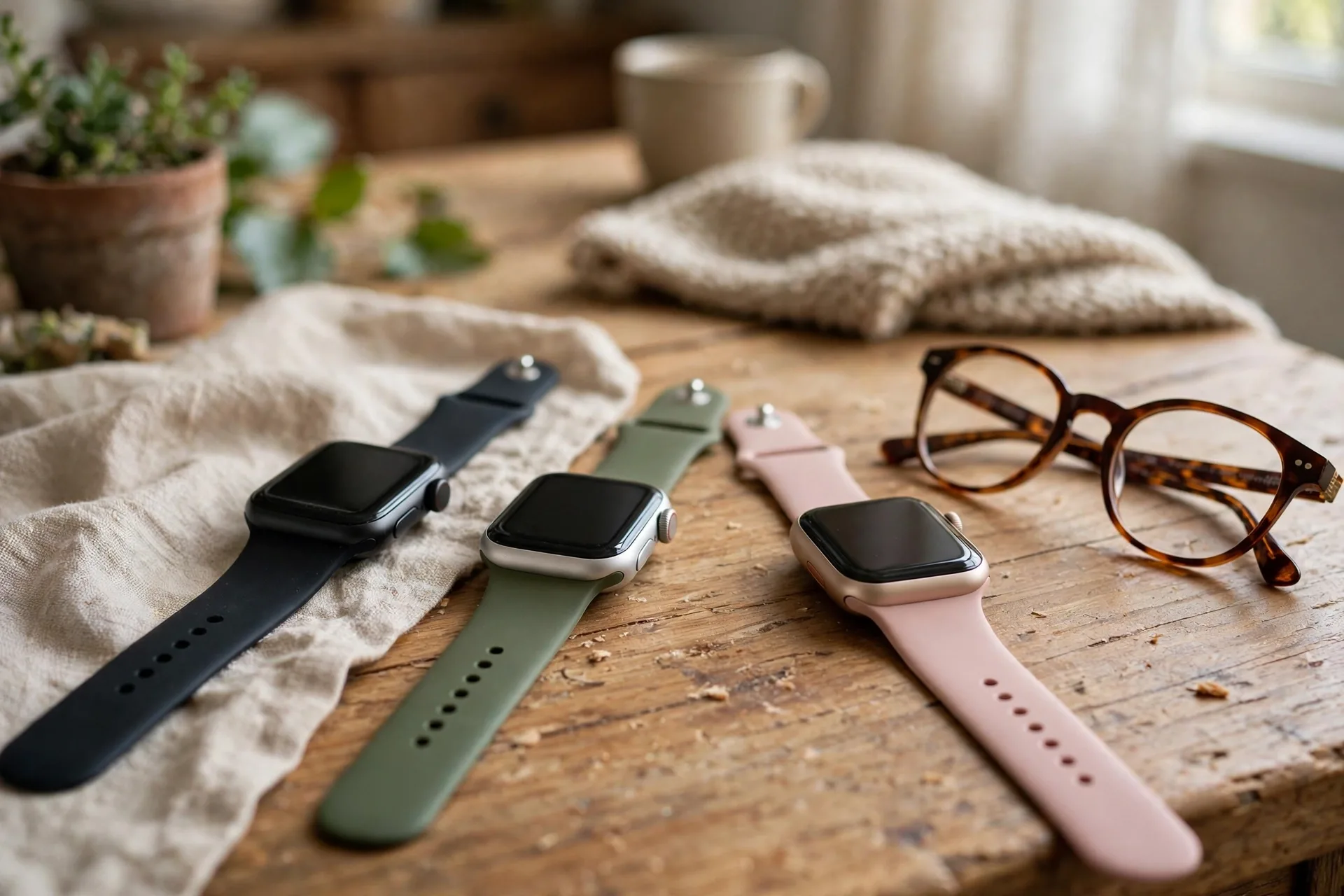
The SE is often the smart pick for a senior. It has fall detection, Emergency SOS, heart rate alerts, and a clear screen, without the highest price. The Series line adds more health features and a larger display, which helps if eyesight is poor. The Ultra has the best battery and brightest screen, but its size can feel heavy on a slim wrist.
Cellular or GPS only? That choice matters more than the model. A GPS only watch needs the paired iPhone nearby to make calls. A cellular watch with an active plan can call and send messages on its own. For a senior who walks alone, gardens, or drives without always carrying a phone, cellular is worth the extra monthly cost.
What about a senior without an iPhone? Family Setup lets a family member set up and manage a watch for someone who does not have their own iPhone. That opens the door for a parent who has never used an iPhone, though some features work differently under Family Setup. Check the current Family Setup details on Apple’s site before you buy.
Health Features Beyond Falls
Heart rate alerts are quietly useful. The watch can warn about unusually high or low heart rates, and irregular rhythm notifications can flag patterns worth showing a doctor. These are not diagnoses. They are prompts to seek care, and that distinction matters. Never treat a watch alert as a medical verdict.

Some models add ECG, blood oxygen, sleep tracking, and medication reminders. Sleep data can reveal restless nights or changing patterns over weeks. Medication reminders on the wrist are harder to miss than a phone alert in another room. For a senior managing several daily medicines, that alone can justify the watch.
Activity tracking helps in a gentle way. Daily steps, standing reminders, and simple exercise rings give family a rough sense of mobility. A steady drop in steps over a month may be worth a conversation, or a doctor visit. Share trends, not single days, and avoid turning health data into daily surveillance.
Fitness features should not overwhelm the senior. Turn off rings, competitions, and noisy notifications you do not need. A calm watch face with large text, a few complications, and only safety alerts will get worn far more happily than a watch buzzing every five minutes.
Setting Up an Apple Watch for a Senior
- Pair the watch with the senior iPhone, or use Family Setup from a family member iPhone.
- Enter the correct date of birth, so fall detection behaves as expected for age 55 and over.
- Open the Watch app, tap My Watch, then Emergency SOS, and turn on Fall Detection.
- Choose Always On unless there is a clear reason to limit detection to workouts.
- Check that Wrist Detection is on, in the Watch app under Passcode settings.
- Fill in Medical ID on the iPhone Health app, with conditions, allergies, and medicines.
- Add trusted emergency contacts, and test that they receive alerts as expected.
- Set a large, simple watch face with big text, and turn on larger accessibility text if needed.
Do setup together, slowly. A rushed setup leaves the senior confused and less likely to wear the watch. Walk through a fake alert together: what the watch will show, how to tap I am OK, and how to drag the Emergency Call slider if help is needed. Practice removes fear.
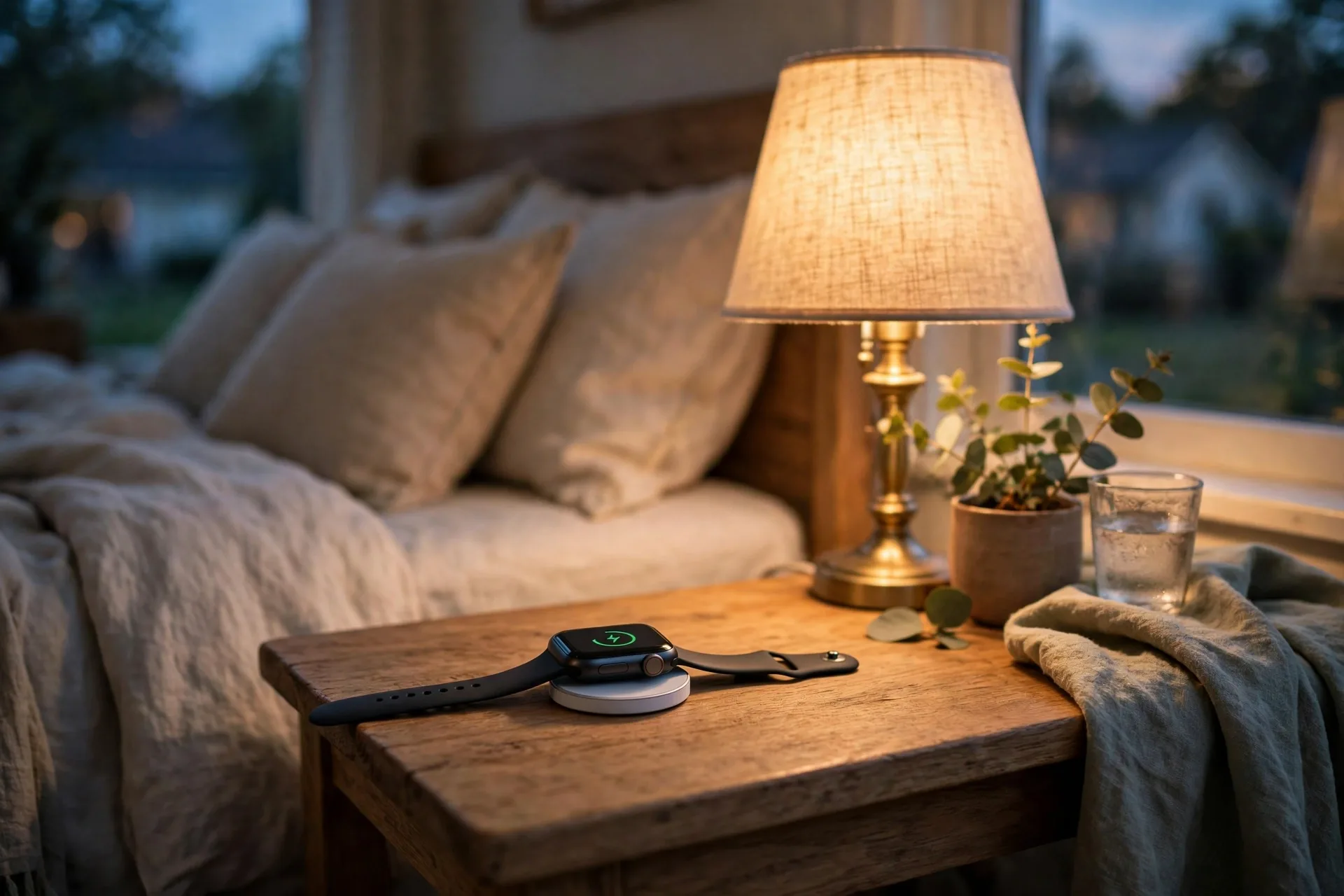
Charging needs a routine too. The watch needs charging most days, and a dead watch is no safety device. Put the charger by the bed, charge during a shower or a morning routine, and consider a second charger in the living room. Some families set a daily reminder on the senior phone to charge the watch.
For seniors already using Apple devices at home, the watch fits into a wider setup. If you want to see how Apple smart home pieces connect, our guide to what Apple Home is explains the ecosystem in plain terms. A watch is not required for Apple Home, but it can act as a handy controller and notification point.
Everyday Life With the Watch
Calls and messages from the wrist help seniors who struggle with a phone. A large on screen button to answer a call is easier than finding a phone in a bag. Voice replies let someone answer a message without typing. For a senior with stiff fingers or poor eyesight, that ease is a real quality of life gain.
Reminders, timers, and alarms all live on the wrist. A timer for the oven, a reminder for a doctor appointment, and a morning alarm are all simpler when they buzz where you can feel them. A senior who is hard of hearing may feel a wrist tap long after a phone ring has gone unnoticed.
Location sharing can reassure family without constant checking. Emergency contacts receive location after an emergency call. Families can also use Find My, with consent, to locate a senior who is lost or confused. Agree on the rules first. Location sharing without consent damages trust fast.
What about seniors who are not tech confident? Start with three features only: fall detection, calls, and medication reminders. Ignore the rest for the first month. Once those three feel normal, add one feature at a time. A watch that does three things well beats a watch that does thirty things confusingly.
Apple Watch vs a Medical Alert Pendant
A pendant has one job: call for help. It is simple, often has a longer battery, and usually connects to a monitoring center. A watch has many jobs, needs charging, and relies on the senior understanding alerts. For a senior who wants simplicity above all, a pendant may still win.
The watch wins on wearability and everyday value. It is a watch, a phone, a reminder tool, and a health tracker. Seniors who already like tech, own an iPhone, and will charge nightly often prefer it. Seniors who dislike screens, forget charging, or need a monitored center may prefer a pendant.
Some families use both. The watch covers daily life and outings, while a pendant or home sensor system covers nights and high risk times. That sounds like overkill until the first fall happens at home while the watch is charging. Redundancy is not wasteful when safety is the goal.
Cost is another factor. The watch has an upfront price, plus a cellular plan if you choose cellular. A pendant usually has a monthly monitoring fee. Compare total cost over two years, not just day one, and check current prices on official pages, since models and fees change.
Common Problems and Fixes
False fall alerts happen. A hard knock during sport or housework can look like a fall to the sensors. Teach the senior to tap I am OK promptly, and do not punish false alerts with worry. If false alerts happen often, check the fit, and consider whether Only On During Workouts suits an active senior better.
Battery anxiety is common. Turn off background apps you do not use, reduce screen brightness, and use a simple watch face. Those small steps stretch battery life noticeably. If the watch still dies before bedtime, check battery health in settings and consider a newer model.
Small text frustrates many seniors. Turn on larger text and bold text in accessibility settings, and pick a watch face with big numbers. A watch that cannot be read at a glance will be ignored, and an ignored watch helps no one.
For a sense of where Apple devices are heading, and how new models may change the choice for seniors, see our coverage of the Apple October 2026 event. New models often bring better screens and battery life, but an older SE with fall detection already covers the core safety need.
Frequently Asked Questions
Is Apple Watch good for elderly people?
Apple Watch can be good for elderly people who will wear it daily, charge it regularly, and use an iPhone or Family Setup. Its fall detection, Emergency SOS, heart alerts, and reminders suit active seniors well. For seniors who dislike tech or forget charging, a simple medical pendant may be kinder.
Does Apple Watch detect falls automatically?
Yes, Apple Watch SE and Series 4 or later, plus Ultra models, can detect a hard fall and, after about a minute of immobility, call emergency services automatically. Fall detection is on by default for users aged 55 and over with a correct age on file. Wrist detection must be on for automatic calling.
Do seniors need a cellular Apple Watch?
Seniors do not always need a cellular Apple Watch, but it helps a lot if they spend time away from their iPhone. A cellular model with an active plan can call for help without the phone nearby. A GPS only model works fine at home, as long as the paired iPhone stays close.
Can family monitor a senior Apple Watch?
Family members can manage a senior watch through Family Setup and receive emergency alerts when fall detection calls for help. Health data sharing needs consent and setup in the Health app. Agree on what is shared before you enable it, so monitoring feels like support, not surveillance.
Which Apple Watch is best for seniors with fall detection?
The Apple Watch SE is often the best value for seniors, since it includes fall detection at a lower price. Seniors who want a larger screen or more health features can look at the Series line, while Ultra suits those who want the longest battery. Check current prices and sizes before you buy.
Does Apple Watch work without an iPhone?
Apple Watch needs an iPhone for initial setup, or Family Setup from a family member iPhone, and some features need the phone nearby. A cellular model can make calls and send messages away from the phone once set up. Check current Family Setup details on Apple’s site for the exact limits.
Conclusion
Pick the SE for value, or a larger model for readability, choose cellular if the senior goes out alone, and set up fall detection, Medical ID, and emergency contacts together. Practice the alert steps before they are needed. Your next step is simple: check the senior iPhone, confirm the date of birth is correct, and turn on fall detection today.