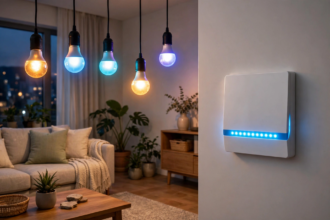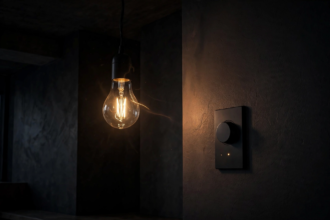


Smart Bulb Mode keeps full power flowing to your smart bulbs at all times, so they never drop offline when someone flips the switch. Instead of cutting power, the switch’s paddle becomes a scene controller that tells the bulbs what to do over Zigbee, Z-Wave, or your hub. Here’s how to set it up on the most popular switches.
- What Smart Bulb Mode Actually Does
- Which Switches Have Smart Bulb Mode?
- Before You Start: What You Need
- Step-by-Step: Enabling Smart Bulb Mode on Inovelli
- Step 1: Put the Switch in the Right Switch Type
- Step 2: Enable Smart Bulb Mode
- Step 3: Set Up How the Paddle Controls the Bulbs
- Option A: Zigbee Binding (Fastest, Works Without Hub)
- Option B: Z-Wave Association (For Red Series)
- Option C: Hub Automations and Scene Control (Most Flexible)
- Setting Up Smart Bulb Mode in Home Assistant
- Common Mistakes to Avoid
- What About the LED Bar?
- Do You Even Need Smart Bulb Mode?
- FAQs
- What is Smart Bulb Mode on a smart switch?
- How do I enable Smart Bulb Mode on an Inovelli switch?
- Can I use smart bulbs with a regular dimmer switch?
- Does Smart Bulb Mode work if my hub goes down?
- Will Smart Bulb Mode work with any smart bulb?
- Can I use Smart Bulb Mode in a 3-way switch setup?
- Conclusion
What Smart Bulb Mode Actually Does
A normal switch, smart or dumb, controls a relay. Flip it off and the circuit breaks. Power stops. For a regular bulb, that’s fine.
For a smart bulb, it’s a disaster. Smart bulbs need constant power to keep their radios alive. Cut the power and the bulb goes offline. It won’t respond to the app, voice commands, or automations until someone physically flips the switch back on. Your “smart” bulb becomes a very expensive dumb bulb.
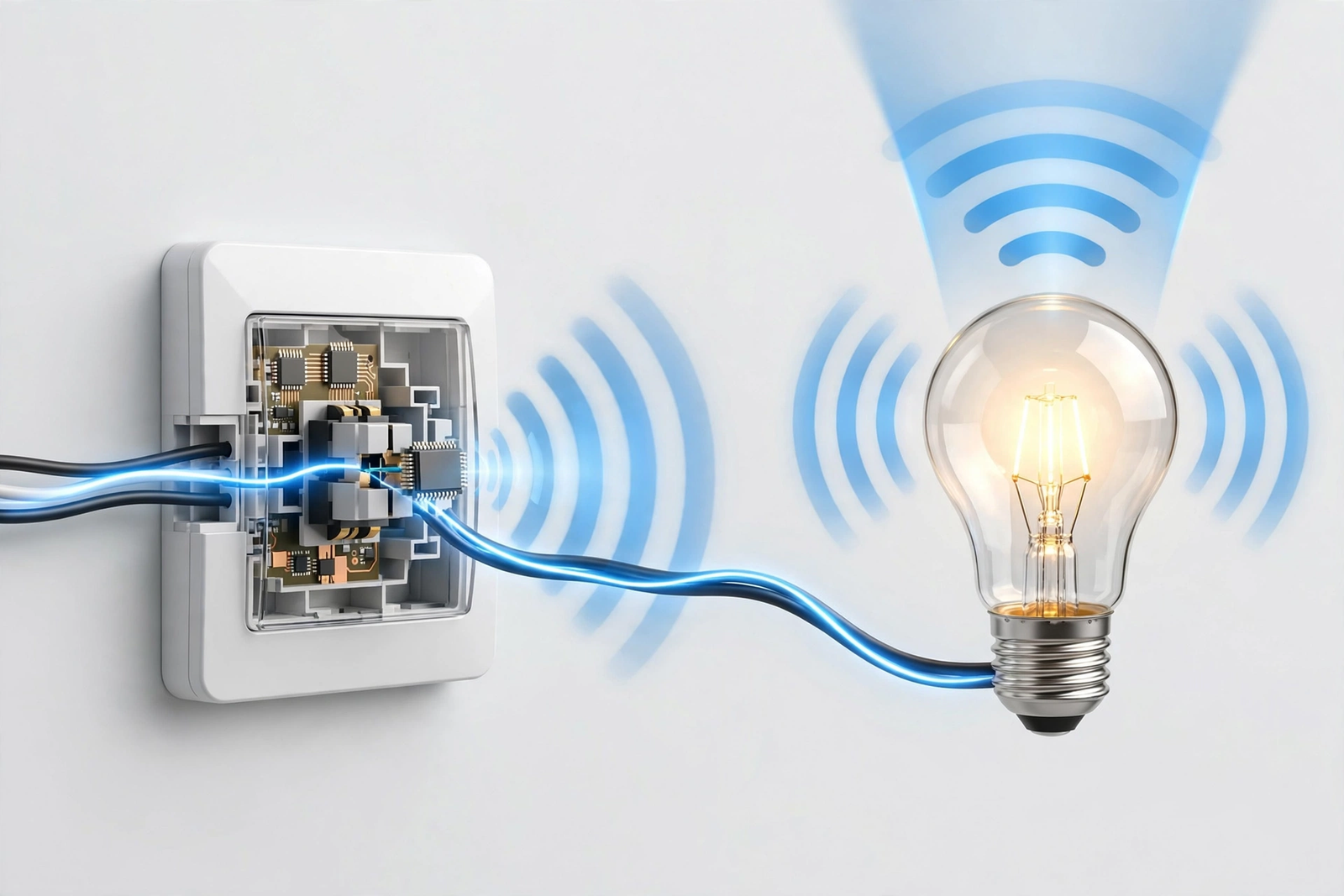
Smart Bulb Mode fixes this by disabling the relay. The switch passes full power to the bulbs permanently. The paddle doesn’t break the circuit anymore. Instead, pressing it sends a wireless command: turn on, turn off, dim up, dim down. The bulb stays powered and responsive no matter what.
Think of it this way. Without Smart Bulb Mode, the switch controls electricity. With it, the switch controls the bulb’s brain. Same paddle, completely different job.
Which Switches Have Smart Bulb Mode?
Not every smart switch offers this. Here’s the landscape:
Table: Smart switches with Smart Bulb Mode support
| Switch | Protocol | How to enable | Notes |
|---|---|---|---|
| Inovelli Blue 2-in-1 | Zigbee | Hold up paddle, tap config 4x (yellow LED) | Also works as dimmer or on/off |
| Inovelli Red 2-in-1 | Z-Wave | Hold up paddle, tap config 4x (yellow LED) | Z-Wave association support |
| Inovelli White Series | Matter over Thread | Hold up, tap config 4x | Newer, growing ecosystem |
| Zooz ZEN7x series | Z-Wave | Parameter setting in hub | Disable relay via settings |
| Lutron Caseta dimmer | Clear Connect | Not supported the same way | Use Pico remote instead |
Inovelli is the standout here. Their switches were designed around this feature from the start. The Blue series (Zigbee) is the most popular pick for Home Assistant users, while the Red series serves Z-Wave setups.
Lutron Caseta takes a different approach. Instead of Smart Bulb Mode, you’d use a Pico remote to control smart bulbs without touching the circuit wiring. It achieves the same goal through different hardware.
Before You Start: What You Need
- A smart switch that supports Smart Bulb Mode (check the table above)
- Smart bulbs that stay powered (Philips Hue, E12 or E26 smart bulbs, Inovelli bulbs, or any Zigbee/Z-Wave/Wi-Fi bulb)
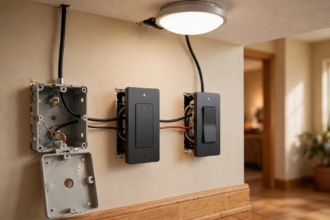
- The switch installed and wired normally, with the load connected to the bulbs
- Your hub or app (Home Assistant, Hubitat, SmartThings) with both devices paired
- Five minutes and a step ladder, maybe
Important: the bulbs must be installed and receiving power before you enable the mode. If the bulbs are currently unreachable because someone keeps flipping the old switch, fix that first by leaving the switch on.
Step-by-Step: Enabling Smart Bulb Mode on Inovelli
Inovelli’s tap sequences are the fastest way. No app needed for the basic setup.
Step 1: Put the Switch in the Right Switch Type
First, tell the switch whether it’s acting as a dimmer or an on/off switch. Hold the down paddle and tap the config button 3 times for dimmer mode (the LED bar glows orange to confirm). Hold the up paddle and tap config 3 times for on/off mode (red LED confirms).
Match this to your bulbs. Dimming smart bulbs? Use dimmer mode. Non-dimming smart bulbs or a smart plug load? On/off mode.
Step 2: Enable Smart Bulb Mode
Hold the up paddle and tap the config button 4 times. The LED bar flashes solid yellow. That’s your confirmation. The relay is now disabled and full power flows to the bulbs constantly.
To double-check, tap the down paddle. The bulbs should stay powered. If your hub shows them online and controllable, you’re good. The paddle press should now send a command instead of cutting power. Inovelli’s official Smart Bulb Mode guide covers the hub-specific setup for each platform.
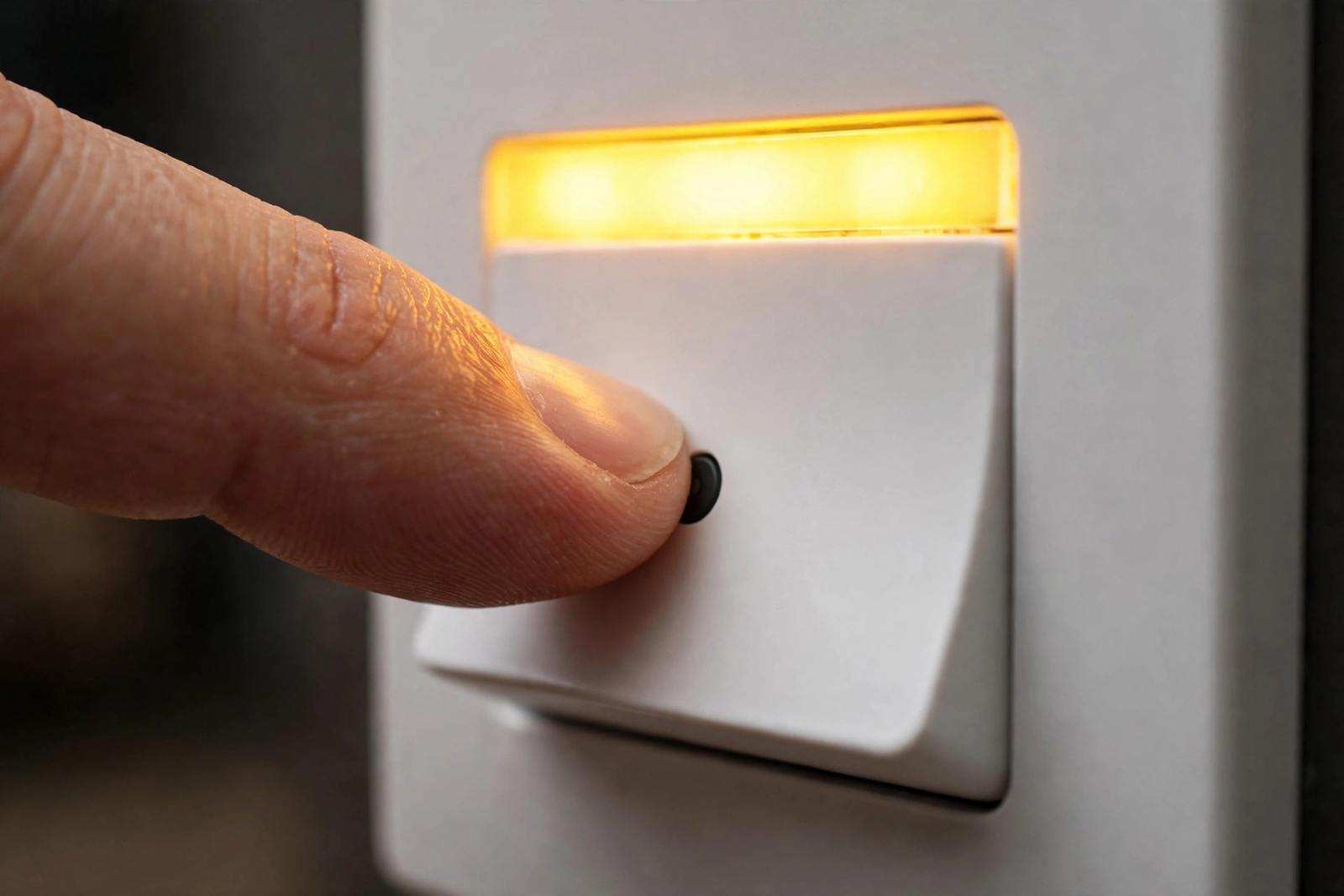
To disable it later: hold the down paddle and tap config 4 times. The LED bar flashes blue. The relay works normally again.
Step 3: Set Up How the Paddle Controls the Bulbs
Enabling the mode is only half the job. Now you decide what the paddle actually does. You have three main approaches:
Option A: Zigbee Binding (Fastest, Works Without Hub)
If both your switch and bulbs are Zigbee (like an Inovelli Blue with Philips Hue bulbs), you can bind them directly. The switch talks straight to the bulbs with no hub in the middle. It works even if your hub goes down, and the response is nearly instant.
In Home Assistant, use the Zigbee binding feature through ZHA or Zigbee2MQTT. Bind the switch’s LevelControl and OnOff clusters to the bulb group. Tap up on the paddle and the bulbs respond as if it were a wired switch. This is my preferred method. It’s the closest thing to a normal light switch experience.
Option B: Z-Wave Association (For Red Series)
Z-Wave users get the same idea through associations. Associate the switch with the bulbs using association groups (typically group 2 for on/off and group 4 for dimming on Inovelli Red switches). Like Zigbee binding, this bypasses the hub for speed and reliability.
One requirement: for direct association, the switch and bulb usually need to be included in the Z-Wave network with compatible security levels. Check your switch manual for the exact group numbers.
Option C: Hub Automations and Scene Control (Most Flexible)
This works with any protocol mix. The switch’s paddle taps become scene triggers in your hub. Tap up once turns the bulbs on, tap down once turns them off, double-tap up sets a movie scene, triple-tap down turns off the whole room.
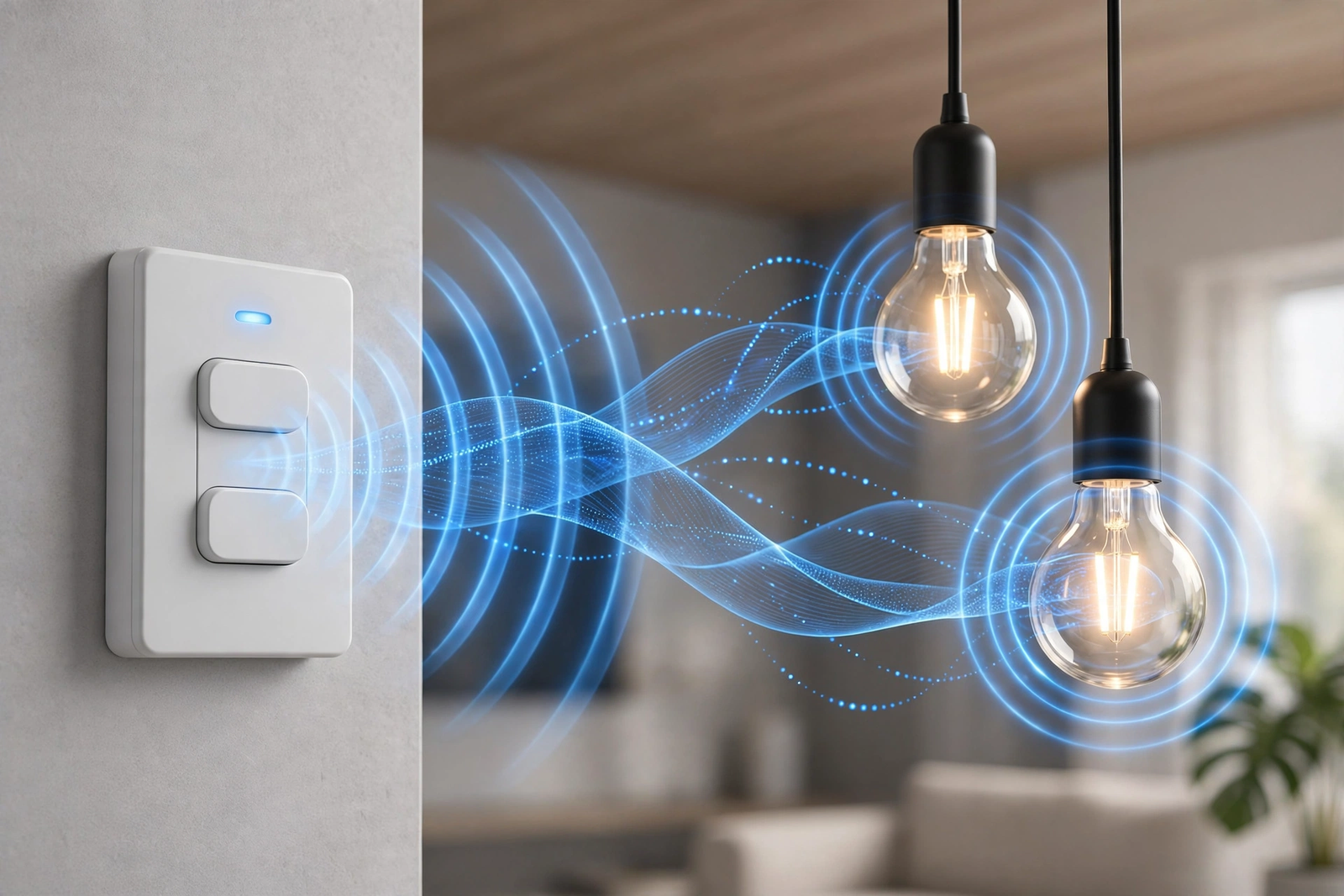
Inovelli switches expose a bunch of virtual button presses: single, double, triple, quadruple, quintuple taps on each paddle, plus hold and release. That’s a lot of scenes from one switch. In Home Assistant, you’d build automations triggered by these button events targeting your bulb entities.
The downside: if your hub goes down, the paddle does nothing. Options A and B keep working. For most people the flexibility is worth it, but it’s good to know the trade-off.
Setting Up Smart Bulb Mode in Home Assistant
Here’s a practical walkthrough for the most common setup: Inovelli Blue plus Zigbee smart bulbs in Home Assistant with ZHA.
- Pair the Inovelli Blue switch to ZHA. Confirm it shows up as a device with button entities.
- Pair your smart bulbs and add them to a light group for the room.
- Enable Smart Bulb Mode on the switch with the tap sequence (up paddle, config 4x, yellow flash).
- In ZHA, open the switch device, go to bindings, and bind the OnOff and LevelControl clusters to your bulb group.
- Test: tap the paddle up and down. Bulbs should respond instantly without any relay click.
- Optional: create automations for double-tap and triple-tap scenes in Home Assistant.
For Zigbee2MQTT users, the process is similar through the binding interface. The key detail is binding to the group, not individual bulbs, so added bulbs automatically follow.
Common Mistakes to Avoid
The biggest mistake is enabling Smart Bulb Mode but not setting up any control method. The paddle then does nothing at all, and people think the switch is broken. The mode disables the relay. You must replace the relay’s job with binding, association, or automations.
Second mistake: mixing dimmer types. Don’t put smart bulbs on a circuit controlled by a regular TRIAC dimmer and hope Smart Bulb Mode on a different switch fixes it. The dimmer chops the power before it reaches the bulb. Smart bulbs need clean, full power. Remove the old dimmer from the circuit entirely.
Third: forgetting about guests and family. A switch in Smart Bulb Mode looks normal but behaves differently. A quick “hey, the paddle sends commands now, it doesn’t cut power” saves confusion. Some people add a small label until everyone learns.
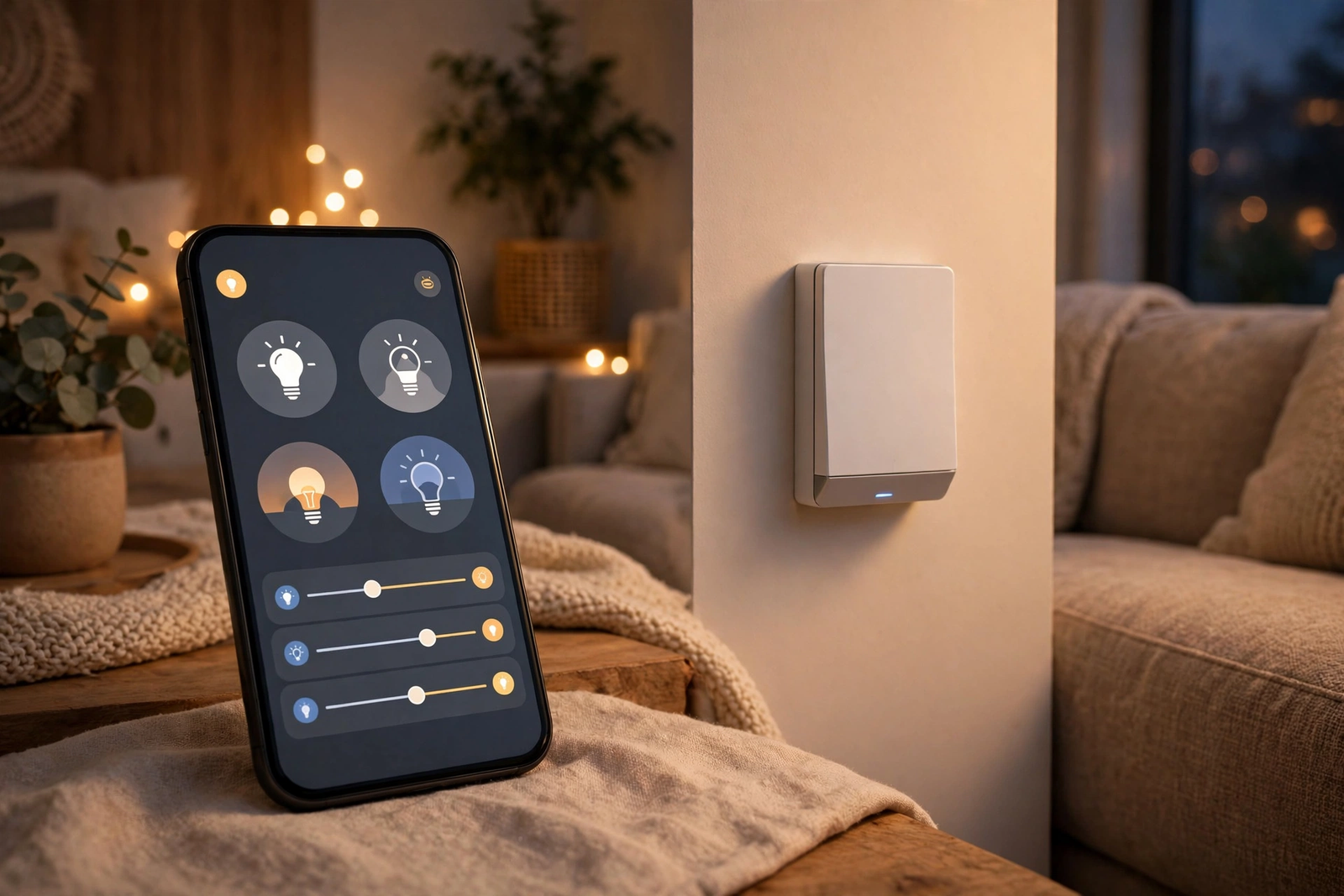
Fourth: 3-way setups with a dumb switch on the other end. In a multi-way circuit, flipping the dumb switch can override the smart switch’s relay-disabled state and cut power anyway. For 3-way with smart bulbs, use an Aux switch or Pico remote at the second location, not a dumb toggle.
What About the LED Bar?
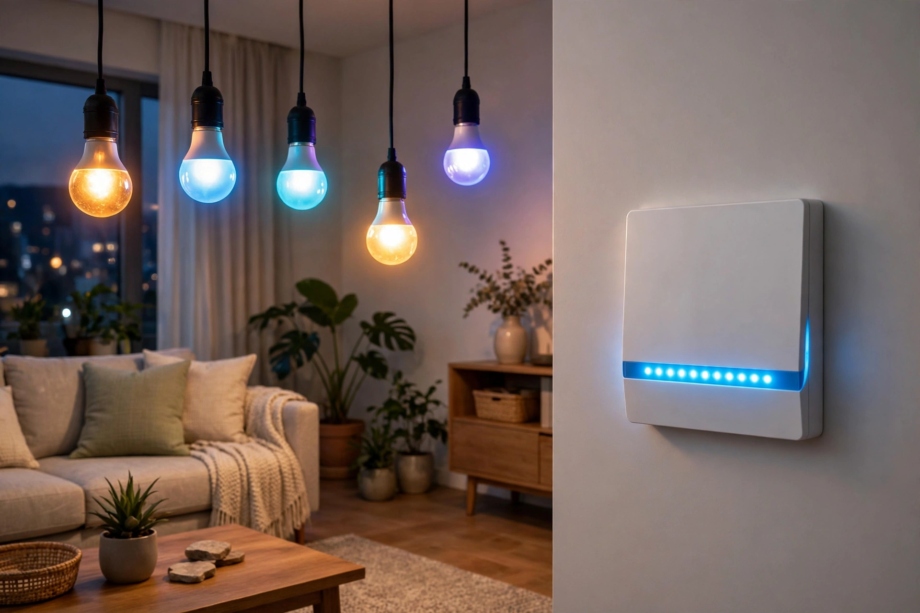
One nice side effect of Inovelli’s design: the LED bar on the switch keeps working in Smart Bulb Mode. It can show the bulb’s brightness level or act as a notification light. You can set it to glow red when the front door is unlocked, pulse blue when the laundry finishes, or show any color your automations want.
This turns the switch into a status display for your whole house. It’s one of those features you don’t think you need until you have it. I use mine as a “did I leave the garage open” indicator and it’s genuinely useful every day.
Do You Even Need Smart Bulb Mode?
Honest question. If your household never touches the wall switch and everyone uses the app or voice, you might not. The bulbs stay powered because nobody cuts them off.
But the moment a guest, a kid, or a well-meaning relative flips that switch, your automations break and the bulb goes dark in the app. Smart Bulb Mode makes the switch safe for humans. It aligns the physical control with the smart control instead of fighting it.
My rule: any room with smart bulbs that also has a wall switch gets Smart Bulb Mode. It’s ten seconds of setup that prevents the most common smart lighting headache there is.
FAQs
What is Smart Bulb Mode on a smart switch?
Smart Bulb Mode disables the switch’s internal relay so full power flows to smart bulbs at all times. The paddle stops breaking the circuit and instead sends wireless commands to control the bulbs. This keeps smart bulbs online and responsive no matter how the switch is used.
How do I enable Smart Bulb Mode on an Inovelli switch?
Hold the up paddle and tap the config button 4 times. The LED bar flashes solid yellow to confirm. To disable it, hold the down paddle and tap config 4 times for a blue confirmation flash. You should also set the switch type first: down paddle plus config 3x for dimmer mode, up paddle plus config 3x for on/off.
Can I use smart bulbs with a regular dimmer switch?
No, not reliably. A regular dimmer chops the AC power, which confuses the smart bulb’s internal electronics and causes flickering, buzzing, or dropped connections. Smart bulbs need constant full power. Replace the dimmer with an on/off switch or use a smart switch with Smart Bulb Mode, then dim through the bulb’s app.
Does Smart Bulb Mode work if my hub goes down?
It depends on your control method. Zigbee binding and Z-Wave association work hub-free because the switch talks directly to the bulbs. Hub automations and scene control stop working when the hub is down. For maximum reliability, use binding or association for basic on/off and dimming, with hub automations for fancy scenes.
Will Smart Bulb Mode work with any smart bulb?
The mode itself works with any bulb since it just keeps power flowing. But how you control the bulbs depends on protocol. Zigbee binding needs Zigbee bulbs, Z-Wave association needs Z-Wave bulbs. Hub automations work with any mix, including Wi-Fi bulbs, since the hub translates. Match your control method to your bulbs.
Can I use Smart Bulb Mode in a 3-way switch setup?
Yes, but avoid keeping a dumb toggle at the second location because flipping it can cut power and override the mode. Use an Aux add-on switch or a wireless remote like the Pico at the other location. Wire the main smart switch normally, enable Smart Bulb Mode, and set up binding or automations as usual.
Conclusion
Smart Bulb Mode is the missing piece that makes smart bulbs and wall switches stop fighting each other. Enable it, set up binding or automations, and your bulbs stay online no matter who touches the paddle. Next step: check if your current switch supports it. If not, an Inovelli Blue is the upgrade that fixes this permanently.