
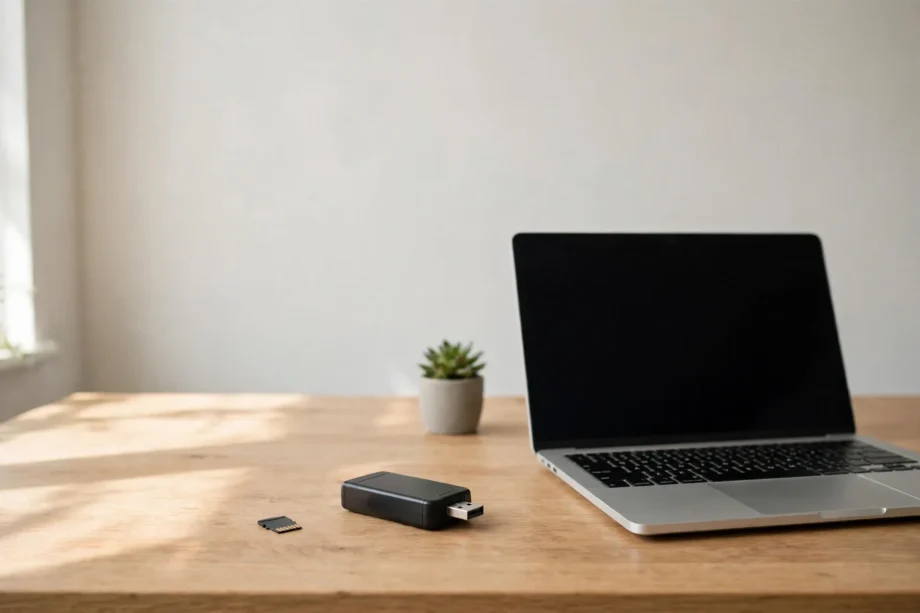
If you want to know how to view security camera footage on SD card, you have two options: play it in the camera’s app without touching the card, or remove the card and play the files on your computer with a free player like VLC. The app method is faster for recent clips. The computer method is better for saving, sharing, or reviewing days of footage.
- Method 1: Watch Footage in the Camera’s App (No Card Removal)
- Method 2: How to View Security Camera Footage on SD Card With a Computer
- Step 1: Power Off the Camera First
- Step 2: Put the Card in a Reader
- Step 3: Find the Video Files
- Step 4: Play the Files
- Understanding Your Footage: File Formats Explained
- Playing Files in VLC: A Quick Walkthrough
- What to Do When the Card Won’t Read
- Smart Habits for SD Card Footage
- Frequently Asked Questions
- How to view security camera footage on SD card without removing the card?
- Why won’t my security camera videos play on my computer?
- What format should I use when formatting an SD card for a camera?
- How long does footage stay on an SD card?
- Can deleted footage be recovered from an SD card?
- Is it safe to remove the SD card while the camera is on?
- The Bottom Line
SD cards quietly record thousands of hours in cameras all over the world, and most people only learn how to watch that footage when something happens. This guide covers both methods step by step, explains the file formats you will meet, and fixes the common “card not reading” headaches.
Method 1: Watch Footage in the Camera’s App (No Card Removal)
Almost every modern Wi-Fi camera with an SD card slot lets you play back recordings from your phone. The camera reads the card itself and streams the video to the app. You never touch the hardware.
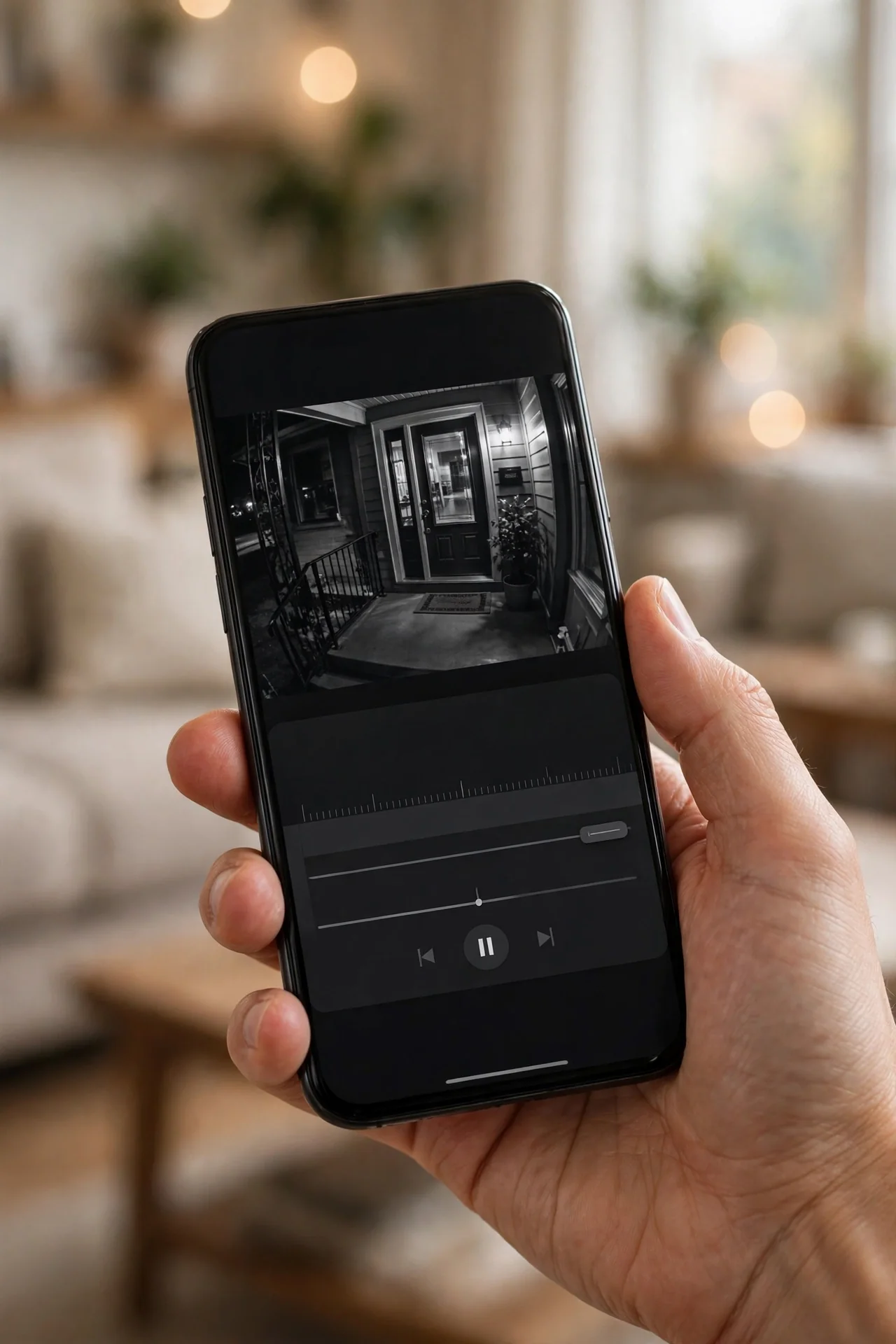
The exact steps vary by brand, but the pattern is the same. Open the camera’s app and select the camera. Look for a Playback, History, or Events tab, usually at the bottom of the live view screen. Pick a date on the timeline, then drag the timeline or tap an event marker to jump to that moment. Most apps let you record a clip to your phone from here, which saves a copy without removing the card.
This method has limits worth knowing. Scrubbing through days of footage on a phone is slow. Downloading long clips over Wi-Fi can take a while. And if the camera is offline or stolen, the app method is useless. That is when you need method two.
One tip: if your app offers it, use event markers or a motion-only filter instead of scrolling a continuous timeline. Finding a delivery at 2:14 PM takes seconds with event markers and forever without them. Cameras that record locally without a subscription, like our best video doorbell no-subscription picks, all include this kind of timeline playback in their free apps.
Method 2: How to View Security Camera Footage on SD Card With a Computer
Removing the card gives you the full files. This is the method for saving evidence, watching on a big screen, or reviewing footage from a camera that has no app access. It takes about five minutes once you know the steps.
Step 1: Power Off the Camera First
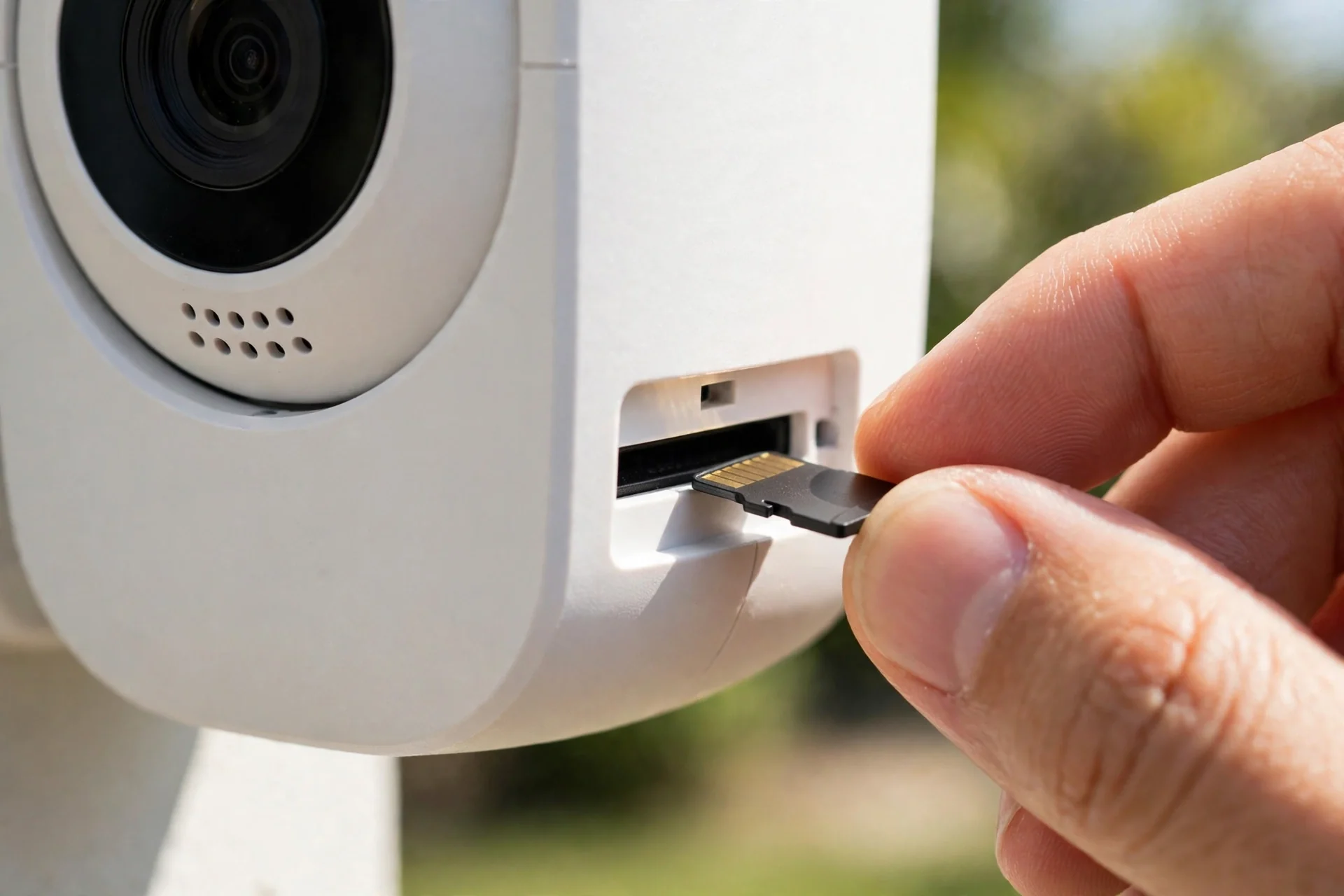
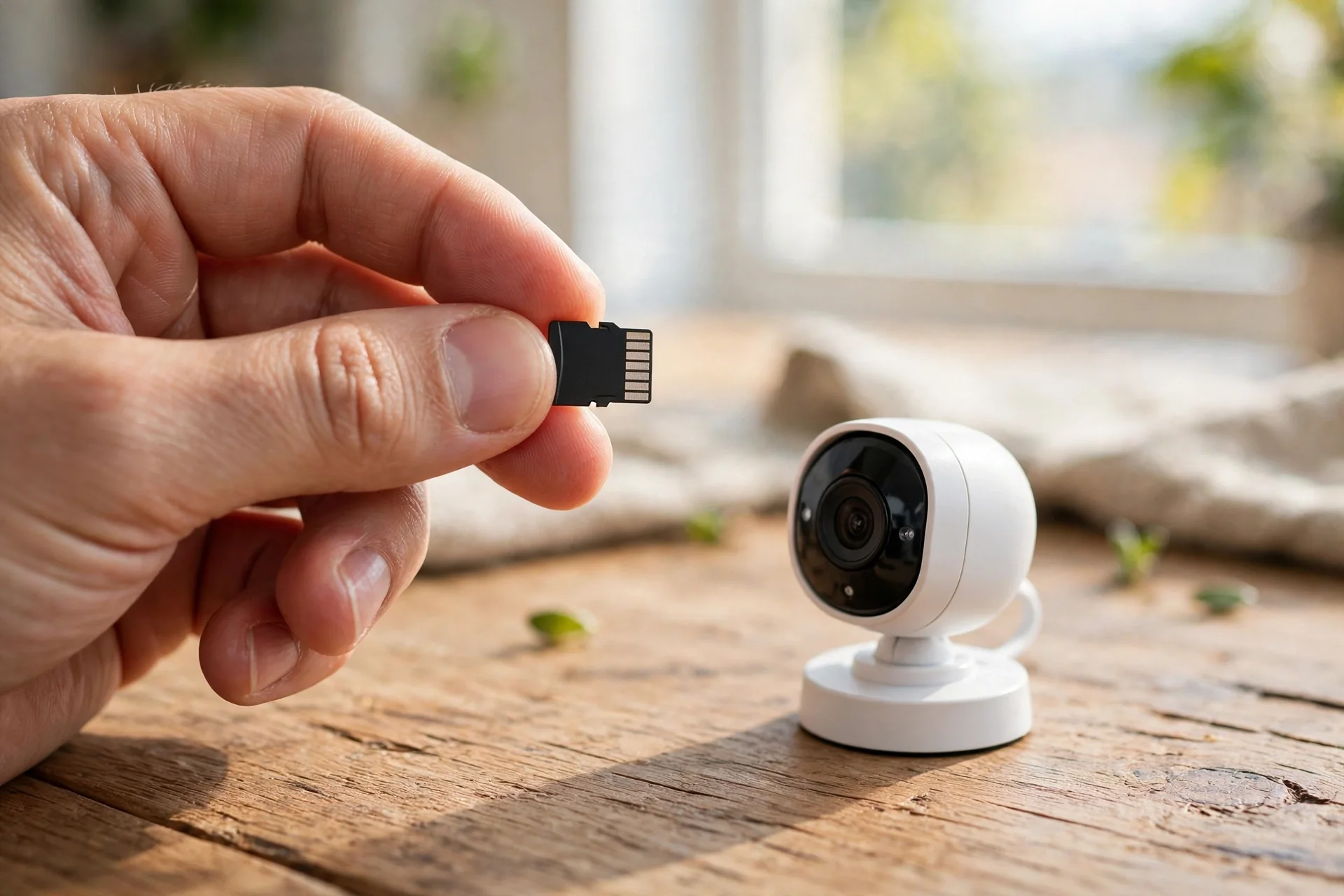
Do not just yank the card out of a running camera. If the camera is mid-write when you pull the card, the current file can corrupt and the file system can get damaged. Power the camera down, or at least stop recording in the app, then remove the card. On most cameras you push the microSD card in gently and it springs out.
Step 2: Put the Card in a Reader
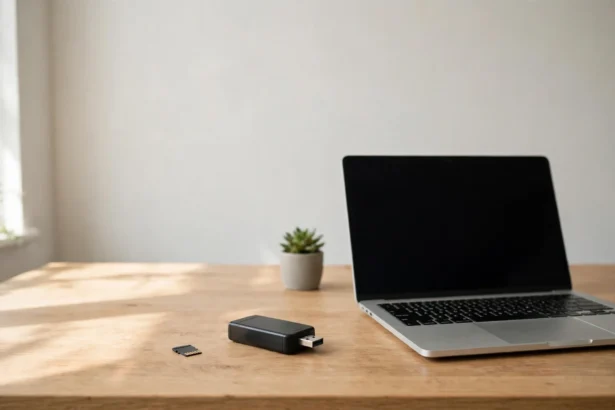
Plug the microSD card into a USB card reader or your computer’s built-in SD slot (most microSD cards come with a full-size adapter). Your computer should show it as a removable drive within a few seconds. If nothing appears, try a different USB port or a different reader before assuming the card is dead. Cheap readers fail more often than cards do.

Step 3: Find the Video Files
Open the drive and look for folders. Camera brands use their own folder structures, but you will usually find video files in folders named DCIM, MOVIE, VIDEO, or a dated folder like 2026-10-24. Some cameras split footage into short segments of one to ten minutes each. That is normal. It keeps files manageable and limits how much you lose if one file corrupts.
File names often include the date and time, which makes finding a specific moment easy. Sort by date modified and scroll to the time you need. If the names are cryptic numbers, open a few and check; you will learn the pattern in a minute.
Step 4: Play the Files
Double-click a file. If it plays, you are done. If your default player shows an error or plays video with no picture, install VLC Media Player (free from videolan.org). VLC handles almost every camera format out of the box, which is why it is the standard recommendation for footage review. This guide to playing CCTV video on a computer covers the same workflow with screenshots if you want a visual reference.
Copy important clips to your computer before doing anything else. Work from the copies, not the card. This protects the originals if something goes wrong later, and it matters if the footage might be needed as evidence.
Understanding Your Footage: File Formats Explained
Camera footage is not one format. Knowing which one you have saves a lot of confusion when a file will not play.
Table: common security camera file formats
| Format | What it is | How to play it |
|---|---|---|
| MP4 (H.264) | The most common format; good compression | Plays in VLC and most default players |
| MP4 (H.265/HEVC) | Newer, smaller files; needs more decoding power | VLC handles it; old players may struggle |
| AVI | Older format, larger files | VLC plays it fine |
| TS or DAV | Proprietary formats from some DVR/NVR brands | May need the brand’s own player software |
H.264 and H.265 are codecs, not containers. Think of the container (MP4, AVI) as the box and the codec as how the video is packed inside. VLC understands nearly all of both, which is why it is the go-to. The proprietary formats are the annoying exception. Some DVR brands record in formats only their own software opens. Check the manufacturer’s support page for a free playback tool if VLC draws a blank.
If you need to share a clip with someone whose player cannot open it, convert it. VLC itself can convert: open Media, then Convert/Save, add the file, and choose an MP4 profile. Free tools like HandBrake do the same job with more control. Always convert a copy, never the only original.
Playing Files in VLC: A Quick Walkthrough
VLC looks plain but it is built for exactly this job. A few features make footage review much faster.
Open VLC and drag your video files in, or use Media then Open File. For reviewing long recordings, the playback speed controls are your best friend. Tap the ] key to speed up or the [ key to slow down. Watching at 4x or 8x speed lets you scan hours of overnight footage in minutes, then drop back to normal speed when something moves.
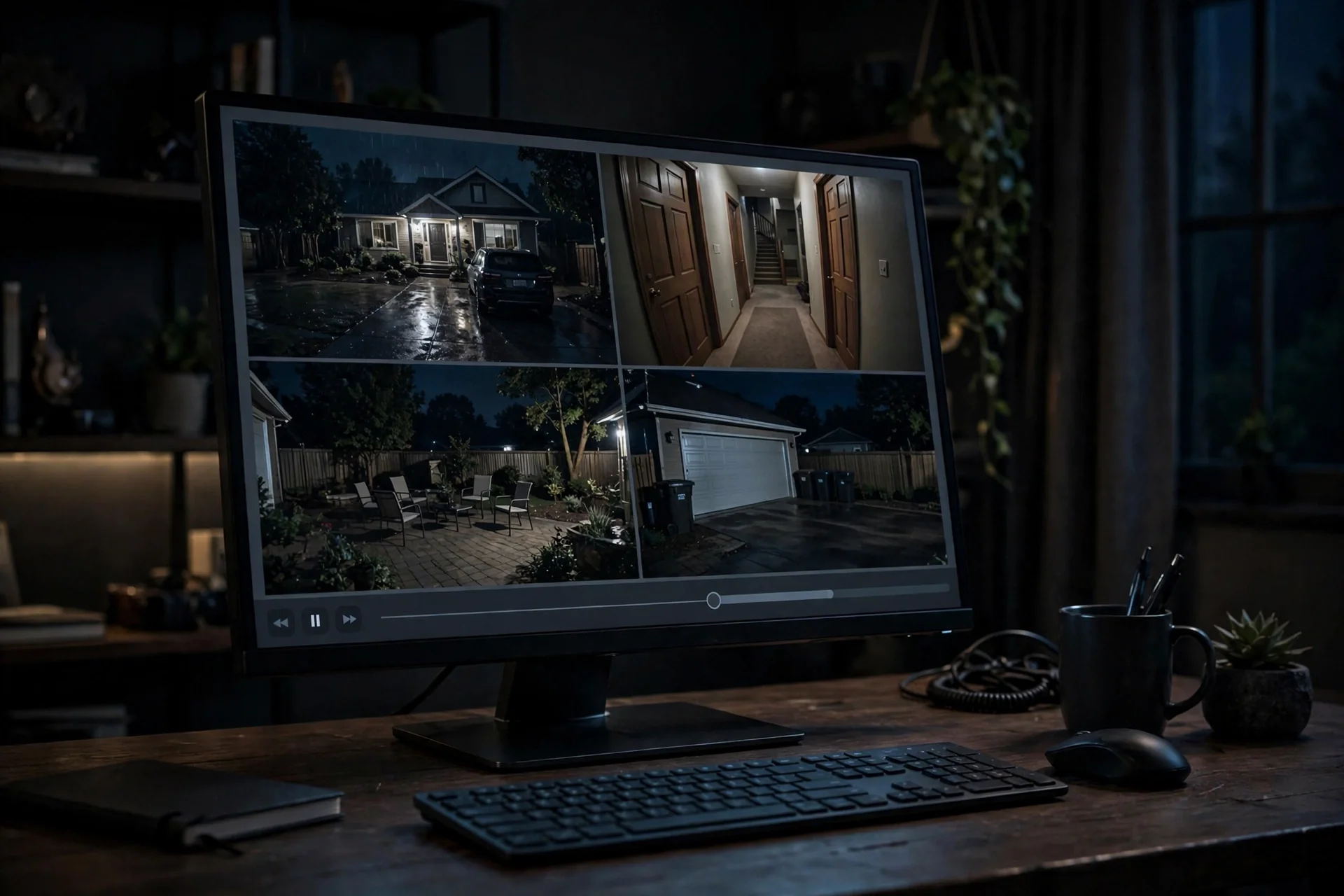
The frame-by-frame button (the icon that looks like a film strip, or the E key) steps through video one frame at a time. This is genuinely useful for reading a license plate or catching a face in a blurry frame. The snapshot button (Shift+S) saves the current frame as a still image, which is cleaner than photographing your screen.
If a file plays but stutters, it is usually your computer struggling with H.265 decoding, not a broken file. Lower the playback resolution in VLC under Tools, then Preferences, then Input/Codecs, or convert the file to H.264. On an old laptop this one change fixes most stuttering.
What to Do When the Card Won’t Read
A card that the computer does not recognize is stressful, especially when the footage matters. Work through these calmly before assuming the data is gone.
Rule out the reader first. Try a different card reader or USB port. Then try the card in another device, like a phone or a different camera. If the card works elsewhere, your reader is the problem, which is a five-dollar fix. This one test saves more panic than any other step.
Check Disk Management (Windows) or Disk Utility (Mac). Sometimes the card is detected by the system but has no drive letter or will not mount. In Windows, press Win+X and open Disk Management. If the card shows up as RAW or unallocated, the file system is damaged but the data may still be recoverable with recovery software. Do not format it yet if the footage matters.
Reformat as a last resort. If the footage on the card is not important, or you have already copied what you need, format the card to fix file system damage. Use FAT32 for cards 32GB and smaller, exFAT for 64GB and up. Better still, format the card inside the camera using its own format option, which guarantees the exact file system the camera expects. Formatting erases everything, so be sure first.
Know when the card is worn out. SD cards used for continuous recording wear out. A standard card can enter a silent failure mode where it looks fine but stops saving new data. If your camera keeps “losing” footage, replace the card with a high-endurance model rated for continuous video recording. They cost a little more and last far longer under constant rewriting. For cameras mounted where Wi-Fi is the weak link rather than storage, our weak Wi-Fi signal fix guide covers the other half of reliable recording.
Smart Habits for SD Card Footage
A few habits make SD card storage far more reliable than most people realize.
Buy high-endurance cards from reputable brands, sized for your needs. Here is the rough math: 1080p footage at typical camera bitrates runs about 20MB per minute, which is roughly 1.2GB per hour. A 128GB card holds around 100 hours of continuous 1080p recording, about four days. But most cameras record motion events only, not 24/7, so that same card often stretches to several weeks of real-world use. Size the card for your camera’s mode, not the theoretical maximum.
Leave loop recording on. This is the setting that overwrites the oldest footage when the card fills up, and it is what keeps the camera recording instead of stopping dead with a “card full” error. The exception is if you need to preserve specific footage. Then copy it off first, because loop recording will eventually overwrite it.
Format the card in the camera every few months. This clears file system cruft that builds up from constant writing and prevents the gradual corruption that causes mysterious failures. Copy anything worth keeping before you do.
For footage that truly matters, like evidence of a break-in, copy it to two places immediately: your computer and a cloud drive or USB stick. SD cards are small, losable, and mortal. The card is a recording medium, not an archive. If motion alerts have been unreliable on your camera, our motion notification delay fix may solve the detection side of the problem.
Frequently Asked Questions
How to view security camera footage on SD card without removing the card?
Yes, in most cases. Nearly all Wi-Fi cameras with SD card slots offer in-app playback. Open the app, find the Playback or Events tab, and scrub the timeline. You only need to remove the card for bulk downloads, saving evidence, or when the camera is offline.
Why won’t my security camera videos play on my computer?
The usual cause is an unsupported format or codec. Install VLC Media Player, which handles almost every camera format including H.264, H.265, and AVI. If VLC still cannot open the file, the camera may use a proprietary format that needs the manufacturer’s own playback software.
What format should I use when formatting an SD card for a camera?
Use FAT32 for cards 32GB or smaller and exFAT for 64GB or larger, which matches what most cameras expect. Even better, format the card using the camera’s own format option in its app or menu. That guarantees the exact file system the camera wants.
How long does footage stay on an SD card?
It depends on card size, resolution, and recording mode. With loop recording on, old footage is overwritten when the card fills, so a 128GB card might hold four days of continuous 1080p or several weeks of motion-only clips. Turn loop recording off and the camera stops recording when the card is full.
Can deleted footage be recovered from an SD card?
Sometimes, if the deleted data has not been overwritten yet. In that case recovery software can often restore it. Stop using the card immediately to avoid overwriting, then scan it with a reputable recovery tool. Recovery is never guaranteed, which is why important clips should be copied off right away.
Is it safe to remove the SD card while the camera is on?
No. Pulling the card mid-write can corrupt the current file and damage the file system. Power the camera off first, or stop recording in the app before removing the card. It takes ten extra seconds and prevents most corruption problems.
The Bottom Line
Learning how to view security camera footage on SD card is straightforward once you know the two paths. Use the app for quick checks of recent events. Pull the card and use VLC on your computer when you need the full files, whether for evidence, sharing, or reviewing days at once. Buy a high-endurance card, leave loop recording on, copy important clips to two places, and format in the camera every few months. Do that, and your footage will be there when you actually need it. If you are setting up a new camera and want to avoid subscriptions entirely, our video doorbell installation guide covers the local-storage models worth considering.