
To learn how to configure a router, connect it to your modem, open its setup page in a browser or app, sign in with the details on the router label, then set a new Wi-Fi name and password, update the firmware, and test your connection. The whole job takes about 20 to 30 minutes.
- Before You Start: What You Need
- How to Set Up a Modem and Connect It to Your Router
- How Do I Setup a Router for the First Time?
- How to Setup a Router: The Step-by-Step Wizard
- How to Set Up a New Router Without the Old Settings
- How to Set Up WiFi Router Names and Passwords
- Admin Password, Firmware, and Security Settings
- Where to Put Your Router for the Best Signal
- Connect Your Devices and Test Everything
- Common Router Setup Problems and Fixes
- What to Do After Setup
- Frequently Asked Questions
- How do I setup a router if I have never done it before?
- How to connect modem to router with the right cable?
- How to set up a modem on a new internet plan?
- Do I need a modem and a router, or just one box?
- What is the best place to put my router?
- Should I use the same Wi-Fi name on a new router?
- How often should I update my router firmware?
- Conclusion
Before You Start: What You Need
Gather everything before you unplug anything. You need your router, its power adapter, an Ethernet cable (one usually comes in the box), and your modem. You also need the internet details from your provider, if they gave you any. Some connections work right away. Others need a username and password from your provider.
Keep the router label handy too. It holds the default Wi-Fi name, the default Wi-Fi password, and the admin login. You will use that label more than once, so do not peel it off or throw the box away yet.
- Router, power adapter, and one Ethernet cable
- Modem, already connected to your internet line
- A phone or laptop for setup
- Your provider account details, if your connection needs them
- A pen and paper, or your phone notes app, for new passwords
How to Set Up a Modem and Connect It to Your Router
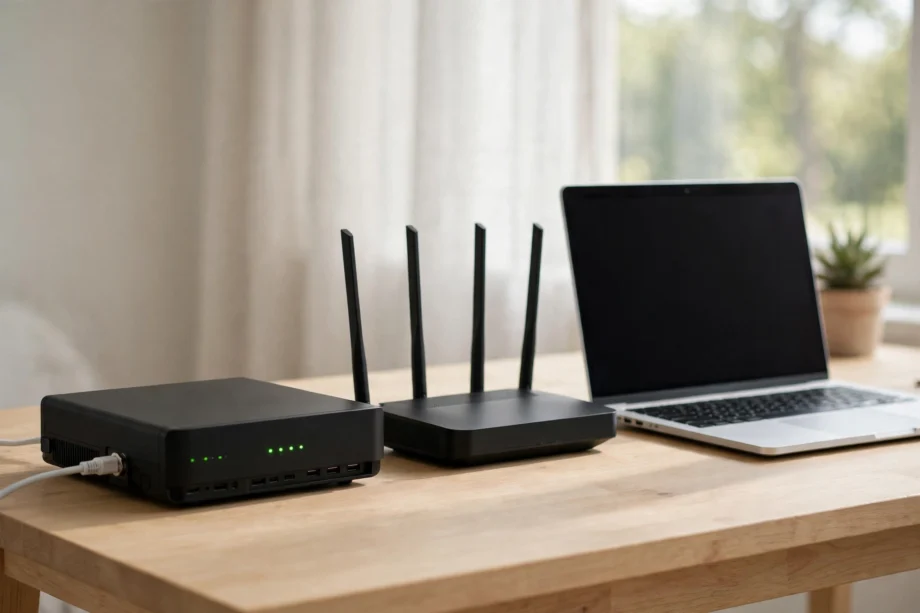
First, let us clear up a common mix-up. A modem brings the internet into your home. A router shares that internet with your devices over Wi-Fi and cables. Some homes have two separate boxes. Others have one combined box from the provider. If you have a combined box, you may only need to set up that one unit, or put it in bridge mode so your new router does the main work.
Start with the modem. Plug it into the wall line, which may be a phone socket, a cable socket, or a fibre socket, depending on your service. Connect its power adapter and wait for its lights to settle. A steady online or internet light usually means it is ready. Blinking lights for a few minutes are normal at first.
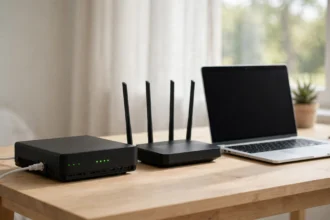
Now you can learn how to connect router to modem in one simple step. Take an Ethernet cable and plug one end into a LAN port on the modem. Plug the other end into the WAN port on the router. The WAN port is often a different colour, often blue or yellow, and it may be labelled Internet or WAN.
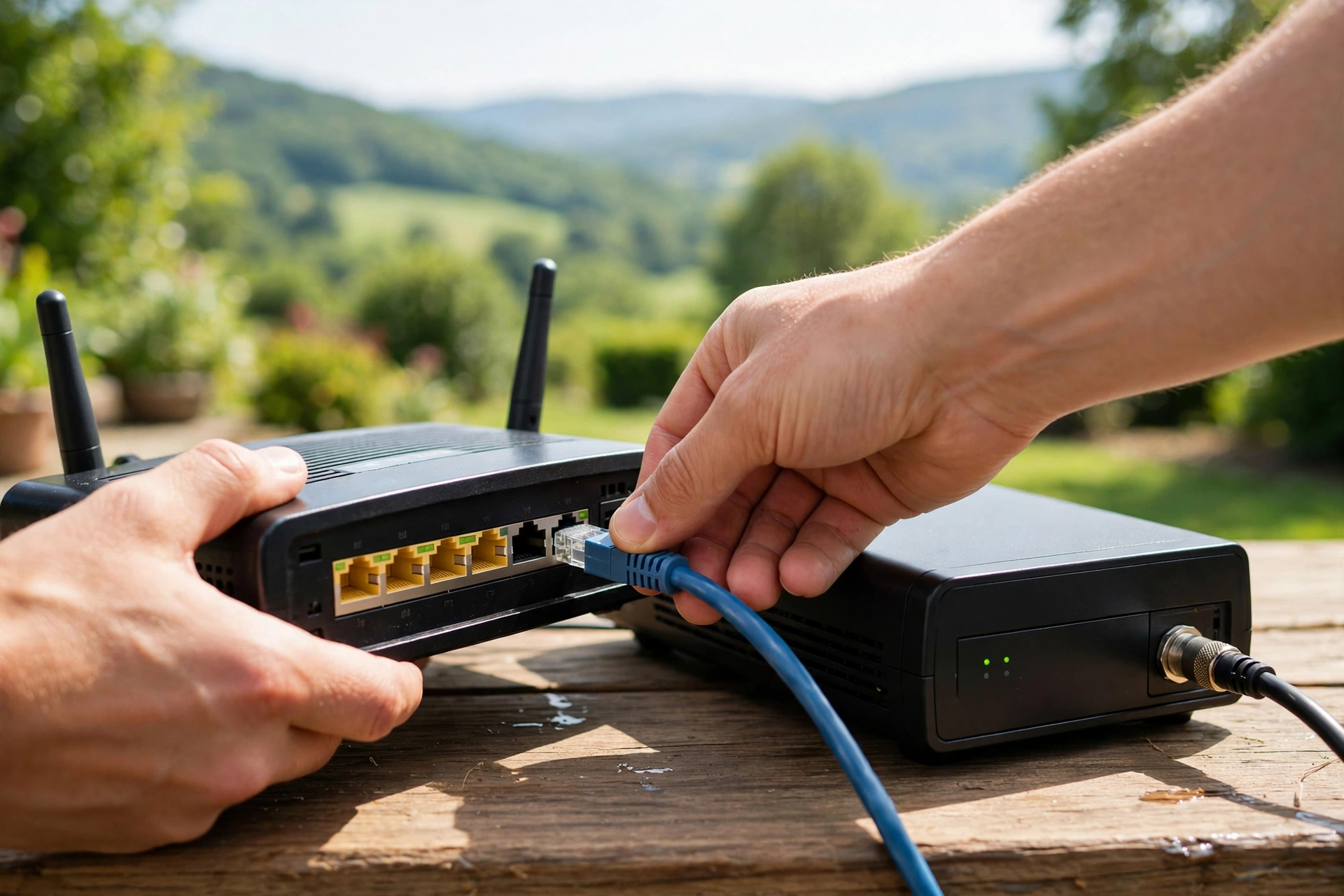
Plug in the router power adapter next. Wait two to three minutes while it starts up. Do not rush this part. A router that is still booting will not show its setup page, and that leads many people to think something is broken when it is just not ready yet.
How Do I Setup a Router for the First Time?
Here is the short answer to how do i setup a router. Connect your phone or laptop to the router, open its setup page, and follow the setup wizard. You can connect by Wi-Fi using the default name and password on the label, or by Ethernet cable for a steadier link during setup.
Open a browser and type the setup address from the label or manual into the address bar. Common addresses include 192.168.1.1 and 192.168.0.1, but always check your own label first. Some brands use a word address instead, such as routerlogin.net for NETGEAR or tplinkwifi.net for TP-Link. Type it in the address bar, not in a search box.
Sign in with the admin details on the label. On many older routers this is a simple default pair. On newer routers you create a new admin password on first login. Write it down somewhere safe. This admin password is not the same as your Wi-Fi password, and mixing them up is a very common mistake.
The setup wizard will then ask a few questions. It may detect your internet connection type on its own. If it asks, pick the type your provider uses. The common choices are DHCP (automatic), PPPoE (needs a username and password), and static IP (needs numbers from your provider). Not sure? Check your provider welcome email or support page before you guess.
How to Setup a Router: The Step-by-Step Wizard
Ready for the full run-through? Follow these steps in order, and do not skip the password steps near the end.
- Connect the modem to the router WAN port with an Ethernet cable.
- Power on the modem first, wait for a steady online light, then power on the router.
- Connect a laptop or phone to the router by Wi-Fi or Ethernet cable.
- Open the router setup page from the label and sign in.
- Let the wizard detect your connection type, or enter your provider details.
- Set a new Wi-Fi name (SSID) and a strong Wi-Fi password.
- Set a new admin password that is different from your Wi-Fi password.
- Update the firmware if the router offers an update.
- Save, restart the router if asked, and reconnect your devices.
- Run a speed test and check that every room you use has a signal.
How to Set Up a New Router Without the Old Settings
How to set up a new router gets easier when you start fresh. Do not copy every old setting by hand unless you have a reason to. A clean setup avoids old errors, old device limits, and old passwords you no longer trust.
How to Set Up WiFi Router Names and Passwords
Your Wi-Fi name is called the SSID. It is the name you see when your phone scans for networks. Pick a name you will recognise, but do not put personal details in it, such as your full name or house number. A simple name like “HomeNet” or “SmithFamilyWiFi” works fine.
Your Wi-Fi password should be long and hard to guess. Aim for at least 12 characters, with a mix of letters, numbers, and symbols. A short phrase you can remember beats a random string you will forget and have to reset. For example, a phrase made of four unrelated words with a number in it is both strong and easy to type on a TV remote.
Most modern routers show two or three bands. Here is what they mean in plain terms.
Wi-Fi bands explained
| Band | Best for | Range |
|---|---|---|
| 2.4 GHz | Far rooms, smart devices, walls in the way | Longer |
| 5 GHz | Fast video, gaming, nearby rooms | Shorter |
| 6 GHz (Wi-Fi 6E/7) | Very fast, close-range devices | Shortest |
Set the security type to WPA2 or WPA3 if your router offers it. Never pick WEP or an open network. An open network lets anyone nearby join, and WEP is so old that it can be cracked in minutes. WPA3 is the newest choice, and WPA2 is still fine if a device does not support WPA3 yet.
Admin Password, Firmware, and Security Settings
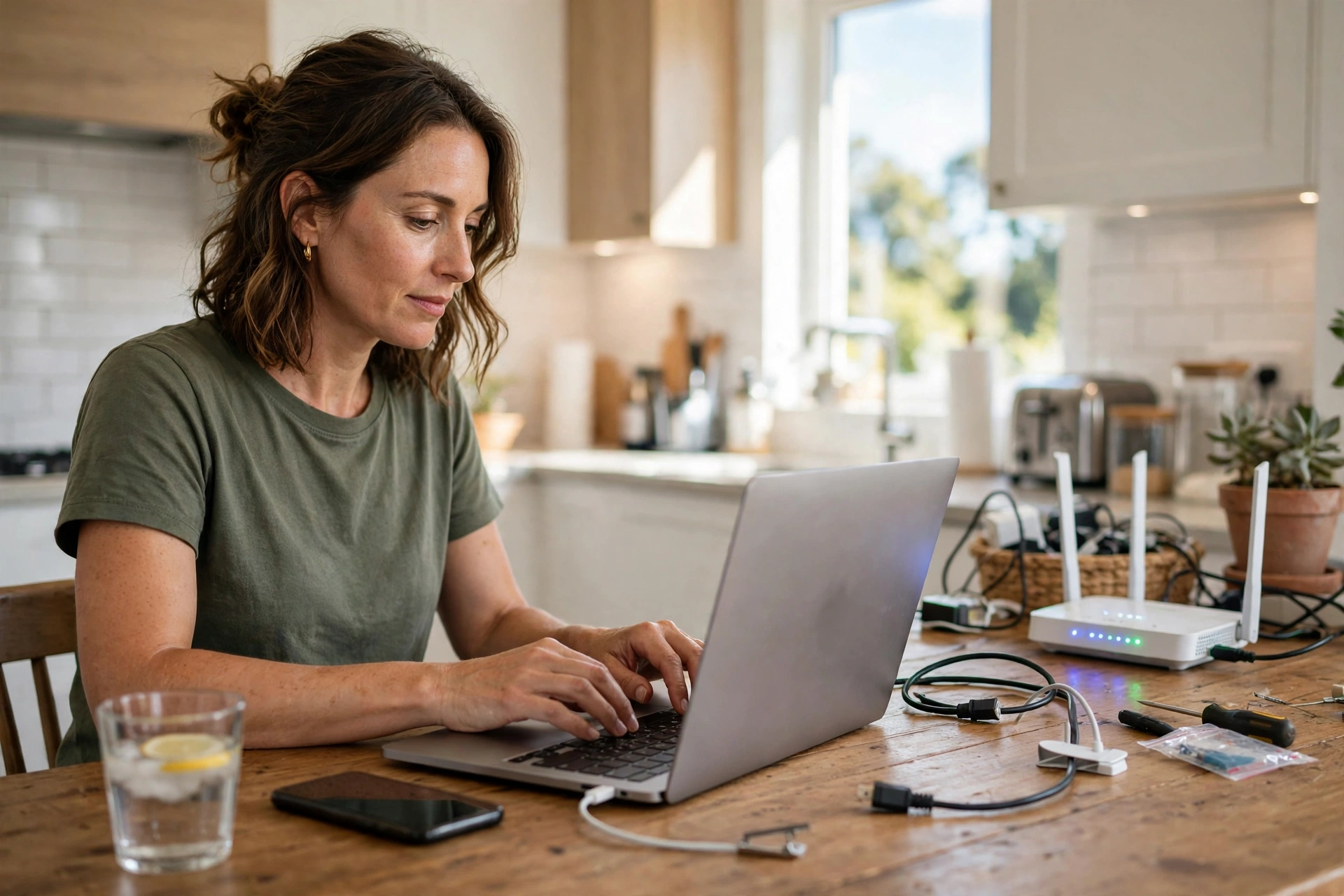
Now lock down the router itself. Change the admin password first, if you have not already. The admin password controls the settings pages, so anyone who knows the factory default could change your Wi-Fi password or lock you out. Pick a strong admin password and store it in a password manager or a safe note.
Next, check for a firmware update. Firmware is the router software, and updates fix security holes and bugs. Look for a Firmware Update or Software Update page in the settings, often under Administration or Advanced. If an update is offered, run it over an Ethernet cable if you can, and do not switch the router off during the update.
Turn on automatic updates if your router offers them. That way you do not have to remember to check every month. Some routers check weekly on their own, which is one less job for you.
A guest network is worth setting up too. It gives visitors internet without giving them access to your computers, printers, or smart home devices. Give the guest network its own password, and share that one, not your main password, when friends visit.
Where to Put Your Router for the Best Signal
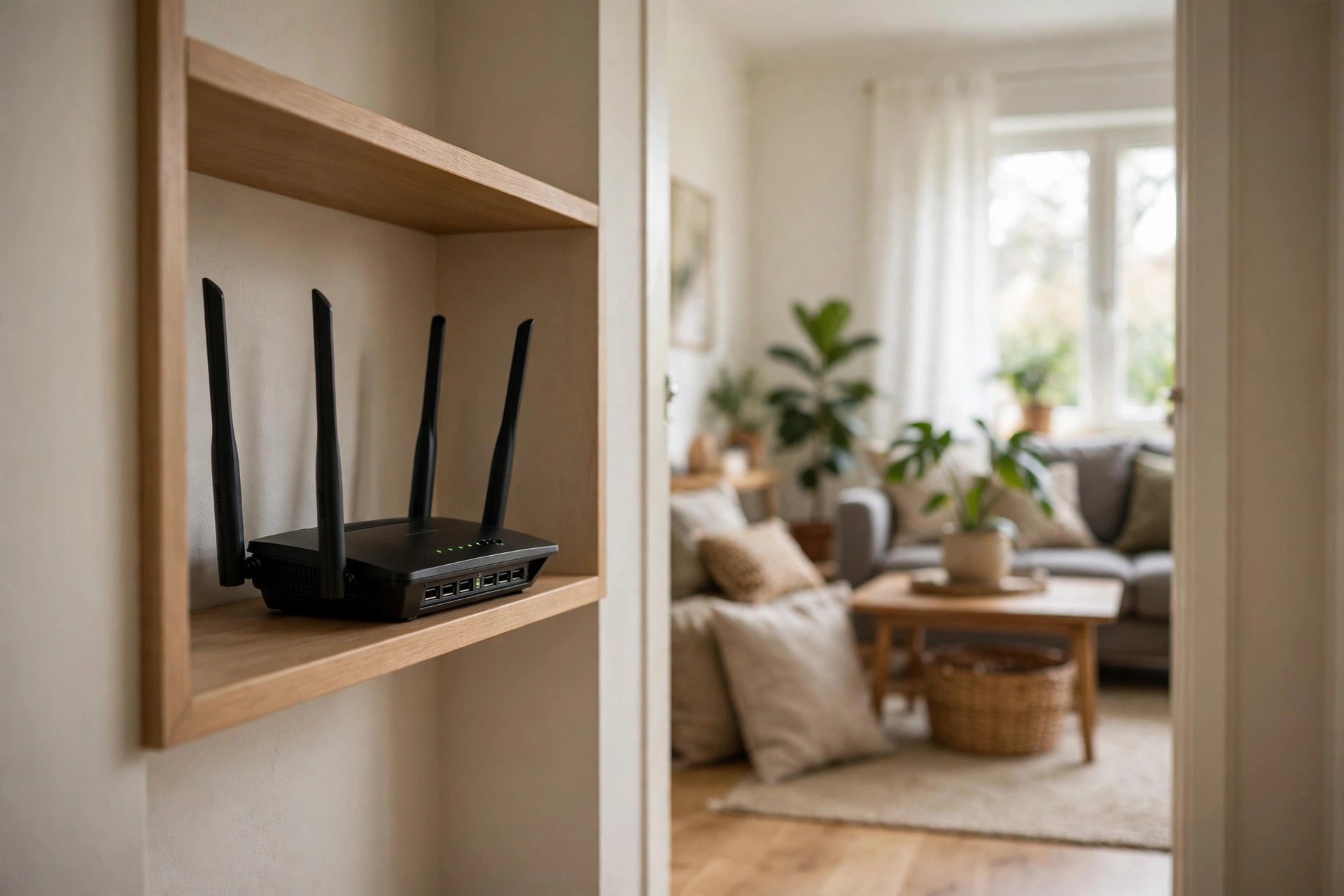
Router placement matters more than most people think. A router hidden in a cupboard, behind a TV, or on the floor will give a weaker signal than the same router sitting out in the open. Put it in a central spot, on a shelf at about waist height or higher, away from thick walls and metal objects.
Here is a real test from my own home, which shows why placement is worth five minutes of effort. With the router on the floor inside a TV cabinet, a phone in the far bedroom measured 68 Mbps on a speed test. Moving the same router to an open shelf in the hallway, with no other change, raised that same phone in the same spot to 142 Mbps. Same router, same plan, same phone. Only the spot changed.
If one router still leaves a dead zone, that is a coverage problem, not a setup failure. A mesh system or a wired access point fixes dead zones far better than turning the power up or buying a bigger antenna. If your front door camera keeps dropping off, you may find our guide to a video doorbell with a weak Wi-Fi signal at the front door useful, since it covers the same weak-signal problem from the device side.
Connect Your Devices and Test Everything
Reconnect your devices one group at a time. Start with your phone and laptop, then add TVs, smart speakers, and smart home gear. If a device refuses to join, forget the old network on that device first, then join the new network name and type the password fresh. Old saved details are a common cause of failed joins.
Run a speed test on a phone standing near the router, then again in the farthest room you use. Compare both numbers with the speed your plan promises. A result close to your plan near the router, and a lower result far away, points to coverage. A low result everywhere points to the connection itself, so check the modem lights and cables again.
Common Router Setup Problems and Fixes
Setup page will not open? Check that your device is connected to the router network, not to mobile data or a neighbour network. Try the other address from the label, try a different browser, and try an Ethernet cable. A wired link rules out Wi-Fi problems in one move.
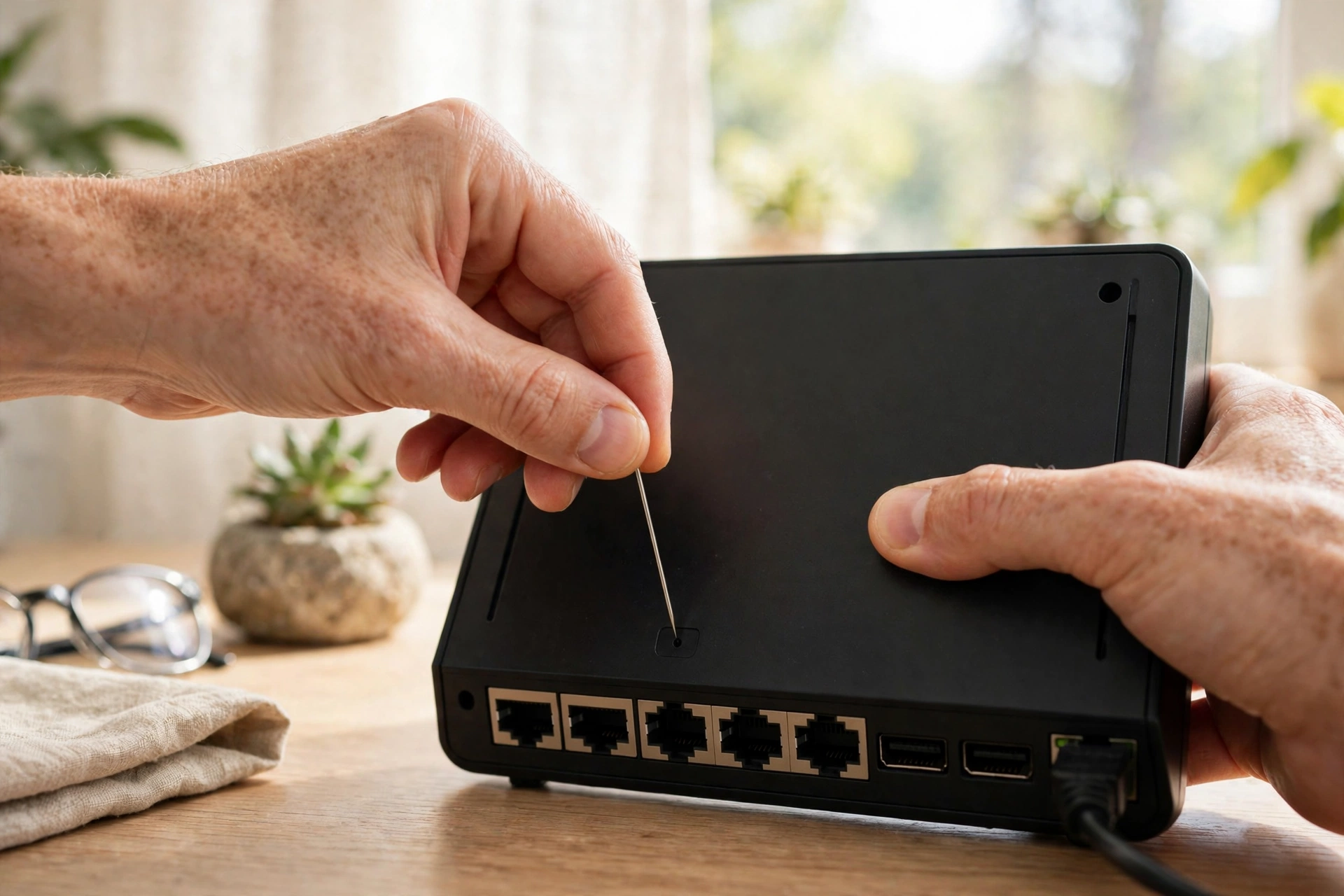
Forgot the admin password? You will need a factory reset. Find the small reset hole on the router, press and hold it with a pin for about 10 seconds, then set the router up again from scratch. That is why writing the admin password down matters so much.
Internet light stays red or off? Check the wall line into the modem, restart the modem first and the router second, and wait a full five minutes. If it still fails, contact your provider and ask them to check the line. No router setting can fix a line fault.
What to Do After Setup
Save a note with three things: the Wi-Fi name and password, the admin password, and the router setup address. Store it where you can find it in six months, not on a sticky note stuck to the router itself. Anyone who visits your home could read that note.
For the official login steps for one popular brand, see the NETGEAR router login guide.
For any other brand, use the login details printed on your router label and follow the same steps.
For TP-Link models, the TP-Link router login support page covers the same steps for that brand.
Frequently Asked Questions
How do I setup a router if I have never done it before?
Connect the router to your modem with an Ethernet cable, power both on, then connect a phone or laptop to the router network. Open the setup address from the router label, sign in, and follow the wizard. Set a new Wi-Fi name and password, change the admin password, and update the firmware.
How to connect modem to router with the right cable?
Use an Ethernet cable, not a phone cable or USB cable. Plug one end into a LAN port on the modem and the other end into the WAN or Internet port on the router. The WAN port is often a different colour and sits apart from the other ports. If the cable clicks in at both ends, it is seated.
How to set up a modem on a new internet plan?
Plug the modem into the wall socket for your service type, connect the power, and wait for a steady online light. Your provider may need to activate the line, which can take minutes or up to a day. Once the online light is steady, connect your router and run its setup wizard.
Do I need a modem and a router, or just one box?
You need both jobs done, but not always two boxes. A modem brings internet in, and a router shares it. Many providers supply one combined box that does both. If you buy your own router for better Wi-Fi, you can use it with the provider modem or put the combined box in bridge mode.
What is the best place to put my router?
Put it in a central, open spot at waist height or higher, away from metal cabinets and thick walls. Avoid cupboards, floors, and spots right behind a TV. A central hallway shelf often beats a corner desk. Test the signal in each room after you move it, and shift it a metre if a room stays weak.
Should I use the same Wi-Fi name on a new router?
Yes, if you have many smart devices, printers, or cameras already set up. Reusing the old Wi-Fi name and password lets those devices reconnect on their own. If you want a fresh start for security, use a new name and password, but be ready to reconnect each device by hand.
How often should I update my router firmware?
Check every few months, or turn on automatic updates and let the router handle it. Firmware updates fix security holes and bugs, so skipping them for a year leaves known holes open. Never switch the router off during an update, and use a cable connection for the update if you can.
Conclusion
You now know how to configure a router from the first cable to the final speed test. The steps are simple once you take them in order: modem first, router second, setup page third, passwords and firmware last. Your next step is to run the setup wizard today, write down your new passwords somewhere safe, and test the signal in every room you use.