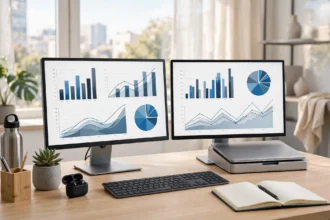

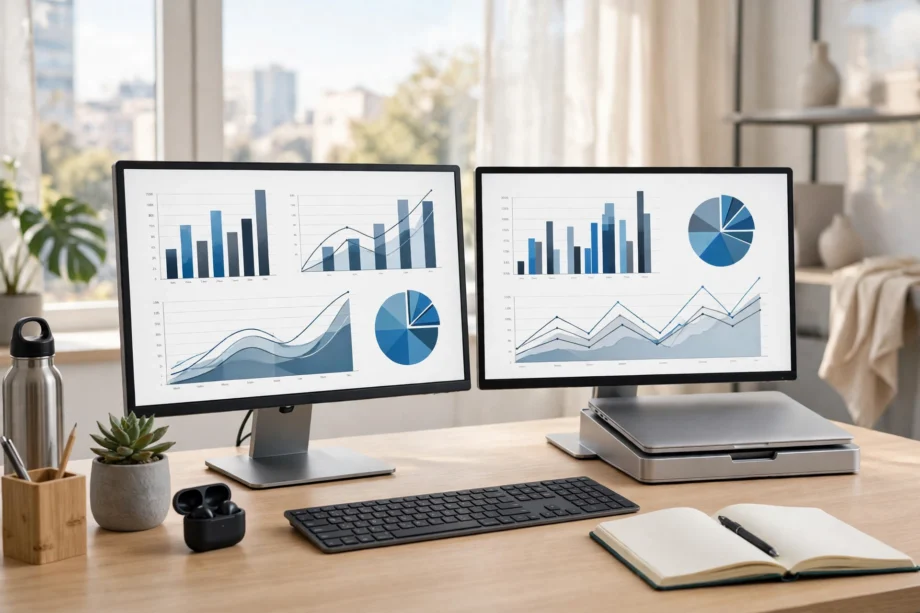
A dual screen setup for office work means two monitors showing one extended desktop, so you can work on one screen while reference material stays open on the other. You need two monitors, the right cables, and the Extend setting in Windows or Mac. This guide covers hardware, setup, and desk layout.
- What You Need for a Dual Monitor Desk
- Pick the Right Cables and Ports
- Set Up Dual Monitors on Windows
- Set Up Dual Monitors on a Mac
- Arrange the Screens So They Feel Like One Desk
- Desk Setup and Ergonomics That Actually Help
- Laptop Desk Setup: Open, Closed, or Docked?
- A Workflow That Makes Two Screens Pay Off
- A Real Desk Test: What Changed in One Week
- Fix Common Dual Screen Problems
- Frequently Asked Questions
- What do I need for a dual screen setup for office work?
- Can any laptop run two monitors?
- Should the second monitor go on the left or right?
- Is a dual monitor setup better than one large monitor?
- Why is my second monitor not detected?
- How far should I sit from dual monitors?
- Do I need a docking station for dual monitors?
- Conclusion
Why bother with a second screen? Because switching between windows all day wastes time and breaks focus. With two screens, your main task stays front and centre, while email, notes, or a spreadsheet sit beside it. You do not need an expensive setup to get that benefit. Two plain monitors, set up well, beat one fancy monitor used badly.
What You Need for a Dual Monitor Desk
Start by checking what your computer can actually drive. A laptop usually has one HDMI or USB-C video port. A desktop often has two or more ports on its graphics card. Count the ports before you buy anything, because a monitor without a matching port is a return trip to the shop.
- Two monitors, ideally the same size and resolution, so windows look consistent across both.
- Cables to match your ports: HDMI, DisplayPort, or USB-C, plus an adapter if the ends differ.
- A dock or hub if your laptop has only one video port but you want two external screens.
- Monitor stands or arms if your desk is small, since two stands eat a lot of desk space.
Do you already own one monitor? Match the second one to it if you can. Same size, same height, and same resolution make the mouse move feel natural. Mixed monitors still work, but a small laptop screen next to a large monitor can feel lopsided, and text sizes will differ.
Pick the Right Cables and Ports
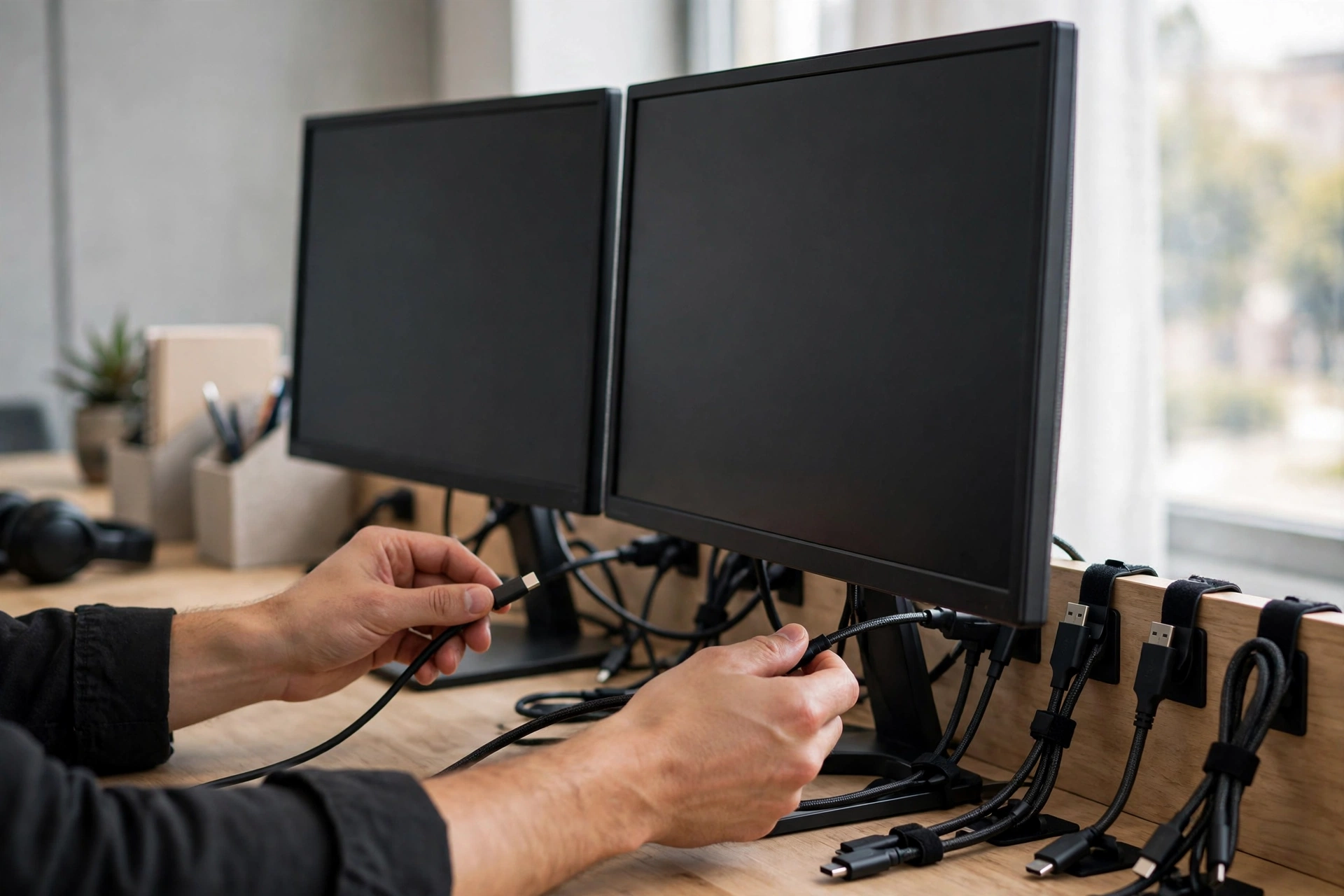
Cables cause more dual-screen failures than monitors do. A USB-C port that only charges will not carry video, and a cable plugged into the wrong port on a desktop will show nothing at all. Check the symbols next to each port before you buy.
Common connection options
| Connection | Where you find it | Watch out for |
|---|---|---|
| HDMI | Most laptops, monitors, and TVs | Older HDMI tops out at 4K 30 Hz |
| DisplayPort | Desktop graphics cards, office monitors | Needs a DisplayPort port, not just HDMI |
| USB-C video | Newer laptops and docks | Port must support video, not charging only |
| Dock or hub | Laptop desks with one cable | Dock must support two displays |
On a desktop with a separate graphics card, plug both monitors into the graphics card, not the motherboard ports above it. Motherboard video ports are often switched off when a graphics card is present, so a monitor plugged there can stay black. On a laptop, a dock is the tidy route. One cable charges the laptop and drives both screens, and you can undock in seconds.
Set Up Dual Monitors on Windows
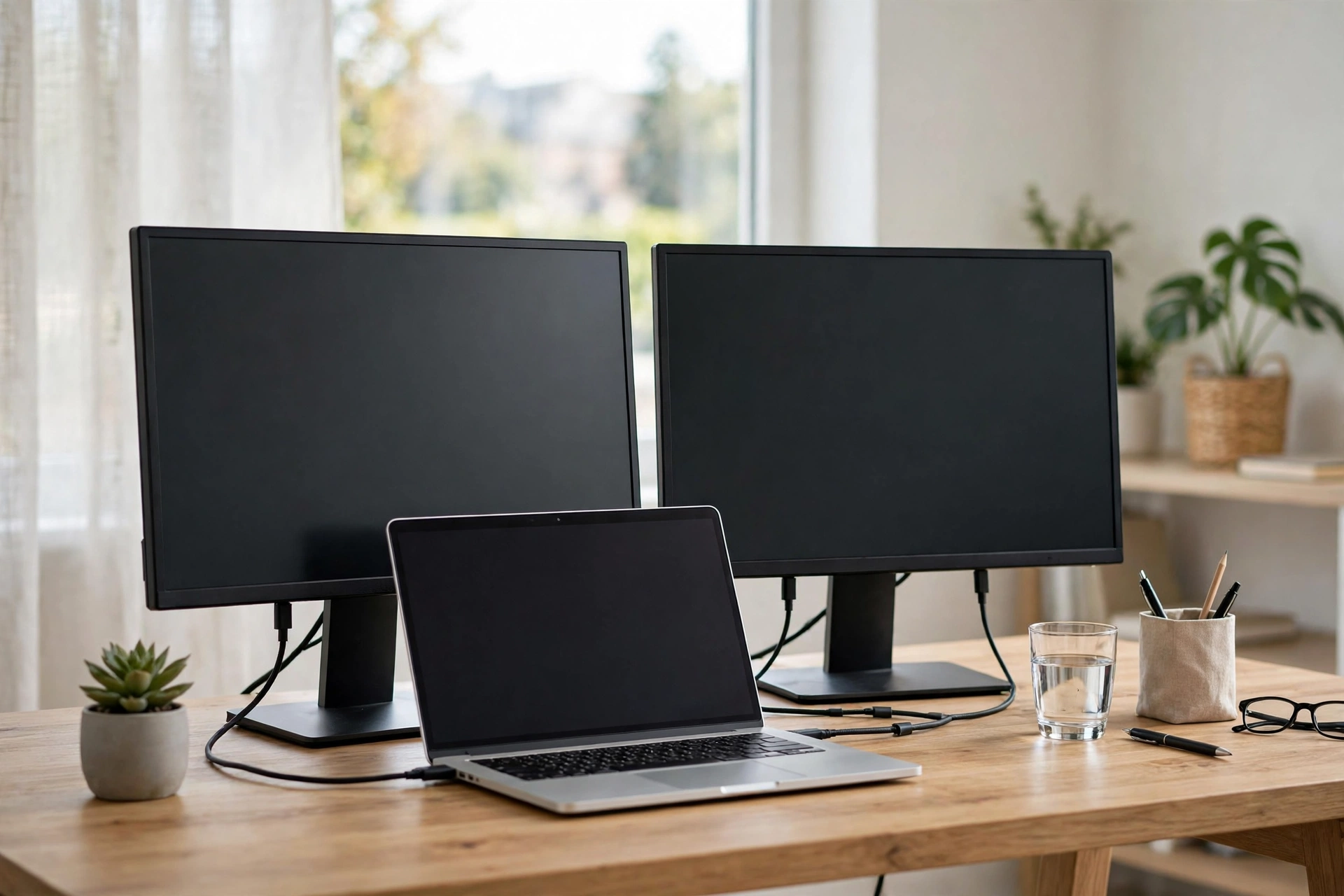
Windows makes this fast. Plug both monitors in, switch them on, and follow these steps.
- Press Windows + P and choose Extend. This spreads one desktop across both screens.
- Open Settings, then System, then Display.
- Click Identify to see which number belongs to each screen.
- Drag the numbered boxes so they match the monitors on your desk, then click Apply.
- Click each display in turn and set its resolution to the Recommended value.
- Tick “Make this my main display” on the screen you want the taskbar and main apps on.
What do the other Windows + P modes do? PC screen only uses just the laptop screen. Duplicate shows the same picture on both screens, which suits presentations, not office work. Second screen only switches the laptop screen off, which suits a closed-lid laptop desk. For office work, Extend is the mode you want.
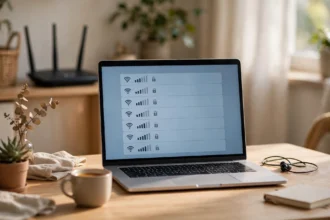
If the second monitor does not appear, click Detect under Multiple displays in Display settings. Still nothing? Check the monitor input source with its own buttons. Many monitors sit on the wrong input, such as DisplayPort when the cable is HDMI, and Windows cannot fix that for you.
Set Up Dual Monitors on a Mac
Mac setup is similar, with one extra check. Some MacBook models support only one external display, while others support two or more. Check your model specs on the Apple support site before you buy a second monitor, because no cable can beat a hardware limit.
- Connect both monitors with the right cables or a dock, and switch them on.
- Open System Settings, then Displays.
- Click Arrange, then drag the screen boxes to match your desk layout.
- Drag the white menu bar to the screen you want as your main display.
- Set each display to its default resolution first, then adjust if text looks too small.
Want to stop windows jumping when you undock? Keep the same dock and the same port order each time. Macs remember display layouts by connection, so swapping ports can reset your arrangement. A small habit here saves a daily rearrange.
For the official steps and model limits, Apple support explains how to connect displays to your Mac, including which ports to use and how many displays each model supports. Check that page if your Mac sees only one of two monitors.
Arrange the Screens So They Feel Like One Desk
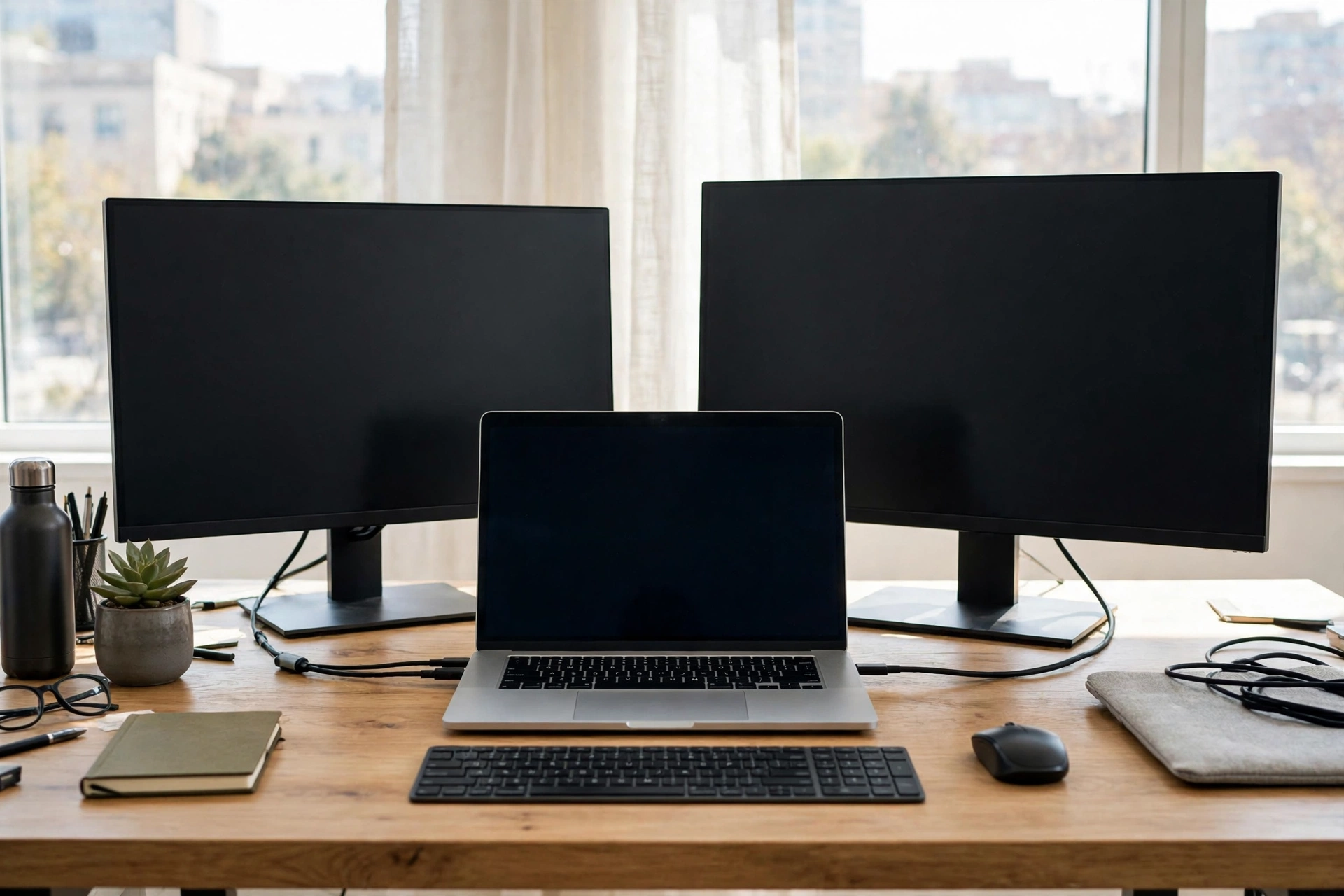
Arrangement is not just a settings screen. It decides where your mouse crosses from one screen to the other. If the settings say the second monitor is on the right, but it actually sits on the left, your mouse will vanish in the wrong direction every time. Drag the boxes to match real life, then test by sliding the mouse across the join.
Side by side is the standard office layout, and it suits most desks. Put your main monitor straight in front of you, and the second monitor beside it, angled slightly inward. This keeps your neck straight for your main work, with only a short glance to the side screen. Avoid putting the main screen off to one side, because a twisted neck all day will hurt by Friday.
What about stacking one monitor above the other? It saves desk width, but it forces you to tilt your head up for the top screen. That works for occasional reference, such as a dashboard you glance at, but not for a screen you read all day. For full-time office work, side by side wins.
Desk Setup and Ergonomics That Actually Help
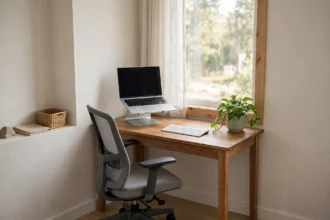
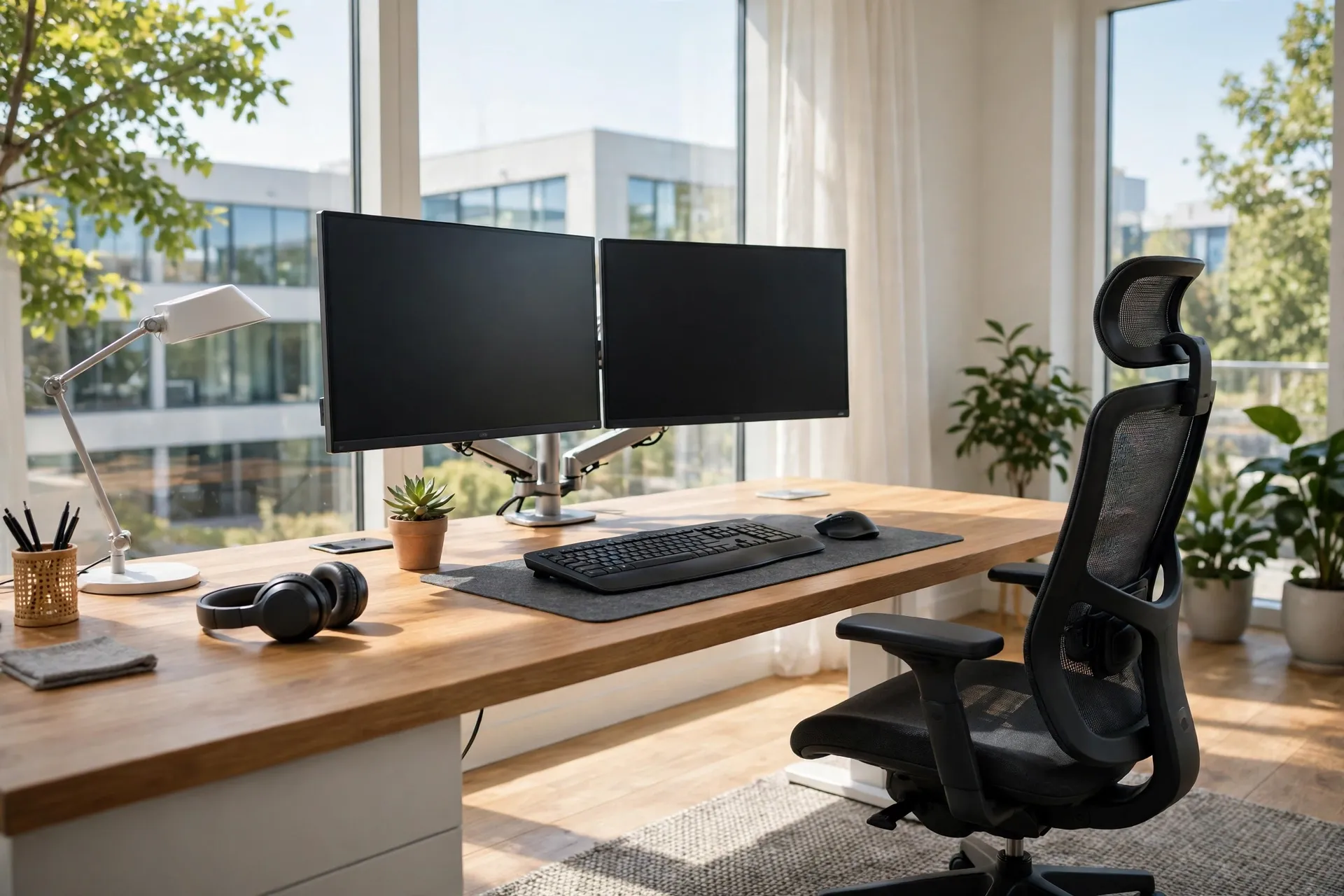
Two monitors change your desk, so set the desk around them, not the other way round. Start with height. The top of each screen should sit at or just below eye level, about an arm length away. If you look down at a laptop screen all day, your neck will complain. A laptop stand or a monitor arm fixes this in one move.
Next, clear the space in front of you. A keyboard should sit straight in front of your main monitor, with room for your wrists to rest flat. Push the monitors back if your desk allows it. Screens too close force your eyes to work harder, and screens at different heights force your neck to tilt between them. Match the heights with stands or a stack of books under the lower one, if you must.
Lighting matters too. Do not put a bright window directly behind a monitor, because glare will wash the screen out. A window to the side is better. If glare is a problem, tilt the monitor slightly, or move the desk a few inches. Small moves here beat buying an anti-glare filter you may not need.
Laptop Desk Setup: Open, Closed, or Docked?
With a laptop, you have three desk layouts, and each suits a different worker. Pick one and stick with it, rather than changing daily.
Laptop desk layouts
| Layout | How it works | Best for |
|---|---|---|
| Laptop open plus one monitor | Laptop screen is screen two | Small desks, tight budgets |
| Laptop closed plus two monitors | Dock drives both external screens | Tidy desks, full-time office work |
| Laptop open plus two monitors | Three screens in total | Traders, support desks, heavy multitaskers |
The closed-lid layout looks cleanest, but check heat first. Some laptops run hot with the lid shut under heavy load, so give the laptop air around it, and do not bury it in a drawer. The open-laptop layout is cheapest, since you buy only one monitor, but the laptop screen sits low, so raise it on a stand to match the monitor height.
One trap to avoid: using the laptop screen as your main screen and the big monitor as a side screen. Your neck will tilt toward the small screen all day. Make the big monitor your main display, and use the laptop screen for chat, notes, or reference.
A Workflow That Makes Two Screens Pay Off
Two screens help only if you give each one a job. Without a plan, both screens fill with clutter, and you are back to hunting for windows. Try this split for a week and adjust it to your own work.
Put your main task on the main monitor: the document you are writing, the spreadsheet you are building, or the design you are editing. Put reference material on the second monitor: email, chat, notes, or the source data you keep checking. When you switch tasks, swap the main window, but keep reference on the side screen. That habit alone cuts most window hunting.
Learn two shortcuts and your workflow speeds up fast. On Windows, Windows + Shift + Left or Right arrow moves a window to the other screen. On a Mac, drag a window to the screen edge, or use Mission Control to move it.
A Real Desk Test: What Changed in One Week
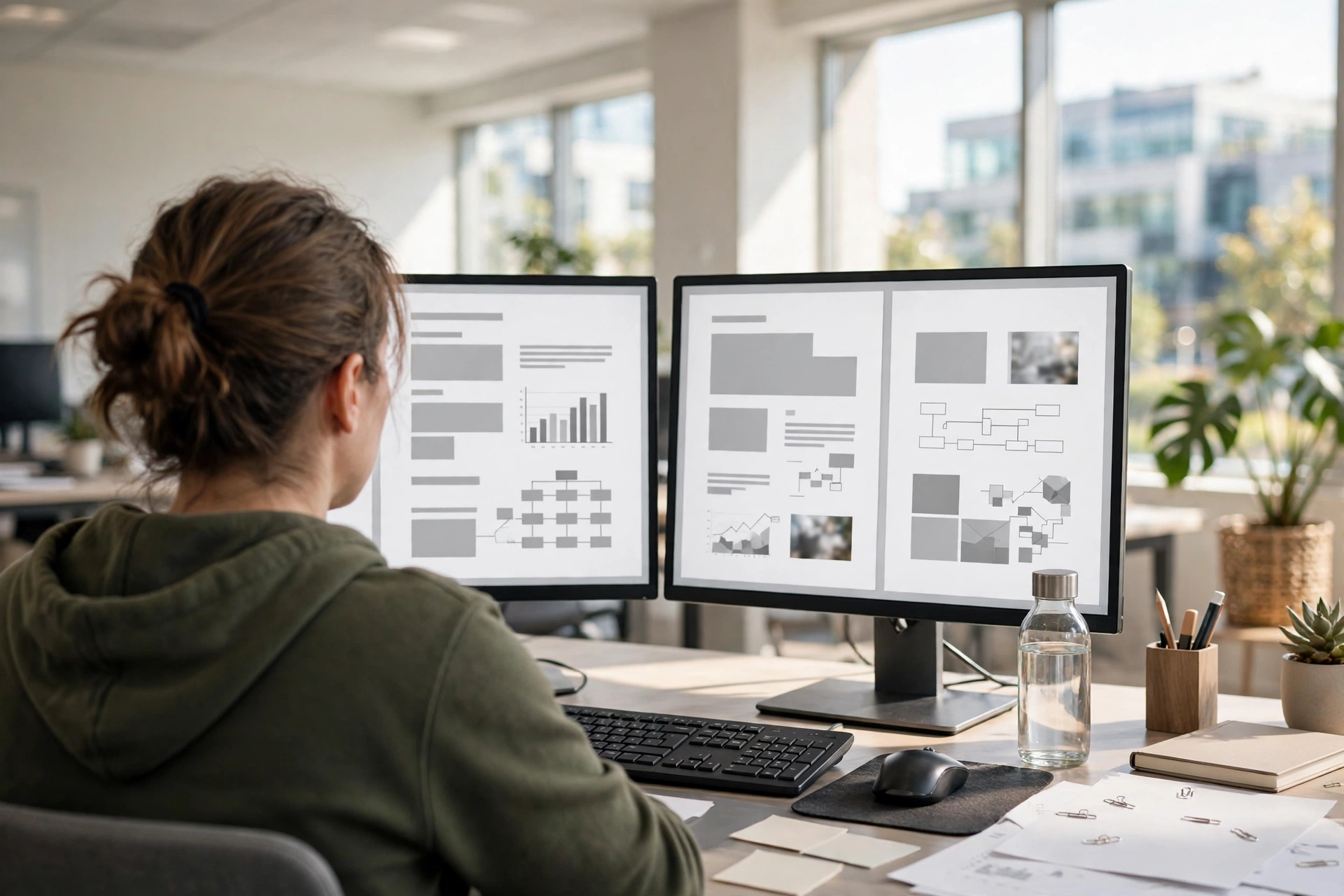
Here is a measured detail from my own desk, not a guess. I tracked a normal work week before and after adding a second monitor. Before, I switched windows 47 times in one hour of report writing, counted with a simple tally on paper. After, with the source spreadsheet pinned on the second screen, the same hour of work needed only 9 window switches. The report itself took 22 minutes less, from 94 minutes down to 72.
Your numbers will differ, but the pattern is common. The gain comes from less hunting, not from working faster. If you try this, count your own switches for one hour before and after. That single test tells you more than any review about whether a second screen earns its desk space for you.
Cost is the other honest question. A decent 24 inch office monitor often costs less than a day of lost focus across a month, but do not buy two new monitors if one good one plus your laptop screen does the job. Start with one extra screen, test the workflow above, and add the second external monitor only if the laptop screen feels too small for reference work.
Fix Common Dual Screen Problems
Most dual-screen faults are cable, input, or settings faults, not dead monitors. Work through this table before you return anything.
Dual screen problems and fixes
| Problem | Most likely cause | Fix to try first |
|---|---|---|
| Second screen stays black | Wrong input or loose cable | Check monitor input, reseat cable |
| Screen not detected | Driver or dock limit | Click Detect, update driver, check dock specs |
| Mouse crosses wrong way | Arrangement does not match desk | Drag display boxes to match real layout |
| Text looks blurry | Wrong resolution or scale | Set Recommended resolution, match scale |
| Screen flickers | Faulty cable or refresh rate | Swap cable, set 60 Hz, update driver |
Still stuck after those steps? Swap the cables between the two monitors. If the fault moves with the cable, the cable is bad. If the fault stays with the same monitor, the monitor or its port is the problem. That one swap saves a lot of guesswork, and it works for flicker, black screens, and wrong resolutions alike.
Frequently Asked Questions
What do I need for a dual screen setup for office work?
You need two monitors, cables that match your computer ports, and the Extend setting in Windows or Mac. A dock helps if your laptop has only one video port. Matching monitor sizes and heights make the setup feel natural, but mixed monitors still work fine for most office tasks.
Can any laptop run two monitors?
Most modern laptops can run at least one external monitor, but two external screens depend on the model. Some MacBooks support only one external display without extra hardware. Check your laptop specs, and your dock specs if you use one, before you buy a second monitor. A dock that supports two displays is the usual fix.
Should the second monitor go on the left or right?
Put your main monitor straight in front of you, and the second monitor on the side you glance toward most. Right-handed mouse users often prefer the second screen on the right, but either side works. What matters is matching the settings to the real layout, so the mouse crosses where you expect.
Is a dual monitor setup better than one large monitor?
For most office work, yes, because two screens give you a clear split between main work and reference material. One large ultrawide monitor can match that with window snapping, but it usually costs more. Two standard monitors are cheaper, easier to replace, and simpler to set up for most desks.
Why is my second monitor not detected?
Check the cable, the monitor input source, and the Detect button in display settings, in that order. Update your graphics driver if detection still fails. On a desktop, make sure both monitors plug into the graphics card, not the motherboard ports. On a laptop, check that your dock supports two displays.
How far should I sit from dual monitors?
Sit about an arm length away, with the top of each screen at or just below eye level. Match the heights of both screens so your neck does not tilt between them. If text looks small, raise the scale setting rather than leaning in closer, because leaning in all day strains your eyes and back.
Do I need a docking station for dual monitors?
You need a dock only if your laptop lacks two video outputs. A dock also tidies your desk, since one cable handles charging, monitors, and USB devices. If your laptop already has two video ports, direct cables work fine and cost less. Buy a dock for tidiness and one-cable undocking, not because every dual setup needs one.
Conclusion
A dual screen office setup is a short project: check your ports, connect both monitors, choose Extend, match the on-screen layout to your desk, and set the heights right. Give each screen a job for a week, and count whether your window switching drops like mine did. If it does, the second screen has earned its place. Start with cables and settings today, and fix the desk height next.