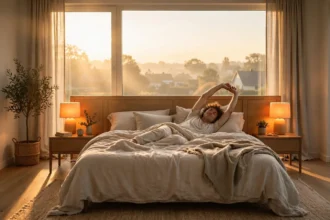

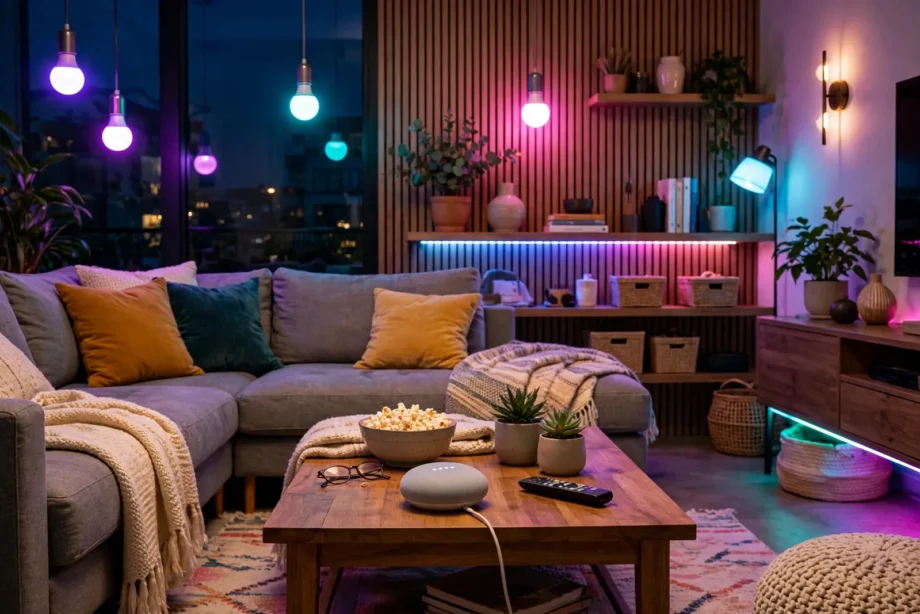
Lighting scenes in Google Home let you set multiple lights to exact brightness and color settings with one tap or voice command. You build a scene inside the Google Home app room by room, save it with a name, then trigger it anytime. No extra hardware is needed.
- What Lighting Scenes in Google Home Actually Do
- Before You Build: Prep Your Lights
- How to Create a Lighting Scene Step by Step
- Triggering Scenes: Voice, Tap, and Routines
- Scenes vs Routines: When to Use Which
- 5 Scene Ideas Worth Stealing
- Troubleshooting: When Scenes Misbehave
- FAQs
- How many scenes can I create in Google Home?
- Can a scene control lights in multiple rooms?
- Do scenes work when the internet is down?
- Can I schedule a scene to run automatically?
- Why does Google say it cannot find my scene?
- Do I need specific brands of bulbs for scenes?
- Conclusion
What Lighting Scenes in Google Home Actually Do
A scene is a saved snapshot of how your lights should look. For example, movie night might mean the living room lamps at 20 percent warm white with the overheads off. Morning might instead mean every bedroom light at full daylight white. Instead of adjusting six bulbs one by one, you fire the scene and all of them snap to their saved settings at once.
Scenes live inside rooms. You build a scene for the lights in one specific room, so things stay tidy as your house grows. One living room can hold three scenes at once: Movie Night, Reading, and Party. Each remembers its own mix of brightness, color, and color temperature.
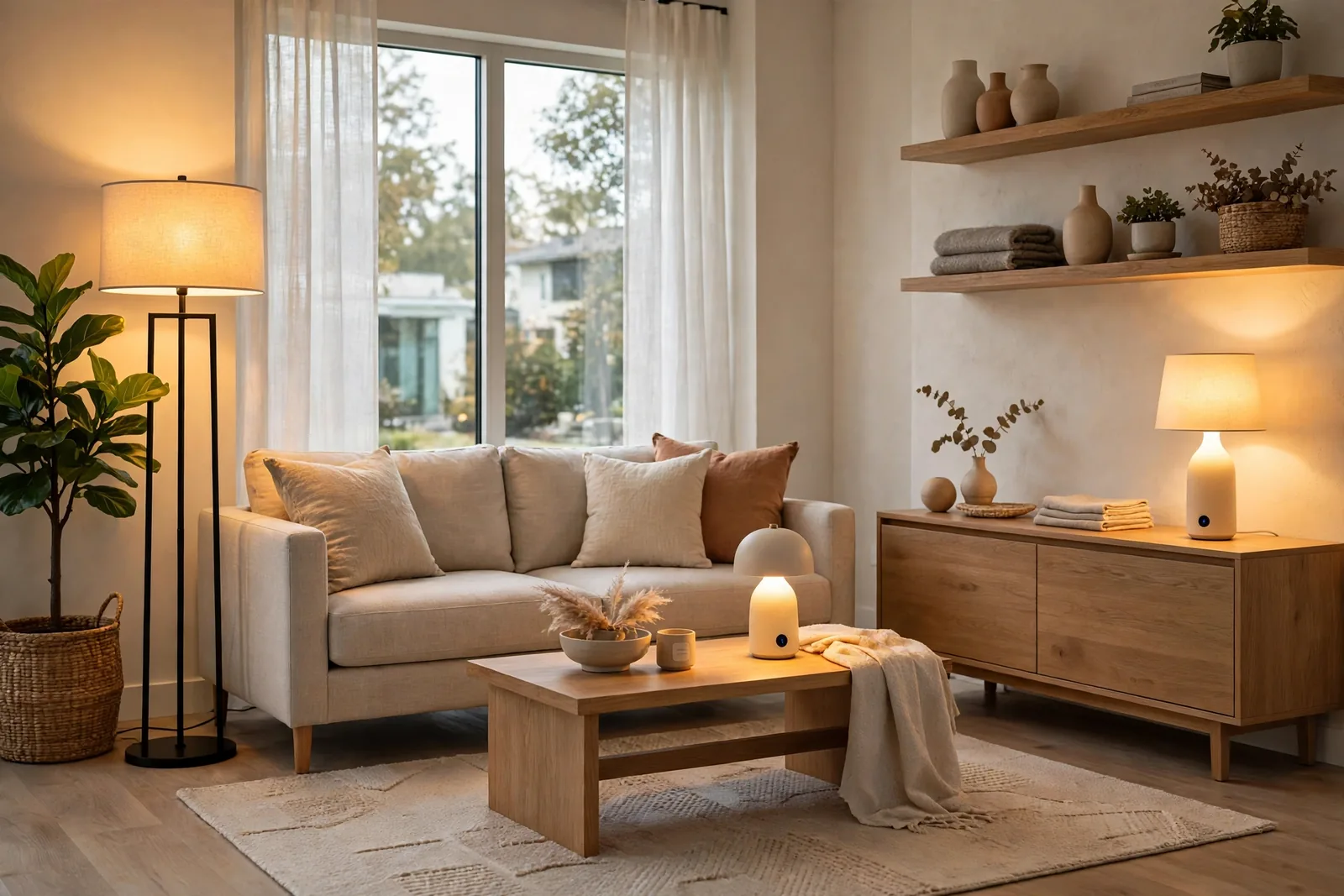
Under the hood, a scene is just a preset the Google Home app stores and replays. Tap it, and the app then sends every light its saved settings in one burst. In my own test with six bulbs, the whole room settled into the scene in about two seconds. Voice triggering took a second longer because the command travels to Google’s servers first, but the result is identical.
Before You Build: Prep Your Lights
Scenes only work as well as the setup beneath them. So ten minutes of prep here saves endless fiddling later.
First, get every bulb into the Google Home app and assigned to the right room. First, open the app, check each light appears under its room, and fix any strays. A bulb sitting in the wrong room will either miss your scenes or crash someone else’s. If you are still adding bulbs, our smart bulb setup guide for Google Home walks through pairing and room assignment.
Next, name your lights like you talk. “Living room floor lamp” beats “Smart bulb 4” because you will say these names aloud. So keep names short, distinct, and free of duplicates across rooms. Two devices named “lamp” in different rooms will still confuse voice commands even when scenes work fine by tap.
Then decide which lights belong in scenes at all. Color bulbs and tunable white bulbs give scenes their magic, since brightness plus color is what makes a scene feel different from just on. Plain dimmable white bulbs still work in scenes, but the effect is subtler. LED strips deserve special mention. For example, a strip behind the TV or under a shelf adds the ambient layer that makes scenes feel cinematic. Our COB vs RGB LED strip guide helps you pick the right strip for the job.
How to Create a Lighting Scene Step by Step
Here is the exact flow in the current Google Home app. Menus shift slightly between app versions, but the shape stays the same.
- Open the Google Home app and tap the Rooms tab at the bottom.
- Select the room where you want the scene, for example Living Room.
- Tap the plus icon or Add button inside the room view.
- Choose the option to add a scene and give it a clear name like Movie Night.
- Pick which lights in the room the scene should control. You can include all of them or just a few.
- Adjust each light: set brightness with the slider, pick a color or color temperature. The app shows a live preview as you adjust, so you see exactly what you get.
- Tap Preview to see the whole scene applied at once, then Save.
Next, test the scene immediately by tapping it in the room view. Watch every included light: did each one land on its saved setting? If a bulb missed, it may have been offline or still paired to its vendor app instead of Google Home. Fix the straggler now rather than discovering it during movie night.
Naming deserves a second thought because you will speak these names. “Movie Night” works beautifully with “Hey Google, activate movie night scene.” Short names with distinct sounds work best. Avoid names that collide with existing routines or device names; I once named a scene “Relax” while a routine called “Relax” already existed, and Google cheerfully ran the wrong one for a week before I noticed.
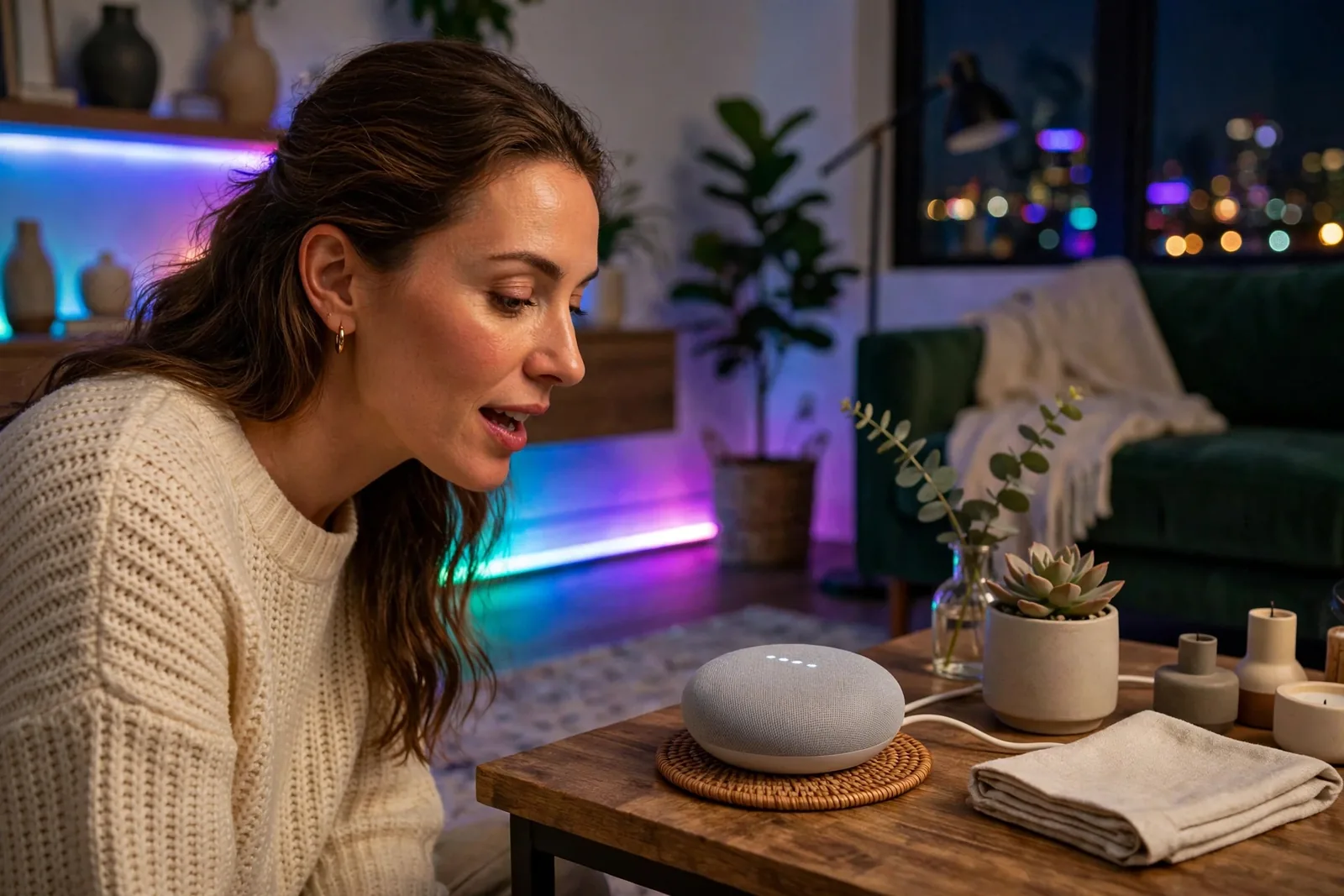
Triggering Scenes: Voice, Tap, and Routines
You have three ways to fire a scene, and each suits a different moment.
Voice is the hands free option. Say “Hey Google, activate movie night scene” and the room transforms. The phrasing is forgiving: “set movie night scene” and “turn on movie night” usually work too. Voice shines when your hands are full of popcorn or you are already on the couch.
Tap is the fastest option. Open the room in the Google Home app and tap the scene tile. No wake word, no waiting for cloud round trips. When guests are over and shouting at a speaker feels awkward, tapping is the polite choice.
Sharing matters too. Anyone in your Google Home household can tap and trigger scenes, which makes them guest friendly. Set up the important scenes before visitors arrive, and put the Google Home app on a shared tablet in the living room. Guests get mood lighting without a tutorial, and nobody has to download anything.
Routines are the automation option. A routine can fire a scene on a schedule, at sunset, or when you say a custom phrase. Build a “Goodnight” routine that activates your bedroom’s Sleep scene at 10:30 pm, and the house winds itself down. Google’s official smart lights help page documents the voice commands that pair with scenes and routines.
Scenes vs Routines: When to Use Which
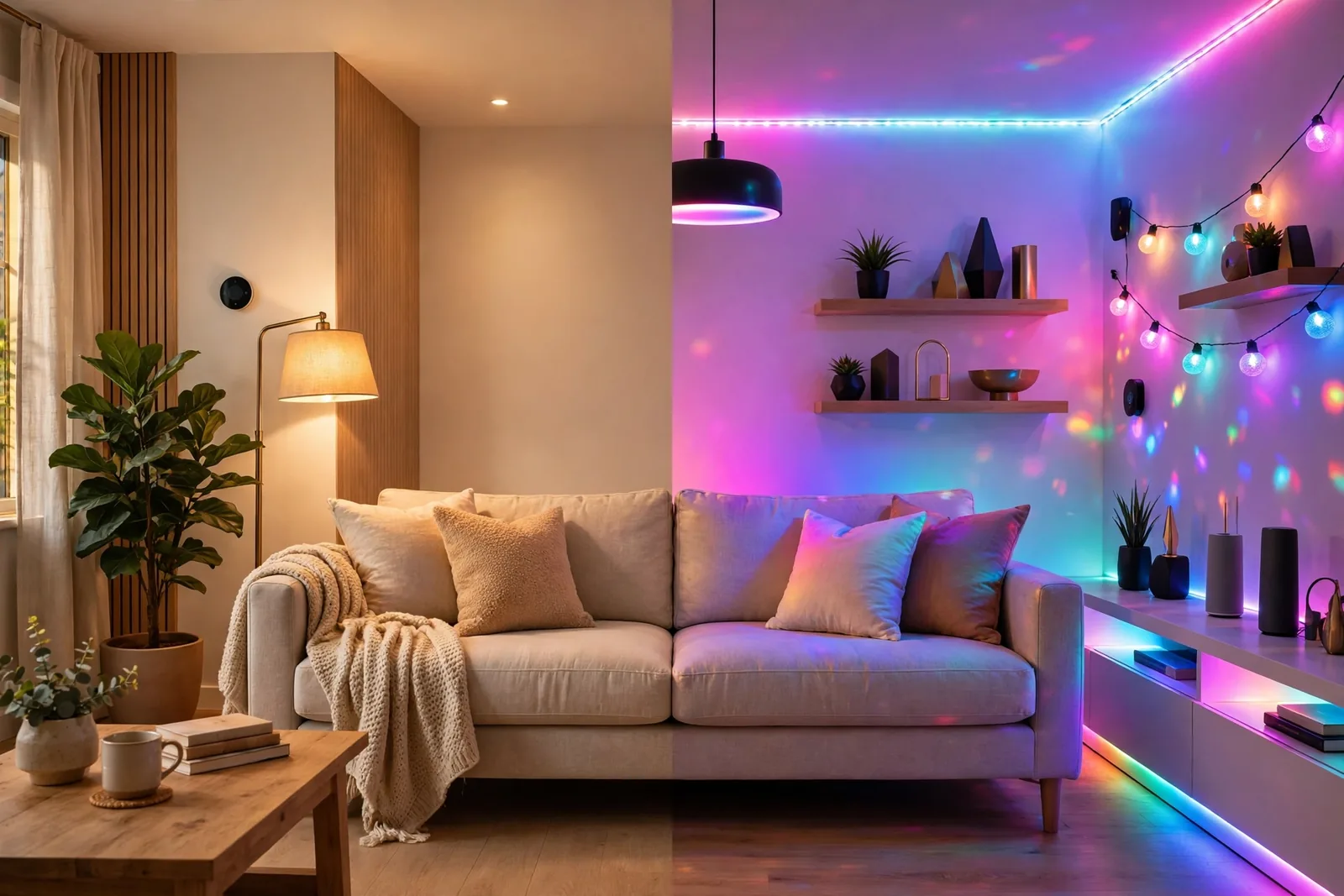
Beginners mix these up, so here is the clean distinction. A scene sets lights to saved settings. A routine runs a sequence of actions that can include scenes, but also thermostats, speakers, locks, and announcements. Scenes are the ingredients; routines are the recipes.
Table: Google Home scenes vs routines
| Feature | Scene | Routine |
|---|---|---|
| Controls | Lights in one room | Any devices, any rooms |
| Trigger | Tap or voice | Voice, schedule, or event |
| Best for | Mood lighting | Automated sequences |
| Example | Movie Night dims living room | Goodnight locks doors, dims all |
| Setup time | 2 minutes | 5 to 10 minutes |
So use scenes when the goal is a lighting mood you trigger on demand. Use routines when you want things to happen automatically or to combine lights with other devices. Most good setups use both: scenes for the moods, routines to fire them at the right moments.
5 Scene Ideas Worth Stealing
Start with these proven templates, then tweak them to your taste. Each one lists exact settings so you can build it in about two minutes.
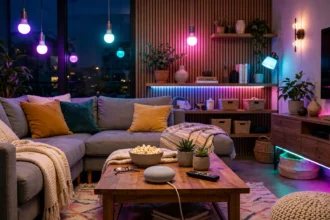
Movie Night: living room lamps at 20 percent warm white, overheads off, TV backlight strip at 10 percent blue. The room goes dark enough for the screen but nobody trips over the coffee table.
Morning: bedroom lights at full daylight white, ramping with a routine at wake time. It will not replace a sunrise alarm clock, but it makes dark winter mornings noticeably less brutal. Pair it with the right bulbs; our best circadian rhythm bulbs for bedrooms roundup covers options that shift color temperature through the day.
Dinner: dining room at 60 percent warm white. Bright enough to see your food, dim enough to feel like evening. If you have tunable white bulbs, 2700K is the sweet spot that flatters both food and faces.
Bedtime: hallway and bathroom at 10 percent warm amber for midnight trips. Bright enough to navigate, dim enough that your eyes stay in night mode. This is the scene parents thank themselves for at 3 am.
Focus: office at full cool white, everything else off. Cool white light supports concentration during work hours, and killing the other rooms removes visual distractions. Fire it with a routine when your work calendar shows focus time.
Troubleshooting: When Scenes Misbehave
Scene does not appear in the app. It was probably saved to the wrong room, or the app needs a refresh. Pull down on the room view to refresh, and check other rooms. If it is truly gone, rebuild it; scenes take two minutes and fighting a ghost entry takes longer.
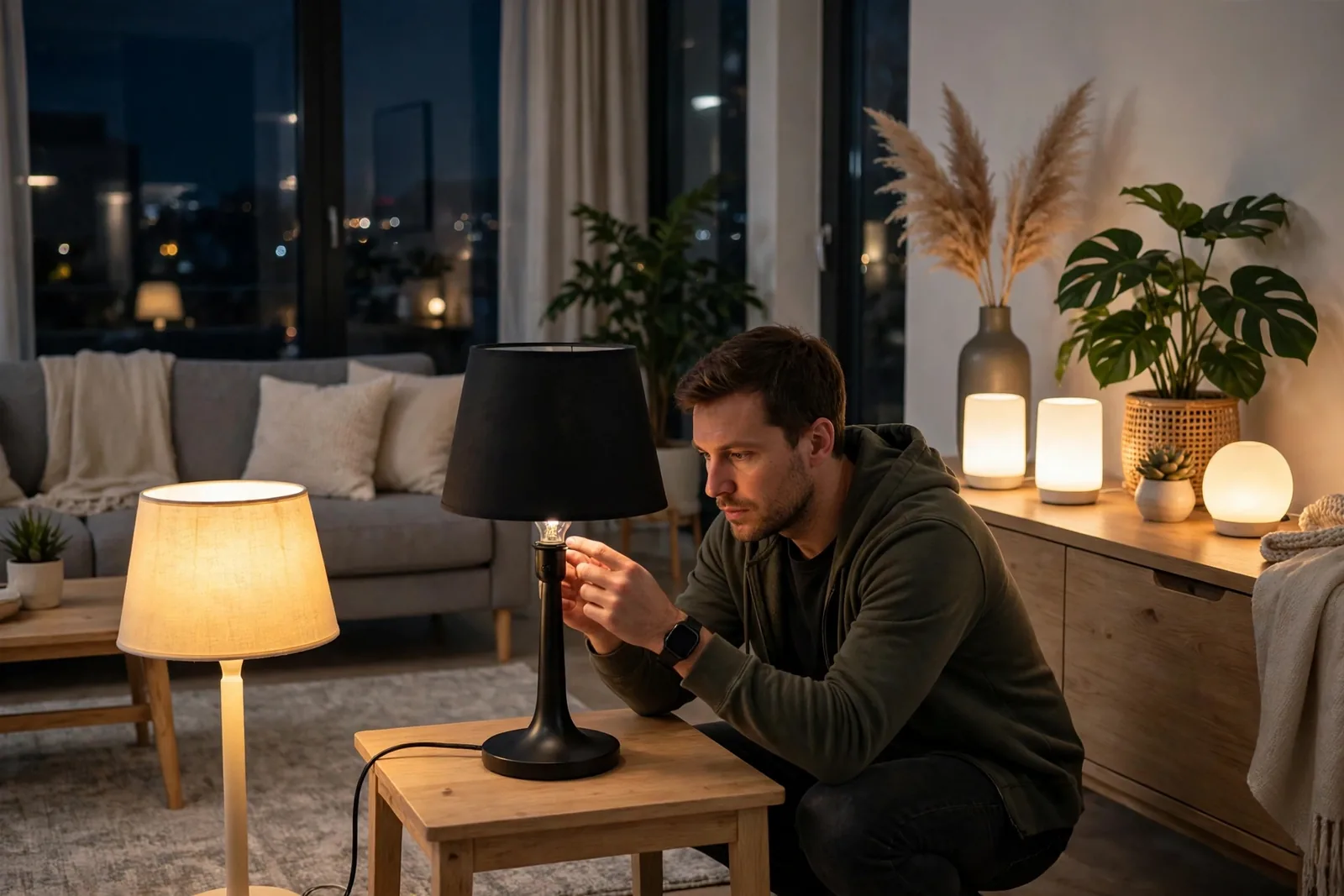
Some lights ignore the scene. The usual suspect is a bulb that dropped offline or is still controlled by its vendor app rather than Google Home. Open the bulb in the Google Home app and check it responds to manual controls. If it does, remove it from the scene and re add it. If it does not, fix the connection first.
Voice triggers the wrong scene. Name collisions are almost always the cause. Check for routines, devices, or other scenes with similar names and rename the scene to something unmistakable. “Movie Night Basement” beats “Movie Night 2” because it sounds distinct when spoken.
Colors look wrong. Not every bulb reproduces every color faithfully, especially cheap RGB bulbs at low brightness. This is where bulb quality shows: our tunable white vs dimmable bulbs comparison explains why the color temperature range matters more than most people expect. Test your scene’s colors at the actual brightness you will use, not at full blast.
Scene is slow. A two to three second delay is normal as commands fan out to each bulb. Ten seconds or partial application points to WiFi congestion or a struggling bulb. Move your router closer to the room, or reduce the number of 2.4 GHz devices competing for airtime.
Household members see different scenes. Scenes belong to the home, not the person, so every member should see the same list. If someone’s app shows stale scenes, have them force close and reopen the app. Persistent mismatches usually mean they are signed into a different home structure, so check the home switcher at the top of the app.
FAQs
How many scenes can I create in Google Home?
There is no published hard limit, and typical homes never hit one. Most rooms work well with three to five scenes covering the main moods. If your scene list grows past what you can remember, that is a sign to consolidate, not a technical problem.
Can a scene control lights in multiple rooms?
No, scenes are room scoped in the Google Home app. Each scene controls lights in one room only. If you want one command to set moods across rooms, build a routine that fires several scenes in sequence, or trigger each room’s scene by voice one after another.
Do scenes work when the internet is down?
Mostly no. Scene commands travel through Google’s cloud, so an internet outage breaks both tap and voice triggering. Bulbs paired through local protocols may still respond to their vendor apps. For lighting that must survive outages, local platforms like Home Assistant are the stronger choice.
Can I schedule a scene to run automatically?
Yes, through routines. Create a routine with a time or sunrise/sunset starter, then add an action that activates your scene. This is how people automate Movie Night at 8 pm or a gentle wake up scene at 7 am. The scene itself stays manual; the routine supplies the schedule.
Why does Google say it cannot find my scene?
The name is not matching what you said, or a similarly named routine or device is winning the match. Say the exact scene name slowly, then check the app for collisions. Renaming the scene to something phonetically distinct fixes nearly every case of this.
Do I need specific brands of bulbs for scenes?
Any bulb that works with Google Home can still join a scene, regardless of brand. Color and tunable white bulbs give the best results because scenes can then control color as well as brightness. Mixing brands in one scene is fine as long as each bulb is properly paired to the app.
Conclusion
Build one scene tonight. First pick your most used room, save a Movie Night or Bedtime mood with three to five lights, then trigger it by voice. Once you feel the one command transformation, add scenes for the other rooms using the templates above. Your next step: open the Google Home app, tap your living room, and create your first scene before bedtime.