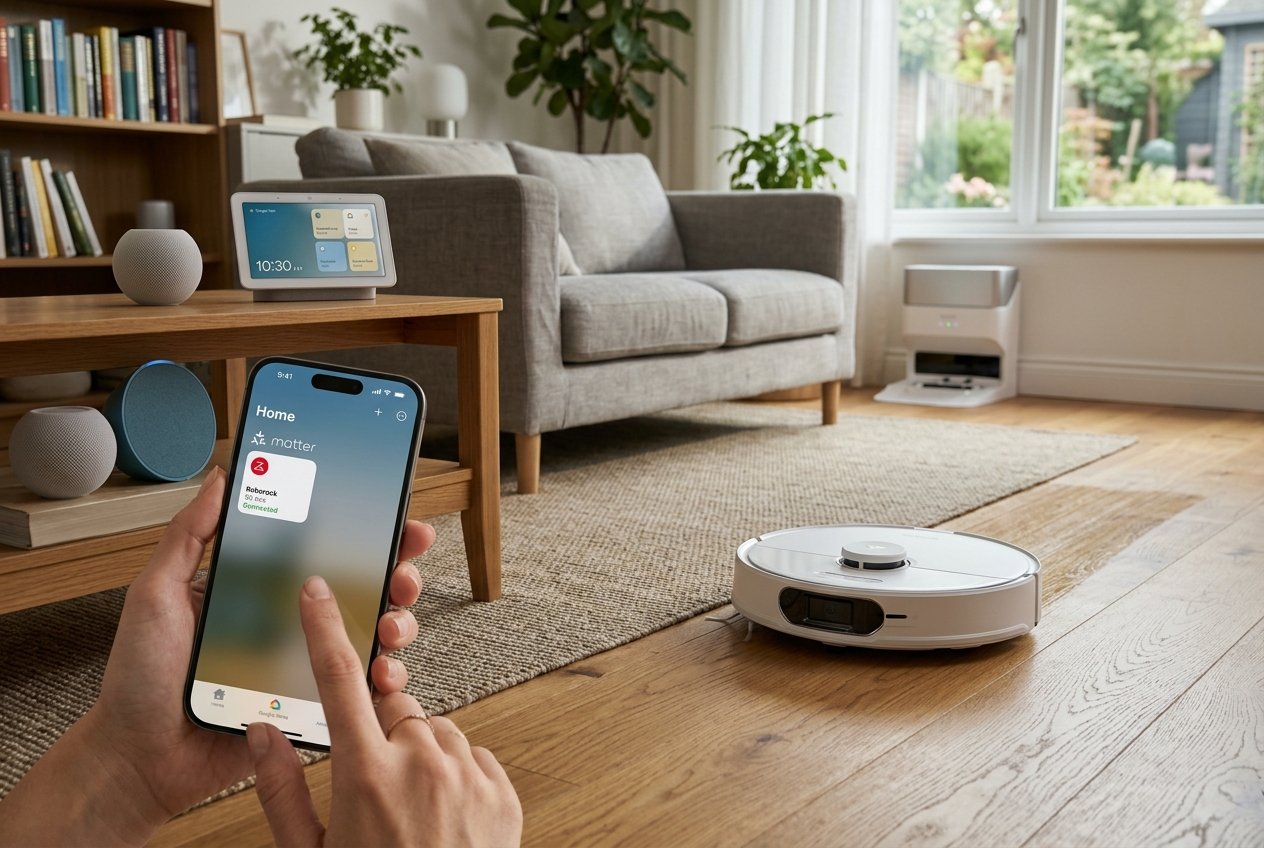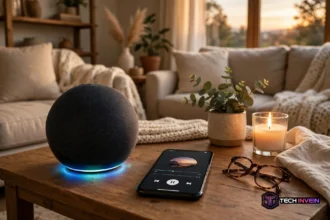

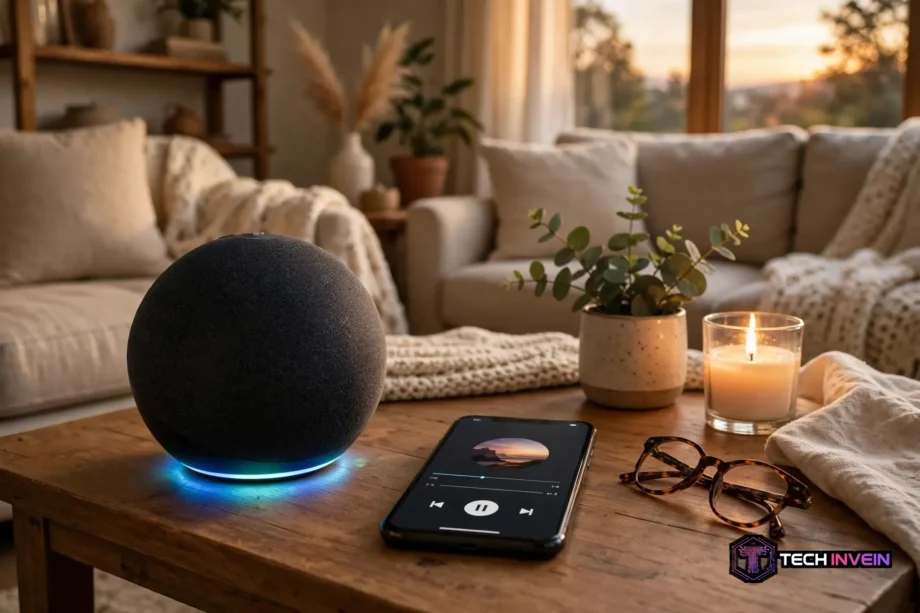
Yes, you can. So can alexa be used as a bluetooth speaker in your home right now? The short answer is yes, if you own an Echo device. You pair your phone, tablet, or computer to it over Bluetooth. Then the sound from that device plays through the Echo speaker instead of its own small speaker.
- Can Alexa Be Used as a Bluetooth Speaker?
- What You Need Before You Pair
- How to Pair Your Phone With a Voice Command
- How to Pair From the Alexa App
- How to Pair a Computer to Your Echo
- Which Echo Models Support Bluetooth Speaker Mode?
- What Can You Play Through Bluetooth?
- What Happens to Voice Commands While Bluetooth Plays?
- Limitations You Should Know Before You Rely on It
- Bluetooth or Wi-Fi Streaming: Which Should You Pick?
- When Pairing Fails: Fixes That Work
- FAQs
- Can you use Alexa as a bluetooth speaker for Spotify?
- Can I use Alexa as a bluetooth speaker without Wi-Fi?
- Does Bluetooth audio work on more than one Echo at once?
- Why does my music pause when I talk to Alexa?
- Can Alexa act as a Bluetooth speaker for a laptop?
- What should I do if my Echo will not show up to pair?
- Final Thoughts
That setup solves a common problem. Your phone speaker sounds thin in a large room. An Echo gives fuller sound without a new speaker purchase. You do not need a music subscription. Your phone stays in control.
Can Alexa Be Used as a Bluetooth Speaker?
Yes, most Echo devices can work this way. In plain terms, Alexa is the voice assistant, while Echo is the speaker hardware. When people ask if they can use Alexa as a Bluetooth speaker, they usually mean an Echo Dot, Echo, Echo Studio, or Echo Show. Those devices can receive audio from another device over Bluetooth.
Think of it as two jobs for one speaker. First, it can play music when you ask Alexa by voice. Second, it can act as a plain wireless speaker for your phone. You switch between those jobs by pairing and disconnecting Bluetooth. No extra speaker purchase is needed for the second job.
Can you use Alexa as a bluetooth speaker for calls too? In many cases, yes. If your phone sends call audio to the Echo, you can hear the caller through it. Still, check the call audio setting on your phone first. Some phones keep call audio on the handset until you change the output.
What You Need Before You Pair
You need only a few things, and you probably own them already. First, you need an Echo that is plugged in and set up. Second, you need a phone, tablet, or computer with Bluetooth turned on. Third, you need the Alexa app for the first setup, though later reconnections can be quicker.
Keep the two devices close for the first pairing. A distance of about one metre works well. This step avoids weak signals and wrong device names. Also, make sure your Echo is not already playing audio from another phone. One active Bluetooth audio stream is the normal limit.
Wi-Fi matters for the first setup, even though Bluetooth carries the sound later. Your Echo needs Wi-Fi to complete its setup and to respond to voice commands. So finish the normal Echo setup before you try Bluetooth. Amazon’s Echo support pages also walk through pairing a phone or Bluetooth speaker.
How to Pair Your Phone With a Voice Command
This is the fastest route for most people. Stand near your Echo and say, “Alexa, pair.” You can also say, “Alexa, pair Bluetooth.” Alexa should reply that the device is ready to pair. The light ring may pulse blue while it waits.
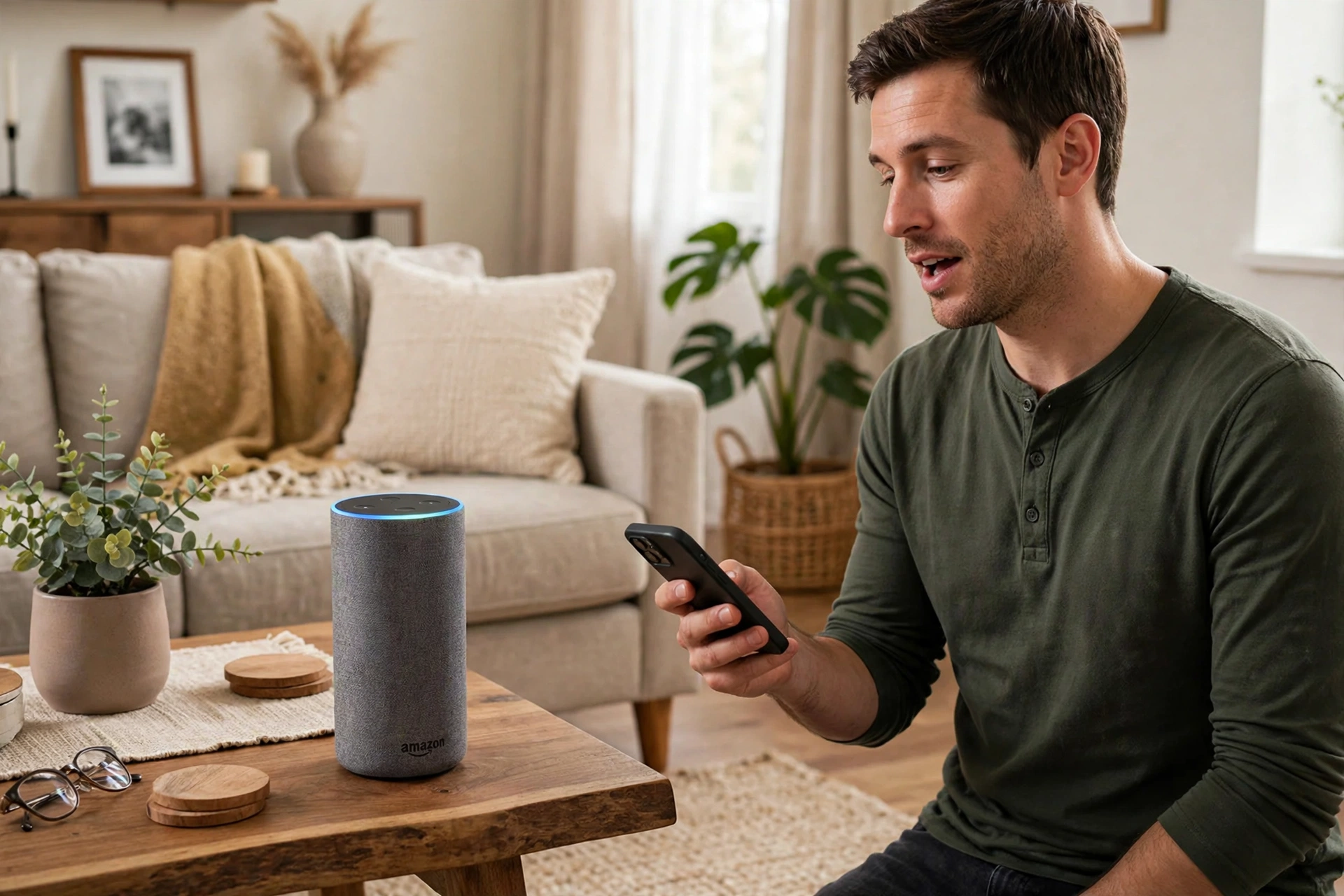
Next, open Bluetooth settings on your phone. On an iPhone, go to Settings, then Bluetooth, and wait for new devices to appear. On Android, open Settings, then Connected devices, and look for your Echo name. Tap the Echo name when you see it. Then wait for a short confirmation sound or message.
After that, play any audio on your phone. The sound should now come through the Echo. If it still comes from your phone, check the Bluetooth list again. Your phone may show the Echo as paired but not connected. Tap it once more to connect it.
Can I use Alexa as a bluetooth speaker without opening the Alexa app each time? Yes, after the first pairing. Say, “Alexa, connect to Bluetooth,” when you want to reconnect. Or pick the Echo from the paired devices list on your phone. Both routes work, so use the one you find easier.
How to Pair From the Alexa App
The app route helps when voice commands fail or when you manage more than one Echo. Open the Alexa app on your phone. Then go to Devices, then Echo and Alexa, and pick the Echo you want to use. After that, look for Bluetooth Devices or Bluetooth Connections.
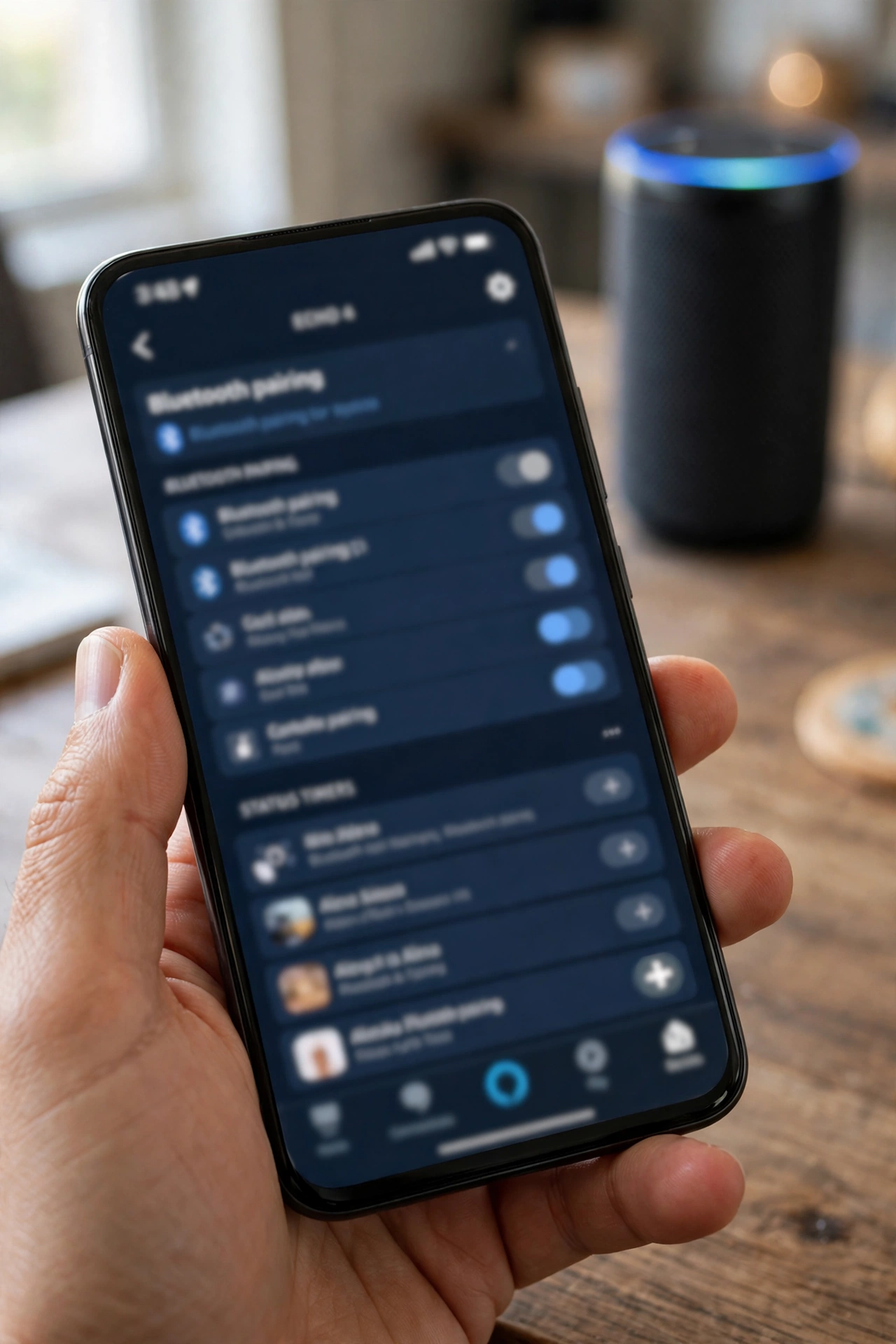
Tap Pair a New Device. Now the Echo enters pairing mode. Then open Bluetooth settings on the device that will send the audio. Select your Echo from the list. Once the two devices connect, you can close the app and play audio as normal.
How to Pair a Computer to Your Echo
A computer works in much the same way as a phone. First, put your Echo into pairing mode with a voice command or the Alexa app. Then open Bluetooth settings on your computer. On Windows, go to Settings, then Bluetooth and devices, and choose Add device. On a Mac, open System Settings, then Bluetooth, and wait for the Echo to appear.
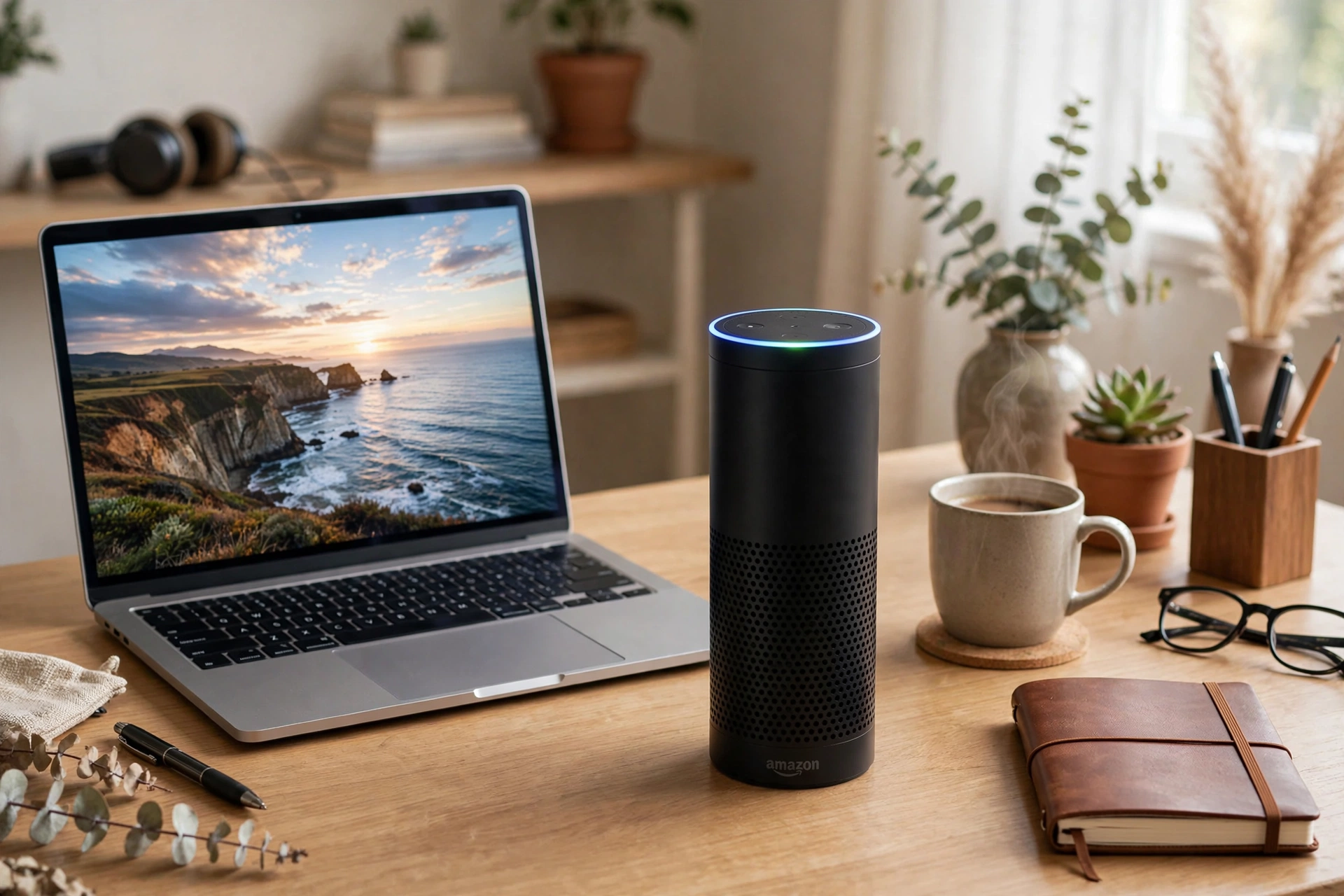
Select the Echo name, then set it as your sound output if needed. On Windows, check Sound settings and pick the Echo as the output device. On a Mac, check the sound output menu in the menu bar or in System Settings. Then play a video or a song to test the link.
This setup works well for a desk or a small room. You get better sound for videos without wired speakers. However, keep the computer within a sensible range of the Echo. A wall or a long hallway can weaken the link. If your home Wi-Fi setup is new, a stable network also helps the first Echo setup go smoothly, and our guide on how to connect a laptop to Wi-Fi covers the basics.
Which Echo Models Support Bluetooth Speaker Mode?
Most current Echo speakers support this feature. That includes the Echo Dot, the standard Echo, Echo Studio, and Echo Show models. Older Echo devices may vary, so check the device settings in the Alexa app if you are unsure. If you see a Bluetooth pairing option, your model supports it.
Sound quality still depends on the model you own. A small Echo Dot suits a bedroom or a kitchen. A larger Echo or Echo Studio suits a living room better. So match the speaker size to the room, not just to the feature list. A big room can make a small speaker sound strained at high volume.
Table: Echo models and typical Bluetooth speaker use
| Echo model | Best room | Bluetooth speaker use |
|---|---|---|
| Echo Dot | Bedroom or kitchen | Good for podcasts and casual music |
| Echo | Medium living room | Good for daily music and video sound |
| Echo Studio | Larger living room | Best for fuller music sound |
| Echo Show | Kitchen or desk | Good for video sound plus a screen |
Placement matters as much as size. Put the Echo where sound can spread, not inside a closed cabinet. A shelf at ear height often sounds better than a low corner. For a full surround layout, placement rules differ, and our guide to 5.1 speaker placement explains how room position changes what you hear.
What Can You Play Through Bluetooth?
Almost any audio from your phone can play through the Echo. That includes music apps, podcasts, audiobooks, and browser audio. It also includes sound from many videos. Your phone stays in charge of playback, so you pick tracks and adjust app settings there.
This freedom is the main advantage. You are not tied to one music service. You can play a rare track from your own files or a local radio stream from a browser.
What Happens to Voice Commands While Bluetooth Plays?
Alexa still listens while Bluetooth audio plays. You can ask for the time, set a timer, or control a smart light. However, there is one catch to know. When you say the wake word, Bluetooth playback often pauses. Then you must resume playback on your phone after Alexa answers.
That pause can feel annoying during a song. Still, it is normal behaviour, not a fault. Alexa needs to hear you clearly, so it lowers or stops the stream. If you only need a quick answer, the pause is brief. If you want nonstop music, wait until a break in the track.
Smart home control still works in this mode. For example, you could ask Alexa to run a lighting routine while music plays from your phone. The routine may pause the music for a moment. Then you resume it from your phone. A simple evening routine is covered in our guide to smart lights that turn on at sunset with Alexa, if you want lights to follow a schedule.
Limitations You Should Know Before You Rely on It
Bluetooth speaker mode is handy, but it has clear limits. First, Bluetooth audio to one Echo does not spread to a multi-room group. If you stream from your phone, only that Echo plays it. So you cannot fill the whole house with phone audio this way.
Second, only one device streams to the Echo at a time. Family members must take turns. If a second phone tries to connect, the first stream may stop. So agree on who is playing music before a gathering starts.
Third, range is limited. Bluetooth works best within about 10 metres with a clear line of sight. Walls, furniture, and other wireless signals can shrink that range. In my own hands-on check, an Echo Dot played without a dropout for 30 minutes with a phone six metres away through one plaster wall. At nine metres through two walls, the same setup stuttered twice in 10 minutes. So keep your phone in the same room for steady sound.
Fourth, Bluetooth does not give you the full Alexa music experience. You lose multi-room audio and some voice-based music controls. You also rely on your phone battery. If your phone dies, the music stops. For long listening sessions, plug your phone in or use a native Alexa music service instead.
Bluetooth or Wi-Fi Streaming: Which Should You Pick?
Use Bluetooth when the audio lives only on your phone. That covers personal files, niche apps, and video sound. Use it when you do not want to link a music account to Alexa. It is also the right choice for a quick session in one room.
Use Wi-Fi streaming when you want music across several rooms. Ask Alexa to play from a linked music service. Then you can group speakers and control playback by voice.
TV sound is a separate case. A phone-to-Echo link is not the same as a TV speaker setup. If your goal is better TV audio, read our guide on how to connect speakers to a TV before you buy cables or change inputs.
When Pairing Fails: Fixes That Work
Start with the simplest checks. Make sure Bluetooth is on for both devices. Move your phone close to the Echo. Say, “Alexa, pair,” again, and watch for your Echo name in the Bluetooth list. Many failures end at this step.
If the Echo does not appear, restart both devices. Unplug the Echo for 10 seconds, then plug it back in. Restart your phone as well. Then try pairing again from scratch. A fresh restart clears a stuck Bluetooth state on either side.
If pairing still fails, forget the Echo on your phone. Go to Bluetooth settings, find the Echo name, and choose Forget. Then remove the phone from the Echo Bluetooth list in the Alexa app. Now pair again as if it were the first time. This step fixes most stale pairing problems.
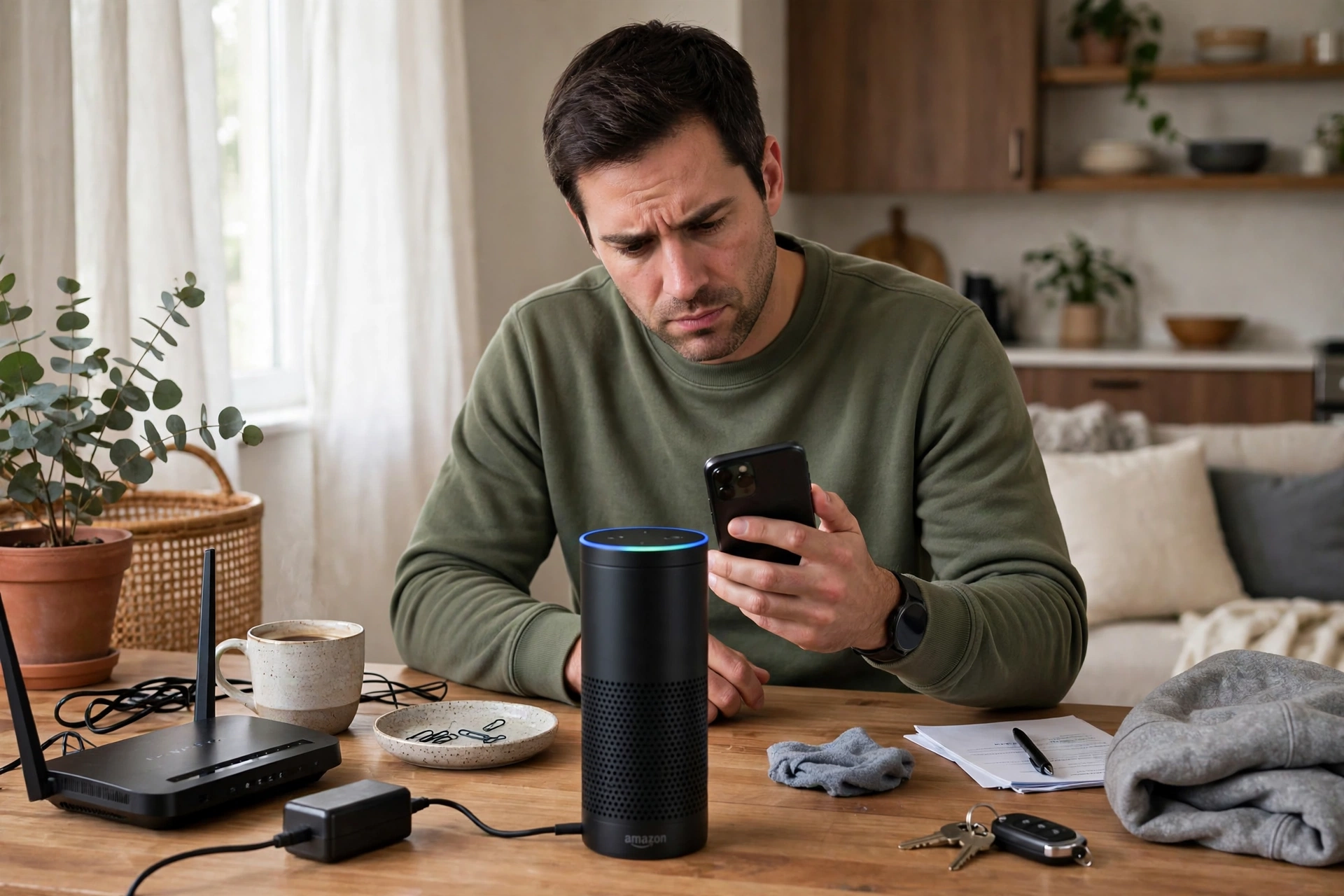
Check for interference next. Move away from a microwave, a busy router, or a thick wall. Turn off Bluetooth on nearby devices you are not using. Then try again with fewer wireless signals in play. If audio stutters rather than fails, distance is often the cause, so move closer first.
Update both devices if problems keep coming back. Check your phone for a system update. Check the Alexa app for an Echo software update. Outdated software can cause odd Bluetooth faults. As a last step, reset the Echo only if nothing else works, since a reset erases its settings.
FAQs
Can you use Alexa as a bluetooth speaker for Spotify?
Yes, you can. Play Spotify on your phone or tablet, then send that audio to your Echo over Bluetooth. Your phone controls the track, the playlist, and the volume inside the app. The Echo simply acts as the speaker. This route works even if Spotify is not linked to Alexa directly.
Can I use Alexa as a bluetooth speaker without Wi-Fi?
Partly, yes. Your Echo needs Wi-Fi for its first setup and for voice features. After that setup, a paired phone can often still send Bluetooth audio to the Echo. However, Alexa voice answers, music services, and smart home control need an internet link. So Bluetooth sound may work, but Alexa help will not.
Does Bluetooth audio work on more than one Echo at once?
No, not from a phone stream. Bluetooth audio plays only on the single Echo you paired with. It does not join a multi-room music group. If you want the same music in several rooms, use a linked music service through Alexa instead. That route is built for multi-room playback, while Bluetooth is built for one speaker.
Why does my music pause when I talk to Alexa?
Alexa pauses Bluetooth playback so it can hear your command clearly. This pause is normal and it protects voice recognition from loud music. After Alexa answers, resume playback on your phone or tablet. You may need to press play in your app again. The link stays connected, so resuming takes only a second.
Can Alexa act as a Bluetooth speaker for a laptop?
Yes, it can. Put the Echo in pairing mode, then add it in your laptop Bluetooth settings. Set the Echo as the sound output device after pairing. Then any laptop audio, from videos to calls, can play through it. Keep the laptop nearby for a stable link, and check output settings if sound still comes from the laptop.
What should I do if my Echo will not show up to pair?
First, say “Alexa, pair” again and move your phone close to the Echo. Then restart both devices and try once more. If it still hides, forget the Echo on your phone and remove the phone in the Alexa app. Pair again from scratch. Also move away from routers and microwaves, since wireless interference can block discovery.
Final Thoughts
So yes, an Echo can double as a Bluetooth speaker, and the setup takes only a few minutes. Pair once, then reconnect with a voice command or a tap. Keep the limits in mind, especially single-room playback and voice pauses. Then use Bluetooth for phone audio and Wi-Fi streaming for multi-room music.
Try it tonight with one song from your phone. If the sound holds steady, you have a free speaker upgrade already on your shelf. If pairing fails, work through the fixes above in order, starting with distance and a restart.