
Presence Detection Lighting That Actually Works
Presence detection lighting turns your lights on when you enter a room and keeps them on while you stay there, even when you sit quietly. In Home Assistant, you build this with an occupancy sensor, one automation set to restart mode, and an off-delay. The result feels like the house is paying attention instead of reacting to movement.
- Presence Detection Lighting That Actually Works
- Motion vs Presence: Why Your Lights Keep Dying
- Pick the Right Sensor for Each Room
- Build the Automation in Home Assistant
- Use Timers and Groups So It Never Glitches
- Add Daylight Conditions
- Wire Presence Into Your Daily Routines
- Fix the Usual Problems
- FAQs
- What is the difference between motion and presence detection?
- Can I use presence detection without Home Assistant?
- Why do my lights turn off while I am still in the room?
- Do mmWave sensors work through walls?
- How long should the off-delay be?
- Will pets trigger a presence sensor?
- Lights That Follow You, Not the Other Way
Almost everyone starts with a basic motion sensor. You walk into the office, the light fires, and you feel clever for about a day. Then you sit down to read, stop moving, and the room goes dark around you. You wave your arms like you’re landing a plane, the light comes back, and the magic is gone. The sensor was never the problem. Motion is simply the wrong signal for rooms where people sit still.

Motion vs Presence: Why Your Lights Keep Dying
A PIR motion sensor watches for changes in infrared heat. When you walk past, your body heat moves across its view and it reports motion. When you stop moving, your heat signature stops changing, so the sensor reports nothing. Your automation only knows “motion” or “no motion”, and “no motion” looks exactly like an empty room.
Presence detection works differently. A mmWave radar sensor bounces radio waves around the room. It notices tiny disturbances, down to the rise and fall of your chest as you breathe. Sitting quietly counts as present. So the lights stay on through a whole movie, a long work call, or an afternoon of reading. The room finally understands the difference between “nobody here” and “somebody relaxing”.
Pick the Right Sensor for Each Room
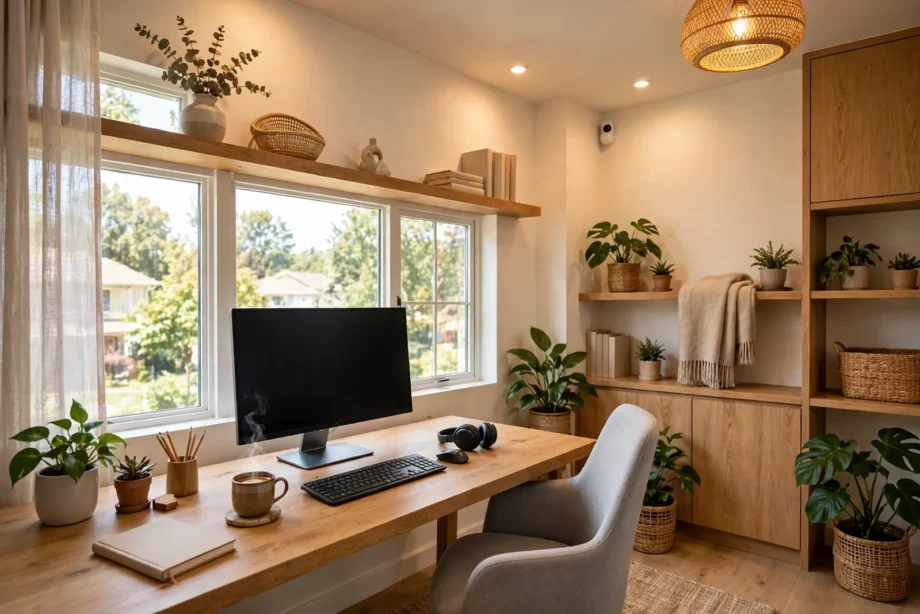
Not every room needs the same sensor. Hallways and stairwells are perfect for cheap PIR sensors because people keep moving through them. Offices, bedrooms, and living rooms deserve presence sensing, because that’s where you spend the most time sitting. First, map your rooms by behavior. Then buy sensors to match.
PIR motion sensors
PIR sensors are cheap, sip battery power, and react fast. A good Zigbee PIR costs little and runs for a year or two on a coin cell. They work best in transit spaces: hallways, entryways, laundry rooms, garages. Their weakness is exactly what you would expect. Stop moving for a few minutes and they go quiet, so pair them with generous off-delays or use them only where people never linger.
mmWave radar sensors
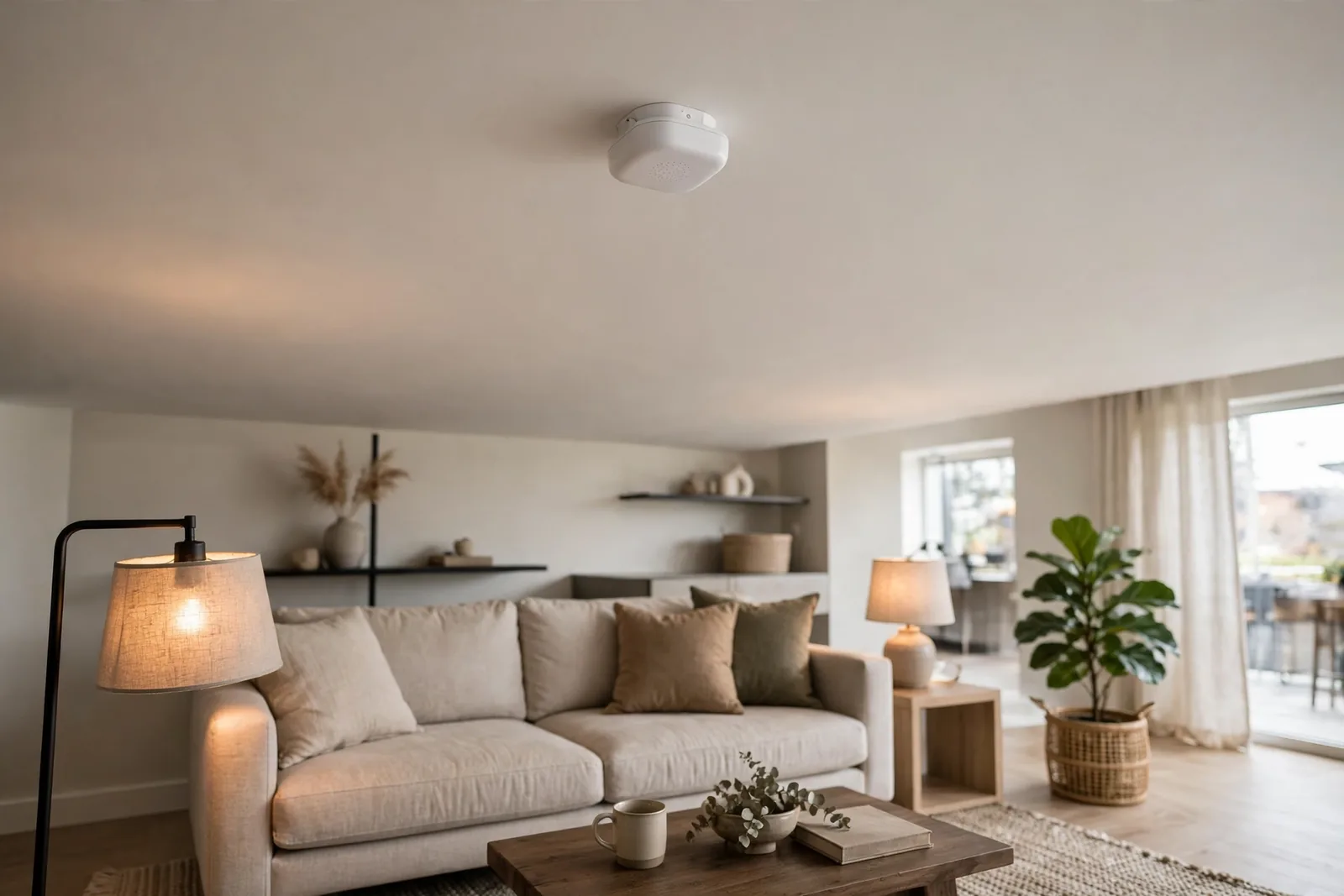
mmWave sensors cost more and usually need mains power, but they see what PIR can’t. The Aqara FP2 covers a whole room with zones. DIY options like the LD2410 paired with an ESP32 cost very little and integrate directly with Home Assistant. A hands-on look at mmWave sensors in real homes shows why people switch: no more waving, no more dark rooms mid-movie. Mount them on the ceiling or high on a wall, aimed at where people actually sit.
Bluetooth and Wi-Fi presence
Phone-based presence, through Bluetooth beacons or Wi-Fi connection tracking, answers a different question: is anybody home at all. It’s too coarse for room-level lighting, since your phone connects to the same access point from the couch and the kitchen. Still, it makes a fine whole-house condition. Use it to disable the daytime automations when everyone leaves, and let the room sensors handle the details.
Build the Automation in Home Assistant
The classic mistake is building two automations with fixed timers that fight each other. The cleaner pattern uses a single automation in restart mode. It triggers on every state change of the occupancy sensor, then chooses what to do based on the new state. When presence returns during the off-delay, the automation restarts and the delay cancels itself. The lights only go off when the room is truly empty.
- Go to Settings, then Automations, and create a new automation.
- Add a trigger: state of your occupancy binary sensor, from anything to anything. This fires on both arrival and departure.
- Set the automation mode to Restart. This is the step everyone misses, and it makes the whole pattern work.
- Add a Choose action with two options. Option one: if the sensor is on, turn the lights on. Option two: if the sensor is off, wait five minutes, then turn the lights off.
- Finally, save, then walk in and out of the room to test both paths.
This restart pattern is the community’s favorite answer for a reason. A long Home Assistant community thread on keeping lights on with presence walks through the same chooser setup and explains why blueprints with fixed timers keep failing people. Read it if the automation misbehaves. Someone there has almost certainly hit your exact bug already, so start with their thread.
Use Timers and Groups So It Never Glitches
Rooms with more than one sensor need a group helper. If two PIR sensors cover a large living room and one goes quiet, a naive automation turns the lights off while the other sensor sees you. A group helper combines them into one “any motion” entity, and the automation triggers only on the group. The same trick works for door sensors paired with motion sensors, as our guide to window and door contact sensors in alarm setups shows for combining multiple inputs into one reliable signal.
Timer helpers beat fixed delays for the off path. Create a timer helper of five minutes, start or restart it on every motion event, and turn the lights off only when the timer finishes. Because each new motion event restarts the timer, a quiet reader who shifts in their chair every few minutes never loses the light. So the timer only runs out when the room is genuinely still.
Add Daylight Conditions
Presence lighting matters most when it is dark. During a bright afternoon, turning on the office lights every time you walk in wastes energy and feels wrong. Add a condition so the “turn on” path only runs when ambient light is low. Many mmWave sensors include a lux reading, or you can use the sun’s elevation as a proxy.
A simple version: only run the automation when the sun is below the horizon, or when a lux sensor reads under 30. A fancier version dims the lights to match the daylight, which is exactly what circadian lighting does. Our Home Assistant circadian lighting setup pairs beautifully with presence detection, because the lights then follow both the sun and the people in the room.
Wire Presence Into Your Daily Routines
Once the basic automation works, presence becomes an input for everything else. First, a good night routine can check that every room is empty before arming the alarm and dimming the hallway to a night light. A morning routine can skip the bedroom lights when presence shows someone asleep, while the kitchen lights come on the moment the first person walks in.
Vacation mode is the most satisfying upgrade. When whole-house presence has been empty for a full day, Home Assistant can run randomized evening lighting that looks lived in. Because the same sensors drive the logic, the house returns to normal the moment you walk back through the door. There are no toggles to remember and no scenes to switch. The house simply notices you again.
Fix the Usual Problems
Ghost triggers are the top complaint with mmWave. A curtain rippling in a draft or a ceiling fan on high can look like a person to the radar. If your lights stay on in an empty room, lower the sensitivity, shrink the detection zone to the seating area, and keep the sensor away from fans and drafty windows. A PIR sensor watching the doorway can also gate the mmWave sensor, so the room must see entry motion before presence counts.

Pets cause the same headache outdoors and in. A large dog pacing at night will hold the lights on, and the fix is identical to taming any motion sensor: narrow the field of view, lower the sensitivity, and aim away from the usual paths. Our guide to stopping false motion alerts covers the same ideas for doorbells, and every trick there applies to indoor sensors too.
Mounting height matters more than most people expect. A sensor at light-switch height sees legs and furniture, while a ceiling-mounted sensor sees the whole room. For mmWave, ceiling or high-wall mounting with a downward tilt covers a desk area cleanly and keeps the hallway out of the picture. Next, test the placement by watching the sensor’s state in Home Assistant while you sit, stand, and walk the next room over.
Through-wall detection surprises people the most. Radar passes through drywall, so a hallway sensor can see you in the bedroom and keep the wrong lights on. Mount the sensor inside the room it controls and use zone limits to fence it in. A door sensor adds a cheap second opinion: if the door never opened, nobody entered. Our door and window sensor overview lists affordable options that pair well with this trick.
In my own office test, the difference was stark. A PIR-only setup killed the lights twice during twenty minutes of reading. The mmWave sensor kept them on through forty-five minutes of desk work, then switched off three minutes after I left. That’s the whole upgrade in one sentence: lights that understand stillness.

Table: PIR vs mmWave for room lighting
| Feature | PIR motion sensor | mmWave presence sensor |
|---|---|---|
| Detects sitting still | No | Yes |
| Power | Battery, lasts years | Usually mains powered |
| Cost | Low | Medium to high |
| Best rooms | Hallways, stairs | Office, bedroom, living room |
| False triggers | Pets, heat vents | Curtains, fans |
FAQs
What is the difference between motion and presence detection?
Motion detection notices movement, such as walking across a room. Presence detection notices that someone remains there, even sitting quietly. A PIR sensor is a motion sensor. A mmWave radar sensor is a presence sensor because it picks up tiny movements like breathing. For lighting, this means the lights stay on while you read instead of switching off.
Can I use presence detection without Home Assistant?
Yes, but your options are narrower. Some ecosystems, like Aqara with its own hub or SwitchBot, offer basic presence automations in their apps. You get on-when-present and off-when-empty, but you lose the fine control Home Assistant gives you, such as lux conditions, per-room timers, and sensor groups. If you already run Home Assistant, keep the logic there.
Why do my lights turn off while I am still in the room?
Your sensor only sees motion, not presence. When you sit down to read, a PIR sensor stops reporting, the off-timer finishes, and the lights die. The fix is a presence sensor that tracks micro-movements, or a longer off-delay paired with a group helper so one moment does not end the timer. Check that the automation restarts on new motion too.
Do mmWave sensors work through walls?
They can, which is both a feature and a headache. Radar passes through drywall and glass, so a hallway sensor might see you in the bedroom. Mount it inside the room it controls, aim it away from shared walls, and shrink the detection zone. Then test by walking the next room and watching the state.
How long should the off-delay be?
Three to five minutes works for most rooms. Shorter delays save energy but risk the lights dying while you sit and read. Longer delays feel safer yet waste power after you leave. First, start at five minutes and shorten it if the lights linger. For example, bathrooms can use shorter delays than living rooms.
Will pets trigger a presence sensor?
Sometimes. mmWave sensors can pick up a large dog moving nearby, especially at high sensitivity. Most sensors let you set a minimum detection distance or ignore low targets, so raise the sensor and tune out the floor zone where pets roam. Still, in practice, a cat napping under the desk rarely holds the lights on, but a restless dog might.
Lights That Follow You, Not the Other Way
To begin, start with one room, the one where the lights annoy you most. Put a presence sensor where you relax, build the restart automation, and set a five-minute off-delay. Live with it for a week. When you stop noticing the lights entirely, that’s the sign it works. Then roll the same pattern out to every room where you sit, read, or relax.