

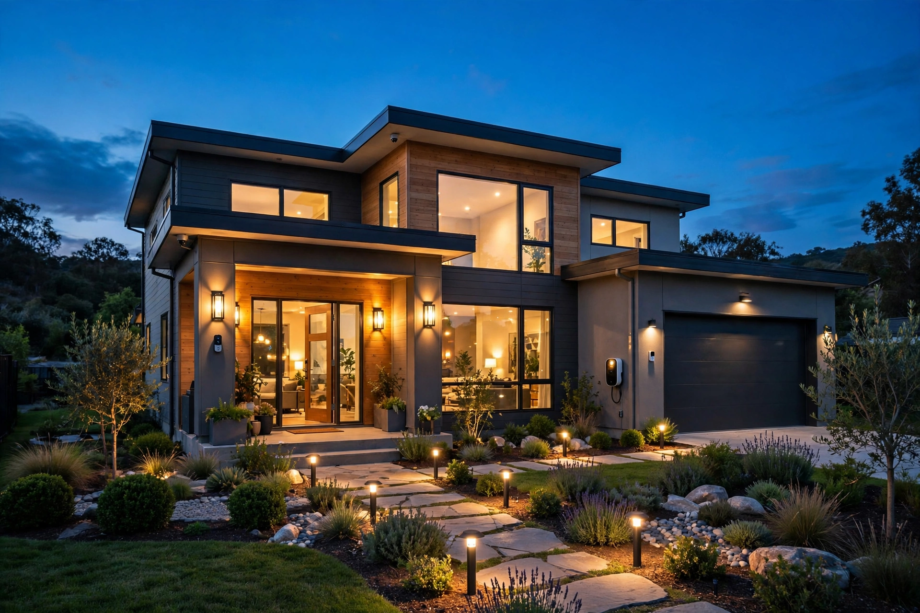
You can automate outdoor lights in Home Assistant so they switch on at sunset and off at sunrise, every day, with no timers to adjust. The built-in Sun integration tracks your local sunset and sunrise times automatically. This guide sets it up in about ten minutes.
- Why Sunset and Sunrise Beat a Fixed Timer
- What You Need Before You Start
- Step 1: Check Your Location and Time Zone
- Step 2: Automate Outdoor Lights With the Sun Trigger
- Step 3: Turn the Lights Off Again at Sunrise
- Fine-Tune the Timing With Offsets
- Add Conditions So the Lights Behave
- Good Upgrades Once the Basics Work
- FAQs
- Why do my outdoor lights turn on at the wrong time?
- Can I turn my lights on before sunset instead?
- Do sunset automations still work without internet?
- Should I use sun elevation instead of the sunset event?
- Why did my outdoor lights stay on all day?
- Can one automation handle both sunset and sunrise?
- Set It Once, Then Forget the Switch
Why Sunset and Sunrise Beat a Fixed Timer
A fixed timer turns your porch light on at 7 pm every single day. That works fine in October. By December, though, the sun sets much earlier, so your doorway sits dark for two hours before the timer fires. In June the opposite happens, and the light burns away in broad daylight.
Sun times shift a little every day. For example, at my latitude sunset moved 38 minutes earlier during September alone. Because the shift is gradual, you barely notice it week to week. Still, across one season it quietly adds up to hours of mistimed lighting.
The Sun integration inside Home Assistant solves this properly. It calculates sunrise and sunset for your exact location, every day, on your own hardware. Therefore, your lights follow real darkness instead of the clock on the wall. You don’t need an internet connection for the maths, either.
There’s another quiet benefit. Lights that run only when it’s actually dark use less power and last longer. Bulbs also annoy the neighbours less when they aren’t blazing at teatime in midsummer.
What You Need Before You Start
First, gather the basics. You don’t need much, and you probably own all of it already.
- A running Home Assistant setup, reasonably up to date
- Your home location set correctly inside Home Assistant
- Outdoor lights that Home Assistant can control, such as smart bulbs, a smart switch, or a smart plug
- About ten minutes at a computer or on your phone
Next, group your outdoor lights before building anything. Put the porch, driveway, and garden lights into one light group inside Home Assistant. Then the automation targets one tidy entity instead of a long, messy list. As a result, adding a new light later takes seconds.
One warning before you begin. If your outdoor bulbs sit behind a normal wall switch, that switch has to stay on. A smart bulb with no power can’t hear any automation you build. Our guide to leaving the light switch on with a smart bulb explains the workarounds, including switch guards and proper smart switches.
Also decide what “on” means for each light. Security lights usually want full brightness. Path and garden lights often look better at 50 or 60 percent. You’ll set this per automation, so a rough idea now saves fiddling later.
Step 1: Check Your Location and Time Zone
First, open Settings, then System, then General. Check the map pin, your time zone, and your elevation value. Home Assistant uses these three details to calculate sun times for your house.
Why does this step matter so much? Because a wrong location quietly breaks everything downstream. If your pin sits in the wrong city, your lights will follow that city’s sunset instead of yours. Meanwhile, a wrong time zone shifts every trigger by an hour or more.
Specifically, the Sun integration documentation explains how Home Assistant tracks the sun’s position for your location. After you fix the pin, the Sun card on your dashboard shows today’s sunrise and sunset times. Check them against your phone’s weather app, and they should match within a minute or two.
If the times look wrong, fix the settings and wait a moment. The Sun entity recalculates quickly. Then you’re ready to build the actual automation.
Step 2: Automate Outdoor Lights With the Sun Trigger
Now build the automation itself. Open Settings and go to Automations and Scenes, then choose Create Automation and start with an empty one.
- Choose Add Trigger, then pick Sun from the list.
- Select Sunset as the event.
- Choose Add Action, then pick Light: Turn On.
- Select your outdoor light group as the target.
- Set brightness near 80 percent for security lights, or lower for ambience.
- Save it with a clear name, such as “Porch lights on at sunset”.
Then test it straight away. Open the automation, press the three-dot menu, and choose Run. Your lights should turn on immediately, whatever the time of day. If they don’t, fix that now, because the sunset trigger can’t control a light that ignores manual commands either.
In addition, the official automation trigger documentation lists every trigger type Home Assistant supports. The sun trigger sits in that list together with its offset option, which you’ll use shortly. Bookmark the page, since you’ll return to it for almost every automation you ever build.
One small habit worth forming: name automations by what they do, not by the device they touch. “Garden lights on at sunset” still makes sense in two years. “Automation 14” never will.
Step 3: Turn the Lights Off Again at Sunrise
You could build a second automation just for sunrise. However, one automation with two triggers stays much tidier. Give each trigger an ID, and the action can check which trigger fired.
- Open your sunset automation and click the sunset trigger.
- Under Trigger ID, type
sunset. - Add a second Sun trigger, choose Sunrise, and give it the ID
sunrise. - In the actions area, add an If-then block that checks the trigger ID.
- Turn the lights on when the ID is sunset, and off when it is sunrise.
Admittedly, the visual editor hides some of this behind menus. Still, once you see the pattern working, you’ll reuse it everywhere. For instance, the same trigger-ID trick runs one automation for weekday alarms and a different one for weekends.
After saving, check the Traces tab the next morning. It shows exactly which trigger fired and what the automation did. Traces turn guesswork into facts whenever something behaves oddly.
Fine-Tune the Timing With Offsets
Sunset on paper rarely matches darkness at your front door. In summer, useful light lingers long after the official sunset moment. In winter, under heavy cloud, your path can feel properly dark well before it. Offsets exist to fix that mismatch.
An offset simply moves the trigger earlier or later. For example, an offset of -00:30:00 fires thirty minutes before sunset. In contrast, +00:20:00 waits until twenty minutes after sunrise. On recent versions you may need YAML mode to see the offset field, so don’t panic if the visual editor hides it.
Start with the values below and adjust after a week of watching the lights in real life.
Table: Suggested offsets for sun triggers
| Trigger | Suggested Offset | Why It Helps |
|---|---|---|
| Sunset on | -15 to -30 minutes | Paths feel dark before official sunset |
| Sunset on (summer) | 0 to +20 minutes | Long twilight provides free light |
| Sunrise off | +10 to +30 minutes | Morning shade lingers after sunrise |
| Sunrise off (winter) | +30 to +45 minutes | Short, grey mornings stay gloomy |
Then keep a small note of what you changed and when. Otherwise, you’ll forget which tweak fixed which problem, and future you will not feel grateful. A single line in the automation’s description box does the job.

Automate Outdoor Lights by Brightness, Not Just Sunset
Here’s a trick most guides skip entirely. The Sun integration also reports solar elevation, which is the sun’s angle above the horizon in degrees. At sunset the elevation reads 0. After that, it drops negative as twilight deepens.
Instead of a sun event, use a numeric state trigger on the sun entity’s elevation attribute. Set it to fire when the elevation drops below -4. Civil twilight ends near -6 degrees, so -4 catches the moment a garden path genuinely turns dark.
I compared both methods on my own porch across one June week. At sunset, my phone’s light meter still read about 350 lux outdoors. At elevation -4, roughly 35 minutes later, it read under 40 lux. That’s the difference between “still fine out here” and “where did the steps go”.
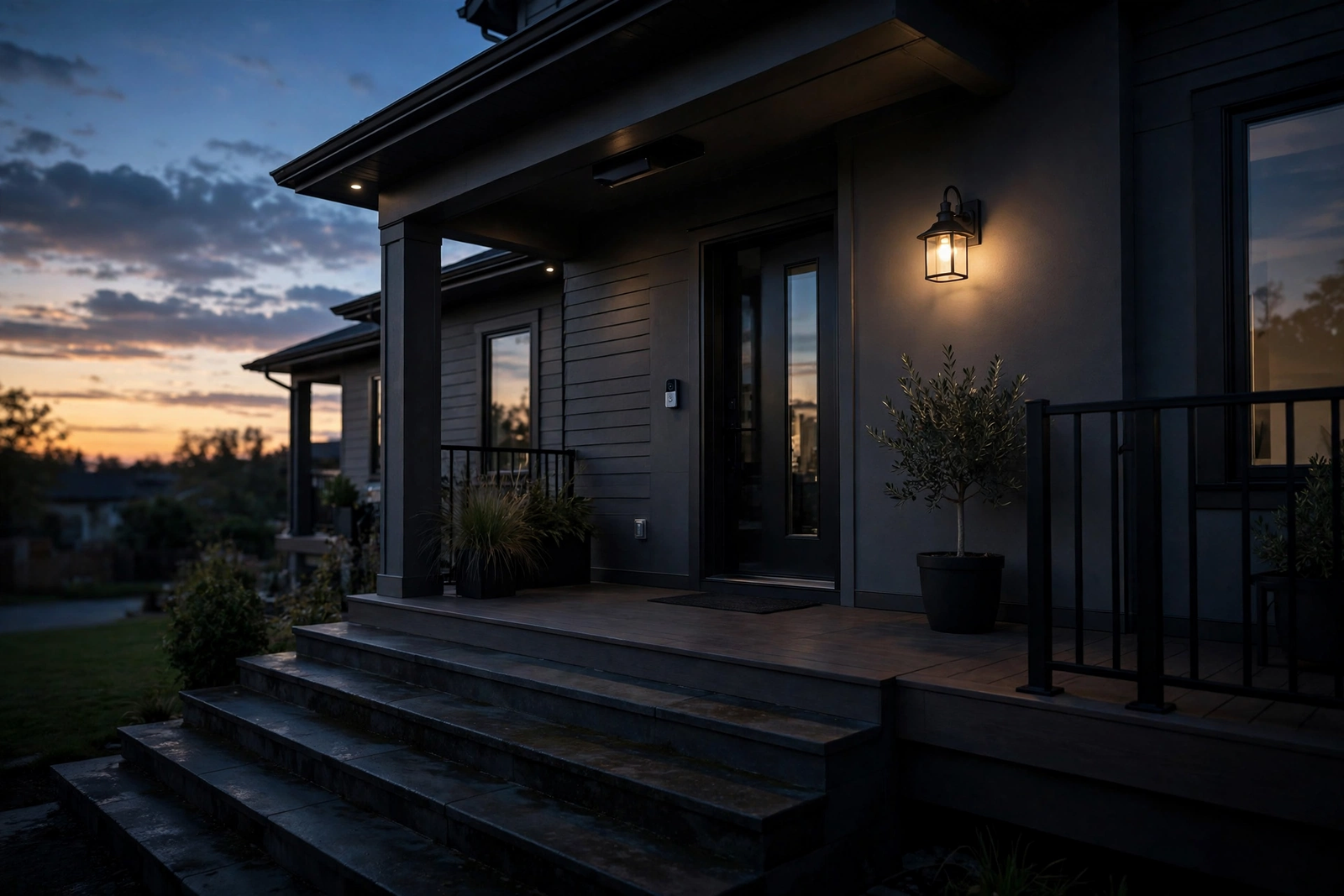
Elevation also self-adjusts across the seasons better than offsets do. A fixed 30-minute offset overshoots in December and undershoots in June. In contrast, -4 degrees means the same level of darkness all year round. For sunrise, mirror it with an elevation above -4 trigger, and your off time tracks real morning light too.
Add Conditions So the Lights Behave
A raw sunset trigger runs every single day of the year. Sometimes that’s exactly right. Sometimes it isn’t, because you might be on holiday, or you might prefer the lights off when nobody is home.
Conditions give you that control. Add a condition to the automation, such as a person being home, or the current time sitting between sunset and 11 pm. For example, many people run porch lights from sunset until bedtime, and switch to motion-only lighting for the rest of the night.
Also consider a simple failsafe. A second automation that turns every outdoor light off one hour after sunrise catches anything the main one missed. It sounds redundant, yet it saves you from a bulb burning unnoticed through a whole sunny weekend.
If you’d like brightness and colour to drift gently through the evening, the Adaptive Lighting setup handles that layer for you. It adjusts bulbs gradually instead of snapping them to one fixed level at sunset.
That gradual drift feels far more natural in living spaces than a sudden jump. It also means one sunset automation can serve both the porch and the garden without either looking wrong.
Meanwhile, our circadian lighting guide covers the same scheduling idea tuned for indoors. It shifts colour temperature across the day to support sleep, and it pairs neatly with the outdoor schedule you’ve just built.
None of this needs to happen on day one, though. Get the plain sunset schedule running first, live with it, and layer the clever parts on top. Automations you understand beat automations you merely copied.
Good Upgrades Once the Basics Work
Once the schedule runs itself, small upgrades start adding real value. LED strips tucked under a handrail or along deck steps look superb on a sunset schedule. Our WLED on ESP32 setup guide shows how to build them cheaply, and Home Assistant controls them like any other light.
Strips also solve an awkward problem. A single bright bulb lights one spot and leaves harsh shadows everywhere else. A strip spreads light evenly along the whole path, so steps and edges stay visible.
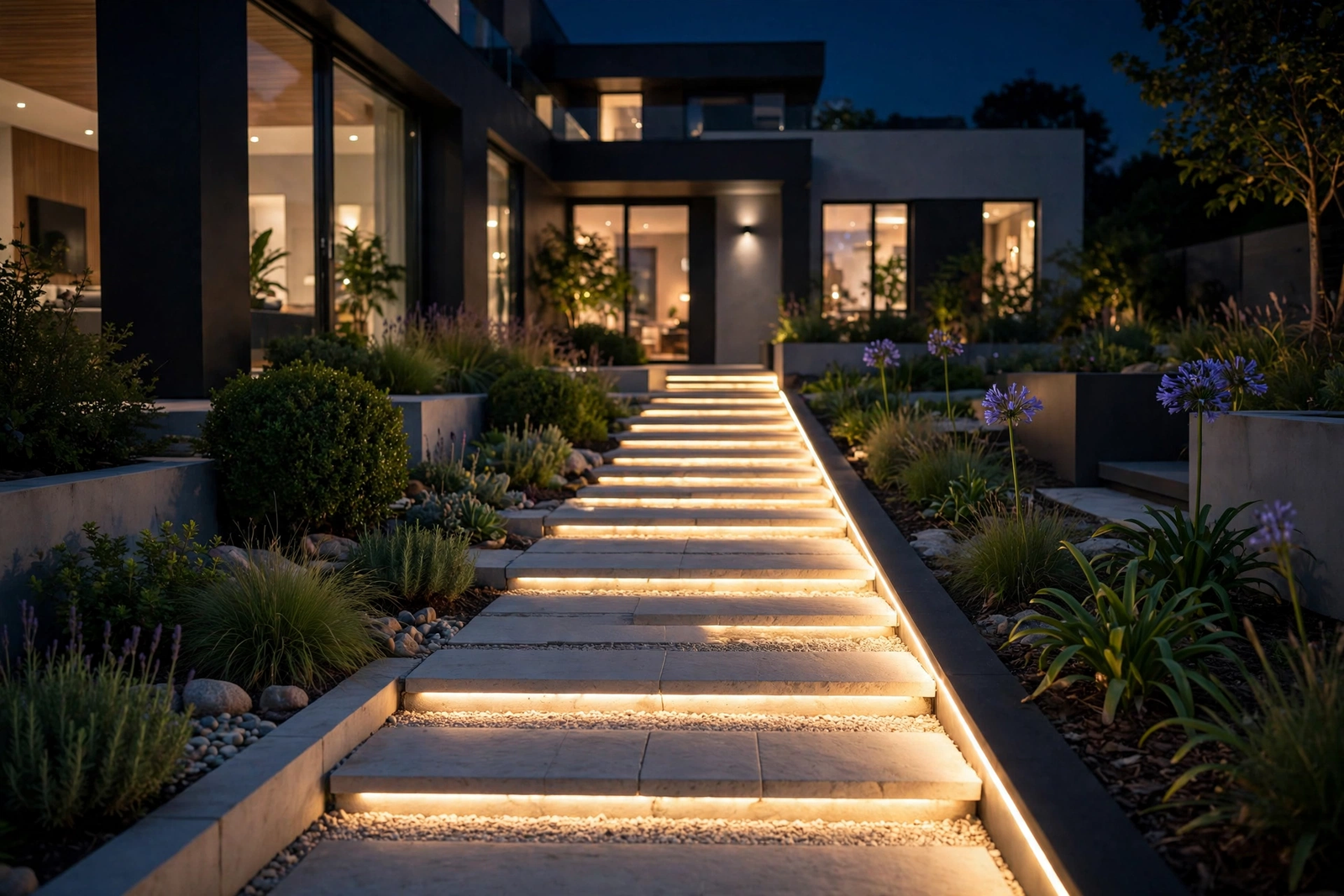
Choosing the strip type matters outdoors, because weather sealing and light quality vary a lot between models. Our COB vs RGB strip comparison explains which style suits ambient garden lighting, and which one leaves visible dots.
Finally, add a manual override you’ll actually use. A simple dashboard button or a helper toggle for “garden party mode” keeps lights on past their bedtime when friends visit. Without it, someone will eventually fight the automation, and the automation always wins at the worst moment.
FAQs
Why do my outdoor lights turn on at the wrong time?
Usually the location or time zone inside Home Assistant is wrong. Open Settings, then System, then General, and check the map pin first. After that, compare the Sun card’s sunset time with your phone’s weather app. A leftover offset in the trigger can also shift things, so check that too.
Can I turn my lights on before sunset instead?
Yes, and most people should. Add a negative offset to the sunset trigger, such as -00:30:00, and the automation fires thirty minutes early. This matters in winter, when paths feel dark well before official sunset. Start with fifteen minutes, watch for a week, and adjust in small steps.
Do sunset automations still work without internet?
Yes. The Sun integration calculates sunrise and sunset locally on your Home Assistant hardware, using the location you saved in settings. No cloud service is asked, and no lookup happens when the trigger fires. Your automations keep running during an outage. Only remote access through the app needs the internet.
Should I use sun elevation instead of the sunset event?
Elevation matches real darkness more closely, because minus four degrees means the same twilight depth in every season. Sunset plus an offset is simpler, though, and it works well for most homes. Start with the sunset trigger. Then move to elevation if your lights keep feeling early in summer or late in winter.
Why did my outdoor lights stay on all day?
The sunrise half of the automation probably never fired, or the automation got disabled by accident. Open the automation and read its Traces tab to see what actually ran. A failsafe automation that forces lights off one hour after sunrise prevents a repeat. Also check that nobody switched the bulb off at the wall.
Can one automation handle both sunset and sunrise?
Yes. Add both sun triggers to a single automation and give each one a trigger ID, such as sunset and sunrise. Then use an If-then action that checks which ID fired. Sunset turns the lights on, and sunrise turns them off. This keeps related logic together, so future edits stay simple.
Set It Once, Then Forget the Switch
You now have everything you need: the Sun integration for timing, offsets for fine-tuning, elevation for true darkness, and conditions for common sense. Build the basic sunset automation tonight, because it takes about ten minutes. Then live with it for a week before changing anything.
Your next step is simple. After that first week, adjust one thing only, either the offset or the brightness, and watch again. Small steps keep the cause and effect clear. Within a fortnight, your outdoor lights will simply be on when it’s dark and off when it isn’t, and you’ll stop thinking about them entirely.