

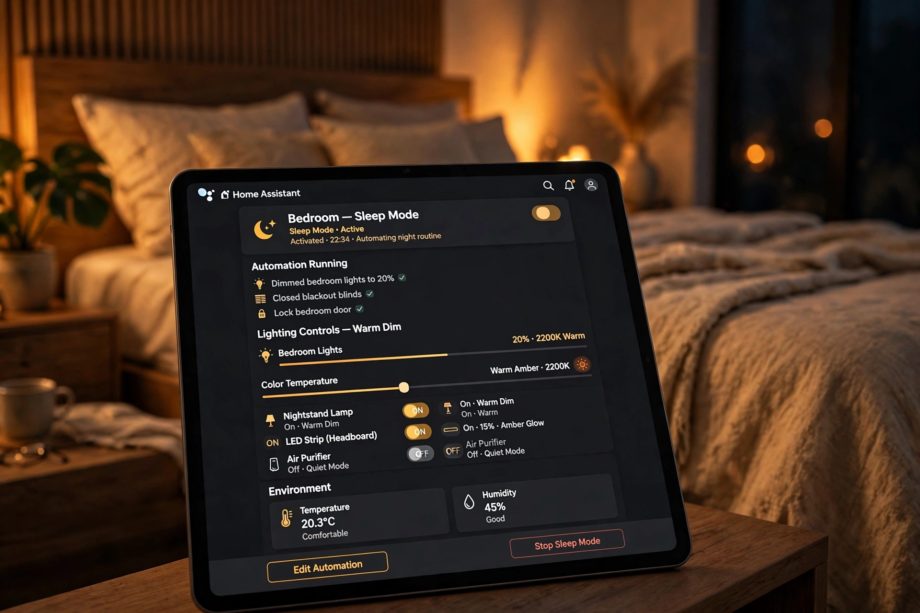
To set up Adaptive Lighting sleep mode in Home Assistant for your bedroom, install the Adaptive Lighting integration, then turn on the sleep mode switch for your bedroom lights. Set sleep brightness to 1-5% and sleep color temperature to 2000K-2200K. Create an automation to enable sleep mode at bedtime. Bedroom lights stay warm and dim all night.
- Adaptive Lighting Sleep Mode Home Assistant Setup: What It Does
- Prerequisites
- Step 1: Find Your Sleep Mode Switch
- Step 2: Configure Sleep Brightness and Color
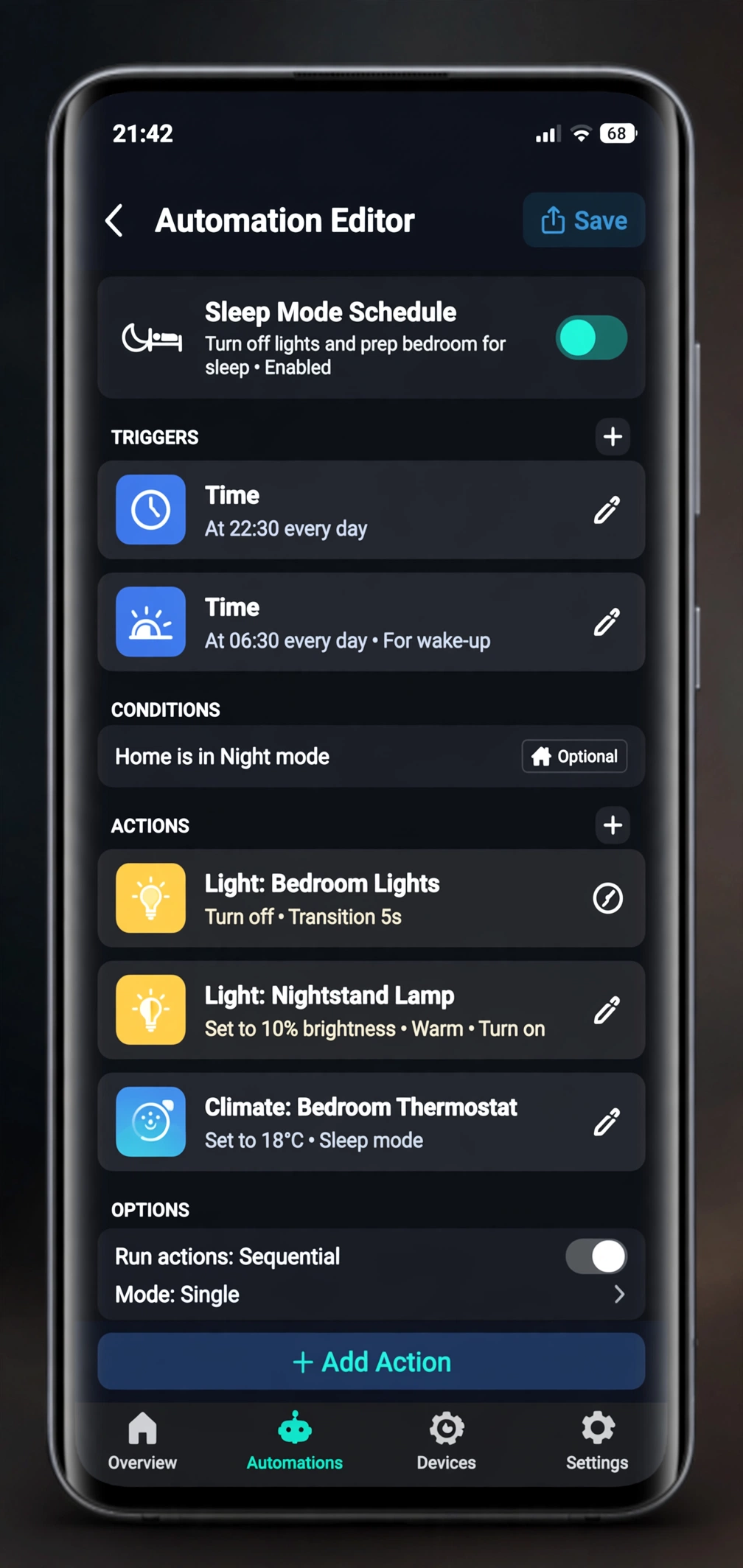
- Step 3: Automate Sleep Mode On and Off
- Step 4: Handle the “Turn On Warm and Dim” Behavior
- Step 5: Set Up a Gentle Wake-Up
- Troubleshooting Sleep Mode
- Sleep Mode Turns On But Lights Don’t Change
- Lights Go to Sleep Brightness During the Day
- Transition Is Too Abrupt
- Partner Hates It
- Advanced: Per-Person Sleep Schedules
- FAQs
- Does sleep mode work without the main Adaptive Lighting switch?
- Can I use sleep mode for rooms other than the bedroom?
- What happens if I manually change a light during sleep mode?
- Does sleep mode affect lights that are already off?
- Can I set different sleep settings for weekdays vs weekends?
- Will sleep mode interfere with my morning alarm light?
- Do I need special bulbs for sleep mode?
- The Bottom Line
For instance, you’ve got Adaptive Lighting running. Your lights follow the sun beautifully during the day. But then bedtime comes, and for example, something’s off. The for example, bedroom is still too bright, or too cool, or your partner’s reading light is blasting while you’re trying to sleep.
However, sleep mode fixes all of that. It’s a separate layer on top of the daily circadian cycle, designed specifically for the hours you’re in bed. Let’s set it up right.
Adaptive Lighting Sleep Mode Home Assistant Setup: What It Does
Specifically, normal Adaptive Lighting follows the sun. Bright cool light at noon, warm dim light at midnight. That works great until you go to bed.
Yet here’s the problem. Say your normal nighttime setting is 2200K at 15% brightness. Still, that’s fine for winding down in the living room. But in the bedroom, when you’re actually trying to fall asleep, even 15% can feel bright. And if you get up at 3 AM, you don’t want the lights at their normal nighttime level. You want barely-there.
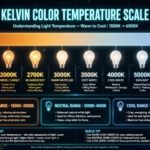
In contrast, sleep mode overrides the normal curve with your custom sleep settings. When it’s on, your bedroom lights drop to whatever you define as sleep brightness and sleep color temperature. Usually that’s 1-5% brightness at 2000K-2200K. A gentle amber glow instead of functional lighting.
In other words, think of it as two layers. The circadian cycle handles your whole day. Sleep mode handles the specific hours you’re in bed. Together, they cover everything.
Prerequisites
First, before setting up sleep mode, you need the basics working:
- Home Assistant running with the Adaptive Lighting integration installed
- At least one Adaptive Lighting configuration (a “switch” entity) for your bedroom
- Bedroom lights added to that configuration
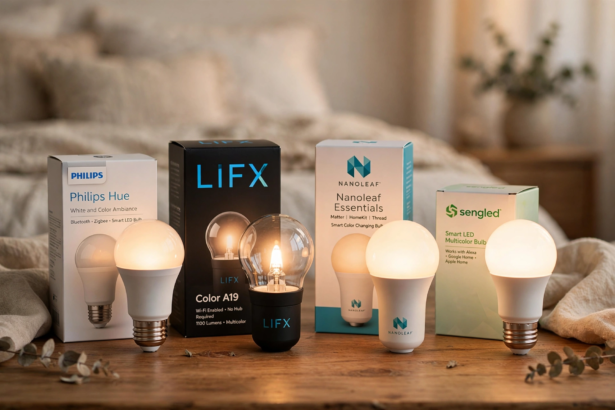
Meanwhile, if you haven’t installed Adaptive Lighting yet, check our smart bulb setup guide for compatible bulbs, then install the integration through HACS. Sleep mode is built into Adaptive Lighting, not a separate integration.
The official Adaptive Lighting repository on GitHub has detailed documentation if you need help.
If you’re comparing platforms, Apple Home offers similar bedtime features.
Step 1: Find Your Sleep Mode Switch
For example, when you create an Adaptive Lighting configuration, it automatically generates several entities. One of them is the sleep mode switch. For instance, the entity ID follows this pattern:
switch.adaptive_lighting_sleep_mode_[your_config_name]
Thus, so if you named your bedroom configuration “bedroom,” your sleep mode switch is switch.adaptive_lighting_sleep_mode_bedroom.
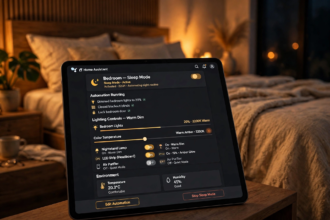
Next, find it by going to Settings, then Devices and Services, then clicking on your Adaptive Lighting integration. You’ll see all the entities it created. The sleep mode switch is there alongside the main on/off switch and the brightness/color adaptation toggles.
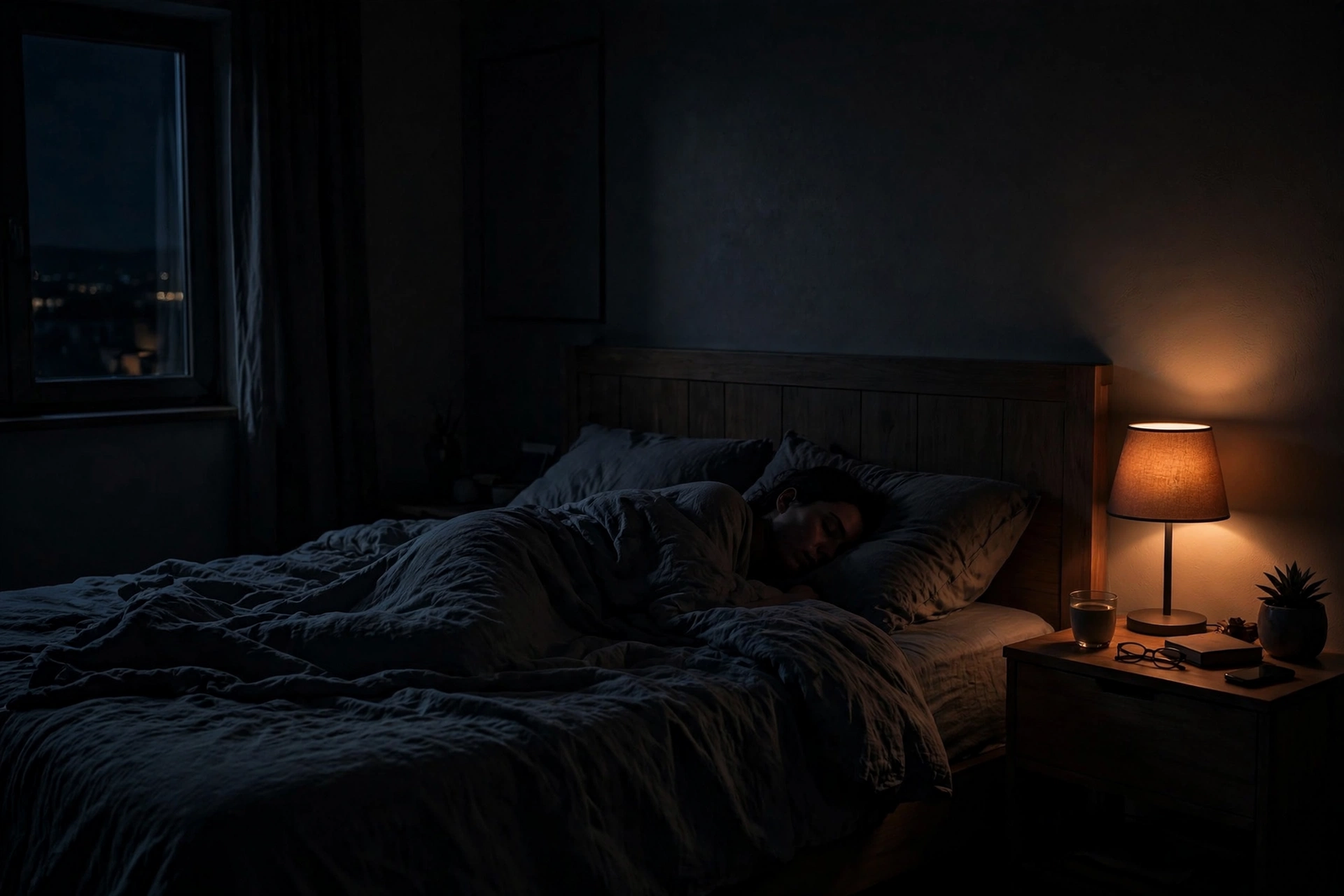
Then flip it on manually right now. Watch your bedroom lights. As a result, they should drop to the default sleep settings immediately. Flip it off. Then they return to the normal circadian state. In other words, that’s sleep mode working.
Step 2: Configure Sleep Brightness and Color
However, the defaults are decent, but you’ll want to tune them for your bedroom. Open your Adaptive Lighting configuration by going to Settings, Devices and Services, clicking Configure on the Adaptive Lighting integration.
Look for these settings:
Sleep Brightness
Specifically, this is how bright your lights go when sleep mode is active. The default is usually very low, around 1%. For most bedrooms, 1-5% is the sweet spot.
So why so dim? Because at 3 AM, even 10% can feel blinding when your eyes are dark-adjusted. Sleep brightness isn’t for reading or getting dressed. It’s for navigating to the bathroom without stubbing your toe. Barely-on is the goal.
For instance, I run mine at 2%. At that level, I can see the outline of furniture but can’t read text on my phone. That’s exactly right for sleep mode.
Sleep Color Temperature
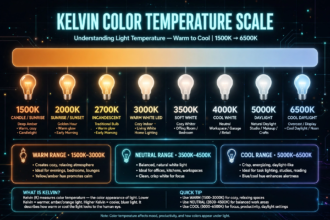
Next, this is the warmth of your lights during sleep mode. Set it to 2000K-2200K for maximum melatonin friendliness. If your bulbs don’t go that low, use their warmest setting.
Moreover, some people prefer even warmer. If your bulbs support it, 1800K gives you a deep amber that’s practically candlelight. There’s no circadian downside to going warmer. Only your personal preference matters.
Sleep RGB Color (Optional)
If you have RGB bulbs, you can set a specific color for sleep mode instead of a color temperature. A deep orange (around RGB 255, 150, 50) works well. This overrides the color temperature setting.
Honestly? For most people, color temperature is simpler and looks more natural. But if you want that specific amber glow, the RGB option is there.
Table: Recommended sleep mode settings
| Setting | Recommended Value | Notes |
|---|---|---|
| Sleep brightness | 1-5% | Lower is better for undisturbed sleep |
| Sleep color temp | 2000K-2200K | Use bulb’s warmest if it can’t reach this |
| Sleep RGB color | 255, 150, 50 (optional) | Only if you prefer RGB over color temp |
| Transition time | 30-60 seconds | Gradual shift feels more natural |
Step 3: Automate Sleep Mode On and Off
However, manually toggling sleep mode every night gets old fast. Automate it.
Basic Time-Based Automation
First, the simplest approach: turn sleep mode on at bedtime, off at wake time. Here’s the automation:
automation:
- alias: "Bedroom sleep mode on"
trigger:
- platform: time
at: "22:30:00"
action:
- service: switch.turn_on
target:
entity_id: switch.adaptive_lighting_sleep_mode_bedroom
And the morning counterpart:
automation:
- alias: "Bedroom sleep mode off"
trigger:
- platform: time
at: "06:30:00"
action:
- service: switch.turn_off
target:
entity_id: switch.adaptive_lighting_sleep_mode_bedroom
Specifically, set the “on” time about 15 minutes before you actually go to bed. This gives the lights time to transition while you’re doing your bedtime routine. Set the “off” time about 15 minutes before your alarm so the morning light ramp-up starts gently.
Smarter: Trigger on Bed Occupancy
On the other hand, fixed times work, but they’re rigid. What if you go to bed early on weekends? Or stay up late on Friday?
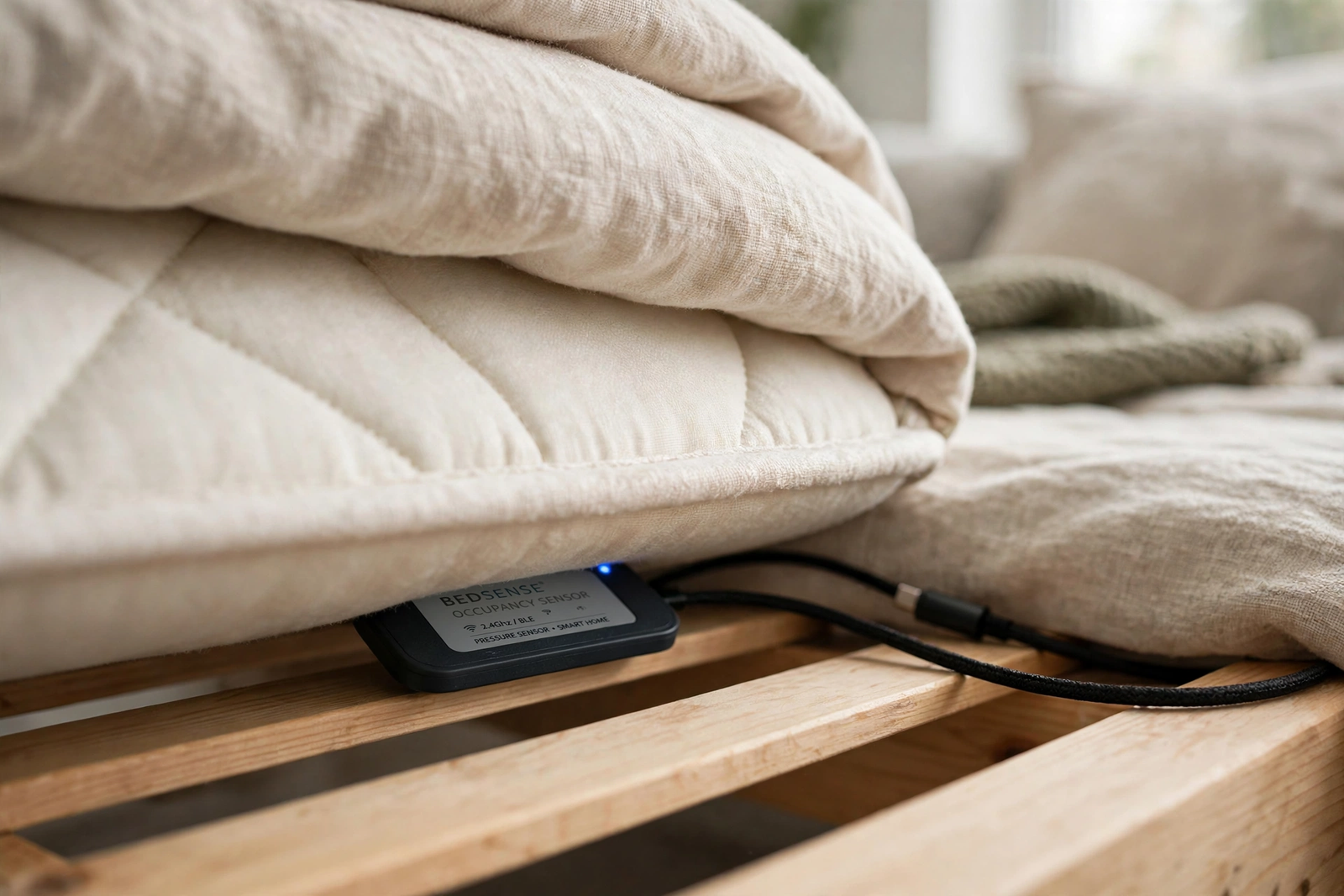
For example, if you have a bed occupancy sensor (pressure mat, mmWave sensor, or even a smart mattress), trigger sleep mode on actual bed entry. Lights drop to sleep settings the moment you climb in, regardless of the clock.
This is the setup I use. A cheap pressure sensor under the mattress triggers sleep mode when I get into bed. It turns off when I get up in the morning. Therefore, no schedules to maintain. It just works with my actual behavior. For the sensor itself, Aqara sensors integrate well with Home Assistant for presence detection.
Even Smarter: Combine Both
Therefore, use time as a fallback and occupancy as the primary trigger. If the bed sensor fires, sleep mode activates immediately. If it doesn’t fire by your usual bedtime (maybe the sensor missed you), the time automation catches it.
Redundancy matters for sleep automations. You don’t want to be lying in bed at midnight wondering why the lights are still bright.
Step 4: Handle the “Turn On Warm and Dim” Behavior
Here’s the specific scenario from your keyword: bedroom lights should turn on warm and dim during sleep mode. Not just dim existing lights, but ensure that any light turned on while sleep mode is active comes on warm and dim.
Fortunately, good news: Adaptive Lighting handles this automatically. When sleep mode is on and a light in the configuration turns on (whether by automation, voice command, or physical switch), the integration immediately applies the sleep brightness and color temperature.
However, there might be a brief moment where the bulb comes on at its previous state before Adaptive Lighting corrects it. This usually takes 1-2 seconds. To minimize it:
- Keep the Adaptive Lighting update interval short (30-60 seconds) for the bedroom
- Use the “apply” service in your bedtime automation to force immediate correction
- Avoid physical switches that cut power; use smart buttons that send on commands instead
For instance, if someone flips a physical wall switch at 2 AM, the bulb powers on at full brightness for a second or two before dropping to sleep settings. It’s brief, but it can be jarring. The real fix is replacing that switch with a smart button or scene controller.
Step 5: Set Up a Gentle Wake-Up
Meanwhile, sleep mode isn’t just about bedtime. The wake-up transition matters too.
Subsequently, when sleep mode turns off in the morning, your lights return to the normal circadian curve. If it’s still dark outside, that means they’ll be at the nighttime warm dim setting, not bright morning light. Still, that’s fine for the first few minutes, but you probably want a proper wake-up ramp.
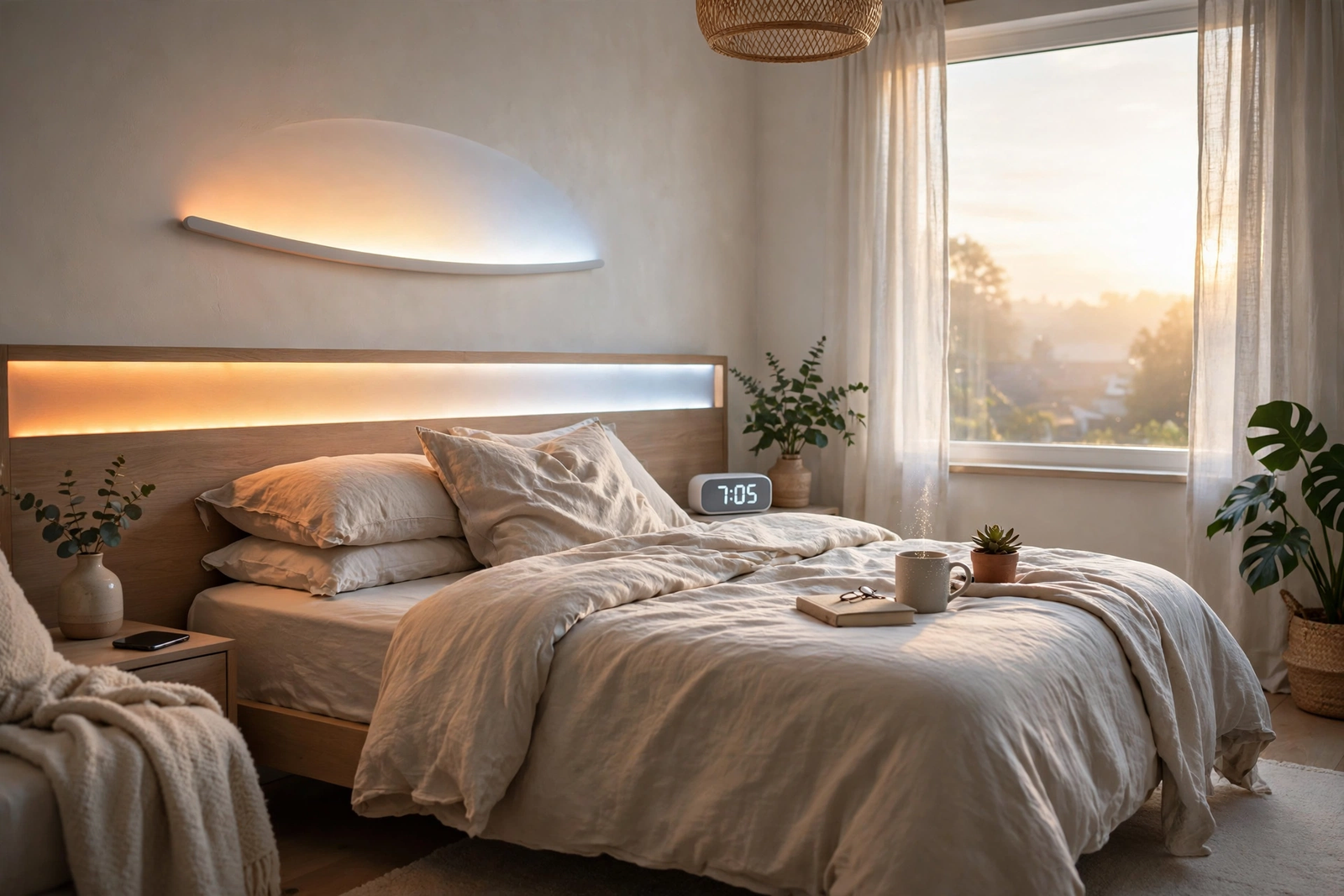
Therefore, create a morning automation that gradually increases brightness and cools the color temperature over 15-30 minutes. Start at your sleep settings (2%, 2000K) and ramp to morning settings (80%, 5000K). This mimics sunrise and is far gentler than an alarm in a dark room.
As a result, many people find they wake up naturally during the ramp, before their alarm even goes off. That’s your circadian system responding to the light cue. In fact, it’s the whole point.
Troubleshooting Sleep Mode
Sleep Mode Turns On But Lights Don’t Change
First, check that the lights are actually in the Adaptive Lighting configuration. Sleep mode only affects lights that the integration controls. If you added a new bulb to the bedroom but didn’t add it to the configuration, sleep mode ignores it.
Lights Go to Sleep Brightness During the Day
In this case, sleep mode is probably stuck on. Check the switch state in Home Assistant. If it’s on during the day, your “off” automation didn’t fire. Check the automation trace to see what happened. Common cause: Home Assistant restarted overnight and the automation didn’t trigger.
Transition Is Too Abrupt
To fix this, increase the transition time in your Adaptive Lighting configuration. The default might be too fast for your taste. Try 60 seconds for the shift into sleep mode. It should feel like the room is slowly settling, not like someone hit a switch.
Partner Hates It
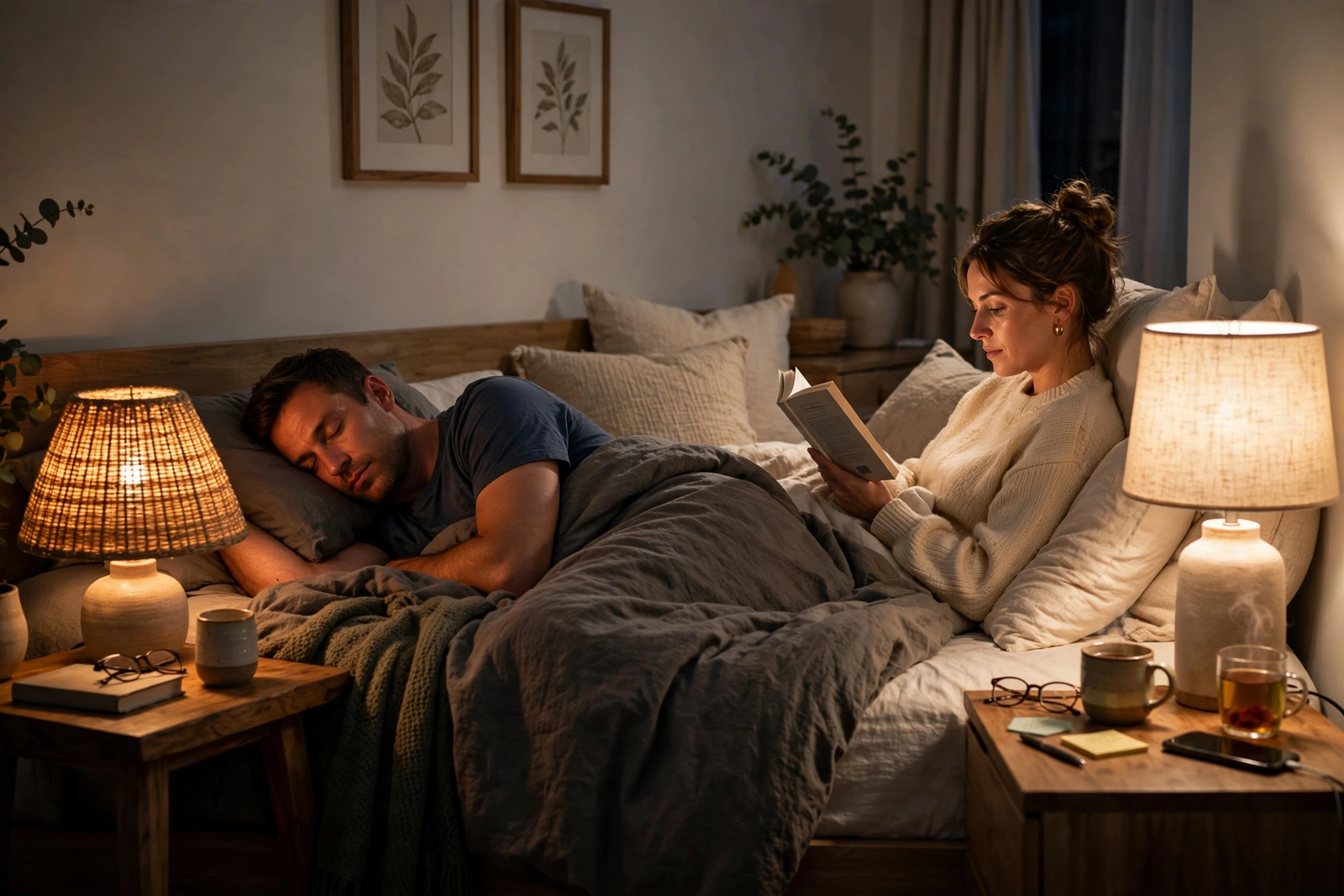
Finally, the classic smart home conflict. One person loves the dim amber cave, the other wants to read. Solution: separate bedside lamps on independent controls. Put only the shared ceiling light (or one person’s lamp) in the sleep mode configuration. Let the reader’s lamp stay manual. Compromise keeps the peace.
For broader smart home harmony, our guide to setting up Apple Home covers multi-user scenarios that apply to any platform.
Advanced: Per-Person Sleep Schedules
For example, if you and your partner keep different hours, one sleep schedule doesn’t work. Here’s how to handle it.
Specifically, create two Adaptive Lighting configurations for the bedroom: one for each person’s bedside lamp. Each gets its own sleep mode switch with its own schedule. The ceiling light goes in whoever goes to bed first’s configuration, or stays manual.
Person A (bed at 10 PM): sleep mode on at 9:45 PM, off at 6 AM.
Person B (bed at midnight): sleep mode on at 11:45 PM, off at 7 AM.
Thus, between 10 PM and midnight, Person A’s lamp is in sleep mode while Person B’s lamp follows the normal evening curve. Both people get what they need. No arguments.
This requires each bedside lamp to be individually controllable, which means smart bulbs (not a shared smart switch). It’s worth the investment for couples with different schedules.
FAQs
Does sleep mode work without the main Adaptive Lighting switch?
No. Sleep mode is part of the Adaptive Lighting integration. The main switch needs to be on for sleep mode to function. If you turn off the main Adaptive Lighting switch, sleep mode does nothing. Think of sleep mode as a modifier on top of the base circadian system.
Can I use sleep mode for rooms other than the bedroom?
Yes. Any Adaptive Lighting configuration gets its own sleep mode switch. It’s useful for nurseries, guest rooms, or anywhere someone sleeps. I also use it for my home office when I work late and want to avoid bright light before bed.
What happens if I manually change a light during sleep mode?
Adaptive Lighting detects the manual change and backs off for that specific light, same as during normal operation. The light stays where you put it until you turn it off and on again. Sleep mode doesn’t lock your lights. It just sets the default.
Does sleep mode affect lights that are already off?
No. Sleep mode only applies to lights that are on. If your bedroom lights are off when sleep mode activates, nothing happens visibly. When you turn a light on later, it comes on at the sleep brightness and color temperature. That’s exactly the behavior you want.
Can I set different sleep settings for weekdays vs weekends?
Yes, using separate automations with day-of-week conditions. Create one automation for weeknights (sleep mode on at 10:30 PM) and another for weekends (on at midnight). Home Assistant’s time trigger supports weekday selection. Your sleep mode adapts to your real schedule.
Will sleep mode interfere with my morning alarm light?
Not if you set it up right. Turn sleep mode off 15-30 minutes before your alarm. This gives the lights time to transition from sleep settings to morning brightness. If your alarm light is a separate device (like a sunrise clock), it operates independently anyway.
Do I need special bulbs for sleep mode?
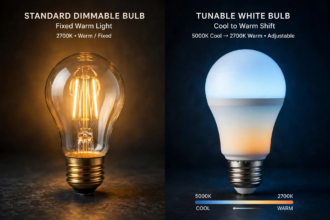
Any bulb that works with Adaptive Lighting works with sleep mode. Dimmable-only bulbs get the brightness reduction. Tunable white and RGB bulbs also get the color shift. The warmer and dimmer your bulbs can go, the more effective sleep mode is, but even basic dimmable bulbs benefit.
The Bottom Line
Adaptive Lighting sleep mode is the missing piece for bedroom circadian lighting. The daily sun-following curve handles daytime beautifully, but sleep needs its own settings. Warmer, dimmer, on your actual sleep schedule.
Set it up once: configure sleep brightness to 1-5% and color to 2000K-2200K, automate on/off around your bedtime, and handle the wake-up ramp. After that, your bedroom just knows when it’s time to sleep.
Next step: find your sleep mode switch in Home Assistant right now and flip it on. See how your bedroom feels. Then set up the automation so you never have to think about it again.