

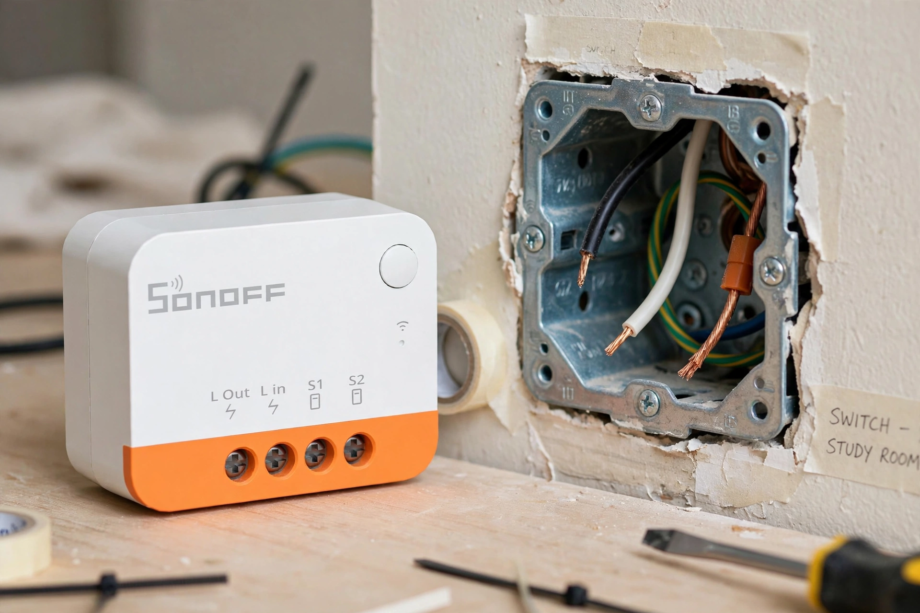
This sonoff zbmini l2 no neutral wiring guide shows you the exact connections: permanent live to L_in, switched live to the lamp from L_out, and your wall switch across S1 and S2. No neutral wire needed at the switch box. Below you’ll find box compatibility, rocker vs pushbutton setup, and LED quirks explained.
- What the ZBmini L2 Actually Is
- ZBMINI vs ZBMINI L2: Don’t Buy the Wrong One
- What You Will Need
- Step 1: Kill the Power and Verify
- Step 2: Open the Switch and Identify Your Wires
- Sonoff ZBmini L2 No Neutral Wiring: Step-by-Step
- Step 4: Rocker or Pushbutton Mode
- Step 5: Fit It in the Box and Restore Power
- Step 6: Pair With Your Hub
- LED Flicker and Low-Load Quirks
- Common Mistakes to Avoid
- FAQs
- Does the Sonoff ZBmini L2 really need no neutral wire?
- What is the minimum bulb wattage for the ZBmini L2?
- Can I use the ZBmini L2 with a two-way staircase switch?
- Does the ZBmini L2 work with Home Assistant?
- Why does my light need two presses after installing the L2?
- Can the ZBmini L2 control a fan or other motor load?
- Does the ZBmini L2 extend my Zigbee mesh as a router?
- Final Checklist Before You Close the Box
What the ZBmini L2 Actually Is
The Sonoff ZBmini L2 (ZBMINIL2) is a Zigbee 3.0 smart relay that sits behind your existing wall switch and makes any light smart without changing how the switch feels. It measures just 39.5 x 32 x 18.4 mm, so it tucks into a standard wall box. Unlike its sibling, the original ZBMINI, the L2 does not need a neutral wire at the switch. That one difference makes it the go-to pick for older homes where the switch box only holds live wires.
Here is what you need to know up front. The L2 is rated for 100-240V AC with a maximum load of 6A. It needs a minimum load of about 3W to power itself through the lamp circuit, which means most LED bulbs work fine without an anti-flicker module. However, it is a Zigbee end device, so it needs a compatible hub like the Sonoff ZBBridge Pro, a ZBDongle, SmartThings, or an Echo with a built-in Zigbee hub. In addition, it does not act as a Zigbee router, so don’t count on it to extend your mesh. For the full specs, check the official Sonoff ZBMINI-L2 product page.
ZBMINI vs ZBMINI L2: Don’t Buy the Wrong One
Sonoff’s naming is confusing, and buying the wrong variant is the most common mistake. The original ZBMINI and the newer ZBMINIR2 both require a neutral wire at the switch. The ZBMINI-L and ZBMINI-L2 are the no-neutral versions. The model you want for a two-wire box is the L2, full name ZBMINIL2.
If you do have a neutral wire at your switch, consider the ZBMINIR2 instead. It handles up to 10A, costs less, and acts as a Zigbee router that extends your mesh. The L2 caps out at 6A and stays an end device. Therefore, check inside your switch box before you order. Two wires means L2. Three or more with a neutral bundle means you can pick the R2.
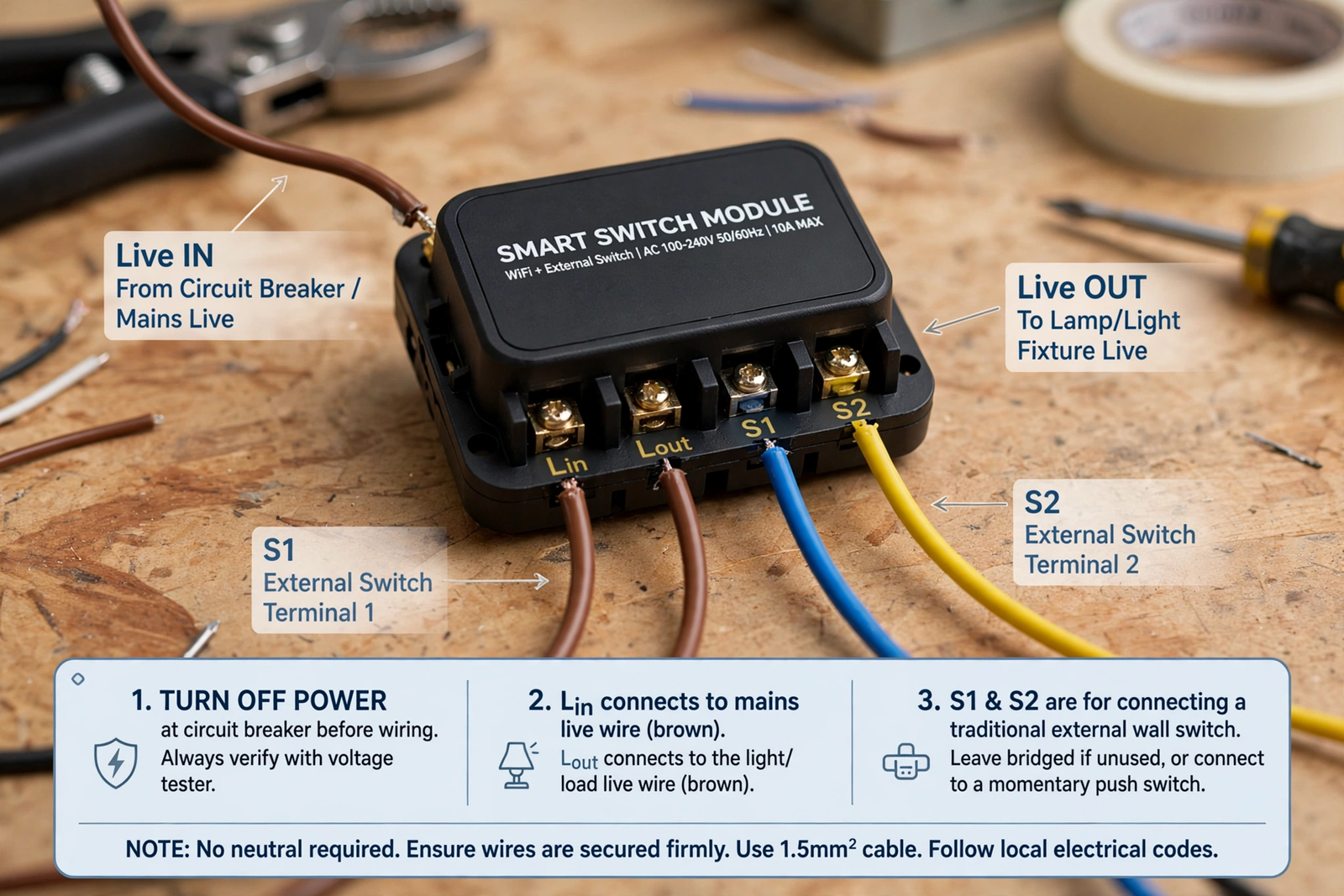
Table: ZBMINI variants compared
| Model | Neutral needed | Max load | Zigbee router | Size |
|---|---|---|---|---|
| ZBMINI (original) | Yes | 10A | Yes | Larger |
| ZBMINIR2 (Extreme) | Yes | 10A | Yes | 36 x 30 mm, thinner |
| ZBMINI-L2 | No | 6A | No (end device) | 39.5 x 32 x 18.4 mm |
What You Will Need
- Sonoff ZBMINI-L2 module
- A non-contact voltage tester or multimeter (non-negotiable for safety)
- Flat and Phillips screwdrivers
- Wire strippers
- Wago 221 lever connectors or similar compact connectors
- A Zigbee hub already set up (ZBBridge Pro, ZBDongle, SmartThings, or Echo with Zigbee)
- The eWeLink app on your phone, or Home Assistant with ZHA/Zigbee2MQTT
A quick word on safety. You are working with mains voltage, which can kill. If you are not comfortable identifying wires with a tester, call an electrician. No smart switch is worth an injury. For more on home electrical safety, see our guide to troubleshooting home sensors safely.
Step 1: Kill the Power and Verify
Switch off the circuit breaker for the light you are working on. Then test with your non-contact voltage tester at the switch. Check every wire, not just one. After you confirm zero voltage, test your tester on a known live socket so you know it actually works. This two-step check takes thirty seconds and it is the single most important habit in electrical work.
Step 2: Open the Switch and Identify Your Wires
Pull the switch plate off and unscrew the switch from the box. In a typical no-neutral setup you will find two wires (plus earth): a permanent live coming from the consumer unit, and a switched live going up to the lamp. The permanent live stays live even when the switch is off. The switched live only goes live when the switch is on.
How do you tell them apart? With the power briefly back on and the switch off, the wire that still shows live on your tester is the permanent live. Mark it with tape. Then kill the power again. If your box has more wires bundled together, take a photo before you touch anything so you can put it back.
Sonoff ZBmini L2 No Neutral Wiring: Step-by-Step
The L2 has four terminals that matter: L_in, L_out, S1, and S2. The wiring is simple once you know which wire is which.
- Connect the permanent live to
L_in. - Connect the switched live going to the lamp to
L_out. - Connect your existing wall switch across
S1andS2. Polarity does not matter here. - Double-check every connection is tight. Loose mains connections heat up.
Notice what is missing: there is no neutral terminal because the L2 powers itself with a tiny current that flows through the lamp. That is why the minimum load of 3W matters. With most modern LED bulbs you will be fine, but a single very low wattage bulb can cause the module to misbehave.
Two-Way (Staircase) Wiring
The L2 supports two-way control, where two switches control one light, like top and bottom of stairs. Wire the first switch across S1 and S2 as normal, and the second switch also connects into the S1/S2 loop per the manual’s two-way diagram. Both physical switches keep working, and the app can control the light too. If this sounds fiddly, it is. Take it slow and follow the diagram in the box.
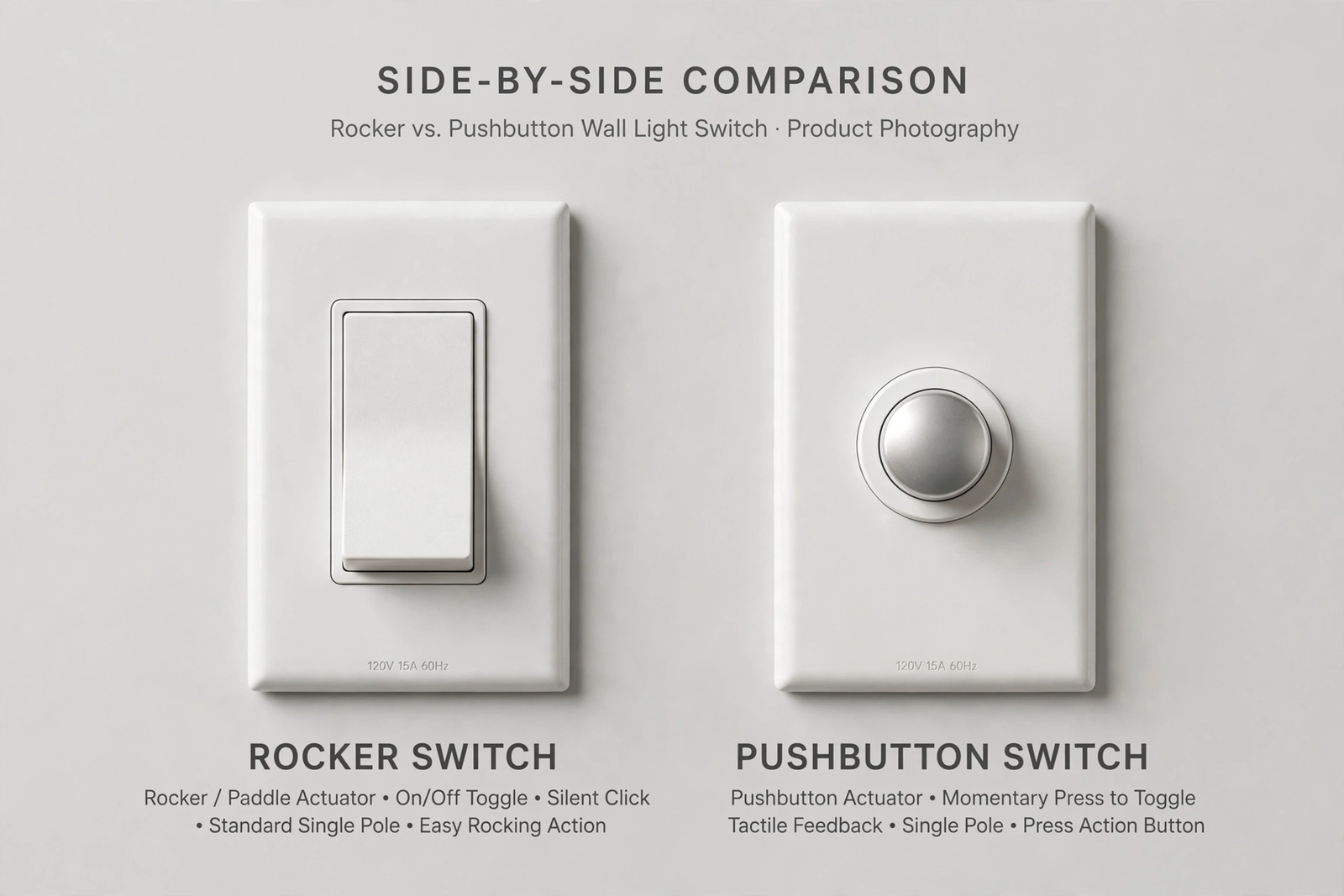
Step 4: Rocker or Pushbutton Mode
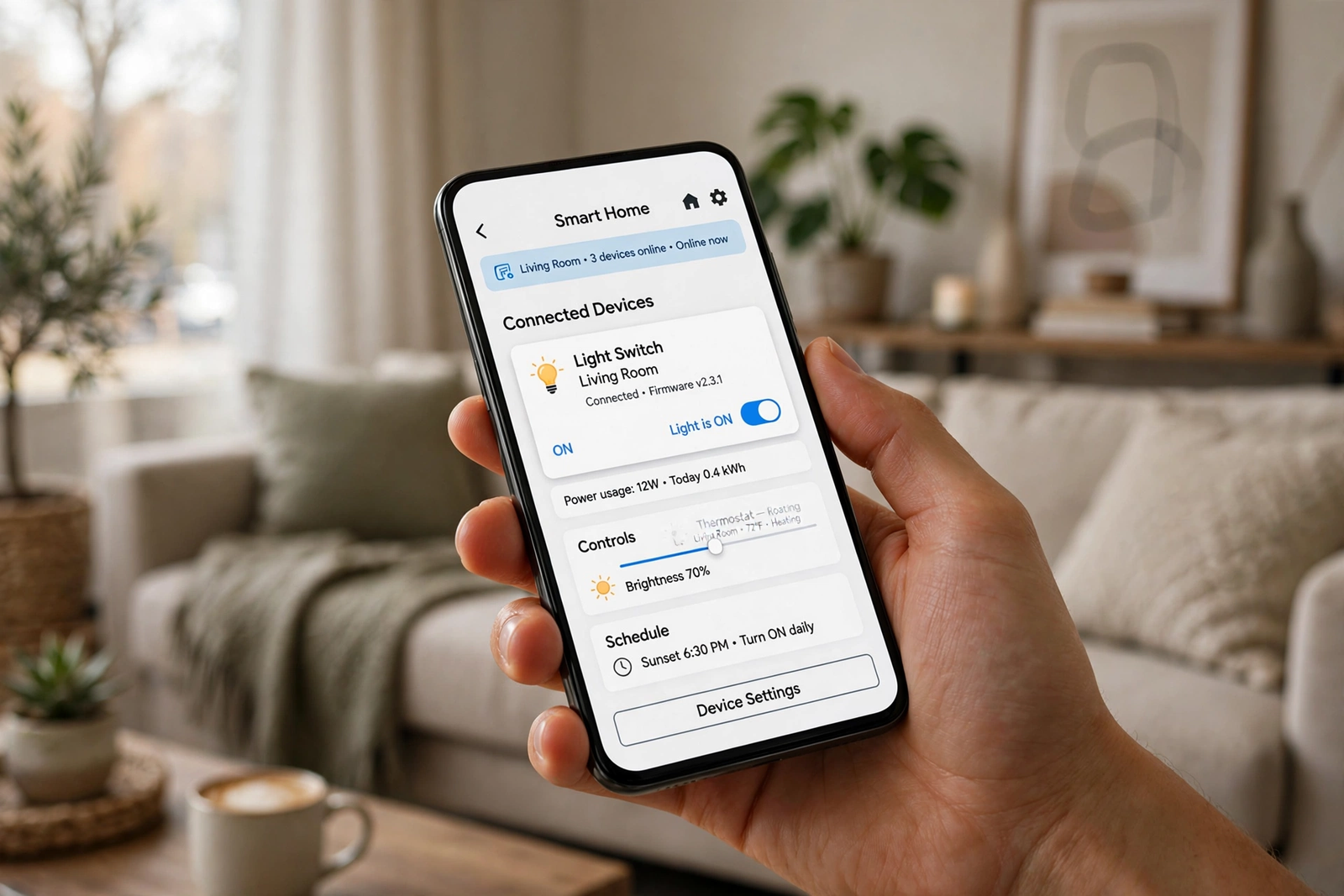
The L2 ships expecting a rocker switch (the kind that stays up or down). If your wall switch is a pushbutton or momentary type, you need to change the mode in the eWeLink app after pairing. Open the device settings and switch the external switch type to match what is on your wall. Get this wrong and the light will behave oddly, like needing two presses.
Step 5: Fit It in the Box and Restore Power
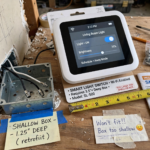
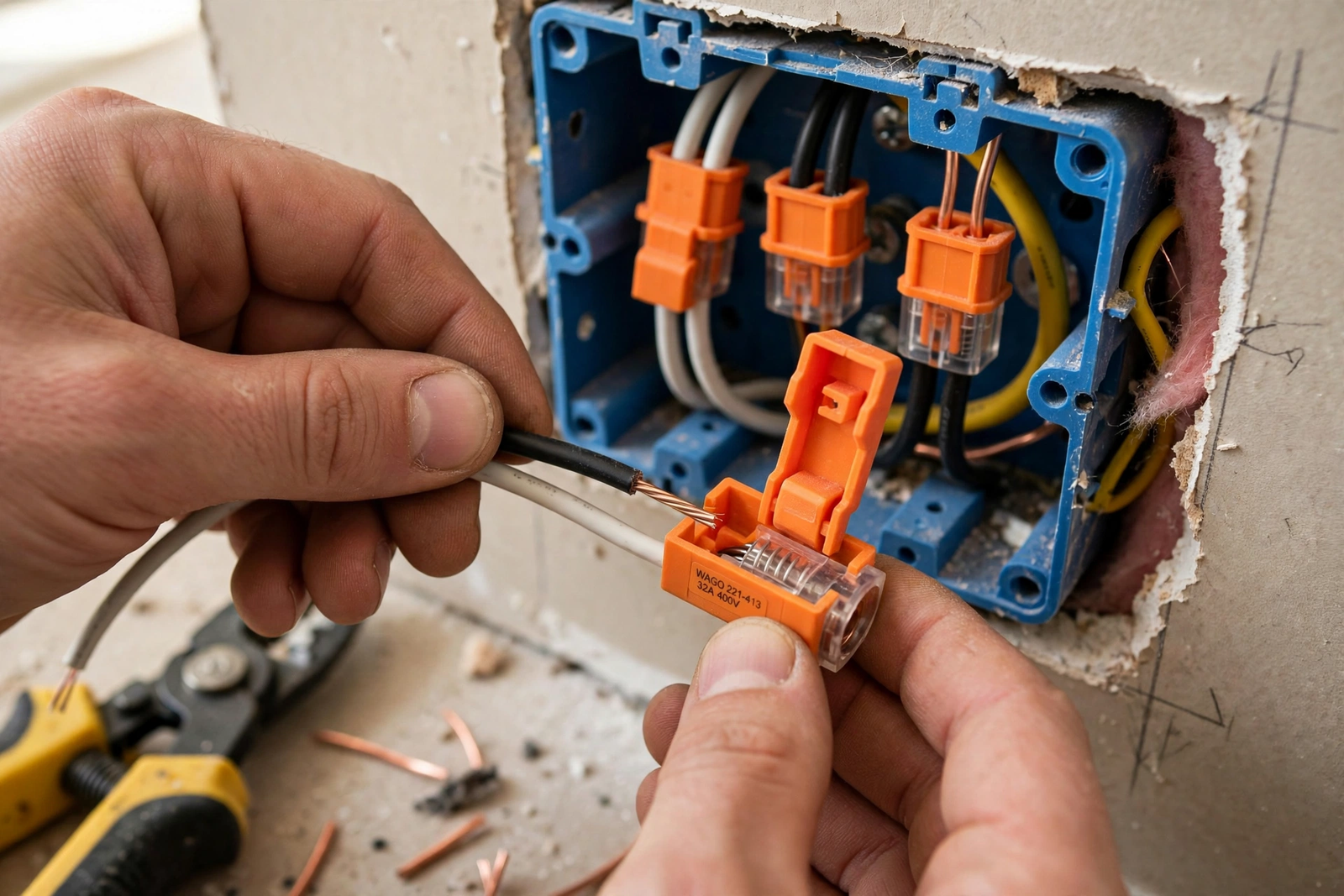
Fold the module and wires neatly into the back box. Don’t force it. If the box is shallow, remake your joints with compact Wago 221 connectors instead of bulky screw terminals. Screw the wall plate back on, then restore power at the breaker.
Step 6: Pair With Your Hub
With power on, put the L2 in pairing mode. The usual method is pressing the button on the module, though the exact sequence is in the manual. Then add it through your hub: eWeLink app with a Sonoff Zigbee bridge, ZHA or Zigbee2MQTT in Home Assistant, or the SmartThings app. The device should appear within a minute. Test on and off from the app, then test the physical wall switch. Both should work independently.
For Home Assistant users, both ZHA and Zigbee2MQTT support the L2 with full local control. That means your switch keeps working even if your internet goes down, which is exactly how a light switch should behave. Consequently, it’s a solid choice for a local-first smart home. If you pair it with smart bulbs in your Google Home setup, remember the L2 cuts power like a normal switch, so use detach relay mode if your bulbs need constant power.
LED Flicker and Low-Load Quirks
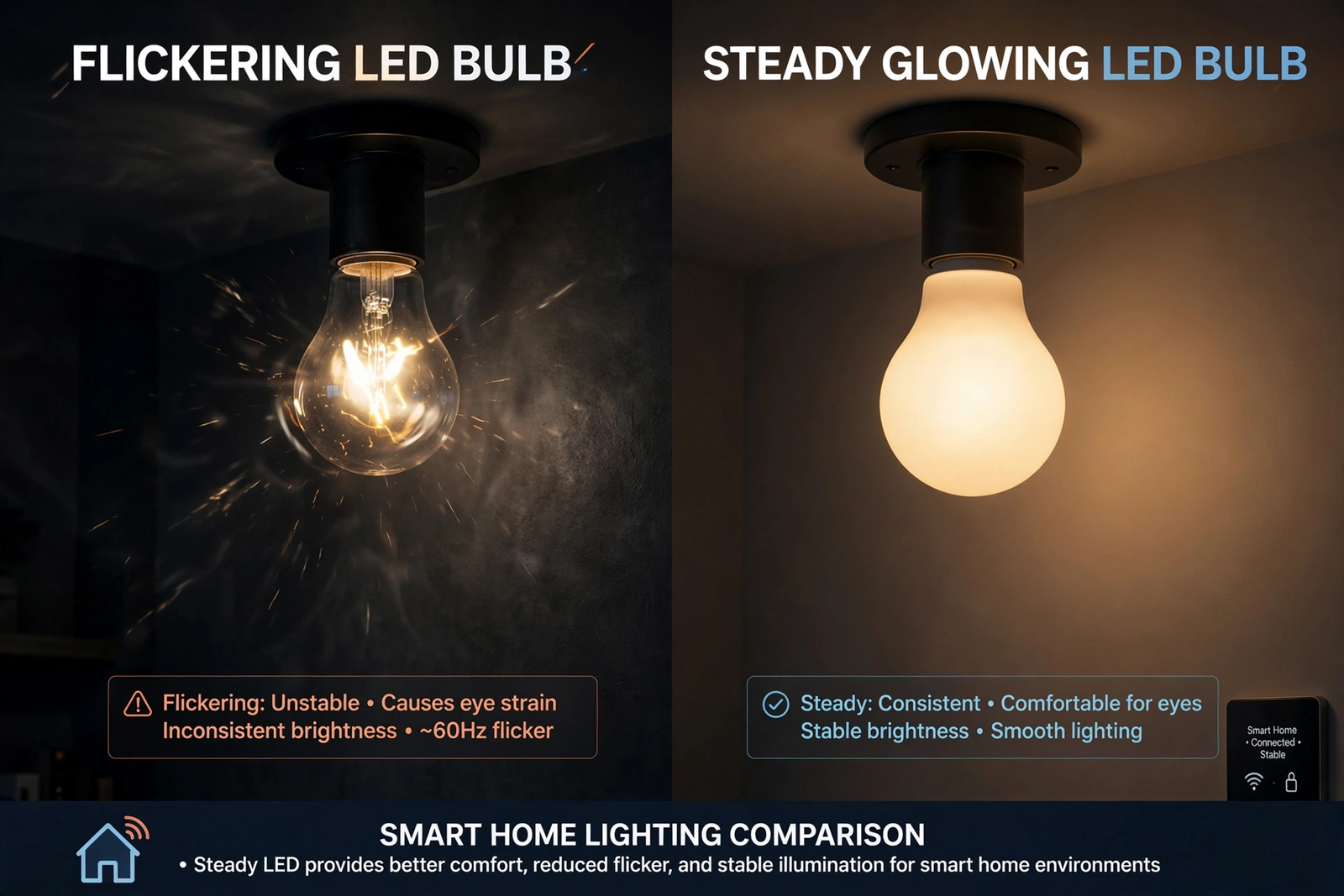
The L2’s no-neutral trick has one real-world consequence. Because it draws its own power through the lamp, very low wattage loads can cause flicker or prevent the module from staying powered. Sonoff rates the minimum at 3W, and unlike some older no-neutral switches, the L2 does not need a separate anti-flicker module in most cases.
In practice, here is my rule of thumb from installing these: a single 3W LED candle bulb is borderline. Two or more bulbs, or anything 5W and up, is solid. If you get flicker with a tiny load, the fix is a slightly higher wattage bulb, not a different switch. Also note that the L2 does not support inductive loads like extractor fans, so keep it to lighting only.
Another thing worth knowing: because the L2 has no neutral, it cannot power itself when the light is switched off at the breaker. That sounds obvious, but it matters for automations. If someone kills the breaker for maintenance, the L2 drops off your Zigbee network entirely until power returns. As a result, any automation that depends on it will fail silently during that window. For most homes this never matters, but it is worth understanding. Similarly, if you are planning a whole-house setup with Apple Home as your main platform, make sure your Zigbee hub bridges into it properly, since the L2 itself speaks Zigbee, not HomeKit directly.
Common Mistakes to Avoid
- Swapping L_in and L_out: the most common wiring error. If the light works from the wall switch but the app can’t control it, or vice versa, kill the power and swap these two wires.
- Buying the non-L variant: the ZBMINI without the L needs a neutral. Double-check the box says L2.
- Forgetting switch mode: pushbutton on a rocker setting causes double-press weirdness. Set it in the app.
- Overloading: 6A max. That is plenty for lighting but don’t put a heater on it.
- Expecting it to route Zigbee: the L2 is an end device. Plan your mesh accordingly.
FAQs
Does the Sonoff ZBmini L2 really need no neutral wire?
Correct. The L2 is designed for two-wire installations: permanent live to L_in, switched live to L_out. It powers itself with a small current through the lamp, which is why it needs a minimum 3W load. The original ZBMINI and the R2 do need a neutral, so check you bought the L2 variant.
What is the minimum bulb wattage for the ZBmini L2?
Sonoff specifies 3W minimum, and no anti-flicker module is required. In practice, a single 3W bulb is borderline and can flicker. Two bulbs or anything 5W and above is reliable. If you see flicker with a tiny load, try a slightly higher wattage LED before blaming the switch.
Can I use the ZBmini L2 with a two-way staircase switch?
Yes. The L2 supports two-way wiring where two physical switches control one light. Both switches wire into the S1/S2 terminals following the manual’s two-way diagram. The app controls the light too, and everything stays in sync. Take your time with the diagram if you have not done two-way wiring before.
Does the ZBmini L2 work with Home Assistant?
Yes, through both ZHA and Zigbee2MQTT with full local control. That means automations and wall-switch control keep working without internet. You will need a Zigbee coordinator like the Sonoff ZBDongle. Pairing is standard: put the L2 in pairing mode and add it from the ZHA or Zigbee2MQTT interface.
Why does my light need two presses after installing the L2?
Your wall switch type doesn’t match the L2’s setting. It ships expecting a rocker switch. If you have a pushbutton or momentary switch, open the device settings in the eWeLink app and change the external switch type. The behavior should become normal immediately after saving.
Can the ZBmini L2 control a fan or other motor load?
No. Sonoff explicitly says the L2 is for lighting only and does not support inductive loads like fans. Motors can damage the relay or cause unreliable switching. For fan control you need a switch rated for inductive loads, which is a different product category entirely.
Does the ZBmini L2 extend my Zigbee mesh as a router?
No, and this surprises people. The L2 is a Zigbee end device, not a router, so it won’t relay signals for other devices. If your mesh needs more coverage, add a mains-powered Zigbee plug or bulb that does route. The neutral-wired ZBMINIR2 does act as a router, by contrast.
Final Checklist Before You Close the Box
You now know how to wire the Sonoff ZBmini L2 without a neutral: permanent live to L_in, switched live to L_out, wall switch across S1 and S2, then pair with your Zigbee hub. Test both the app and the physical switch before you screw the plate on. If something behaves oddly, the fix is almost always swapped L_in/L_out wires or the wrong switch mode in the app. Done right, your old light just became the smartest thing in the room. For your next project, check out our guide to smart lighting ecosystems.