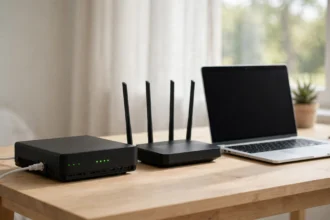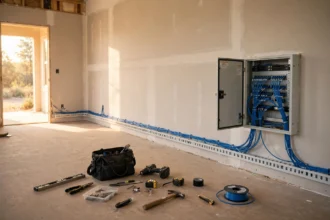

How is WiFi installed in your home? In most homes, your internet provider brings a line into the house, connects it to a modem, and the modem connects to a router that broadcasts WiFi. You then connect your phones, laptops, and TVs to that wireless network.
- WiFi Installation in Plain Terms
- ISP Install vs DIY Install
- What You Need Before You Start
- Step by Step: How WiFi Gets Installed
- Modem, Router, and Combined Boxes Explained
- Setting Up WiFi: Name, Password, and Bands
- Where to Put the Router
- Home Internet Setup for a Bigger House
- How to Get WiFi in a House With No Line Yet
- Testing, Speed, and Dead Zones
- WiFi Problems After Install and Quick Fixes
- Frequently Asked Questions
- How long does WiFi installation take?
- Can I install WiFi myself without a technician?
- Do I need a modem and a router?
- Where should I put my router for the best WiFi?
- How do I fix WiFi dead zones in my house?
- Is mesh WiFi better than a single router?
- Conclusion
WiFi Installation in Plain Terms
WiFi is not the internet itself. The internet arrives at your house through a cable, fibre line, or phone line. WiFi is the wireless signal your router creates inside the house so your devices can reach that connection without a cable. If the internet line goes down, WiFi alone will not get you online. Your devices may still show full bars, but nothing will load.
ISP Install vs DIY Install
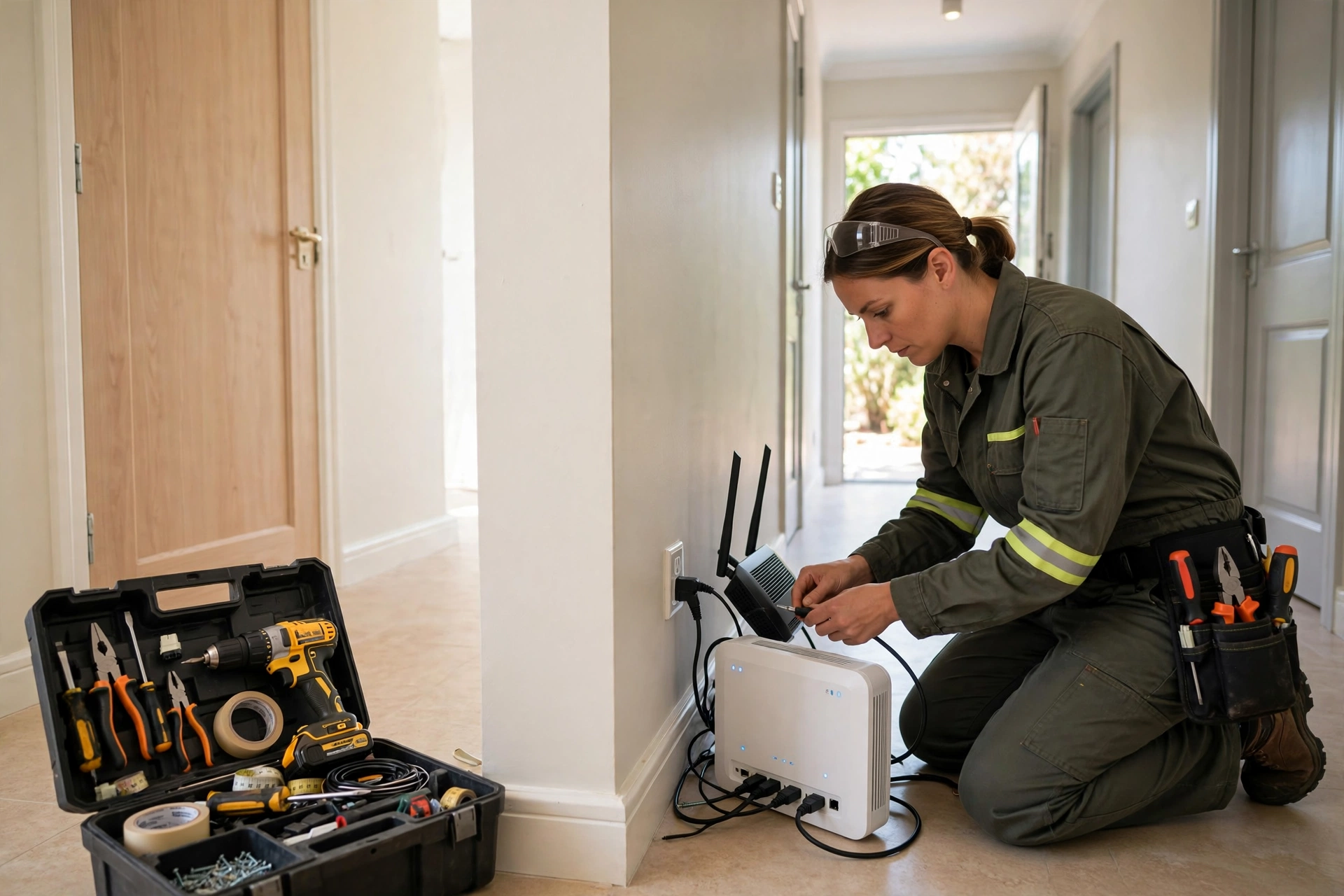
Most people get WiFi through an ISP install. A technician visits, checks the line into your house, fits a wall socket or an optical box if needed, and connects the provider’s modem router. They test the connection, give you a WiFi name and password, and leave you with a working network. This is the easiest route, and it is the right choice if your home has no existing line or socket.
A DIY install is for homes that already have an active internet line. You plug your own modem or router into the existing socket, follow the setup app, and create your WiFi name and password yourself. It takes longer than a technician visit, but you get to pick better hardware and place it where it works best, not just where the socket happens to be.
Table: ISP install vs DIY install
| Option | Best for | What you do | Watch out for |
|---|---|---|---|
| ISP install | New line, new home, first fibre connection | Book visit, be home, test devices with technician | Router often placed by the socket, not the centre |
| DIY install | Active line, own router or mesh kit | Plug in modem and router, run setup app | You handle faults and settings yourself |
| Mixed install | Most existing homes | ISP fits line, you add router or mesh | Check your own router works with your provider |
What You Need Before You Start
Before install day, gather a short list. You need your provider account details, the address where the line enters the house, and a phone with the provider or router app installed. Keep the WiFi password you want in mind, but do not reuse a password you use for email or banking.
Check where the line comes in. In many homes it is a small socket near the front door, in a hallway cupboard, or in the living room. That spot decides where the modem will live. If that spot is a closed metal cupboard or behind a large TV unit, plan to move the router with a longer Ethernet cable, or plan for a mesh point in an open spot.
- Provider account details and install appointment time
- Modem and router, or a combined modem router from your provider
- Ethernet cable, usually supplied in the box
- Power socket near the modem location
- Phone with the router or provider app installed
- Your chosen WiFi name and a strong password
Step by Step: How WiFi Gets Installed
Step one is the line itself. For fibre, the provider runs a fibre cable to an optical box on your wall, often called an ONT. For cable broadband, the line ends at a coaxial socket. For phone line broadband, it ends at a master phone socket. The technician tests that line first, because no router can fix a dead line.
Step two is the modem. The modem turns the provider’s signal into a form your home network can use. On fibre with an ONT, the modem job may sit inside your router, and the router plugs straight into the ONT with an Ethernet cable. On older lines, a separate modem may plug into the phone socket, then connect to the router.
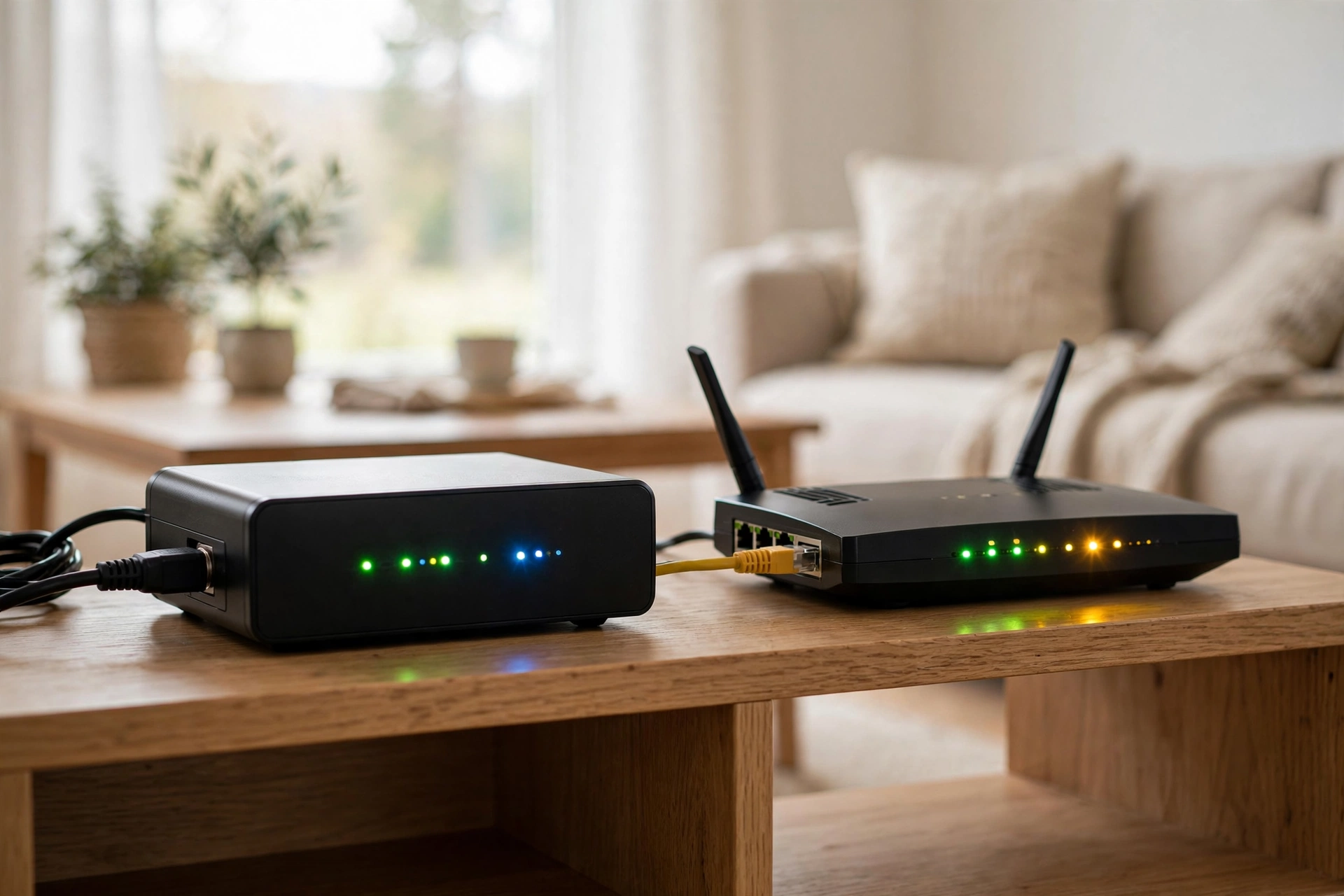
Step three is the router. Plug the router into the modem with an Ethernet cable, using the port marked WAN or Internet on the router. Plug in the power and wait for the lights to settle. That wait matters. Routers can take two to five minutes to boot and lock onto the line, and unplugging them mid boot only restarts the wait.
Step four is setup. Open the router app or type the setup address from the router label into a browser. Create your WiFi name and password, and let the router check for a firmware update. Then connect one phone and one laptop, load a page on each, and run a speed test in the same room as the router. That test gives you a baseline to compare against later.
- Confirm the line into your house is live and tested.
- Connect the modem to the wall socket or ONT.
- Connect the router WAN port to the modem with Ethernet.
- Power on, wait two to five minutes for lights to settle.
- Run the setup app and create your WiFi name and password.
- Update firmware, then test one phone and one laptop nearby.
- Walk the house and note where the signal drops.
Modem, Router, and Combined Boxes Explained
People mix up modems and routers all the time, and providers do not help by selling one box that does both. A modem talks to your provider. A router creates your home network and hands out WiFi. A combined box does both jobs in one case, which is what most providers supply.
A combined box is simple and it works for small flats. A separate modem and router gives you more choice. You can keep the provider modem and buy a stronger router, or a mesh system, without touching the line. If you buy your own router, check it matches your connection type. A router made for cable broadband will not work on a fibre ONT setup without the right port, so check the spec sheet before you order.
One honest note from my own install. I kept the provider box in the hallway cupboard where the line entered, and the living room TV buffered every evening. Moving the router out of the cupboard onto an open shelf, about two metres away on a longer Ethernet cable, lifted the TV speed from around 18 Mbps to over 90 Mbps on the same plan. The hardware did not change. The placement did.
Setting Up WiFi: Name, Password, and Bands
Your WiFi name, called the SSID, is what devices see when they search. Pick a name you will recognise, but do not put your full address or your family name in it. Your password should be long and unique to the WiFi. A sentence you can remember beats a short jumble of symbols you will have to look up every time a guest visits.
Most routers broadcast two bands: 2.4 GHz and 5 GHz. The 2.4 GHz band travels further through walls but runs slower and gets crowded. The 5 GHz band is faster but fades sooner with distance. Many routers now merge both under one name and steer each device to the better band. Leave that merged setting on unless a smart device, like an older camera, only sees the 2.4 GHz band and needs it split.
Turn on WPA2 or WPA3 security in the router settings. Never leave the network open, and change the router admin password from the default printed on the box. The admin password is not the WiFi password. It guards the settings page itself, and leaving it at the factory default is one of the easiest mistakes to make.
Where to Put the Router
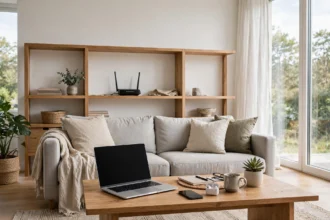
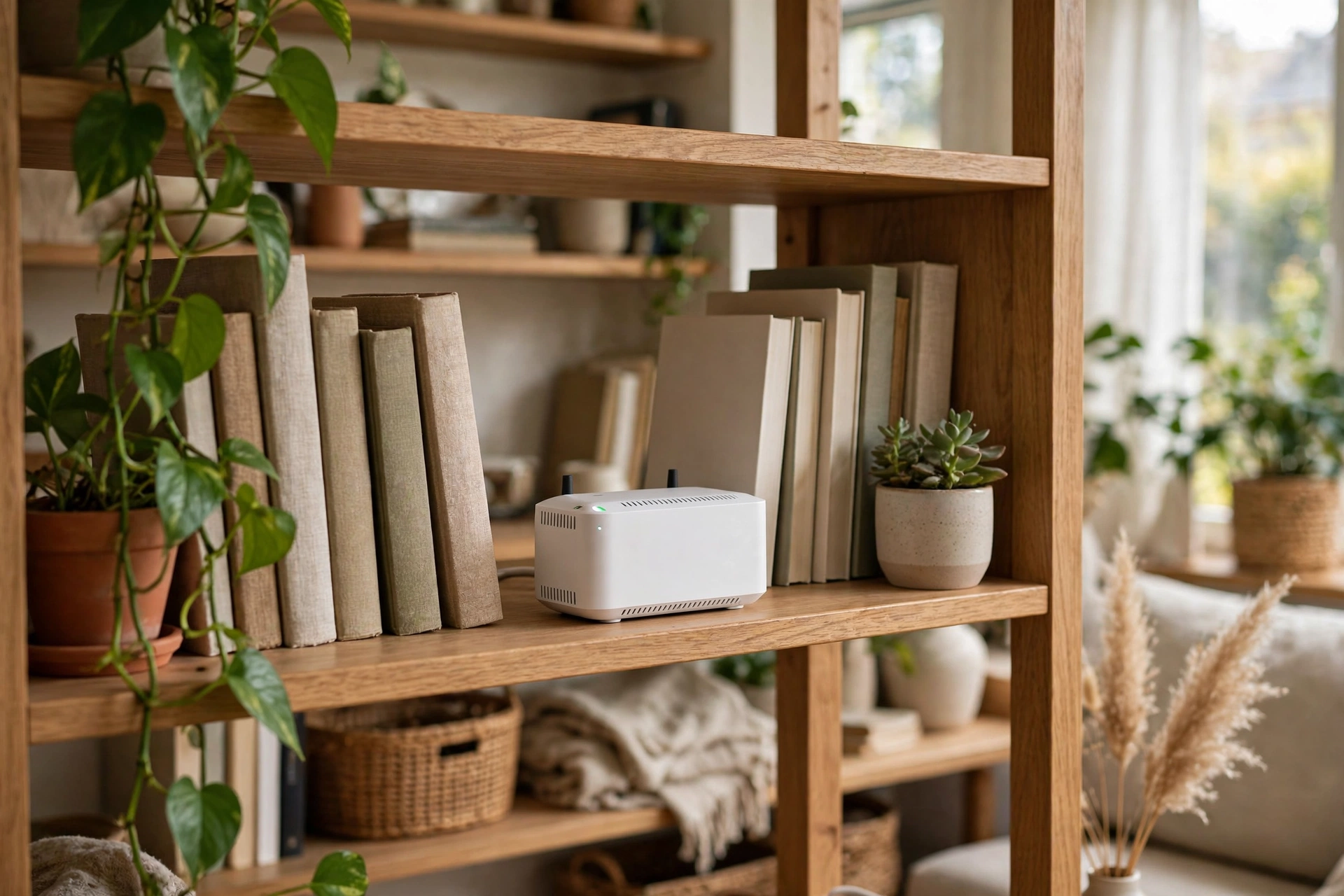
Router placement is the single biggest factor in how good your WiFi feels, and it costs nothing to get right. Put the router in the open, at about waist to chest height, near the centre of your home if you can. Keep it off the floor, out of closed cupboards, and away from thick metal objects like fish tanks and large appliances.
Walls matter more than people expect. One plaster wall is fine. Two brick walls, a floor, and a metal fridge in between will cut the signal hard. If the router must stay by the entry socket at one end of the house, accept that the far end will need help, and plan for that help now instead of discovering it after install day.
Home Internet Setup for a Bigger House
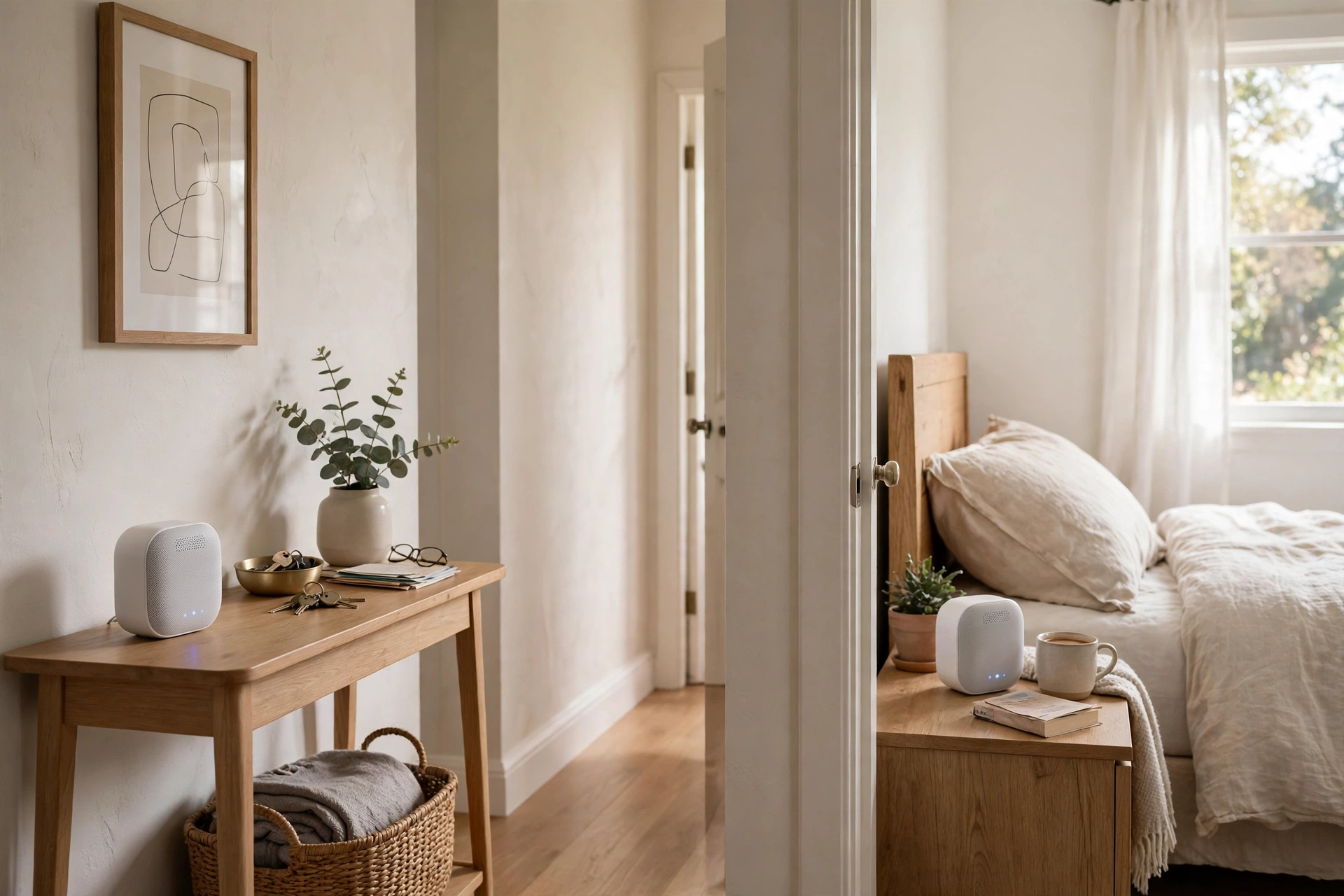
The placement rule that works best is simple: put each point about halfway toward the weak area, not in the weak area itself. A point placed in a dead zone has a weak link back to the router, so it can only pass on a weak signal. A point placed halfway keeps a strong link and still reaches the far room. Google’s own mesh guidance uses the same rule, and says points work best about two to three rooms apart. You can read it in the Google Nest Wifi coverage guide.
Table: How many WiFi points for your home size
| Home size | Usual setup | Notes |
|---|---|---|
| Small flat, 1 to 2 bedrooms | One router | Central placement usually covers all rooms |
| Medium house, 2 to 3 bedrooms | Router plus one mesh point | Point halfway toward the far bedrooms |
| Large house, 3 plus bedrooms or two floors | Router plus two mesh points | One point per floor or per wing |
| Long house or thick brick walls | Router plus wired access points | Ethernet backhaul beats wireless where you can run cable |
If a camera or doorbell at the front door keeps dropping, that is a classic dead zone case. The front door is often the farthest point from a router tucked at the back of the house, and the door itself adds another barrier. Our guide to a video doorbell with a weak WiFi signal at the front door walks through the same placement fixes for that exact spot.
How to Get WiFi in a House With No Line Yet
What if there is no broadband line at all? First, check what your address can actually get. Your provider or a coverage checker will tell you if fibre, cable, or phone line broadband reaches your street. Order the service first, because the install visit is what creates the line and the socket.
If fixed broadband cannot reach you yet, the fallback is mobile broadband. A 4G or 5G router uses a SIM card and a mobile signal instead of a fixed line, and creates WiFi the same way once it is on. It works well for light use and for rented homes where you cannot get a line fitted, but data caps and mobile signal strength limit it for heavy streaming or large households.
Testing, Speed, and Dead Zones
After install, test properly instead of trusting one speed test by the router. Run a test in the router room, then in each bedroom, the kitchen, and the garden if you use it there. Write down the numbers. A drop from 200 Mbps by the router to under 20 Mbps in a bedroom is a placement problem, not a plan problem, and it tells you where a mesh point should go.

WiFi Problems After Install and Quick Fixes
Most post install problems fall into a short list. Work through it in order and you will solve most of them without a support call.
If no device can see the WiFi name, check the router lights and restart the router by unplugging it for 30 seconds. If one device cannot connect while others can, forget the network on that device and join again with the password typed fresh. Typos in a saved password cause more “WiFi not working” reports than broken hardware.
Frequently Asked Questions
How long does WiFi installation take?
A standard ISP install usually takes one to two hours, including line checks, modem setup, and a basic test. A DIY install with an active line often takes 30 to 60 minutes. Fibre installs that need a new cable run to the house can take longer, so keep the full visit window free.
Can I install WiFi myself without a technician?
Yes, if your home already has an active broadband line and socket. You plug in the modem and router, follow the setup app, and create your WiFi name and password. If there is no line, no socket, or the line is faulty, you need a technician visit to fit or repair it.
Do I need a modem and a router?
You need both jobs done, but not always two boxes. A modem connects to your provider, and a router creates your home WiFi network. Most providers supply one combined box that does both. Separate boxes give you more choice if you want a stronger router later.
Where should I put my router for the best WiFi?
Put it in the open, at waist to chest height, as close to the centre of your home as you can. Keep it off the floor, out of closed cupboards, and away from metal objects and microwaves. If the entry socket is at one end of the house, plan a mesh point for the far end.
How do I fix WiFi dead zones in my house?
Place a mesh point halfway toward the dead zone, not inside it, so it keeps a strong link to the router. Keep points about two to three rooms apart and in open spots. If you can run an Ethernet cable to a far room, a wired access point there will beat a wireless point.
Is mesh WiFi better than a single router?
Mesh WiFi is better for larger homes, long layouts, and thick walls, because it spreads coverage with several points under one network name. For a small flat, a single good router placed centrally is simpler, cheaper, and often just as fast, so do not buy mesh you do not need.
Conclusion
WiFi installation is a short chain: a line into your house, a modem to talk to your provider, and a router to share that connection wirelessly. Get the line tested, place the router in the open, and add mesh points only where the signal actually drops. That is the whole install, and it is far simpler than the boxes and cables make it look.
Your next step depends on your home. If your line is live, set up your router today and walk the house with a speed test. If you have no line yet, book the ISP install and plan the router spot before the technician arrives. Either way, test room by room, and fix placement before you pay for a faster plan.