

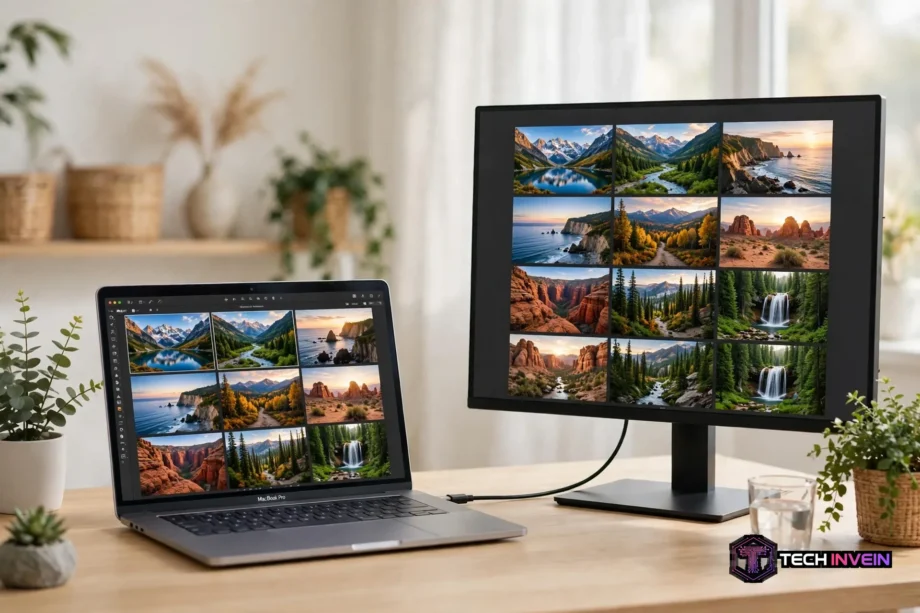
The best monitor for macbook pro is the Apple Studio Display if you want the sharpest text and the simplest setup. For most people, though, a 27-inch 4K USB-C monitor with 96W charging and wide P3 color costs far less. This guide compares six real picks, so you can match one to your MacBook Pro.
- Start With These 4 Questions
- Best Monitor for MacBook Pro: 6 Picks at a Glance
- The 6 Picks in Detail
- 1. Apple Studio Display: Sharpest Text and Simplest Setup
- 2. ASUS ProArt PA279CRV: Best Value for Color Work
- 3. BenQ PD3225U: Best 32-Inch Monitor for Creators
- 4. Dell UltraSharp U2723QE: Best Hub Monitor for the Office
- 5. Samsung ViewFinity S9: 5K Sharpness for Less
- 6. ASUS ProArt PA27JCV: Best Color-Accurate 5K Value
- 4K vs 5K: Why the Best Monitor for MacBook Pro Depends on Scaling
- Which Monitor Fits Your MacBook Pro Model?
- Set It Up With One Cable
- FAQs
- Is a 4K monitor good for a MacBook Pro?
- Is 5K better than 4K for a MacBook Pro?
- How much power delivery do I need from a monitor?
- Can a MacBook Pro run two external monitors?
- Do I need Thunderbolt, or is USB-C enough?
- What size monitor is best for a MacBook Pro?
- Conclusion
Start With These 4 Questions
Pick the wrong monitor and your MacBook Pro still works, yet the text looks soft and the desk stays messy. Ask four questions first and the choice gets simple. What do you do all day? Writers and coders need sharp text. Photo and video editors need P3 color and steady brightness. Office workers need ports and a tidy desk.
Next, how much desk space do you have? A 27-inch screen fits most desks and keeps text crisp. A 32-inch screen gives you room for timelines and big spreadsheets, but it needs a deeper desk. If your eyes sit less than 60 cm from the screen, a 32-inch panel can feel too wide.
Third, which MacBook Pro do you own? A 14-inch model and a 16-inch model charge differently. Base chips also support fewer external displays than Pro and Max chips. So check your chip in About This Mac before you plan a two-screen desk.
Finally, what is your budget for the whole desk? You may also need a stand, a cable, or a dock. As a result, a cheaper screen with the right ports can beat a pricey screen that forces you to buy extras. Keep that total in mind.
If you travel with your laptop and want a second screen on the road, a desk monitor is not the answer. A portable monitor weighs little and runs off USB-C. Our guide to the best portable monitor covers the travel options in detail.
Best Monitor for MacBook Pro: 6 Picks at a Glance
Table: Quick comparison of the six monitors in this guide.
| Monitor | Size and Resolution | Ports and Charging | Best For |
|---|---|---|---|
| Apple Studio Display | 27-inch 5K | Thunderbolt 3, 96W | Sharpest text, simplest setup |
| ASUS ProArt PA279CRV | 27-inch 4K | USB-C, 96W | Color work on a budget |
| BenQ PD3225U | 32-inch 4K | Thunderbolt 3, 85W | Big timelines, design work |
| Dell UltraSharp U2723QE | 27-inch 4K | USB-C hub, Ethernet | One-cable office desk |
| Samsung ViewFinity S9 | 27-inch 5K | Thunderbolt, USB-C | 5K sharpness for less |
| ASUS ProArt PA27JCV | 27-inch 5K | USB-C, 96W | Color-accurate 5K value |
In short, use this table as a shortlist, not a final verdict. The sections below explain where each monitor wins and falls short.
The 6 Picks in Detail
1. Apple Studio Display: Sharpest Text and Simplest Setup
The Studio Display is the only monitor here that feels like part of the Mac itself. Its 27-inch 5K panel runs at 5120 x 2880, which gives you 218 pixels per inch. Text looks as sharp as the built-in screen. Colors cover the wide P3 gamut, brightness reaches 600 nits, and True Tone adjusts to your room.
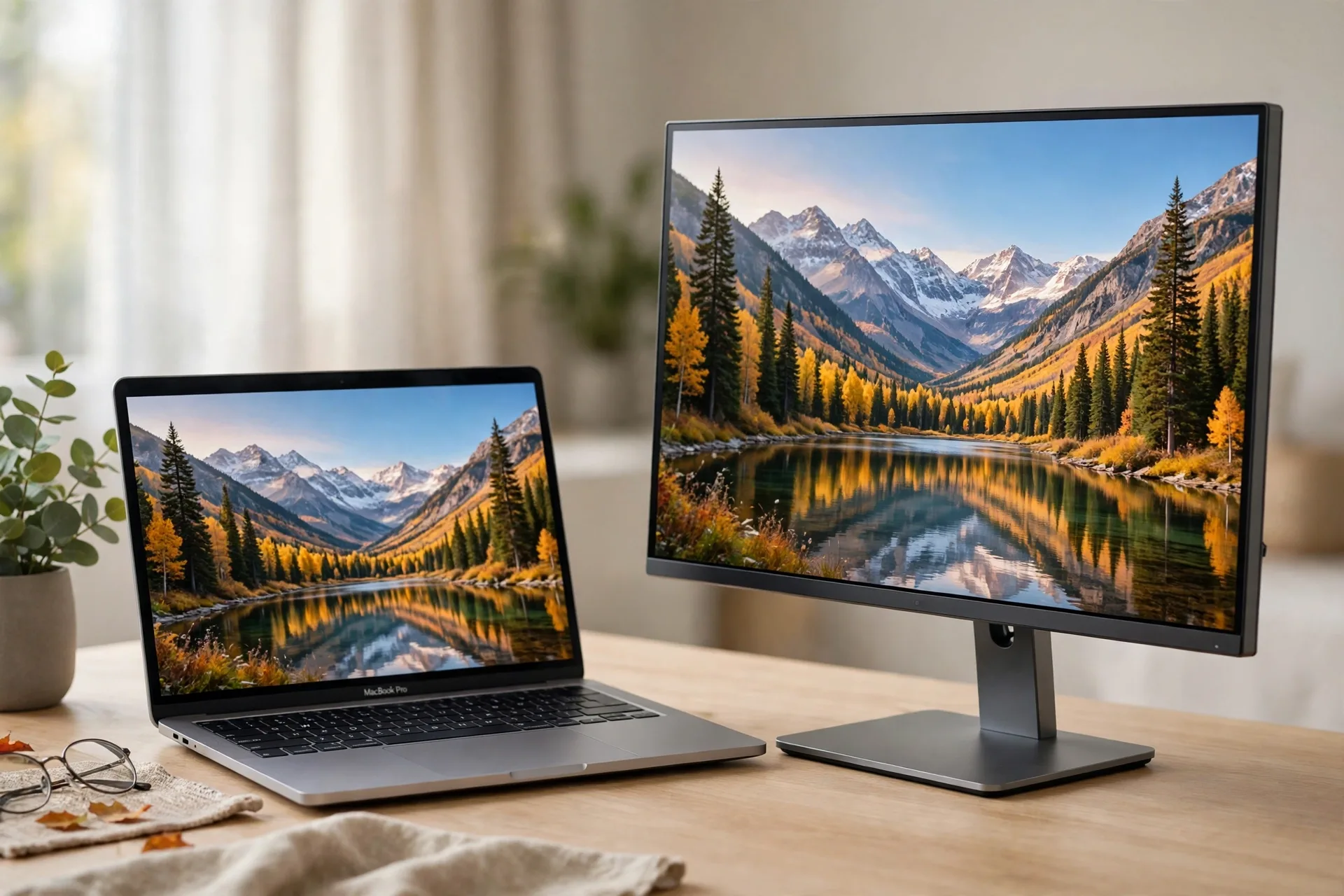
Setup takes one cable. Plug in Thunderbolt and you get video, 96W charging, and data for the three USB-C ports on the back. The 12MP camera, six speakers, and studio mics mean you can skip a webcam and a desk mic for most calls.
Still, the price is the catch. You pay far more than a good 4K monitor, and the base model has no height-adjustable stand and no HDMI port. If you want zero fuss and the cleanest macOS scaling, though, nothing else here matches it.
2. ASUS ProArt PA279CRV: Best Value for Color Work
The PA279CRV is the pick for creators who want honest color without Apple prices. It is a 27-inch 4K IPS panel with 99% DCI-P3 and 99% Adobe RGB coverage, factory calibrated to Delta E under 2. Colors stay close to your MacBook Pro screen, so photo edits and client proofs look right.
USB-C with 96W power delivery charges a 14-inch MacBook Pro and carries the picture over one cable. The built-in USB hub also gives you extra ports for a drive or a keyboard receiver.
On the other hand, it is a 4K panel, so macOS scaling is not as clean as 5K. Text looks very good, just a touch softer than the Studio Display at the same viewing distance. If your work is color-first and your budget is real, this is the smartest buy in the guide.
3. BenQ PD3225U: Best 32-Inch Monitor for Creators
Video editors often run out of room on a 27-inch screen. The PD3225U fixes that with a 32-inch 4K panel built for Mac workflows. It covers 98% of P3 and 100% of sRGB, calibrated to Delta E of 2 or less. Timelines stretch out and color stays steady.
Thunderbolt 3 carries video and 85W charging over a single cable. That wattage suits a 14-inch MacBook Pro well. A 16-inch model under heavy load may charge more slowly, so keep its own charger nearby for long renders. A hotkey puck switches color modes fast.
Size is the trade-off. At 32 inches and about 138 pixels per inch, text looks a little softer than on a 27-inch 4K screen. Sit farther back and the difference fades.
4. Dell UltraSharp U2723QE: Best Hub Monitor for the Office
The Dell U2723QE is not the flashiest screen here, yet it may be the most useful one for office work. It is a 27-inch 4K IPS monitor with a built-in USB-C hub. One cable carries video, charging, and data, while the hub adds Ethernet, USB ports, and DisplayPort out for a second screen.
That Ethernet port matters more than it sounds. A wired connection beats weak office Wi-Fi for video calls and big file uploads. Meanwhile, the IPS Black panel gives deeper blacks, so documents and code look clean in a bright room.
Color coverage is solid for office and web work, but it is no P3-grade creator panel. If you grade video for clients, pick a ProArt or BenQ model instead. For spreadsheets, calls, and writing, this Dell keeps your desk to a single cable.
5. Samsung ViewFinity S9: 5K Sharpness for Less
The ViewFinity S9 is Samsung’s answer to the Studio Display: a 27-inch 5K panel with Thunderbolt and USB-C. Text renders with the clean 2x scaling that makes 5K so easy on the eyes. The matte screen also cuts glare in bright rooms.
It adds tricks Apple does not. The S9 runs smart TV apps on its own, so you can stream video without waking your MacBook Pro. A 4K SlimFit camera covers calls.
Still, the S9 is not a perfect Studio Display clone. Its speakers and camera do not match Apple’s, and macOS integration is less seamless. Check the current price first, because its value depends on how far below the Studio Display it sells.
6. ASUS ProArt PA27JCV: Best Color-Accurate 5K Value
The PA27JCV pairs a 27-inch 5K panel with creator-grade color, and that mix is rare at its price. It covers 99% of DCI-P3, ships Calman Verified, and delivers 96W charging over USB-C. You get Retina-style text and trustworthy color.
An Auto KVM switch lets one keyboard and mouse serve your MacBook Pro and a second computer. Switch inputs and your peripherals follow without replugging anything.
This monitor fits creators who read and write all day and also need color they can trust. Gamers should look elsewhere, since the panel targets accuracy rather than high refresh rates. For photo editors, it is the best-priced 5K option here.
4K vs 5K: Why the Best Monitor for MacBook Pro Depends on Scaling
Resolution numbers alone do not tell you how sharp a monitor will look. Pixel density does. For example, a 27-inch 1440p screen packs about 109 pixels per inch, so text looks fuzzy next to a MacBook Pro. A 27-inch 4K screen reaches about 163, which looks sharp. A 27-inch 5K screen reaches 218, which matches Apple’s Retina target.
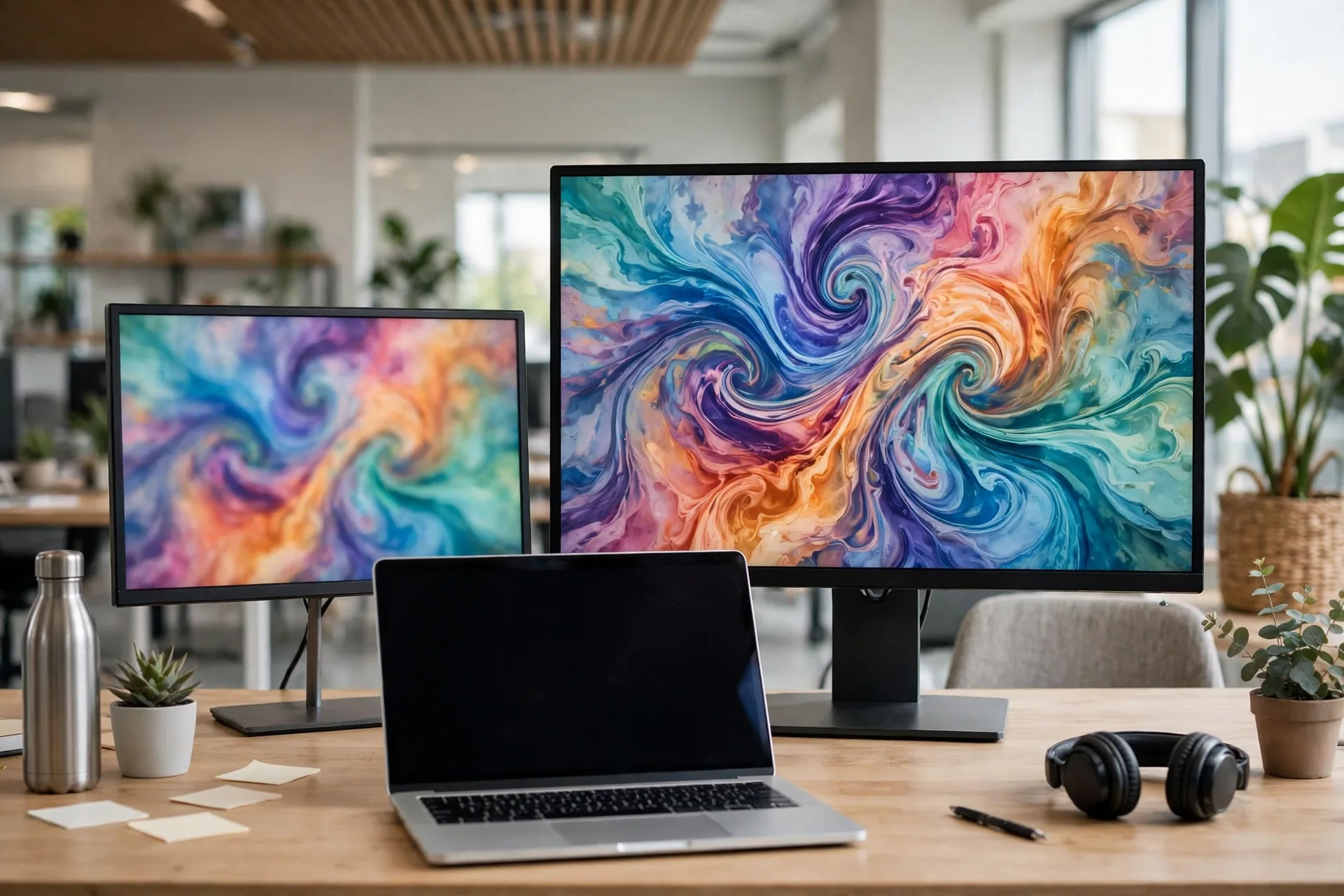
Scaling is the other half of the story. macOS draws the desktop at a higher resolution and then shrinks it to fit the panel. On a 5K screen, that math is clean: a 2560 x 1440 desktop maps exactly 2x onto 5120 x 2880 pixels. A 4K screen uses a fractional scale instead, so text can look a touch softer. Most people stop noticing after a day.
Table: Pixel density of common monitor sizes and resolutions.
| Monitor | Resolution | Pixel Density | macOS Scaling |
|---|---|---|---|
| 27-inch 1440p | 2560 x 1440 | About 109 PPI | Native, but soft text |
| 27-inch 4K | 3840 x 2160 | About 163 PPI | Fractional, very good |
| 27-inch 5K | 5120 x 2880 | About 218 PPI | Clean 2x, Retina-like |
| 32-inch 4K | 3840 x 2160 | About 138 PPI | Fractional, a little soft |
BenQ’s own Mac monitor guide explains the same trade-off: 5K wins on fine text at 27 inches, while 4K stays practical for documents and general creative work. Read the BenQ guide to Mac monitors if you want the maker’s own comparison.
Try this quick desk test before you commit to a size. Open the same document on your MacBook Pro and on the monitor, then set the monitor to “Looks like 2560 x 1440” in System Settings. Then read a full paragraph on each screen. If the monitor text feels blurry, you will notice it every day. If it feels fine, you just saved the 5K premium.

Which Monitor Fits Your MacBook Pro Model?
First, your chip decides how many external screens you can run, so match the monitor plan to the laptop you own. Base M1 and M2 MacBook Pro models support one external display. Pro and Max chips support two or more. The base M3 14-inch model can run two displays with the lid closed. Check Apple’s spec page for your exact chip before you buy a second screen.
Charging matters too. Apple says to use a display that provides at least the minimum wattage recommended for your Mac. That is 67W for a 14-inch MacBook Pro and 140W for a 16-inch. A 96W feed keeps a 14-inch topped up through a normal workday. A 16-inch model draws more power under load, so a 96W monitor may charge it slowly during exports. For long renders, keep the Apple charger plugged in as well.
Next, if you do run two screens, plan the layout before you buy mounts. Put the main monitor straight ahead and the second screen to the side at the same height. Our guide to a dual screen setup for the office walks through placement, cable routing, and display settings step by step.
Refresh rate is the last spec to weigh. Most monitors here run at 60Hz, which is smooth enough for office work, coding, and editing. A 120Hz panel feels nicer when you scroll long pages, but it costs more. Creators should spend on color and sharpness first.
Set It Up With One Cable
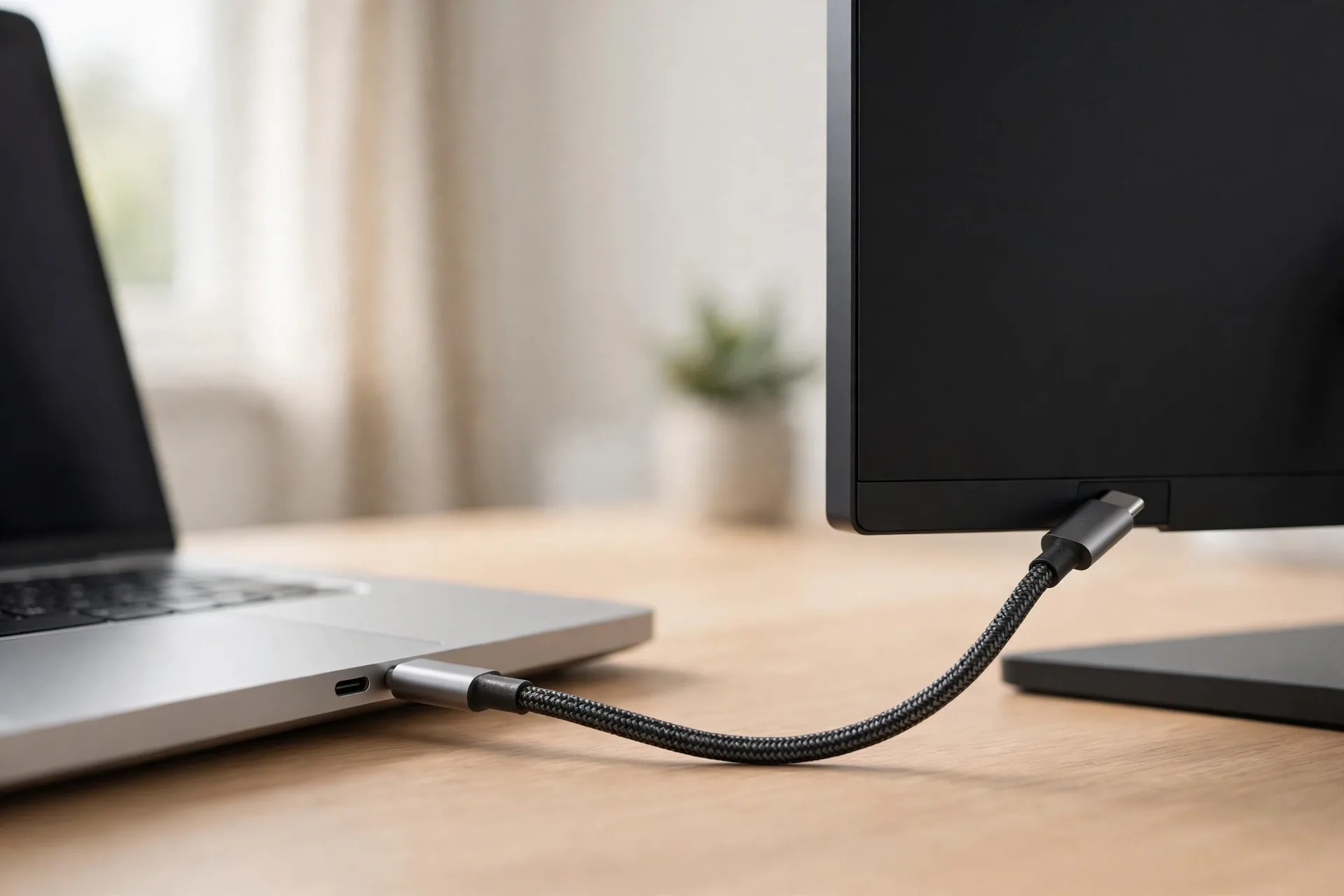
A good MacBook Pro desk has one cable between the laptop and the monitor. That cable should carry video, charging, and data at the same time. USB-C with DisplayPort Alt Mode does the job on most monitors here. Still, Thunderbolt adds bandwidth for fast drives off the monitor’s hub.
Start with the cable in the box, then replace it if the screen flickers or charges slowly. Cheap cables cause most monitor dropouts. A certified USB-C or Thunderbolt cable rated for video and 100W charging costs little and removes a whole class of faults.
Next, set the scaling by hand instead of trusting the default. Open System Settings, then Displays, and pick “Looks like 2560 x 1440” on a 27-inch 4K or 5K screen. That keeps menus readable and text sharp. If text still feels small, step down one notch.
A monitor with a weak hub can still leave you short on ports, and that is where a dock earns its place. If your screen has no Ethernet or too few USB ports, pair it with a dock instead of swapping the monitor. Our guide to the best USB-C docking station covers docks that charge, connect drives, and drive a second display.
A monitor arm frees desk space and lets you swing the screen toward a second chair. Cheap arms hold a 27-inch screen fine, but check the weight rating before you buy one for a 32-inch panel.
Finally, fix the ergonomics. Put the top of the screen at eye level, about an arm’s length away. A cheap monitor arm or a stack of books under the stand works fine. If you are rebuilding the whole desk, our best home office setup products roundup covers chairs, lighting, and desk gear for the new setup.
FAQs
Is a 4K monitor good for a MacBook Pro?
Yes. A 27-inch 4K monitor is the best value pick for most MacBook Pro owners. Text looks sharp at about 163 pixels per inch, and the “Looks like 2560 x 1440” scaling mode keeps menus readable. It is a touch softer than 5K, but most people stop noticing after a day.
Is 5K better than 4K for a MacBook Pro?
Yes, for text. A 27-inch 5K panel hits 218 pixels per inch and uses clean 2x scaling, so text looks like the built-in Retina screen. For video and office work, the gap is smaller. So buy 5K if you read and write all day. Buy 4K if color, size, or budget matters more.
How much power delivery do I need from a monitor?
Look for at least 90W, and 96W is the sweet spot for a 14-inch MacBook Pro. That wattage charges the laptop through a normal workday over one cable. A 16-inch model may charge slowly on 96W during heavy renders, so keep the Apple charger handy.
Can a MacBook Pro run two external monitors?
It depends on the chip. Pro and Max chips support two or more external displays. Base M1 and M2 models support only one. The base M3 14-inch model can run two displays with the lid closed. So check your exact chip in About This Mac before you plan a dual-screen desk.
Do I need Thunderbolt, or is USB-C enough?
USB-C is enough for most people. It carries 4K video, charging, and data over one cable. Thunderbolt adds bandwidth for fast drives, daisy-chaining, and 5K at full quality. Still, pick Thunderbolt if you run a 5K screen or hang storage off the monitor. Otherwise, save the money.
What size monitor is best for a MacBook Pro?
A 27-inch screen suits most desks. It keeps text sharp at 4K or 5K and fits beside a laptop without crowding the desk. A 32-inch screen usually suits video editors who need timeline space, but it needs a deeper desk.
Conclusion
Buy the Studio Display if you want the sharpest text and zero setup fuss. Buy the ASUS PA279CRV if color work matters and your budget is real. Buy the BenQ PD3225U if you edit video on a big timeline. Whichever pick fits, check the current price and the return policy. Finally, measure your desk, note your chip, and pick the row that matches.