

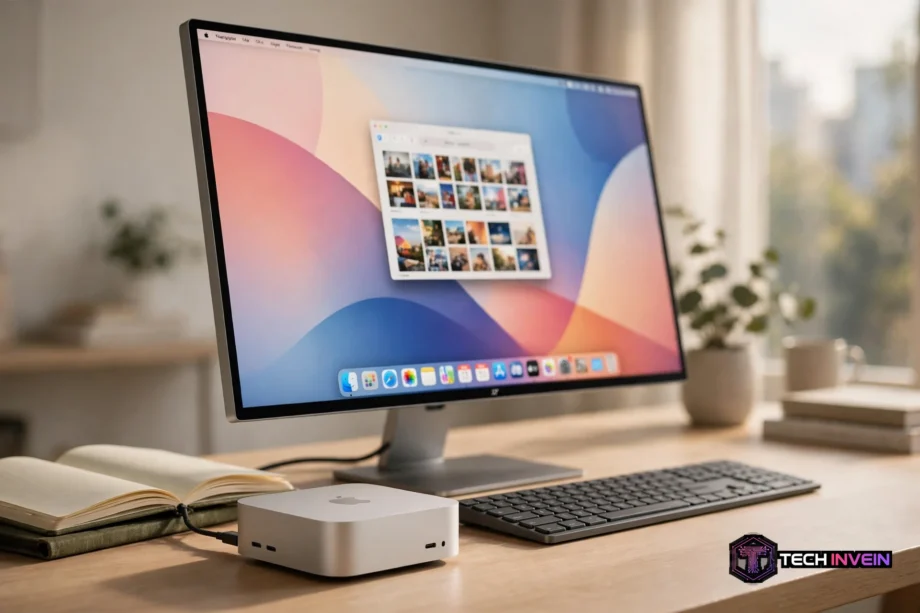
The best monitor for Mac mini is the ASUS ProArt PA27JCV for most people. Its 27-inch 5K panel makes text as sharp as a MacBook screen, and USB-C plus a built-in KVM switch keeps your desk tidy. Want the simplest Apple setup? The Studio Display is the no-fuss pick.
- Best monitor for Mac mini at a glance
- Why Mac mini monitors are different
- How to pick the right monitor in three questions
- Which monitor wins for your desk: 7 real picks
- 1. ASUS ProArt PA27JCV: best overall
- 2. Apple Studio Display: simplest Apple setup
- 3. BenQ MA270U: best 4K monitor for Mac
- 4. Dell S2722QC: best budget 4K
- 5. Samsung ViewFinity S9: best 5K with a webcam
- 6. ASUS ProArt PA279CRV: best for color work
- 7. Dell UltraSharp U3225QE: best big screen
- Which monitor fits your Mac mini model?
- Setup tips that save you a headache
- What about a second screen?
- FAQs
- What is the best monitor for Mac mini overall?
- Is 4K or 5K better for a Mac mini?
- Does the Mac mini work with any monitor?
- What size monitor is best for a Mac mini?
- Do I need USB-C on a monitor for Mac mini?
- Is the Apple Studio Display worth it for a Mac mini?
- Conclusion
Best monitor for Mac mini at a glance
Short on time? Start here. Each pick earned its spot for a different reason.
Table: The 7 picks compared
| Monitor | Size and resolution | Pixel density | Connection | Best for |
|---|---|---|---|---|
| ASUS ProArt PA27JCV | 27-inch 5K | 218 PPI | USB-C 96W | Best overall |
| Apple Studio Display | 27-inch 5K | 218 PPI | Thunderbolt, 96W | Simplest Apple setup |
| BenQ MA270U | 27-inch 4K | 163 PPI | USB-C 90W | Best 4K for Mac |
| Dell S2722QC | 27-inch 4K | 163 PPI | USB-C | Best budget 4K |
| Samsung ViewFinity S9 | 27-inch 5K | 218 PPI | Thunderbolt | Best 5K with webcam |
| ASUS ProArt PA279CRV | 27-inch 4K | 163 PPI | USB-C 96W | Best for color work |
| Dell UltraSharp U3225QE | 32-inch 4K | 140 PPI | Thunderbolt 4 | Best big screen |
The 5K screens all hit 218 pixels per inch, while the 4K screens sit lower. That number drives most of what follows.
Why Mac mini monitors are different
Your Mac mini ships with no screen at all, so the monitor is half the computer. In contrast, the wrong one shows fuzzy text, washed-out color, or a desk tangled in adapters.
macOS was built around Retina rendering. Apple designs its 27-inch 5K panels at about 218 pixels per inch, and macOS draws each point with a neat 2-by-2 block of pixels at that density. Text comes out print-sharp.

For example, a 27-inch 5K panel divides exactly into a 2560 by 1440 workspace at 2x. A 27-inch 4K panel divides exactly only into a 1920 by 1080 workspace, which makes text about a third larger. The same 2560 by 1440 layout on 4K uses 1.5x scaling, and Apple warns scaled resolutions may affect performance.
Does that make 4K bad? No. Still, plenty of people use a 27-inch 4K screen every day and love it. However, readers who work with text all day will spot the gap fast.
A 5120 by 2880 panel renders 14,745,600 pixels against 4K’s 8,294,400. That’s about 78 percent more pixels doing the same job, and your eyes notice.
First, check the ports before you buy. A Mac mini has an HDMI port and three Thunderbolt ports on the back. A 5K screen needs a rear Thunderbolt port, since Apple lists HDMI at up to 4K on the M1, M2, M4, and M6 minis.
How to pick the right monitor in three questions
Forget the spec-sheet bingo. Three honest questions narrow the list fast.
How much do you read on screen?
For example, if your day is mostly writing, coding, email, and spreadsheets, pixel density is your top priority. Go 5K. Instead, if you mostly watch video and browse, a good 4K panel saves real money for little visible loss.
Do you edit photos or video?
Then color coverage matters as much as sharpness. Look for 99 percent DCI-P3 or Adobe RGB coverage and a factory calibration report with a Delta E under 2. A lower Delta E means colors match the file more closely.
What else sits on your desk?
A monitor with full-function USB-C or Thunderbolt can act as a hub. One cable carries video from the Mac mini, and the monitor’s ports handle your keyboard, drive, or webcam. If you also use a MacBook on the same desk, a KVM switch lets both machines share one screen and keyboard.
Work through those three questions and the right pick usually picks itself. Now the monitors.
Which monitor wins for your desk: 7 real picks
1. ASUS ProArt PA27JCV: best overall
The PA27JCV is the sweet spot of this whole list. It’s a 27-inch 5K panel at 5120 by 2880, which lands at the same 218 pixels per inch as Apple’s own displays. Text is as sharp as a Studio Display at a much lower price.
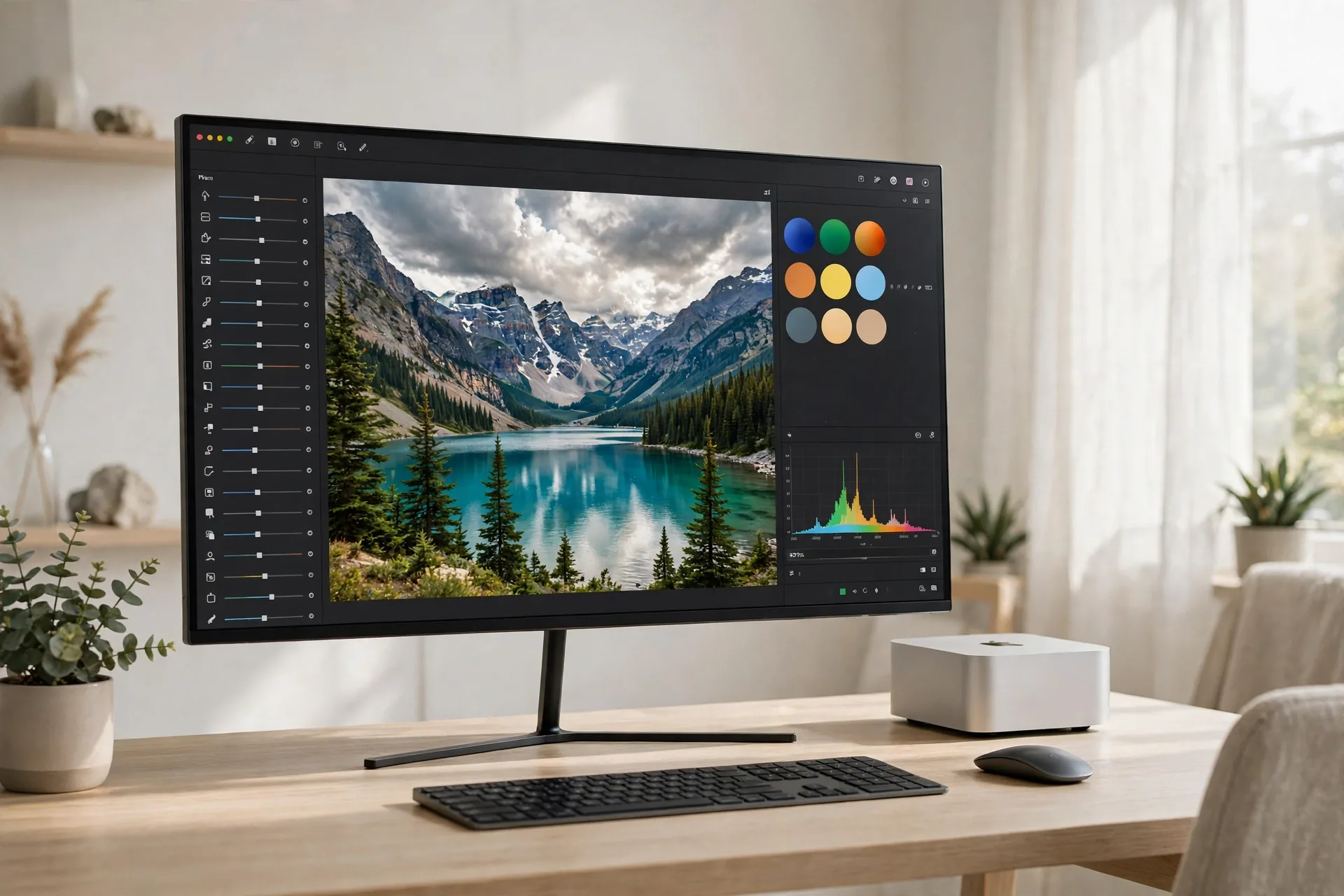
ASUS backs it with USB-C at 96W, a built-in KVM switch, and Calman-verified factory calibration. The screen arrives tuned, which helps photo work. It costs around $700, which is roughly half the price of an Apple Studio Display.
Skip it only if you game competitively. This is a 60Hz-class panel built for work, not fast play.
2. Apple Studio Display: simplest Apple setup
Nothing matches the Studio Display for plug-in-and-forget ease. It’s a 27-inch 5K Retina panel at 218 pixels per inch with 600 nits of brightness and P3 wide color. It also has a 12MP Center Stage camera and six speakers built in.
One Thunderbolt cable connects it to your Mac mini. It also delivers 96W of charging for a laptop if you ever dock one. The camera tracks you on calls, and the speakers are good enough that many people skip separate ones. It costs $1,599.
The catch is the price. You pay a premium for the camera, speakers, and zero-friction setup. If your budget stretches and you want the display to replace three desk accessories, this is the one.
3. BenQ MA270U: best 4K monitor for Mac
Specifically, BenQ built the MA270U for Mac users, and it shows in the small details. It is a 27-inch 4K panel with Mac Color Match tuning, so colors line up with how macOS expects them. In fact, your Mac keyboard controls the brightness and volume, just like a built-in display.
Dual USB-C with 90W power delivery means one cable to the desk, and the hub ports handle your peripherals. At 4K you give up the Retina-sharp text of a 5K panel. Still, you keep a clean Mac-like experience for less money.
In short, this is the pick for office work and writing when 5K pricing feels hard to justify. Check the current price before you buy, since street prices move often.
4. Dell S2722QC: best budget 4K
The S2722QC is the cheapest sensible way into a good Mac mini setup. It is a 27-inch 4K screen with USB-C and built-in speakers, and it costs around $380. That is less than a quarter of the Studio Display. Still, it handles office work, browsing, and video just fine.
What do you give up? At 163 pixels per inch, text is softer than on a 5K panel. Color tuning also lags the ProArt and BenQ screens. The speakers suit calls but sound thin for music.
Buy this when the budget is the deciding factor and you need a solid screen now. It is also a smart second monitor later if you upgrade to 5K down the road.
5. Samsung ViewFinity S9: best 5K with a webcam
The ViewFinity S9 is the 5K alternative to the Studio Display. It comes with a camera already in the box. It is a 27-inch 5K panel at 218 pixels per inch. As a result, you get the same Retina-sharp text and the same 2560 by 1440 workspace at exact 2x scaling.
Samsung adds a 4K webcam, smart TV apps, and a matte screen that cuts reflections in bright rooms. The apps also let the screen double as a small TV when the Mac mini sleeps.
Watch the price before you commit. The S9 often sells below the Studio Display, but discounts swing, so compare the two on the day you buy. If the gap is small, Apple’s camera and speakers may win you back.
6. ASUS ProArt PA279CRV: best for color work
If your work is color, this is the 4K screen to beat. ASUS lists a 27-inch 4K HDR panel with 99 percent DCI-P3 and Adobe RGB coverage. It also offers factory calibration to a Delta E under 2, and USB-C with 96W power delivery.
That coverage shows the wide color range your camera captures. The calibration report in the box tells you exactly how accurate your unit is.
You trade Retina sharpness for color accuracy here, since this is a 4K panel at 163 pixels per inch. For photo and video editors who work at normal viewing distance, that trade is usually worth it. For writers, the 5K PA27JCV above is the better buy.
7. Dell UltraSharp U3225QE: best big screen
Some desks need more room. The U3225QE gives you a 32-inch 4K panel with a Thunderbolt 4 hub. It also has a built-in KVM and a 120Hz refresh rate. It’s the only pick here that feels like a real step up in workspace size rather than sharpness.
At 32 inches, 4K lands at about 140 pixels per inch, so text is softer than on the 27-inch 5K picks. But the extra space fits timelines and big spreadsheets. The IPS Black panel also brings far better contrast than standard IPS.
Pair it with a second screen if you can. A big 32-inch main display plus a smaller side screen is a setup many editors swear by. Meanwhile, the Mac mini can drive both without breaking a sweat.
Which monitor fits your Mac mini model?
Not every Mac mini drives the same number of screens. Check your chip before you plan a multi-monitor desk.
The base M4 Mac mini supports up to three displays at once. Two run at up to 6K at 60Hz over Thunderbolt. The third runs at up to 5K over Thunderbolt or 4K at 60Hz over HDMI. That’s plenty for a dual-monitor desk with room to spare.
Older Apple silicon minis are more limited. The M1 mini supports only two displays in total, so confirm your model on Apple’s Mac mini tech specs page before you buy.
One rule holds across every model: use a rear Thunderbolt port for a 5K screen. HDMI tops out at 4K, and the front USB-C ports are for accessories, not video.
If you plan two monitors, read our guide to a dual-screen setup for the office before you buy the second one. It covers placement and cable runs that save a weekend of rearranging.
Setup tips that save you a headache
Buying the right screen is half the job. Setting it up right is the other half, and most of the mistakes below take five minutes to avoid.
First, use the cable in the box or a certified Thunderbolt cable. A random USB-C cable may carry power and data but not full video bandwidth, so a 5K screen can silently drop to a lower resolution.
Second, open System Settings, then Displays, and check the resolution macOS picked. Click Default to use the best resolution for your display. Judge a new scaling setting after a full workday, since first impressions lie.
Third, think about the hub. A monitor with USB-C ports can replace a separate dock for many desks, but a heavy setup with drives and audio gear may still want a dedicated dock. Our roundup of the best USB-C docking stations covers that call.
Fourth, place the screen at arm’s length with the top near eye level. A 27-inch screen too close feels huge and tiring, while one too far away wastes the sharpness you paid for.
Finally, plan the whole desk, not just the screen. Good lighting and a tidy cable run change how a monitor feels as much as its panel does. Our guide to setting up a home office for remote work walks through the full layout.
What about a second screen?
A second monitor is the cheapest productivity upgrade most Mac mini owners ever buy. One screen holds your main work, the other holds email and chat, and you stop flipping between windows all day.
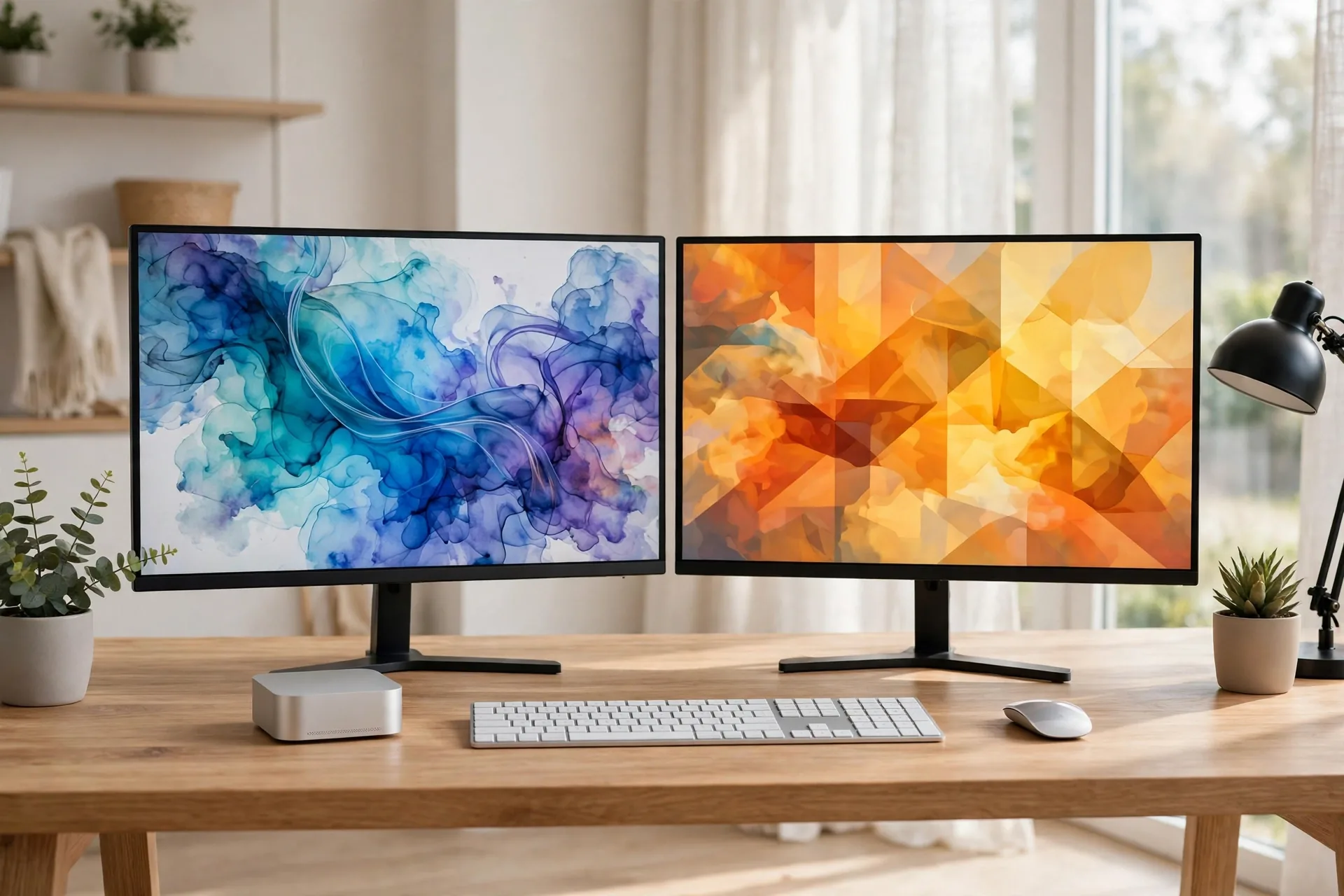
The Mac mini handles this well, since even the base M4 model drives multiple displays. A sharp 5K main screen plus a cheaper 4K side screen is a popular combo, and a portable monitor works as a travel second screen.
Keep the main screen directly in front of you and the second screen angled to one side. Your neck will tell you within a week if the angle is wrong.
FAQs
What is the best monitor for Mac mini overall?
The ASUS ProArt PA27JCV is the best monitor for Mac mini for most people. Its 27-inch 5K panel hits 218 pixels per inch for Retina-sharp text, and USB-C with 96W plus a KVM switch keeps the desk tidy. It costs around $700, about half the Studio Display.
Is 4K or 5K better for a Mac mini?
5K is better for sharp text because a 27-inch 5K panel matches macOS Retina rendering exactly at 218 pixels per inch. 4K costs much less and still looks good, but its 2560 by 1440 layout uses scaled rendering. Choose 5K for reading and writing, 4K for tight budgets.
Does the Mac mini work with any monitor?
Yes, any monitor with HDMI, DisplayPort over USB-C, or Thunderbolt will light up, since the Mac mini has an HDMI port and three Thunderbolt ports. For the sharpest result, use a rear Thunderbolt port with a 5K screen. HDMI tops out at 4K on most Mac mini models.
What size monitor is best for a Mac mini?
27 inches is the sweet spot for most desks, since 5K at that size hits the 218 pixels-per-inch Retina target exactly. A 32-inch 4K screen suits video editing and big spreadsheets, while a 24-inch 4K panel works well on small desks and still looks sharp.
Do I need USB-C on a monitor for Mac mini?
No, USB-C is handy but not required, since the Mac mini connects fine over Thunderbolt or HDMI. USB-C earns its keep when the monitor doubles as a hub for your keyboard and drives, or when you also dock a MacBook on the same desk.
Is the Apple Studio Display worth it for a Mac mini?
It’s worth it if you want zero setup friction plus a 12MP camera and six speakers in one purchase. At $1,599 it costs about twice the ASUS 5K pick for the same sharpness, so buyers who only need a great screen should save the difference.
Conclusion
Start with how you use your screen. Heavy readers should buy the 5K ASUS ProArt PA27JCV. Apple loyalists who want the camera and speakers built in should buy the Studio Display. Tight budgets should grab the Dell S2722QC and upgrade later.
Check your Mac mini model, and use a rear Thunderbolt port for 5K. Then buy a certified cable if the box cable feels flimsy. Then set the screen at arm’s length and get to work. If a bigger desk refresh is on your mind, check our best home office setup products roundup. It covers the rest of the gear.