
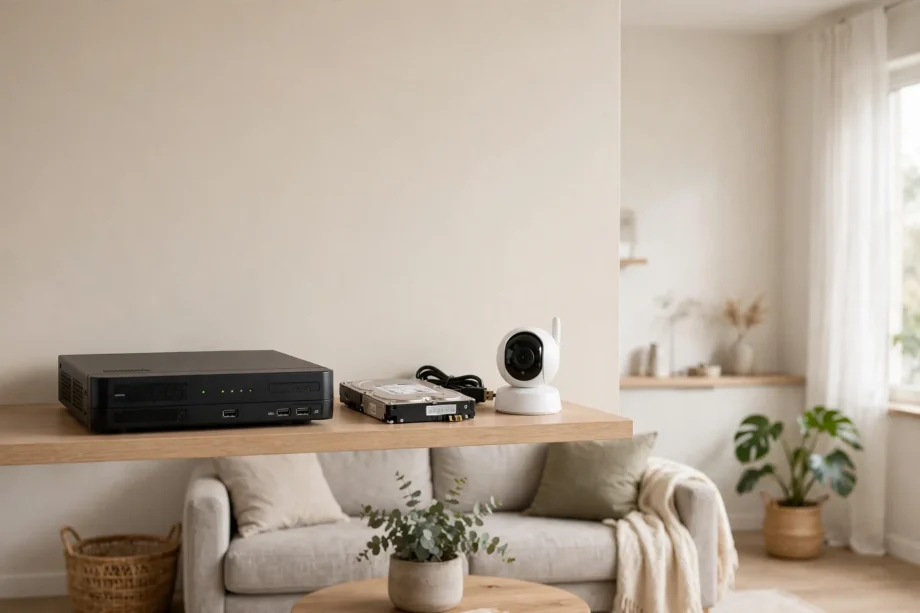
Wondering how to store security camera footage locally without cloud? Record to a microSD card in the camera, a network video recorder (NVR), a NAS box, or a brand hub like eufy HomeBase. All four keep your video in your home with zero monthly fees. An SD card suits one or two cameras, while an NVR is the better pick for whole-house coverage.
- Why Store Footage Locally at All?
- Option 1: microSD Card in the Camera
- Option 2: NVR (Network Video Recorder)
- Option 3: NAS (Network Attached Storage)
- Option 4: Brand Hubs Like eufy HomeBase
- How to Store Security Camera Footage Locally Without Cloud: Options Compared
- How Much Storage Do You Actually Need?
- Cameras That Work Without a Subscription
- What You Give Up Without Cloud
- Setting It Up and Protecting Your Footage
- Frequently Asked Questions
- How to store security camera footage locally without cloud and skip subscriptions?
- How much footage can a 128GB SD card hold?
- Is local storage safer than cloud storage?
- Can I view local footage when I’m away from home?
- Do I need internet for local camera storage to work?
- What happens to my recordings if I cancel a cloud plan?
- The Bottom Line
Cloud subscriptions quietly turn a cheap camera into an expensive one. A ten-dollar monthly plan costs $120 a year, every year, just to watch your own footage. Local storage skips all of that. This guide compares every local option honestly, does the storage math for you, and shows what you gain and give up by skipping the cloud.
Why Store Footage Locally at All?
Three reasons drive people away from cloud plans: money, privacy, and reliability. The money part is simple. Local storage has an upfront cost and then nothing. A 128GB microSD card costs less than two months of a typical cloud plan and lasts for years. An NVR with a hard drive pays for itself in about a year compared to multi-camera cloud subscriptions.
Privacy is the bigger reason for many. With local storage, your footage never sits on a company’s server. Nobody can change the terms, raise the price of your own video, or delete your history when you cancel. Some cloud cameras even delete your saved recordings the moment you stop paying. Local footage is yours in a way cloud footage never quite is.
Reliability cuts both ways, and honesty matters here. Local storage keeps recording during internet outages, which cloud cameras cannot do. But if a burglar steals the camera or the recorder, the footage goes with it. Cloud keeps an off-site copy that survives theft. The smart setup, which we will get to, uses local storage as the main system and treats cloud as an optional backup rather than a requirement.
Option 1: microSD Card in the Camera
This is the simplest local storage there is. You slide a microSD card into the camera, enable local recording in the app, and the camera saves motion clips or continuous video to the card. No extra hardware, no network configuration, no fees.
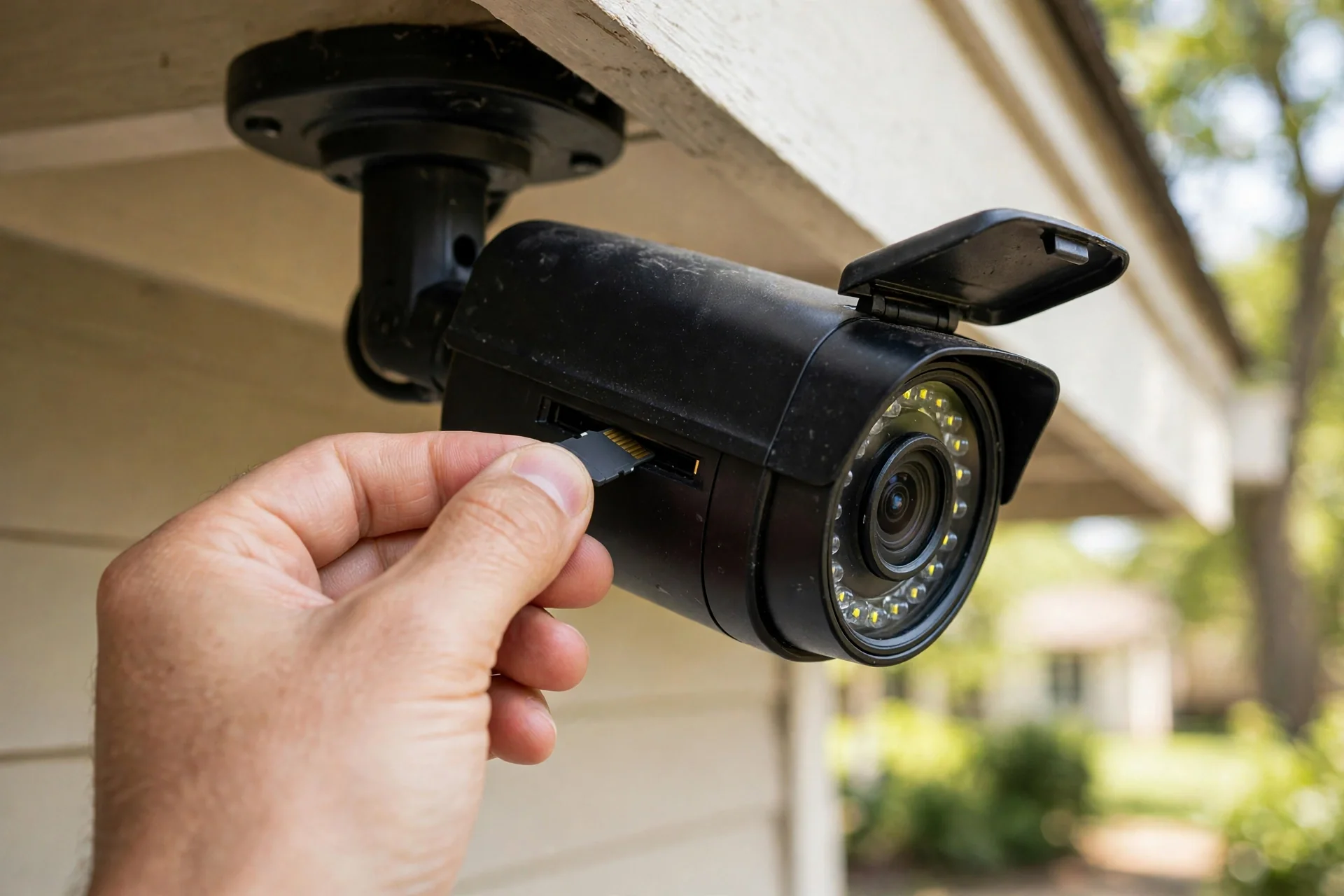
SD cards suit one or two cameras covering key spots like a front door or a driveway. They are cheap, silent, and use no extra power. Most cameras support 128GB or 256GB cards, and some handle 512GB. For motion-triggered recording, a 128GB card typically holds several weeks of clips before loop recording overwrites the oldest footage.
The limits are real. Storage tops out at days or weeks, not months. If the camera is stolen, the evidence goes with it. Cards wear out under constant rewriting, so buy high-endurance models rated for surveillance use. And reviewing footage means using the camera’s app or pulling the card, which gets tedious across many cameras. For a detailed walkthrough of that process, see our guide on video doorbells that record without a subscription, most of which rely on SD cards or hubs.
Option 2: NVR (Network Video Recorder)
An NVR is a dedicated box with a hard drive that records from multiple cameras over your network. Wired PoE cameras plug straight into the NVR, which powers them and records 24/7. This is the professional setup, and it is the best answer for four or more cameras.
The strengths are capacity and continuity. A single 2TB surveillance hard drive holds roughly eight days of continuous footage from four 4K cameras, and you can add bigger drives for longer retention. Recording never depends on your internet connection. Playback is centralized: one app or interface shows every camera, with a unified timeline.
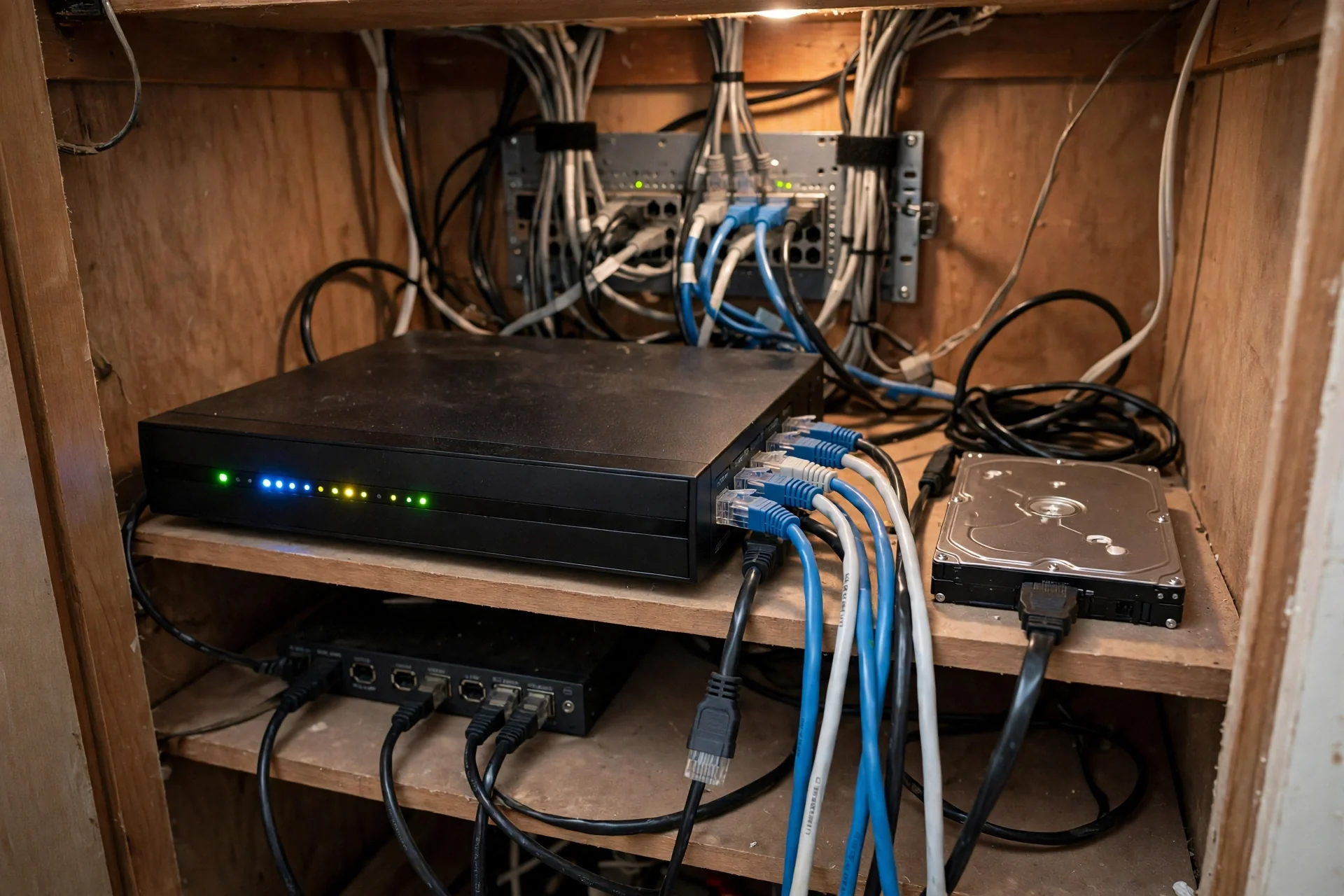
The trade-offs are cost and complexity. Expect a few hundred dollars for the NVR plus cameras, and running Ethernet cable to each camera takes real work. Remote viewing needs careful setup; never expose the NVR directly to the internet, since an open recorder is an open door into your network. A VPN is the safe way to check footage from outside the home.
One buying tip that saves regret: confirm the cameras record standalone and offer standard protocols like RTSP or ONVIF before you commit. Some kit cameras only work with their own recorder, which locks you into one brand forever. Standard protocols keep your options open if you switch recorders later.
Option 3: NAS (Network Attached Storage)
A NAS is a small box of hard drives on your home network that can do many jobs, one of which is storing camera footage. If you already own a NAS from Synology or QNAP for backups or media, adding camera recording costs nothing extra. Many NAS systems include free surveillance software with licenses for two cameras built in.
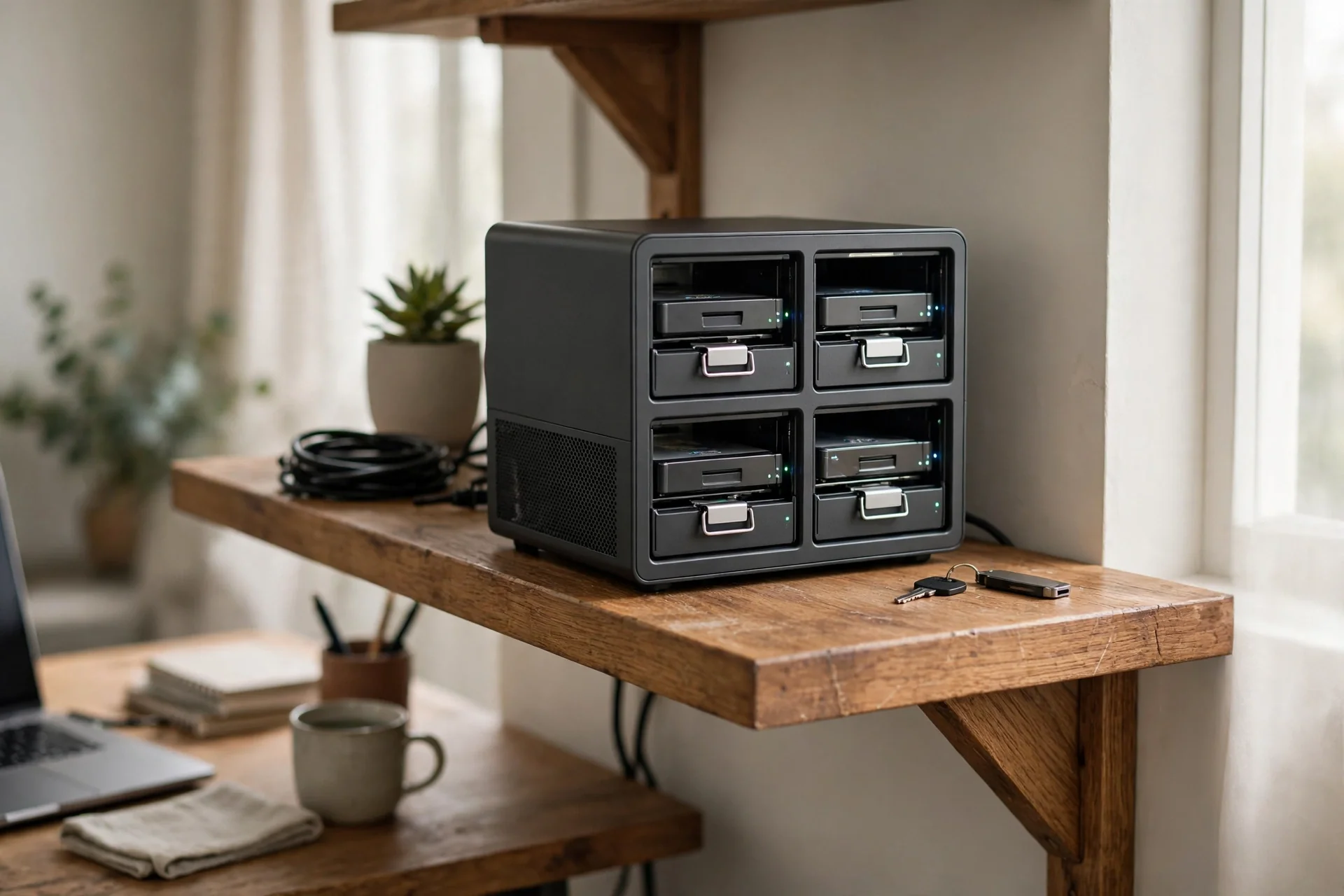
The appeal is flexibility. Your footage lives alongside your other data, protected by the NAS’s redundancy if you run mirrored drives. Advanced users can layer on automation, like moving old footage to cold storage or syncing encrypted copies off-site. Some cameras can record straight to a NAS over FTP or SMB with no recorder in the middle.
The catch is that a NAS is a generalist. It needs more setup than an NVR, camera license packs beyond the free ones cost money, and 24/7 video writing wears consumer drives faster. Use surveillance-rated hard drives if the NAS will record continuously. For most households choosing between the two, an NVR is simpler for cameras alone, while a NAS wins if you already have one running.
Option 4: Brand Hubs Like eufy HomeBase
Several camera brands now sell a hub that sits between their wireless cameras and your network. The best-known is eufy HomeBase, which stores footage from paired cameras on built-in storage, expandable up to 16TB on the HomeBase 3 (S380). Reolink’s Home Hub plays a similar role for its wireless cameras, with encrypted centralized storage.
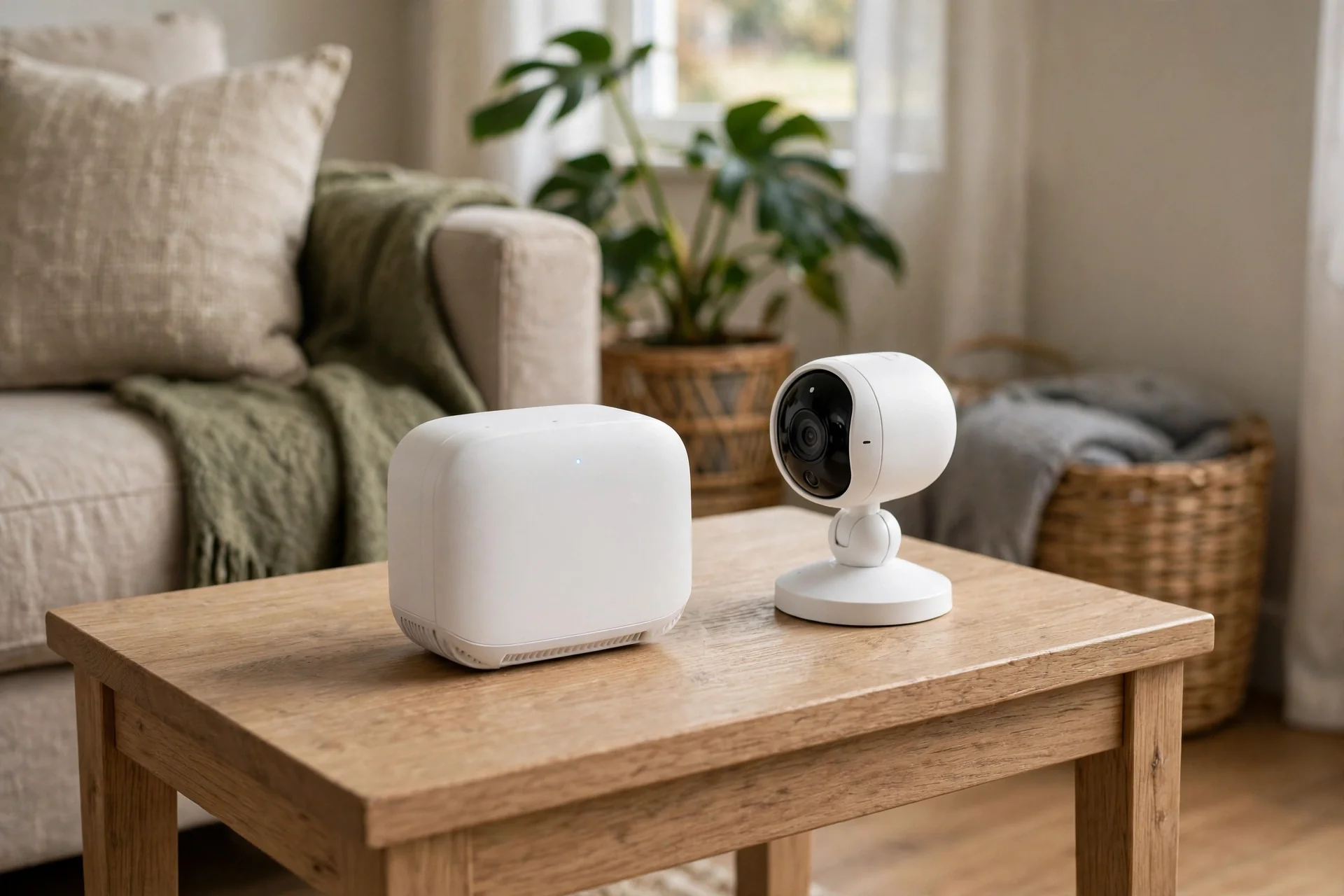
Hubs are the middle ground between an SD card and an NVR. Setup is genuinely easy: plug the hub into your router, pair the cameras in the app, and recording starts. You get centralized storage for up to 16 cameras on some models, plus on-device AI features like person detection without any cloud processing. Everything stays in your home.
The limitation is brand lock-in. A eufy hub only stores eufy cameras. If you later buy a different brand, you start over. Hubs also depend on the manufacturer’s app and firmware support long-term. For a single-brand wireless setup, though, they are the most user-friendly local storage you can buy. Our smart floodlight with local control guide covers cameras that keep working even when the internet drops, which pairs well with hub storage.
How to Store Security Camera Footage Locally Without Cloud: Options Compared
Table: local camera storage options at a glance
| Option | Best for | Typical retention | Upfront cost | Monthly fee |
|---|---|---|---|---|
| microSD card | 1-2 cameras | Days to weeks | Low | None |
| Brand hub | Single-brand wireless setups | Weeks to months | Medium | None |
| NVR | 4+ cameras, 24/7 recording | Weeks to months | Medium-high | None |
| NAS | Households that already own one | Weeks to months | Low if owned | None |
Notice the last column. Every option costs zero per month. That is the whole point. Pick based on how many cameras you have and how much setup effort you accept, not on subscription tiers.
How Much Storage Do You Actually Need?
Storage math surprises most people, so let us do it plainly. Continuous 4K video eats drive space fast. As a realistic benchmark, four 4K cameras recording continuously fill about 2TB in roughly eight days. Drop to 1080p and the same drive stretches several times longer.
But continuous recording is not the only mode. Motion-triggered recording changes everything. A front-door camera might record thirty minutes of actual motion on a busy day instead of twenty-four hours of empty porch. At that rate, a 128GB SD card that holds four days of continuous 1080p can stretch to a month or more of motion clips. Battery cameras work this way by necessity, since they cannot record 24/7 anyway.
Size for your worst case, not your average. If you want two weeks of history “just in case,” calculate from continuous recording at your cameras’ resolution, then treat motion-only mode as a bonus. Surveillance-rated hard drives are worth the small premium for NVR and NAS setups because they are built for constant writing. And whatever you choose, enable loop recording so the system overwrites the oldest footage instead of stopping dead when full.
Cameras That Work Without a Subscription
Not every camera allows local recording, so check before you buy. These brands support meaningful local storage with no mandatory plan.
Reolink. The standout for no-subscription flexibility. Cameras record to microSD, Reolink NVRs, the Reolink Home Hub, FTP, or NAS. Detection, local playback, and app access all work with no plan. Cloud is an optional add-on for off-site backup only.
eufy. Built around local storage from the start. Cameras record to SD cards or a HomeBase hub with no monthly fee. The S380 HomeBase supports up to 16TB of expandable storage and runs AI detection on-device.
TP-Link Tapo. Budget-friendly cameras with microSD slots and free local playback in the app. A solid pick for renters or anyone testing the waters.
Blink with Sync Module 2. Blink cameras normally push you toward a subscription, but the Sync Module 2 adds local USB storage that bypasses the plan for basic recording. Check current model support before buying, as Blink changes this often.
Lorex. Traditional wired systems with NVRs included. No subscriptions, long retention, and a more professional feel at a higher upfront price.
The brands to be careful with are the cloud-first ones. Ring, Arlo, and Nest cameras technically function without plans, but core features like video history and smart alerts sit behind the paywall. If local-first matters to you, start with a brand from the list above instead of fighting a cloud-first camera.
What You Give Up Without Cloud
Honesty requires the trade-offs. Local storage is not better at everything.
Off-site backup. This is the big one. If someone steals your NVR or smashes the camera with the SD card inside, that footage is gone. Cloud keeps a copy beyond the thief’s reach. Mitigate it with a hidden recorder location and, if the footage truly matters, an encrypted off-site backup of important clips.
Smarts that need the cloud. Some advanced AI features, like package detection with rich phone previews, are processed on company servers. Local AI on hubs like HomeBase covers person and pet detection well, but the cutting edge still lives in the cloud on some brands.
Easy sharing. Cloud apps make clip sharing effortless. Local systems can share too, but it takes more taps. Minor for most people, annoying for none.
For most homes, these are acceptable trade-offs. You keep every core function: live view, motion alerts, recording, and playback. What you lose is convenience at the edges, and what you gain is ownership of your own video with no monthly bill. Pairing cameras with motion sensor porch light automation also cuts false alerts, which matters more when you review footage locally.
Setting It Up and Protecting Your Footage
Setup order matters. Mount cameras first and confirm good Wi-Fi or cable runs before worrying about storage. Then insert the SD card, connect the NVR or NAS, or pair the hub, and enable local recording in each camera’s settings. Format storage through the camera or recorder’s own format option, not your computer, so the file system matches exactly.
Protect the footage itself. Put the NVR or NAS somewhere discreet, not next to the front door where it is easy to grab. A small UPS battery backup keeps cameras and the recorder running through short power cuts. Enable encryption if your hub or NAS offers it, so a stolen drive does not hand over your video.
Finally, build one off-site habit. Once a month, or after any incident, copy important clips to an encrypted USB drive stored elsewhere, or to a personal cloud folder you control. Local-first does not have to mean local-only. It means the cloud works for you on your terms, not as a monthly toll on your own front door.
Frequently Asked Questions
How to store security camera footage locally without cloud and skip subscriptions?
Yes, if you choose the right brand. Reolink, eufy, Tapo, Lorex, and Blink with a Sync Module 2 all record locally with no mandatory plan. You keep live view, motion alerts, and playback. Cloud-first brands like Ring and Arlo lock video history behind their subscriptions.
How much footage can a 128GB SD card hold?
About four days of continuous 1080p recording, or several weeks of motion-triggered clips, since motion-only recording captures far less video. At 4K the same card holds roughly a quarter of that. Enable loop recording so the oldest footage overwrites instead of recording stopping.
Is local storage safer than cloud storage?
It is more private but less theft-proof. Local footage never touches a company server, which eliminates account breaches and subscription changes. But a stolen camera or recorder takes the footage with it. The safest setup is local recording plus an encrypted off-site copy of important clips.
Can I view local footage when I’m away from home?
Yes. NVRs, NAS systems, and brand hubs all offer remote viewing through their apps with no subscription. You only need your home internet connection running. For NVRs, use a VPN rather than exposing the recorder directly to the internet.
Do I need internet for local camera storage to work?
Recording itself does not need internet. Cameras with SD cards or hub storage keep saving clips during outages. You will lose remote viewing and push notifications until the connection returns, but the footage will be waiting when you get back.
What happens to my recordings if I cancel a cloud plan?
On most cloud-first brands, your saved history is deleted. Sometimes immediately. That alone is one of the strongest arguments for local storage. With local recording there is nothing to cancel and nothing to lose. Your footage stays on your hardware regardless of any company’s billing decisions.
The Bottom Line
Learning how to store security camera footage locally without cloud is straightforward and cheaper than most people expect. One or two cameras? A high-endurance microSD card or a brand hub does the job. Whole-house coverage? An NVR with a surveillance hard drive. Already own a NAS? Put it to work. Pick a local-first brand, size the storage for your worst case, hide the recorder, and keep an off-site copy of anything important. Your footage stays yours, and the monthly bill stays zero. For the broader picture of keeping your home monitored without monthly fees, start with eufy’s local storage camera lineup to see what hub-based recording looks like in practice.