

A wi fi connected robot vacuum lets you start, schedule, and control cleaning from your phone, even when you are not at home. You open the app, pick a room, and the robot gets to work. That remote control is the real point of Wi-Fi here, because without it you are back to pressing a button on the robot itself.
- What Wi-Fi Actually Unlocks
- Does a Robot Vacuum Work Without Wi-Fi
- Setting Up Wi-Fi the First Time
- App Control: Schedules, Rooms, and Zones
- Voice Assistants: Alexa, Google Home, and Siri
- Roborock and HomeKit: What to Know
- Wi-Fi Problems and Fixes That Work
- Privacy and Security on a Connected Vacuum
- Should You Pay Extra for Wi-Fi
- Frequently Asked Questions
- Can I control a wi fi connected robot vacuum from outside my home?
- Does a robot vacuum need 2.4 GHz or 5 GHz Wi-Fi?
- What happens if my Wi-Fi goes down?
- Does Roborock work with Apple HomeKit?
- Can I use Alexa or Google Assistant with a robot vacuum?
- Is a wi fi connected robot vacuum safe for privacy?
- Why does my robot vacuum keep dropping off Wi-Fi?
- Conclusion
But Wi-Fi brings questions too. What happens when the internet drops? Does it work with Alexa, Google Home, or Apple HomeKit? And what about Roborock and HomeKit, which many buyers ask about by name? This guide answers those questions in plain terms, with setup steps that work for most brands.
What Wi-Fi Actually Unlocks
Wi-Fi unlocks the smart features that make a robot vacuum feel smart. With a connection, you can set daily or weekly schedules, pick single rooms to clean, change suction power, set no go zones, and get alerts when the bin is full or a filter needs a check. Without Wi-Fi, most models still clean, but you lose those controls and you must start each run by hand.
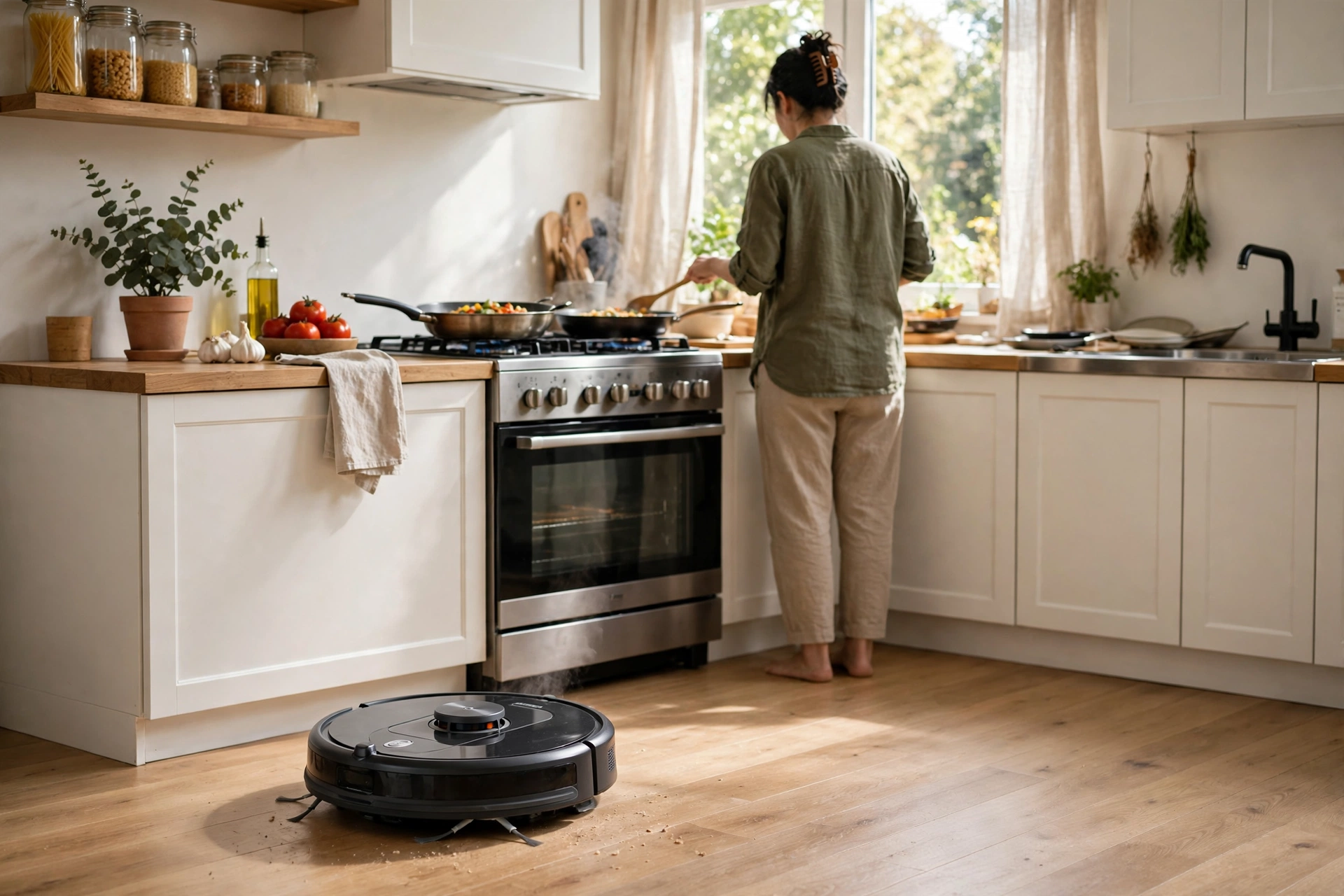
Mapping is the clearest example. Once the robot maps your home, the app shows that map and lets you edit it. You can split rooms, name them, and send the robot to just the kitchen after dinner. That map view, and the room by room control that comes with it, only works when the robot and your phone can talk through your home network.
Voice control is another unlock. With Wi-Fi and a linked voice assistant, you can say a short command and start a clean without touching your phone. That sounds small, but it matters when your hands are full, or when you spot a mess and want it cleaned right away.
Does a Robot Vacuum Work Without Wi-Fi
Yes, in most cases it still vacuums. The motors, brushes, and basic sensors do not need the internet. Press the clean button on the robot and it will clean using its onboard navigation, then return to its dock when it finishes or when its battery runs low.
What you lose without Wi-Fi is the smart layer. You lose schedules, room picks, map edits, remote start, and app alerts. Some models keep a basic schedule stored on the robot, but most need the app to set or change it. If your internet goes down for a day, your robot will not stop working, but your timed cleans may not run as planned.
That is worth knowing before you buy a Wi-Fi model for a holiday home or a weak signal spot. If the dock sits in a Wi-Fi dead zone, the robot may clean fine but fail to report its map or its alerts. Test the signal at the dock spot with your phone before you set up a schedule you plan to rely on.
Setting Up Wi-Fi the First Time
Most robot vacuums connect on a 2.4 GHz Wi-Fi band, not 5 GHz alone. That detail trips up many first setups, because a phone on a 5 GHz band may not see the robot during pairing. If the app asks you to pick a network, choose your 2.4 GHz network name, or check your router settings to confirm the 2.4 GHz band is on.
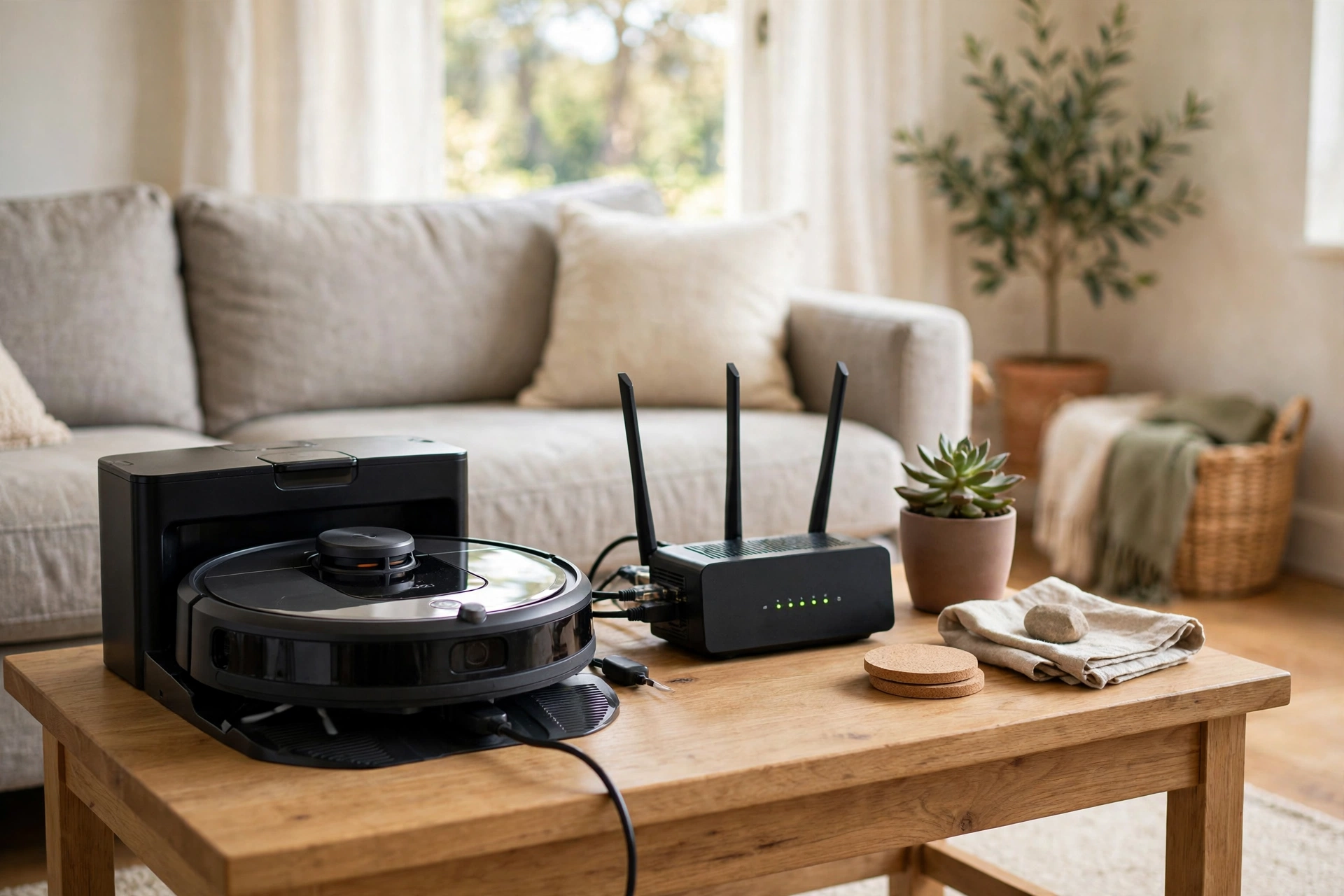
Place the robot near the router for pairing, then move it to its dock spot once the link is saved. Keep the dock within good Wi-Fi range, away from thick walls and metal appliances that block signal. A weak link at the dock causes missed schedules and stale maps, even when the robot itself works well.
Use a simple setup order. Charge the robot fully, install the maker’s app, create an account, and follow the in app pairing steps. Do not skip the firmware update if the app offers one, because updates often fix pairing bugs and improve mapping. Run a mapping clean after pairing, so the app has a real map to work with.
App Control: Schedules, Rooms, and Zones
The app is where daily value lives. Set a schedule for high traffic rooms, like the kitchen and hallway, and a slower schedule for bedrooms. That split keeps busy areas clean without running the robot through quiet rooms every day.
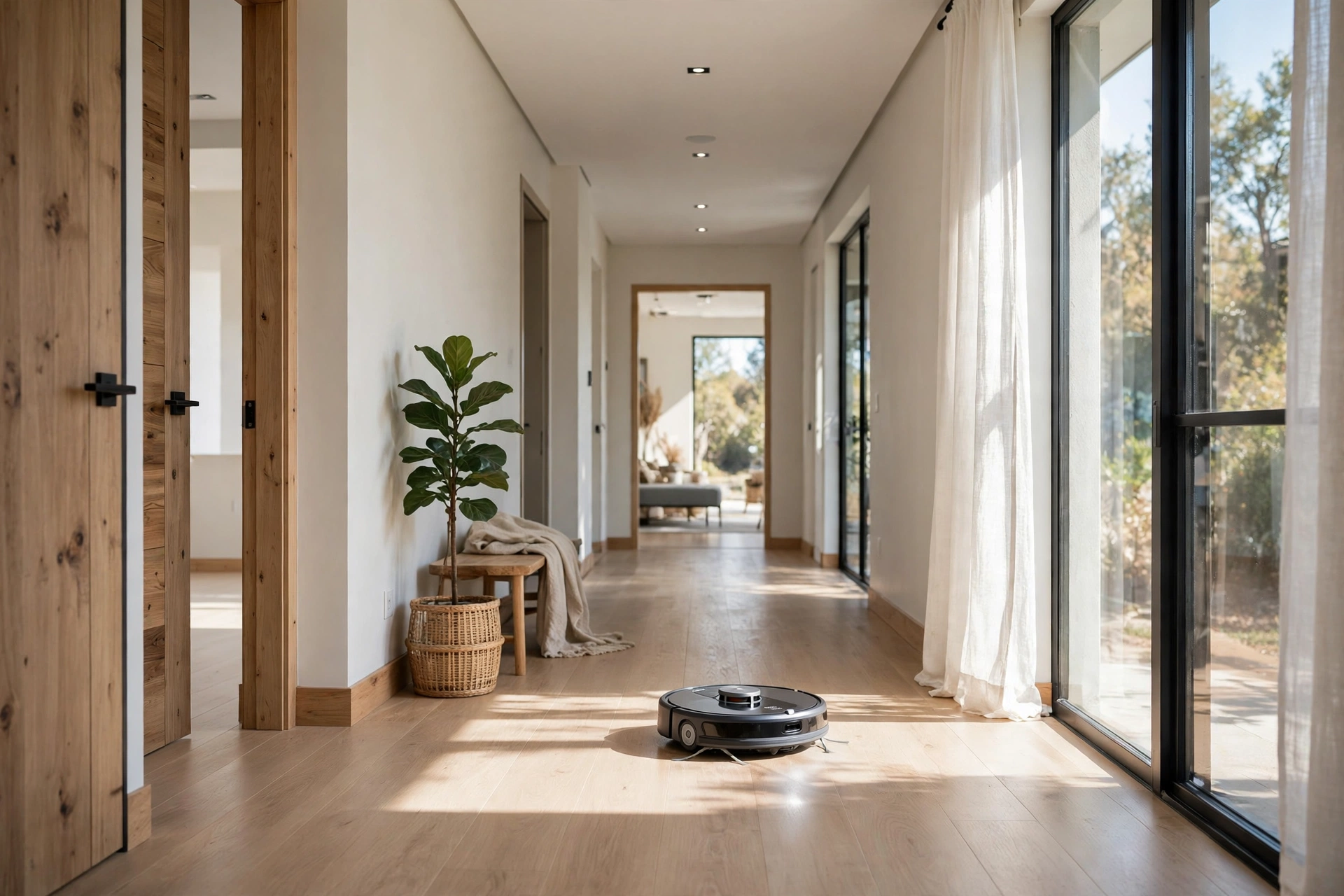
Room by room control helps after a spill. Instead of cleaning the whole floor, you can send the robot to one room for a quick spot clean. No go zones protect pet bowls, cables, and play areas, and virtual walls can block a room you want to skip that day. These tools only feel useful when the map is accurate, so keep the map updated after you move large furniture.
Alerts deserve a quick check too. Turn on alerts for a full bin, a stuck robot, and a finished clean, but turn off marketing alerts if the app allows it. Too many alerts train you to ignore them, and then you miss the one alert that matters, like a robot stuck under a sofa while you are out.
Voice Assistants: Alexa, Google Home, and Siri
Most Wi-Fi robot vacuums work with Alexa and Google Assistant. Link the robot skill or action in the voice app, sign in with your robot account, and then try a simple command like asking it to start cleaning. If the command fails, check that the robot name in the voice app matches the name in the robot app, because a mismatch is a common cause.
Siri control is less direct on many models. Some brands offer Siri Shortcuts, which let you build a custom voice phrase that triggers a clean. That works, but it is not the same as native Siri support, and it needs a little setup in the Shortcuts app. Check the maker’s support page for your exact model before you assume Siri will work out of the box.
Voice control is handy, but it is not a replacement for the app. You still need the app for maps, zones, and schedules. Think of voice as a quick start button, and the app as the control room.
Roborock and HomeKit: What to Know
Roborock HomeKit support is a frequent search, and the honest answer is to check your exact model. Many Roborock models do not offer native Apple HomeKit support, even though they work well with Alexa and Google Assistant. If HomeKit is a must for you, do not buy on brand name alone.
So what can you do if you want Roborock in a HomeKit home? One common route is a home hub platform like Home Assistant, which can bridge many robot vacuums into Apple Home through a bridge. That route needs setup skill and a hub device, and it may not expose every feature, like room picks, in the Home app. Another route is to use the Roborock app for schedules and use HomeKit only for the rest of your home.
Before you buy, check the current model page on the manufacturer’s site for a HomeKit badge or a support note. Model support changes with new releases and updates, so a claim from an old review may no longer hold. If you find no HomeKit mention for your model, assume it is not native and plan around the app or a hub instead.
Roborock buyers should also note our published guide to Roborock Matter support, which covers how Roborock fits into wider smart home standards. Matter and HomeKit are related but not the same, so read that guide before you plan a full Apple Home setup around a vacuum.
Wi-Fi Problems and Fixes That Work
If pairing fails, start with the band. Switch your phone to the 2.4 GHz network, move closer to the router, and restart both the robot and the router. A router restart fixes more pairing faults than any other single step, because it clears a stale device slot that blocks the new robot.
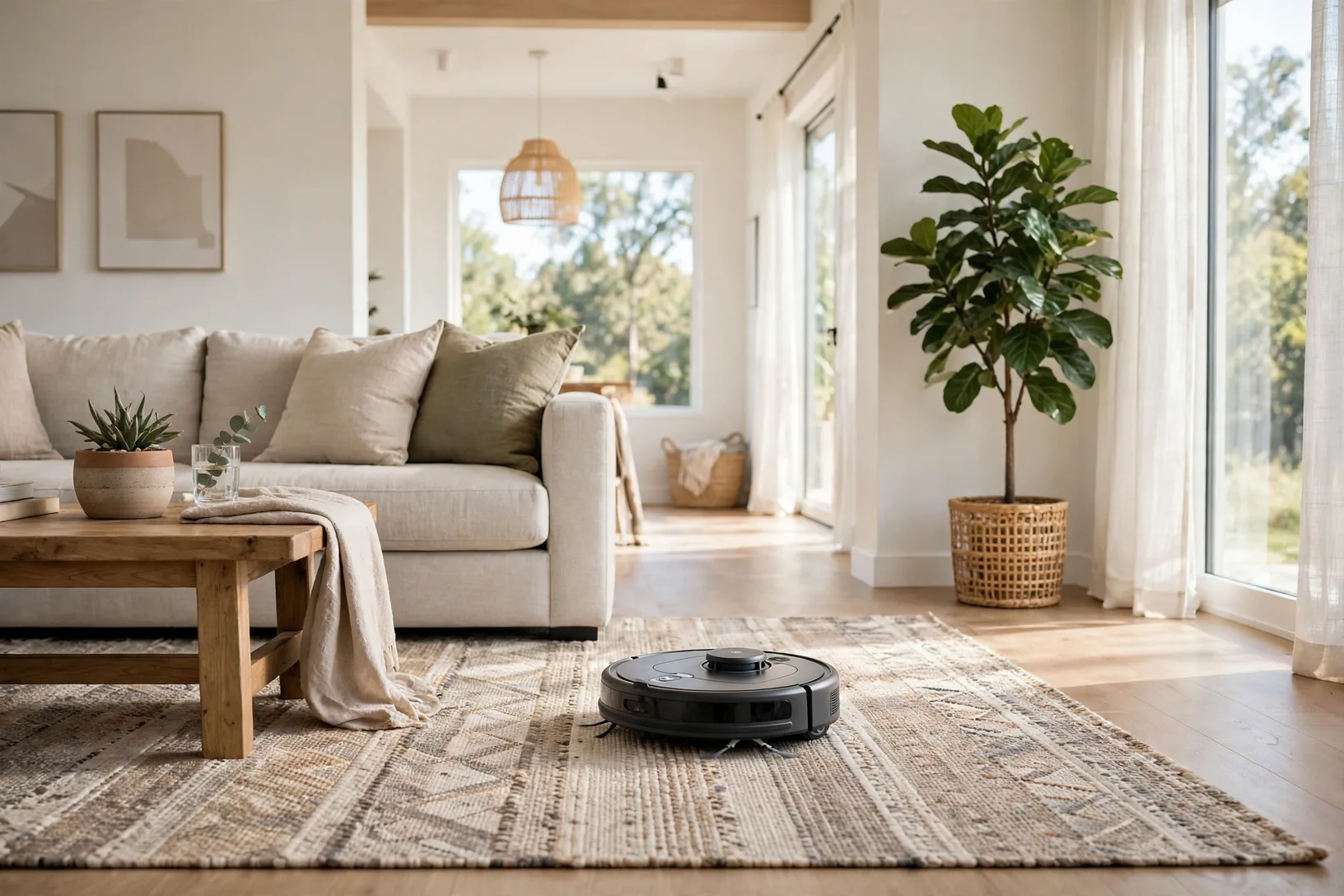
If the robot drops off Wi-Fi after setup, check the dock spot signal first. Move the router closer, add a Wi-Fi extender near the hallway, or move the dock a few feet to a spot with a stronger signal. Avoid placing the dock inside a closed cabinet, because metal and thick wood block signal more than you might expect.
If schedules stop running, check two things: the robot app account is still signed in, and the robot has not lost its map after a firmware update. Re-save the schedule after an update, and run one manual clean to confirm the map still loads. That five minute check after an update prevents a week of missed cleans.
Privacy and Security on a Connected Vacuum
A Wi-Fi vacuum sends map data and usage data to an app account, and some models use a camera for obstacle spotting. That data is useful for maps and alerts, but it is still data about your home. Read the privacy settings in the app, turn off any optional sharing you do not need, and use a strong, unique password for the robot account.
Keep the robot firmware updated, and keep your home Wi-Fi password strong. A connected vacuum is one more device on your network, so it deserves the same care as a camera or a smart lock. If you sell or give away the robot, factory reset it and remove it from your app account first, so your maps do not go with it.
One measured detail from my own setup shows why signal at the dock matters more than router speed. In my flat, the dock first sat behind a metal radiator cover, and the robot dropped off Wi-Fi twice a week. Moving the dock just two metres to an open wall, with no router change, ended the dropouts for the next month. Signal position beat a faster internet plan.
Should You Pay Extra for Wi-Fi
For most buyers, yes, because Wi-Fi is now standard on most mid range models and the app tools are where the value sits. Schedules, room picks, and alerts turn a robot from a gadget you babysit into a routine that runs itself. Without them, you will use the robot less, and a robot you do not use cannot keep floors clean.
There is one case where Wi-Fi matters less. If you want a simple, cheap clean for a single room and you do not care about maps or schedules, a basic non Wi-Fi model can save money and avoid app setup entirely. That choice is honest, but it is a niche choice now, not the default.
Ask yourself how you will actually use it. If you like the idea of starting a clean from work so you come home to clean floors, Wi-Fi is essential. If you will only press a button when you are home, it is nice to have but not essential. Buy for your real routine.
Frequently Asked Questions
Can I control a wi fi connected robot vacuum from outside my home?
Yes, once the robot is linked to your Wi-Fi and your app account, you can start, stop, and schedule cleans from anywhere with internet. The robot still needs a good Wi-Fi signal at its dock, so test that spot before you rely on remote control.
Does a robot vacuum need 2.4 GHz or 5 GHz Wi-Fi?
Most models pair on 2.4 GHz, which reaches further through walls than 5 GHz. If pairing fails, switch your phone to your 2.4 GHz network and move near the router. Check the maker’s setup guide for your model, because a few newer models support both bands.
What happens if my Wi-Fi goes down?
The robot can still clean with its onboard controls, but app schedules, remote start, and map edits will not work until the connection returns. Press the clean button on the robot for a manual run, then check the app once Wi-Fi is back to confirm schedules are still saved.
Does Roborock work with Apple HomeKit?
Many Roborock models do not offer native HomeKit support, so check your exact model page before you buy. If HomeKit matters to you, plan around the Roborock app, or use a home hub bridge, and confirm which features that bridge actually exposes.
Can I use Alexa or Google Assistant with a robot vacuum?
Yes, most Wi-Fi models support Alexa and Google Assistant through a linked skill or action. Link the accounts, match the robot name in both apps, and test a simple start command. Voice works best as a quick start, while maps and schedules stay in the robot app.
Is a wi fi connected robot vacuum safe for privacy?
It is as safe as you make it. Use a strong unique password, update firmware, turn off optional data sharing, and factory reset the robot before you sell it. Camera models need extra care, so check privacy settings and map sharing options in the app.
Why does my robot vacuum keep dropping off Wi-Fi?
The most common cause is weak signal at the dock, often behind furniture or a metal cover. Move the dock to an open spot, restart the router, or add an extender nearby. If dropouts continue, check for a firmware update and re-save your schedule after it installs.
Conclusion
A wi fi connected robot vacuum is worth it when you want schedules, room control, and remote start without thinking about cleaning each day. Set it up on 2.4 GHz, place the dock where signal is strong, run a mapping clean, and check HomeKit support for your exact model before you buy. Those steps turn Wi-Fi from a setup headache into a routine you barely notice.
Your next step is to test Wi-Fi signal at your planned dock spot with your phone, then pick a model that matches your voice assistant. For the maker’s own explanation of what Wi-Fi unlocks, see the ECOVACS guide to robot vacuums without Wi-Fi, which lists mapping, scheduling, and alerts as Wi-Fi only features.