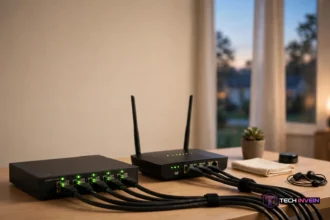



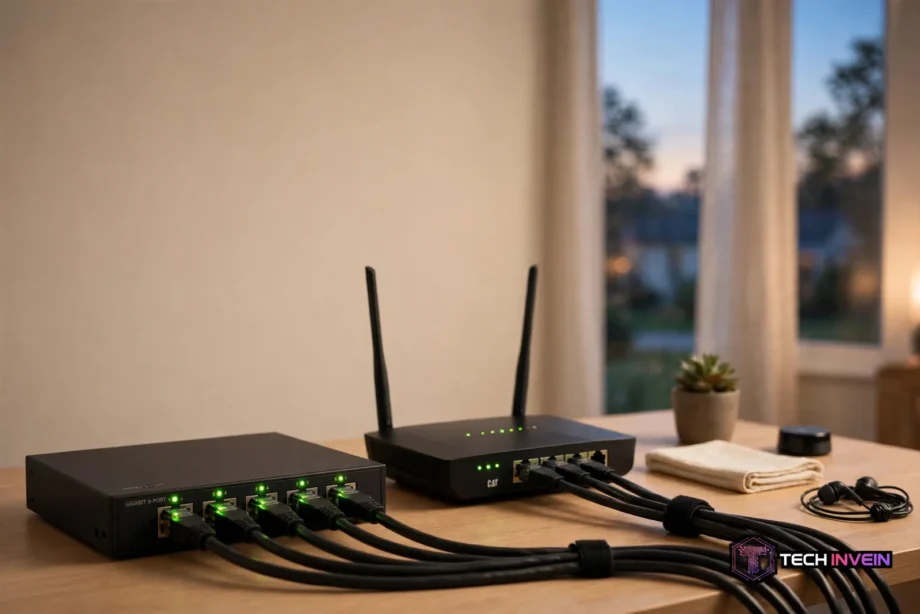
An unmanaged switch is a plug-and-play box that adds wired Ethernet ports to your home network. Plug one cable from your router into the switch, then plug your TV, console, and PC into the spare ports. There’s no app, no login, and no setup. For most homes, it’s the simple fix when a router runs out of ports.
- What Is an Unmanaged Switch?
- How Your Switch Moves Data Around the House
- Unmanaged vs Managed: The Real Difference
- Gigabit Switch Speeds Explained
- How Many Ports Do You Need?
- PoE Switches and Homelabs
- Ethernet Switch vs Router: Do You Need Both?
- How to Set One Up in Ten Minutes
- Mistakes to Avoid With Your First Switch
- When an Unmanaged Switch Is the Wrong Buy
- FAQs
- Do I need a switch if my router has spare ports?
- Does a switch slow down my internet speed?
- Can I plug a switch into another switch?
- How many devices can one switch handle?
- Do I need a managed switch for a home lab?
- Where should I put the switch in my house?
- Final Word
What Is an Unmanaged Switch?
Think of it as a power strip for network cables. Your router has four Ethernet ports, and that sounds like plenty until you count your gear. A smart TV, a game console, a desktop PC, and a printer already fill all four. So you need more ports.
An unmanaged switch solves this one problem and nothing else. First, it takes one port from your router and turns it into five, eight, or sixteen ports. You plug it in, connect your cables, and it starts working right away.
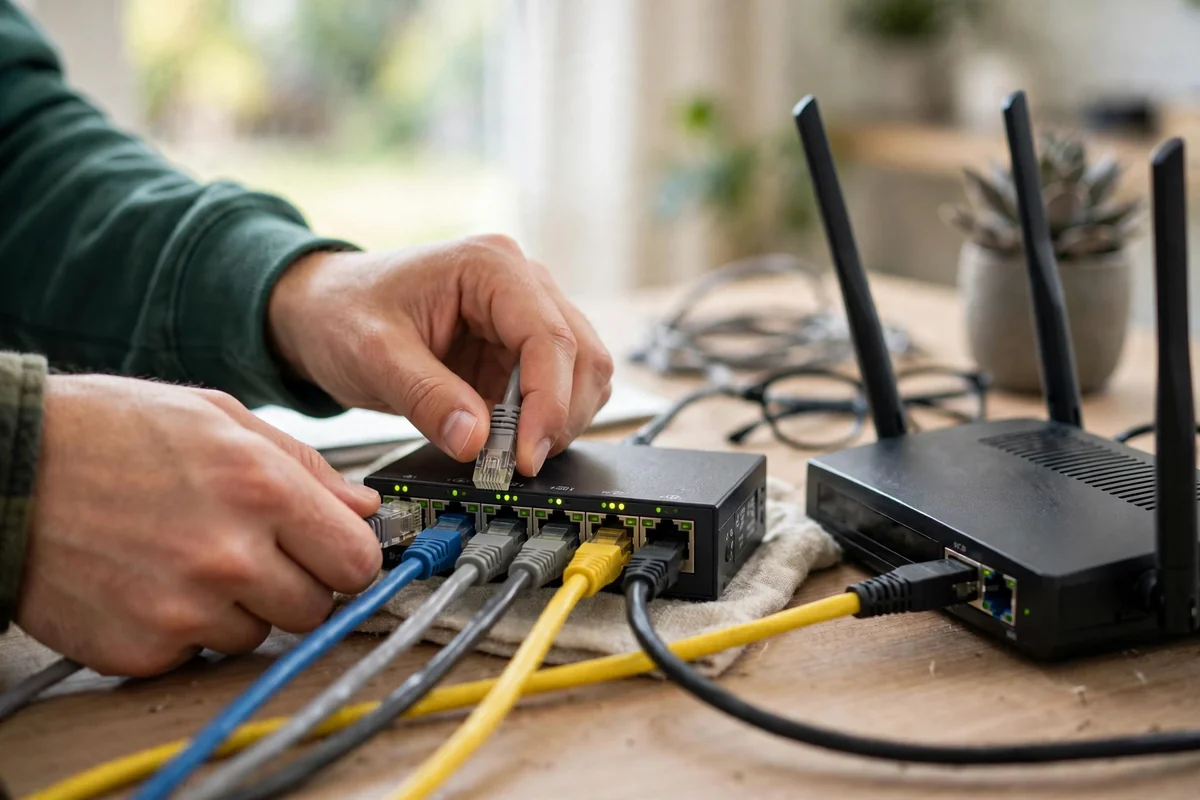
Every port on the box works the same way. Any device can plug into any port, and the switch sorts out where the data should go. It learns which device sits behind each port, then sends each packet only to the right port.
Most homes need nothing more than this. If your goal is simply to wire up more devices, buy the simple box. The fancy features only matter when your network has a specific problem to solve.
How Your Switch Moves Data Around the House
Inside the box, the switch works at what network engineers call Layer 2. In plain terms, it deals with MAC addresses, and every wired device has one.
When a device sends data for the first time, the switch notes which port it came from. Then it builds a small table of addresses and ports, and forwards each packet straight to the right port. That means your PC can copy a file to your storage drive without bothering your TV at all.
Local traffic stays local, and that’s a quiet win. A big file transfer between two devices on the same switch never touches your router.
Each port also sets its own speed. A gigabit switch port talks at 10, 100, or 1000 Mbps, and it picks the fastest speed both ends support. A slow printer on one port won’t drag down a fast PC on the next port. Each link runs at its own pace.
Unmanaged vs Managed: The Real Difference
The difference is control, not speed. Both types forward traffic at full line rate. A managed network switch simply adds a settings page and a set of tools on top of the same job. You can split your network into sections, set traffic priorities, and watch what each port is doing. TP-Link’s own guide to unmanaged switches puts it plainly: if you only need more ports, the simple box is the right pick.
A managed switch lets you build VLANs, which turn one physical switch into several separate networks. So your security cameras can sit apart from your laptops, and the two groups can’t see each other.
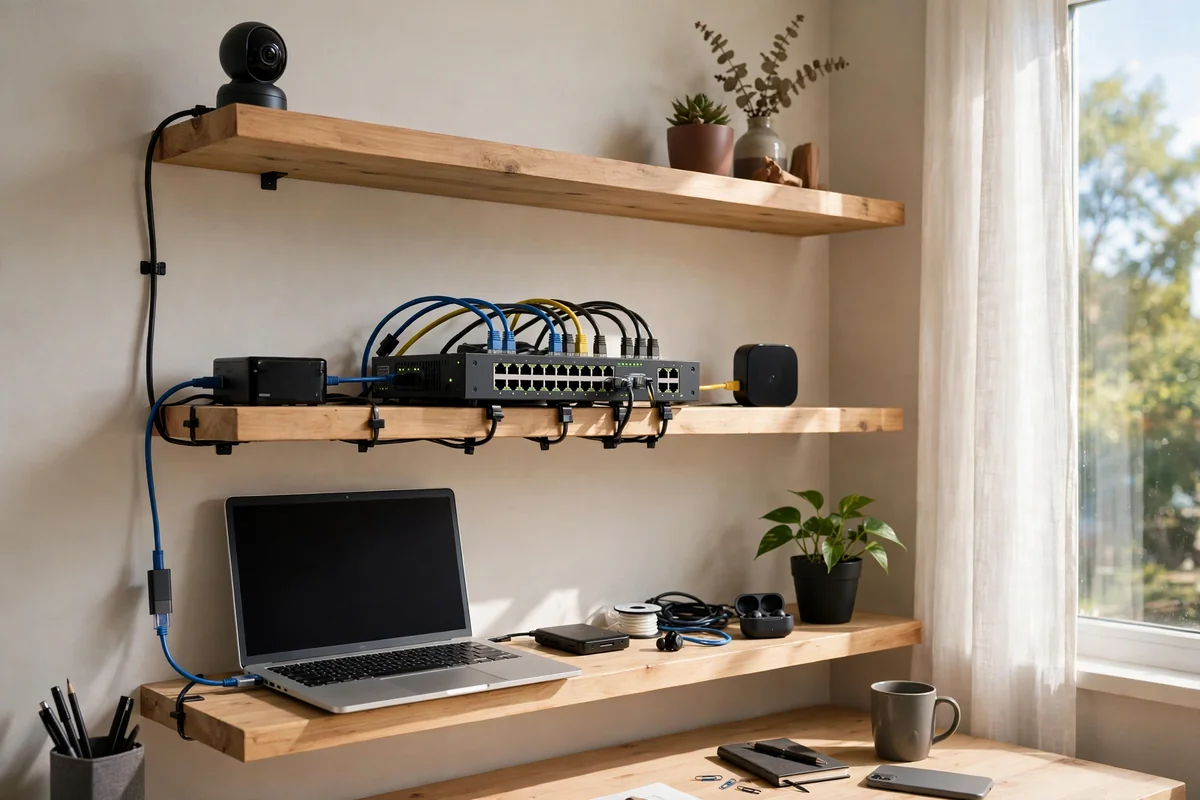
There’s a middle tier too. Smart switches, sometimes called web managed, give you a simple web page with VLANs and basic QoS. They cost less than a fully managed switch and skip the command line. For a home lab, this middle tier is often the sweet spot.
Table: Unmanaged vs smart vs managed switches at a glance
| Feature | Unmanaged | Smart | Managed |
|---|---|---|---|
| Setup | Plug and play | Web page | Web page and command line |
| VLANs | No | Yes, basic | Yes, full |
| Traffic priority | No | Basic QoS | Full QoS |
| Port monitoring | Link lights only | Basic stats | Full stats and alerts |
| Loop protection | No | Sometimes | Yes |
| Typical 8-port price | $15 to $25 | $50 to $80 | $150 and up |
One myth needs to die here. A managed switch is not faster than an unmanaged one. Both move data at the speed of their ports. Buy for features, never for speed.
Gigabit Switch Speeds Explained
A gigabit switch is the default pick for most homes. In fact, gigabit means each port can move up to 1,000 Mbps, which is far faster than most internet plans. So your internet speed, not the switch, sets the limit for streaming and browsing.
But local traffic is a different story. If you move big video files to a storage drive, or you edit video straight off a home server, gigabit can feel slow. That is when 2.5 gigabit ports start to make sense, and they still use normal Ethernet cables.
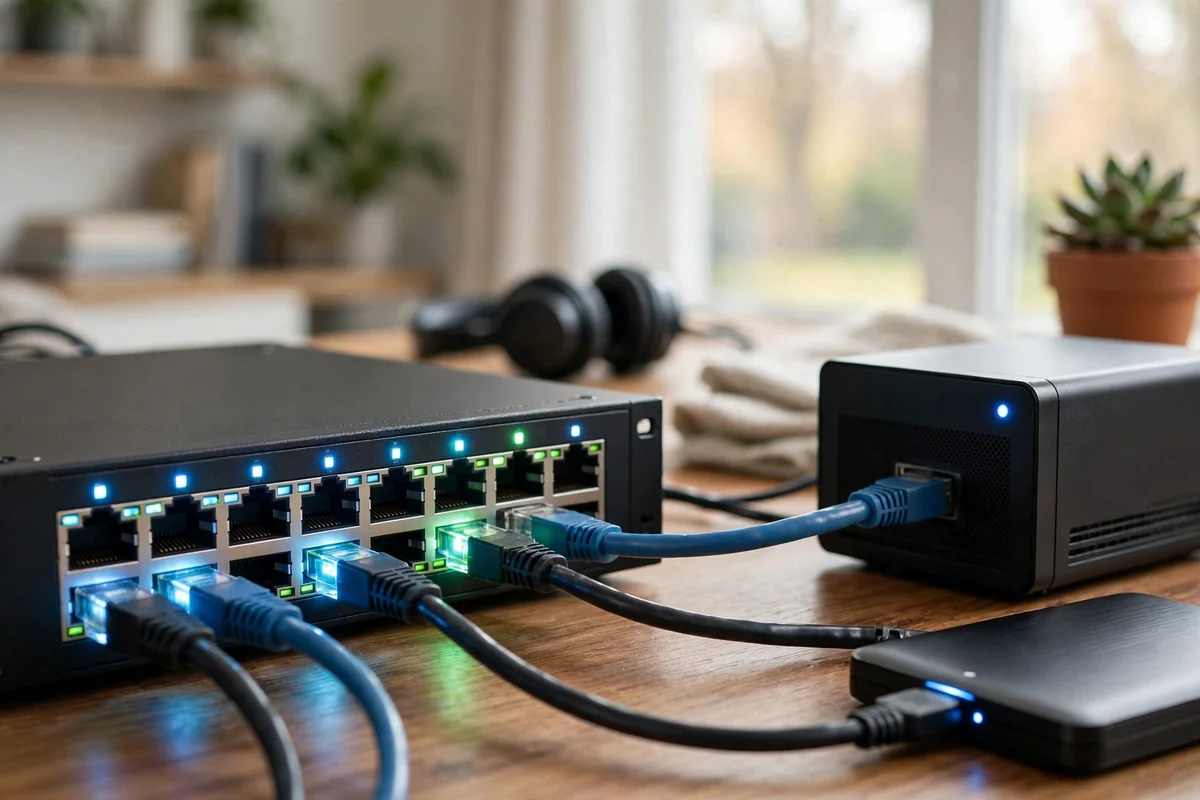
A 10gb ethernet switch is the top step, and it’s still a niche buy for homes. Ten gigabit ports shine when a fast storage server and a fast PC talk to each other all day. For a family that mostly streams and browses, those ports sit idle.
Here is a simple test. Check the fastest wired device you own. If nothing in your home has a port faster than gigabit, a gigabit switch is all you need.
How Many Ports Do You Need?
Count first, buy second. People buy a 5 port ethernet switch, fill it in a week, and then buy a second one. Count every wired device you own today, then add two spare ports for growth.
A 5 port ethernet switch gives you four usable ports, because one port connects back to the router. That covers a TV, a console, a PC, and one spare. It fits a single room, but it leaves no room to grow.
In particular, an 8 port gigabit switch is the sweet spot for most homes. You lose one port to the router link, so you get seven for devices. That covers a living room or a home office, and the price jump from five ports to eight is small.
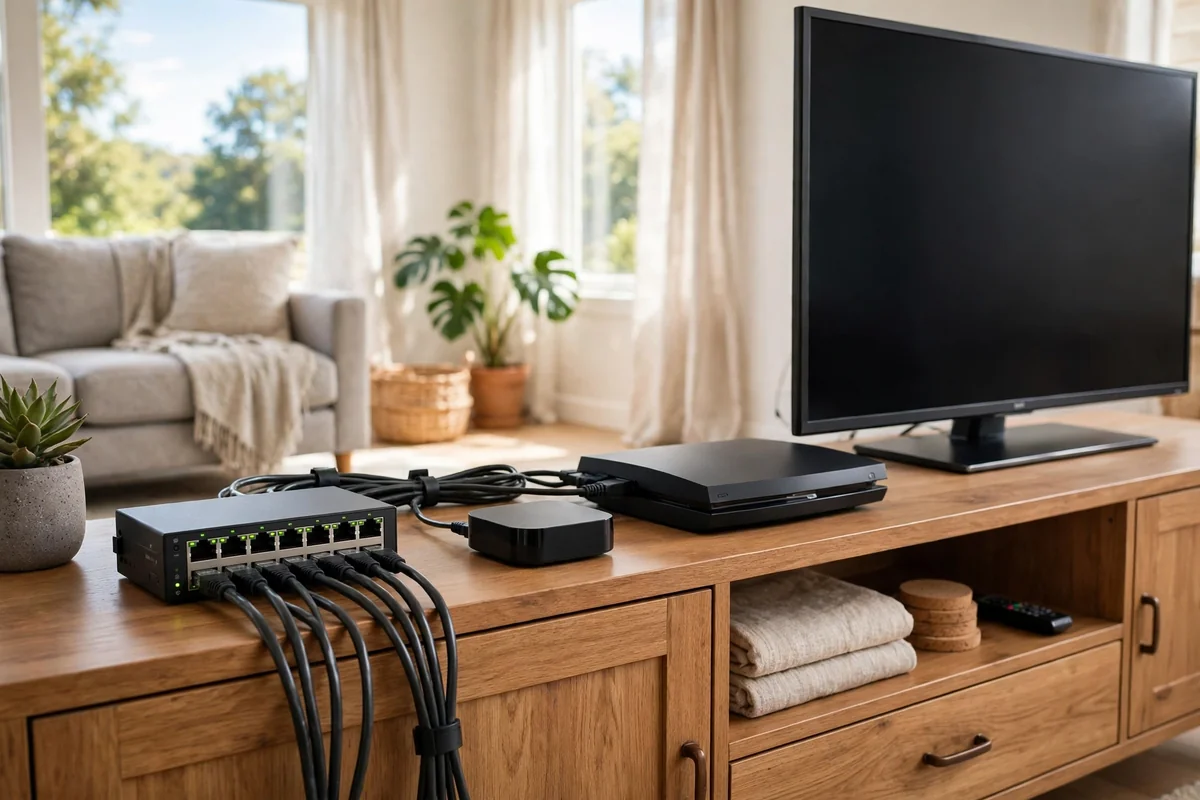
Sixteen ports suit a home with a central wiring closet, where cables from several rooms meet in one spot. A 24 port switch belongs in a rack, and most homes will never need one.
Table: Port-count picks for common home setups
| Switch size | Ports free for devices | Best fit |
|---|---|---|
| 5 port | 4 | One room or a small desk |
| 8 port | 7 | Living room or home office |
| 16 port | 15 | Central wiring closet |
| 24 port | 23 | Rack, cameras, and home lab |
My own rule is simple. Count your wired devices, add two, then buy the next size up. If you count six devices, you need a 16 port box. It feels like overkill on day one, and it feels smart a year later.
Before you buy, sketch where your cables run. Our guide to smart home wiring design shows how to plan cable runs and a central spot for your gear.
PoE Switches and Homelabs
PoE stands for Power over Ethernet, and it lets one cable carry both data and power. So a security camera or a Wi-Fi access point can run off a single cable with no power brick and no nearby socket.
PoE comes in three strengths. Standard PoE gives up to 15.4 watts per port, PoE+ gives up to 30 watts, and PoE++ gives up to 60 or 90 watts. Most cameras and access points run fine on PoE+, so check the device label before you pick a switch.
Here is the number that trips people up. The total PoE budget matters far more than the per-port figure. A switch with eight PoE+ ports may only have a 65 watt total budget, so four small cameras at 15 watts each nearly use it all up. Add up your devices first, then add about 20 percent headroom.
The best poe switches for homelabs usually sit in the smart tier, not the unmanaged tier. Homelab owners want VLANs to separate cameras and smart home gear from their main network, and a smart PoE switch gives you that control plus the power budget in one box.
Ethernet Switch vs Router: Do You Need Both?
Yes, you need both, because they do different jobs. The router connects your home to the internet, hands out IP addresses, and acts as a firewall. The switch only connects wired devices to each other inside your home.
Most home routers already contain a small switch. Look at the back of yours and you’ll likely see four Ethernet ports. If you have four wired devices or fewer, you may not need a separate box at all.
The moment you pass four devices, the math changes. A switch plugs into one router port and hands you five, eight, or sixteen more. That’s cheaper than buying a bigger router. Our guide to how to configure a router walks through the settings that matter once your wired network grows.
One setup works well in almost every home: modem to router, router to switch, switch to devices. That chain keeps each box doing one job well, and if something breaks, you know which box to check first.
How to Set One Up in Ten Minutes
Setting up an unmanaged switch is the easiest networking job in your home. There’s no software to install and no account to create. You need the switch, its power adapter, and one Ethernet cable.
Next, plug the switch into power and watch the lights. Most switches light up each port when a cable is connected, a dark port usually means a loose cable or a sleeping device.
Then run one Ethernet cable from any LAN port on your router to any port on the switch. That port becomes the uplink, and it carries all traffic between the switch and the router. It doesn’t matter which port you pick, because every port works the same way.
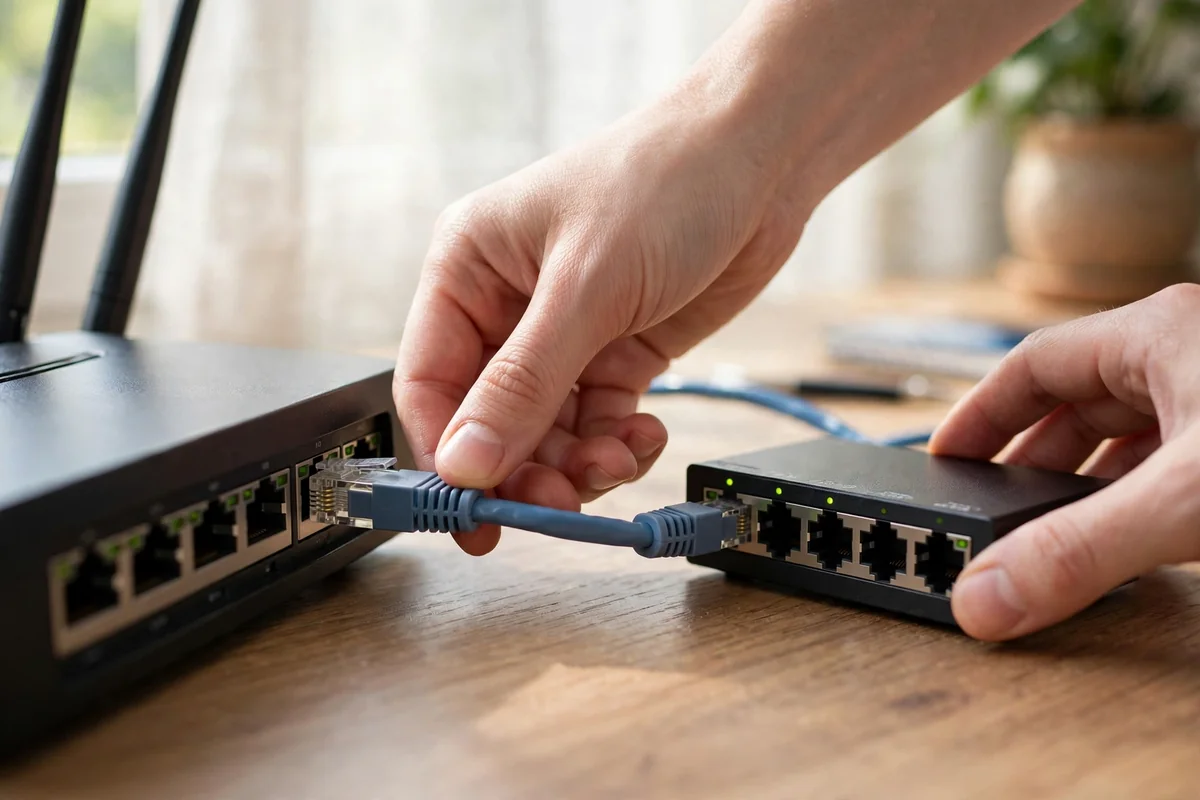
After that, plug each device into the remaining ports. Give it a minute, and each device should pick up an IP address from the router on its own. If a device stays offline, try a different port and a different cable before you suspect the switch.
If you are still planning the wider network, our home network installation guide covers the full setup from modem to rooms, so you can see where the switch fits in the bigger picture.
Mistakes to Avoid With Your First Switch
The most common mistake is creating a loop. Never connect two ports of the same switch to each other, and never link two switches in a ring. A loop floods the network with traffic that has nowhere to go, and it can take the whole network down in seconds. Managed switches have loop protection, but an unmanaged one doesn’t.
The second mistake is buying too small. In fact, a five port box looks cheap until you need a sixth port a month later. Then you buy a second switch and another power brick. So buy one size bigger than today needs.
The third mistake is hiding the switch where you can’t see it. Those little link lights are your best diagnostic tool, and a port with no light tells you the cable or the device is the problem. So put the switch where you can glance at it.
Finally, don’t expect the switch to fix weak Wi-Fi. A switch only helps wired devices. If your problem is a dead zone at the far end of the house, you need an access point or a better router spot. Our guide on how Wi-Fi is installed at home explains how the wireless side of the network comes together.
When an Unmanaged Switch Is the Wrong Buy
Buy managed when you need to separate devices. If you run security cameras, smart home gadgets, and guest Wi-Fi on the same network, a VLAN keeps them apart. An unmanaged box puts everything on one flat network, so separation alone is reason enough to step up.
Pick managed when you need to find faults fast. An unmanaged switch tells you almost nothing when a port misbehaves. A managed one shows you traffic per port, error counts, and link speed. So if you run a home lab or a small business, that visibility pays for itself the first time something breaks at midnight.
Still, most homes never hit these limits. If you want more ports and nothing else, the simple box is the right buy. You can always add a managed switch later for the cameras, and keep the simple one under the TV.
FAQs
Do I need a switch if my router has spare ports?
No, not yet. A router with free Ethernet ports already handles your wired devices, so a switch would add nothing. Count your wired devices first, and buy a switch only when the count passes the ports you have. Four ports and five devices is the moment to buy an 8 port box.
Does a switch slow down my internet speed?
No, not in normal home use. A switch forwards traffic at the full speed of its ports, so a gigabit switch passes gigabit traffic. Your internet plan is almost always slower than the switch, so the plan sets the limit. Slow speeds usually come from a bad cable or an old port instead.
Can I plug a switch into another switch?
Yes, and this is called daisy chaining. It works fine for a small setup, like a second switch in a far room fed by one cable. But don’t link switches in a ring, because that creates a loop that can flood the network. Keep the chain simple, with one path back to the router.
How many devices can one switch handle?
A switch handles one device per port, minus the port used for the router link. So an 8 port switch serves seven devices, and a 16 port switch serves fifteen. You can add more switches later if you outgrow the first one. But count your devices before you buy, and leave two spare ports for next year.
Do I need a managed switch for a home lab?
Most home labs start fine on a simple switch, then outgrow it when VLANs become useful. If you run cameras, smart home gear, and servers together, a smart switch earns its keep fast. It lets you separate device groups and restart PoE ports from your desk. Start simple, and upgrade when you feel the limit.
Where should I put the switch in my house?
Put it where your cables meet, usually near the router or in a central wiring spot. A living room media cabinet works for a small switch, while a wiring closet suits a bigger one. Keep it in the open with airflow, near a power socket, and where you can see the link lights.
Final Word
An unmanaged switch is the simplest upgrade in home networking. It adds ports, needs no setup, and costs little. Count your devices, add two spare ports, and buy the next size up. Then plug it in and get back to using your gear. If your network grows into cameras and VLANs later, you’ll know it’s time to step up.