

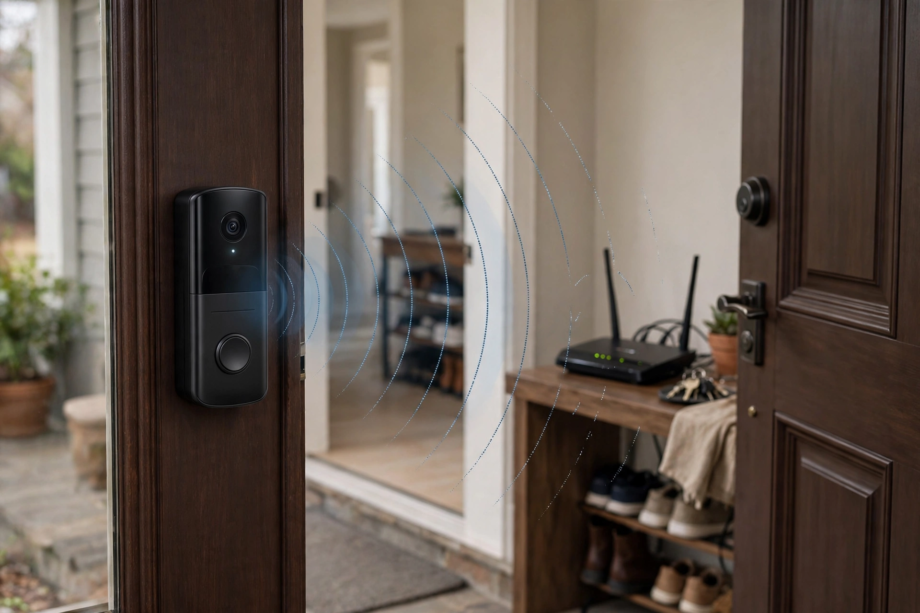
Why Your Front Door Gets the Worst WiFi in the House
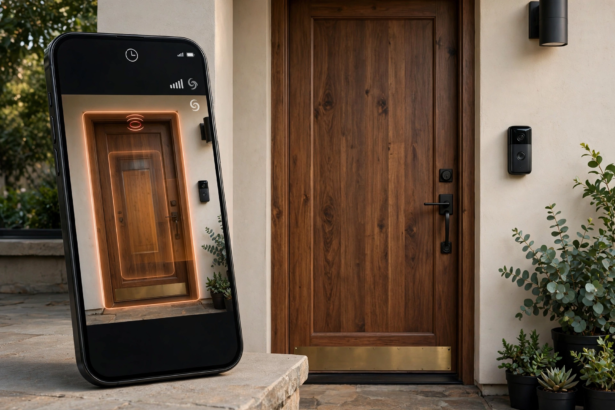
A video doorbell weak wifi signal at front door is the root cause behind most doorbell complaints. Indeed, Indeed, the front door is almost always the weakest WiFi spot in the home. First, First, it’s the farthest point from the router, separated by exterior walls, brick, metal doors, and everything in between.
- Why Your Front Door Gets the Worst WiFi in the House
- How to Check Your WiFi Signal Strength
- Video Doorbell Weak Wifi Signal at Front Door: 8 Fixes
- Fix 1: Move the Router Closer
- Fix 2: Add a WiFi Extender
- Fix 3: Upgrade to a Mesh System
- Fix 4: Switch to 2.4GHz
- Fix 5: Reduce Interference
- Fix 6: Update Router Firmware
- Fix 7: Use QoS to Prioritize the Doorbell
- Fix 8: Reposition the Doorbell Itself
- What Good Signal Looks Like in Practice
- Planning WiFi Before Installing
- Connecting Everything Together
- When to Call Your ISP
- FAQs
- What is a good WiFi signal strength for a video doorbell?
- Why is WiFi weak at my front door?
- Will a WiFi extender fix my doorbell connection?
- Should I use 2.4GHz or 5GHz for my video doorbell?
- How do I check my doorbell’s WiFi signal?
- Can a metal door block WiFi to my doorbell?
- Is mesh WiFi worth it for one doorbell?
- Measure First, Then Fix
Specifically, weak signal causes slow notifications, frozen live view, missed motion events, and random offline drops. In particular, In particular, a signal that’s barely adequate most of the time can drop below the usable threshold during minor interference. As a result, the doorbell looks randomly broken when it’s actually a consistent signal problem.
However, the fix is straightforward once you measure the problem. For instance, For instance, checking your RSSI takes 30 seconds and tells you exactly how bad things are. Next, let’s diagnose and fix it.
How to Check Your WiFi Signal Strength
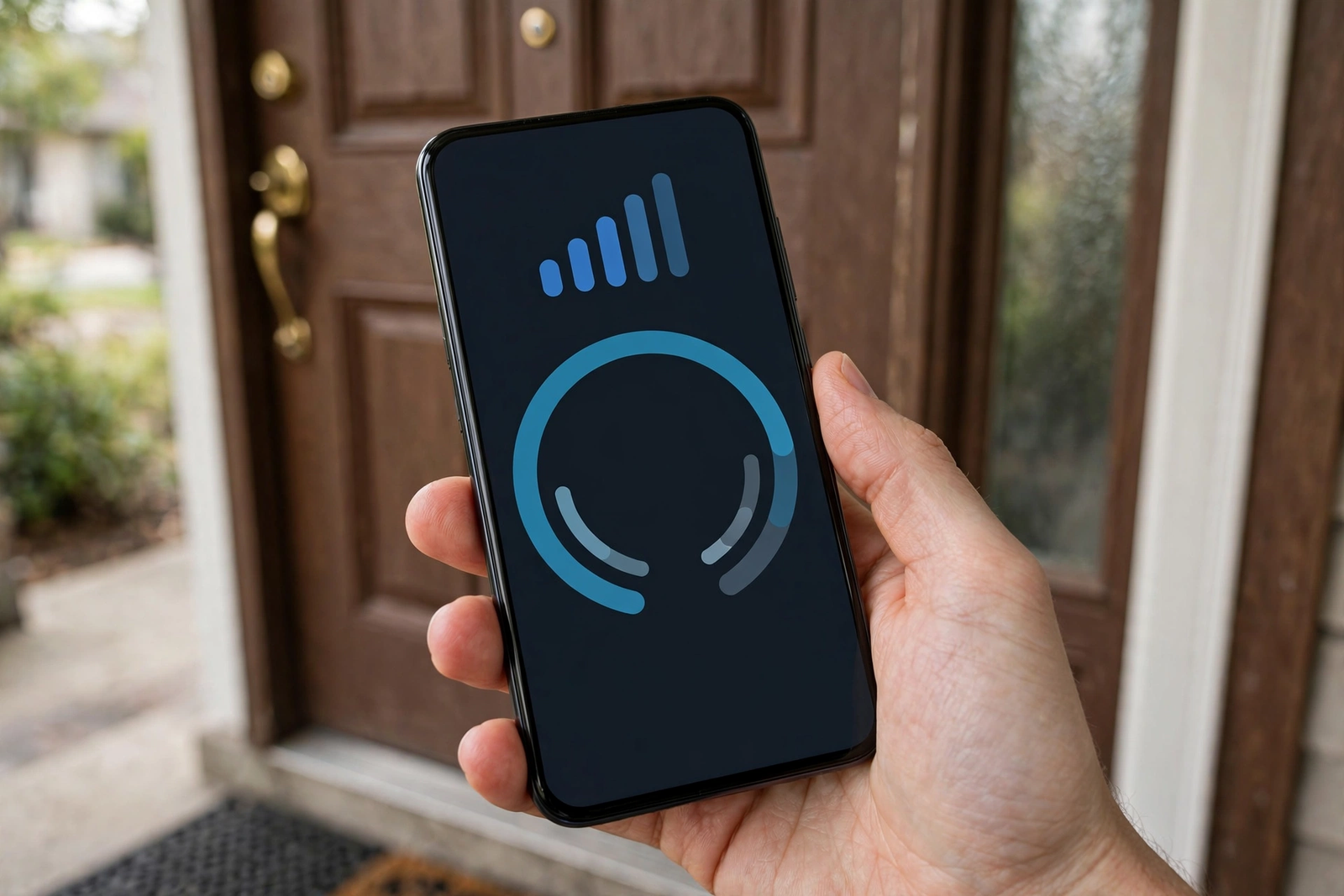
First, open your doorbell’s app and find the device health section. Look for Signal Strength or RSSI. This number tells you everything.
In other words, RSSI closer to zero means better signal. Meanwhile, here’s what the numbers mean in practice. From 0 to -50 is excellent. From -51 to -65 is acceptable but could be stronger. From -66 to -70 is weak and likely causing problems. Below -70 is poor and almost certainly the root cause of your issues.
Then, for a second opinion, stand at your front door with your phone and run a speed test. Check both the signal bars and the upload speed. You need at least 2 Mbps upload for reliable 1080p video. Thus, if your phone struggles at the door, your doorbell struggles more.
Video Doorbell Weak Wifi Signal at Front Door: 8 Fixes
Fix 1: Move the Router Closer
Notably, the simplest fix is often the best. If your router sits in a back bedroom or basement, move it toward the front of the house. As a result, even a few feet can make a measurable difference in RSSI.
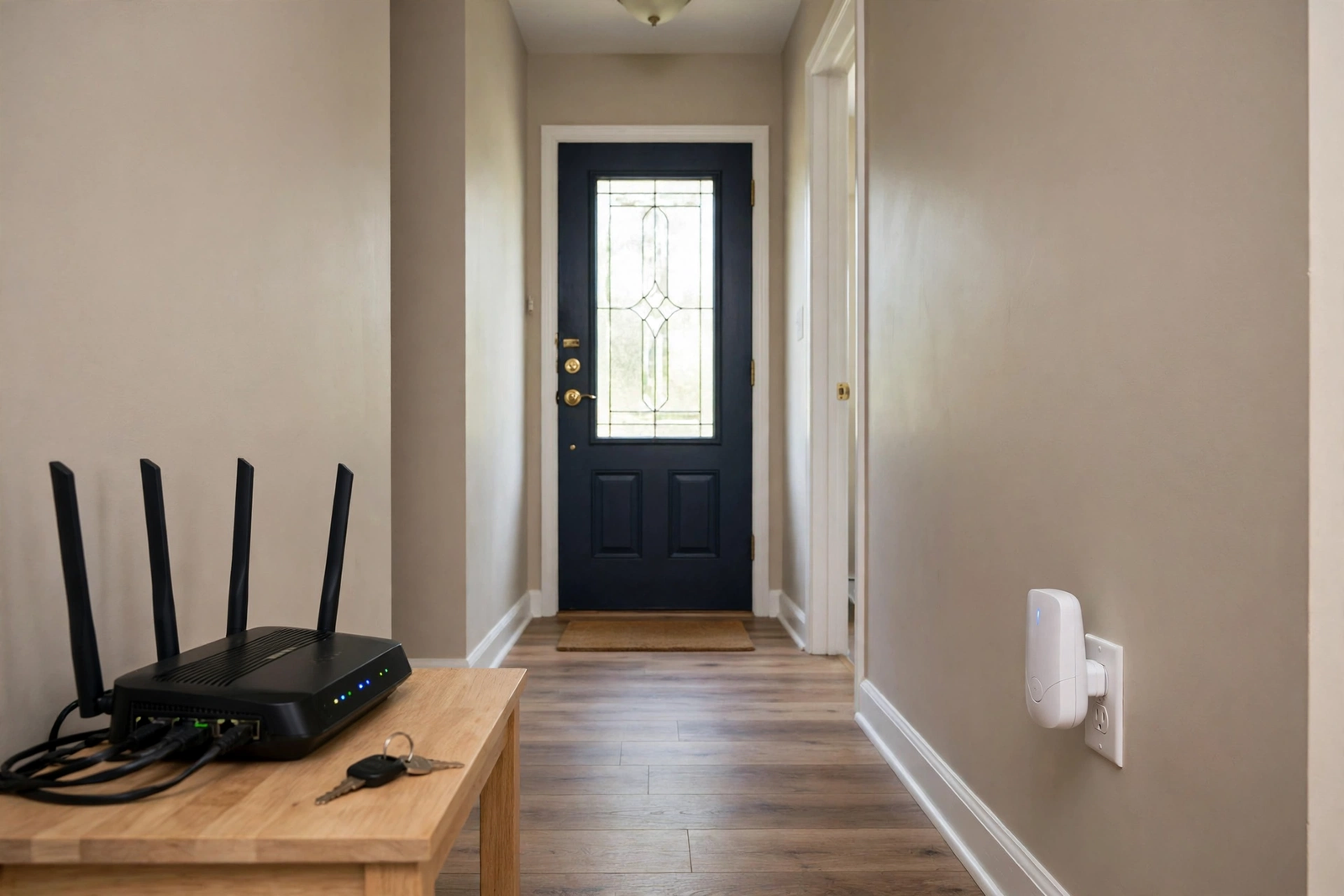
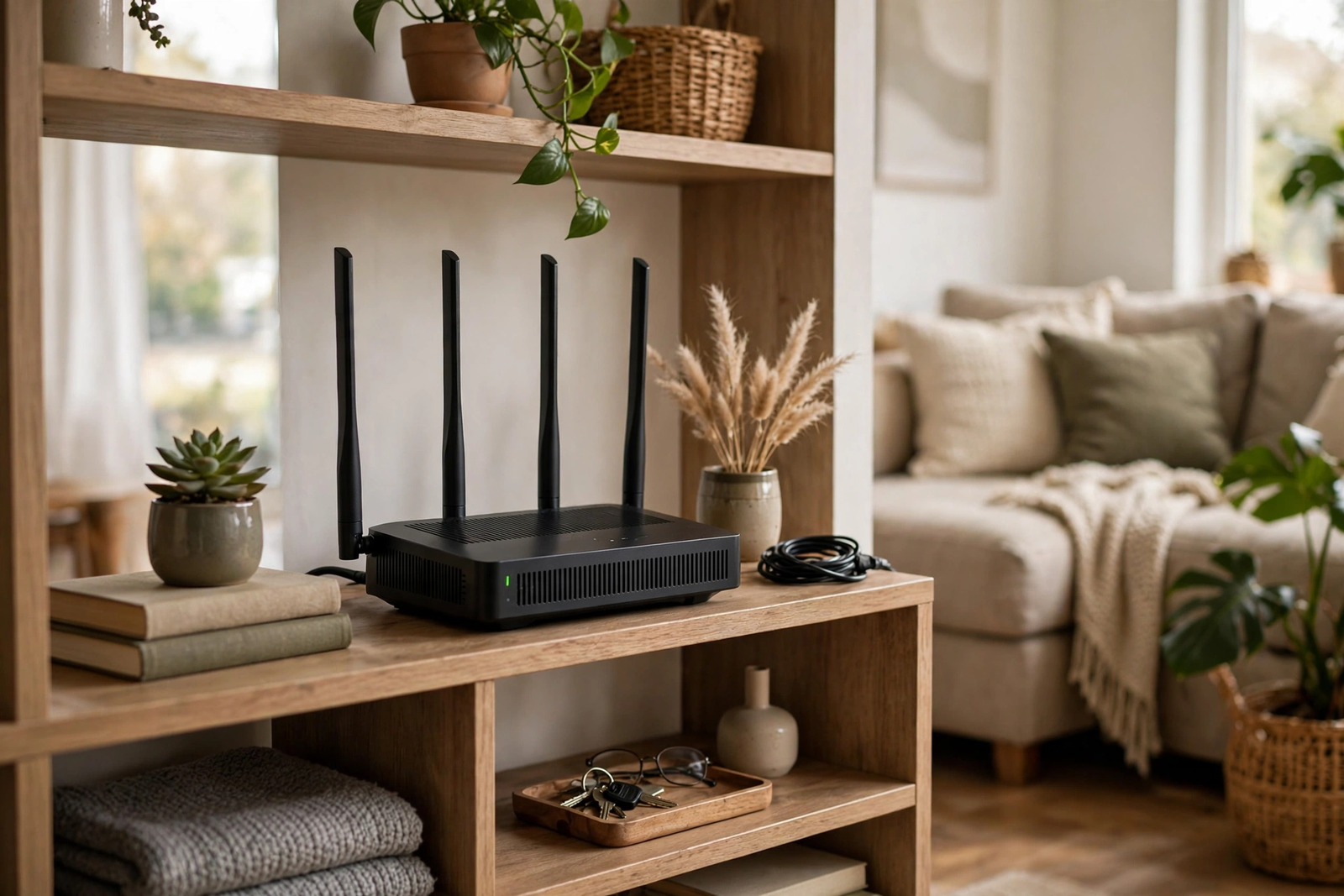
Therefore, place the router in an open area, not inside a cabinet or behind the TV. Elevate it on a shelf rather than leaving it on the floor. Consequently, these free changes improve coverage throughout the house, not just at the door.
In addition, if the router has external antennas, position them vertically. Vertical antennas broadcast horizontally across floors, which is exactly what you want for reaching the front door.
Fix 2: Add a WiFi Extender
Nevertheless, when moving the router isn’t enough, an extender bridges the gap. Place it halfway between the router and the front door, ideally in a room adjacent to the entryway. Indeed, a $25 to $40 extender often adds 10 to 15 dBm of signal strength.
Some doorbell brands sell a chime with built-in WiFi extender. Hence, this solves two problems at once: better signal for the doorbell and an indoor chime for alerts. It’s the most elegant solution for that brand’s ecosystem.
Set the extender to use the same network name so devices switch access points without dropping, or use a different name and connect the doorbell specifically to the extender’s network. Alternatively, the second option gives you more control over which access point the doorbell uses.
Fix 3: Upgrade to a Mesh System
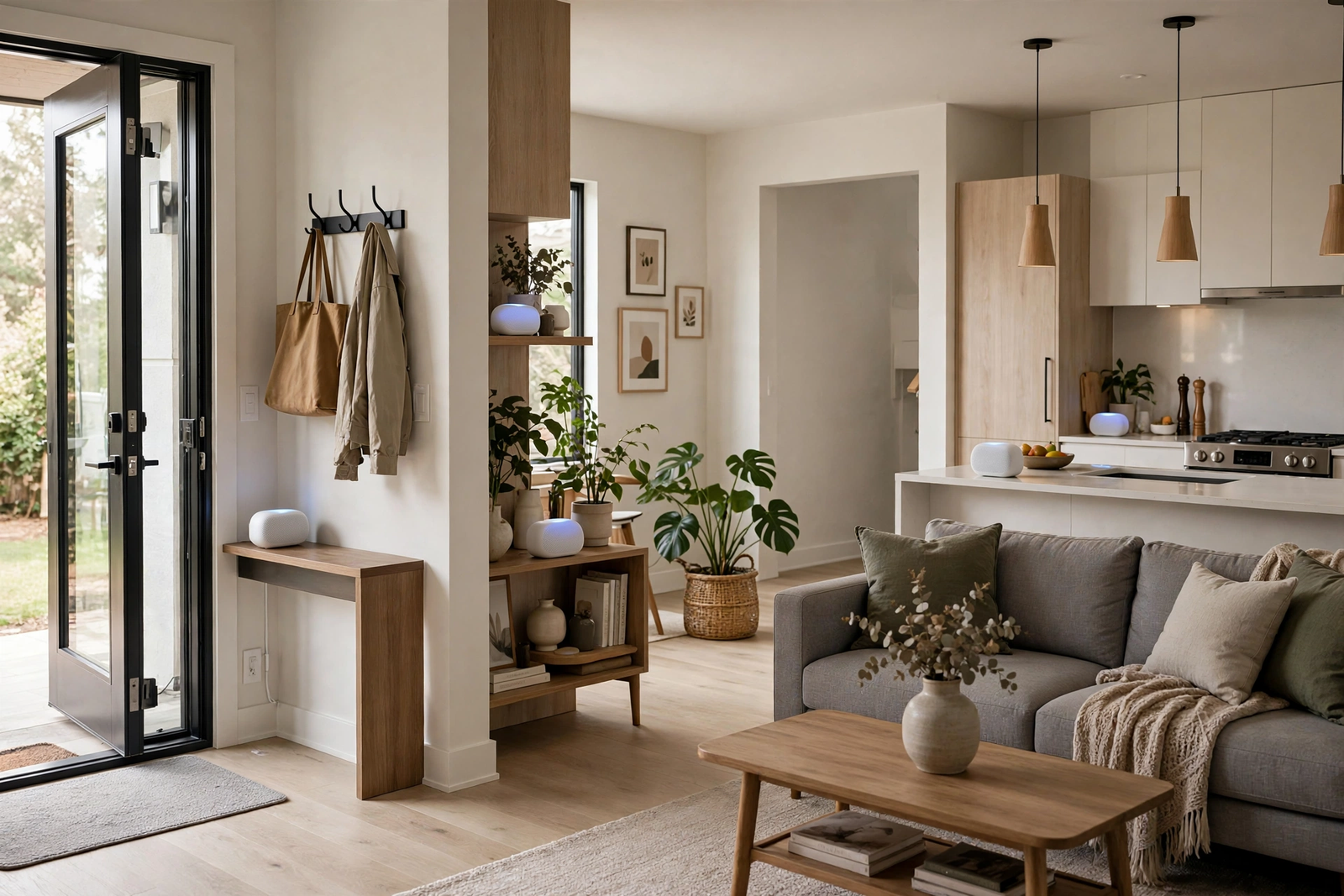
For example, for larger homes or persistent dead zones, mesh WiFi is the real answer. A mesh system uses multiple nodes that work together as one network. Specifically, place one node near the front of the house and the doorbell gets strong signal automatically.
Mesh costs more than an extender, typically $150 to $300 for a two or three pack. Nevertheless, it eliminates dead zones throughout the house, not just at the door. If you have multiple smart home devices struggling with signal, mesh is worth the investment.
Most mesh systems let you check signal strength per device in the app. This makes troubleshooting easy because you can see exactly which node the doorbell connects to and how strong the link is.
Fix 4: Switch to 2.4GHz
Admittedly, most video doorbells work best on 2.4GHz, not 5GHz. The 2.4GHz band travels farther and penetrates walls better. Therefore, at the front door, that extra range matters more than the extra speed of 5GHz.
If your router combines both bands under one network name, the doorbell may connect to 5GHz and struggle. Separate the bands into different network names, Finally, connect the doorbell specifically to the 2.4GHz network.
Some routers let you create a dedicated IoT network on 2.4GHz. Undoubtedly, this is ideal. Name it something stable, connect all your smart home devices to it, and never change the credentials. Your devices stay connected even when you upgrade the main router.
Fix 5: Reduce Interference
Similarly, WiFi shares the 2.4GHz band with microwaves, baby monitors, cordless phones, and Bluetooth devices. In that case, if your front door is near any of these, interference could be killing your signal.
First, move the router away from the microwave and other electronics. In the router settings, try changing the WiFi channel. Channels 1, 6, and 11 don’t overlap, so pick whichever is least congested in your area. A free WiFi analyzer app shows you which channels your neighbors use.
Above all, metal is the worst signal killer. If your front door is metal, or there’s a metal mailbox or security door near the doorbell, that could be blocking signal. For one thing, repositioning the doorbell a few inches away from large metal objects sometimes helps dramatically.
Fix 6: Update Router Firmware
Sometimes, outdated router firmware causes all kinds of connectivity weirdness. Check for updates in your router’s admin panel or app. Fortunately, manufacturers regularly fix stability and performance issues.
After updating, restart the router and let it fully boot before testing. Then check the doorbell’s RSSI again. Firmware updates occasionally improve range and stability enough to fix marginal signal situations.
Fix 7: Use QoS to Prioritize the Doorbell
Moreover, Quality of Service settings tell your router to prioritize certain devices. For instance, if your network is congested with streaming, gaming, and video calls, the doorbell’s traffic can get starved.
Log into your router, find QoS settings, and add your doorbell as a high-priority device. You’ll need its MAC address, which is in the doorbell app’s device info section. As a consequence, this ensures the doorbell gets bandwidth even when the network is busy.
Fix 8: Reposition the Doorbell Itself
Occasionally, sometimes a few inches make all the difference. If the doorbell sits inside a metal enclosure, recessed deep in a brick alcove, or behind a storm door, it’s fighting an uphill battle.
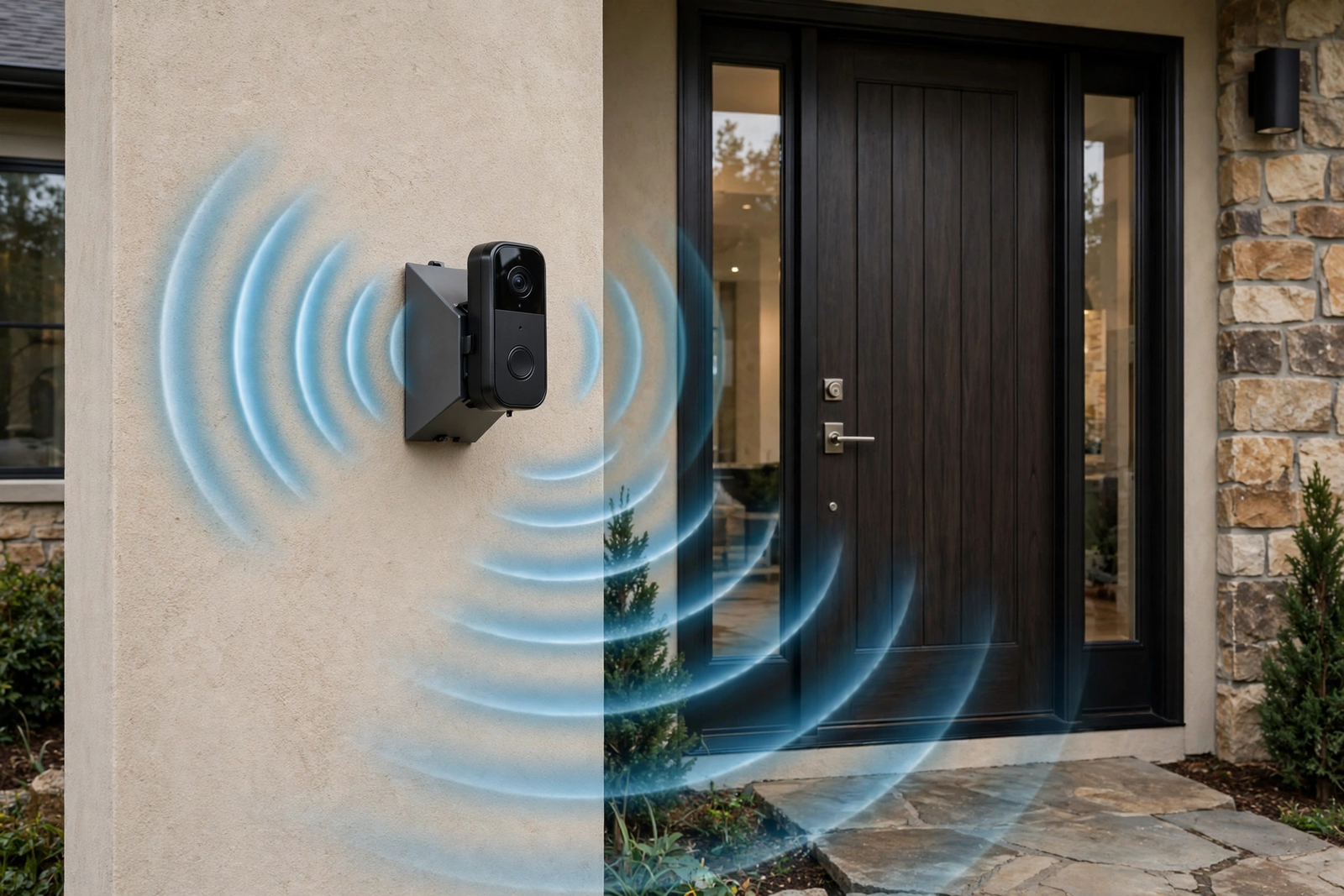
Try a wedge or corner mount to angle the doorbell away from signal-blocking materials. In particular, moving it even 6 inches from a metal door frame can improve RSSI by several dBm. Test different positions with your phone’s WiFi analyzer before committing to a mount.
Table: WiFi fixes by cost and impact
| Fix | Cost | Signal Improvement | Effort |
|---|---|---|---|
| Move router closer | Free | 5-10 dBm | Low |
| Switch to 2.4GHz | Free | 3-8 dBm | Low |
| Change WiFi channel | Free | 2-5 dBm | Low |
| WiFi extender | $25-40 | 10-15 dBm | Low |
| Mesh system | $150-300 | 15-25 dBm | Medium |
| Reposition doorbell | Free-$15 | 3-10 dBm | Low |
| QoS prioritization | Free | Reliability boost | Medium |
What Good Signal Looks Like in Practice
However, numbers are useful, but real-world performance is what matters. Here’s how to tell if your signal is actually good enough.
Live view should connect in under 3 seconds and stream without freezing. Motion notifications should arrive within 5 seconds. Recorded clips should play back without buffering. Then, if all three work consistently, your signal is fine regardless of the exact RSSI number.
Test at different times of day. Evening congestion can temporarily degrade even good signals. For example, if performance is great at noon but terrible at 8 PM, the issue is network congestion, not signal strength. QoS settings help most in this situation.
Planning WiFi Before Installing
Meanwhile, if you haven’t installed your doorbell yet, check WiFi first. Stand at the mounting location with your phone and run a speed test. Otherwise, if you get fewer than two bars or under 2 Mbps upload, fix the network before mounting anything.
This 2-minute test prevents the most common installation headache. Indeed, a doorbell mounted to a wall with terrible signal will frustrate you for months. Fixing WiFi first means the doorbell works perfectly from day one.
For detailed network planning guidance, see TekDash’s WiFi settings guide for video doorbells. Their channel optimization tips are especially useful for congested neighborhoods.
Connecting Everything Together
Strong WiFi at the door benefits your entire smart home setup, not just the doorbell. Once you’ve fixed the front door dead zone, other devices benefit too.
Once coverage improves, every device at the entrance benefits. The difference is immediately noticeable.
A door sensor at the entrance also needs reliable signal. With the extender or mesh node in place, it connects instantly instead of struggling.
Moreover, every device you add to the improved network makes the investment more worthwhile. In other words, coverage compounds.
Good coverage enables richer automations. When contact sensors and the doorbell both have strong connections, your arrival automations trigger reliably every time.
Strong signal is the foundation everything else builds on. Without it, even the best devices underperform.
For the full picture, our smart door lock with camera guide covers how to build a front door that works as one system.
When to Call Your ISP
Sometimes the problem isn’t your WiFi at all. It’s your internet connection. For instance, if speed tests show good signal but slow speeds everywhere in the house, not just at the door, the bottleneck is upstream.
Run a wired speed test directly from your modem. If that’s slow too, call your ISP. Specifically, ask them to check for line issues, outdated modem firmware, or congestion in your area. Therefore, document your test results before calling so you have evidence.
Consider upgrading your plan if upload speeds are consistently under 5 Mbps. Modern smart homes with multiple cameras need more upload bandwidth than basic plans provide. The upgrade cost is often less than the frustration of unreliable devices.
FAQs
What is a good WiFi signal strength for a video doorbell?
Aim for RSSI between 0 and -60 dBm. From -61 to -65 is acceptable. Anything worse than -65 needs improvement. Below -70 almost certainly causes missed events, slow notifications, and random disconnections. Check the number in your doorbell app’s device health section.
Why is WiFi weak at my front door?
The front door is typically the farthest point from the router, separated by exterior walls, brick, insulation, and sometimes metal doors. All of these block or absorb WiFi signals. Distance plus physical barriers make the entryway the hardest spot in the house to cover.
Will a WiFi extender fix my doorbell connection?
Usually yes. Place the extender halfway between the router and the front door. It typically adds 10 to 15 dBm of signal strength, which is enough to fix most weak-signal problems. Some doorbell brands sell a chime with built-in extender that’s optimized for their devices.
Should I use 2.4GHz or 5GHz for my video doorbell?
Use 2.4GHz. It travels farther and penetrates walls better than 5GHz. At the front door, range matters more than speed. If your router combines both bands under one name, separate them and connect the doorbell specifically to the 2.4GHz network for the most stable connection.
How do I check my doorbell’s WiFi signal?
Open the doorbell app, go to device settings, then device health or device info. Look for Signal Strength or RSSI. For a quick real-world check, stand at your front door with your phone and run a speed test. You need at least 2 Mbps upload for reliable video.
Can a metal door block WiFi to my doorbell?
Yes, metal is one of the worst WiFi blockers. A metal front door, security door, or mailbox near the doorbell can significantly degrade signal. Try repositioning the doorbell a few inches away from large metal objects, or use a wedge mount to angle it for a clearer signal path.
Is mesh WiFi worth it for one doorbell?
If the doorbell is your only struggling device, a $30 extender is the smarter buy. But if multiple smart home devices have weak signal, or you have a large home with several dead zones, mesh is worth the $150 to $300 investment. It fixes every weak spot at once.
Measure First, Then Fix
A video doorbell weak wifi signal at front door is a measurement problem before it’s a hardware problem. Check your RSSI, run a speed test at the door, and you’ll know exactly what you’re dealing with.
Start with the free fixes: move the router, switch to 2.4GHz, change the WiFi channel. If those don’t get you above -65 dBm, add an extender. For whole-house coverage issues, go mesh. Work the list in order and your doorbell will finally get the signal it deserves.