
Eufy camera not recording to HomeBase? The cause is almost always one of five things: the security mode is set to Disarmed, the HomeBase storage is full, the firmware is out of date, motion detection got turned off, or the camera lost its pairing. Check them in that order and most cameras are recording again within minutes.
- First, Confirm What “Not Recording” Means
- Cause 1: The Security Mode Is Wrong
- Cause 2: HomeBase Storage Is Full
- Cause 3: Firmware Is Out of Date or Mismatched
- Cause 4: Motion Detection or Activity Zones Changed
- Cause 5: The Camera Lost Its Pairing
- Cause 6: Network Trouble Between Camera and HomeBase
- Last Resort: Reset Everything and Start Fresh
- Keep It From Happening Again
- Frequently Asked Questions
- Why is my eufy camera not recording to HomeBase but live view works?
- How do I know if my HomeBase storage is full?
- Does Disarmed mode stop recording on eufy cameras?
- Eufy camera not recording to HomeBase: should I reset the camera?
- Can a full HomeBase cause eufy camera not recording to HomeBase errors?
- Do eufy cameras record to HomeBase during internet outages?
- The Bottom Line
This is one of the most frustrating smart home problems because everything else keeps working. Live view loads fine. The app looks normal. But the Events tab sits empty. This guide walks through each cause with the exact menu paths, so you can fix it without guessing.
First, Confirm What “Not Recording” Means
Not all recording failures are the same, and the fix depends on which one you have. Open the eufy Security app and check the Events tab. Are there no events at all, or are events listed but the clips will not play? No events means the camera never recorded. Unplayable events point to storage or file problems instead.
Next, test live view. If live view works, the camera has power and a network connection, which rules out a whole category of problems. The issue is almost certainly settings or storage. If live view fails too, start with power and Wi-Fi before touching anything else. A camera that cannot reach the HomeBase cannot send it recordings.
Also check where recordings are supposed to go. In the app, look at Event List, then Filters, and confirm HomeBase is selected as the storage location. After adding a HomeBase 3 to an existing setup, some cameras keep their old microSD recording settings or get confused about where to send clips. Verifying the destination takes ten seconds and solves a surprising number of cases.
Cause 1: The Security Mode Is Wrong
This is the most common reason, and the easiest to overlook. eufy systems run in security modes: Home, Away, Disarmed, Custom, Geofencing, and Schedule. In Disarmed mode, all detection is disabled. No motion triggers, no recordings, no notifications. The camera sits there watching nothing, exactly as instructed.
Open the app and check which mode is active on the Security tab. If it says Disarmed, switch to Away or Home. In Away mode, detection and recording are fully active with alarms. In Home mode, the camera keeps recording on motion but stays quieter about it. Either one restores recording.
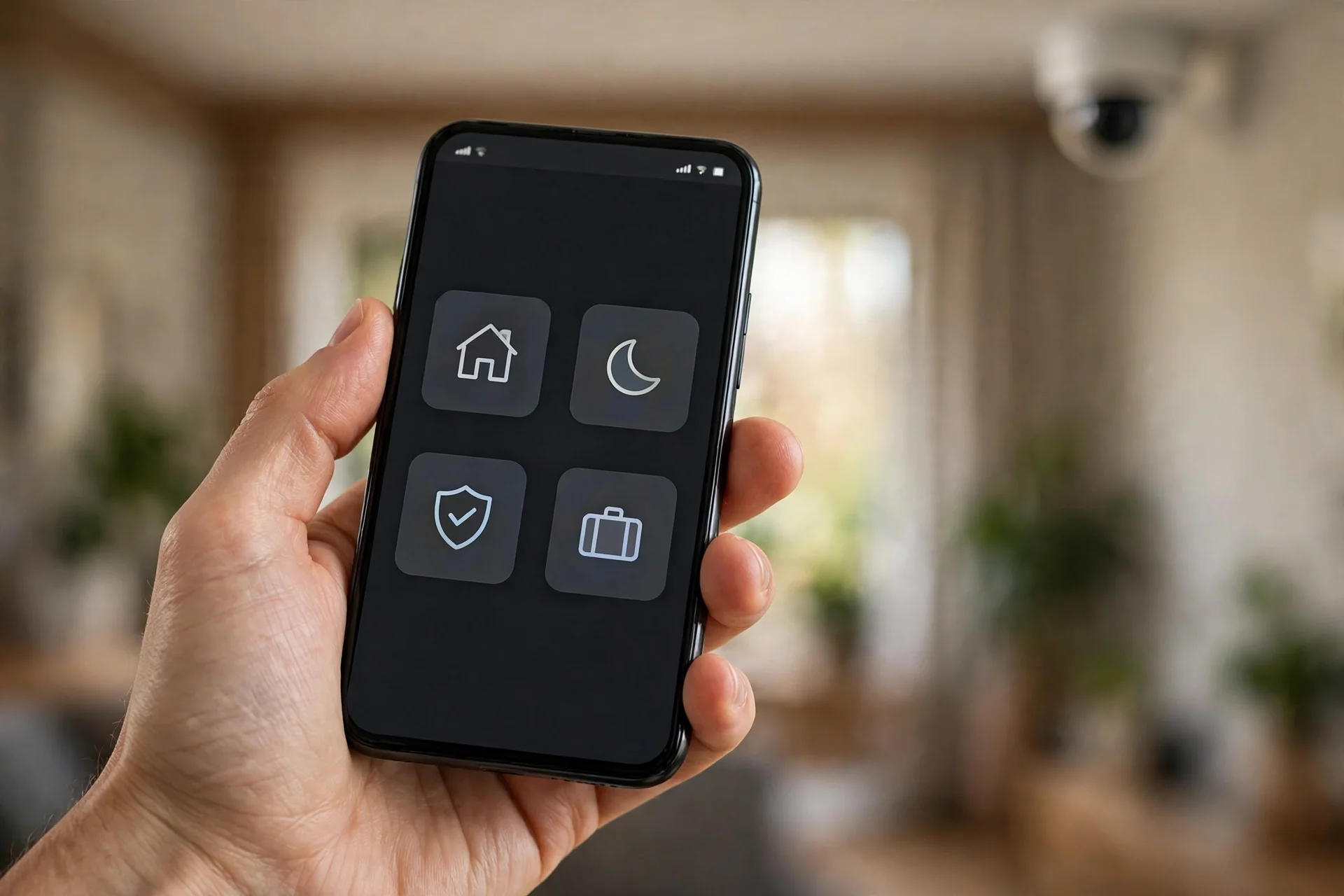
Modes change on their own more often than people realize. Geofencing switches modes based on your phone’s location, and it overrides manual settings. If you armed Away at 10 AM but walked back into the geofence zone at 11, the system flipped to Home without asking. A Schedule can do the same thing on a timer. If recording stops at the same time every day, a schedule is your culprit. eufy’s official guide to each security mode explains exactly what every mode enables and disables.
While you are here, check the per-camera settings inside the active mode. Modes are configurable per device, so the system can be in Away while one specific camera has recording toggled off. Tap the mode, find your camera in the device list, and confirm recording is enabled for it.
Cause 2: HomeBase Storage Is Full
A full drive stops all recording immediately, often with no warning. The HomeBase 2 has limited built-in storage, and even the HomeBase 3 (S380) with its 16GB built-in capacity fills up eventually under heavy use. The S380 supports expandable storage up to 16TB, but only if you actually installed a drive.
Check storage status in the app under Device Settings, then Storage. Look for available space on the HomeBase. If it reads full or nearly full, delete old footage under Storage Management to free space. Start with the oldest clips you no longer need. Recording should resume as soon as space is available.
If you keep hitting this wall, it is time to expand. Installing a 2.5-inch hard drive in the HomeBase 3 takes minutes and multiplies your retention enormously. As a reference point, a few terabytes hold months of motion-triggered clips from several cameras. Just remember to back up anything important before formatting a new drive, since formatting erases everything on it.
One subtle variant: storage can report as full when it is actually corrupted. If the app shows plenty of free space but nothing records, or if the storage screen itself looks wrong, reformat the drive through the app’s Storage settings. Formatting through the eufy app, rather than on a computer, ensures the exact file system the HomeBase expects.
Cause 3: Firmware Is Out of Date or Mismatched
Firmware bugs cause a meaningful share of recording failures, especially after updates. Sometimes an update introduces a recording bug that affects many users at once. Other times the HomeBase and the camera end up on mismatched versions that do not talk to each other properly.
Check both sides. In the app, look for firmware updates for the HomeBase and for each camera, and install everything pending. Do them one at a time. Let each finish completely before starting the next, then restart both the HomeBase and the camera so the new firmware loads cleanly.
If recording broke immediately after an update, you may be dealing with a bad release. Check eufy’s community forums to see if others report the same problem on the same version. When a buggy update is widespread, eufy usually ships a fix quickly. In the meantime, some users find that a full reset and fresh setup clears the corrupted state, which we cover below.
Cause 4: Motion Detection or Activity Zones Changed
No motion detection means no motion-triggered recordings. This sounds obvious, but detection settings change silently. Firmware updates sometimes reset them. A housemate fiddling with the app can toggle them. Power Manager set to Optimal Battery Life can restrict recording behavior on battery cameras.
Open the camera’s settings and verify motion detection is on. Check the sensitivity level too. eufy cameras default to sensitivity 4, which detects people at roughly 20 to 26 feet in daylight and 13 to 20 feet at night. If someone lowered it to 1 or 2, the camera may simply not see events worth recording.
Then check activity zones. These are the on-screen rectangles that tell the camera where to watch. Updates can corrupt or shift them, and a zone that drifted off the driveway explains a camera that “stopped seeing” cars. Delete the zones and recreate them from scratch. It takes a minute and fixes detection blind spots reliably. If notifications are also missing or delayed, our motion notification delay fix covers the alert side of the same problem.
Cause 5: The Camera Lost Its Pairing
When settings and storage both check out, re-pairing the camera to the HomeBase is the fix that resolves most remaining cases. Pairing data can corrupt silently, leaving a camera that streams live view fine but cannot hand recordings to the hub.
Here is the process. Open the eufy Security app and remove the camera from your devices. Then go to Device Management, or Add Device, and follow the on-screen instructions to add it back. During pairing, keep the camera on the 2.4GHz Wi-Fi band and within a few meters of the HomeBase. Many pairing failures come down to distance or the phone hopping to 5GHz mid-process.
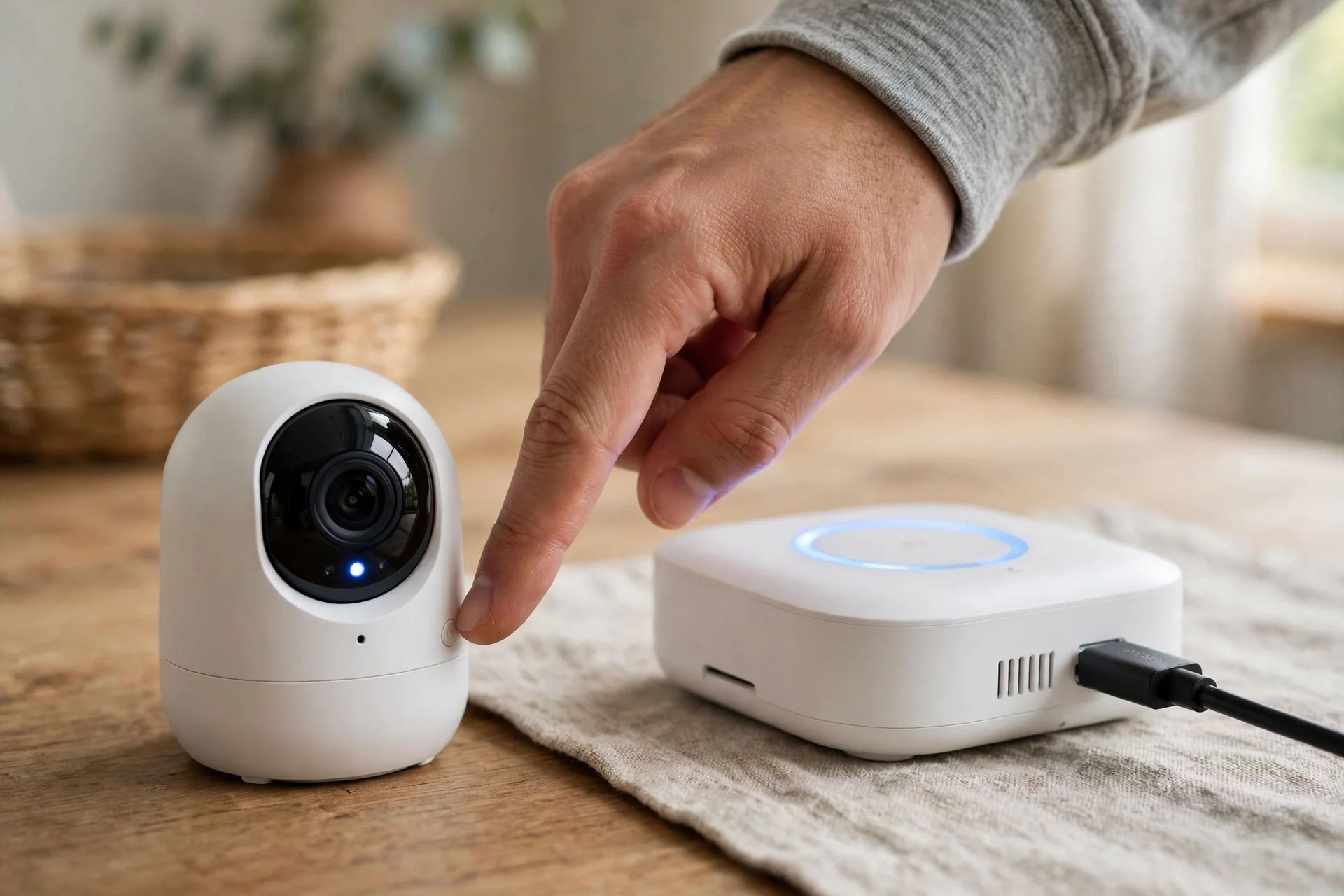
After re-pairing, verify two things before walking away. First, confirm the camera appears online in the app. Second, go to Device Settings, then Recording, and make sure recording is enabled and pointed at the HomeBase. Then trigger a test: walk past the camera and check the Events tab a minute later. If the clip appears, you are done.
Users on community forums report this fixing cameras that resisted every other step, including full HomeBase resets. It is the closest thing to a universal fix this problem has. For cameras where the network itself is flaky, our weak Wi-Fi signal guide covers the signal side, since a camera that keeps dropping off the network cannot reliably deliver clips to the hub.
Cause 6: Network Trouble Between Camera and HomeBase
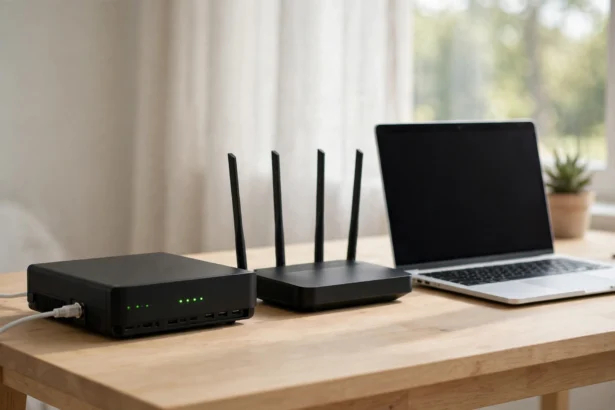
The HomeBase needs a stable connection to your router, ideally over Ethernet. Wi-Fi works, but a wired HomeBase eliminates an entire class of flakiness. Check that the Ethernet cable is firmly seated at both ends. A damaged or loose cable makes the HomeBase appear intermittently offline even when the router is fine.
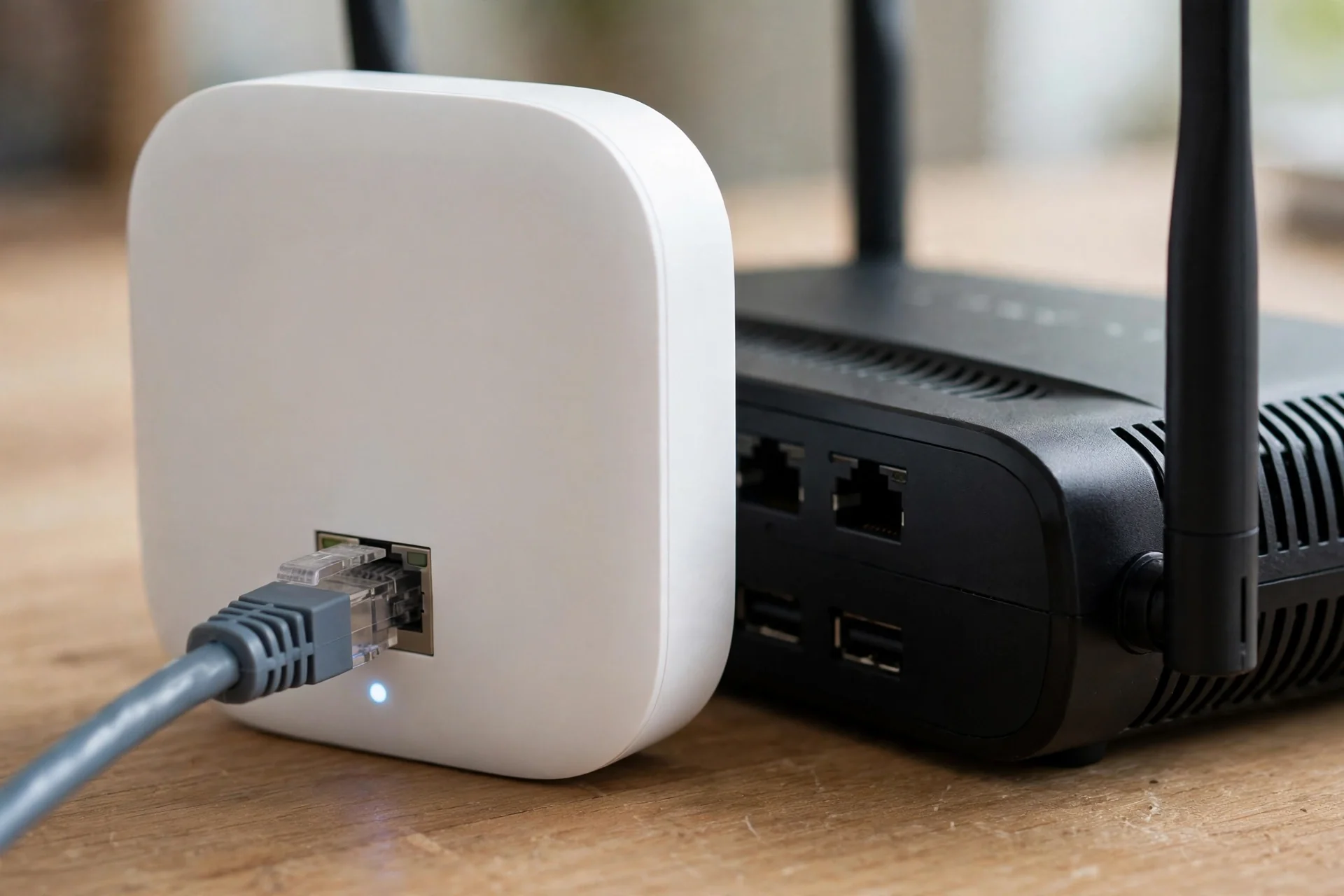
On the camera side, eufy cameras use the 2.4GHz band, which reaches farther than 5GHz but gets crowded. Thick brick walls and foil-backed insulation can strangle the signal. If the camera sits far from the HomeBase, consider a Wi-Fi extender placed between them, or move the HomeBase to a more central spot. One community member fixed persistent recording gaps exactly this way after re-pairing alone did not hold.
Restart your router if you have not in a while. It sounds too simple, but stale router states cause more smart home weirdness than any other single thing. Power-cycle the router, wait two minutes, then power-cycle the HomeBase and the camera.
Last Resort: Reset Everything and Start Fresh
If nothing above worked, do the full reset. This is the fix of last resort because it erases all settings, but multiple users report it resolving recording failures that survived everything else.
- Back up important clips. Download any footage you want to keep. The reset will not erase stored clips on its own, but do not risk it.
- Reset the HomeBase. Use the reset option in the app or the physical reset button, following eufy’s instructions for your model.
- Reset the camera. Remove it from the app and factory-reset the device itself.
- Set up from scratch. Add the HomeBase first, update its firmware, then pair each camera fresh. Configure security modes and activity zones deliberately this time.
- Test before mounting. Trigger motion and confirm clips land in the Events tab while everything sits on the table. Only then put cameras back up.
Tedious, but effective. A clean setup eliminates corrupted pairing data, mismatched firmware states, and tangled mode configurations in one pass.
Keep It From Happening Again
A few habits prevent most repeat failures. Check HomeBase storage monthly and delete or archive old footage before it fills. Keep firmware current on both the hub and cameras, but wait a day or two after a major update to see if others report problems. Review your security mode whenever recording behaves oddly, especially if you use geofencing or schedules that change modes automatically.
Recreate activity zones after every firmware update as a matter of routine. It takes sixty seconds and prevents the silent zone corruption that causes so many “camera stopped recording” mysteries. And keep the HomeBase on Ethernet in a central, ventilated spot. A hub with a strong, stable connection gives its cameras the best possible chance of delivering every clip. For a broader look at recording without monthly fees, our no-subscription camera guide covers which setups keep working when the internet drops.
Frequently Asked Questions
Why is my eufy camera not recording to HomeBase but live view works?
Live view needs only a network connection, while recording needs the right security mode, enabled motion detection, free storage, and a healthy pairing. When live view works but nothing records, the problem is settings or storage, not power or Wi-Fi. Check the security mode first, then storage space.
How do I know if my HomeBase storage is full?
Open the eufy Security app, go to Device Settings, then Storage. The screen shows total and available space on the HomeBase. If it is full, delete older clips under Storage Management. The HomeBase 3 (S380) supports adding a hard drive up to 16TB for much longer retention.
Does Disarmed mode stop recording on eufy cameras?
Yes. In Disarmed mode all detection functions are disabled, so nothing triggers a recording and no notifications are sent. If your Events tab is empty, check the Security tab in the app and switch to Away or Home mode. Geofencing and schedules can flip modes automatically, so check those too.
Eufy camera not recording to HomeBase: should I reset the camera?
Try re-pairing first, which fixes most stubborn cases without wiping everything. Remove the camera in the app, add it back near the HomeBase on 2.4GHz Wi-Fi, and confirm recording points at the hub. Only do a full factory reset of both devices if re-pairing and all other steps fail.
Can a full HomeBase cause eufy camera not recording to HomeBase errors?
Yes. A full or corrupted storage device stops all recording immediately, often silently. Check storage monthly and enable any storage warnings the app offers. Installing an expandable hard drive in the HomeBase 3 gives you far more headroom before this becomes an issue.
Do eufy cameras record to HomeBase during internet outages?
Yes. Recording to the HomeBase is local, so it continues without internet. You will lose remote viewing and push notifications until the connection returns, but clips keep saving to the hub. This is one of the main advantages of HomeBase storage over cloud-only cameras.
The Bottom Line
An eufy camera not recording to HomeBase is almost never a dead camera. Walk the checklist: security mode, storage space, firmware, motion detection and zones, then re-pairing. That order catches the cause in the large majority of cases, usually within fifteen minutes. Save the full reset for last, keep the HomeBase on Ethernet, and check storage monthly. Do that and your clips will be waiting in the Events tab exactly when you need them.