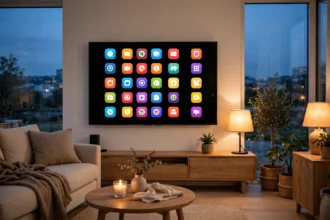

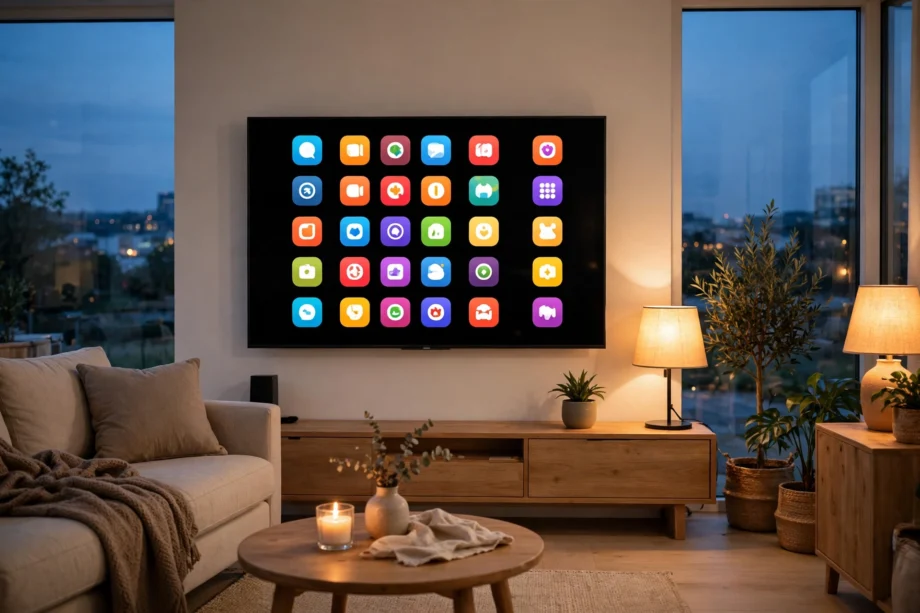
So, how do smart TVs work? A smart TV is a normal television with a small computer built inside it. That computer connects to your home internet, runs apps like Netflix and YouTube, and shows video streamed over the web instead of only showing broadcast channels.
- What a Smart TV Actually Is
- Inside a Smart TV: The Parts That Matter
- How a Smart TV Streams Video
- Setting Up a TV for the First Time
- What Is a TV QR Code?
- How to Programme a TV: Channels and Tuning
- Android TV Setup With androidtv.com/setup
- Frame TV Installation: What Is Different?
- Smart TV Problems and Quick Fixes
- Frequently Asked Questions
- How do smart TVs work without cable?
- Do smart TVs need internet to work?
- What is the difference between a smart TV and Android TV?
- How do I programme my TV to get channels?
- Is a TV QR code safe to scan?
- Can I use a smart TV as a normal TV?
- Conclusion
What a Smart TV Actually Is
Think of an old TV as a screen with a tuner. It could show what an aerial or a cable box sent to it, and not much else. A smart TV keeps that screen and tuner, then adds a processor, memory, storage, and a Wi-Fi chip. Those parts let it run an operating system, just like a phone does.
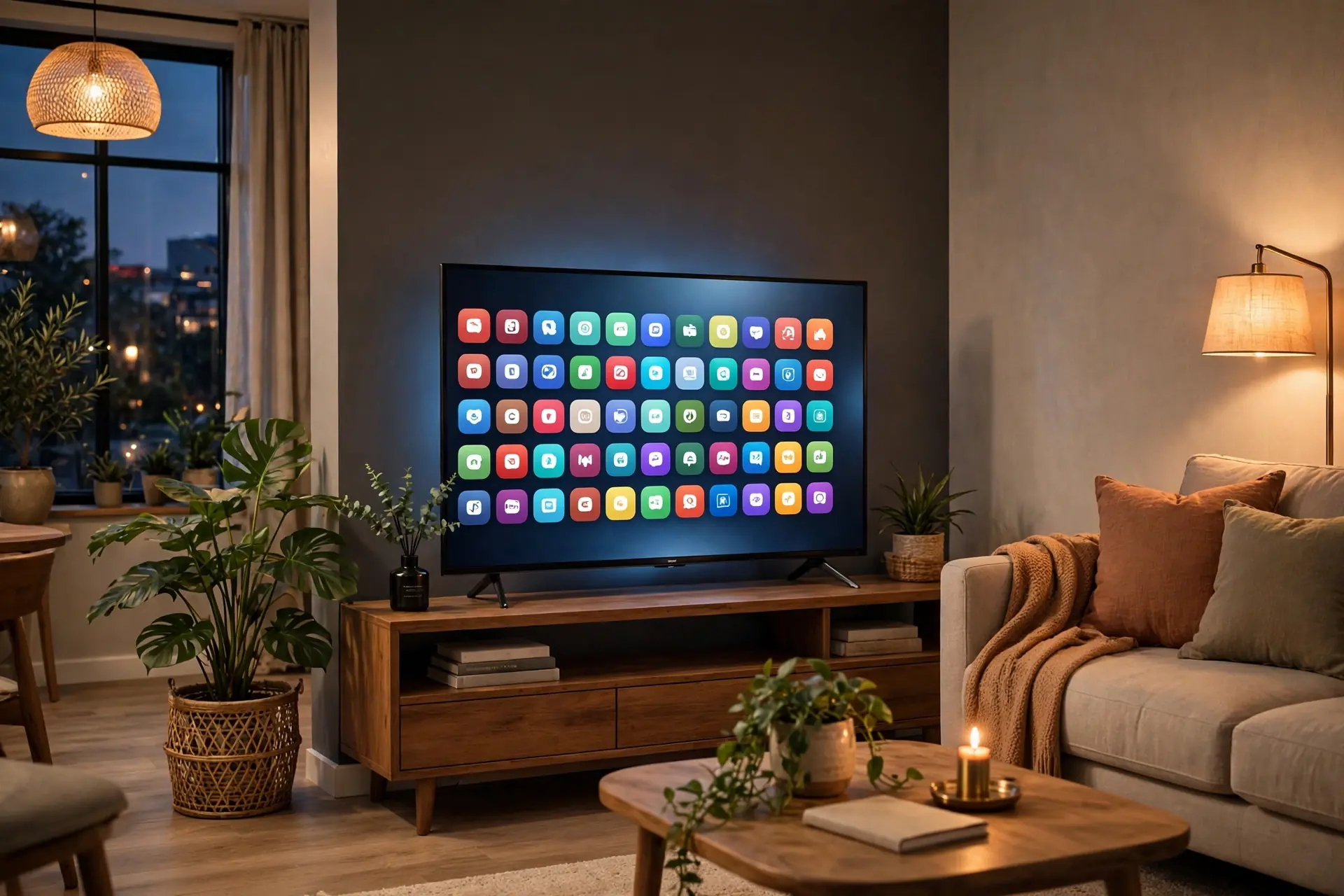
That is why the remote has a home button now. Press it, and you see a menu of apps, settings, and recommendations. You are not switching channels. You are opening software on a computer that happens to be shaped like a TV.
Inside a Smart TV: The Parts That Matter
The processor is the brain. It decodes video, runs apps, and keeps the menu moving. Memory, or RAM, holds the apps you have open. Storage holds the apps you install and their saved data. None of these parts need your attention day to day, but they explain why a cheap TV can feel slow after a year of app updates.
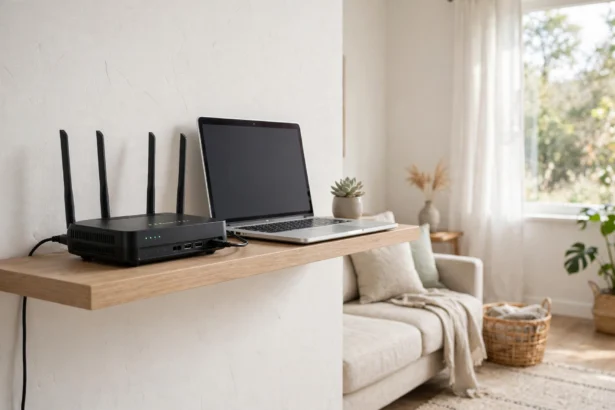
The Wi-Fi chip connects the TV to your router without a cable. Most new TVs also have an Ethernet port, which is the wired socket on the back. Wired is steadier for 4K video, because the signal does not have to cross walls and floors. Wi-Fi is easier, because you do not need to run a cable across the room.
Table: Smart TV platforms at a glance
| Platform | Where you will find it | What feels different |
|---|---|---|
| Samsung Tizen | Samsung TVs, including The Frame | Clean home bar, Samsung apps and Art Mode on Frame models |
| LG webOS | LG TVs | Simple card layout, pointer remote on many models |
| Google TV and Android TV | Sony, TCL, Hisense and others | Google account sign in, Play Store apps, voice search |
| Roku TV | TCL, Hisense and others | Very simple menu, app grid, few settings to get lost in |
| Fire TV | Amazon Fire TV sets and sticks | Built around Prime Video and Alexa voice control |
How a Smart TV Streams Video
When you press play on Netflix, the TV does not download the whole film first. It asks the app’s server for the video in small chunks, plays the first chunk, and keeps fetching the next ones while you watch. That is streaming. If your connection slows down, the TV drops to a lower picture quality to keep playing instead of stopping.
This is also why your internet speed matters more than your TV’s brand for smooth playback. A 4K stream needs a steady connection, not just a fast headline speed. In my own living room, a TV connected by Ethernet played 4K without a single buffer in a two hour film, while the same TV on weak Wi-Fi in a far corner dropped to soft, blurry video three times in the first half hour.
Apps are the other half. Each app is a small program made for your TV’s platform. You install it from the TV’s app store, sign in once, and it stays ready on the home screen. Some apps need a paid subscription. Some are free with adverts. The TV itself does not charge you for the app store in most cases, so if a screen asks for a strange payment to unlock the store, stop and check it carefully.
Setting Up a TV for the First Time
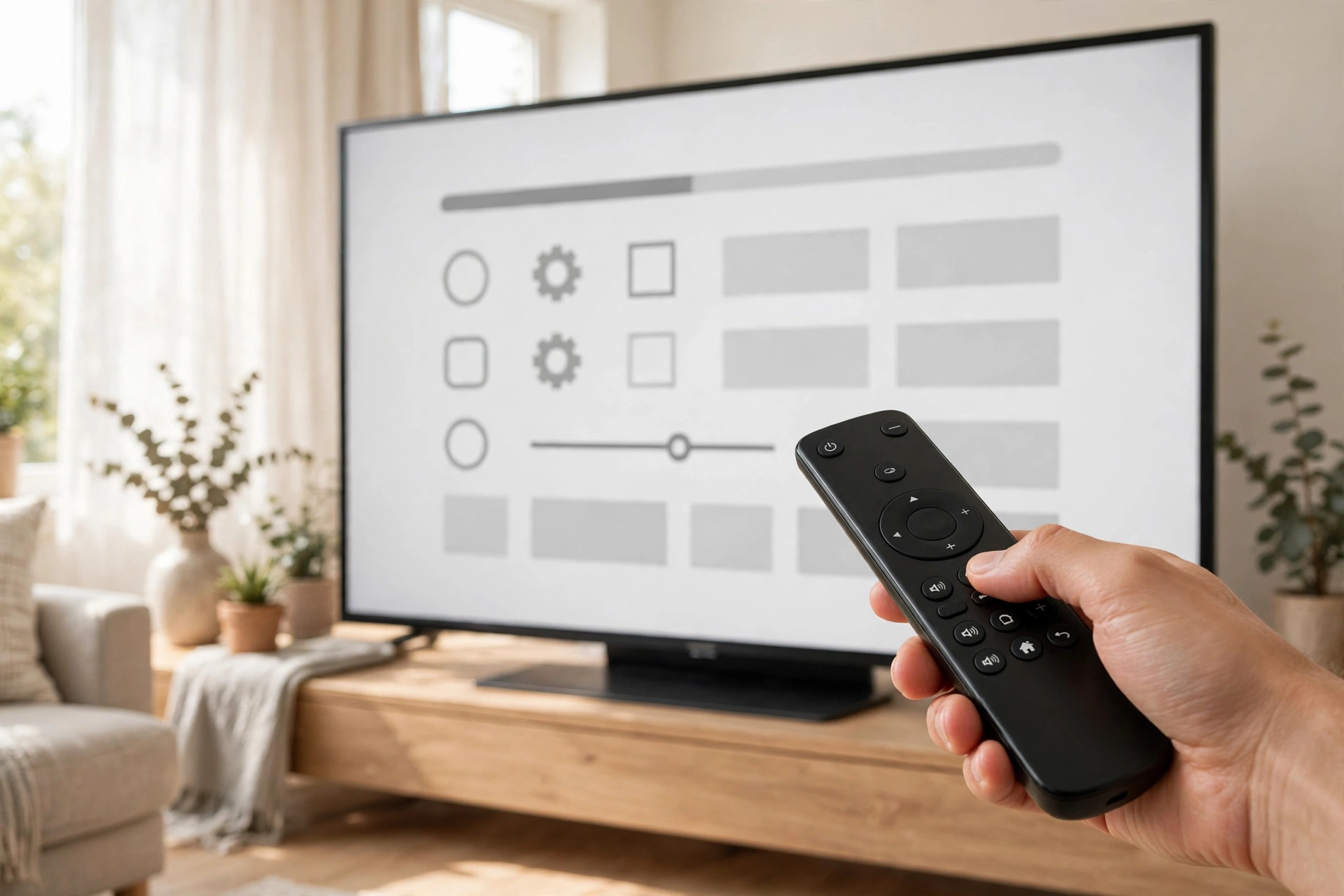
Setting up a TV sounds like a job, but most of it is just answering prompts on screen. Start by plugging in the power cable and connecting any aerial, cable box, or games console you plan to use. Turn the TV on, pick your language, and pick your country or region. Those two choices set the right app store and the right channel list.
Next, connect to the internet. Pick your Wi-Fi network from the list and type the password with the on screen keyboard. If the router is close, plug in an Ethernet cable instead and skip the password step. The TV will test the connection and usually ask to check for a software update. Say yes to that update. It fixes bugs and often speeds up the menus.
Then comes account sign in. Samsung asks for a Samsung account. LG asks for an LG account. Google TV asks for a Google account. You can often skip this step and add it later, but signing in now makes app installs and voice search work straight away. Finally, the TV may offer a picture mode. Pick the standard or cinema style for a living room and leave the bright shop mode behind. Shop mode looks vivid under store lights and harsh at home.
- Plug in power, aerial, and any HDMI devices.
- Pick language, country, and time zone.
- Connect to Wi-Fi or plug in an Ethernet cable.
- Accept the software update check.
- Sign in to the TV maker’s account.
- Install the apps you actually use and remove the rest.
- Set the picture mode to standard or cinema.
What Is a TV QR Code?
A TV QR code is a square barcode the TV shows on screen during setup or when you link an app. You point your phone camera at it, and the phone opens the right sign in page or app. It saves you from typing a long email address and password with a remote, one letter at a time.
Here is how it usually works. The TV shows a code and a short message like “scan to sign in.” You open your phone camera, scan the code, and sign in on the phone. The TV then picks up that sign in and moves to the next step. The code is single use and times out after a few minutes, so if it expires, just ask the TV to show a fresh one.
You will also see QR codes outside setup. Some apps show one when you link a phone as a remote or when you cast a video. Some brands print one in the manual that opens support pages. The rule is simple: only scan codes shown by your own TV or your own app. A QR code on a random sticker or a strange email is not part of TV setup, no matter what it claims.
How to Programme a TV: Channels and Tuning
How to programme a TV is a question that still confuses people, because the word programme covers two jobs. One job is tuning channels. The other job is setting up apps and accounts. Tuning comes first if you watch live TV through an aerial.
Start in Settings, then look for Broadcasting, Channels, or Tuner. Pick the source that matches your setup: aerial for free over the air channels, or cable if you have a cable feed. Then run auto tuning or auto scan. The TV will search the signal band by band and save every channel it finds. Leave it alone while it scans. It can take several minutes, and stopping it early leaves gaps in the list.
After the scan, check a few channels at the top and bottom of the list. If some are missing, check the aerial cable first. A loose plug causes more missing channels than any setting does. In my own setup, a scan once found only 28 channels instead of the usual 110, and the fix was pushing the aerial plug fully home. The second scan found them all.
Once tuning is done, you can sort favourites, hide shopping channels you never watch, and set parental controls if kids use the TV. Those options live in the same channel or broadcasting menu on most brands. If you use a cable box or a streaming stick for all your viewing, you can skip tuning and go straight to the app setup instead.
Android TV Setup With androidtv.com/setup
Android TV setup, often called androidtv com setup, is the method Google gives you to sign in without typing on the remote. When the TV asks how you want to set it up, pick the option to use your phone or computer instead of the remote. The TV will show a code on screen.
Open a browser on your phone or computer and go to androidtv.com/setup. Type in the code from the TV, then sign in with the Google account you want on the TV. The TV will copy over your Wi-Fi details and account, and finish the rest of the setup on screen. You still need to accept the terms and pick which suggested apps to install, but the painful typing is gone.
I timed this on a recent setup. Signing in with the phone method took about 11 minutes from first power on to the home screen, including a software update. Typing the same details with the remote on a second TV took about 19 minutes, mostly spent hunting for letters on the on screen keyboard. If you have a phone handy, use it.
If you do not have a phone nearby, pick the remote method and take your time. It asks for the same details, just typed by hand. Google’s own support page walks through both methods step by step, and it is worth keeping open on a second device the first time you do this. You can find it through the Google Android TV setup guide.
Frame TV Installation: What Is Different?
Frame TV installation follows the same smart TV setup, with two extra jobs: mounting it flush on the wall and hiding the cables. The Frame is made to look like a framed picture when it is off, so the wall mount and the cable routing matter more than on a normal TV.
Most Frame models use a slim wall mount and a separate One Connect Box. That box holds the power and HDMI connections, and a single thin cable runs from the box to the TV. That design is the whole point. You hide the box in a cabinet or behind furniture, and only one slim cable needs to reach the TV.
Before you drill, find the wall studs and check the mount can hold the TV’s weight. Mark the height with the TV’s centre at seated eye level, not high on the wall. A TV hung too high strains your neck, and no art mode can fix that. Run the One Connect cable through the wall only if your local rules allow it, or use a paintable cable cover for a tidy finish without cutting plaster. Check the mount measurements for your exact model in Samsung The Frame support before you buy a third party mount.

Smart TV Problems and Quick Fixes
Most smart TV problems have boring causes. The app crashes, the Wi-Fi drops, or the picture looks wrong. Work through the simple checks first and you will fix most of them in minutes.
If an app will not open, close it fully and open it again. If that fails, check for an app update in the TV’s app store, then restart the TV by unplugging it for 30 seconds. A restart from the remote often just puts the TV to sleep, so a full power cycle clears more faults. If only one app buffers while others play fine, the fault is usually that app’s server, not your TV.
Table: Common smart TV problems and first fixes
| Problem | Check first | Fix that often works |
|---|---|---|
| App crashes on open | App update available | Update app, then power cycle TV for 30 seconds |
| Buffering on Wi-Fi only | Ethernet test | Move router closer or add a mesh point |
| No channels after scan | Aerial cable seated fully | Reseat cable and run auto tuning again |
| Picture too bright or harsh | Picture mode setting | Switch to standard or cinema mode |
| Remote will not pair | Batteries and distance | New batteries, pair again close to TV |
Frequently Asked Questions
How do smart TVs work without cable?
A smart TV without cable works over your home internet. It connects by Wi-Fi or Ethernet, runs streaming apps, and plays video sent in small chunks from the app’s servers. You need a broadband connection and, for most apps, a subscription or a free account.
Do smart TVs need internet to work?
A smart TV needs internet for streaming apps, updates, and voice search, but it can still show live TV from an aerial and play HDMI devices without it. Without internet, it acts like a normal TV. You just lose the smart features until the connection returns.
What is the difference between a smart TV and Android TV?
Smart TV is the general name for any TV with internet apps built in. Android TV is one specific smart TV platform made by Google. Other platforms include Samsung Tizen, LG webOS, Roku TV, and Fire TV. They all do a similar job with different menus and app stores.
How do I programme my TV to get channels?
Go to Settings, then Broadcasting or Channels, pick aerial or cable as your source, and run auto tuning. The TV scans for channels and saves them. Check the aerial cable is fully plugged in first, because a loose cable is the most common cause of missing channels.
Is a TV QR code safe to scan?
A QR code shown by your own TV during setup is safe to scan, because it only links your phone to that TV. Only scan codes your TV or a trusted app shows you. Never scan a QR code from a random sticker, email, or message that claims your TV needs urgent action.
Can I use a smart TV as a normal TV?
Yes, you can. Connect an aerial or a cable box, tune the channels, and ignore the apps. The home screen will still appear when you press the home button, but you can go straight to live TV from the source or channel buttons on the remote.
Conclusion
A smart TV is a screen, a tuner, and a small computer working together. The computer runs apps, the internet brings the video, and the tuner still handles live channels when you want them. Once you see those three parts, setup stops feeling like magic and starts feeling like a short checklist.
Your next step is simple. If you are buying, pick the screen first and check the platform second. If you already own one, finish the setup in this guide, update the software, and keep only the apps you use. That is the whole job, and it takes less than half an hour.