


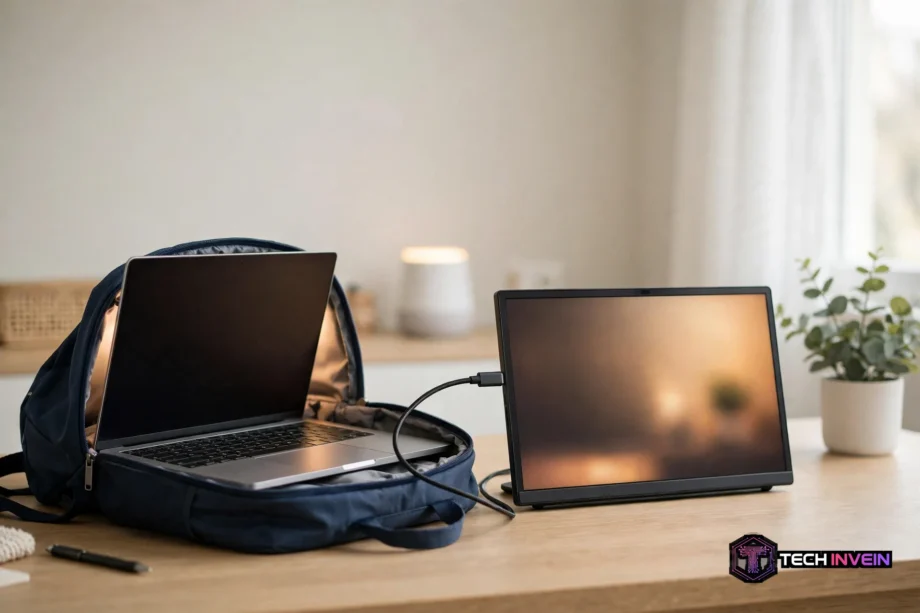
The best portable monitor for most people is a 15.6-inch 1080p IPS screen with one-cable USB-C. It fits a laptop bag, runs off your laptop, and gives you a real extra screen anywhere. Your laptop and your bag can still change that answer, though. This guide walks through size, resolution, power, and the use cases that matter.
- What Is the Best Portable Monitor for Your Setup?
- Size First: Pick the Screen That Fits Your Bag
- Resolution and Panel Type: What Your Eyes Will Notice
- One Cable or Two? USB-C, HDMI, and Power
- Best Portable Monitor Picks by Use Case
- Brightness, Refresh Rate, and Speakers
- Portable Monitor vs a Full-Size Monitor
- The 5-Minute Test Before You Keep It
- Mistakes to Avoid When You Buy
- FAQs
- What size portable monitor should I get?
- Is 1080p or 4K better for a portable monitor?
- Can a portable monitor work with a phone?
- Do portable monitors need their own power?
- Are portable monitors good for gaming?
- How do I set up a portable monitor with my laptop?
- Conclusion
What Is the Best Portable Monitor for Your Setup?
A portable monitor is a thin extra screen that travels with your laptop. Most models measure 13 to 17 inches, weigh under two pounds, and plug in with a single USB-C cable. That cable often carries both video and power, so you skip the brick and the extra lead. Does that sound like your kind of setup? Then the short answer above probably fits you.
But “best” is not one model for everyone. A coder wants sharp text. A gamer wants a fast refresh rate. A traveller wants the lightest screen that still reads well. So start with your own day, not a spec sheet. What do you actually open on an extra screen? Email and docs need far less than video editing or fast games.
Your laptop decides a lot too. Some USB-C ports carry video, and some only carry data and power. Check that first, because a screen that needs a video signal will stay black on a data-only port. Your bag decides the rest. A 17-inch panel is lovely on a desk, yet it can feel silly in a slim backpack.
Size First: Pick the Screen That Fits Your Bag
Size is the first choice, and it shapes everything else. A bigger screen shows more, but it also weighs more and needs more power. A smaller screen slips into any bag, yet small text can strain your eyes after a long day. Match the size to how you move, not to what looks good in a photo.
Most buyers land on 15.6 inches for a simple reason. It matches the size of a typical 15-inch laptop, so it slides into the same backpack pocket. Text at 1080p stays readable, and the weight stays near 1.5 pounds. First-time buyers rarely regret this size. It’s the safe middle ground.
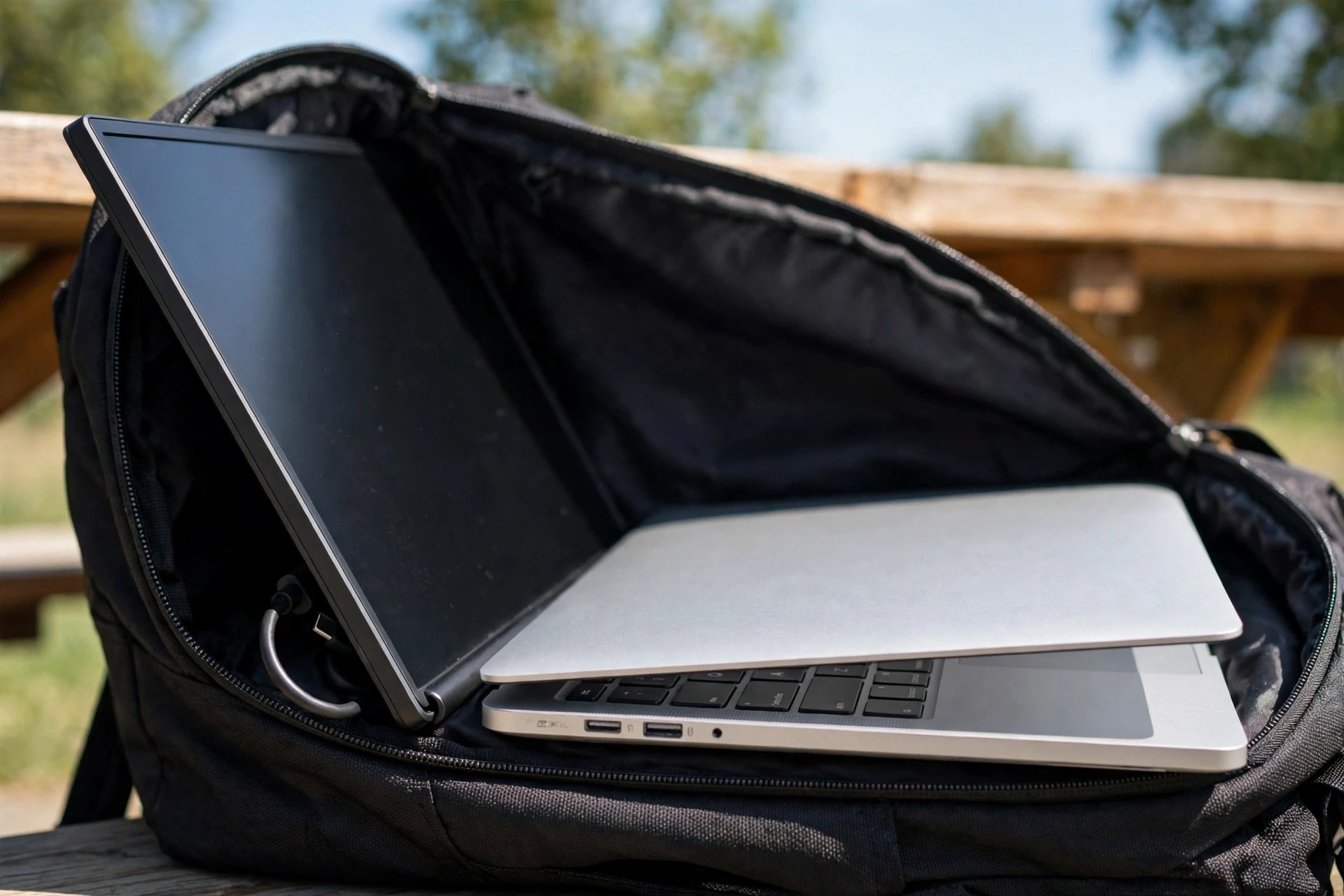
Table: Portable monitor sizes at a glance
| Size | Best for | Typical weight | Trade-off |
|---|---|---|---|
| 13.3 inch | Ultralight travel | About 1 pound | Small text |
| 14 inch | Daily commute | 1.1 to 1.4 pounds | Less room for windows |
| 15.6 inch | Everyday work | 1.5 to 1.8 pounds | Few downsides |
| 16 inch | Work and play mix | 1.7 to 2 pounds | Slightly heavier bag |
| 17.3 inch | Big spreadsheets | 2.2 to 2.6 pounds | Poor fit for small bags |
Resolution and Panel Type: What Your Eyes Will Notice
Resolution decides how sharp text looks. On a 15.6-inch screen, 1080p gives about 141 pixels per inch. That’s fine for docs, email, and video calls. Text stays clean at a normal viewing distance, most buyers will be happy here, and their laptop battery will thank them too.
Step up to 2.5K (2560 x 1440) if you read code or edit long documents all day. The jump in sharpness is easy to see on a 16-inch panel. It costs more and draws more power, but your eyes get a break, and for photo work that sharper panel also shows fine detail that 1080p can hide.
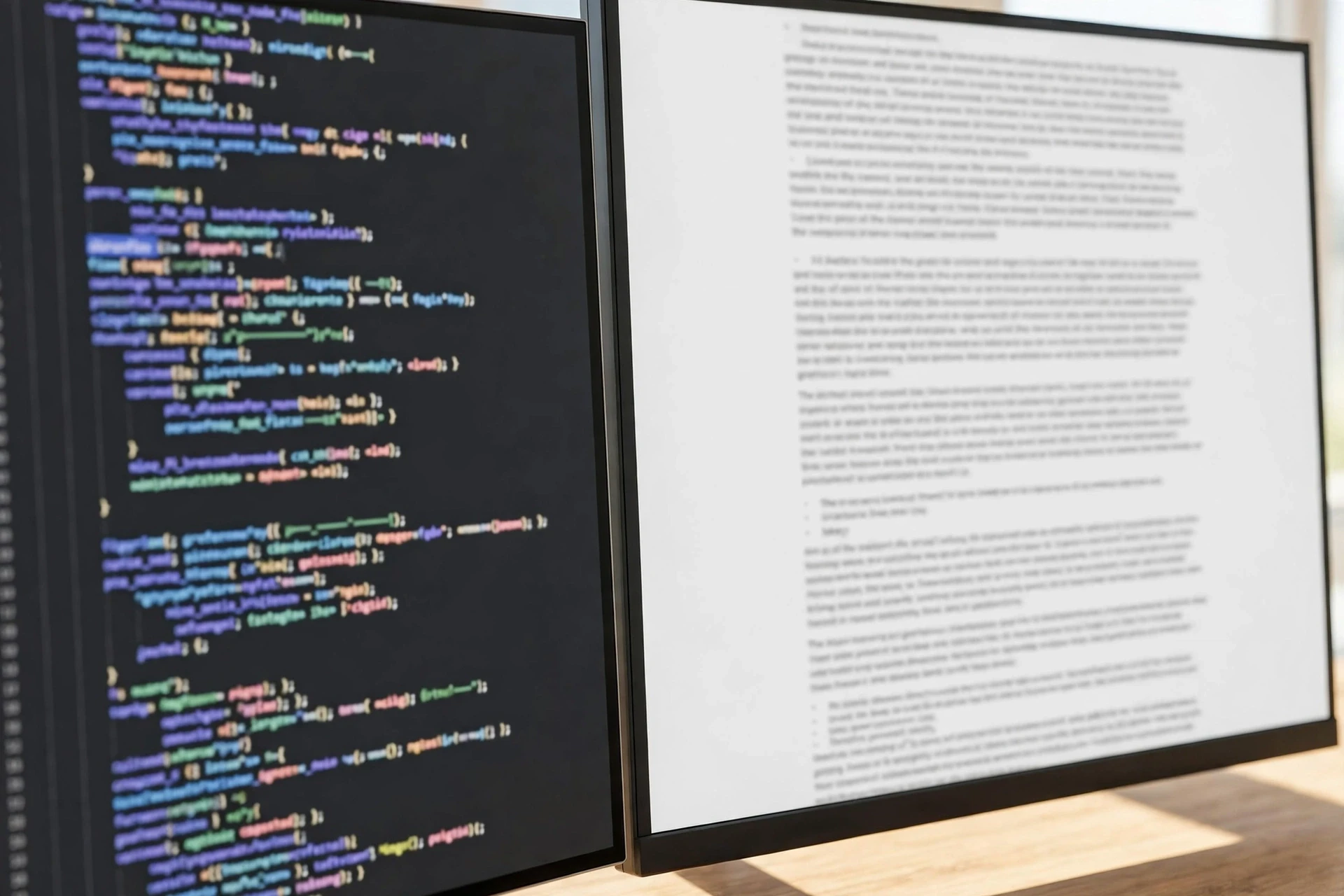
What about 4K on a portable screen? It looks superb, yet the gains shrink on a 15-inch panel. You will likely run heavy scaling anyway, so much of that detail never reaches your eyes. Meanwhile the price climbs, and battery drain grows. Treat 4K as a specialist pick for photo and video work, not the default.
One Cable or Two? USB-C, HDMI, and Power
One-cable USB-C is the feature that makes a portable monitor feel portable. The cable carries video and power together, so you plug in once and start work. But your laptop must support DisplayPort Alt Mode over USB-C for this to work. Many modern Macs and Windows laptops do, yet some budget machines have data-only USB-C ports. Check your laptop manual or maker page before you order.
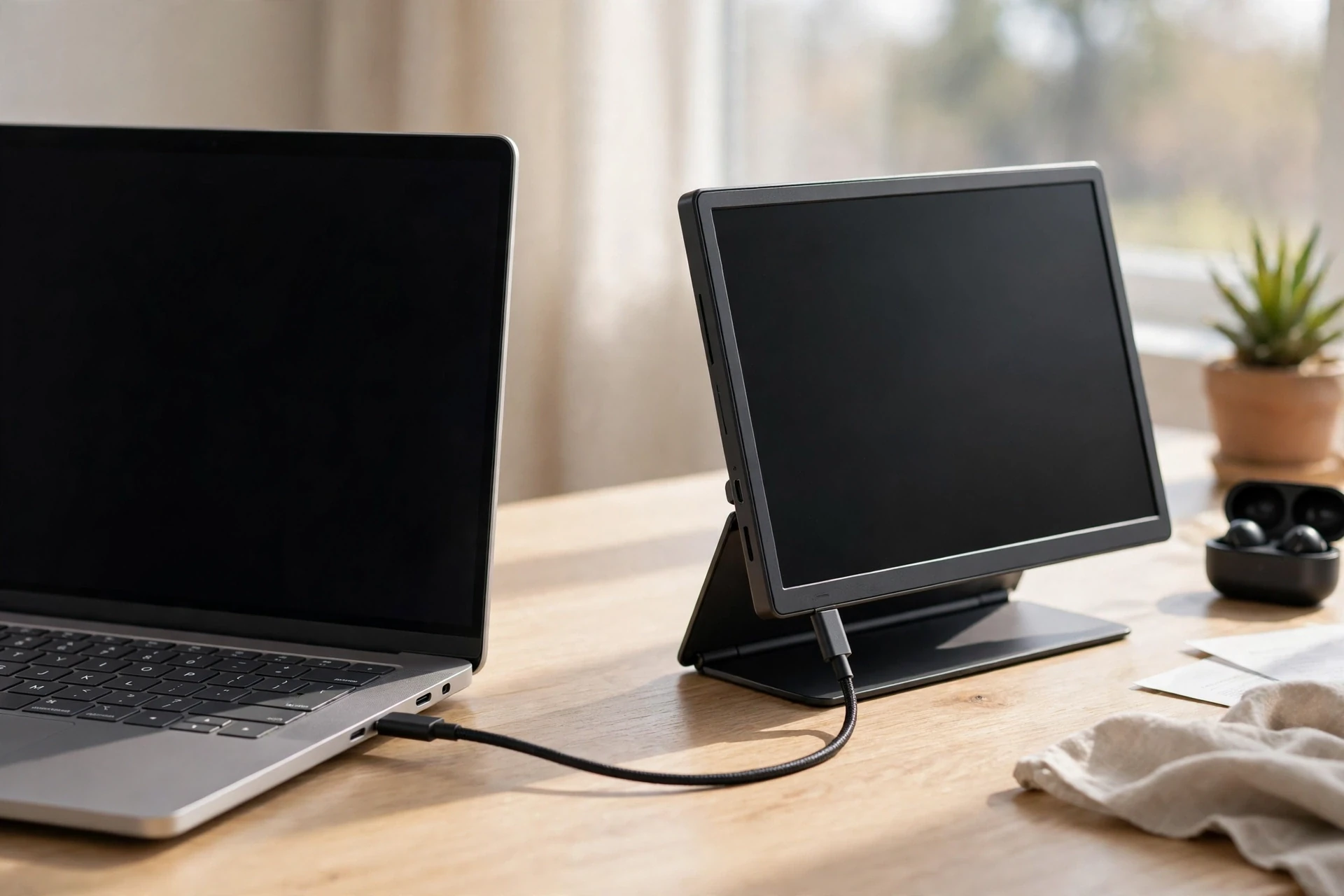
VESA, the standards body behind DisplayPort, explains that DisplayPort Alt Mode lets a USB-C connector carry full video, data, and power over one cable. You can read their official note on DisplayPort Alt Mode over USB-C if you want the technical detail. In plain terms, look for the DisplayPort logo or the words “DP Alt Mode” in your laptop specs.
What if your laptop lacks video over USB-C? Then you need the HDMI input plus a separate USB-C power cable. That means two cables and, on some models, a wall adapter. Mini-HDMI is the usual fallback port on portable screens, so check the box includes the right cable.
Power draw is the next thing to check. Most 15.6-inch 1080p panels need roughly 7 to 10 watts, which almost any modern laptop USB-C port can supply. Brighter or sharper panels need more, though. A second USB-C port for pass-through charging helps a lot on long unplugged days. It lets you charge the laptop through the monitor while you work.
How much battery will you lose? Running a portable monitor over USB-C draws 5 to 15 watts, and that can shorten laptop battery life by 1 to 3 hours, based on panel size and brightness. Lower the brightness a notch when you work unplugged. Your eyes adjust in a minute, and your battery lasts far longer.
Setting up an extra screen takes a few minutes once you know the steps. Our guide to dual screen setup for office walks through placement, display settings, and the layout habits that make two displays feel natural. The same ideas apply when your second screen folds into a bag.
Best Portable Monitor Picks by Use Case
No single model wins every use case, so pick by the job you do most. The groups below cover the buyers we hear from most. Find your group, then check the specs that group cares about. Prices change often, so check the current price on the maker page before you buy.
For Travel and Everyday Work
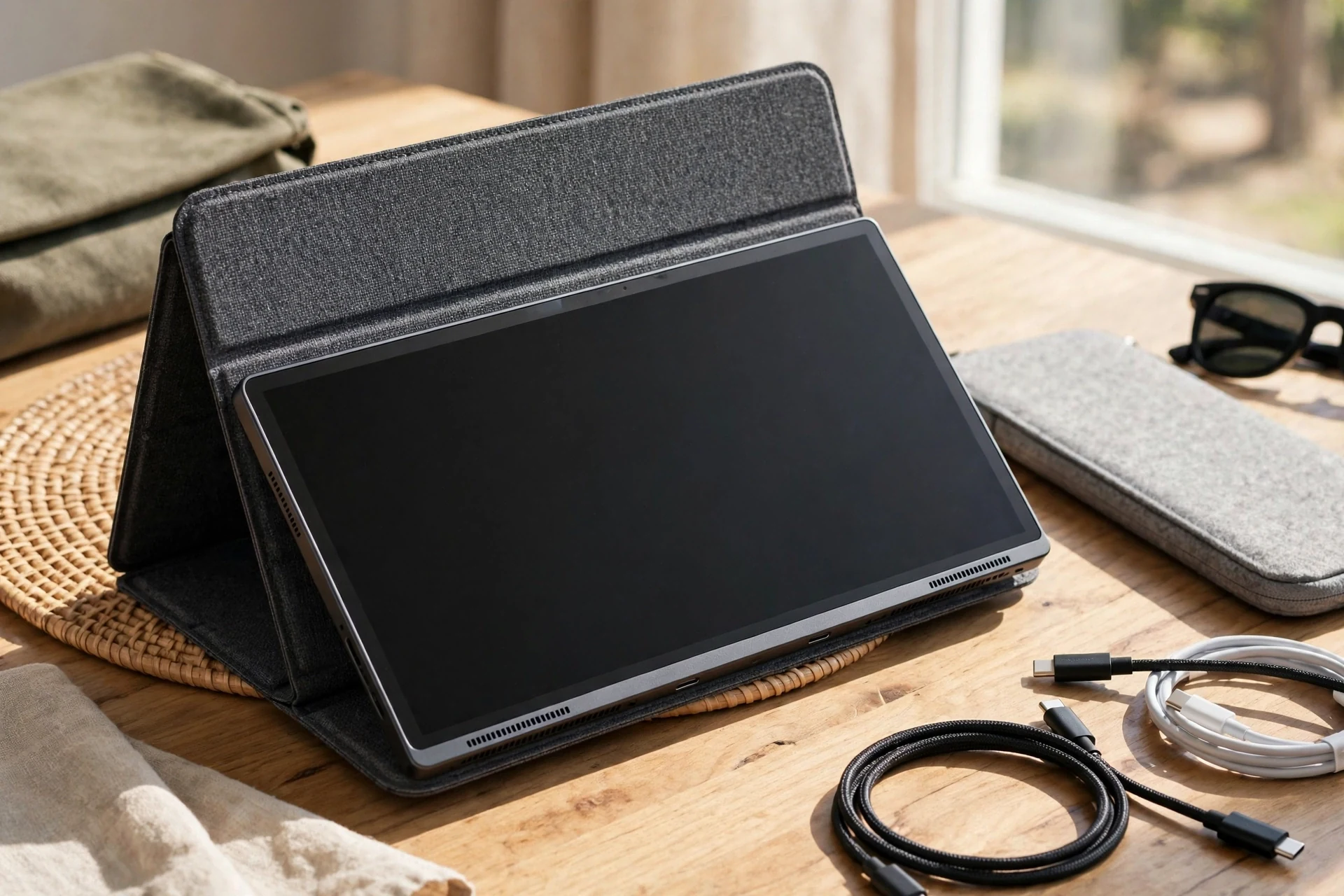
Pick a 15.6-inch 1080p IPS screen with USB-C and at least 300 nits of brightness. This is the best portable monitor shape for travel, since it balances weight, readability, and battery use. Look for a folio cover that doubles as a stand, and weigh the whole kit, not just the panel. Cables and a sleeve add up fast.
For a Mac Mini Desk
The best monitor for Mac mini owners is often a portable one, odd as that sounds. A Mac mini has no built-in screen, so a slim portable panel makes a tidy desk that packs away. Connect over USB-C from a rear Thunderbolt port, since those ports carry video. The front USB-C ports on some models are data-only, so use the rear ports first.
For Gaming on the Go
The best gaming monitor in portable form needs a fast refresh rate. Look for 120Hz or 144Hz if you play on a PS5, Xbox, or a capable handheld. At 60Hz, fast motion can smear, and you will notice it in shooters and racing games. A higher refresh rate also makes scrolling feel smoother, even outside games.
For a Tight Budget
The best budget monitor in this class is a 15.6-inch 1080p IPS panel with USB-C and a simple folio stand. Skip the touchscreen, skip the built-in battery, and skip 4K. Those extras add cost and weight, and most buyers never miss them. Put the money into brightness and build quality instead.
Brightness, Refresh Rate, and Speakers
Brightness is the spec buyers underrate most. Portable screens are dimmer than desktop monitors by design, since they run off a small power budget. A 250-nit panel works in a dim room, yet it struggles near a window. Treat 300 nits as your floor if you ever work in bright light.
Refresh rate is simpler than makers make it sound. A 60Hz screen draws a new image 60 times a second, which is fine for docs and video. A 120Hz or 144Hz screen draws more images per second, so motion looks smoother. Gamers gain most here. Office workers gain a little, mainly in scrolling. Don’t pay a big premium for refresh rate if you never play games.
Portable Monitor vs a Full-Size Monitor
Should you buy a portable screen or a full-size one? It comes down to one question: does your screen need to move? If you work in different places, a portable monitor earns its price fast. One cable gives you a second screen on a train, in a hotel, or at a client desk. A full-size monitor can’t do that.
But a fixed desk flips the answer. A 27-inch desktop screen costs less per inch, shows more at once, and stands on its own. The best 27 inch monitor for a home desk will beat any portable panel for comfort over a long day. If your laptop rarely leaves one desk, buy the big screen and skip the portable one.
Some people try a TV as a second screen instead. That can work in a pinch, since a big TV shows a lot at once. Yet TVs often add lag, and their pixels look coarse up close. If you want to know how TV screens differ from monitor panels, our guide on how smart TVs work explains the tech in plain terms. For daily desk work, a real monitor still wins.
The 5-Minute Test Before You Keep It
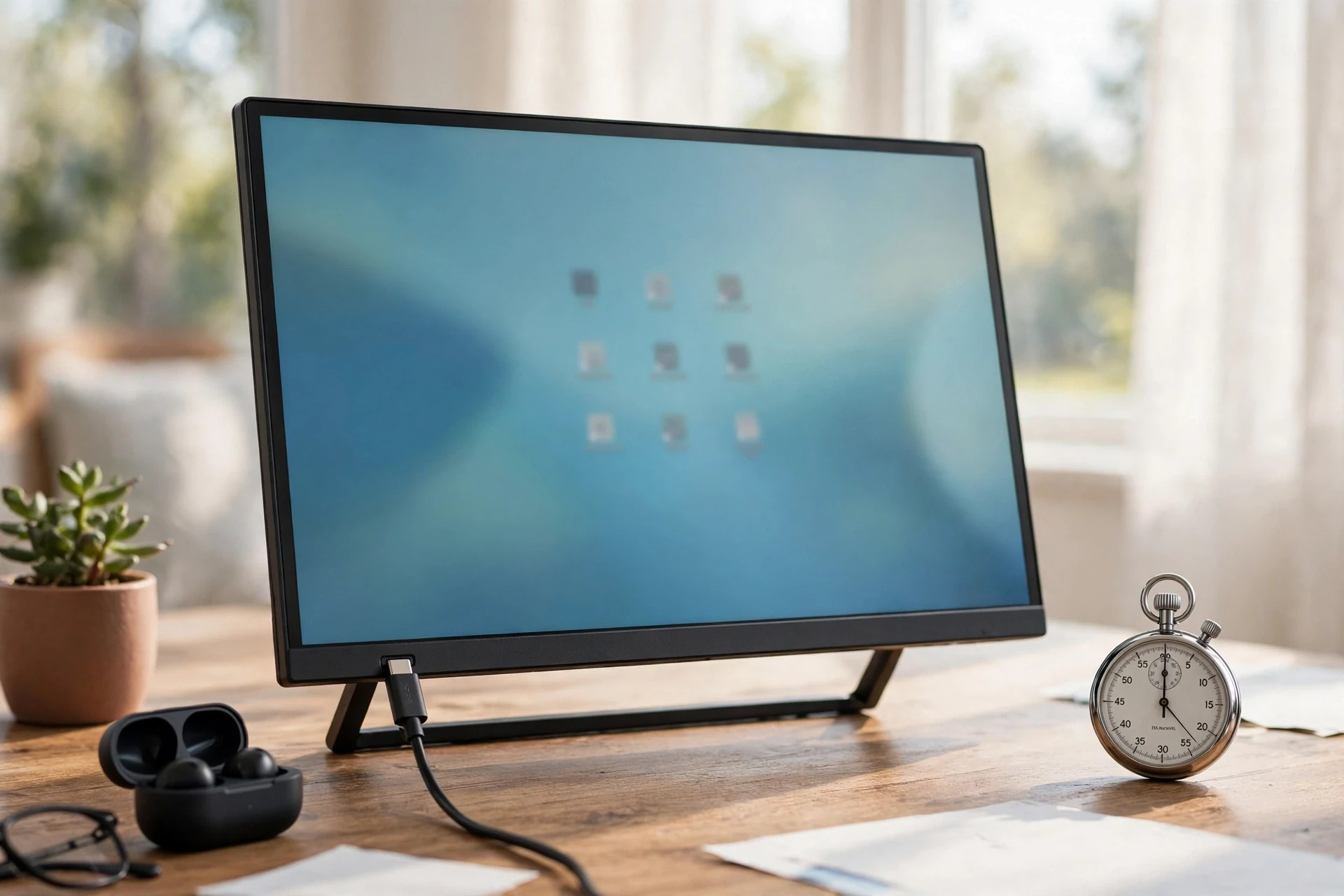
Here is the test I run on every portable screen before the return window closes. It takes five minutes, needs no tools, and catches most bad buys early. First, plug in with one USB-C cable and time how long the screen takes to light up. A good screen shows your desktop in under 10 seconds, so if it flickers or needs an extra cable, note that down.
Second, open a page of small text and read it at your normal distance. Then open a spreadsheet and split it across both displays. Does the text stay sharp at the edges? Next, drag a window from your laptop to the portable screen and back. The move should feel instant, with no lag or colour shift that jumps out at you.
Third, unplug the charger and watch the battery icon for two minutes. Then check your laptop battery estimate before and after 30 minutes of use with the screen on. A drop of 1 to 3 hours of estimated life is normal for a 15-inch panel. A much bigger drop points to a thirsty panel or full brightness, so turn the brightness down and test again.
Mistakes to Avoid When You Buy
A few mistakes cause most portable monitor regrets. The first is buying before checking your laptop USB-C port. A data-only port means no video, no matter how good the screen is. Check for DisplayPort Alt Mode in your laptop specs first, then test with a borrowed cable if you can.
Finally, don’t forget cable management at your desk. A portable screen still needs a tidy spot when you get home, with its cable routed where it won’t snag. Our guide to smart home wiring design ideas covers cable routing and tidy desk layouts that work for small screens too. A tidy desk makes a small screen feel like a real setup.
FAQs
What size portable monitor should I get?
Most people should get a 15.6-inch screen, since it balances size, weight, and readability. Pick 13 or 14 inches if you fly often and count every gram. Choose 17.3 inches only if the screen stays mostly on a desk. Measure your laptop sleeve first, because a screen that doesn’t fit your bag will stay at home.
Is 1080p or 4K better for a portable monitor?
1080p is the better pick for most buyers, since it costs less, uses less power, and still looks sharp on a 15.6-inch screen. Choose 2.5K if you read code or edit documents all day and want crisper text. Pick 4K only for photo or video work where you will truly see the extra detail.
Can a portable monitor work with a phone?
Yes, many portable monitors work with phones that support video output over USB-C. Samsung DeX phones and many recent Android phones can drive an external display directly, which turns your phone into a pocket desktop. Check your phone specs for video-out support before you buy, since not every phone offers it.
Do portable monitors need their own power?
Usually not, since most portable monitors draw power over the same USB-C cable that carries video. A 15.6-inch 1080p panel needs about 7 to 10 watts, which a modern laptop can supply. Very bright settings may need a second cable or a wall adapter on some models. Pass-through charging helps, since it charges the laptop through the monitor.
Are portable monitors good for gaming?
Yes, portable monitors can be good for gaming if you pick the right specs. Look for a 120Hz or 144Hz refresh rate, a mini-HDMI input, and at least 300 nits of brightness. A 60Hz panel still works for casual games. Fast panels drain batteries faster, so keep a charger close.
How do I set up a portable monitor with my laptop?
Plug one USB-C cable from your laptop into the monitor and wait a few seconds for the screen to light up. Open display settings and choose Extend. If nothing appears, check that your USB-C port supports video output and that the monitor input is set to USB-C. A second power cable may help on older laptops.
Conclusion
Start with the 15.6-inch 1080p USB-C screen unless your use case clearly points elsewhere. Check your laptop port first, then pick brightness and a solid stand over fancy extras. Run the five-minute test as soon as the box arrives, and keep the screen only if it passes. Your next step is simple: check your laptop specs for DisplayPort Alt Mode, then measure your bag.
If you work from home most days, pair the portable screen with a proper desk plan. Our guide to setting up a home office for remote work shows how an extra screen, good light, and a tidy desk fit together. A portable monitor is one piece of that setup, and it works best when the rest of the desk works too.