

GTA 6 PS5 settings will not unlock a 60fps mode, so the best setup is about getting the picture, sound, and controls right at 30 frames per second. Rockstar confirmed the game targets 30fps on PS5, with no performance toggle in the menu. The in-game options, plus the console and TV settings that matter, are covered below.
- The One Fact That Shapes Every Setting
- GTA 6 PS5 Settings: In-Game Display Options
- PS5 System Settings to Set Before You Play
- GTA 6 PS5 Settings for Audio and Controls
- Your TV Settings Matter Too
- Network and Storage Checks
- Common Mistakes to Avoid
- FAQs
- Does GTA 6 have a performance mode on PS5?
- Can GTA 6 run at 60fps on PS5 Pro?
- What is the best motion blur setting in GTA 6?
- Should I turn on 120Hz output for GTA 6?
- What HDR setting should I use for GTA 6 on PS5?
- Does GTA 6 support 3D Audio on PS5?
- The Bottom Line
The One Fact That Shapes Every Setting
Start with the fact that changes everything else. Rockstar said in its pre-load post on 10 November 2026 that GTA 6 targets 30 frames per second on current consoles. So there is no performance mode to find, and no quality mode either.
That is a big change from GTA 5 on PS5, which offered Fidelity, Performance, and Performance RT modes. In GTA 6, the Display tab has no mode switch at all. The game still runs at 30fps on PS5 Pro too.
So what can you change? You can tune motion blur, brightness, HDR, sound, and controls in the game. Then set the PS5 system options and your TV so the 30fps picture looks as clean as it can. Independent testing also reported that the base PS5 renders at 1440p and upscales to a 4K output, with dips toward 25fps in heavy scenes.
GTA 6 PS5 Settings: In-Game Display Options
Open the pause menu and pick Settings. Flip through the tabs with L1 and R1. You will see eight tabs: Control Scheme, Controller, Gameplay, Display, UI, Camera, Audio, and Account. The Display tab is where the picture options live.
Guides that checked the menu on launch night counted twelve options in the Display tab. None of them switches the frame rate or the resolution. Still, the options that are there can change how the game feels, so they are worth a look.
Motion Blur Strength
Motion Blur Strength is the first slider to try. It starts at 3 by default, and you can lower it to 0. A lower value makes the picture sharper when you turn the camera fast.
Here is a simple test. Drive a fast car through a busy part of the city with the slider at 3. Then set it to 0 and drive the same route again. Road signs stay readable at 0, and you will see the difference at once.
But do not stop there. At 30fps, zero blur can make camera turns look juddery, so 0 is not right for everyone. Try 1 or 2 next, then keep the value that looks smoothest to you.
Brightness and HDR Calibration in the Game
Brightness Calibration sits in the same Display tab. It shows a symbol and asks you to lower the brightness until it is barely visible. Take your time, because a rushed calibration makes dark scenes either crushed black or washed grey.
The game also has an HDR calibration screen with sliders for Max Brightness, Black Levels, and Paper White. These tune HDR for your own TV, so do not copy numbers from another player. Adjust each slider on your own screen, and run the PS5 system HDR calibration first.
Visual Effects and Comfort Toggles
The Display tab also holds three effect sliders. They are Player Status Effects Intensity, Hit Effects Intensity, and Awareness Effects Intensity, and each one starts at 5. Lower them if flashing effects bother you during long sessions.
Dismemberment starts on, Blood and Gore sits on High, and Flashbang is set to Bright. You can change any of these for a calmer picture. One thing you will not find is a field of view slider, and there is no full first-person mode at launch either.
PS5 System Settings to Set Before You Play
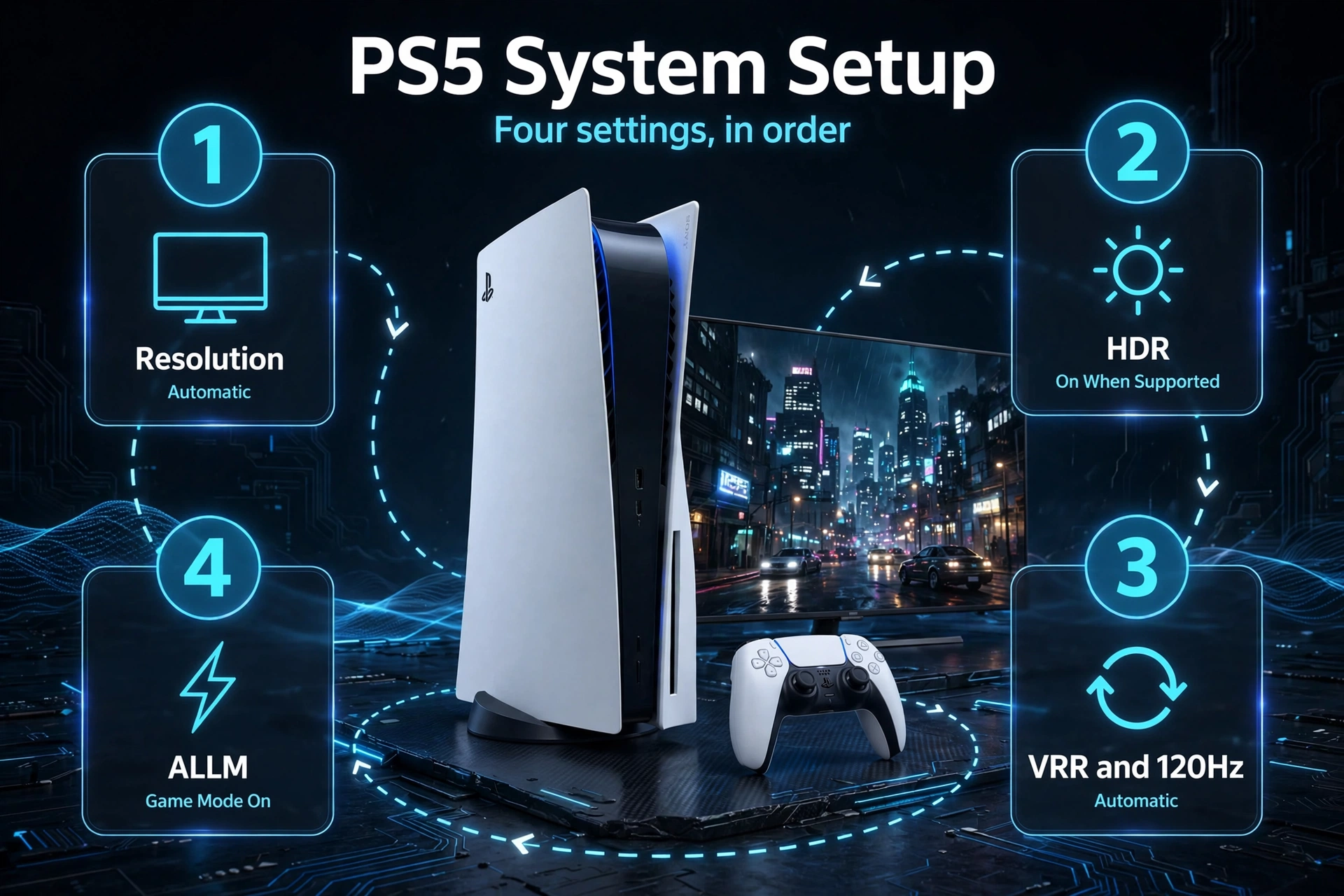
Step out of the game now. Most of the picture quality comes from these console settings, because the game gives you no graphics mode. Find them under Settings, then Screen and Video, then Video Output. Do them in order, and change one thing at a time.
Resolution: Leave It on Automatic
Set Resolution to Automatic. Sony says the PS5 then picks the highest resolution your TV supports. The game renders at 1440p inside and upscales to 4K, and Automatic lets the console handle that cleanly.
If your TV supports 1440p output, you can test it from the same menu. But for most players on a 4K TV, Automatic is the right call. Read the full list of video output options in the official PlayStation PS5 4K resolution guide. Do not force a fixed resolution your TV handles badly, or you may get a black screen.
HDR on the Console
Next, look at HDR in the same Video Output menu. You will see Always On and On When Supported. Always On converts even non-HDR games to HDR output, while On When Supported shows them in standard dynamic range.
For GTA 6, either choice works, but On When Supported is the safer pick for most TVs. Then run Adjust HDR from the same menu and follow the prompts. Do not skip this step, because a wrong HDR setup is the most common reason the game looks too dark or blown out.
VRR and 120Hz Output
VRR stands for variable refresh rate. It lets your TV change its refresh rate to match the frames the PS5 is producing. Set VRR to Automatic if your TV supports it, and leave it there unless you see flicker.
Be honest about what VRR can do here, though. VRR on PS5 usually works from around 48Hz upward, so a game at 30fps sits below that range. That means VRR will not smooth out every dip in GTA 6. Still, it costs nothing to leave on.
Then set 120 Hz Output to Automatic. This does not make GTA 6 run at 60fps, because the game still targets 30fps. But a 120Hz signal divides evenly by 30, so each frame is held for four refreshes. You need an HDMI 2.1 port on your TV for this, so plug the console into the right port.
ALLM and Game Mode
ALLM stands for auto low-latency mode. When it is on Automatic, the PS5 tells your TV to switch into its low-latency game mode by itself. That cuts input lag, which you will feel every time you steer or aim.
Check that your TV actually switched to Game Mode after you start the game. Some TVs show a small banner, and some do not, so open your TV picture settings and look. While you are there, turn off motion smoothing, because it adds fake frames that make games look laggy.
Table: Recommended GTA 6 PS5 setup at a glance
| Setting | Recommended option | Where to change it |
|---|---|---|
| Resolution | Automatic | PS5 Video Output |
| HDR | On When Supported | PS5 Video Output |
| Adjust HDR | Follow the on-screen steps | PS5 Video Output |
| VRR | Automatic | PS5 Video Output |
| 120 Hz Output | Automatic | PS5 Video Output |
| ALLM | Automatic | PS5 Video Output |
| Motion Blur Strength | 1 or 2 | GTA 6 Display menu |
| Brightness Calibration | Until the symbol is barely visible | GTA 6 Display menu |
| 3D Audio | On, set for your TV or headphones | PS5 Sound settings |
GTA 6 PS5 Settings for Audio and Controls
Sound and controls decide how the game feels. These settings take five minutes, and they are worth it before your first long session.
3D Audio on PS5
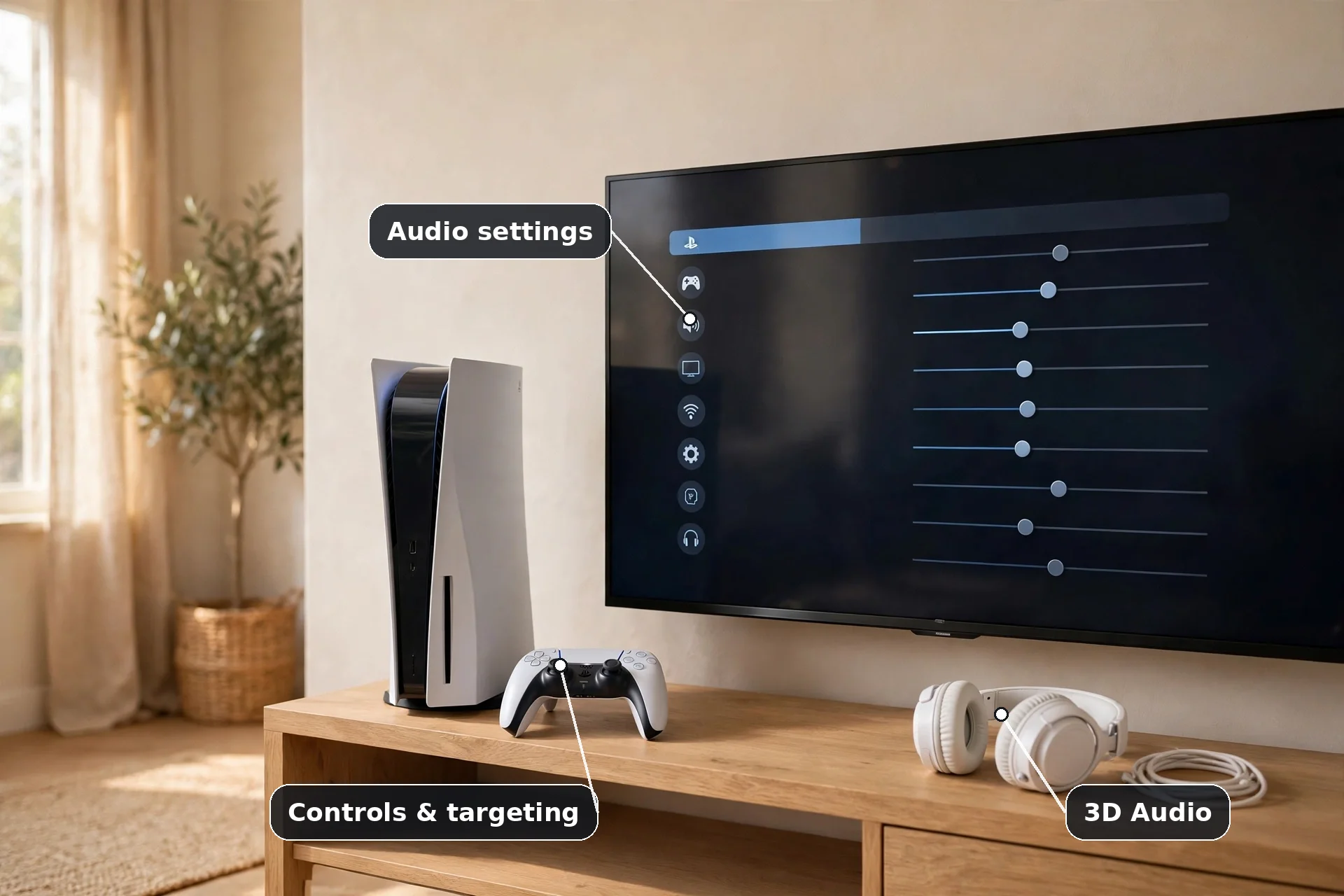
GTA 6 supports Tempest 3D Audio on PS5. Turn it on under Settings, then Sound, then 3D Audio. Pick the setup that matches your TV or your headphones, then try it for one mission.
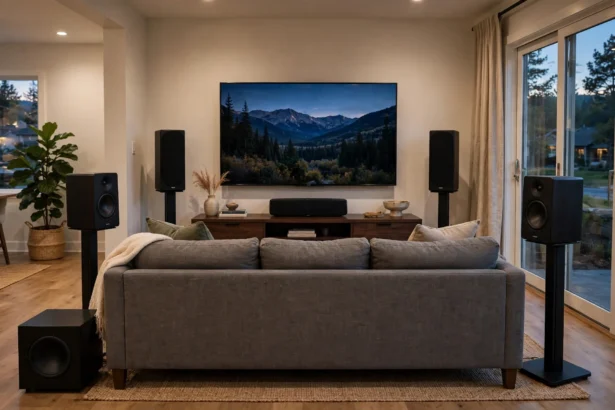
The point of 3D Audio is direction. You can hear traffic, voices, and action coming from the right side, which helps you read a busy street without staring at the minimap. If you play through TV speakers, check the speaker setup too, because a bad layout can bury dialogue under music.
Our guide to connecting speakers to your TV walks through the wiring and the settings that matter. Also check the Audio tab inside the game, because it holds the volume mix for music, effects, and dialogue.
Aim Assist, Targeting, and Controls
Targeting sits in the Gameplay tab, and it starts on Partial by default. That gives you some aim help without locking onto every target. Switch to Lock-On for a relaxed game, or try Free Aim for a real challenge.
The Control Scheme tab holds the button layouts, and Classic is there if GTA 5 is still in your muscle memory. Pick the layout that feels natural, then stick with it for a few sessions. A new layout always feels wrong on day one, so give it time. Also check stick dead zones in the Controller tab, because a zone that is too small can make your aim drift.
Subtitles and the Camera
Subtitles sit in the UI tab. They start on Mission Only with Small text by default. Switch them to All Dialogue if you want subtitles outside missions too, and bump the size up one step if your TV sits across the room. The Camera tab adds Weapon Sway, Camera Shake, and Camera Bob, so lower the bob if the movement makes you feel queasy.
Your TV Settings Matter Too
Your TV is the last link in the chain. It can undo good console settings in seconds, so before you blame the game for a dull picture, check the TV first. Make sure it is on Game Mode, and check that HDR is on for the HDMI input your PS5 uses.
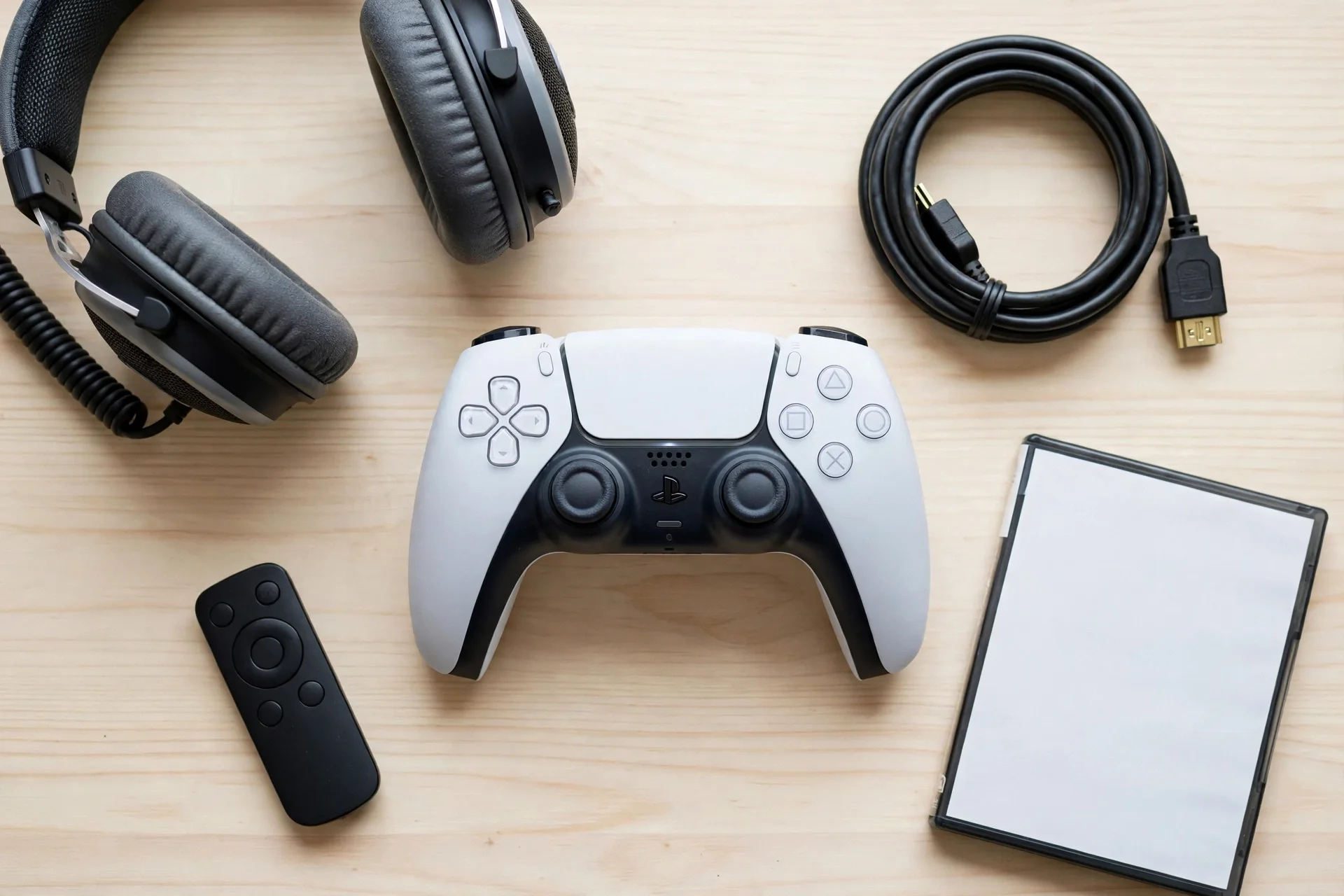
If you are still shopping for a screen, our best TV for gaming guide covers the features that matter for PS5 play. A TV with HDMI 2.1, low input lag, and good HDR beats any in-game slider.
Network and Storage Checks
GTA 6 is a huge download. Rockstar said the pre-load needs up to 212GB depending on the device, so check your free storage before launch day. Clear space early if you need it.
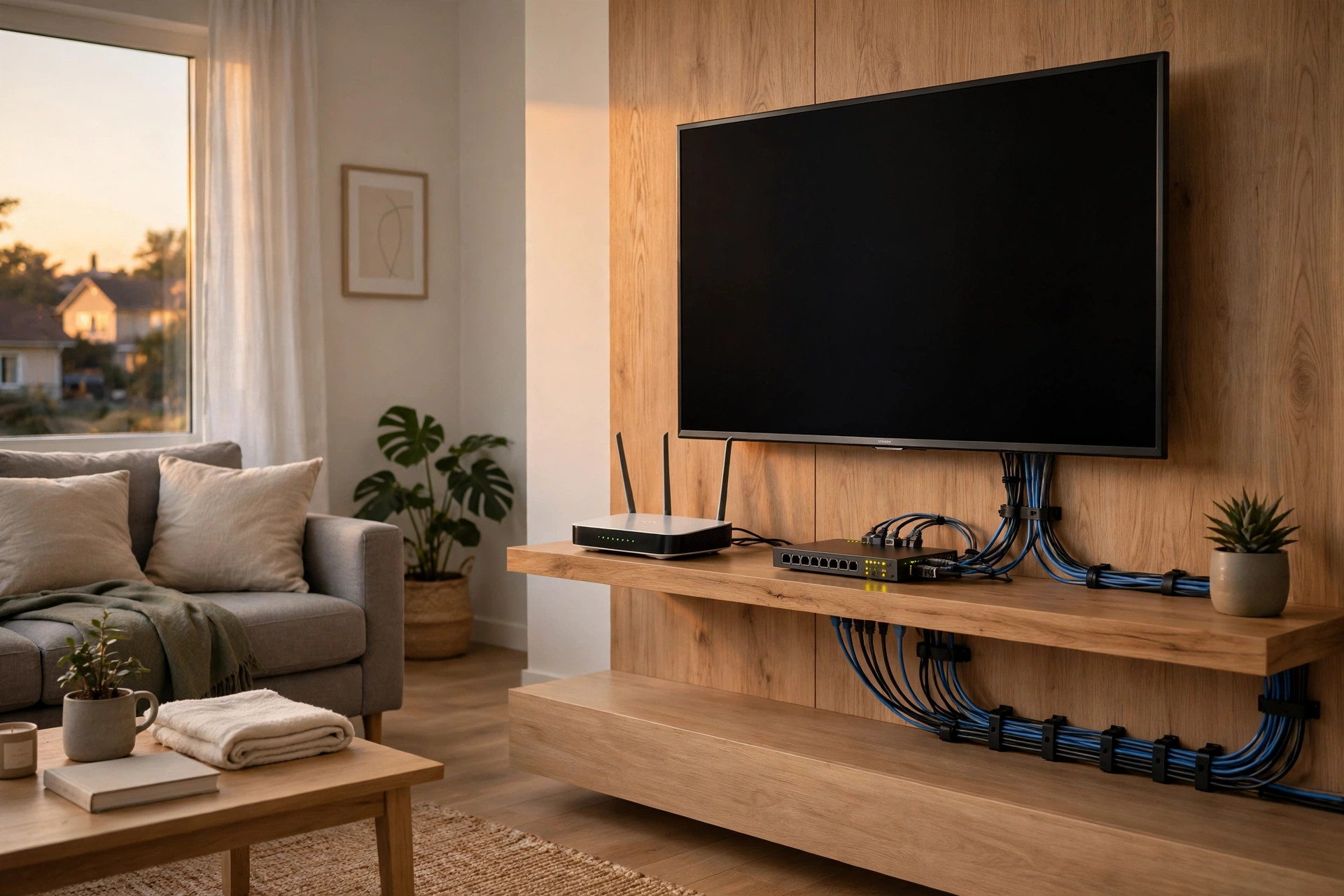
A wired connection also helps. An Ethernet cable gives you a steadier download and a more stable online session than Wi-Fi. If your router sits in another room, a good Ethernet cable for gaming is a cheap fix.
Wi-Fi can still work well if the signal is strong. But if your PS5 sits far from the router, the connection will drop at the worst moment. So test your speed on the console first, and fix the weak link before you blame the game.
If the signal is weak in your gaming room, a mesh system can help. Our mesh Wi-Fi system guide explains how to place the nodes so the PS5 gets a strong signal. Put one node near the console, not three rooms away.
Also, keep the console software and the game updated. Rockstar may tune performance or add options in later patches, so check for updates before a long session.
For a full walkthrough of the home side, our home network installation guide covers router placement, wiring, and the checks to run before you rely on the network for gaming.
Common Mistakes to Avoid
The biggest mistake is hunting for a performance mode that does not exist. Players open every tab, then search online for a hidden toggle, and then change random settings in frustration. So accept the 30fps target first, and use that time on the settings that do work.
The next mistake is changing five settings at once. If the picture looks worse after that, you will not know which change caused it. So change one setting, play for ten minutes, and then decide. Another common error is copying another player’s HDR numbers, because every TV panel is different.
FAQs
Does GTA 6 have a performance mode on PS5?
No, there is no performance mode in GTA 6 on PS5. Rockstar confirmed the game targets 30 frames per second, and the settings menu has no quality or performance toggle. The Display tab only changes picture and comfort options, so do not waste time hunting for a hidden mode. Set up the options that do exist instead.
Can GTA 6 run at 60fps on PS5 Pro?
No, the PS5 Pro also targets 30 frames per second. Rockstar said the Pro adds sharper image quality through PlayStation Spectral Super Resolution, plus ray-traced shadows that are only on the Pro. Those upgrades improve clarity and lighting, but they do not raise the frame rate. So expect a steadier, cleaner 30fps picture, not a 60fps mode.
What is the best motion blur setting in GTA 6?
Start at 1 or 2 instead of the default 3. A lower value makes the picture sharper when you turn the camera fast, which helps in driving and on-foot chases. But at 30fps, zero blur can make camera turns look juddery, so do not drop it to 0 and forget it. Test it on a fast drive first.
Should I turn on 120Hz output for GTA 6?
Yes, leave 120Hz output on Automatic if your TV supports it. It does not make GTA 6 run at 60fps, because the game targets 30fps. But a 120Hz signal divides evenly by 30, so each frame is held for four refreshes, which can look steadier than a 60Hz signal. You need an HDMI 2.1 port for this to work.
What HDR setting should I use for GTA 6 on PS5?
Set HDR to On When Supported on the PS5, then run Adjust HDR and follow the on-screen steps. After that, open the in-game brightness calibration and the HDR sliders, and tune them for your own TV. Every TV handles HDR differently, so copy settings with care. So judge the picture on your own screen.
Does GTA 6 support 3D Audio on PS5?
Yes, GTA 6 supports Tempest 3D Audio on PS5. Turn it on under Settings, then Sound, then 3D Audio, and pick the setup that matches your TV or headphones. The game uses it for direction, so you can hear traffic, voices, and action coming from the right side. It costs nothing to try, so test it for one mission.
The Bottom Line
The best GTA 6 PS5 settings setup is simple once you accept the 30fps target. Leave Resolution on Automatic, set HDR to On When Supported and calibrate it, turn on VRR, 120Hz output, and ALLM, then tune motion blur to 1 or 2 in the game. Add 3D Audio and the control options that suit you, and you are done.
So run through the table above in order, and change one setting at a time. Then play for an hour and see how it feels, because the right setup is the one that looks good on your TV and feels good in your hands.