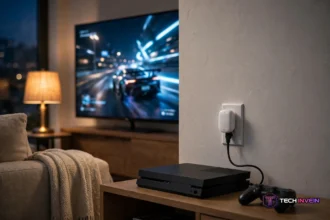



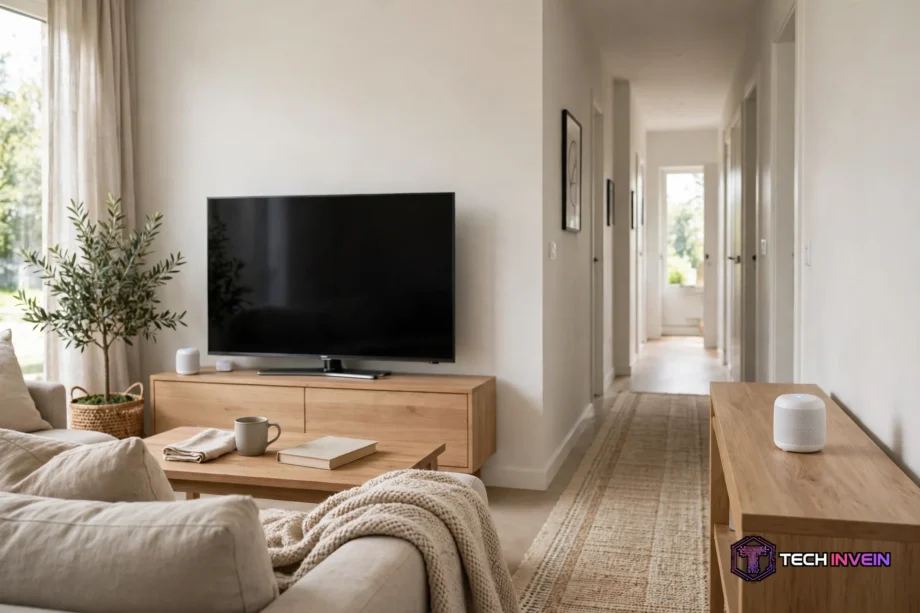
A mesh wifi system replaces one router with two or three small units that work as a single network. One unit plugs into your modem, and the rest sit around your home. It fixes dead zones at the source instead of patching one room at a time.
- How a Mesh WiFi System Works
- Do You Actually Need One?
- How to Choose a Mesh WiFi System
- WiFi 6, WiFi 6E, or WiFi 7?
- Dual-Band or Tri-Band?
- How Many Nodes Do You Need?
- Ports, Smart Home Support, and the App
- Five Systems Worth a Look
- Eero Pro 7: Easiest Setup
- Google Nest Wifi Pro: Best for Google Homes
- TP-Link Deco BE63: Best Value WiFi 7
- Netgear Orbi 870: Best for Large Homes
- ASUS ZenWiFi BT10: Best for Power Users
- Setup: Placement Matters More Than the Box
- Mesh WiFi and Your Smart Home
- FAQs
- How many nodes do I need for a two-storey home?
- Does mesh WiFi slow down my internet speed?
- Can I use a mesh system with my current modem?
- Is mesh WiFi better than a WiFi extender?
- Do mesh nodes need an Ethernet cable?
- Will a mesh system help my smart home devices?
- The Bottom Line
Most homes need steady signal in every room. This guide covers how mesh works, what to buy, and where to put the nodes.
Watch this quick explainer on how mesh WiFi works:
How a Mesh WiFi System Works
A mesh wifi system is a team of small nodes. The first node connects to your modem and acts as the main router, and all nodes share one network name. The other nodes sit in different rooms and pass traffic back to it.
First, the link between nodes is called the backhaul. It decides how fast the far rooms feel. A wired backhaul runs over an Ethernet cable, so it gives the best speed. Tri-band systems reserve a whole band for node-to-node traffic. Dual-band systems share the same bands, so the far node can slow down when the house gets busy.
Roaming is the part you notice most. With one router and an extender, your phone often clings to a weak signal until it drops. With mesh, the nodes hand your device over to the strongest one. So a video call keeps going as you walk from the kitchen to the bedroom.
Table: Mesh system compared with a single router and a router plus extender.
| Option | Coverage | Speed in far rooms | Network names |
|---|---|---|---|
| Single router | One area, fades with distance | Drops sharply through walls | One |
| Mesh system | Whole home, node by node | Stays high with tri-band or wired backhaul | One |
| Router plus extender | One extra room | Often about half on basic models | Often two |
An extender still has a place. If only one room is weak and your internet plan is modest, a cheap extender can fix it. But when two or more rooms struggle, or your home has more than one floor, mesh is the cleaner fix. It replaces the network instead of stretching a tired signal.
Do You Actually Need One?
Start with the problem, not the box. Walk through your home with your phone and note where video buffers, calls freeze, or pages load slowly. Weak spots far from the router or behind thick walls point to a mesh wifi system.
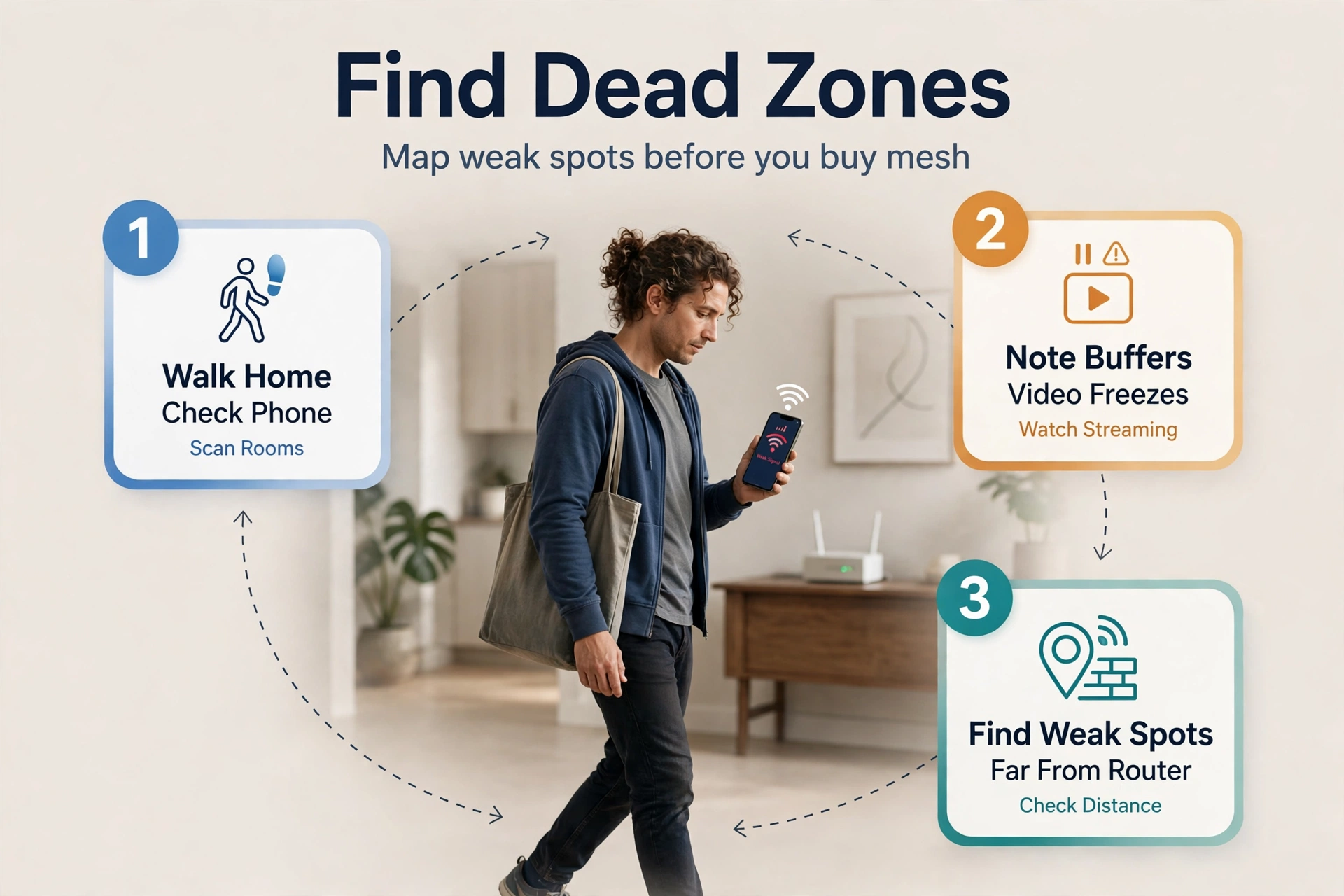
First, size is the simplest test. Homes under about 1,500 square feet on one floor usually do fine with one good router placed in the middle. Homes above that size, homes with two or three floors, and long narrow layouts are where mesh earns its keep. The same goes for homes with more than 15 devices.
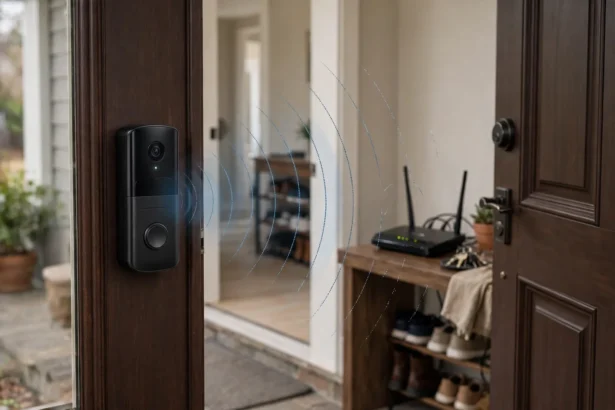
Smart homes also push the case further. Cameras, doorbells, plugs, and speakers stay connected all day, and many sit at the edges of the house. A doorbell at the front door is a classic weak spot. It sits far from the router and behind an outside wall.
Still, mesh is not the answer to every slow connection. If your internet plan is 50 Mbps, no mesh system will make it 500 Mbps. Test your speed next to the router first. If it is fine there but slow in the far bedroom, the fault sits inside your home. Mesh can fix that. When it is slow even next to the router, call your provider first.
How to Choose a Mesh WiFi System
Shopping for mesh gets confusing fast. Every box promises huge coverage numbers and speeds you will never see in real life. So ignore the headline numbers. Judge four things instead: the WiFi generation, the backhaul, the node count, and the ports.
WiFi 6, WiFi 6E, or WiFi 7?
WiFi 6 is the safe budget choice. WiFi 6E also adds the 6 GHz band, which is less crowded and gives the backhaul more room.
Here is the honest rule. If your plan is under 500 Mbps, a WiFi 6 or 6E system is plenty. If you have a gigabit plan or WiFi 7 phones and laptops, WiFi 7 is worth the extra cost. Our guide to the best WiFi 7 router explains the new standard in plain terms.
Coverage numbers on the box are measured in open space with no walls, so treat them as a rough guide. Real homes cut those numbers by a third or more. So halve the box claim for a real home.
Dual-Band or Tri-Band?
This choice matters more than the WiFi generation. A dual-band system uses the 2.4 GHz and 5 GHz bands, and the nodes share them with your devices. A tri-band system also adds a third band, often 6 GHz, and reserves it for node-to-node traffic.
Tri-band costs more, so it is the single best upgrade for a large home. If your budget only stretches to dual-band, plan a wired backhaul instead. Even one Ethernet cable beats a wireless backhaul on a busy evening.
A wired setup needs the right cable, and a switch helps when you connect several rooms. Our guide to the best Ethernet cable for gaming covers what matters for speed. The same advice applies to wiring mesh nodes.
How Many Nodes Do You Need?
Most homes need two or three nodes. One node covers roughly 1,500 to 2,000 square feet in a real home. So start with a two-pack for a home up to about 3,000 square feet. Add a third node when the home passes that size, has three floors, or has thick walls.
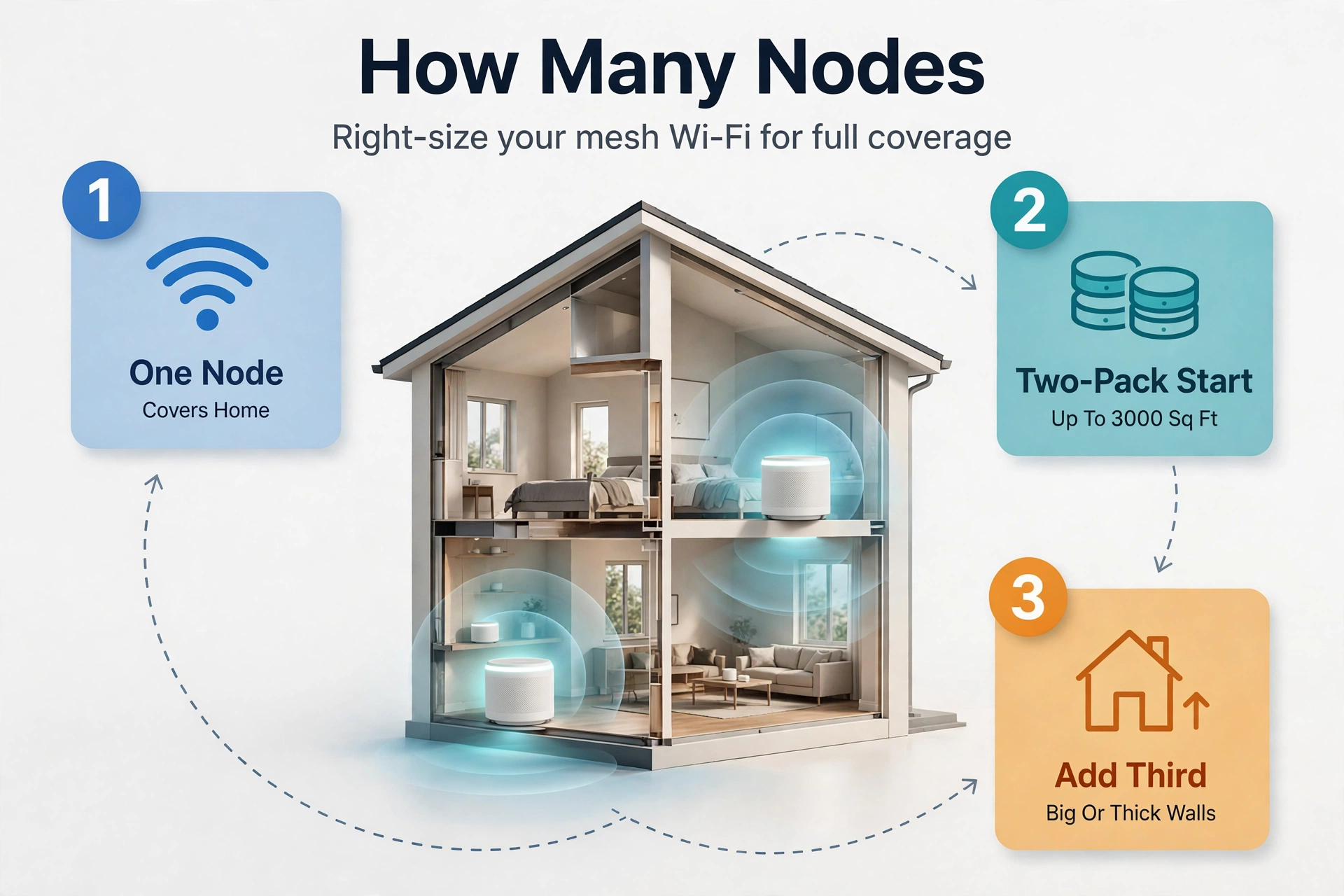
Table: Starting node count by home size and floors.
| Home size | Floors | Nodes to start with |
|---|---|---|
| Under 1,500 sq ft | 1 | 1 to 2 |
| 1,500 to 3,000 sq ft | 1 to 2 | 2 |
| 3,000 to 5,000 sq ft | 2 to 3 | 3 |
| Over 5,000 sq ft | 3 or more | 4 or more |
More nodes are not always better. Nodes placed too close together fight over the same air and make devices switch back and forth. So start with two, test every room, and only add a node where a room stays weak. Most systems also let you add a node later.
Ports, Smart Home Support, and the App
Count the Ethernet ports on each node before you buy. Some nodes have only one or two ports. One of them connects to the modem, so a TV or console may have nowhere to plug in. Look for at least two ports per node.
Smart home support is the next check. Some systems include a built-in hub for Thread, Zigbee, or Matter, so your sensors and bulbs connect straight to the mesh. Others need a separate hub. A built-in hub saves a box and a plug socket.
The app matters more than most buyers expect. It is where you set parental controls, pause the kids’ WiFi, and check which node a device uses. A clean app makes those jobs take seconds.
Five Systems Worth a Look
No single system wins for every home, so the picks below are honest trade-offs. Each one suits a different buyer, and each has a real weakness. So check the current price on the manufacturer’s page before you buy.
Eero Pro 7: Easiest Setup
The Eero Pro 7 is the pick for people who want WiFi that just works. Setup takes about ten minutes in the app, and updates install on their own. It is a tri-band WiFi 7 system with a dedicated 6 GHz backhaul, so far rooms keep their speed. The trade-off is control.
Google Nest Wifi Pro: Best for Google Homes
The Nest Wifi Pro fits homes that already run on Google. It works with Google Home and supports Matter. It also acts as a Thread border router, so compatible smart devices join without an extra hub. The weakness is speed on paper. Its Ethernet ports are gigabit only.
TP-Link Deco BE63: Best Value WiFi 7
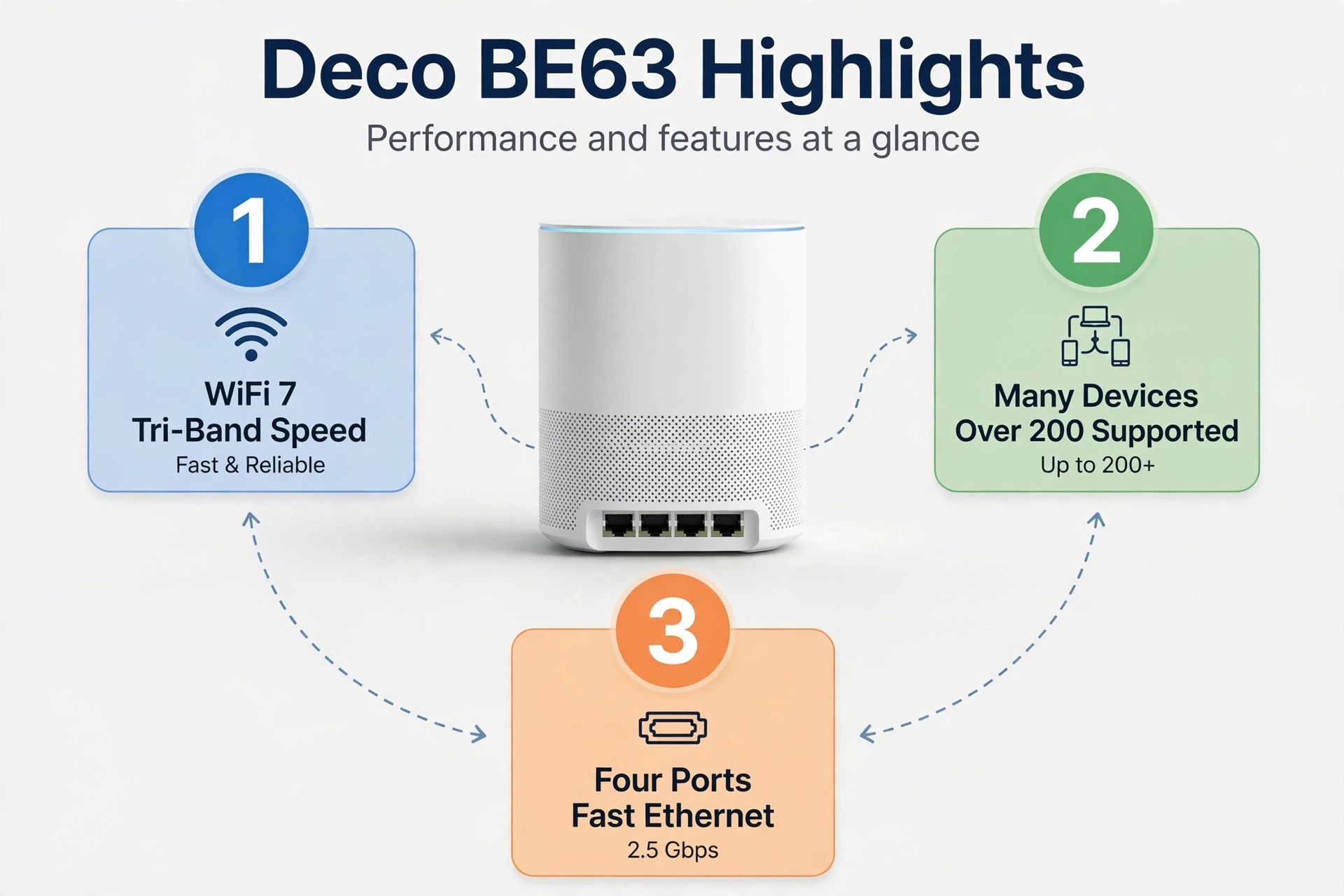
The Deco BE63 gives WiFi 7 for less than most rivals. It is tri-band, supports over 200 devices, and each unit carries four 2.5 Gbps Ethernet ports. The catch is polish. Still, the app is not as smooth as eero’s, and advanced security features cost extra.
Netgear Orbi 870: Best for Large Homes
The Orbi 870 is built for big houses. Its router node is powerful, its satellites reach far, and its dedicated backhaul keeps speed high across long distances. The trade-offs are size and cost. Orbi units are large, so the system sits at the premium end of the market.
ASUS ZenWiFi BT10: Best for Power Users
The ASUS ZenWiFi BT10 is the system for people who want full control. It is a tri-band WiFi 7 system with 10 Gbps ports. Its software includes AiProtection Pro, a full security suite, at no extra cost. The downside is complexity. The interface has more menus than most people will ever open, and the units are chunky.
Setup: Placement Matters More Than the Box
A good system in bad spots still gives bad WiFi. Placement decides the result, so take your time with it. The whole job takes under an hour for most homes, and the app walks you through each step.
- First, put the main node near the centre of your home, out in the open, about waist high. Plug it into the modem.
- Set up the network name and password in the app, then update the firmware before you place the satellites.
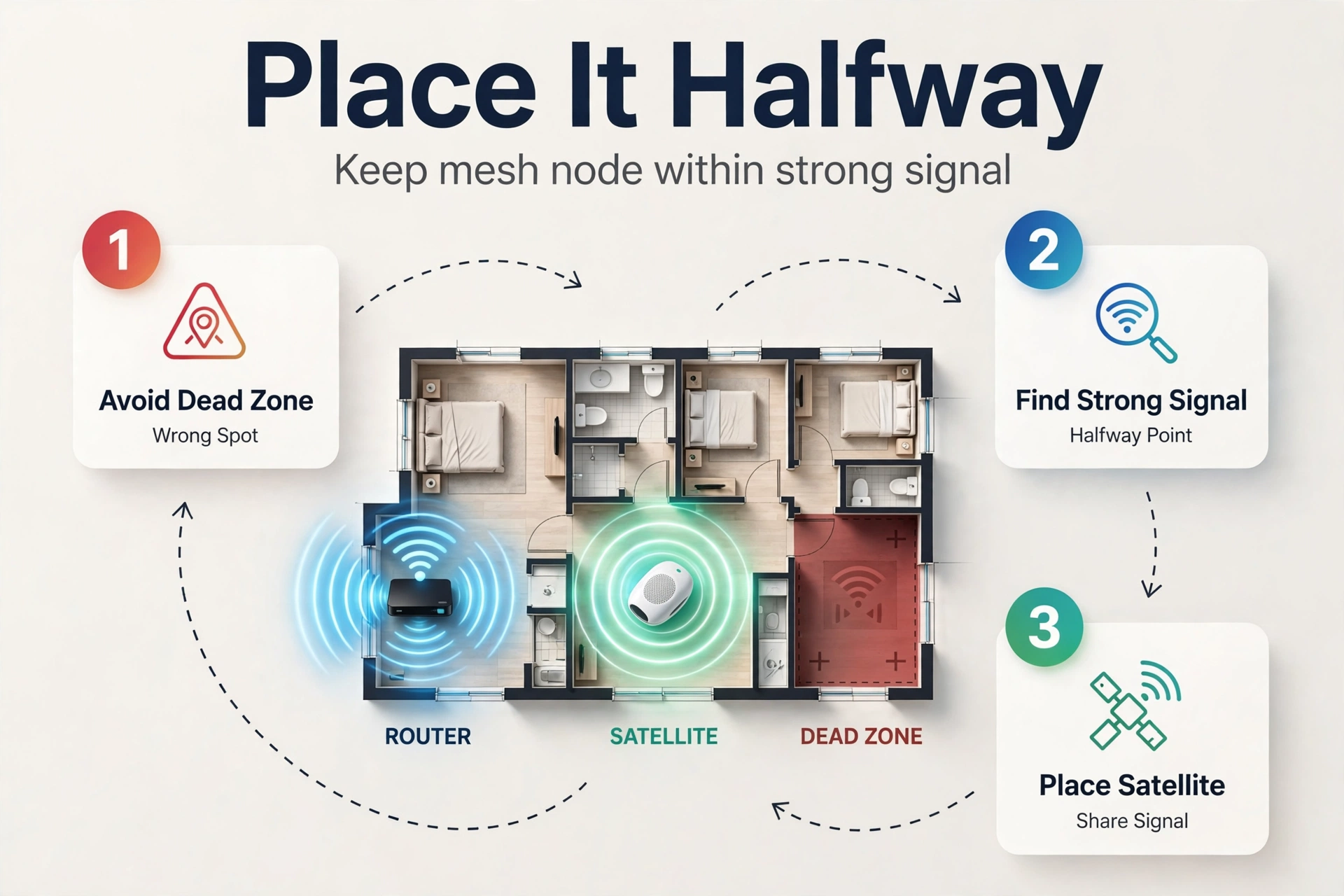
- Place the first satellite halfway between the main node and the weak area, not inside it. Keep it in the open.
- Check the signal between nodes in the app. If it shows weak, move the satellite a few steps closer to the main node.
- Walk around and run a speed test in each room. Then move a node only if a room stays slow.
The most common mistake is putting the satellite in the dead zone itself. That feels logical, but a node can only share the signal it receives. So place each satellite where the signal is still strong, about halfway to the problem area.
Height and clutter matter too. A node on the floor, inside a cabinet, or behind a TV loses range. Furniture and metal block radio waves, so keep nodes out in the open, three to five feet off the floor. For a full walkthrough, see our guide to home network installation.
TP-Link’s official mesh WiFi setup guide walks through the same five steps with pictures for its Deco systems. Then check the signal between nodes in the app, and move a satellite closer if the link shows weak.
So use them if your home has Ethernet runs between rooms. A wired backhaul frees the wireless bands for your devices. It is the single biggest speed upgrade a mesh system can get. Our guide to the best network switch explains how to pick one when several rooms are wired.
After setup, give the network a day before you judge it. Mesh systems run a short optimisation pass in the first hours. So test again the next day, and only then decide whether a node needs to move.
Still, if a room lags, check the router settings first. A wrong channel or an old firmware version can mimic bad placement. Our guide on how to configure a router covers the settings that matter most.
Mesh WiFi and Your Smart Home
Smart homes are where mesh earns its keep. Cameras watch the driveway, doorbells guard the front door, and sensors sit in the garage. All of them need a steady link. So a mesh system puts a node near those edges.
Video doorbells are the best example. A weak signal at the front door causes delayed alerts, frozen video, and missed visitors. The fix is usually a node closer to the door, not a new doorbell.
Device count also matters. A smart home can pass 50 devices without trying, once you count bulbs, plugs, speakers, and sensors. Mesh systems also handle that load by spreading devices across nodes, and most support well over 100 connections.
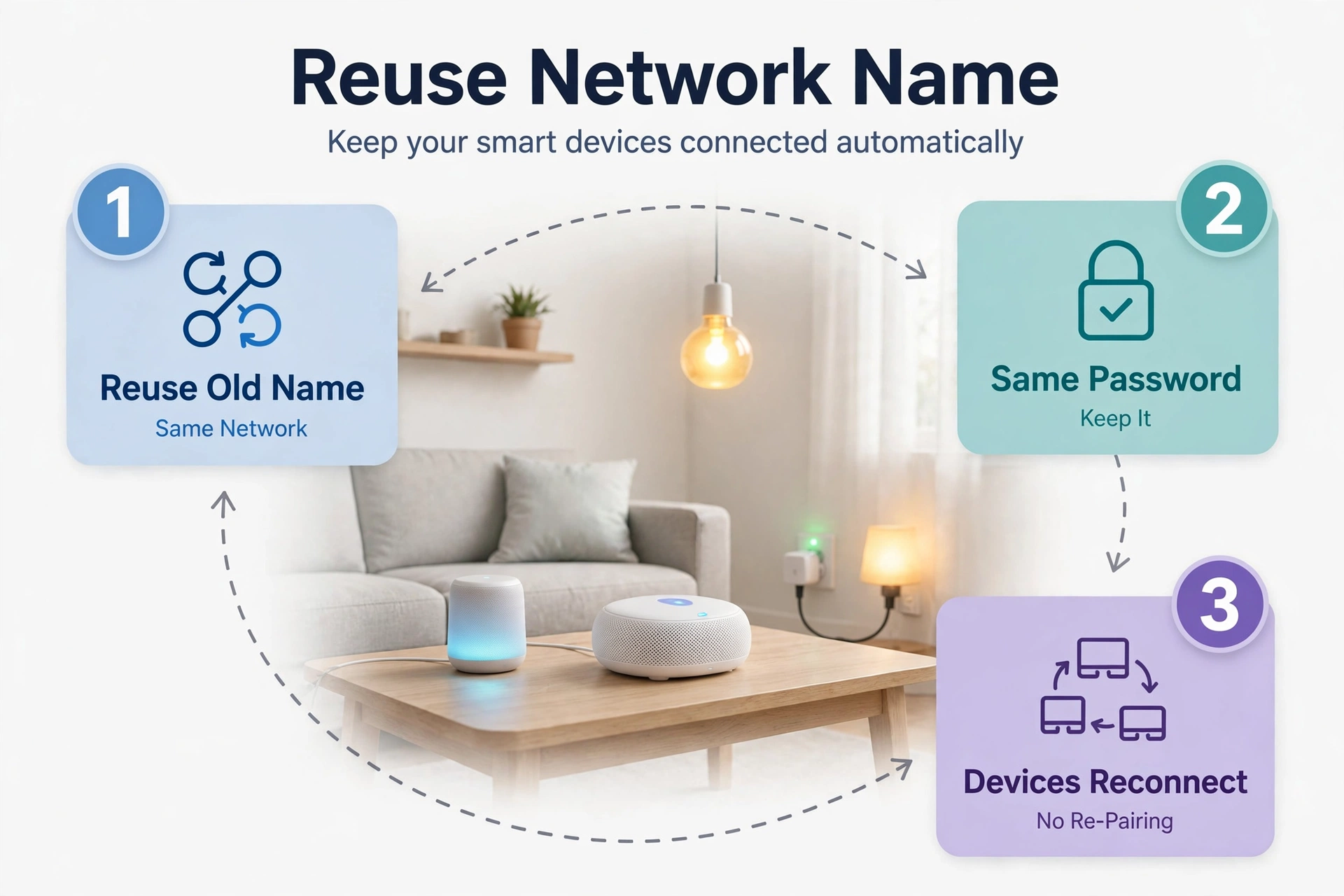
One more tip saves a lot of trouble later. Also, give your mesh network the same name and password as your old router when you set it up. Then every smart device reconnects on its own, and you avoid re-pairing dozens of bulbs and plugs one by one.
FAQs
How many nodes do I need for a two-storey home?
Most two-storey homes need two nodes, with one on each floor. Put the main node on the floor where the modem sits. Then place the satellite on the other floor near the stairs. Add a third node only if a far room stays weak after testing.
Does mesh WiFi slow down my internet speed?
A good mesh system keeps most of your speed. Dual-band systems lose more, because nodes share bands with your devices. Your plan speed still sets the ceiling, so mesh cannot make a 200 Mbps plan faster. But it can deliver close to that speed in rooms where one router gave you half.
Can I use a mesh system with my current modem?
Yes, in most cases. The main mesh node plugs into your modem with an Ethernet cable and takes over as the router. Turn off the WiFi on your old modem router first, so the two networks do not interfere with each other.
Is mesh WiFi better than a WiFi extender?
Mesh is better for whole-home coverage, several dead zones, or multi-floor homes. It gives one network name, smooth roaming, and far less speed loss at the far end. An extender suits exactly one weak room on a modest budget. So pick mesh when the problem covers the house.
Do mesh nodes need an Ethernet cable?
No, mesh nodes work over WiFi out of the box. Most homes run them wirelessly. An Ethernet cable between nodes, called a wired backhaul, is optional, but it gives the best speed. If your home already has Ethernet ports, use them.
Will a mesh system help my smart home devices?
Yes, it usually helps a lot. Cameras, doorbells, and sensors often sit far from the router, where the signal is weakest. A mesh node near those devices gives them a strong local connection, so alerts arrive faster and video stays smooth. Most systems support over 100 devices at once.
The Bottom Line
A mesh wifi system is the right fix for big, tall, or thick-walled homes. Pick tri-band or wired backhaul and start with two nodes. Place each satellite halfway to the weak area, not inside it. Your next step is simple. Walk your home with a speed test app, note the weak rooms, and buy the smallest pack that covers them.