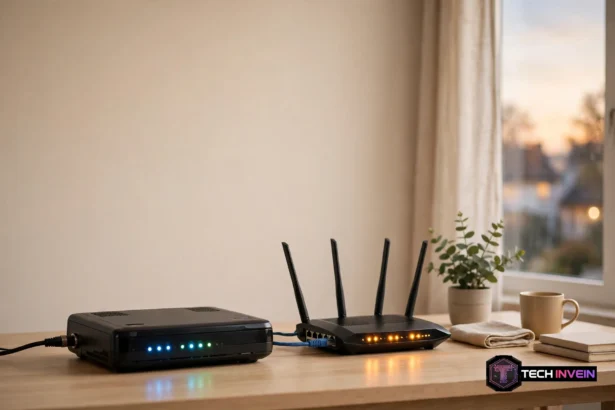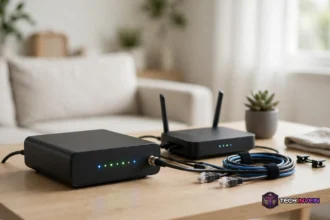


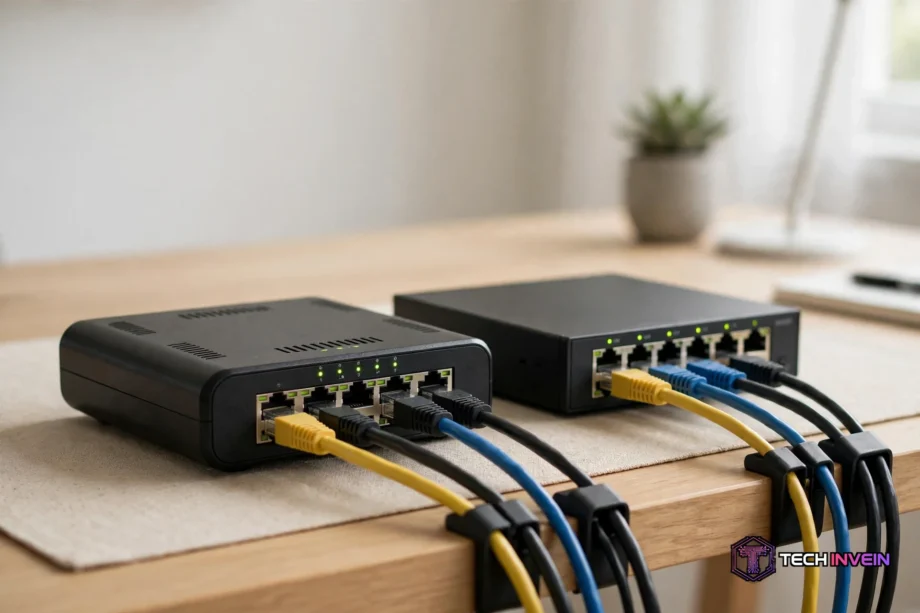
A wired router is a router with no built-in Wi-Fi. It connects your modem to your home network through Ethernet cables only, and it handles routing, firewall rules, and traffic control. You add Wi-Fi later with separate access points, so you pick each part of your network on its own terms.
- What Is a Wired Router?
- Wired vs Wi-Fi at a Glance
- When It Beats a Wi-Fi Router
- Pairing With Access Points and Switches
- Best Picks Worth Buying
- Ubiquiti UniFi Cloud Gateway Ultra
- TP-Link Omada ER605
- TP-Link Omada ER707-M2
- MikroTik hEX S
- Firewalla Gold SE
- How to Choose a Wired Router
- Setting One Up
- FAQs
- Do I need one if I already have Wi-Fi?
- Can it give me Wi-Fi?
- Is it faster than a wireless router?
- What is the difference between it and a switch?
- Do I need a modem with it?
- Is it good for gaming?
- Conclusion
What Is a Wired Router?
A wired router does one job, and it does it well. It moves traffic between your internet connection and your home network. It also assigns local IP addresses, runs the firewall, and applies your network rules. It has no radio inside, so it sends no Wi-Fi signal of its own.
Wired vs Wi-Fi at a Glance
The core difference is simple. A wired router routes traffic over cables. A Wi-Fi router routes traffic and also broadcasts Wi-Fi from the same box. Both connect you to the internet, but they suit different homes.
Table: Wired router vs Wi-Fi router at a glance
| Feature | Wired Router | Wi-Fi Router |
|---|---|---|
| Wi-Fi built in | No, add access points | Yes, built in |
| Best for | Gaming, home labs, large homes | Small flats, simple setups |
| Stability | Very steady, no interference | Good, but walls matter |
| Setup effort | More steps, more parts | Plug in and go |
| Upgrade path | Swap one part at a time | Replace the whole box |
A Wi-Fi router wins on simplicity. You plug it in, set a password, and every phone and laptop connects. For a small home with a modest plan, that is often enough. There is no need to overbuild a network that already works.
When It Beats a Wi-Fi Router
Gaming and Low Latency
Games care about ping more than raw speed. A 500 Mbps plan with 40 ms of jitter feels worse than a 100 Mbps plan with a steady 8 ms ping. Ethernet gives you that steady link. It has no walls in the way and no channel fights.
First, plug your console or PC straight into the router or a switch. Then turn on smart queue management, or SQM, if your router offers it. SQM stops one upload from choking your game, so a cloud backup cannot add 100 ms to your ping mid-match.
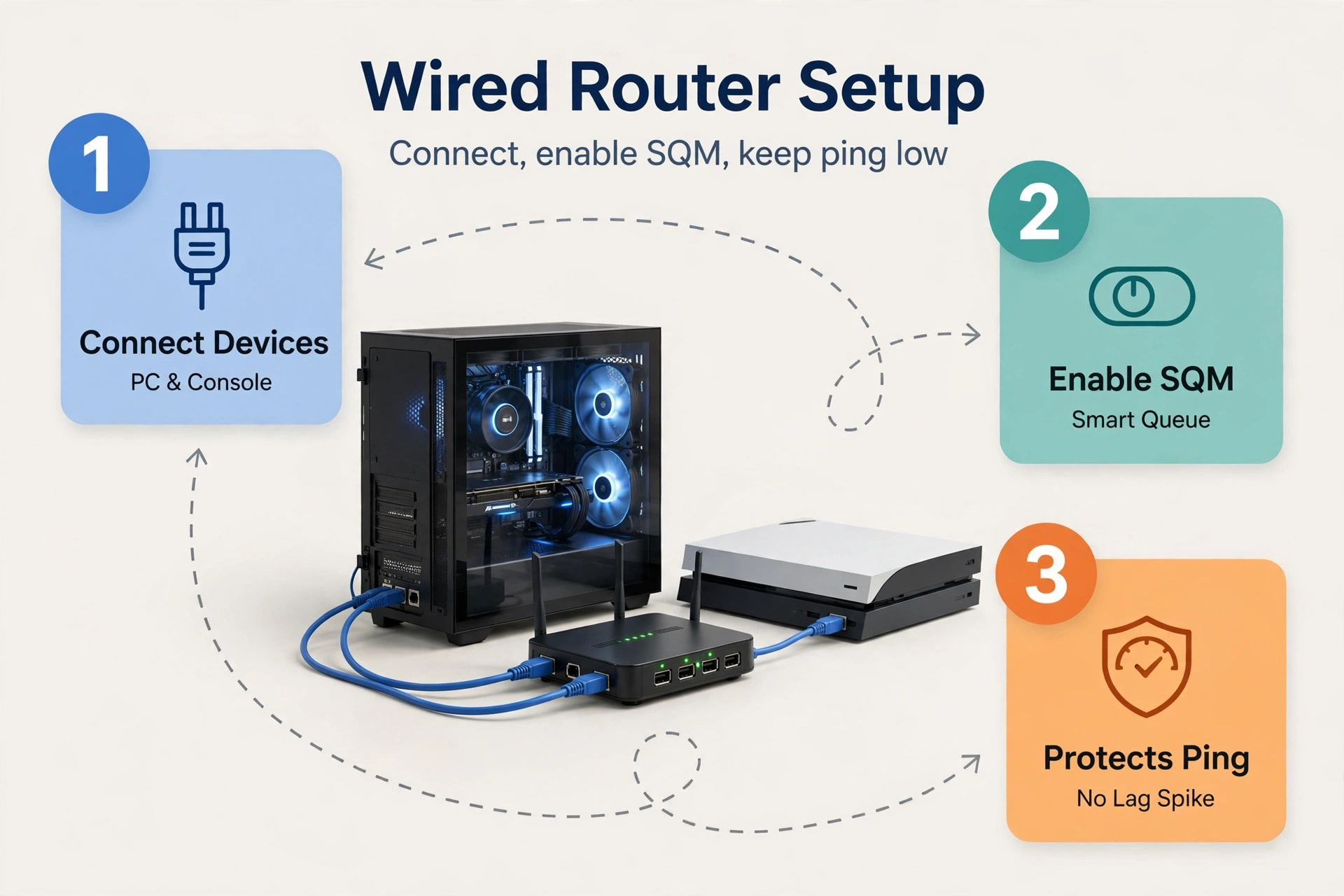
Here is a mistake I see often. A gamer buys a fast plan, keeps the console on Wi-Fi two rooms from the router, and then blames the ISP for lag. The plan was fine. The link was the problem. A cable from the console to the network changes the game in one evening.
Home Labs and Learning Networks
A home lab is a small server setup at home. It might run Home Assistant, a media server, or a test network for learning. These setups need VLANs, firewall rules, and VPN access. A wired router gives you those tools in one dashboard, and it keeps them on all the time.
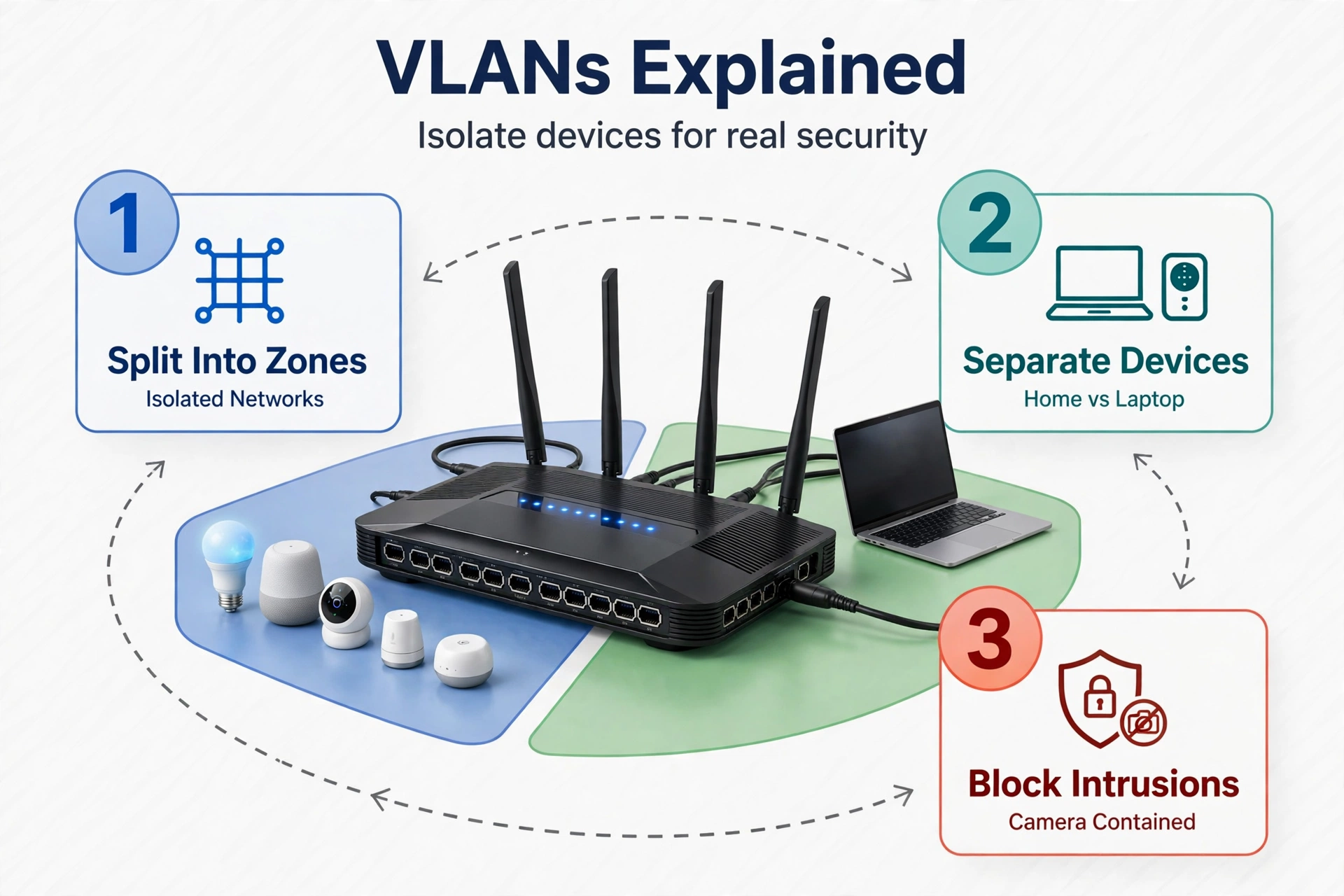
VLANs split your network into zones. You can put smart home gadgets on one zone and your laptop on another. Then a cheap camera cannot reach your files, even if it gets hacked. That is real security, not a password change.
Reliability for Work and Calls
Video calls fail in small ways that add up. A frozen face, a robot voice, a dropped call with a client. Wi-Fi causes most of these glitches, not your internet plan. A wired desk setup removes them. Your dock and work PC stay on a cable, and your calls stay clean.
Pairing With Access Points and Switches
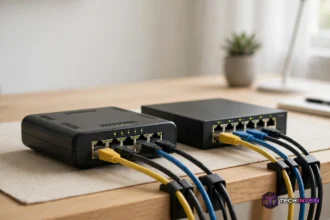
A wired router is the brain, and the other boxes are its hands. The access point carries Wi-Fi. The switch adds ports. Each one plugs into the router with Ethernet, and each one does its own job well.
So start with your devices, not with a brand. Count every box that needs a fast port. A desktop, a console, a TV, a NAS, and two access points add up fast. Four ports run out before you finish plugging things in, so plan for a switch from the start.
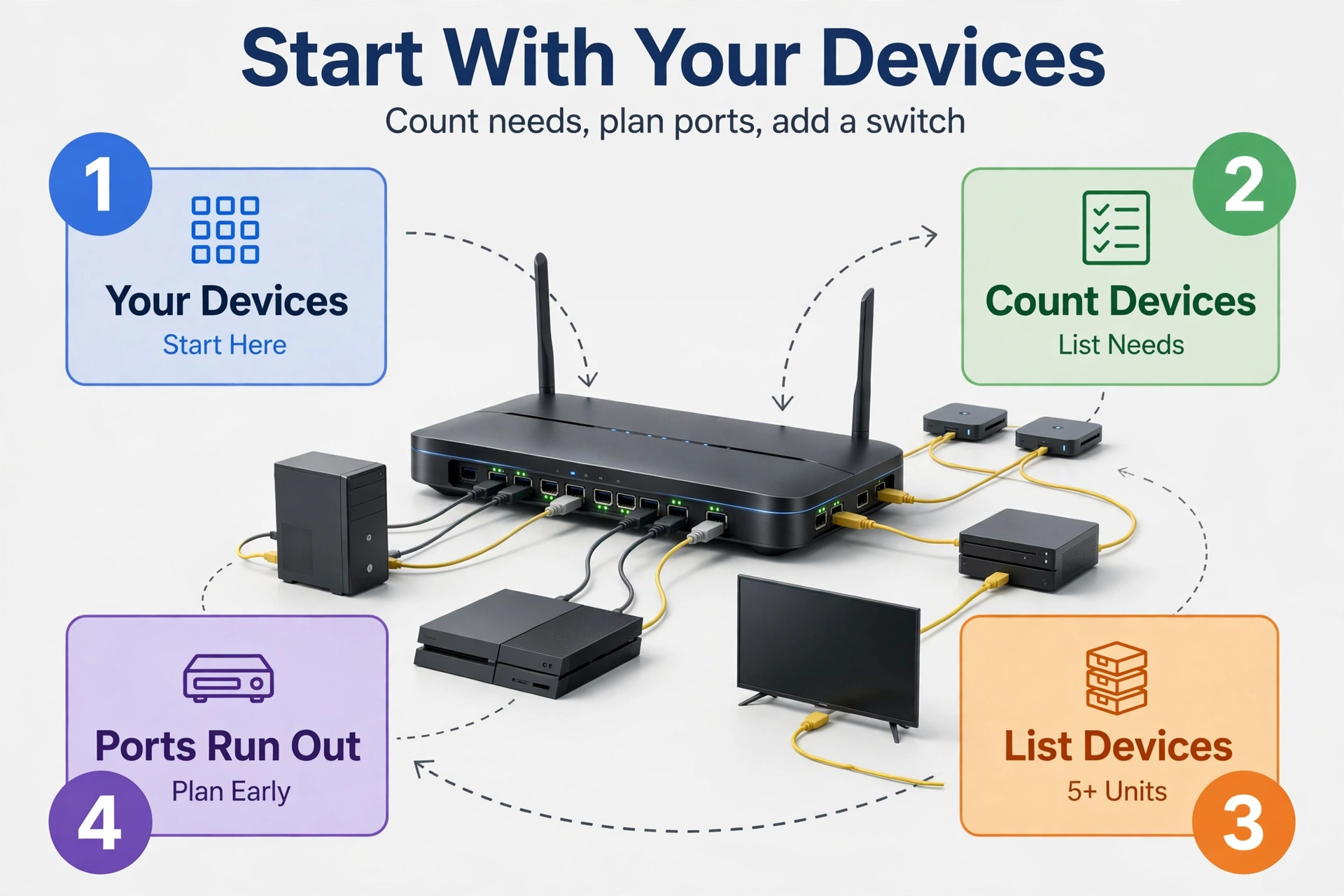
Then place your access points where people sit, not where the router sits. A ceiling spot in the hallway often covers two bedrooms better than a router in a corner cupboard covers one. Many access points take power over the same Ethernet cable, which is called PoE. A PoE switch powers them, so you run one cable per access point and no power brick.
One rule saves hours of pain. Keep one router in charge of the whole home. If your ISP box already routes, put it in bridge mode first. Two routers both handing out addresses will cause double NAT, and that breaks port forwarding, some games, and some VPNs.
For the setup steps, a good router guide walks you through the admin panel and the first settings. If you want a step-by-step path for the software side, read our guide on how to configure a router before you change any setting.
Best Picks Worth Buying
Ubiquiti UniFi Cloud Gateway Ultra
The Cloud Gateway Ultra is the small UniFi gateway for homes that want the UniFi system. It has one 2.5 GbE WAN port, four Gigabit LAN ports, and it runs the UniFi Network app on the box itself. Ubiquiti lists IDS and IPS throughput up to 1 Gbps, so it can inspect traffic on a gigabit plan without slowing down.
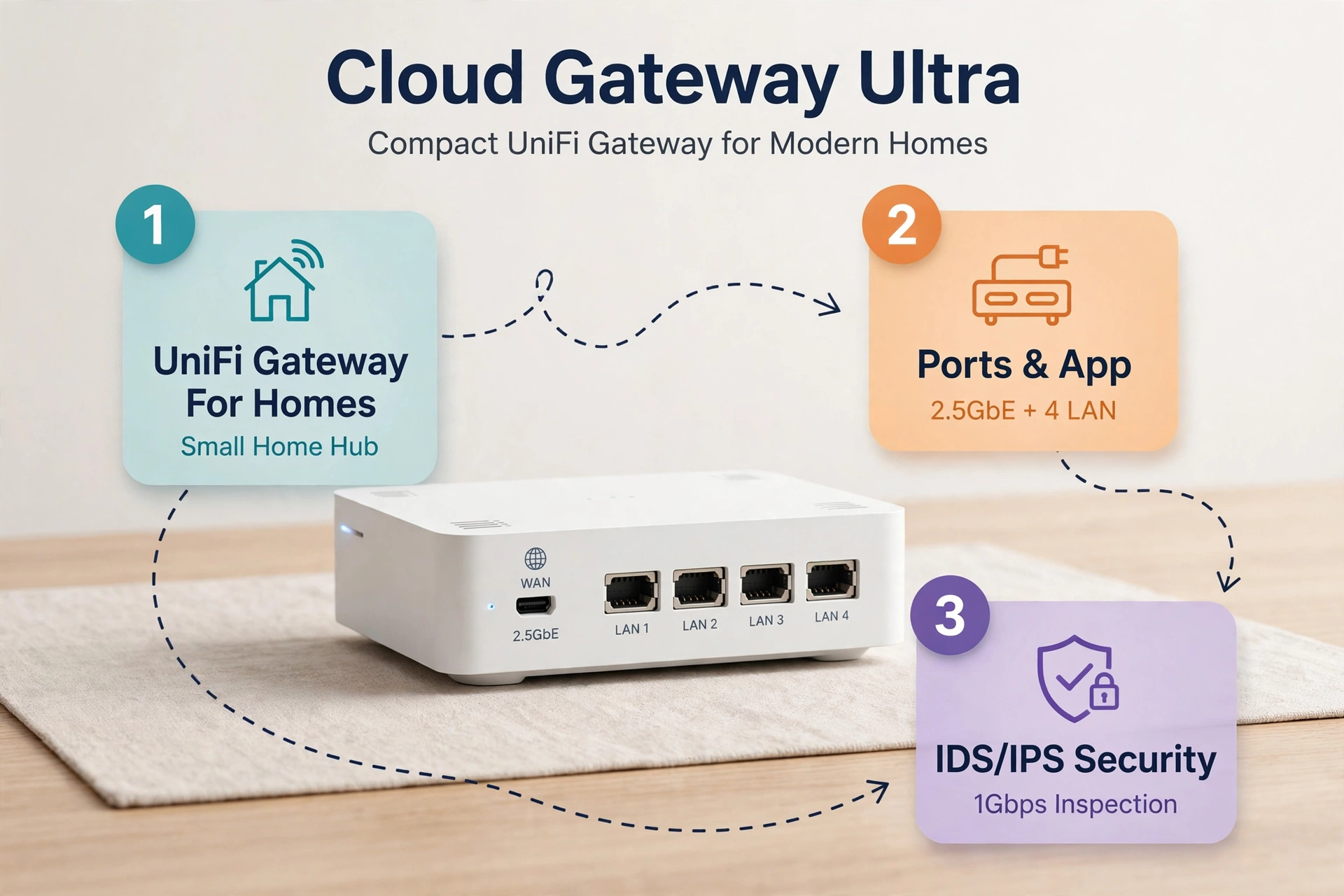
Its strength is the dashboard. Then you manage the gateway, the access points, and the switches from one screen. That view is why so many home lab owners pick UniFi and then stay with it for years. The trade-off is the ecosystem. It works best with UniFi access points, and it has no Wi-Fi of its own. So budget for at least one UniFi access point, and check the current price on the Ubiquiti store before you buy. For setup help, the Ubiquiti Help Center covers the UniFi Network app in detail.
TP-Link Omada ER605
The ER605 is the low-cost pick for most homes and small offices. It has five Gigabit ports, supports up to three WAN links, and handles IPsec, WireGuard, and OpenVPN. It has no multi-gig ports, so it fits plans up to 1 Gbps, and that covers most homes today.
Its strength is value. You get managed features, VLANs, and VPN support in a small box that costs far less than its rivals. Pair it with an Omada access point and a small Omada switch, and you have a managed network for the price of one mid-range Wi-Fi router. The trade-off is VPN speed. WireGuard and OpenVPN run slower on this box than on bigger gateways, so it suits occasional remote access better than a full-time VPN tunnel.
TP-Link Omada ER707-M2
The ER707-M2 is the pick for multi-gig internet plans. It has two 2.5G ports, an SFP port, and four Gigabit ports, with the same Omada software as the ER605. So you get the same dashboard and the same VPN options, but with room for a faster plan.
Its strength is future-proofing. A 2 Gbps plan needs a 2.5G WAN port, and this box has it. You can also add a second internet line for backup. The trade-off is cost. It costs more than the ER605, and it still has no Wi-Fi, so check the current price before you buy.
MikroTik hEX S
The hEX S is the power-user pick. It has five Gigabit ports plus an SFP port for a fiber module, and it runs RouterOS, which gives you deep control over routing, firewall rules, and queues. It also has hardware IPsec, so VPN tunnels run well.
Its strength is flexibility. RouterOS can do almost anything a bigger router can do, from policy routing to complex queues. The trade-off is learning. RouterOS takes time to learn, and its interface is not friendly to first-timers. If you want a clean app and a quick setup, pick UniFi or Omada instead, because the hEX S will frustrate you.
Firewalla Gold SE
The Firewalla Gold SE is the security-first pick. It is a small box that acts as a router, firewall, and VPN server at once, with deep packet inspection that shows which apps use your network. It has no Wi-Fi, so you add access points, and its phone app makes network controls feel simple.
Its strength is visibility. You see every device, block ads, and set rules per device from your phone. The trade-off is price. It costs more than the ER605, so check the current price before you buy.
Table: Best wired router picks compared
| Model | Best For | Ports | Wi-Fi | Main Limit |
|---|---|---|---|---|
| Cloud Gateway Ultra | UniFi homes | 2.5G WAN, 4 Gigabit | No | Needs UniFi access points |
| Omada ER605 | Low-cost setup | 5 Gigabit | No | No multi-gig ports |
| Omada ER707-M2 | Plans over 1 Gbps | 2 x 2.5G, SFP, 4 Gigabit | No | Costs more than ER605 |
| MikroTik hEX S | Power users | 5 Gigabit, SFP | No | RouterOS takes learning |
| Firewalla Gold SE | Security first | Multi-gig ports | No | Fewer ports, higher cost |
Before you pick, compare the router with the rest of your network. A good router with a bad switch still gives you a bad network, so read our guide to the best network switch and match the ports to your plan.
How to Choose a Wired Router
Start with your internet plan speed. If your plan is 1 Gbps or slower, any gigabit gateway works, and the ER605 is enough. If your plan is faster than 1 Gbps, you need a 2.5G or 10G WAN port, so look at the ER707-M2 or a bigger UniFi gateway. A gigabit port caps your speed at 1 Gbps, no matter what you pay your ISP.
Next, count your wired devices. A router with four LAN ports covers a desk and a TV, but a home with a NAS, two access points, and three desks needs a switch. So buy the switch at the same time as the router, and pick one with PoE if your access points need power over Ethernet.
Finally, plan your Wi-Fi. A wired router has no radio, so you need at least one access point. A single access point covers a flat, while a two-floor home often needs two. If you want the latest Wi-Fi tech in those access points, read our guide to the best Wi-Fi 7 router and match the access point to your devices.
Setting One Up
Setup takes about an hour, so go slow and check each step. First, put your ISP modem or gateway in bridge mode, so it passes the internet through without routing. If you skip this step, you get double NAT, and that breaks games and VPNs in ways that look like random faults.
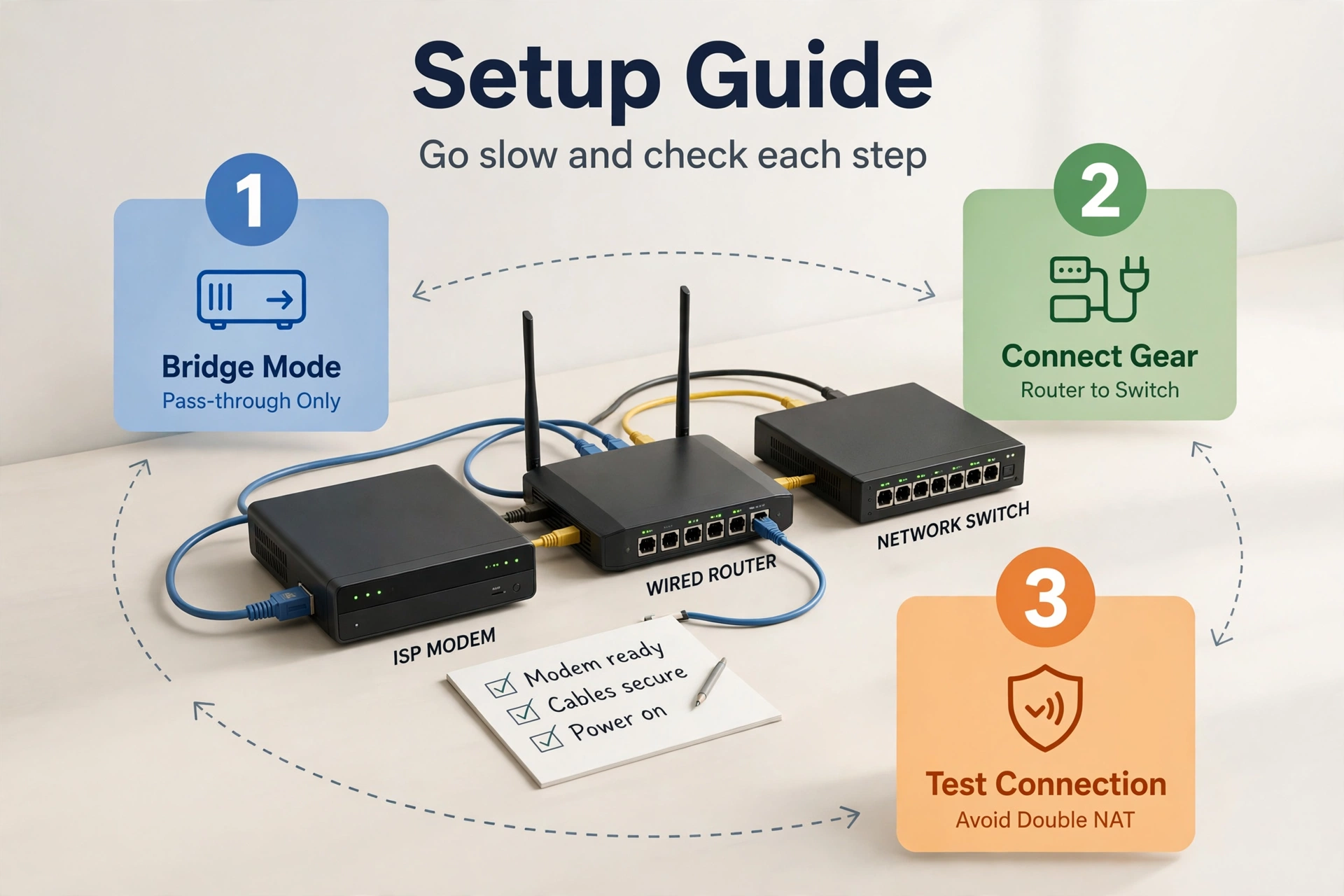
Next, connect the modem to the router WAN port with a short Ethernet cable. Then connect a LAN port to your switch, and connect your laptop to the switch. Also, use good cables for these links, because a cheap cable can cap a gigabit link at 100 Mbps. Our guide to the best Ethernet cable explains which cable type fits each speed.
Then open the admin panel and run the setup wizard. Set a strong admin password first, because the default password is public knowledge. Then set your WAN type, which is usually DHCP for cable and fiber, or PPPoE for some DSL lines. Your ISP can confirm the type if you are unsure.
Finally, test everything. Run a wired speed test from your PC, then a Wi-Fi speed test from your phone in each room. Check your ping to your game server, and check that the guest network cannot see your main network. If a test fails, fix it now, because a fault found on setup day is easy, and a fault found a month later is a mystery.
FAQs
Do I need one if I already have Wi-Fi?
You need one only if your current setup fails you in a clear way. If Wi-Fi drops in far rooms, games lag, or work calls freeze, a wired router plus access points can fix the root cause. But if your Wi-Fi already covers your home well and your speeds are steady, keep what you have and spend the money elsewhere.
Can it give me Wi-Fi?
Yes, but not on its own. A wired router has no radio, so you add one or more access points with Ethernet cables. The access points broadcast Wi-Fi, and the router handles the traffic, firewall, and rules. This split is the whole idea, and it lets you place Wi-Fi where people sit instead of where the internet enters.
Is it faster than a wireless router?
For wired devices, yes. Ethernet gives a steady full-speed link with low ping and no interference from walls or neighbors. For Wi-Fi devices, speed depends on the access point, not the router. So a wired router plus a good access point beats a single all-in-one box in most larger homes, but the access point still sets the Wi-Fi speed.
What is the difference between it and a switch?
First, a router connects your home network to the internet and makes the rules for traffic. A switch only adds more Ethernet ports inside your home network. You need a router first, then a switch when you run out of ports. The two work as a pair, and most wired setups use both boxes together.
Do I need a modem with it?
Yes, in most homes. The modem talks to your ISP line, whether it is fiber, cable, or DSL, and the router sits behind it. Some ISP boxes combine a modem and router, so you put that box in bridge mode and let your wired router take over. Check with your ISP if you are unsure which box you have.
Is it good for gaming?
Yes, it is one of the best upgrades a gamer can make. A wired link gives low, steady ping with no Wi-Fi spikes, and features like smart queue management stop uploads from ruining a match. Plug the console or PC into Ethernet, turn on SQM if your router has it, and you will feel the difference right away.
Conclusion
A wired router is not for every home, but it is the right pick when you want steady speed, low ping, and real control. It splits routing from Wi-Fi, so each part sits where it works best and grows on its own. Pick a gateway that matches your plan speed, add a switch and access points, and set up your networks with care.
Your next step is simple. Check your plan speed, count your wired devices, and pick one gateway from the list above. Then order the access point and switch in the same order, so your new network works on day one.