

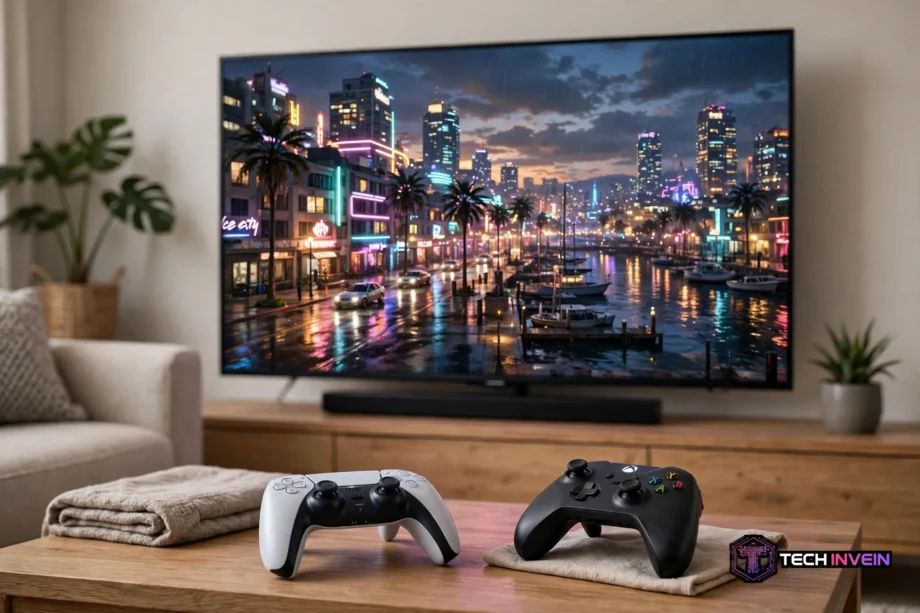
GTA 6 best graphics settings are simpler than most guides make them sound. The game has no performance mode and no quality mode on any console. Every version targets 30 frames per second, so the real work happens in your TV settings, HDR calibration, and a few in-game display options. This guide shows you the exact changes to make.
- GTA 6 Best Graphics Settings at a Glance
- The Truth About Performance Mode
- What Each Console Actually Runs
- Start With Your TV, Not the Game
- HDR and Brightness: Calibrate Before You Play
- In-Game Display Settings Worth Changing
- GTA 6 Best Graphics Settings for PS5 Pro
- Xbox Series X and Series S Settings
- Common Mistakes That Make GTA 6 Look Worse
- FAQs
- Does GTA 6 have a performance mode?
- What is the best motion blur setting in GTA 6?
- Is GTA 6 4K on PS5?
- Should I turn on HDR for GTA 6?
- Does VRR help GTA 6?
- Will GTA 6 get a 60 FPS mode later?
- Conclusion
GTA 6 Best Graphics Settings at a Glance
Start here if you want the quick version. These settings make the biggest visible difference, so start with the TV first.
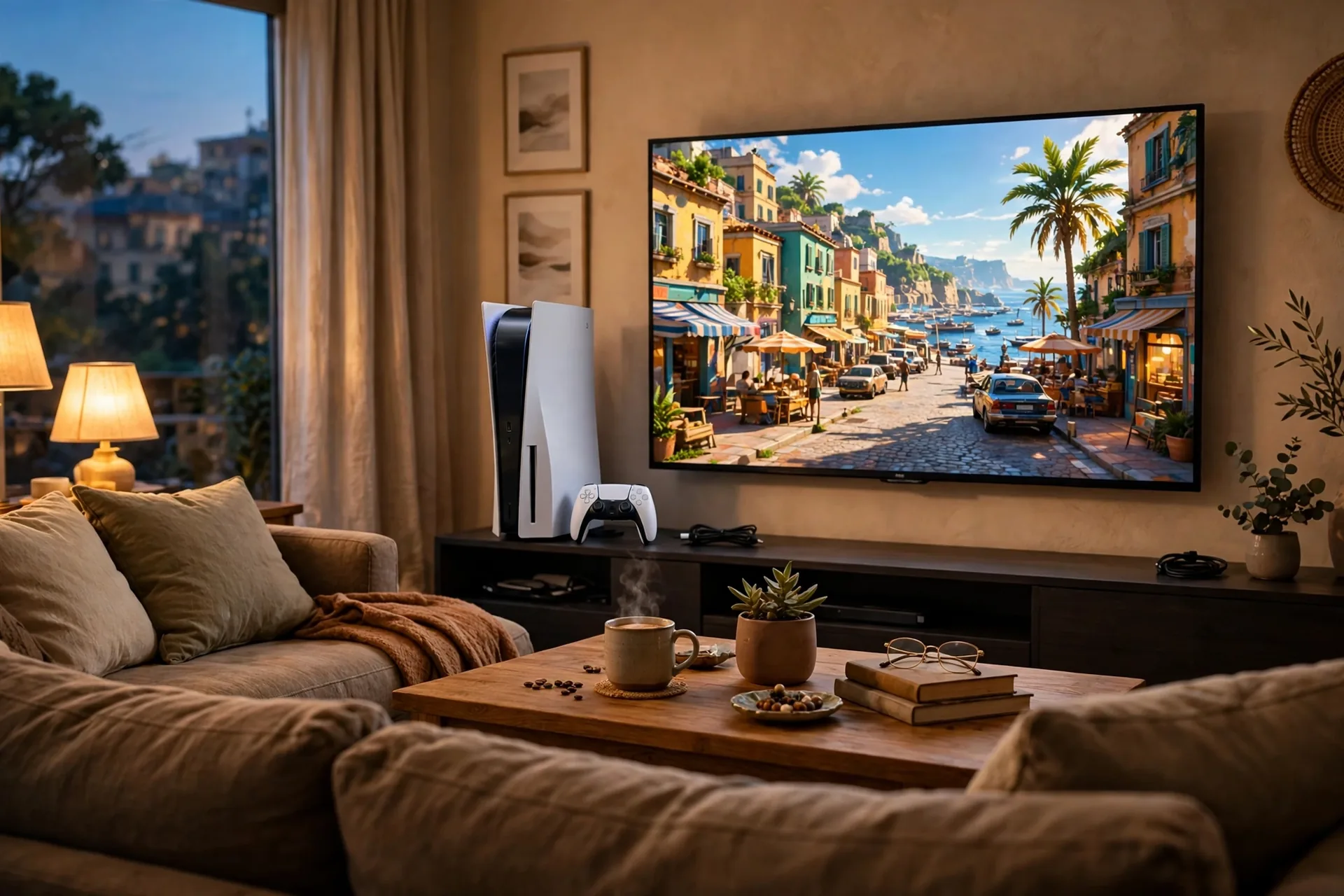
Table: Recommended GTA 6 graphics settings at a glance
| Setting | Where to find it | Recommended | Why it matters |
|---|---|---|---|
| TV Game Mode | TV picture menu | On | Cuts input delay and extra processing |
| Motion smoothing | TV picture menu | Off | Stops smearing around fast cars |
| HDR | Console video output | On When Supported | Keeps HDR for games made for it |
| Motion Blur Strength | Settings, Display | 1 | Sharper image, still smooth at 30 FPS |
| Hit, Awareness and Status Effects | Settings, Display | 2 to 3 | Less screen flash during fights |
| VRR | Console video settings | On for Xbox, no effect on PS5 | Xbox smooths how 30 FPS is shown |
Notice what is missing from that table. There is no resolution slider and no frame rate toggle. The game does not give you one.
The Truth About Performance Mode
Most GTA 6 settings guides start with a choice that does not exist. They tell you to pick Performance Mode for 60 frames per second. That advice comes from GTA 5. It had three graphics modes on PS5 and Xbox Series X. GTA 6 has none of that at launch.
Rockstar confirmed the 30 frames per second target in its pre-load announcement on November 10, 2026. The game was built to push both console platforms to their limits. It also had to keep Leonida dense and detailed. That goal left no room for a 60 FPS mode.
Why not just lower the resolution and unlock the frame rate? The answer sits in the processor, not the graphics chip. Rockstar director Marc Chambers explained the problem. The PS5 Pro processor is only slightly faster than the base PS5 processor. It cannot run the game simulation at higher frame rates.
So the PS5 Pro is not a 60 FPS machine for this game. Its extra power goes into image quality instead. It sharpens the picture and adds ray-traced shadows. The frame rate stays at 30.
What Each Console Actually Runs
Every console targets the same 30 frames per second. But they do not look the same. Digital Foundry tested all four consoles for more than 100 hours. It published its findings on November 18, 2026.
Table: GTA 6 resolution, upscaling, ray tracing, and frame rate by console
| Console | Internal resolution | Output and upscaling | Ray tracing | Frame rate |
|---|---|---|---|---|
| PlayStation 5 | 1440p | Upscaled to 4K | Global illumination and reflections | 30 FPS, small dips in normal play |
| PlayStation 5 Pro | 1440p | Near 4K with PSSR | Global illumination, reflections, and shadows | 30 FPS, near locked |
| Xbox Series X | 1440p | Upscaled to 4K | Global illumination and reflections | 30 FPS, mostly steady |
| Xbox Series S | 720p | Upscaled to 1080p with FSR 4 | Global illumination and reflections, lower quality | 30 FPS target, loosest hold |
On PS5, the game renders at 1440p internally and upscales to a 4K output. The picture looks clean up close but softer in the distance. Still, small dips show up during normal play. Heavy explosion scenes can drop it to 23 frames per second.
Xbox Series X matches the PS5 on paper. It also renders at 1440p and upscales to 4K. Its heaviest fights can pull it toward 20 frames per second. Series S is the weakest version by a clear gap. It renders at only 720p and upscales to 1080p. Big shootouts can drop it to 18 or 19 frames per second.
In fact, one detail applies to every console. The interface itself outputs in 4K no matter what the 3D world renders at. So menus and HUD text stay sharp even on Series S.
Start With Your TV, Not the Game
Here is the part most players skip. It matters more than any in-game slider. Your TV adds its own delay and picture processing on top of the game. Digital Foundry measured around 180 milliseconds of input delay on Series X. In fact, that is about five frames between pressing a button and seeing the result.
First, turn on your TV’s Game Mode. It switches off most of the picture processing your TV uses for films. That processing is what makes controls feel heavy. Many TVs switch by themselves when they detect a console. They use a feature called ALLM, or auto low latency mode.
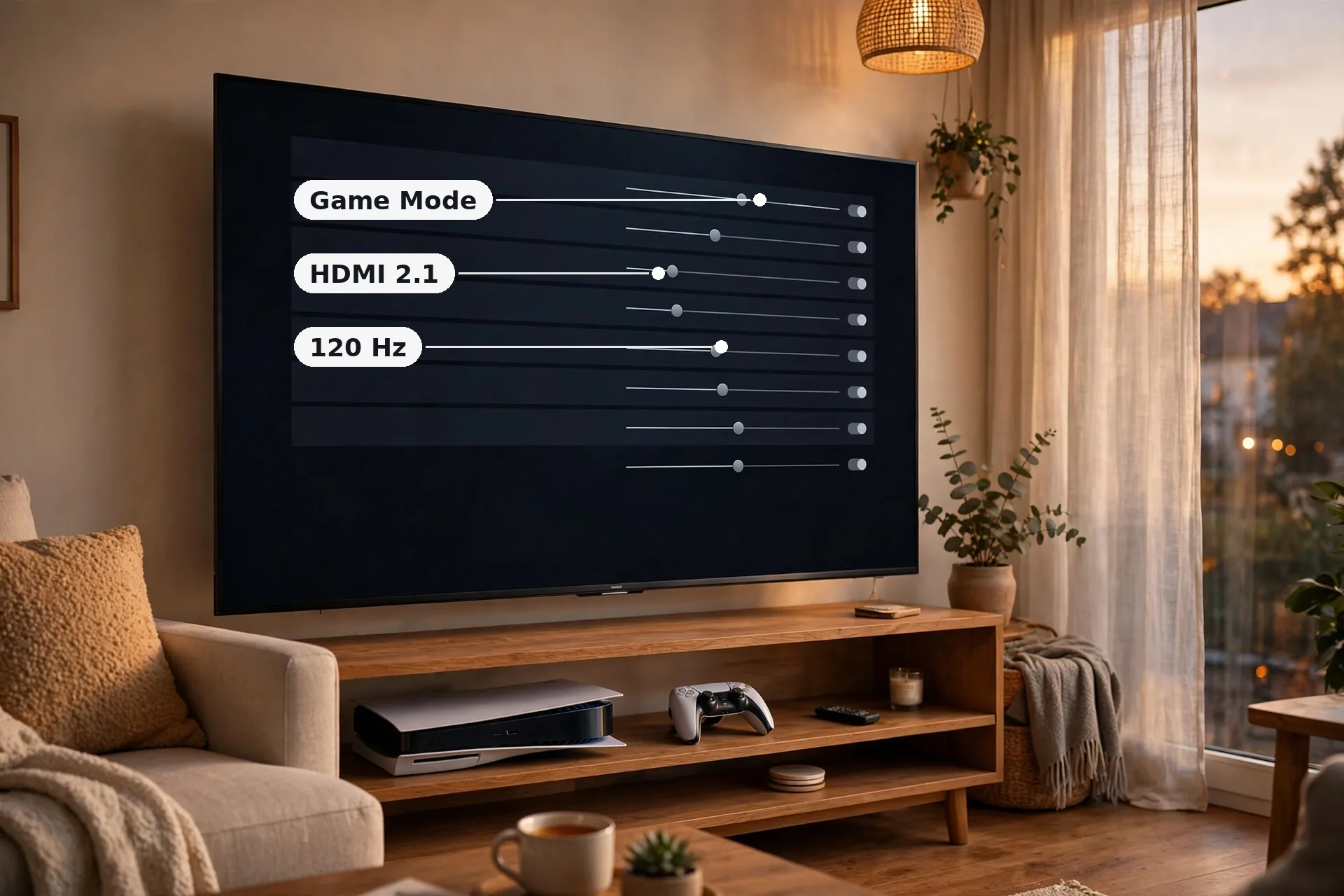
Next, turn off motion smoothing. It invents extra frames between the real ones. At 30 frames per second, that creates smearing around fast cars. It also adds delay, so it hurts twice.
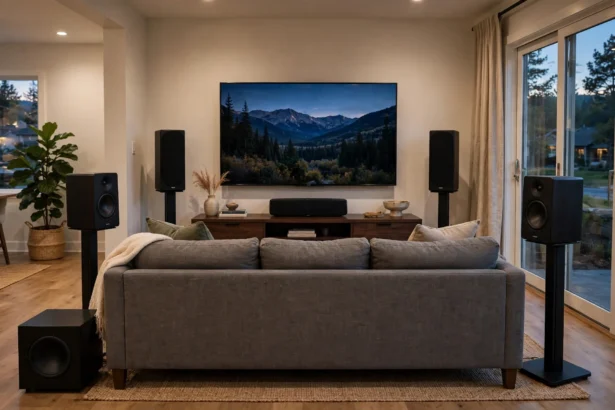
Also check which HDMI port your console uses. Plug it into the port labeled for HDMI 2.1, 4K 120 Hz, or VRR. Then turn on the TV’s enhanced HDMI mode for that input. Sitting a little farther back helps too, since distance hides the softness of an upscaled image. Our 5.1 speaker placement guide covers the room layout.
A 120 Hz panel helps a little here. It will not add frames. But the faster signal can shave a few milliseconds off input delay.
If your TV is old, small, or missing a real game mode, no in-game setting will fix that. Our guide to the best TV for gaming explains what to look for. It covers input delay, HDR brightness, and screen size.
HDR and Brightness: Calibrate Before You Play
GTA 6 leans hard on light. Neon signs, headlights, sunsets, and dark interiors all sit in the same scene. HDR lets your TV show bright highlights and deep shadows together. Still, it only helps when calibrated for your screen.
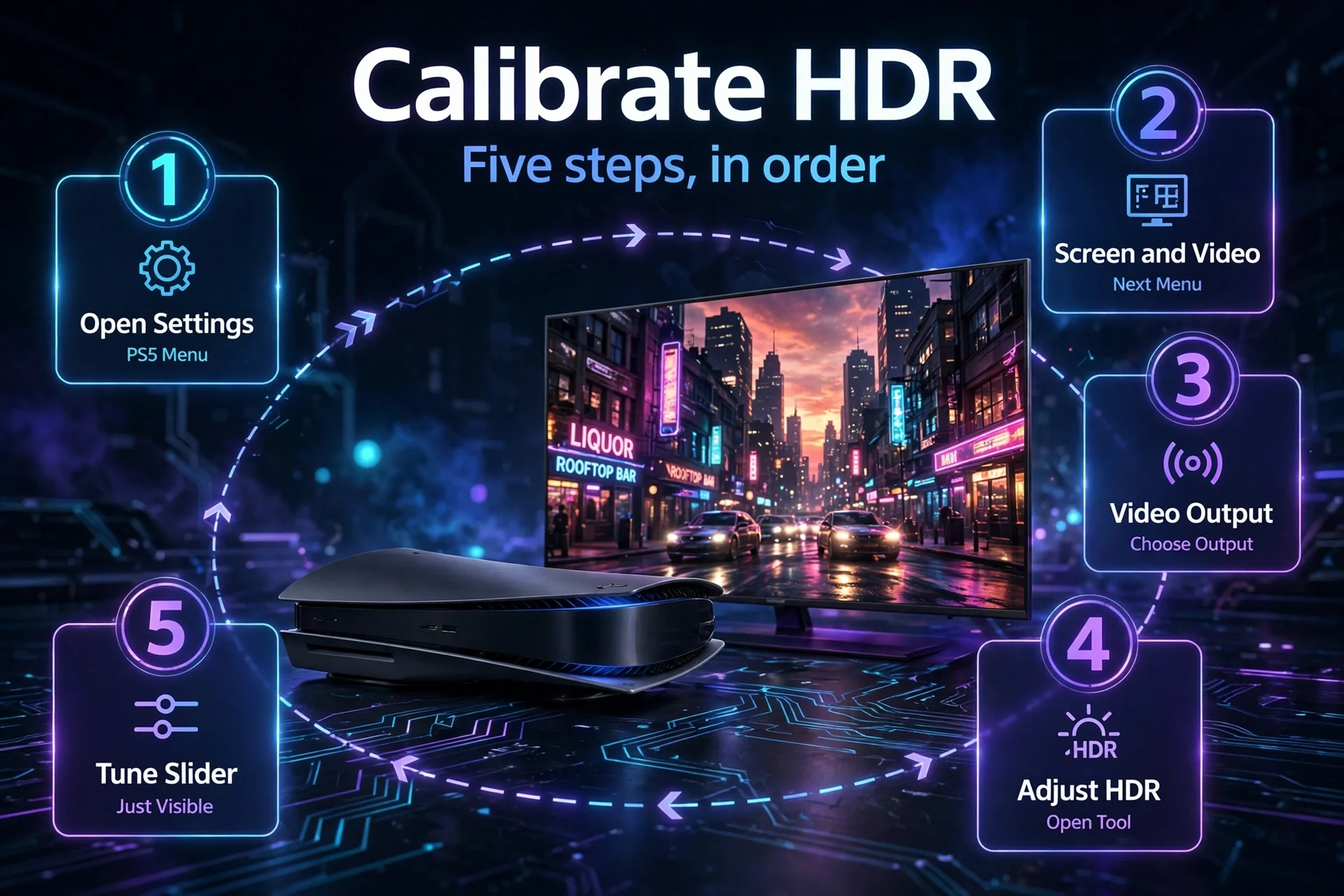
On PS5, open Settings, then Screen and Video, then Video Output, then Adjust HDR. The tool shows three screens in order. On each one, move the slider until the symbol is only just visible. Then stop. Do it in the lighting and picture mode you normally play in.
Set the console HDR option to On When Supported, not Always On. With On When Supported, games made for HDR use it. Everything else stays in standard range. Always On pushes older games through an HDR conversion instead. That often looks dull or oddly colored.
Then run the in-game brightness screen as well. The console sets the range, and the in-game screen tunes the picture inside it. A bright panel makes a bigger difference than any in-game slider. If you are shopping for one, check our picks for the best 55-inch smart TV.
In-Game Display Settings Worth Changing
Open Settings, then Display, and you will find the only graphics options the game gives you. There are no texture or shadow quality sliders here. What you get is motion blur, a few effects sliders, and brightness controls.
Table: GTA 6 in-game display settings and recommended values
| Setting | Default | Recommended | What it changes |
|---|---|---|---|
| Motion Blur Strength | 3 out of 10 | 1 | How much the picture smears during fast camera moves |
| Hit Effects Intensity | 5 | 2 to 3 | How strong the flash is when you take a hit |
| Awareness Effects Intensity | 5 | 2 to 3 | How strong the edge glow is when enemies notice you |
| Player Status Effects Intensity | 5 | 2 to 3 | How strong the screen effects are when your health is low |
| Brightness Reduction | Off | Off | Dims bright flashes, leave off unless flashes bother you |
Motion blur is the big one. It starts at 3 out of 10. Most players should drop it to 1. At 1, fast drives and quick camera turns stay readable. The picture still looks sharper overall.
Your TV type changes the answer a little. OLED screens switch pixels almost instantly. That can make 30 frames per second look slightly choppy in motion. On an OLED, try 2 before you drop to 1. On an LCD, most players will prefer it lower or off. Drive fast through Vice City and spin the camera. Then turn motion blur down and repeat the same drive.
The three effects sliders all start at 5. All three do the same kind of job. They control how strongly the screen flashes when you take damage. They also cover the moments when enemies spot you or your health runs low. Drop each one to 2 or 3 and fights get easier to read.
GTA 6 Best Graphics Settings for PS5 Pro
The PS5 Pro is the best way to play GTA 6 on a console. The reason is image quality, not speed. It renders at the same 1440p as the base PS5. It also targets the same 30 frames per second. But it upscales with PSSR, Sony’s AI upscaler.
It is also the only console with ray-traced shadows. Every console gets ray-traced global illumination and reflections. The Pro adds ray-traced shadows on top. Its frame rate is the steadiest of the four as well. Digital Foundry called it near flawless at 30 frames per second. One reviewer played for more than 50 hours without a noticeable drop in normal play. Only a grenade launcher stress test pulled it down to 24 frames per second.
PlayStation’s pre-load post lists the Pro extras in plain terms. It promises improved clarity through PSSR and ray-traced shadows only available on PlayStation 5 Pro. There is nothing to turn on for either feature. Both run automatically on the Pro. Your job is the same as on any console. So set Game Mode, calibrate HDR, and drop motion blur to 1.
Sound gets an upgrade too, and it costs nothing. The game uses Tempest 3D Audio for accurate sound positioning. The DualSense controller gives haptic feedback through the whole game. If you run sound through a soundbar, our guide on how to connect speakers to a TV walks through the wiring.
Xbox Series X and Series S Settings
Xbox players get one useful setting that PlayStation players do not. On Series X and Series S, leave VRR on. You will find it in Settings, then General, then TV and Display Options, then Video Modes. It adds no frames. But the 120 Hz container smooths how a 30 frames per second game is presented.
The 120 Hz output setting is worth ten minutes of your time and no illusions. On a 120 Hz panel, the faster signal can shave a few milliseconds off input delay. But it does not create frames. It also does not unlock a hidden 40 frames per second mode. Digital Foundry found no such mode.
Series S owners should set expectations first and settings second. The console renders at 720p and upscales to 1080p. So the picture will look softer than on the other three consoles. Game Mode, HDR calibration, and motion blur at 1 still help. But they cannot add detail the console never rendered. Cloud players get the Series S treatment by default. Xbox Cloud Gaming streams use the Series S graphics settings.
A wired connection also keeps downloads and online play steady. GTA 6 is a large download before you even start. Our guide to the best ethernet cable for gaming explains which cable to buy.
Common Mistakes That Make GTA 6 Look Worse
Most bad-looking GTA 6 setups come from a small list of mistakes. All of them are easy to fix. First, stop hunting for a performance mode in the menus. It is not there. Guides that promise 60 FPS settings are guessing.
Second, do not leave motion smoothing on. It is the most common reason the game looks smeary. It sits in the TV menu, not the game menu, so many players never check it. Turn it off once and the picture gets cleaner right away.
Third, do not calibrate HDR in the wrong picture mode. If you run Adjust HDR in Vivid mode and then play in Game Mode, the calibration will not match. Fourth, do not copy another player’s brightness and color numbers. Those numbers belong to their TV, their room, and their lighting.
Fifth, do not max out the effects sliders. They start at 5. At 5, every hit floods the screen with flash. Dropping them to 2 or 3 keeps the warnings visible. Sixth, check the simple things before you blame the game. A loose HDMI cable, the wrong HDMI port, or a TV that left Game Mode after a firmware update can all make the picture look worse overnight. Fix the chain first, then judge the graphics.
FAQs
Does GTA 6 have a performance mode?
No. GTA 6 has no performance mode, quality mode, or 60 frames per second option on any console at launch. Rockstar confirmed a 30 frames per second target for all four consoles in its November 10, 2026 announcement. Change motion blur, HDR, and Game Mode instead.
What is the best motion blur setting in GTA 6?
Start at 1, down from the default of 3 out of 10. At 1, fast drives and camera turns stay readable, and the picture looks sharper. On an OLED TV, try 2 first. Then test the same drive at each value and keep the one that looks best.
Is GTA 6 4K on PS5?
Not natively. The game renders at 1440p internally on PS5 and upscales to a 4K output. The picture looks clean up close but softer in the distance. The PS5 Pro also renders at 1440p, but its PSSR upscaling looks close to native 4K.
Should I turn on HDR for GTA 6?
Yes, if your TV supports it. Set the console HDR option to On When Supported, then run the Adjust HDR tool on PS5 before you play. Work through its three screens in the lighting and picture mode you use. Then run the in-game brightness screen as well.
Does VRR help GTA 6?
It helps on Xbox, not on PlayStation. On Xbox Series X and Series S, VRR smooths how the 30 frames per second picture is shown, so leave it on. On PS5 and PS5 Pro, system VRR only works above 48 frames per second, so it never turns on at 30.
Will GTA 6 get a 60 FPS mode later?
Nothing has been announced. Rockstar says the PS5 Pro processor is not powerful enough to run the game simulation at higher frame rates. Reports say the studio has no plans for a 60 FPS mode on this console generation. A PC version has not been announced either.
Conclusion
There is no secret menu that unlocks 60 frames per second in GTA 6, and that is fine. The game targets 30 on every console. The picture still looks stunning when the setup is right. So turn on Game Mode, switch motion smoothing off, calibrate HDR, and drop motion blur to 1. Then play and enjoy Leonida.