
The best webcam for streaming is the Elgato Facecam MK.2 for most creators, because it delivers clean 1080p video at 60 frames per second with no compression artifacts. If you want 4K for cropping and recording, the Logitech MX Brio is the stronger all-rounder. And if your budget is tight, the Logitech C920s Pro HD still gets the job done.
- What Makes the Best Webcam for Streaming Different?
- Quick Picks at a Glance
- The 7 Best Webcams for Streaming in 2026
- 1. Logitech C920s Pro HD: Best Budget Starter
- 2. Elgato Facecam MK.2: Best 1080p60 Streamer Cam
- 3. Logitech MX Brio: Best 4K All-Rounder
- 4. Razer Kiyo Pro: Best for Low-Light Streaming
- 5. Insta360 Link 2C: Best AI Framing on a Budget
- 6. OBSBOT Tiny 3: Best for Moving Around on Camera
- 7. Logitech StreamCam: Best for Vertical Video
- How to Choose the Best Webcam for Streaming
- Resolution and frame rate: 1080p60 or 4K30?
- Autofocus or fixed focus?
- How is your light?
- Do you need a built-in microphone?
- Does the software fit your workflow?
- Set Up Your Webcam in OBS the Right Way
- Your Desk, Your Light, Your Cable Run
- Internet Speed: The Part Streamers Forget
- Mistakes to Avoid When You Buy a Streaming Webcam
- FAQs
- What is the best webcam for Twitch streaming?
- Do I need a 4K webcam for streaming?
- Is 1080p60 better than 4K30 for streaming?
- What is the best budget webcam for streaming?
- Do I need a separate microphone with a streaming webcam?
- Can I use a webcam for Zoom and streaming at the same time?
- Conclusion
That short answer hides a real choice. Streaming puts different demands on a camera than a work call does. Your face sits in a small corner of the screen for hours, so smooth motion and steady exposure matter more than raw resolution.
What Makes the Best Webcam for Streaming Different?
A work call forgives a lot. You sit still, you talk for 30 minutes, and then the meeting ends. A stream runs for hours, so small flaws add up fast. Focus that hunts will distract viewers. Auto exposure that jumps when you lean toward a lamp pulls eyes away from your game.
So the best webcam for streaming is judged on four things. Frame rate at the resolution you actually send out. Autofocus that stays calm while you move. Low-light handling, because most home studios are dimmer than they look. And software that lets you lock settings.
Resolution still matters, but not the way box art suggests. Most live platforms cap the outgoing stream at 1080p for ordinary creators. A 4K feed gets downscaled before anyone sees it. That is why a sharp 1080p60 image often beats a 4K30 image on a live stream. Where 4K earns its price is off the live feed. It gives room to crop tighter in OBS and a sharper file for editing.
Quick Picks at a Glance
Use this table to narrow the field. Prices are typical street prices seen in 2026 roundups.
Table: Webcam picks at a glance
| Webcam | Best for | Video modes | Typical price |
|---|---|---|---|
| Logitech C920s Pro HD | First stream on a budget | 1080p30 | Around $60 |
| Elgato Facecam MK.2 | Smooth 1080p60 streaming | 1080p60, 1440p30 | Around $130 to $150 |
| Logitech MX Brio | 4K all-rounder | 4K30, 1080p60 | Around $200 |
| Razer Kiyo Pro | Dim rooms and low light | 1080p60 | Around $150 to $200 |
| Insta360 Link 2C | AI framing on a budget | 4K30, 1080p60 | Around $120 to $150 |
| OBSBOT Tiny 3 | Moving around on camera | 4K30, 1080p120 | Around $300 to $350 |
| Logitech StreamCam | Vertical video and clips | 1080p60 | Around $150 |
The 7 Best Webcams for Streaming in 2026
Every camera below is a real, current model you can buy today. If two cameras look close, the deciding factor is usually your room.
1. Logitech C920s Pro HD: Best Budget Starter
The C920s launched a thousand channels, and it still makes sense as a first buy. It shoots clean 1080p video at 30 frames per second. It also focuses reliably. Motion looks less smooth than 60 fps, and its small sensor shows noise in a dark room. Buy it to test whether streaming is for you. Spend the savings on a cheap key light.
2. Elgato Facecam MK.2: Best 1080p60 Streamer Cam
The Facecam MK.2 is the pick for streamers who want smooth motion without paying for 4K they will never send out. It delivers uncompressed 1080p video at 60 frames per second. Its fixed-focus lens never hunts mid-sentence, so your face stays sharp for the whole stream. Camera Hub adds manual exposure and white balance control, but the trade-off is no built-in microphone, so you need a separate mic.
3. Logitech MX Brio: Best 4K All-Rounder
The MX Brio is the do-everything upgrade. It shoots 4K at 30 frames per second or smooth 1080p at 60. Its large Sony Starvis sensor keeps the image clean in dim rooms. It adds HDR, a privacy shutter, and three fields of view. Buy it if your stream is only part of the job, since it handles work calls just as well. Its 4K tops out at 30 frames per second.
4. Razer Kiyo Pro: Best for Low-Light Streaming
Most webcams fall apart in dark rooms. The Kiyo Pro was built for them. Its large sensor and wide f/1.8 lens pull in far more light than a typical webcam. So your face stays bright and clean while other cameras turn grainy. It shoots 1080p at 60 frames per second with uncompressed output.
5. Insta360 Link 2C: Best AI Framing on a Budget
The Link 2C is the surprise value pick of this list. It shoots 4K at 30 frames per second or 1080p at 60. It also adds AI auto-framing that keeps you centered as you move. It helps if you stand up, lean across your desk, or teach while you stream.
6. OBSBOT Tiny 3: Best for Moving Around on Camera
The Tiny 3 is the premium pick for creators who do not sit still. It mounts on a two-axis gimbal with AI tracking that follows you around the room. It also shoots 4K at 30 frames per second and 1080p at up to 120. That’s the smoothest motion here. At around $300 to $350 it is not a casual buy.
7. Logitech StreamCam: Best for Vertical Video
Short-form clips are part of streaming now. The StreamCam is built for that world. It mounts in portrait orientation for vertical video on TikTok, Reels, and Shorts. It still shoots 1080p at 60 frames per second in landscape. Pick it if clips and vertical video are a real part of your channel.
How to Choose the Best Webcam for Streaming
Work through these five questions in order. The right camera usually picks itself.
Resolution and frame rate: 1080p60 or 4K30?
For most streamers, 1080p at 60 frames per second is the sweet spot. Motion looks smooth, bandwidth stays manageable, and viewers rarely benefit from a 4K feed. Choose 4K if you want to crop or record locally at higher quality. A well-lit 1080p image usually looks better than poorly lit 4K footage.
Autofocus or fixed focus?
Autofocus keeps you sharp if you lean in and out of frame. It suits streamers who move at their desk. Fixed focus suits a set distance, because it never hunts or breathes mid-stream. Ask yourself one question: does your distance from the camera change during a stream? If yes, buy autofocus. If no, fixed focus will look steadier.
How is your light?
Light beats resolution every time, because a soft light near eye level will improve any camera on this list. If you stream at night or in a dim room, prioritize low-light performance and exposure control before you pay for extra resolution.
Do you need a built-in microphone?
Built-in microphones are handy backups. A dedicated USB or XLR microphone will improve a voice-led stream far more than any camera upgrade. Don’t pay extra for a mic array you will mute. If you have no mic at all yet, a camera with a decent mic buys you time. Then add a real mic as your next upgrade, since viewers forgive a soft image far sooner than bad audio.
Does the software fit your workflow?
Good companion software lets you fix exposure and color once instead of fighting auto settings every stream. Logitech G Hub, Elgato Camera Hub, and OBSBOT Center all do this well, but they add their own quirks. If you want the simplest life, pick a camera that works as a standard UVC device. It shows up instantly in OBS, Zoom, and Discord.
Set Up Your Webcam in OBS the Right Way
A good camera with bad OBS settings still looks bad. So run through this setup once and save it as your default scene. Start by downloading OBS Studio from its official site if you do not have it yet.
Add the camera as a Video Capture Device in OBS. Then set its resolution and frame rate to match what you bought: 1080p60 for the Facecam MK.2, or 4K30 or 1080p60 for the MX Brio. Next, turn off auto exposure if your software allows it. Locked exposure stops the brightness from jumping when you move. Then set white balance by hand under your normal lights.
After that, frame the shot. Put the camera at eye level, not below your chin. Leave a little space above your head. A camera that looks up at you is the most common framing mistake in streaming. It costs nothing to fix. If you run a second screen for chat and scenes, a dual-screen layout makes this far easier. Our guide to a dual-screen setup for your office covers monitor placement.
Finally, do a ten-minute test recording before your first real stream. Talk, gesture, lean in, and switch scenes, then watch the recording back. You will spot focus hunting, exposure jumps, and framing problems in that one test. This test is the most useful habit in this guide, and it costs ten minutes.
Your Desk, Your Light, Your Cable Run
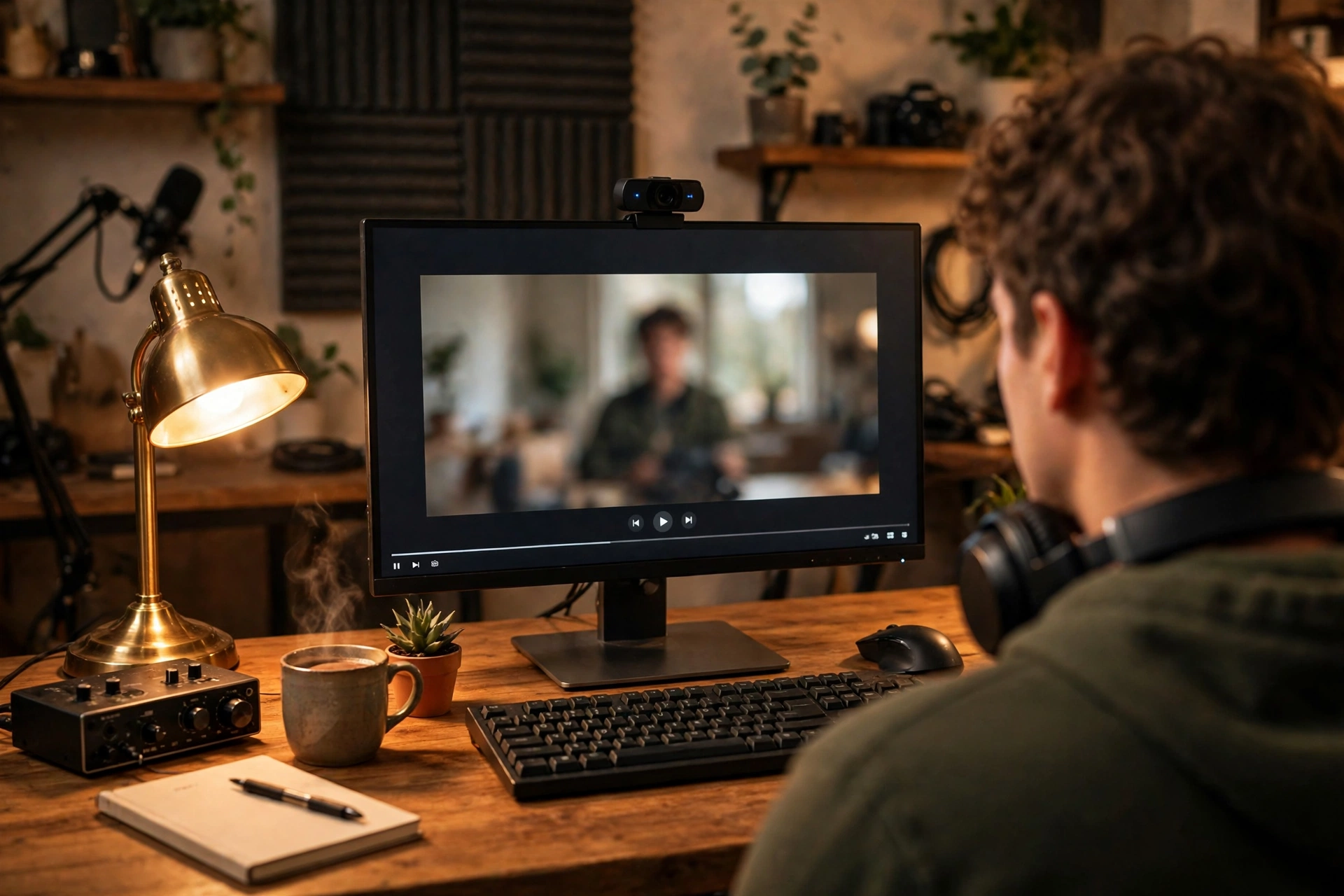
A streaming desk is a small studio, so treat it like one. Your camera mount matters as much as the camera. A monitor mount keeps the lens at eye level and frees desk space. A small tripod lets you angle the camera for a standing shot. Either way, the lens should sit level with your eyes.
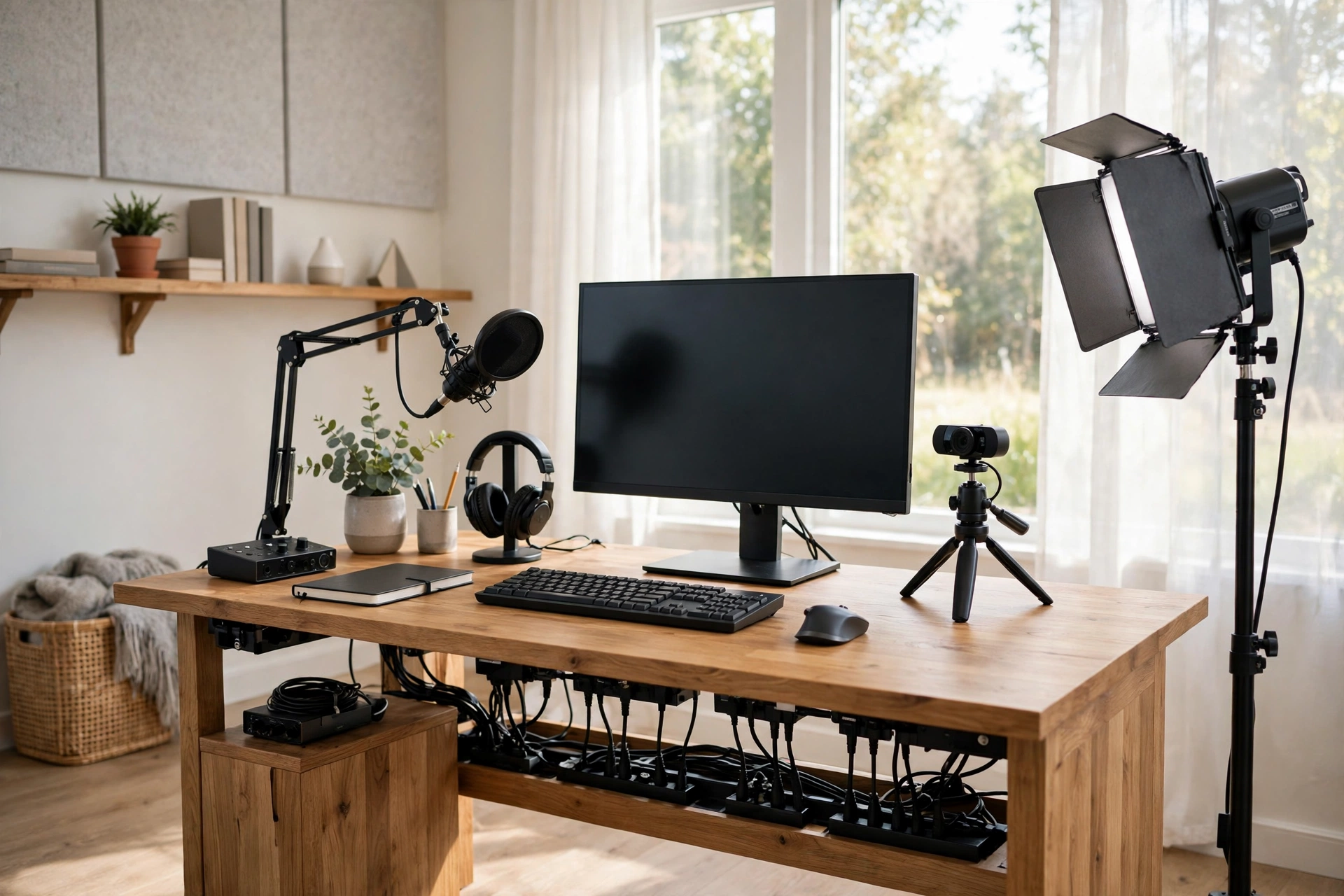
Cables deserve the same attention. A webcam, a mic, a light, and a second monitor can turn a desk into a tangle fast. A loose USB cable is the top cause of a camera dropping mid-stream. Route cables behind the desk, and leave a little slack so the cable never tugs the camera. If you are planning the desk from scratch, our home office setup guide covers desk layout for streaming.
Plan the cable route before you buy anything. Measure the distance from your PC to the camera. Add a meter of slack. Keep USB cables away from power bricks where you can. So a tidy run stops accidental unplugs and makes troubleshooting a five-minute job.
For the runs themselves, route them along the desk edge or through a cable tray. Our smart home wiring design guide has routing ideas for a streaming desk.
Internet Speed: The Part Streamers Forget
Your camera can be perfect and your stream can still stutter. The bottleneck is usually your upload speed, not your webcam. A 1080p60 stream needs a steady upload of roughly 6 to 8 Mbps. A 4K stream needs far more. So run a speed test when you normally stream. Then check the upload number, not the download one.
If the upload is tight, two fixes help most. First, use a wired ethernet connection instead of Wi-Fi. It removes the dropouts that Wi-Fi adds under load. Second, lower your OBS bitrate a little rather than dropping your frame rate. A stable 1080p60 stream at a modest bitrate beats a choppy one at a high bitrate. And if your whole home network needs work, our home network installation guide covers a setup that keeps streams stable.
Mistakes to Avoid When You Buy a Streaming Webcam
The most common mistake is buying 4K and skipping light. A 4K sensor in a dark room still looks dark. Viewers will notice the grain long before they notice the resolution. Buy the light first.
The second mistake is trusting the box. Marketing leans hard on resolution numbers. Sensor size, frame rate, exposure reliability, and USB bandwidth matter far more. Read independent reviews and watch sample footage before you buy.
The third mistake is ignoring the software. Some cameras need their companion app for their best modes. That app can add driver quirks or refuse to run on your system. Check that the camera works as a plain UVC device before you buy. Treat the companion app as a bonus, not a requirement.
The last mistake is buying for a stream you do not run yet. A gimbal camera is wasted on a fixed talking-head stream. Match the camera to the stream you run today.
FAQs
What is the best webcam for Twitch streaming?
For most Twitch streamers, the Elgato Facecam MK.2 is the best pick. It delivers clean uncompressed 1080p video at 60 frames per second with manual controls through Camera Hub. Twitch caps most creators at 1080p anyway, so smooth motion matters more than 4K. Add a key light and a separate mic, and this camera will carry a channel for years.
Do I need a 4K webcam for streaming?
No, most streamers don’t need 4K. Twitch and YouTube cap live video at 1080p for most creators, so a 4K feed gets downscaled before viewers see it. A 4K webcam is worth it only if you crop your face tighter in OBS, record locally at higher quality, or want a camera that also handles YouTube recordings well.
Is 1080p60 better than 4K30 for streaming?
Yes, for live streaming, 1080p60 usually looks better than 4K30. The extra frames keep hand gestures, head turns, and gameplay reactions smooth, while 30 frames per second can look choppy during movement. Since most platforms downscale 4K to 1080p anyway, the resolution edge disappears for live viewers. Save 4K for recording and cropping.
What is the best budget webcam for streaming?
The Logitech C920s Pro HD is the best budget webcam for streaming, at around $60. It shoots 1080p30 video and works instantly in OBS with no drivers. Its limits are real: motion is less smooth than 60 fps cameras, and it struggles in dark rooms. With a cheap key light, it’s the smartest first camera for a new streamer.
Do I need a separate microphone with a streaming webcam?
Yes, if you can afford one, a separate microphone is the best upgrade after a key light. Webcam microphones pick up keyboard noise, room echo, and fan hum, while a USB mic placed near your mouth sounds far cleaner. Viewers forgive a soft image sooner than bad audio, so spend on the mic before a pricier camera.
Can I use a webcam for Zoom and streaming at the same time?
Yes, you can use one webcam for both. Every camera on this list works as a standard UVC device in Zoom, Teams, OBS, and Discord. In OBS, you can run the camera as a Virtual Camera while you stream, so the same feed appears in a call. Just check that your PC can handle both apps at once.
Conclusion
The best webcam for streaming is the one that fits your room, your content, and your budget. It’s not the one with the biggest number on the box. For most creators that is the Elgato Facecam MK.2 at 1080p60. If you want 4K for cropping and recording, step up to the Logitech MX Brio. And if you’re just starting out, the Logitech C920s Pro HD plus a cheap key light will get you live tonight.
Pick your camera, run the ten-minute OBS test, and go live. You can upgrade later, yet you can’t get back the streams you never started.