


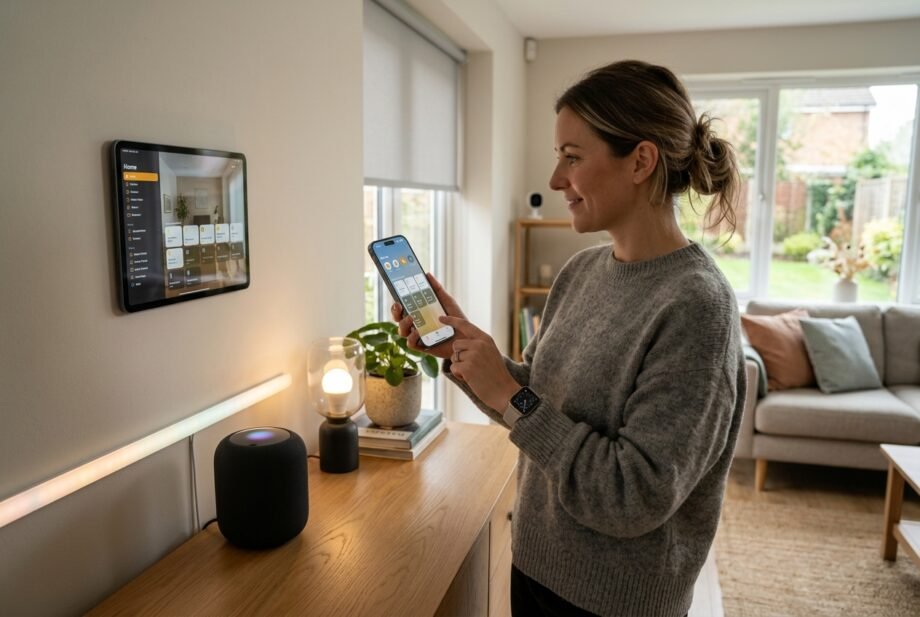
What is Apple Home, and why is there a Home app on your iPhone? Apple Home is Apple’s smart home ecosystem: it brings compatible lights, locks, thermostats, cameras, and other accessories into one place for control through the Home app and Siri.
- Apple Home, the Home App, and HomeKit Explained
- What Is Apple Home’s Relationship With HomeKit?
- What the Home App Does on Your iPhone
- What Is Apple Home Used For?
- Do You Need an Apple Home Hub?
- HomePod, Apple TV, and Thread Requirements
- Which Devices Work With Apple Home?
- HomeKit and Matter Compatibility
- How Alexa, Google Home, Zigbee, and Z-Wave Fit In
- HomeKit on a TV Versus an Apple TV Home Hub
- How Much Does Apple Home Cost?
- How to Set Up and Use the Apple Home App
- Does Apple Home Work Without Internet?
- Privacy and Manufacturer Services
- Common Apple Home Problems and What to Check
- Frequently Asked Questions
- Is Apple Home Right for Your Household?
You can begin with a single lamp or build routines across several rooms. The confusing part is knowing which accessories work and when extra hardware becomes necessary. Understanding the app, compatibility standards, and home hub separately makes those decisions much easier.
Quick takeaway: What is Apple Home? It is Apple’s system for controlling compatible smart home accessories through the Home app and Siri. You can organize rooms, create scenes, and automate tasks. A supported home hub enables remote access and other features beyond basic local control.
Apple Home, the Home App, and HomeKit Explained
What Is Apple Home’s Relationship With HomeKit?
Apple Home is the broader ecosystem you use. HomeKit is Apple’s framework for integrating home accessories, while the Home app provides the controls you see. Apple Home also supports compatible Matter accessories, so HomeKit is not the only integration route.
If you’re asking what is Apple Home compared with HomeKit, think of the difference as the complete system versus one of its underlying technologies. Older product listings often emphasize HomeKit; newer listings may reference Apple Home or Matter. Check the actual model and requirements rather than relying on the name alone. Apple’s introduction to Home
What the Home App Does on Your iPhone
The app groups accessories by room and displays controls appropriate to each device. A light can offer brightness adjustments; a compatible thermostat can show temperature settings; a camera can provide a live view.
An empty dashboard usually means you haven’t added accessories. The app cannot discover and control an ordinary appliance simply because it uses electricity.
For someone wondering what is Apple Home doing on an otherwise ordinary iPhone, it is an available control interface. You decide whether to connect anything to it.
What Is Apple Home Used For?
The useful starting point is a repeated household task:
- Lighting: Switch off a bedside lamp without reaching behind furniture, or adjust compatible dimmable bulbs.
- Comfort: Change a supported thermostat’s setting without walking to the wall unit.
- Security: Check a compatible door lock’s status or view a supported camera.
What is Apple Home adding if each accessory already has an app? A shared interface lets you manage supported functions together. Manufacturer apps may still provide specialist settings or updates.
Scenes Versus Automations
A scene stores a group of actions. A “Good Night” scene might turn off downstairs lights and lock a compatible front door.
An automation specifies when actions happen, such as at sunset or when a sensor detects motion. It can activate individual accessories or a scene. Home automations require a home hub. Scene and automation guidance
Start with a lighting routine you can easily observe. Confirm that it behaves correctly before adding locks or other consequential actions.
Do You Need an Apple Home Hub?
What Is Apple Home Without a Hub?
It can still provide basic local control in supported setups. For example, an iPhone running iOS 18 or later can add and control compatible Matter accessories without a home hub.
Thread accessories need closer attention. Direct local control requires a Thread-enabled iPhone and supported accessory firmware, or an appropriate Thread border router. Don’t assume every newer iPhone has identical capabilities. Matter setup requirements
What is Apple Home suitable for at this stage? Trying one compatible accessory while you’re at home. Check its requirements before buying, especially if you intend to expand later.
What a Home Hub Adds
A supported HomePod or Apple TV stays at home to enable remote access, automations, and other shared-home functions. Keep it powered and connected; taking your iPhone away should not remove the system’s always-available controller.
If you’re wondering what is Apple Home’s hub doing while you’re out, it provides the connection needed to manage accessories remotely. You can check its status under Home Settings > Home Hubs & Bridges. Home hub setup
HomePod, Apple TV, and Thread Requirements
These roles differ:
- Control device: Your iPhone or another supported Apple device running Home.
- Home hub: A supported HomePod or Apple TV.
- Thread border router: Connects the Thread accessory network to your home network.
- Accessory bridge: Exposes supported connected accessories to Apple Home.
One product can perform multiple roles. HomePod mini supports home hub and Thread border router functions. However, the third-generation Apple TV 4K has Thread in its Wi-Fi + Ethernet model, not its Wi-Fi-only model. Apple TV specifications
An iPad can run the Home app but cannot serve as a hub on the current Home architecture.
Which Devices Work With Apple Home?
HomeKit and Matter Compatibility
Before buying, check the exact model’s Apple Home, HomeKit, or Matter support. Then verify that Apple Home supports the functions you want, along with any required firmware or bridge.
What is Apple Home compatibility worth if an essential feature is missing? Check that feature specifically. Basic on/off control does not automatically include every adjustment, history view, or configuration option available in the manufacturer’s app.
| Connection route | What to verify | Hardware considerations |
| HomeKit accessory | Exact model and supported controls | May connect directly or through a compatible bridge |
| Matter over Wi-Fi | Apple Home support for the device type and features | Uses the home network; a hub adds remote access and automations |
| Matter over Thread | Thread connectivity and supported features | Usually needs a Thread border router; supported direct-iPhone exceptions exist |
| Bridged accessory | Bridge’s supported accessory list and exposed features | Requires the specified bridge or gateway |
How Alexa, Google Home, Zigbee, and Z-Wave Fit In
Matter can let a supported accessory participate in multiple ecosystems, including Apple Home, Alexa, and Google Home. Each platform needs the accessory’s supported functions and an appropriate setup; existing Alexa compatibility alone proves nothing about Apple Home.
Zigbee and Z-Wave accessories need an integration route such as a suitable bridge. A generic Zigbee hub is not automatically an Apple Home bridge. Check both the gateway and its supported child devices. Matter compatibility and bridging
HomeKit on a TV Versus an Apple TV Home Hub
What is Apple Home controlling when you add a television? Supported TV functions, which vary by model. That does not turn the television into an Apple home hub.
AirPlay is different again: streaming support does not guarantee HomeKit compatibility. Apple specifically notes that Samsung AirPlay-compatible TVs cannot be added as HomeKit TVs. TV and accessory compatibility
How Much Does Apple Home Cost?
The Home app is free. Your total cost depends on the accessories and hardware you need, rather than a mandatory subscription for basic controls. Official Home app download
What is Apple Home likely to cost beyond that? Budget separately for:
- Compatible bulbs, plugs, sensors, or other accessories.
- A home hub if your intended features require one.
- Any manufacturer bridge your accessories need.
- Optional paid services.
HomeKit Secure Video recordings require a compatible camera, home hub, and appropriate iCloud+ plan. Manufacturer subscriptions are separate, so check which service provides the feature you want. Camera recording requirements
How to Set Up and Use the Apple Home App
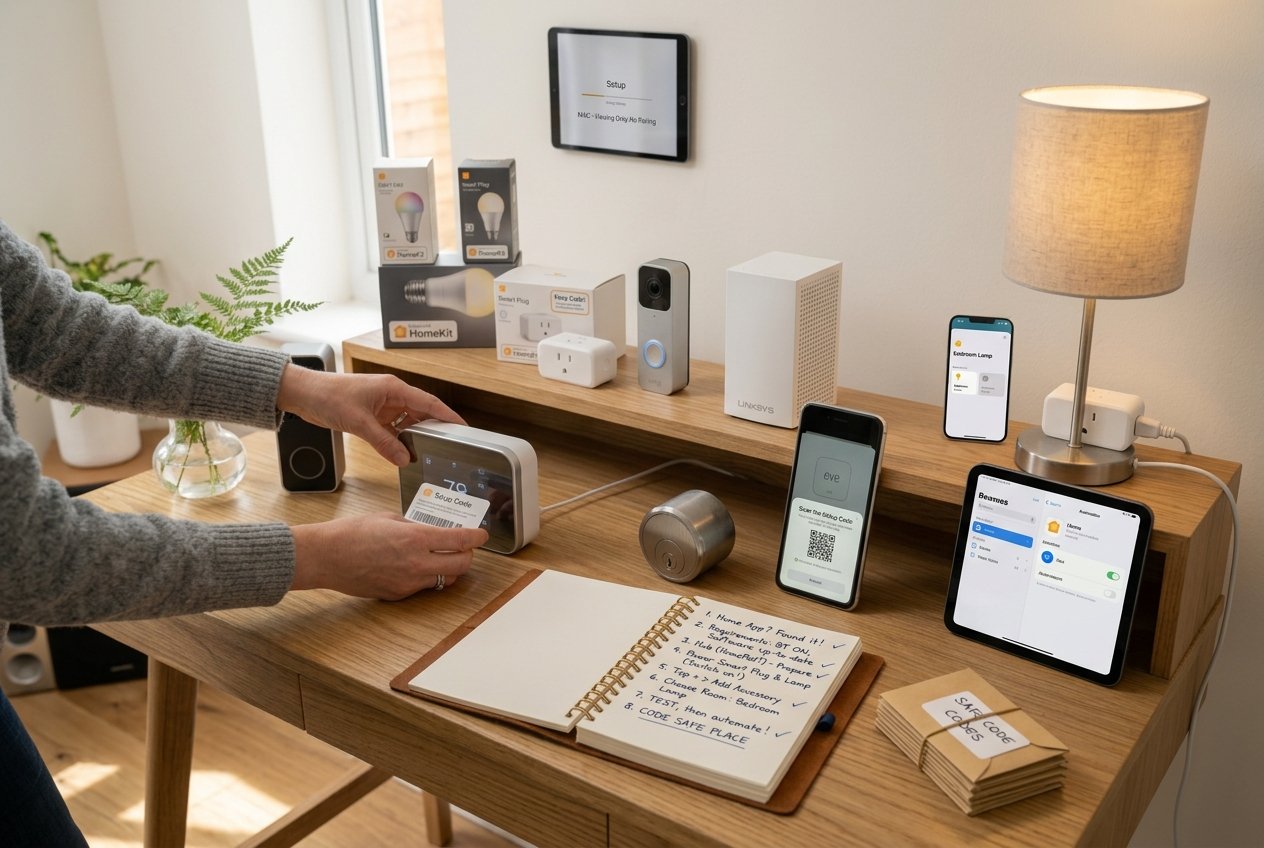
What is Apple Home like to set up for the first time? Start with one accessory and prove that basic control works before building routines.
- Find the Home app. Search your iPhone for Home. If you deleted it, reinstall Apple’s official app from the App Store.
- Check the requirements. Update your software, enable Bluetooth, and read the accessory’s setup instructions. Confirm your Apple Account settings and any required manufacturer-app setup.
- Prepare your hub if needed. Configure a supported HomePod or Apple TV with the appropriate Apple Account and home. Check its connection before adding automations.
- Power the accessory. For a simple example, use a compatible smart plug with a suitable lamp. Leave the lamp’s own switch on so restoring power illuminates it.
- Add it to Home. On iPhone or iPad, tap + > Add Accessory. Scan the setup code or follow the available pairing instructions.
- Choose a room and clear name. “Bedroom Lamp” is easier to recognize and use with Siri than a manufacturer’s default device name.
- Test, then automate. Switch the lamp on and off from its tile. With a hub configured, try a sunset automation and verify the result.
Apple requires an iPhone or iPad for adding accessories; the Mac app cannot perform that pairing task. Official pairing steps
Keep the setup code somewhere secure. Before discarding packaging, check whether the code also appears on the accessory.
If a smart plug restores power but the appliance remains off, its physical controls may require another button press. Test that behavior before relying on a routine. Never use a plug beyond its electrical rating.
Does Apple Home Work Without Internet?
Local Control Versus Remote Access
What is Apple Home able to do during an internet outage? Compatible local controls can continue when the required network, controller, and accessories remain powered and connected. Matter is designed around local connectivity. Matter’s connectivity model
Remote access and cloud-dependent services need internet connectivity. A router failure is a different problem: the local network itself may be unavailable. A power outage can disable accessories and hubs regardless of whether your phone has cellular data.
Test the specific lighting or comfort routines you expect to use during an outage. Do not assume Siri, notifications, and every automation have identical dependencies.
Privacy and Manufacturer Services
What is Apple Home’s privacy advantage? Apple describes local accessory control and encrypted communication, with Home app data stored so Apple cannot read it. Apple Home privacy information
A manufacturer’s separate app or cloud account may collect additional information under its own policies. Review those services and remove access when someone no longer needs to control your home.
Common Apple Home Problems and What to Check
When something fails, begin by identifying the scope. One missing lamp suggests a different problem from every accessory becoming unavailable.
| Symptom | First checks |
| Accessory will not pair | Power, pairing mode, compatibility, Bluetooth, firmware, and previous pairing |
| One accessory shows “No Response” | Its power or battery, signal, and associated bridge |
| Several accessories stop responding | Shared network, home hub, bridges, and recent network changes |
| Local control works but remote control fails | Home hub connection and home internet access |
| Automation does not run | Enabled status, trigger conditions, permissions, and accessory availability |
For pairing errors, check the accessory’s Wi-Fi requirements. Some require 2.4 GHz support. An “already added” message may require removal or a manufacturer reset, while adding an existing Matter device to another ecosystem may require its sharing procedure. Pairing troubleshooting
To narrow down the problem, compare the accessory’s behavior in its manufacturer’s app. Failure in both places suggests starting with the device or connection. Working manufacturer controls do not conclusively prove local connectivity, since that app might use cloud access.
Restart the affected device or bridge, then retest. Save removal and factory resetting for later: they can require recreating settings and routines. Apple’s troubleshooting sequence also checks firmware and shared infrastructure before recommending re-pairing. “No Response” troubleshooting
Frequently Asked Questions
Do you have to pay for Apple Home?
No subscription is required for the free Home app’s basic accessory controls. You pay for hardware you need, and some optional services have recurring charges. If you’re asking what is Apple Home charging for camera recordings, HomeKit Secure Video recording is tied to an appropriate iCloud+ plan.
Is Apple Home discontinued?
No. Apple ended support for the previous Home architecture on February 10, 2026. That was a platform update requirement, not the shutdown of Apple Home. Existing users should check their Home software and shared users’ device compatibility instead of assuming their entire system needs replacement. Home architecture update
What is the purpose of Home on an iPhone?
It provides controls for compatible smart home accessories, organized into rooms and scenes. What is Apple Home useful for if you own no accessories? There is little to configure until you add one. Keeping the app installed does not mean you need to buy equipment or subscribe.
What is the difference between Apple Home and Apple HomeKit?
Apple Home describes the broader smart home ecosystem. HomeKit is Apple’s accessory framework, and the Home app is the interface people use. Matter provides another supported integration route. Product descriptions sometimes use these names loosely, so verify the specific accessory’s compatibility and required hardware before purchasing.
Can you use Apple Home without a hub?
Yes, for supported local-control setups. An iPhone running iOS 18 or later can add and control compatible Matter accessories without a hub, subject to connectivity requirements. Thread needs suitable hardware and accessory support. Remote access and Home automations still require a supported home hub.
Is Apple Home Right for Your Household?
The answer to “what is Apple Home best for?” is coordinated control in a household that already uses compatible Apple devices. Before expanding, consider who needs access and whether their phones support the intended setup.
Start with one useful accessory, test it, then add a hub or further devices as your needs grow. Maintain software updates, retain setup codes, and review shared access periodically.
A reliable lamp routine is a better starting point than a house full of accessories whose requirements you haven’t checked.
Disclaimer:
Features vary by software, hardware, region, and accessory firmware. Follow manufacturer instructions and electrical ratings. For hardwired switches or other mains-voltage equipment, use a qualified electrician and comply with local installation requirements.