


Quick answer: If you need to know how to reset Honeywell thermostat with no reset button, identify the model first. Supported models use touchscreen menus or specific button combinations. Choose a Wi-Fi, schedule, or factory reset according to the problem. If the display is blank, investigate power before attempting menu-based instructions.
A missing reset button can make a straightforward problem frustrating. You may have a thermostat that ignores commands, keeps returning to an unwanted temperature, or disappears from its app. Each symptom calls for a different starting point.
The useful question is which reset your particular thermostat supports. Start with the checks below, then use the procedure that matches the model number. These instructions cover the specified Honeywell Home models; similar names, regional versions, and other variants can have different controls.
Before You Reset: Identify Your Model and Save Your Settings
Find the model number without disturbing the wiring
Check your user manual, packaging, or installation paperwork first. If the display responds, look for a device-information screen. On supported T5/T5+ thermostats, Device Info includes the model number alongside other device details.
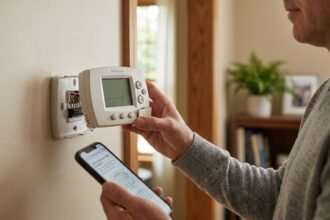
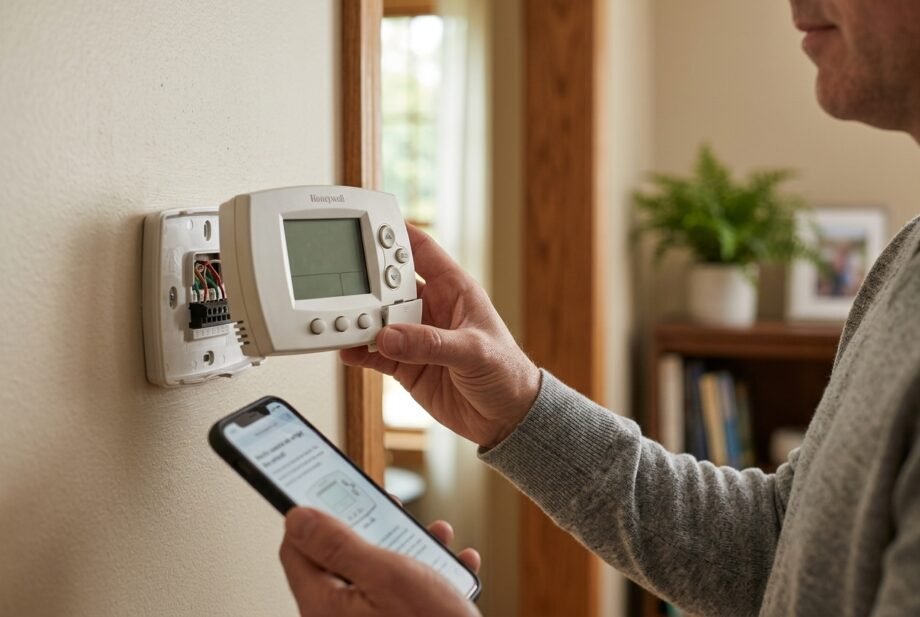
If you need to inspect a label behind the thermostat, consult its removal instructions first. Do not assume the front pulls straight off: mounting arrangements differ. Leave the wired wallplate attached and avoid touching the terminals.
Write down the complete model number. A family name such as T6 or VisionPRO is not enough to select an installer-menu sequence confidently. Compare the identifier with the models listed under each procedure below before pressing anything.
Preserve the information needed for setup
Before a factory reset, photograph accessible configuration screens, particularly the equipment setup. Keep your preferred schedule and network details available separately.
Honeywell specifically advises recording the Installer Setup, or ISU, configuration before factory-resetting supported T5/T5+/T6 Pro Wi-Fi models. If you cannot identify the existing equipment configuration, contact your installer before clearing it.
Safety: Menu changes do not require disconnecting wires. Before any wiring work, isolate power to the heating and cooling equipment. Leave unfamiliar wiring, line-voltage thermostats, and electrical-panel work to a qualified professional.
Choose the Reset That Matches the Problem
“Reset” can describe several different actions. A restart interrupts operation and lets the device start again; a factory reset deliberately returns supported settings to defaults. The exact scope depends on the model.
Use this table to choose your starting point:
| What you are experiencing | Appropriate first route | What to establish first |
| Frozen controls | Documented restart | How this model receives power |
| New router or Wi-Fi password | Network change or Wi-Fi reset | Correct network name and password |
| Unwanted temperature schedule | Schedule or hold adjustment | Which programmed period is active |
| Apple Home pairing trouble | Supported HomeKit reset | Whether the problem is limited to pairing |
| Need to start configuration again | Factory reset | Required equipment settings |
| Completely blank display | Battery and power checks | Whether the thermostat has power |
Our broader Honeywell thermostat reset guide explains these reset categories if you are unsure which outcome you need.
For example, if the temperature changes at the same time each morning, inspect the schedule before clearing configuration. Note the time of the change and the displayed setpoint. That gives you something specific to compare with the programmed periods.
How to Reset Honeywell Thermostat With No Reset Button by Model
The procedures below follow the applicable manufacturer documentation, including Honeywell’s model-specific reset instructions. Read your matching subsection completely before beginning.
If a screen differs from the instructions, stop and recheck the model. Do not substitute a nearby option or experiment with numerical settings.
T5, T5+ and T6 Wi-Fi models
Applicable identifiers include RCHT8610WF, RCHT8612WF, TH6320WF2, and TH6220WF2.
- Hold Menu to access additional options.
- Use the right arrow to find Reset; select it.
- Navigate to Factory Reset and select it.
- Respond to any confirmation prompts.
Complete the subsequent setup using the correct equipment information. These instructions should not be applied automatically to non-Wi-Fi or Z-Wave T6 variants.
On the documented Wi-Fi models, the reset menu also offers targeted choices for schedules, Wi-Fi, and HomeKit. Read the selected option carefully before confirming: a network problem does not justify erasing the entire configuration.
T9 models
For RCHT9510WF and RCHT9610WF:
- Open Menu, then Advanced Setup.
- Enter Reset.
- Choose Factory Reset.
Check that the displayed option matches your intention before proceeding. Keep this procedure separate from the T10 instructions below; the two models do not share the same route into advanced reset controls.
T10 models
For the THX321WF procedure documented by Honeywell:
- Open the main menu and enter Thermostat Information.
- Note the displayed Date Code.
- Return to the menu and open Installer Options.
- Supply that date code when prompted for the password.
- Enter Reset, then choose Factory Reset.
The date code is device-specific; do not use an example number found in another thermostat’s instructions. Accessing Installer Options also exposes equipment settings, so stay within the reset procedure rather than changing unrelated values.
Smart Wi-Fi 9000 models
For RTH9580WF, RTH9585WF, and TH9320WF:
- Open Menu, followed by Preferences.
- Choose Restore Factory Defaults.
- Confirm with Yes.
Before clearing everything, distinguish this option from restoring the default schedule. They are separate functions. If your only concern is programmed temperature changes, review the scheduling controls first.
Smart/Lyric Round
For TH8732WFH:
- Hold the Cloud icon.
- Use the i control to locate Reset.
- Select that option.
Follow the setup instructions for this model afterward. Do not apply this touch-control sequence to a traditional mechanical round thermostat simply because its housing has a similar shape.
FocusPRO 6000 Wi-Fi
For TH6320WF1 and RTH6580WF, the factory-reset procedure uses a numbered setup function:
- Hold Up and Fan together to enter setup.
- Navigate to function 90 on the left.
- Change its value on the right to 1.
- Finish with Done.
Take care to distinguish the function number from its value. Do not modify other functions while navigating. The RTH6580WF manual describes this reset as restoring original settings and removing customizations, including its Wi-Fi connection.
VisionPRO 8000 and TH8321WF
For TH8320WF and RTH8580WF:
- Press System, then hold the blank center box.
- Select function 0710 and value 1.
- Finish with Done.
TH8321WF uses a different menu route:
- Open Menu, then Dealer Information.
- Scroll to the date code and record it.
- Return using Done, then open Installer Options.
- Enter the recorded code.
- Choose Reset to Defaults and confirm.
Treat these as separate procedures. If your VisionPRO identifier differs, consult its own installation guide before entering either sequence.
How to Reset Honeywell Thermostat With No Reset Button When the Screen Will Not Respond
If the screen is frozen
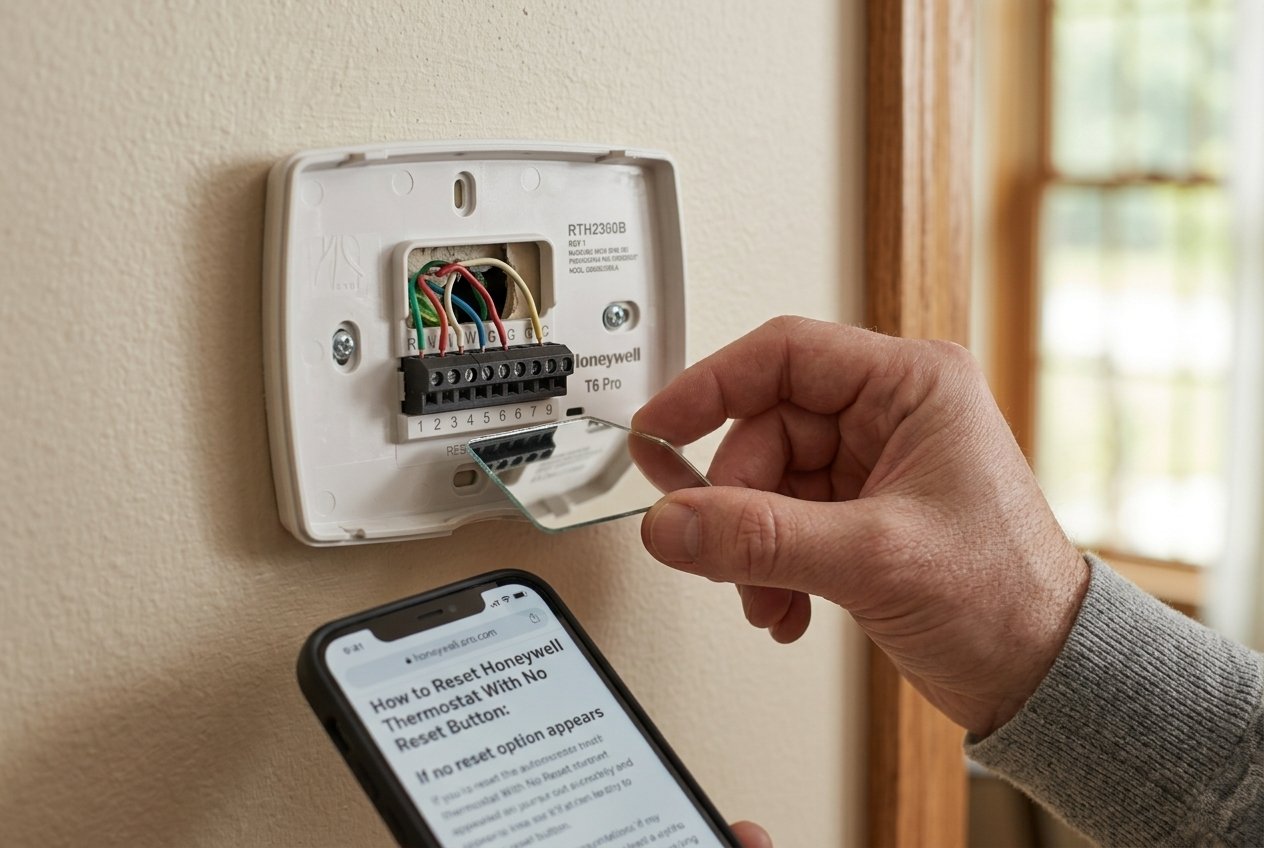
First look for a lock indicator or an active screen-cleaning timer. On supported T5/T5+/T6 Pro Wi-Fi models, Clean Screen temporarily disables touch input for 30 seconds. Waiting for that timer is more appropriate than assuming the display has failed.
For T5, T5+, and T6 Pro Wi-Fi connection/setup problems, Honeywell documents a restart by removing the thermostat face from its wallplate for 30 seconds and then reattaching it. Use this only on the applicable detachable models and follow the mounting instructions. Do not pull on wires or loosen the wired base.
A documented power cycle and a factory reset serve different purposes. After one restart, check whether the original symptom remains before deciding on the next action.
If the display is completely blank
For a battery-powered model, install fresh batteries of the specified type, following the polarity markings. Do not reverse them as a generic reset trick.
Honeywell’s blank-display troubleshooting for TH6210U2001, TH6220U2000, and TH6320U2008 distinguishes battery problems from loss of wired power. If one of these common-wired models runs on batteries but not its normal supply, the equipment power needs investigation.
Check accessible equipment switches and whether the furnace access door is properly closed. Never bypass a door interlock. If a breaker repeatedly trips, stop resetting it and arrange professional diagnosis.
Do not add batteries to a thermostat that has no manufacturer-provided battery compartment. A reset cannot compensate for a missing power supply.
If no reset option appears
Find the exact manual and search within it for reset, defaults, or installer setup. A locked control, different model variant, or different menu structure needs its own instructions.
For an older thermostat, do not assume there must be a factory-reset function. If the goal is simply a different schedule, check whether you can edit the programmed periods directly. Ask support about the exact model before trying undocumented button combinations.
If Only Wi-Fi or App Control Has Stopped Working
Try changing the setpoint at the thermostat and observe whether local control responds. Record whether the failure concerns the screen, heating or cooling, the network connection, or only the app. Those observations help narrow the next step.
For supported T5/T5+/T6 Pro Wi-Fi units, use the Wi-Fi reset choice when network reconfiguration is necessary. Honeywell’s Wi-Fi reset and reconnection instructions also describe selecting the thermostat in the Resideo app, opening settings, and using Reset WiFi. If the device is missing, follow the documented Add a New Device process.
Before retrying setup, confirm the network name and password. These particular T5/T5+/T6 Pro Wi-Fi models require a compatible 2.4 GHz network; do not assume that requirement applies to every Honeywell thermostat.
For a supported thermostat with an Apple Home pairing problem, check its dedicated HomeKit reset instructions. Our explanation of how Apple Home manages compatible accessories provides context for that connection. Verify thermostat operation and app access separately after reconnecting.
What to Check After the Thermostat Restarts
Use this checklist before deciding that another reset is needed:
- Check responsiveness. Confirm that buttons or touch controls respond normally.
- Verify the operating mode. Make sure Heat or Cool matches the function you want to check.
- Compare the setpoint with room temperature. Request heating above room temperature or cooling below it, only under conditions suitable for operating that equipment.
- Review required configuration. Use recorded settings and the correct installation guide; do not guess at system type or equipment stages.
- Allow the documented delay. Some thermostats deliberately wait before restarting equipment.
- Restore your preferences. Check the clock, schedule, and any connected services that need attention.
For example, Honeywell’s T6 Pro programmable troubleshooting guidance associates a flashing heating or cooling indicator with compressor protection and instructs users to allow five minutes. Check the guidance for your own model rather than treating every delay as a fault.
If the system behaves differently after a factory reset, note exactly what changed. A working display does not confirm that the equipment configuration is correct. Stop adjusting installer values if you cannot establish the right settings.
When requesting help, provide the model number, original symptom, reset performed, and current screen message. This gives support a useful starting point and avoids repeating steps that already failed.
Frequently Asked Questions
How do I reset a Honeywell thermostat without a reset button or menu?
Identify the exact model and check its manual for a documented button combination or setup function. Some models use controls that are not labeled Reset. If no applicable procedure is documented, contact support instead of borrowing instructions from a similar-looking thermostat.
Will removing the batteries reset my Honeywell thermostat?
Removing batteries is not a universal factory reset. Its effect depends on the thermostat’s power source and how settings are stored. Treat battery replacement as power troubleshooting. Use the documented reset function when you specifically intend to clear programming or restore defaults.
Can I reset it without losing my settings?
Start by deciding what you need to change. A manufacturer-supported restart may be enough for temporary unresponsiveness, while a targeted network or schedule reset addresses a narrower issue. Check the model’s documentation before assuming any particular settings will survive.
How do I reset it when the screen is blank?
Investigate power first. Check batteries where fitted and follow the model’s equipment-power troubleshooting. A touchscreen reset sequence cannot be completed on an unpowered display. If the specified checks do not restore the screen, seek support or an HVAC technician’s diagnosis.
Why is it still not heating or cooling after a reset?
Check mode, setpoint, equipment power, and any required configuration. Allow the documented protection delay before judging the result. If those checks do not explain the failure, the thermostat or HVAC equipment needs diagnosis; repeatedly clearing settings will not identify the underlying fault.
Final Takeaway: Match the Reset to Your Model
The answer to how to reset Honeywell thermostat with no reset button starts with the model number and the symptom. Find the appropriate menu or button sequence, preserve the information needed for setup, and check operation afterward. If the screen has no power or the equipment configuration is uncertain, resolve that problem before attempting a factory reset.
Disclaimer:
These procedures apply only to the specified models. Follow the matching manufacturer manual. Isolate power before wiring work, and use a qualified HVAC technician or electrician for electrical faults or uncertain equipment configuration.