
Learning how to connect speakers to tv is easier than it looks. Most TVs give you several ways to send sound out, and most speakers accept at least one of them. The trick is to match the right port on your TV with the right input on your speaker, then pick that output in your TV settings.
- First, Look at the Back of Your TV
- Method 1: HDMI ARC or eARC
- Method 2: Optical Cable
- Method 3: 3.5mm or RCA Analog
- Method 4: Bluetooth Speakers
- Connect Speakers Through an AV Receiver
- Where to Place Your Speakers and Soundbar
- TV Settings That Make or Break the Sound
- Fix It When There Is No Sound
- Frequently Asked Questions
- How do I connect speakers to my TV without HDMI ARC?
- Can I connect Bluetooth speakers to any TV?
- How do I connect a soundbar and subwoofer to a TV?
- Do I need a receiver to connect speakers to a TV?
- Why is my TV sound out of sync with the picture?
- Can I use old stereo speakers with a new TV?
- Conclusion
Why bother with external speakers at all? Modern TVs are thin, so their built in speakers are small. Voices can sound thin, and film soundtracks lose their punch. A soundbar, a pair of powered speakers, or a full surround system can fix that in one evening, often with a single cable.
First, Look at the Back of Your TV
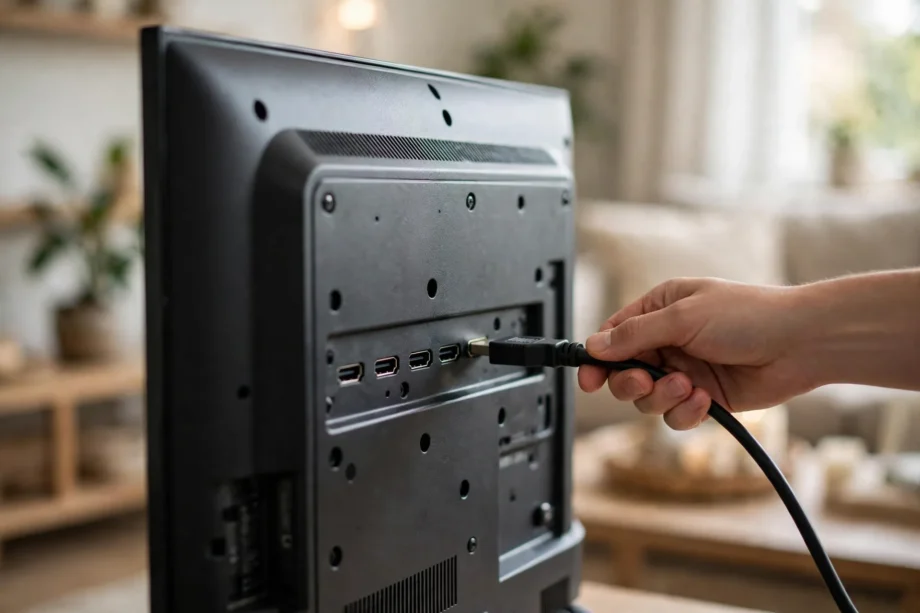
Before you buy a cable, check what your TV actually has. Look for ports labeled HDMI ARC or eARC, Optical, 3.5mm headphone, and Bluetooth in the settings menu. Take a photo of the ports with your phone. That photo saves you a second trip to the shop and a wrong cable.
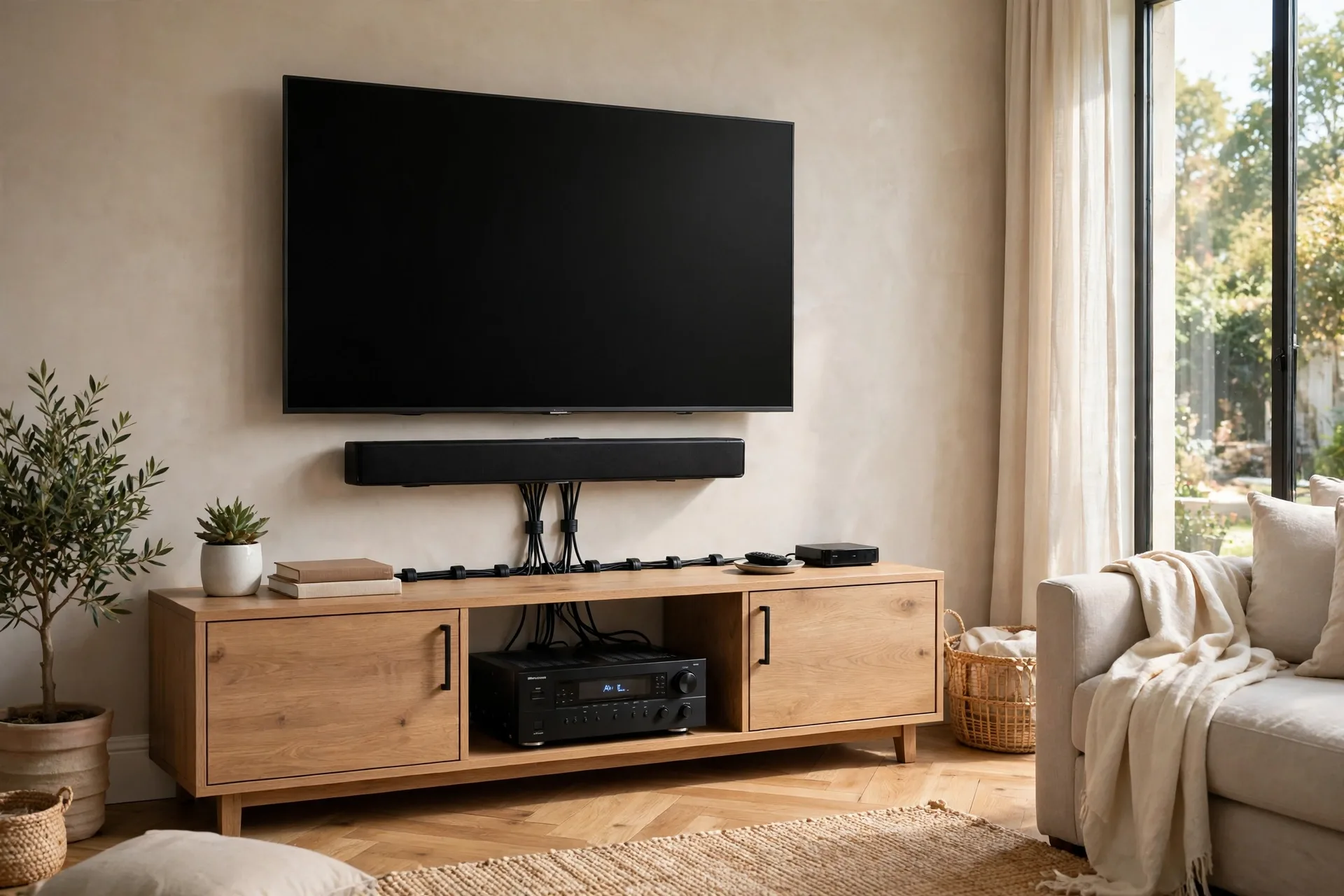
Now check your speaker or soundbar the same way. What inputs does it have? A soundbar often has HDMI ARC, optical, and Bluetooth. Powered speakers may have 3.5mm, RCA, or optical. An AV receiver will have several HDMI inputs plus optical and RCA. Your best connection is the one both devices share.
Here is my order of preference for most living rooms. HDMI ARC or eARC first, because one cable carries sound and lets your TV remote control volume on many setups. Optical second, because it is simple and sounds clean. Analog 3.5mm or RCA third, for older gear. Bluetooth last for TV watching, because it can lag behind the picture.
Method 1: HDMI ARC or eARC
HDMI ARC lets your TV send audio back to a soundbar or receiver through the same HDMI cable. eARC is the newer, higher bandwidth version, and it can carry richer surround formats. You do not need to understand every format to use it. Just use the port labeled ARC or eARC on both devices.
- Plug one end of an HDMI cable into the HDMI ARC or eARC port on your TV.
- Plug the other end into the HDMI OUT port labeled ARC or eARC on your soundbar or receiver.
- Turn both devices on and select the ARC input on your soundbar or receiver if needed.
- On your TV, open Settings, then Sound, then Sound Output, and choose HDMI ARC or Receiver.
- Turn on HDMI CEC in your TV settings so your TV remote can control speaker volume. Brands call this Anynet+, Bravia Sync, or Simplink, but the job is the same.
Still no sound? Check that you used the ARC port, not just any HDMI port. Many TVs have three or four HDMI ports, but only one supports ARC. Also check that CEC is on. Without it, some setups refuse to switch audio output at all.
For the official background on what eARC can carry, HDMI’s eARC page explains the higher bandwidth formats in plain terms. You do not need to read it to set up, but it helps if you want to know why eARC matters for surround sound.
Method 2: Optical Cable
Optical, also called TOSLINK, sends digital audio through a thin cable with a small square plug. It is a great fallback when ARC is not available, or when you want a simple, reliable link. It does not carry the very highest surround formats, but for most films and shows it sounds excellent.
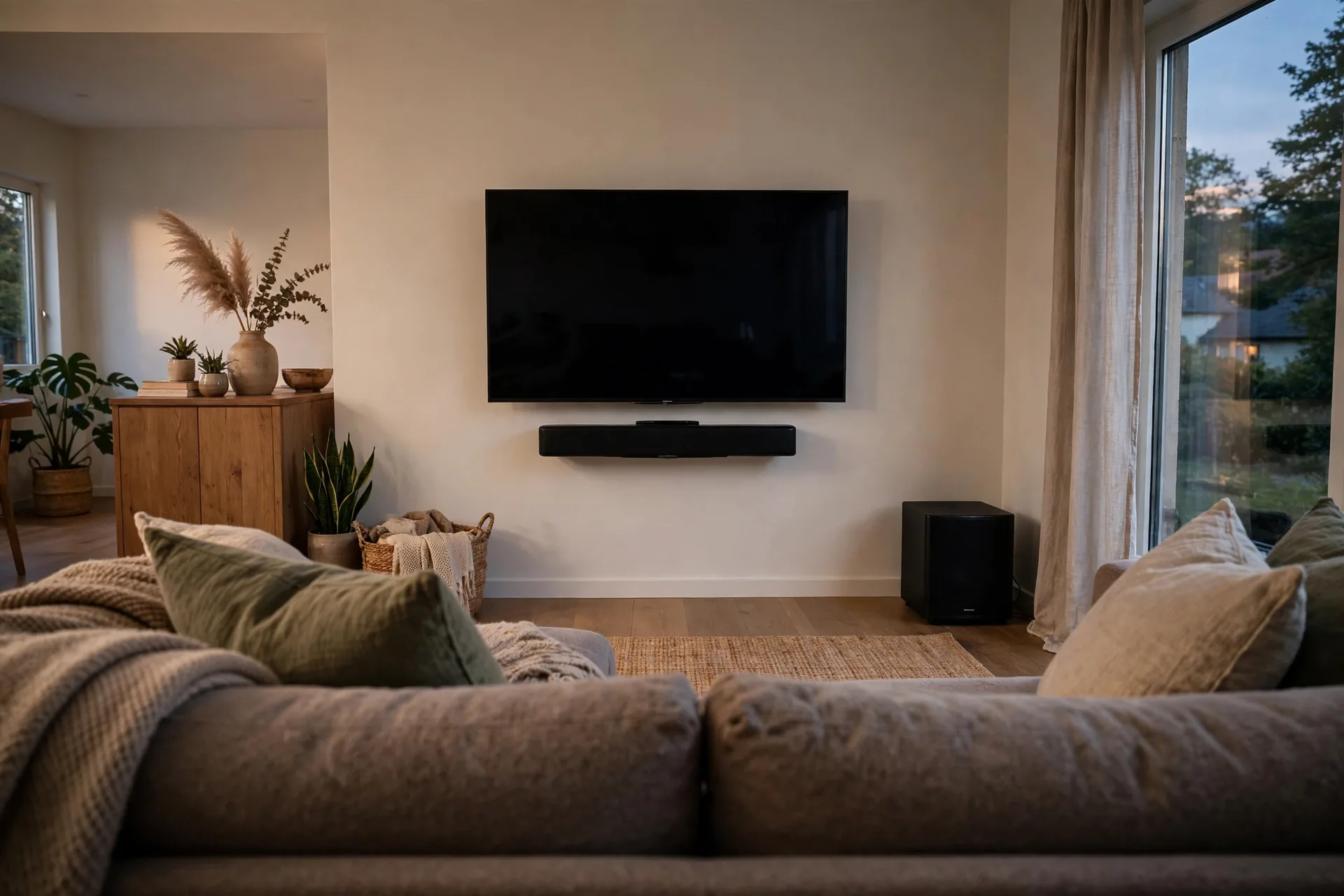
- Remove the small plastic caps from both ends of the optical cable and from the ports.
- Plug one end into the Optical Out port on your TV. It should click gently into place.
- Plug the other end into the Optical In port on your soundbar or receiver.
- On your TV, open Sound settings and choose Optical as the sound output.
- Start with PCM audio format if you hear nothing, then try Dolby Digital if your speaker supports it.
Be gentle with optical cables. Do not bend them sharply or crush them behind furniture. A kinked cable can drop sound without warning. If sound cuts in and out, check the plugs first. They can work loose if the cable hangs with weight on it.
Method 3: 3.5mm or RCA Analog
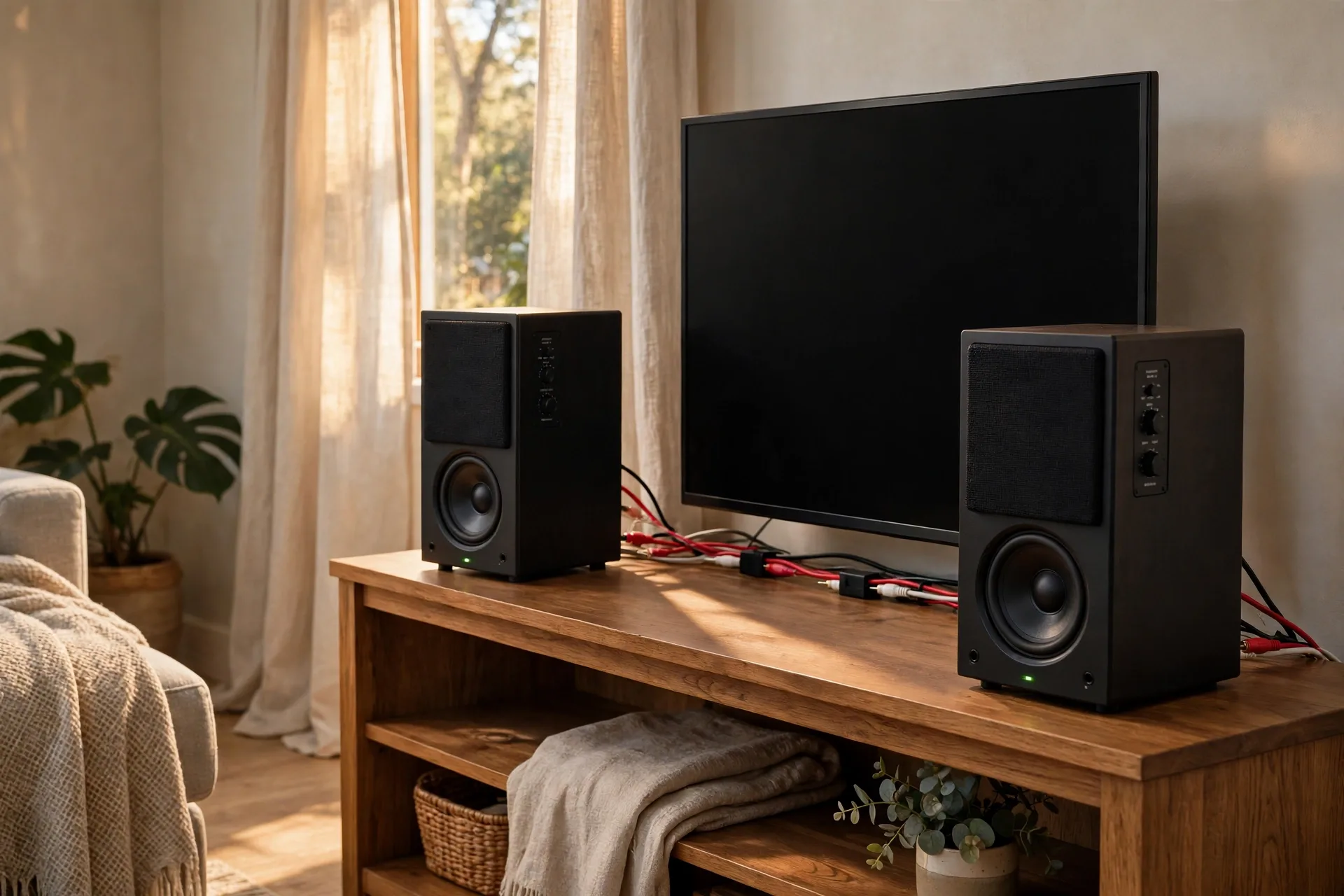
Older TVs and many powered speakers still use analog connections. A 3.5mm cable looks like a headphone cable. RCA uses red and white plugs for left and right sound. Both are simple, and both work well for stereo speakers, even if they cannot carry surround sound.
- Plug the 3.5mm end into the headphone or audio out jack on your TV.
- Plug the other end into the matching input on your speakers, using a 3.5mm to RCA adapter if needed.
- For RCA, match red to red and white to white on both ends.
- On your TV, choose Headphones or Line Out as the sound output.
- Set the TV volume to about three quarters, then control final volume from your speakers.
Why set TV volume high? Analog outputs can sound noisy if the TV volume is very low and the speaker volume is very high. You are amplifying noise along with sound. A strong signal from the TV and a moderate speaker volume usually sounds cleaner.
Method 4: Bluetooth Speakers
Bluetooth is handy when you cannot run a cable, or when you want a speaker you can move around the room. Put your Bluetooth speaker or soundbar in pairing mode, usually by holding its Bluetooth button until a light flashes. Then open your TV sound settings, choose Bluetooth speaker list, and select your device.
Bluetooth can lag. That means lips move slightly before you hear the words. Many TVs have an audio delay or lip sync setting to fix this. Adjust it in small steps while watching someone talk. A news presenter is a perfect test, because you can see every word form.
Bluetooth also compresses sound, so it rarely matches a wired connection for film quality. Use it for casual watching, music, or a bedroom TV. For your main film setup, a cable is still the better choice. Keep Bluetooth as a backup, not your only plan.
Connect Speakers Through an AV Receiver
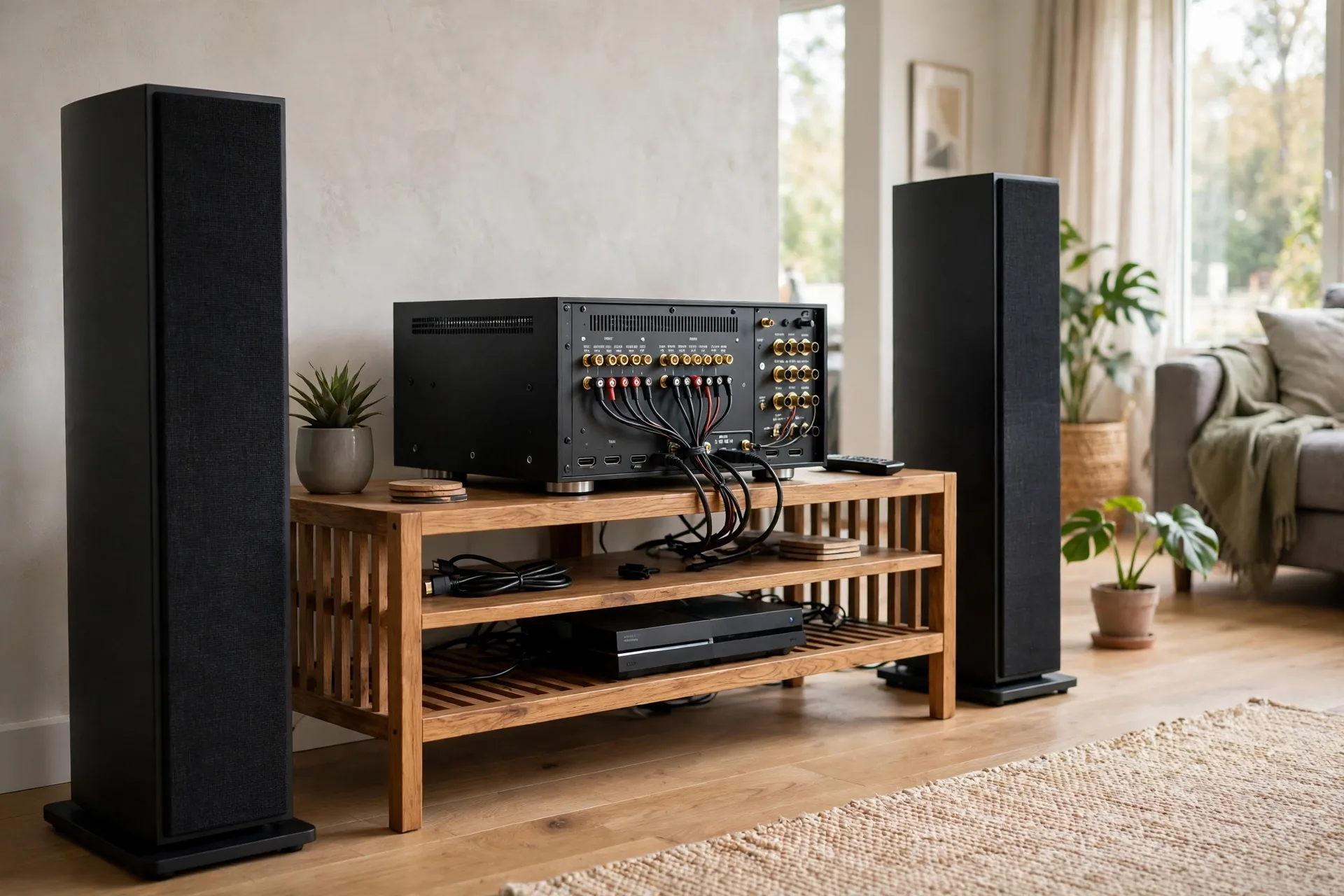
Got passive speakers that need an amplifier? You need an AV receiver between the TV and the speakers. The receiver powers the speakers and switches between sources. It sounds complex, but the wiring follows one simple rule: match positive to positive and negative to negative on every speaker.
- Connect each speaker to the matching terminals on the receiver, red to red and black to black.
- Connect the TV to the receiver with HDMI eARC if both support it, or optical as a fallback.
- Connect your other sources, like a streaming box or console, to HDMI inputs on the receiver.
- Run the receiver auto calibration with its microphone, placed at your main seat.
- Check speaker size settings after calibration, and set small speakers to Small so bass goes to the subwoofer.
How do you hook up a subwoofer to a receiver? Most receivers have a single subwoofer output, often labeled Sub Out or LFE. Run one RCA cable from that output to the line input on your powered sub. Then set the sub level in the receiver menu and fine tune by ear. Place the sub near the front of the room first, then test other spots if bass sounds boomy.
A note on speaker wire: bare wire ends fray and short out if you are careless. Twist each strand tight, trim stray hairs, and double check that no red strand touches a black terminal. A short can shut a receiver down, and it is an annoying fault to trace later.
Where to Place Your Speakers and Soundbar
Connection is only half the job. Placement decides how good it sounds. Put a soundbar directly under or above the TV, centered on the screen. That keeps dialogue anchored to the picture. Do not hide a soundbar inside a closed cabinet if you can avoid it. Sound needs a clear path to your ears.
Where should you place a soundbar subwoofer? Near the front of the room is the safe starting point, close to the soundbar or in a front corner. That keeps bass tied to the action. If the sub sounds boomy in the corner, pull it a few inches from each wall and listen again.
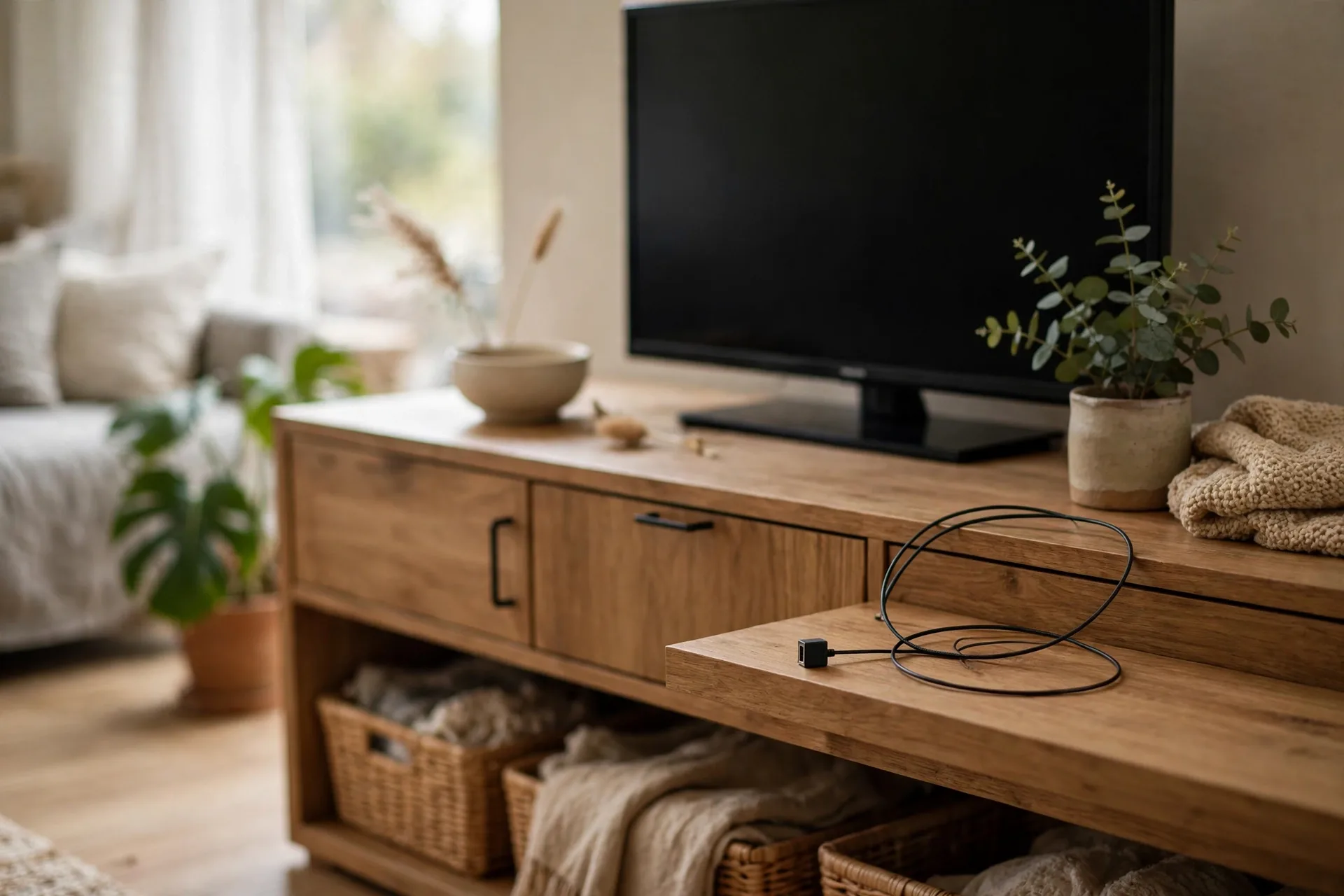
For a pair of stereo speakers, aim for a triangle. You sit at one corner, and each speaker sits at the other two, roughly the same distance apart as they are from you. Angle them slightly toward your seat. That simple layout gives you a wide, clear soundstage without any extra gear.
Surround speakers belong to the sides or slightly behind your seat, not in front of you. If you put them at the front, you lose the sense of sound wrapping around you. Height matters too. Keep surround speakers near ear height when seated, or just above it, for the most natural effect.
TV Settings That Make or Break the Sound
Caption: TV audio settings to check after connecting
| Setting | What to choose first | When to change it |
|---|---|---|
| Sound output | HDMI ARC, optical, or Bluetooth | Match it to the cable you used |
| Audio format | PCM for widest compatibility | Bitstream if your system handles surround |
| HDMI CEC | On | Off only if devices fight over volume |
| Audio delay | Zero, then adjust by ear | When lips and sound do not match |
| TV speakers | Off when using external speakers | On only as a temporary test |
Turn your TV speakers off once external speakers work. If both play at once, you get an echo effect that sounds like a bad hall. Some TVs let you keep both on for accessibility, but for normal watching, external speakers alone sound cleaner.
One setting that trips people up is audio format. PCM sends simple stereo that almost everything understands. Bitstream sends surround data for your receiver to decode. If you pick bitstream and hear silence, your speaker may not support that format. Drop back to PCM and you will usually get sound straight away.
Fix It When There Is No Sound
No sound at all? Work through this list in order. Check the cable is fully plugged in at both ends. Check you picked the right input on the speaker and the right output on the TV. Check the volume on both devices, and check mute on both remotes. It sounds basic, but a muted soundbar fools everyone at least once.
Sound from the TV but not the speaker? Your TV may still be set to TV speakers. Change the sound output setting and wait a few seconds. HDMI handshakes can take a moment. If it still fails, power both devices off, unplug them for 30 seconds, and power them back on. That resets the HDMI link.
Sound cuts out now and then? Check for a loose optical plug or a damaged HDMI cable. Try a different cable before you blame the TV or speaker. Cables fail more often than people expect, and swapping one is the cheapest test you can run.
Voices sound muddy? Turn down bass a little and check for a dialogue or night mode on your soundbar. Many soundbars have a mode that lifts voices above background effects. It will not fix a bad recording, but it helps a lot with films that mix dialogue too low.
Frequently Asked Questions
How do I connect speakers to my TV without HDMI ARC?
Use an optical cable if both devices have optical ports, or a 3.5mm or RCA cable for analog speakers. Plug the cable into the TV audio out and the matching input on your speaker, then choose that output in your TV sound settings. Optical gives cleaner digital sound than analog.
Can I connect Bluetooth speakers to any TV?
You can connect Bluetooth speakers only if your TV has Bluetooth built in, or if you add a Bluetooth transmitter to its audio output. Check your TV sound settings for a Bluetooth speaker list. If it is missing, a small transmitter plugged into the optical or headphone jack will add it.
How do I connect a soundbar and subwoofer to a TV?
Connect the soundbar to the TV with HDMI ARC or optical, then pair the subwoofer to the soundbar, usually by pressing a pairing button on both. Most soundbar subs pair wirelessly and automatically. Place the sub near the front of the room and test the level with a film.
Do I need a receiver to connect speakers to a TV?
You need a receiver or amplifier only for passive speakers, which have no power of their own. Powered speakers and soundbars have amplifiers built in, so they connect straight to the TV. Check the back of your speaker: a power cable and volume control usually mean it is powered.
Why is my TV sound out of sync with the picture?
Lip sync problems often come from Bluetooth lag or from a receiver processing surround sound. Use your TV or receiver audio delay setting and adjust it in small steps while watching someone speak. A wired HDMI or optical connection usually has less delay than Bluetooth.
Can I use old stereo speakers with a new TV?
Yes, you can use old stereo speakers if you have an amplifier or receiver to power them, or if they are powered speakers with their own amplifier. Connect the TV to the amplifier with optical, HDMI ARC, or analog, then wire the speakers to the amplifier with matched positive and negative terminals.
Conclusion
Start with HDMI ARC if you have it, fall back to optical, then analog, and keep Bluetooth for casual use. Match ports, pick the right TV output, and test with voices before you test with films. Your next step is easy: photograph the ports on your TV and speaker, pick the shared connection from this guide, and connect them tonight.