

The best home office setup products are a good chair, a large monitor at eye level, and a USB-C docking station. Add a clear webcam and a keyboard and mouse that fit your hands. Buy those five first, then add the small extras. This guide shows what to pick and what to skip.
- Best home office setup products: the short list
- Start with the chair, not the desk
- Your screen decides how your neck feels
- The docking station ties it together
- A webcam and light change how calls feel
- Keyboard, mouse, and the small stuff
- Layout and light: the free upgrades
- Three budgets that actually work
- Mistakes to avoid
- FAQs
- What are the best home office setup products to buy first?
- Do I need a docking station for my home office?
- Is a dual monitor setup worth it for home office work?
- What size monitor is best for a home office?
- How do I set up an ergonomic home office on a budget?
- Should I buy a 4K webcam or a 1080p webcam?
- Your next step
Best home office setup products: the short list
Start with the parts your body touches all day. A chair holds you for eight hours, so it comes first. A monitor shapes how your eyes and neck feel, so it comes second. Everything else supports those two picks. If you buy in that order, you will feel the difference on day one.
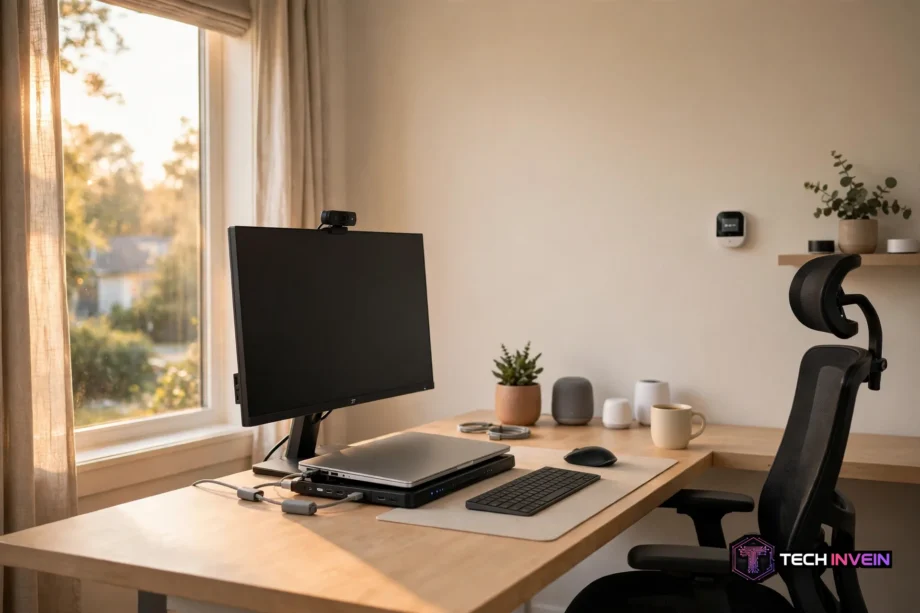
Here is the order that works. First, get a chair with adjustable height and lumbar support. Next, add a 27-inch monitor on a stand. Then connect a docking station so one cable links your laptop to the screen. After that, add a webcam, a light, a keyboard, and a mouse.
Table: Home office products in buy order, with the job each one does.
| Product | What it does for you | Buy it when |
|---|---|---|
| Office chair | Supports your back and hips all day | First, always |
| Monitor | Gives your eyes room and lifts your gaze | Second, with a stand |
| Docking station | Connects laptop, screens, and power in one cable | When you use a laptop |
| Webcam | Makes you look clear on calls | When calls are daily |
| Keyboard and mouse | Keep wrists straight and clicks easy | With the monitor |
Start with the chair, not the desk
Most people shop for a desk first because it is the biggest thing in the room. That is a mistake. You sit in a chair for hours, but you only look at a desk. A good chair keeps your feet flat, your hips level, and your lower back supported. A bad one leaves you stiff by lunch.
Look for four adjustments before you buy. Seat height should let your feet rest flat. Lumbar support should sit in the curve of your lower back and move up or down. Armrests should move in all directions, and seat depth should leave a small gap behind your knees.
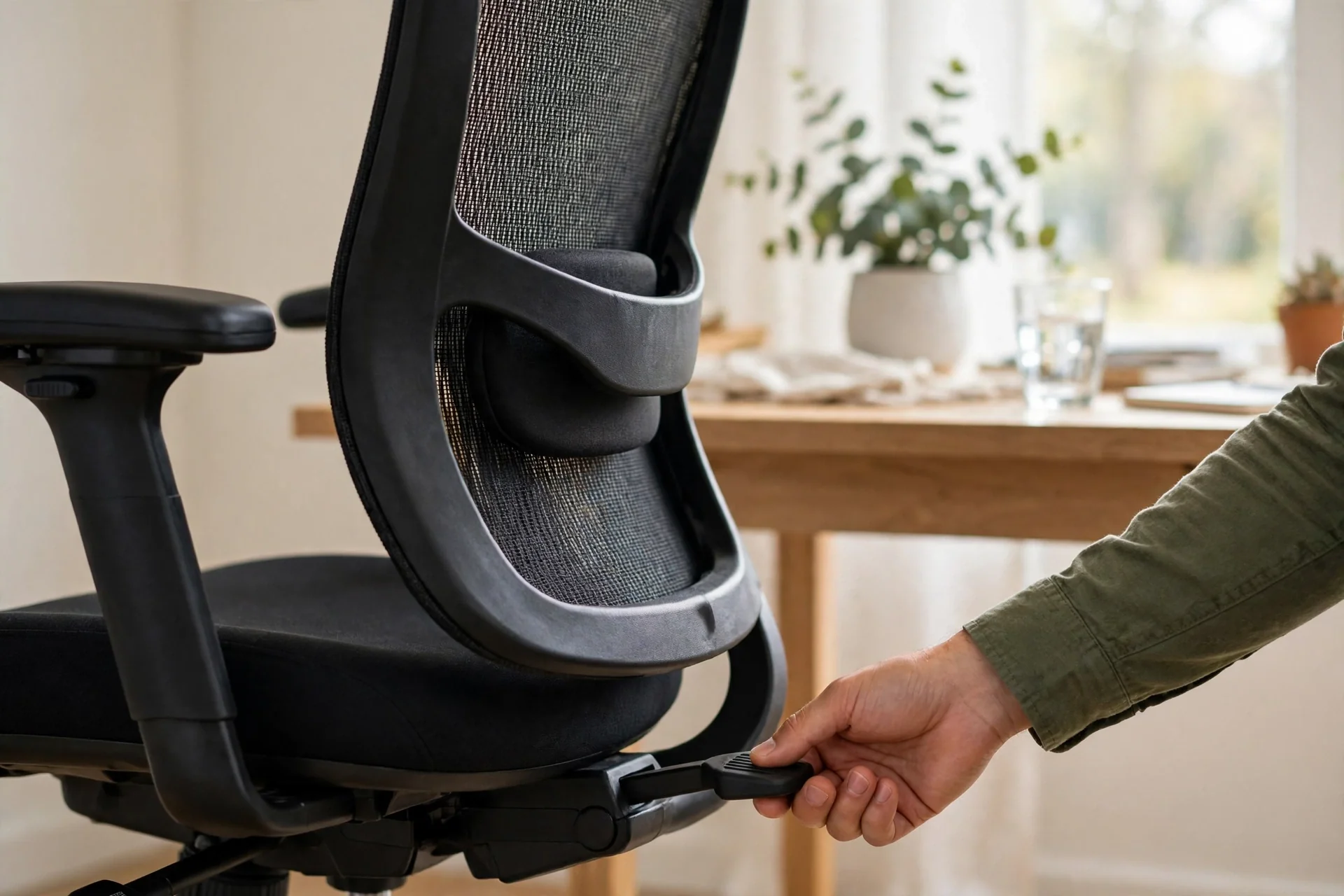
Try this test before you commit. Sit in the chair for ten minutes and type a few lines, then lean back and sit upright again. Does your lower back still feel supported when you lean forward to type? If the support vanishes the moment you move, the chair won’t help you through a real workday.
What about a standing desk? It helps if you use it, so stand for the first call of the day and once more after lunch. Small standing breaks beat a desk frozen at one height all day long.
Your screen decides how your neck feels
A laptop screen sits too low. That is the plain truth, and it causes most home office neck pain. You look down at it for hours, and your neck holds that angle all day. An external monitor fixes the problem because you can raise it to eye level. Your eyes should meet the top third of the screen when you sit straight.
For most desks, a 27-inch monitor hits the sweet spot, since it shows two documents side by side without tiny text. A 24-inch screen works in a tight corner, and a 32-inch screen suits video editing. Still, bigger is not always better, as a huge screen on a shallow desk sits too close.
How far should the screen sit? About an arm’s length away is a solid rule. Hold your arm out straight and your fingertips should just about touch the screen. Then check the height. If you catch yourself tilting your chin down, raise the monitor. A stack of books works for a week, but a monitor arm or a proper stand is the long-term fix.
Do you need two screens? It depends on your work. If you compare documents or keep chat open while you write, a second screen saves constant switching. If you mostly write in one window, one good screen is enough. Our guide to a dual screen setup for office work walks through placement and screen sizes. It also shows the layout that keeps both screens at the same height.
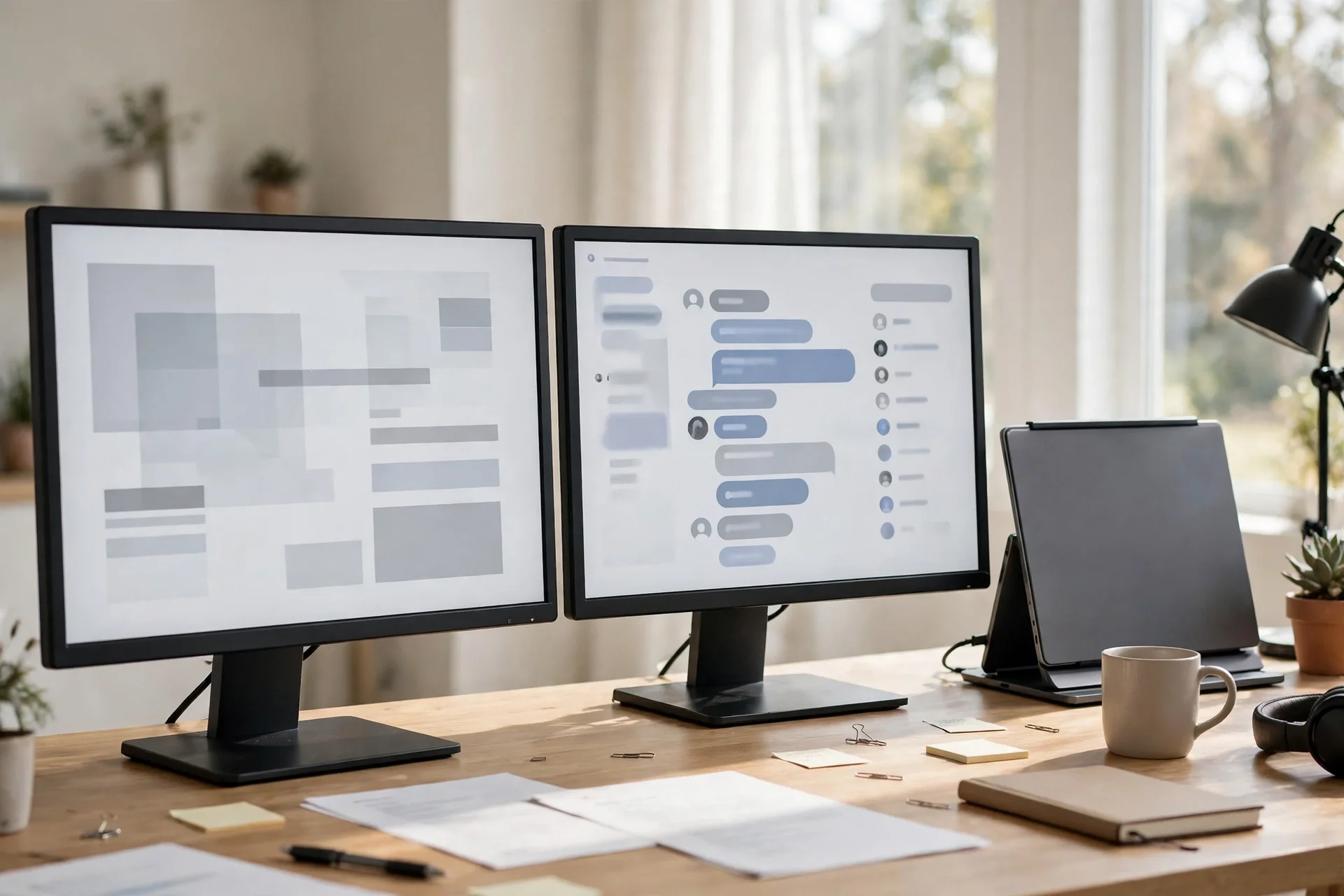
A portable monitor is the travel version of this idea. It weighs little, runs off one USB-C cable, and gives you a second screen in a hotel room. It won’t replace a full desk monitor, but it is the best fix away from your desk.
The docking station ties it together
A docking station is a small box that turns one laptop cable into a full desk. You plug in your monitor, keyboard, mouse, and charger once, then each morning you connect a single cable and your whole desk wakes up. That habit saves minutes every day and ends the cable mess.
Before you buy, count your ports. How many monitors will you use? Do you need ethernet or USB-A ports for older gear? A USB-C dock with power delivery should also charge your laptop, so check the wattage. A dock that charges at 60W may not keep up with a laptop that needs 90W.
Thunderbolt docks cost more, but they drive two high-resolution screens and move data fast, so they suit video work or a dual 4K setup. A plain USB-C dock costs less and handles one or two normal screens with ease, so it is often the smarter buy for one monitor.
One common mistake is buying a dock before checking the laptop. Some laptops have a USB-C port that carries video and some do not, so read your laptop manual first. Our guide on how to connect a laptop to WiFi also covers basic laptop setup steps. They pair well with a docked desk, since a stable connection matters as much as a tidy cable layout.
A webcam and light change how calls feel
Your laptop camera points up your nose. It sits low, it looks grainy in dim rooms, and it makes you look tired even when you are not. A dedicated webcam sits at eye level on top of your monitor, so it frames your face the way people expect. Even a basic 1080p webcam beats most built-in cameras.
Light matters more than camera price. A window to your side gives soft, even light, but a window behind you turns you into a dark shape. A small ring light or a desk lamp aimed at your face fixes most dark rooms. Test it with a quick call to a friend before an important meeting.
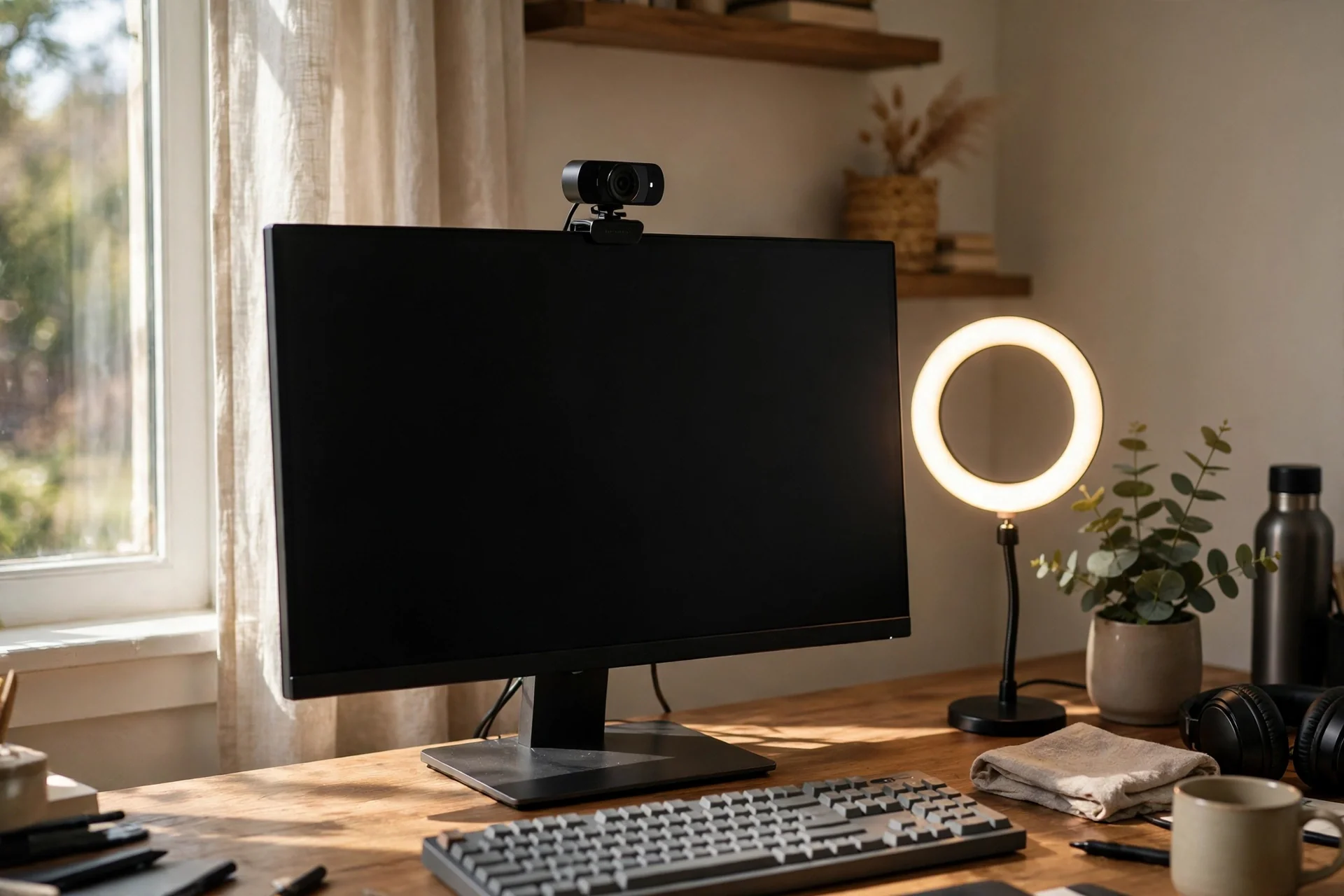
What about 4K webcams? They look sharper, but most call apps compress video anyway. A good 1080p camera with solid light often looks better than a 4K camera in a dark room. So spend on light first. If you stream or record video, 4K earns its price.
Sound deserves the same care. A cheap headset with a clear mic beats a laptop mic in a noisy room. Still, test both before a big call. Record ten seconds, play it back, and listen for echo or hum.
Keyboard, mouse, and the small stuff
A laptop keyboard forces your hands close together and your wrists at an odd angle. An external keyboard lets you place your hands shoulder-width apart, and a separate mouse lets your wrist rest in a natural line.
Pick a keyboard you enjoy typing on. Some people love quiet keys, and some love a firm click, so try a few in a shop if you can. A full-size board suits spreadsheet work, while a compact board leaves more room for your mouse.
For a mouse, size matters more than brand. Your hand should rest on it without your fingers hanging off the front. A vertical mouse can help if your wrist aches, but give any new mouse at least three full workdays before you judge it.
Then there is cable clutter. A dock already cuts most of it, but a cable tray under the desk hides the rest. Velcro ties beat zip ties because you can move things later, so run one power strip under the desk and route each cable through the tray.
Layout and light: the free upgrades
You can improve a home office without buying anything. Start with the window and put your desk beside it, not in front of it or with your back to it. Side light keeps glare off your screen and light on your face for calls.
Next, check your chair distance. You should reach your keyboard with relaxed shoulders and elbows near 90 degrees. If you stretch forward to type, move the keyboard closer or move your chair in. Small shifts like this add up over a week, and they cost nothing.
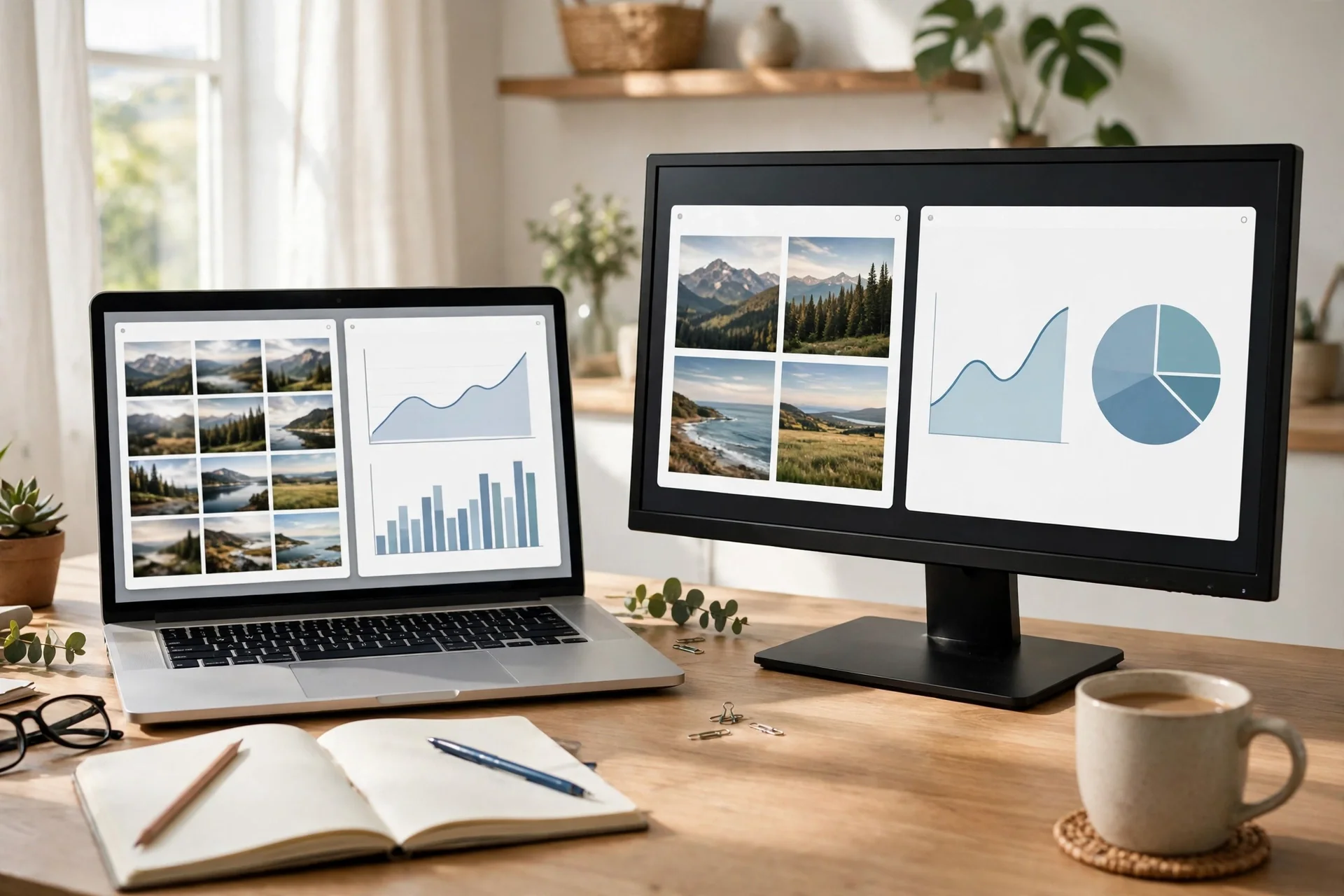
Here is a simple test I ran in my own setup. I counted window switches during one normal work hour with a laptop alone, then again with a second screen. The laptop-only hour had 41 switches, and the two-screen hour had 17. That drop matched how the day felt: calmer, with fewer lost thoughts. Try the same count for one hour.
Noise is the last free fix. A closed door helps, but a soft rug or curtain cuts echo in a bare room. If you share the house, agree on quiet hours for calls.
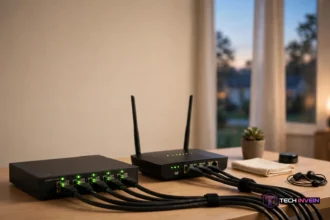
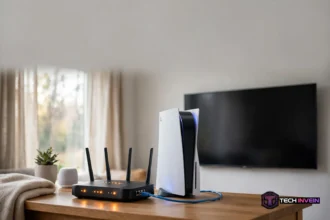
WiFi deserves a line here too. A weak signal turns video calls into frozen faces, and no webcam can fix that, so place your router in the open, not inside a cabinet. Our home network installation guide explains router placement and the simple steps that give a home office a steady connection.
Three budgets that actually work
You don’t need to buy everything at once. A staged plan beats a big splurge because you learn what your work really needs. The three builds below show where the money goes, and prices shift over time, so check the current price before you buy.
The starter build covers the basics for about the cost of a mid-range phone. You get a decent ergonomic chair, a 24-inch monitor, a simple USB-C dock, and a basic webcam. Skip the standing desk and the 4K camera at this level.
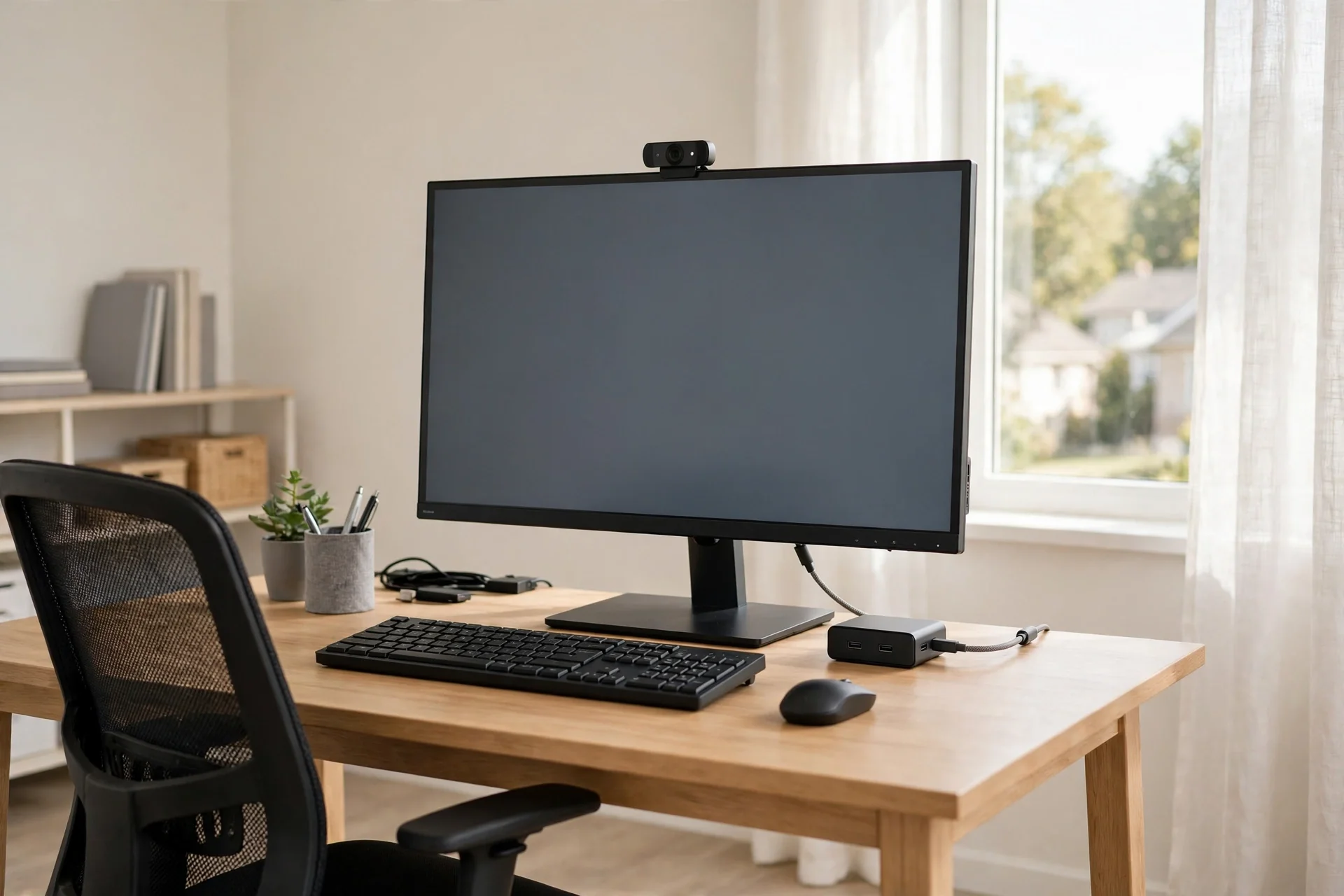
The mid build is where most full-time remote workers land. You get a better chair with full adjustments, a 27-inch monitor on an arm, a dock with power delivery, and a good webcam with a light.
The pro build adds comfort, not speed: a premium chair, dual 27-inch monitors, a Thunderbolt dock, a 4K webcam, and proper lighting. Buy this only if you work from home full time and your setup already limits you.
Table: Three home office builds, from starter to pro.
| Build | Chair | Screen | Dock and camera |
|---|---|---|---|
| Starter | Basic ergonomic chair | 24-inch monitor | Simple USB-C dock, 1080p webcam |
| Mid | Full-adjust chair | 27-inch monitor on arm | Power-delivery dock, webcam plus light |
| Pro | Premium chair | Dual 27-inch monitors | Thunderbolt dock, 4K webcam |
Whichever build you pick, buy the chair first. A great monitor cannot save a bad chair, but a good chair makes even a basic monitor setup feel fine.
Mistakes to avoid
The first mistake is buying looks before comfort. A matching set of gear photographs well, but it will not help your back. Test the chair and check the screen height first, since comfort is the point and style is the bonus.
The second mistake is copying someone else’s setup wholesale. A streamer needs a 4K camera and studio light, while a writer needs a quiet keyboard and a tall monitor. Your work decides your gear, so list your three most common tasks before you shop.
The third mistake is ignoring power and ports. A dock that can’t charge your laptop will leave you with a dead battery by mid-afternoon, so check ports and wattage on every box before you pay.
The fourth mistake is setting up once and never adjusting. Once a month, spend five minutes on your setup. Is the screen still at eye level? Is the chair support still in the right spot? Small tweaks keep a good setup good.
Our full walkthrough for setting up a home office for remote work covers room choice and desk placement. Read it next if you are starting from an empty room.
FAQs
What are the best home office setup products to buy first?
Buy a good chair first, then a 27-inch monitor at eye level, then a USB-C docking station if you use a laptop. Add a webcam and a light next, then a keyboard and mouse. This order fixes comfort before looks, since a chair and a screen change your whole day.
Do I need a docking station for my home office?
You need one if you use a laptop as your main computer and you connect a monitor, keyboard, and mouse each day. A dock turns that daily plug-in chore into one cable, and it also charges your laptop while you work. If you use a desktop PC, you don’t need one.
Is a dual monitor setup worth it for home office work?
It is worth it if you compare documents, track data, or keep chat open while you work in another window. A second screen cuts the constant switching that breaks focus. If you mostly write in one window, one large monitor is enough, so add a second only if switching still slows you down.
What size monitor is best for a home office?
A 27-inch monitor suits most desks and most work. It shows two documents side by side without tiny text, and it fits a normal desk at arm’s length. A 24-inch screen works in a small corner, while a 32-inch screen suits video editing. Pick the size that fits your desk depth.
How do I set up an ergonomic home office on a budget?
Start with a chair that adjusts in height and lumbar support, then raise your monitor to eye level with a stand or a stack of books. Add a separate keyboard and mouse so your wrists stay straight. These three moves fix most pain for little money, and you can add the rest later.
Should I buy a 4K webcam or a 1080p webcam?
A 1080p webcam is enough for most video calls, since most call apps compress video and your light matters more than pixels. A 4K webcam earns its price if you stream or record lessons. Spend on a good light first, since a bright room with a 1080p camera beats a dark room with a 4K one.
Your next step
Start today with one change. Sit in your chair, check that your feet rest flat, and raise your screen to eye level. That takes ten minutes and costs nothing. Then buy in the order from this guide: chair, monitor, dock, webcam, and keyboard. For general ergonomics guidance, see the Lenovo home office ergonomics guide, which covers chair, desk, and monitor placement in plain terms.