

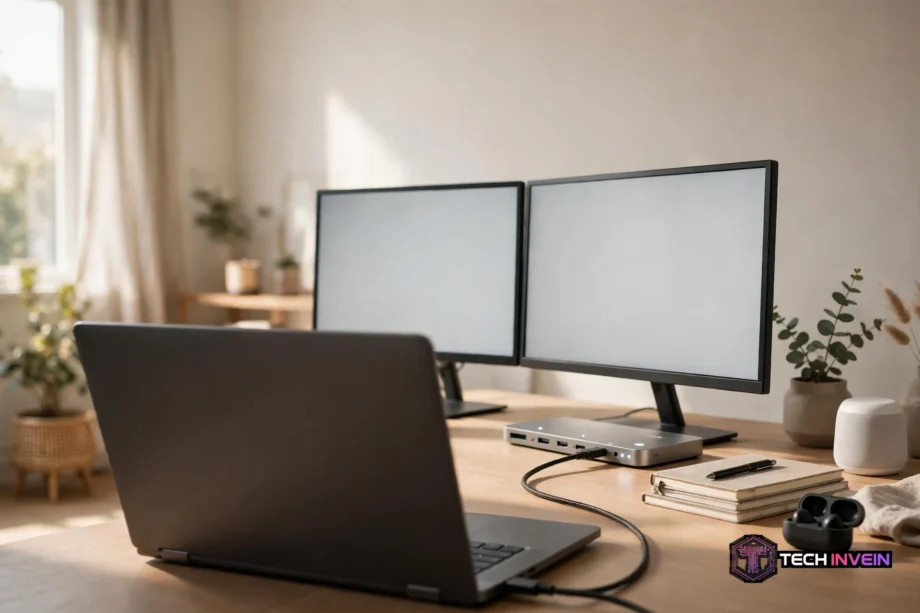
The best USB C docking station is the one that matches your laptop port, your monitors, and your charging needs. No single dock wins for every desk. This guide shows you how to check your laptop first, then pick a dock that actually works with it.
- What a USB C Docking Station Actually Does
- Dock vs Hub: The Difference That Matters
- Start With Your Laptop Port, Not the Dock
- How to Pick the Best USB C Docking Station for Your Setup
- 1. Match the connection type
- 2. Check the charging wattage
- 3. Count the ports you will really use
- 4. Weigh the network and storage extras
- 5. Think about where the dock will live
- Best USB C Docking Station Picks by Use Case
- Best for dual monitors on Windows and Mac
- Best for Mac users with a base M-series chip
- Best for a tight budget
- Best for a future-proof desk
- The Bandwidth Math Nobody Shows You
- Setting Up Your Dock in 10 Minutes
- Mistakes That Waste Your Money
- Docking Stations and the Home Office Desk
- FAQs
- What is the best docking station for a laptop?
- Can a USB-C docking station charge my laptop?
- Why does my second monitor not work with my docking station?
- Do I need a Thunderbolt docking station?
- What is DisplayLink, and should I avoid it?
- How much should I spend on a docking station?
- Conclusion
What a USB C Docking Station Actually Does
A docking station turns one cable into a full desk. Plug your laptop in once, and your monitors, keyboard, mouse, drives, and network all wake up together. When you leave, you pull one cable and go.
Most docks do four jobs at once: video outputs, charging, extra USB ports, and often Ethernet.
But USB-C is a connector shape, not a promise. Two laptops with the same-looking port can support very different things. The dock can only pass on what your laptop port can send.
Dock vs Hub: The Difference That Matters
Shoppers mix up docks and hubs, and sellers don’t help. In contrast, a hub is a small adapter that splits one port into a few more. A dock is a powered box built to run a whole desk.
A hub usually has no power brick of its own. Instead, it borrows power from your laptop or passes your charger through. It may add one HDMI port and a few USB ports. That suits travel or a single monitor, not a daily dual-monitor desk.
A dock has its own power supply. It also charges your laptop while it runs your screens, and it often adds Ethernet and card readers. If you dock every day, buy a dock. If you work from hotel desks, a hub may be all you need.
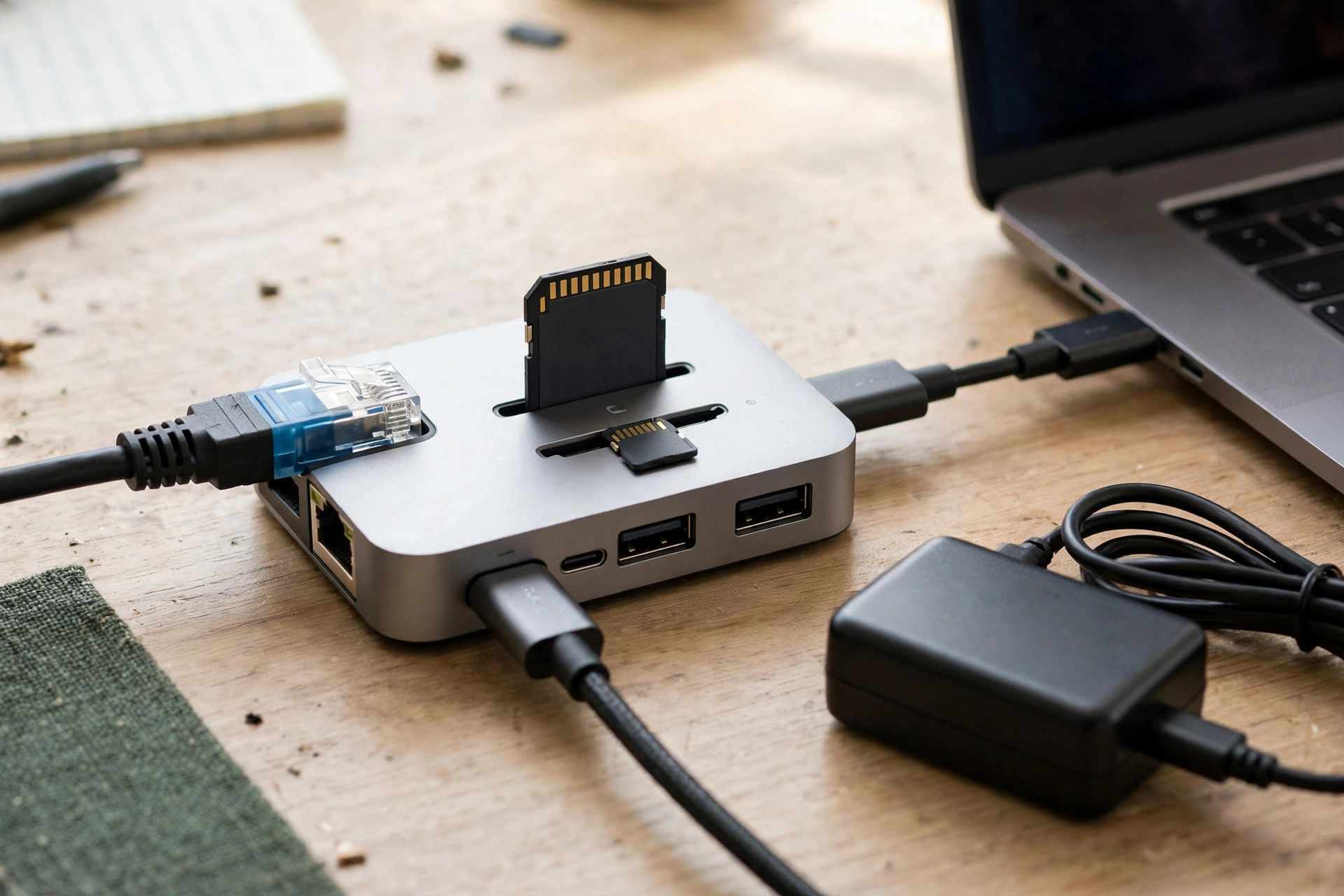
Table: Hub vs docking station at a glance
| Feature | USB-C Hub | Docking Station |
|---|---|---|
| Own power supply | Usually no | Yes |
| Laptop charging | Pass-through, often weak | 60W to 140W |
| Monitors | Usually one | Two or more |
| Ethernet port | Rare | Common |
| Best for | Travel, light use | Daily desk setup |
Price follows the same split. In fact, hubs often cost far less than docks. That tempts people to buy a hub for a two-monitor desk.
Start With Your Laptop Port, Not the Dock
Every good dock purchase starts with a two-minute check of your own laptop, because if you skip this step, you gamble. Do it, and the right dock picks itself.
First, find what your USB-C port can do. Check the manual. Or check the maker support page. Does it support DisplayPort Alt Mode for video? Does it support USB Power Delivery for charging? Is it Thunderbolt 3, Thunderbolt 4, USB4, or plain USB-C?

On Windows, check Device Manager for a Thunderbolt controller entry. If there’s none, look at the port for a small DisplayPort logo.
Second, check your laptop charging brick. Its wattage is printed on the brick. A dock should match it or come close. Because of that, a 65W dock will slowly drain a laptop that ships with a 100W brick under heavy load.
Third, count your monitors and note their resolution and refresh rate. For example, one 1080p screen is easy for almost any dock. Write the numbers down before you shop.
How to Pick the Best USB C Docking Station for Your Setup
Once you know your laptop, the choice gets simple. Match the dock to the job, not to the spec sheet. These are the five things that matter.
1. Match the connection type
Thunderbolt 4 docks carry 40Gbps and guarantee dual 4K at 60Hz on a supported laptop. That’s why the best docking station for dual monitors is almost always a Thunderbolt 4 dock. Plain USB-C docks, however, top out near 10Gbps, which suits one 4K screen or two 1080p screens.
Thunderbolt 5 raises the ceiling to 80Gbps, but it costs more. A laptop without a Thunderbolt 5 port gains nothing from it.
2. Check the charging wattage
Power Delivery is the number sellers hide behind the letters PD. A dock that says PD may deliver 60W, 85W, 100W, or 140W. For instance, a 60W dock barely holds a 15-inch laptop steady under load. A 100W dock charges most thin-and-light laptops with room to spare.
Read the fine print too. Some docks list the power brick wattage, not the power that reaches your laptop. The laptop number is the one that counts.
3. Count the ports you will really use
Port count sells docks, but port mix runs desks. List what sits on your desk now: keyboard, mouse, webcam, headset, external drive. Add one spare USB port. In short, a dock with 12 ports you use beats a dock with 20 ports you never touch.
Video outputs deserve the same care. Check the dock manual for which port combinations work together. Some docks disable one video output when another is in use.
4. Weigh the network and storage extras
A wired Ethernet port on the dock gives you a stable connection for video calls and large downloads. Most docks carry gigabit Ethernet. That is fine for most homes, because few home networks run faster. Premium docks now carry 2.5GbE, and a few carry 10GbE.
5. Think about where the dock will live
A dock for a permanent desk can be big and heavy. A dock you carry between home and office needs to be small, light, and tough. Travel docks trade ports for size, and that trade is fair if you only run one monitor on the road. Docks run warm under load, so give yours some air.
Best USB C Docking Station Picks by Use Case
There is no single winner, so here are the picks by the job they do best.
Best for dual monitors on Windows and Mac
For a two-monitor desk, a Thunderbolt 4 dock is the safe pick. The CalDigit TS4 is the model most roundups name first for this job. It carries 18 ports and 2.5GbE Ethernet, and it charges a laptop at up to 98W. On a supported Windows laptop it drives dual 4K at 60Hz. On a Mac with a Pro chip or better it does the same.
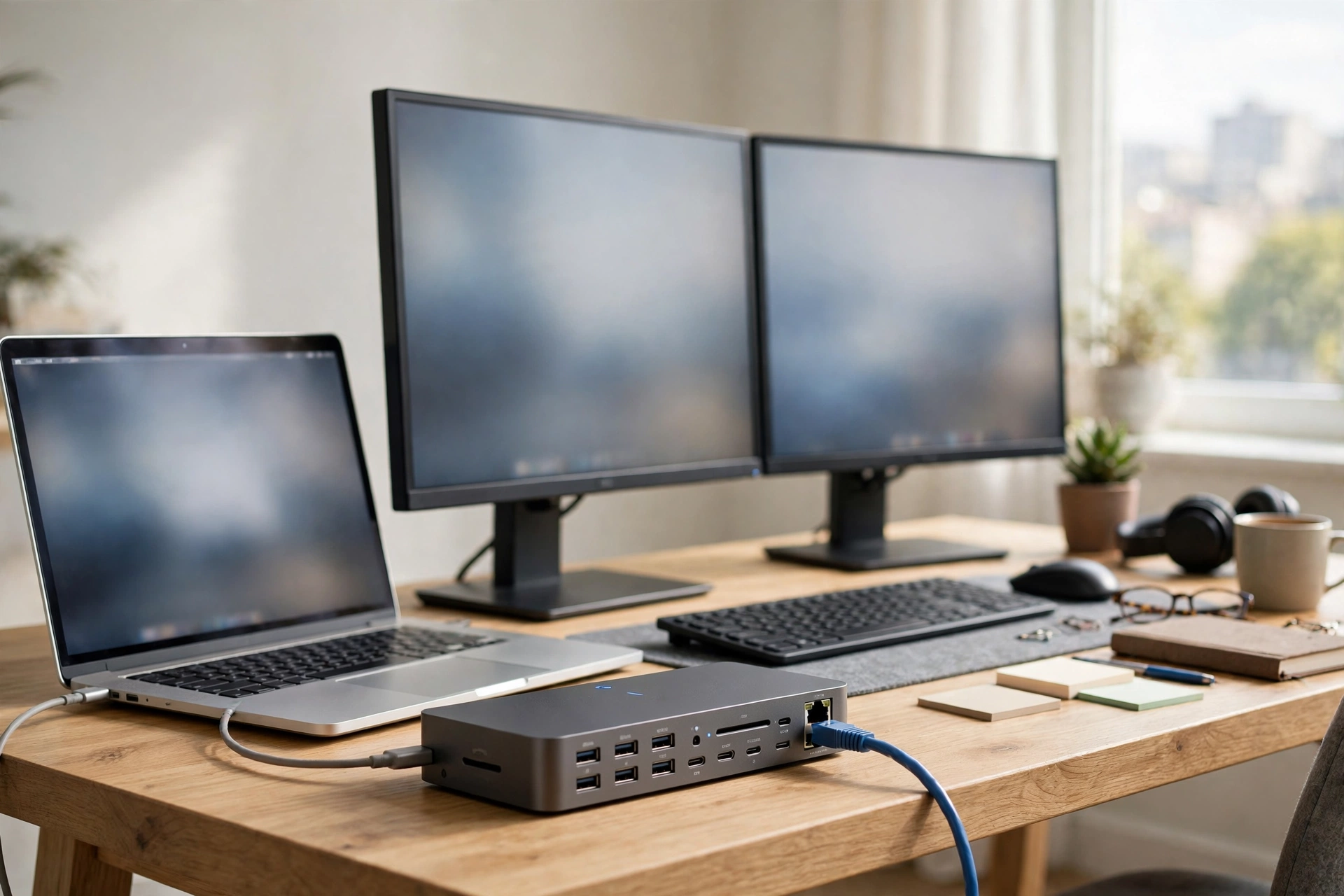
A good dock gives you the pixels. A good layout, therefore, makes them useful. Read our guide to dual screen setup for office before you fix your monitor positions.
Best for Mac users with a base M-series chip
MacBooks with a base M1, M2, or M3 chip support only one external display through native video. Still, no dock can change that limit. Base M4 chips, however, support two displays, and Pro and Max chips support two or more.
If you own a base M1, M2, or M3 MacBook and you need two monitors, look at a DisplayLink dock. Instead, it renders the extra screen through USB and a driver. It also needs the DisplayLink Manager app and a Screen Recording permission on macOS. For example, the Plugable UD-6950PDH is one such dock, with dual 4K at 60Hz and up to 100W charging. First, get the driver from the official Plugable DisplayLink drivers page before you plug the dock in.
DisplayLink has real trade-offs. It uses some CPU power, and it does not support HDCP protected video, so some streaming apps may refuse to play on a DisplayLink screen. For office work those limits rarely matter.
Best for a tight budget
If your laptop has plain USB-C and you run one monitor, a simple USB-C dock can cost far less than a Thunderbolt dock and do the job well. Specifically, look for 85W or 100W charging, one HDMI port, a few USB-A ports, and Ethernet. Don’t pay for Thunderbolt if your laptop lacks the port.
Best for a future-proof desk
Finally, Thunderbolt 5 docks suit buyers who plan to keep the dock for years. The CalDigit TS5 Plus is the model most 2026 roundups name at the top, with 20 ports, 140W charging, and 10GbE. TechRepublic, for instance, lists it at $499.99, with prices checked September 23, 2026. For most desks, Thunderbolt 4 is the sweet spot today.
The Bandwidth Math Nobody Shows You
Here is the check we ran while writing this guide.
One 4K display at 60Hz needs about 17.28Gbps of DisplayPort bandwidth. Two of them need about 34.56Gbps. A Thunderbolt 4 link carries 40Gbps in total. Subtract the video, and roughly 5Gbps remains for USB data and Ethernet. That’s why dual 4K works on Thunderbolt 4, with little room to spare.
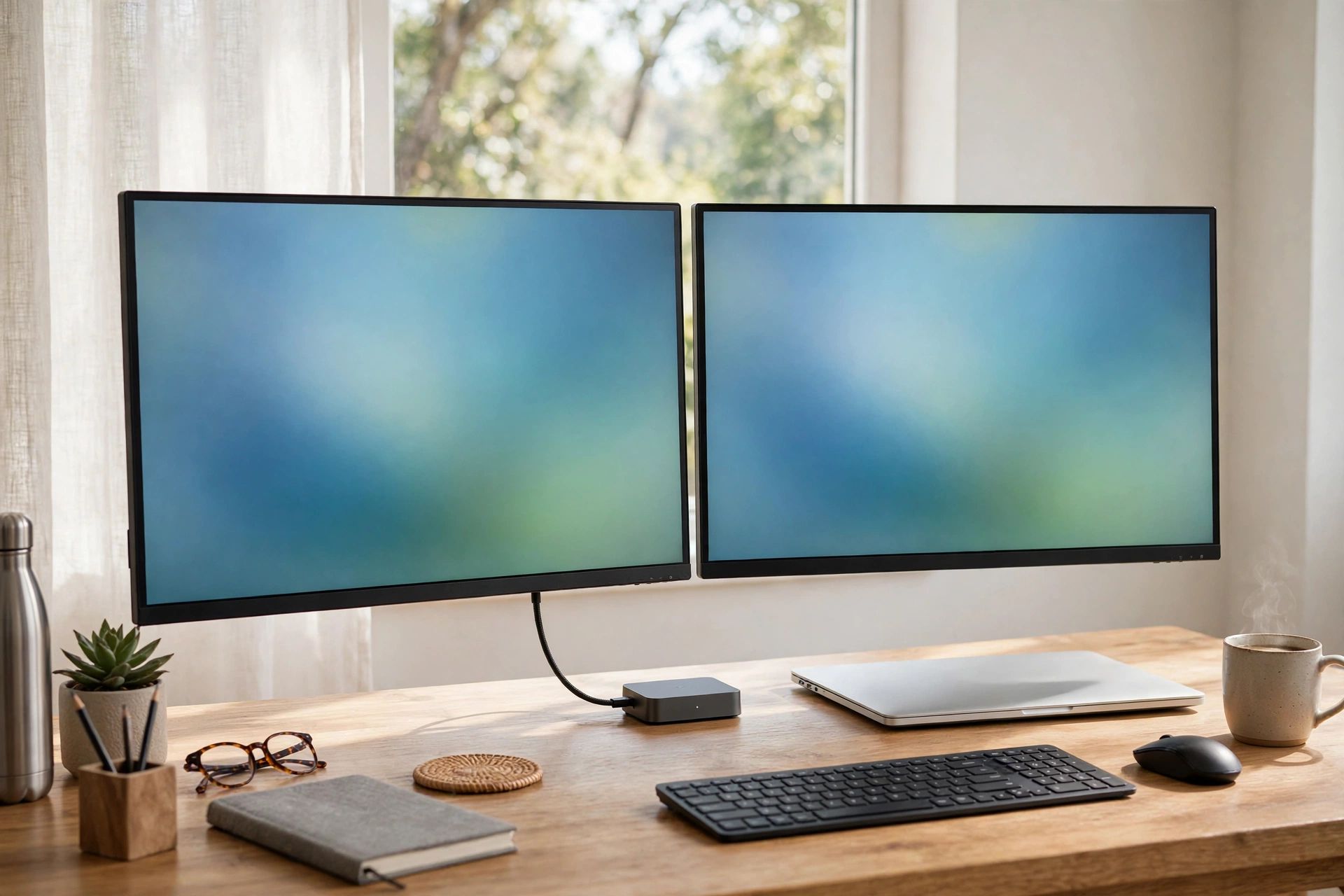
Now run the same sum on a plain USB-C dock. USB 3.2 Gen 2 gives you 10Gbps in total. Indeed, one 4K stream eats most of it. Two 4K streams don’t fit, so the dock drops the second screen to 1080p or shows a mirror instead of an extended desktop. In other words, the dock is not broken. The pipe is too small.
This math also explains why a dock can feel slow when you copy files. With two 4K screens running, your external SSD also shares the leftover 5Gbps with everything else.
Try the sum yourself before you buy: add up your screens at 17Gbps each for 4K at 60Hz. If the total passes 35Gbps, you need Thunderbolt 4 or better.
Setting Up Your Dock in 10 Minutes
In fact, most dock setups fail on order, not on hardware. Follow these steps in order.
- Update your laptop first, including the newest graphics driver. Old drivers cause most black-screen faults.
- Next, install the DisplayLink driver if your dock uses DisplayLink, before you plug the dock in. On a Mac, grant the Screen Recording permission when asked.
- Plug the dock power brick into the wall, then into the dock.
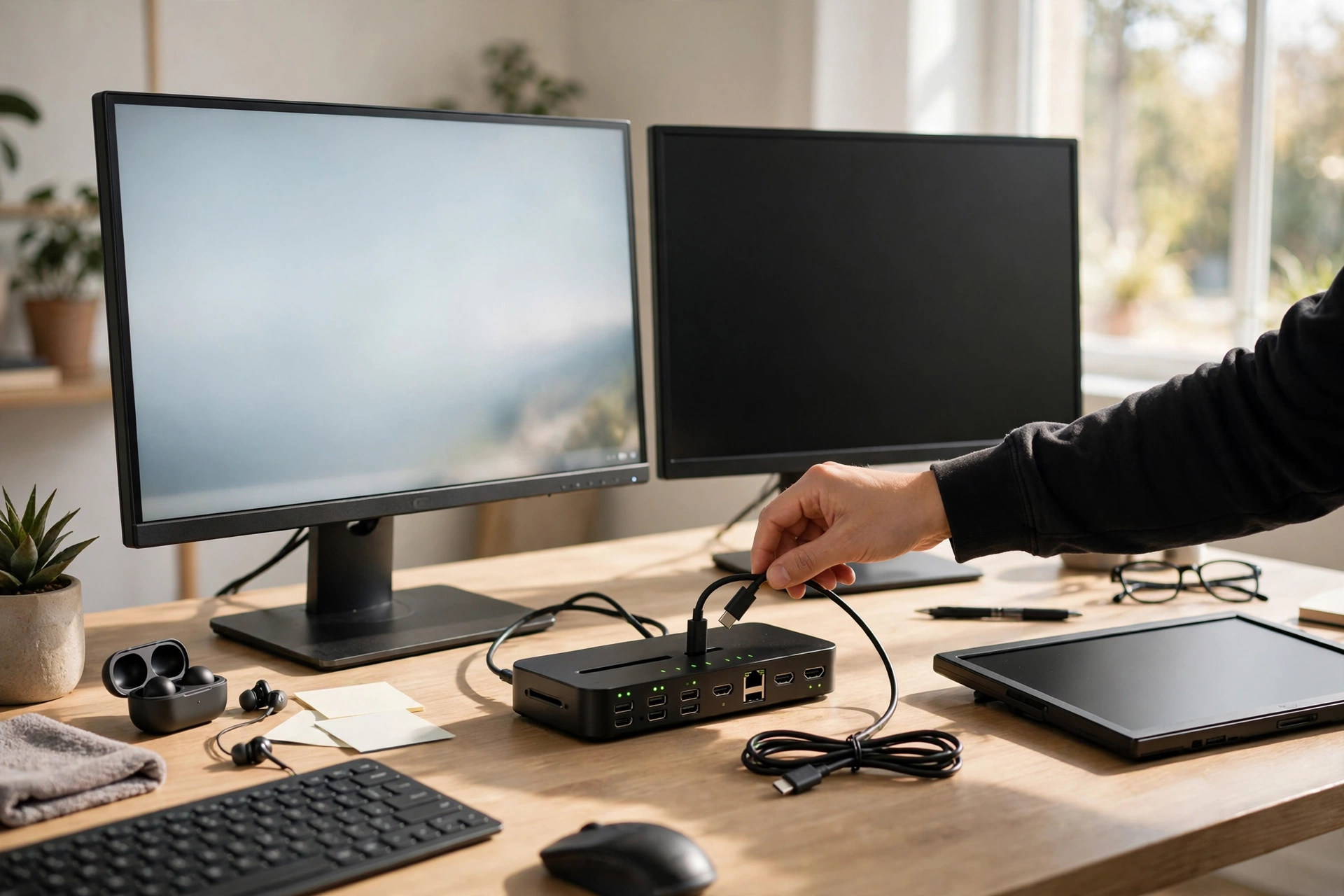
- Connect your monitors to the dock, then the dock to your laptop with the cable that came in the box. Cheap third-party cables cause more faults than any dock.
- Wait 30 seconds, then set each monitor to extend, not mirror, at its native resolution.
- Next, test the charge. Unplug your laptop charger and watch the battery icon. If it shows discharging under load, your dock wattage is too low.
- Plug in your keyboard, mouse, and headset last. If a device doesn’t wake, try a different USB port on the dock instead.
If a screen stays dark after these steps, swap the cable, then the port, then the monitor. Change one thing at a time so you know what fixed it.
Mistakes That Waste Your Money
Most dock regrets come from five mistakes.
First, buying Thunderbolt for a laptop without Thunderbolt. The dock still works, but you paid for speed you cannot reach. Second, buying a 60W dock for a laptop that ships with a 100W brick.
Third, trusting the port count on the box. Some docks list two HDMI ports that cannot run two independent screens on a Mac. Yet the manual says so, and the box does not. Fourth, ignoring the cable. A random USB-C charging cable can’t carry video. It will leave your screens dark.
Fifth, skipping the driver. DisplayLink docks do nothing useful without their driver, and a Thunderbolt dock with a stale graphics driver can flicker or drop a screen.
A wired connection also beats Wi-Fi for the dock itself. If your desk has an Ethernet point, run a cable from the wall to the dock. Our guide to smart home wiring design ideas shows how to plan cable runs so they stay neat.
Plan the cable route before you buy anything. A short run along a skirting board beats a long cable across the floor, and it keeps the desk tidy.
Docking Stations and the Home Office Desk
A dock is only one part of a home office. A monitor at the wrong height, however, will hurt your neck no matter how good the dock is. If you’re building the whole desk from scratch, read our guide to setting up a home office for remote work first.
Good light helps too. A desk near a window beats a dark corner, and a small lamp fills the gap on grey days.
Some older laptops, however, have a USB-C port that carries data only. On those machines, no dock will add a monitor. Our guide to how to connect a laptop to Wi-Fi covers the laptop connectivity basics: check what your port can do before you spend money on it.
FAQs
What is the best docking station for a laptop?
The right dock is the one that matches its port. For example, a Thunderbolt 4 laptop pairs best with a Thunderbolt 4 dock for dual 4K screens. A plain USB-C laptop does better with a simpler dock that charges at 85W or more. Check your port spec first.
Can a USB-C docking station charge my laptop?
Yes, if the dock supports USB Power Delivery and its wattage matches your laptop. Most docks send 60W to 100W to the laptop. Premium models, however, reach 140W. Compare that number with your original charger wattage. If the dock sends less, the battery may drain slowly during heavy work.
Why does my second monitor not work with my docking station?
Suspect bandwidth or a chip limit. A plain USB-C dock may lack the bandwidth for two 4K screens, and a base M1, M2, or M3 Mac supports only one native external display. Check your laptop chip and use the cable that came in the box.
Do I need a Thunderbolt docking station?
For example, you need one if you run two 4K monitors at 60Hz, move large files daily, or want a fast wired network through the dock. For one monitor and normal office work, a USB-C dock is enough and costs less.
What is DisplayLink, and should I avoid it?
DisplayLink is software that renders extra screens through USB instead of native video, so it works around chip limits. It lets base M-series MacBooks run two monitors, which native video can’t do. It needs a driver and a Screen Recording permission on macOS, uses some CPU power, and blocks HDCP video. For office work it is fine.
How much should I spend on a docking station?
In short, spend what your desk needs, not what the spec sheet tempts you with. For instance, a solid USB-C dock for one monitor costs far less than a Thunderbolt 4 dock for two 4K screens. Match the dock to your monitors and charging needs first, then let the price follow that choice.
Conclusion
No dock wins on port count or price alone. The best USB C docking station for your desk is the one that fits your laptop port, your monitors, and your charging needs. Check the port, count the screens, match the wattage, and the right dock picks itself.