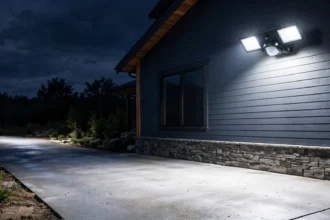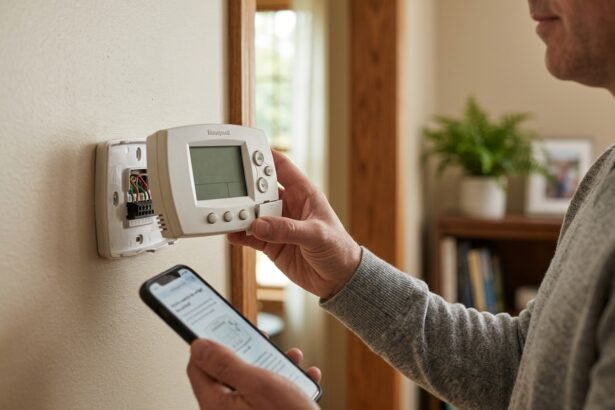

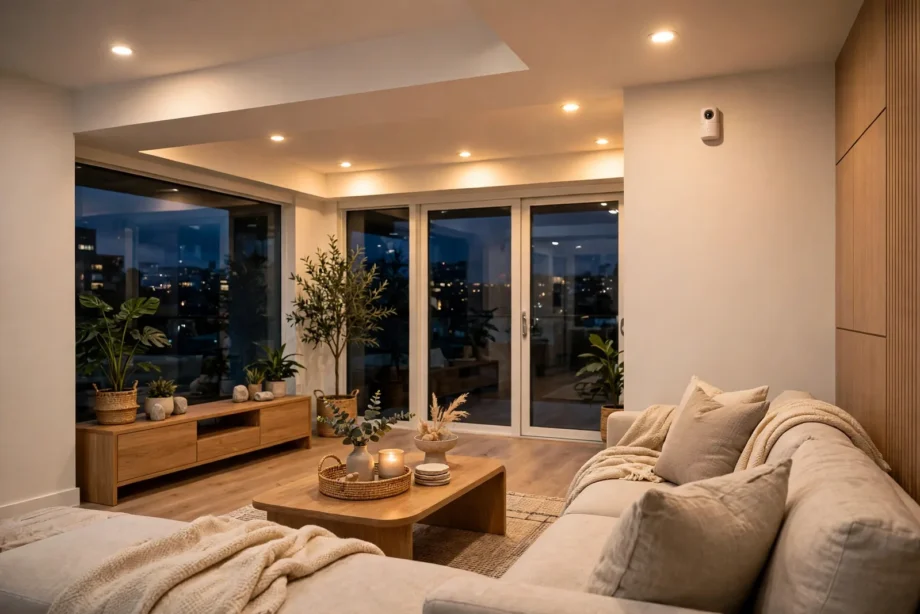
Home Assistant motion sensor lights are automations that switch your lights on when motion starts and off when the room sits empty. You can build one in five minutes with a blueprint, or wire it manually with triggers and conditions. Either way, no cloud and no subscription is involved.
- How Home Assistant Motion Sensor Lights Work
- The 5-Minute Blueprint Method
- Building It Manually: Full Control
- Conditions That Make It Feel Smart
- PIR vs mmWave: Know the Difference
- Room-by-Room Timeout and Brightness Guide
- Troubleshooting Common Problems
- FAQs
- Do I need any coding to automate motion sensor lights in Home Assistant?
- What is the best timeout for motion sensor lights?
- Why do my lights turn off while I am still in the room?
- Can motion automations run without internet?
- Should I use a blueprint or build the automation myself?
- How many motion sensors do I need for a whole house?
- Conclusion
How Home Assistant Motion Sensor Lights Work
Every motion light automation has three parts. The trigger watches your motion sensor’s binary sensor entity and fires when it flips to on. The action turns on your chosen lights. Then a second trigger, the sensor flipping back to off, starts a timer, and when the timer ends with no new motion, the lights switch off.
The detail that makes or breaks this is the automation mode. Set mode to restart, and each new motion event resets the off timer from zero. Without restart mode, the first timer keeps running even while you move around, and the lights die mid shower. This single setting fixes the most common complaint about motion lights, so check it first whenever lights misbehave.
Sensors report through binary_sensor entities, usually named something like binary_sensor.hallway_motion. The on state means motion detected right now; off means the sensor’s blind time has passed with no movement. Most PIR sensors hold the on state for 30 to 60 seconds after the last detected movement, which gives your automation a natural grace period before the off timer even starts.
The 5-Minute Blueprint Method
Blueprints are prebuilt automation templates shared by the community, and motion lights are their most popular use. The well known Sensor Light blueprint by Blacky covers motion sensors, door sensors, sun elevation, lux values, scenes, time windows, night lights, and device trackers in one package. It is the fastest path from zero to working motion lights.
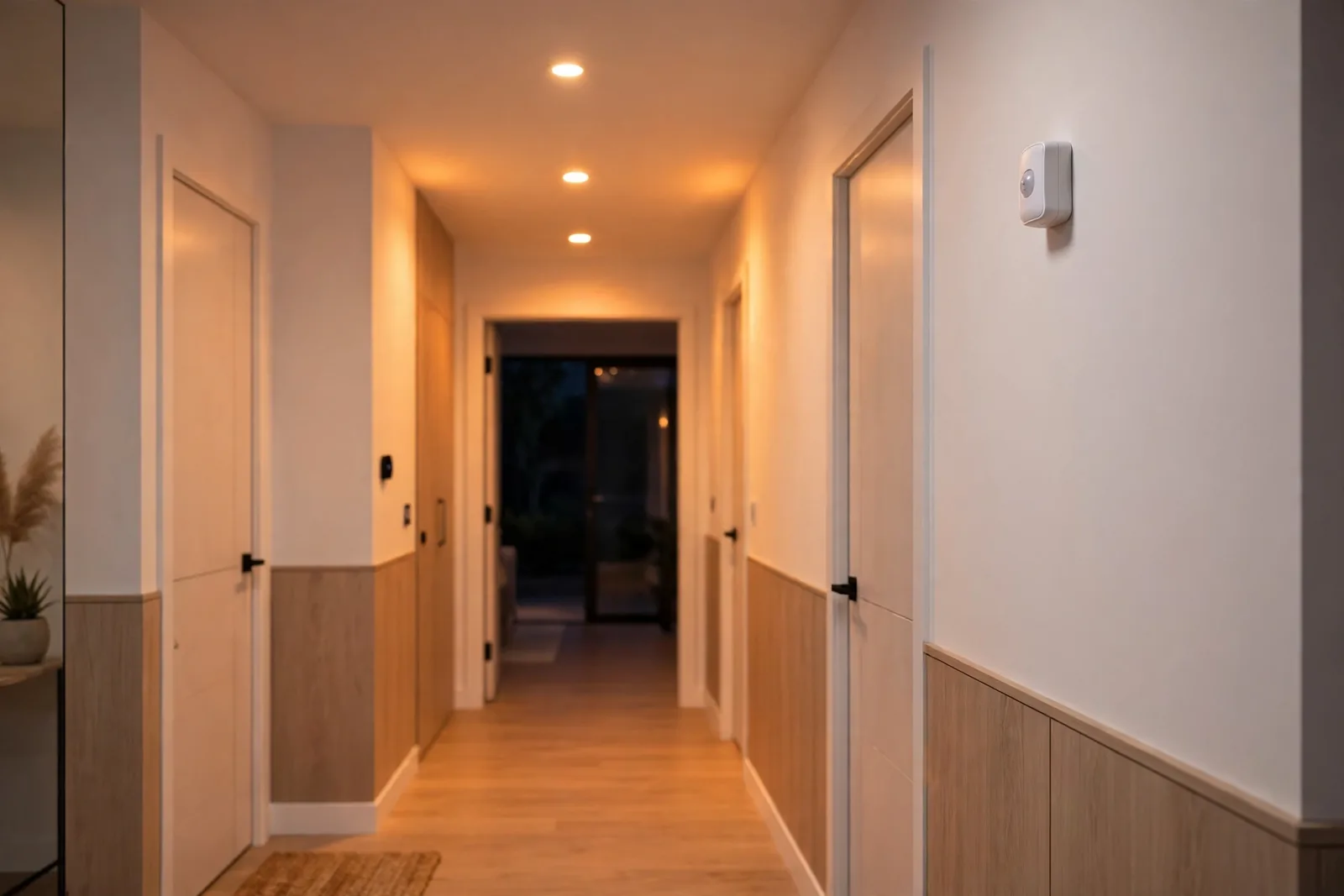
To use it, open Settings, then Automations and Scenes, then the Blueprints tab, and import the blueprint. The import asks you to pick your motion sensor, your lights, and your preferences: how long to wait before switching off, whether to respect ambient light, and what brightness to use at night. Fill those in, save, and the automation is live.
If you want to understand what the blueprint does under the hood, the official Home Assistant blueprint tutorial walks through the structure. You do not need to read it to use motion lights, but it helps when you later want to tweak something the blueprint’s options do not cover.
Blueprints also update. When the author ships a fix or a new feature, Home Assistant offers the update in the Blueprints tab. Accept it, and every automation built from that blueprint gets the improvement. This is a genuine advantage over hand built automations, which you maintain yourself forever.
Building It Manually: Full Control
Manual automations teach you the mechanics and allow anything, so here is the classic two trigger pattern that every HA user should know.
Create a new automation and add two state triggers on your motion binary sensor: one for to on with trigger id motion_on, and one for to off with trigger id motion_off. Then add a Choose action. If the trigger id is motion_on, turn on the lights. If the trigger id is motion_off, wait for your chosen delay, then turn the lights off. Set the automation mode to restart at the top.
The wait in the off branch is where the magic sits. A two minute wait suits hallways; bathrooms want five to ten. During my own testing, a two minute timeout in the hallway felt perfect, while the same timeout in the bathroom left me waving at the sensor mid shower. Match the timeout to how still people sit in each room.
Manual building also lets you stack extras. Add a condition so the automation only runs when the sun is below the horizon, or when a lux sensor reads under 50. In my kitchen, a 50 lux threshold meant the under cabinet lights fired on gloomy afternoons but stayed off in bright daylight. Small conditions like this turn a blunt motion light into something that feels intelligent.
Conditions That Make It Feel Smart
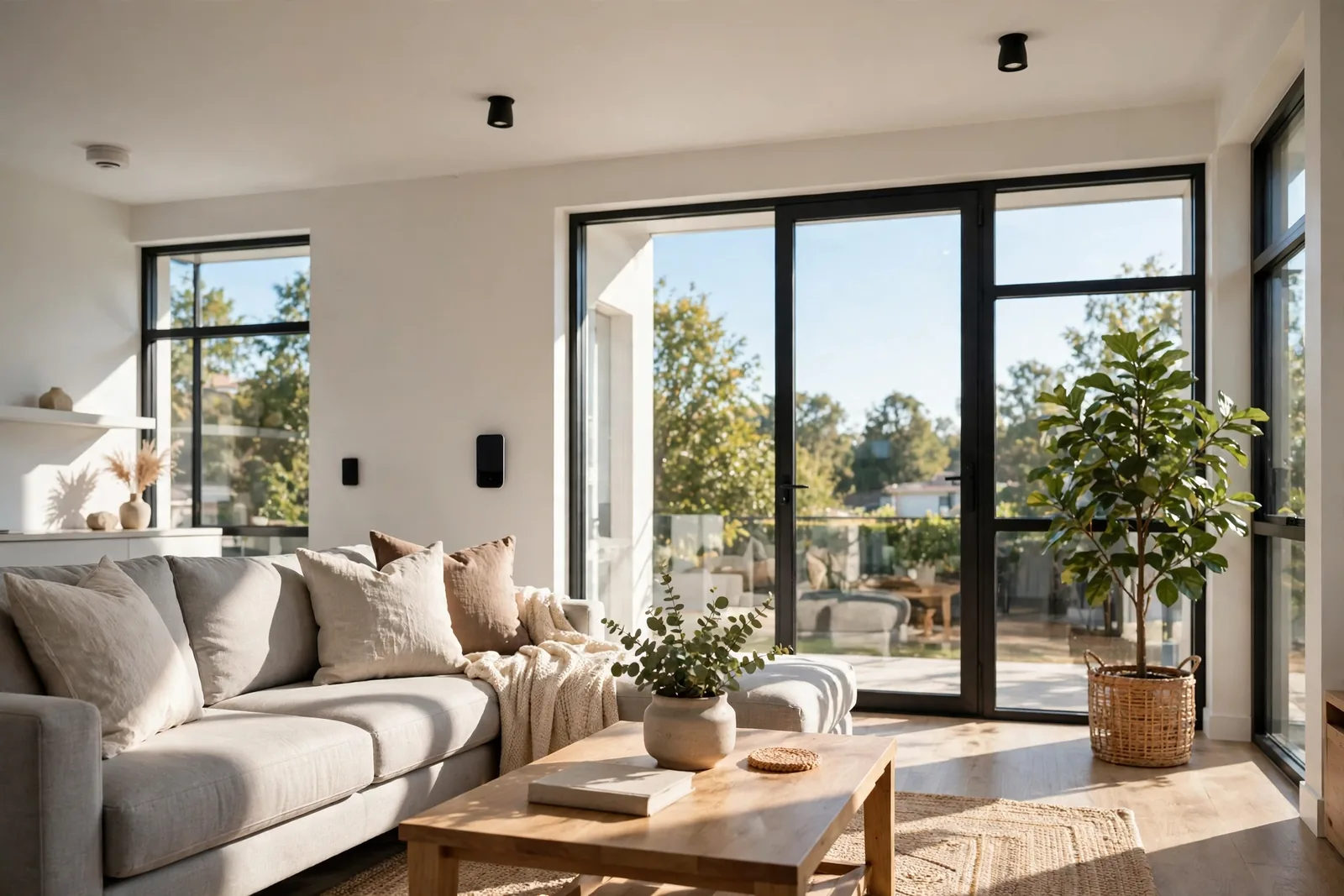
A bare motion trigger fires at noon and at midnight with equal enthusiasm. Conditions are how you teach it manners, and Home Assistant gives you excellent ones.
Sun elevation is the most reliable daylight gate. Instead of fixed clock times that drift with the seasons, a condition like sun elevation below 3 degrees tracks actual darkness year round. Your lights start firing a little earlier in December and a little later in June, automatically. For porches and driveways this pairs beautifully with sunset logic; our guide to automating outdoor lights with sunset triggers covers the outdoor side in depth.
Lux conditions are more precise. If your motion sensor reports illuminance, or you own a dedicated lux sensor, gate the automation on readings below your threshold. Bedrooms might use 20 lux, living rooms 50. The number needs one evening of tuning: watch the sensor’s lux reading at the moment you first want lights, then set the threshold slightly above it.
Time windows handle the night shift. A common pattern runs bright white light on motion during the evening, then switches to a dim warm night light between 11 pm and 6 am. Two automations, or one blueprint with night mode enabled, handle this. For smooth color temperature shifts through the day, our circadian lighting setup guide for Home Assistant pairs well with this pattern. Parents of toddlers swear by the dim red hallway light that guides without waking.
Device trackers add presence awareness. If nobody is home, motion probably means the cat, so skip the light show and optionally send a notification instead. Combine person entities with your motion triggers and the house behaves differently when empty versus occupied.
PIR vs mmWave: Know the Difference
Standard PIR sensors see moving body heat. They are cheap, sip battery, and work fine for hallways and porches. Their weakness is stillness: sit at a desk reading for ten minutes and a PIR decides the room is empty. Then the lights die and you perform the familiar arm wave.
mmWave presence sensors fix this with radar. They detect breathing level movement, so a still person still counts as present. The Aqara FP2 is the reference device here: 60 GHz radar, up to 30 detection zones, tracking for up to 5 people, USB-C powered, with a built in lux sensor and an IPX5 rating. Because its automations run locally, they keep working even if your internet drops.
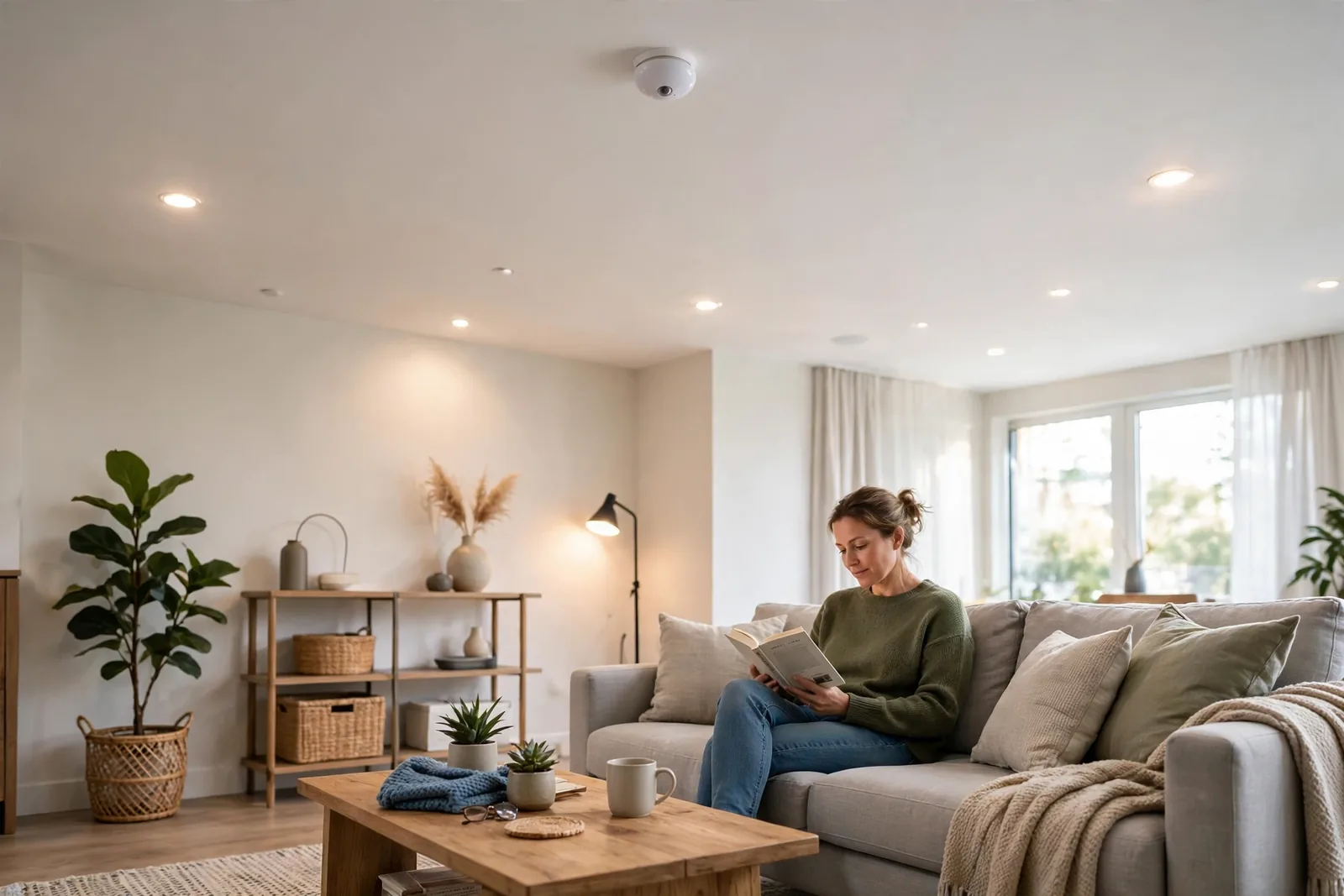
Table: PIR motion sensors vs mmWave presence sensors
| Feature | PIR Motion Sensor | mmWave Presence Sensor |
|---|---|---|
| Detects | Moving body heat | Breathing level movement |
| Still person | Reports empty | Reports present |
| Power | Battery, 1 to 2 years | USB-C, always plugged |
| Zones | One cone | Up to 30 zones |
| Best rooms | Hallway, porch, garage | Office, living room, bedroom |
| Price band | Budget | Mid range |
The practical rule is simple. Put PIR sensors where people keep moving: hallways, stairs, porches, garages. Put mmWave where people sit still: offices, living rooms, bedrooms. Mixing both across the house costs less than blanketing everything in mmWave, and each room gets the right tool.
Room-by-Room Timeout and Brightness Guide
One timeout does not fit all rooms. Use this as a starting point, then adjust after a week of living with it.
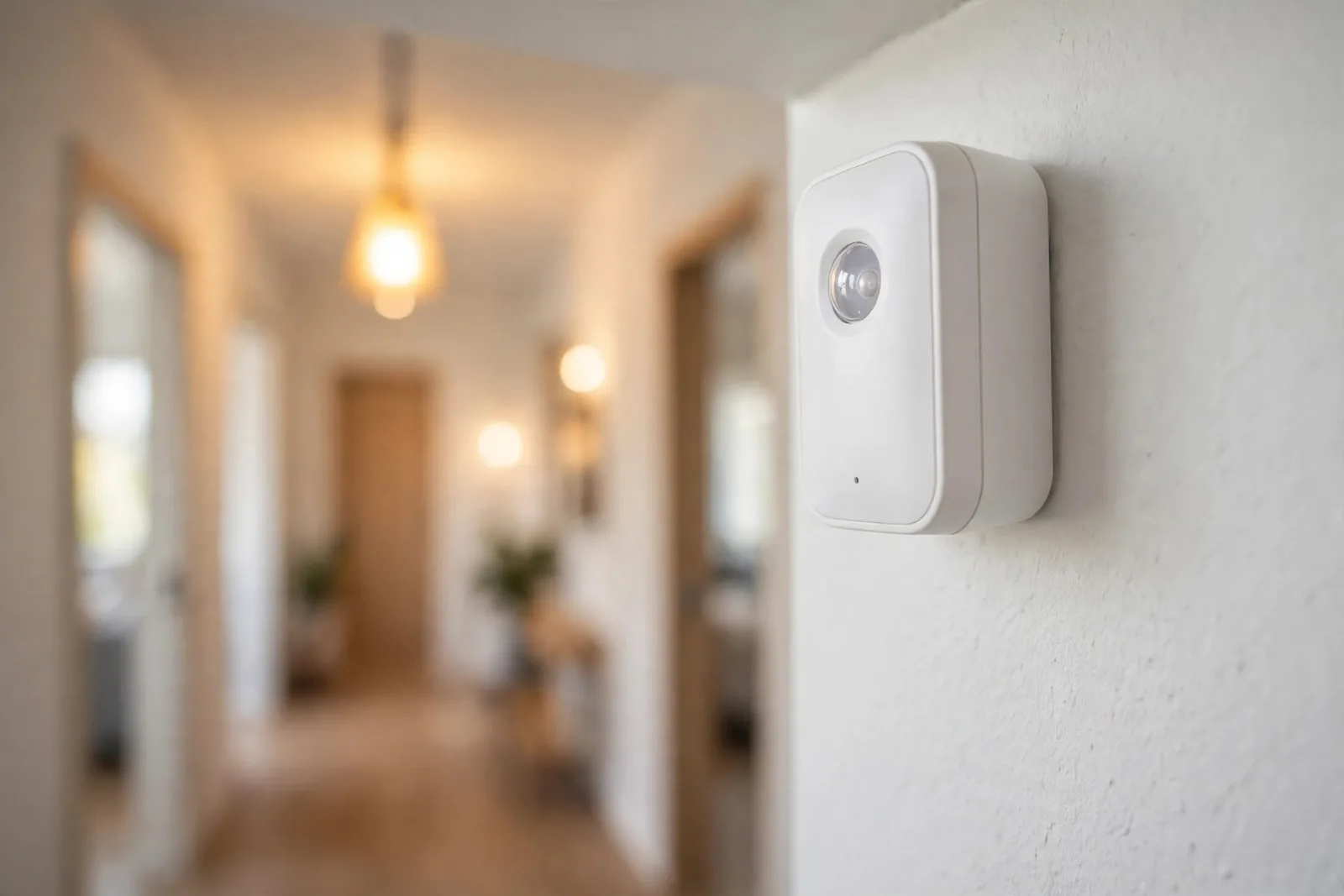
Hallways and stairs: 2 minute timeout, full brightness. People pass through quickly, so a short timer keeps the lights responsive without wasting energy. If the hallway feeds bedrooms, add the night mode dimming described above.
Bathrooms: 5 to 10 minute timeout, full brightness. People sit still here, which is exactly what fools PIR sensors. Longer timeouts are cheaper than the annoyance. If the bathroom has no window, consider a mmWave sensor instead; it ends the problem permanently.
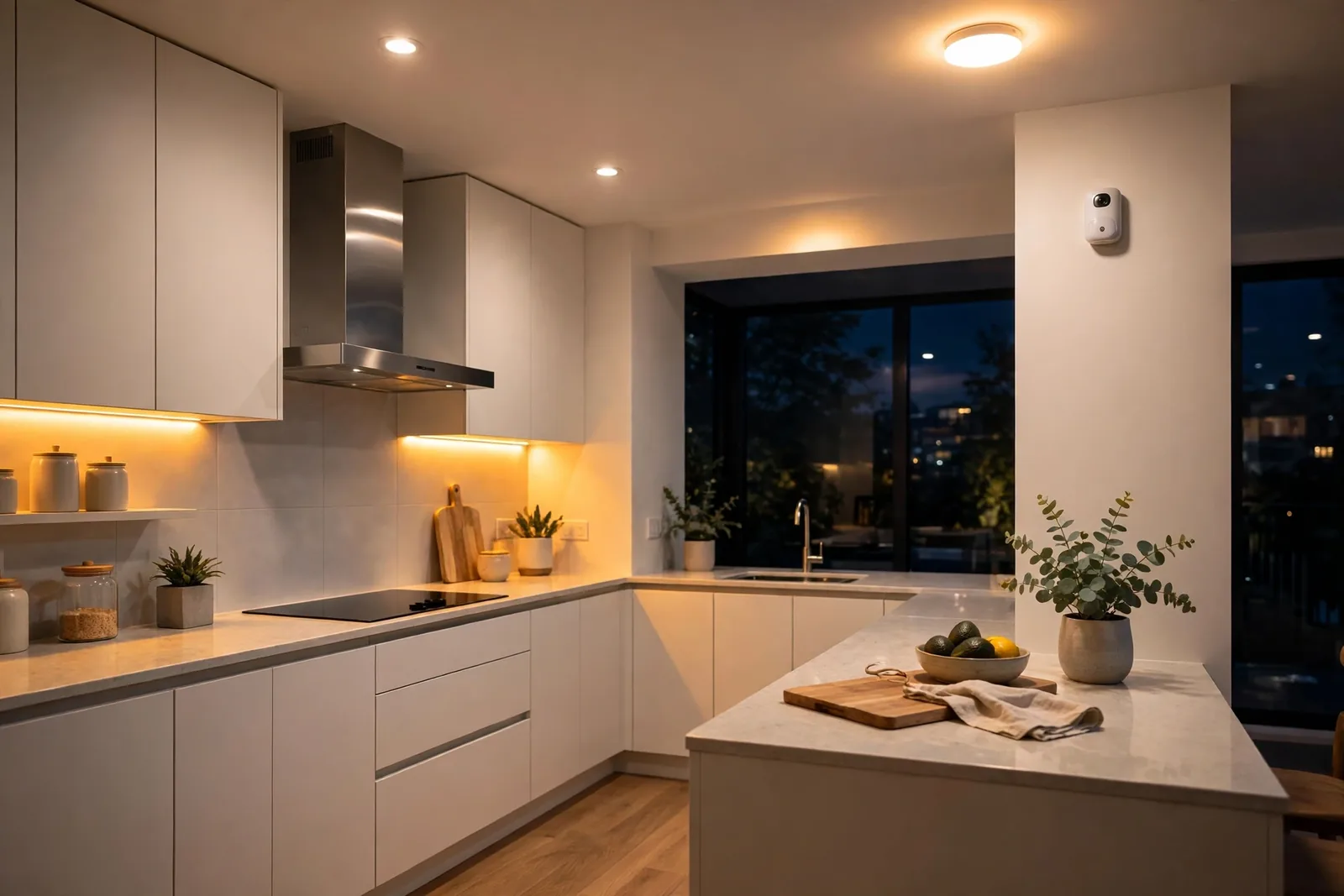
Kitchens: 5 minute timeout with a lux condition around 50. Daytime cooking rarely needs help from the ceiling lights, so the lux gate does real work here. Under cabinet strips on motion are a lovely upgrade for gloomy afternoons.
Bedrooms: motion lights here are divisive. If you want them, use a very dim warm scene and only during sleeping hours for bathroom trips. Keep the brightness low enough that it guides without waking.
Living rooms and offices: this is mmWave territory. A PIR will torture anyone reading on the couch. If you must use PIR here, set a long 15 minute timeout and accept some waste. Better yet, combine motion with the adaptive lighting approach in our adaptive lighting sleep mode guide so brightness follows the time of day.
Troubleshooting Common Problems
Lights turn off while someone is still in the room. This is the number one issue, and the fix order is: first check the automation mode is restart, then lengthen the timeout, then consider a mmWave sensor for that room. Nine times out of ten, restart mode plus a longer timeout solves it.
Lights never turn on. Check that the binary sensor actually flips in Developer Tools, then States. If the entity stays off while you dance in front of the sensor, then the problem is the device pairing, not the automation. Re interview Zigbee sensors or check battery on sleepy devices.
Lights turn on during the day. Your daylight condition is missing or misconfigured. Add a sun elevation condition below 3 degrees, or a lux threshold, and test by checking the automation trace at noon. The trace shows exactly which condition blocked or passed, which makes this a two minute diagnosis.
Delay between motion and light. Zigbee sensors typically report within a second. WiFi sensors, however, can take two to three. If the delay annoys you in a hallway, move the sensor closer to the entry point so it sees you earlier. Sensor placement beats network tuning every time.
Want the lights to also respond to doors? A door sensor makes a great companion trigger: the door opening fires the light instantly, before anyone even reaches the motion cone. Our look at the Aqara door and window sensor covers a solid budget option.
One more consideration: motion automations control smart bulbs best, but wall switches have their place too.
If your household keeps flipping physical switches and killing your smart bulbs, a smart switch with smart bulb mode keeps power flowing while still giving local control. Our Inovelli Blue vs Lutron Caseta comparison breaks down two excellent options.
FAQs
Do I need any coding to automate motion sensor lights in Home Assistant?
No. Blueprints give you a fill in the blanks form: pick the sensor, pick the lights, set the timeout, done. Manual automations use the visual editor with dropdowns. YAML is there if you want it, but nothing about motion lights requires touching code.
What is the best timeout for motion sensor lights?
Start with 2 minutes for hallways, 5 minutes for kitchens, and 5 to 10 minutes for bathrooms. Then live with it for a week. Shorten timeouts where lights linger pointlessly, lengthen them where lights die on still occupants. The right timeout is the one you stop noticing.
Why do my lights turn off while I am still in the room?
Your PIR sensor cannot see a still person, so it reports the room empty. First, set the automation mode to restart so every motion resets the timer. If that is not enough, lengthen the timeout. For rooms where people sit still, a mmWave presence sensor is the permanent fix.
Can motion automations run without internet?
Yes, if your devices pair locally. Zigbee and Z-Wave sensors talking to a local Home Assistant instance keep working with the internet down. WiFi devices that depend on a vendor cloud will stall. Prefer local protocols and local integrations for anything you rely on daily.
Should I use a blueprint or build the automation myself?
Use a blueprint first. You get a working result in minutes plus free updates from the author. Build manually when you want to learn the mechanics or need logic the blueprint does not offer. Many users run blueprints for standard rooms and hand built automations for special cases.
How many motion sensors do I need for a whole house?
Most homes need one per hallway, stairwell, bathroom, and entryway, plus mmWave in the office and living room. That is typically 6 to 10 sensors for an average house. Start with the two most trafficked spots, tune them for a week, then expand. Rushing the whole house at once makes troubleshooting miserable.
Conclusion
Start with the Sensor Light blueprint on your busiest hallway: import it, pick the sensor and lights, set a 2 minute timeout with a sun elevation condition, and set mode to restart. Live with it for a week, then roll the pattern room by room with the timeouts from the guide above. Your next step: install one sensor tonight and build your first automation before bed.