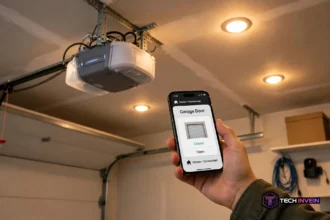

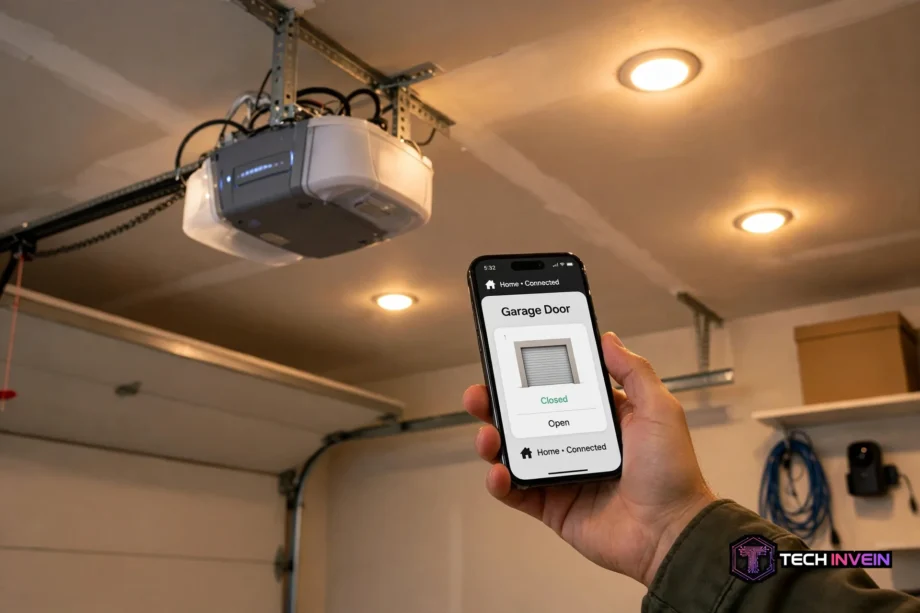
myq garage door opener setup takes about 15 minutes when your phone, your Wi-Fi, and your opener all cooperate. Most of the time they do not cooperate on the first try, and that is normal. This guide walks you through the whole job: connecting the opener to Wi-Fi, programming remotes and keypads, and resetting MyQ when it stops responding.
- Before You Start: Is Your Opener MyQ Ready?
- What You Need for MyQ Garage Door Opener Setup
- MyQ Garage Door Opener Setup, Step by Step
- How to Program Remotes and Keypads
- How to Reset Your MyQ Garage Door Opener
- After Setup: App Settings Worth Changing
- Troubleshooting: When MyQ Will Not Cooperate
- MyQ App Alternatives and Manuals
- FAQs
- How do I set up my MyQ garage door opener?
- Why will my MyQ opener not connect to Wi-Fi?
- How do I reset my MyQ garage door opener?
- What is setup.myqdevice.com?
- Can I use MyQ without the app?
- How do I program a new remote or keypad?
- Conclusion
One thing to know before you climb the ladder. MyQ is Chamberlain’s system for controlling a garage door from your phone. LiftMaster openers also use it. The steps below work for Wi-Fi openers and for older openers paired with a hub, with differences called out as we go.
Before You Start: Is Your Opener MyQ Ready?
Not every opener with a MyQ sticker can connect to Wi-Fi on its own. First, look at the logo on the motor unit. If it shows “Powered by myQ” or a Wi-Fi symbol, you can connect it straight to the app. If it shows only the plain myQ logo with no Wi-Fi symbol, the opener is not Wi-Fi capable by itself.
That second case is common, yet it is not a dead end. You just need a hub that bridges the opener to your network. If your opener falls in that camp, read our guide to the MyQ Smart Garage Hub first, because hub setup comes before anything here makes sense.
Here is a gotcha worth knowing. The Chamberlain LW5000EV has MyQ and Wi-Fi printed on it, yet it still needs a gateway or hub for remote control. Plenty of people burn an hour on app setup before learning their model needs the extra piece. Therefore, check your model number on the motor label if anything below refuses to work.
What You Need for MyQ Garage Door Opener Setup
Grab these before you start, so you are not hunting for a password halfway up a ladder:
- Your home Wi-Fi name and password. MyQ only works on 2.4 GHz, so if your router shows two names, pick the one without 5G in it.
- A phone with the MyQ app installed and Bluetooth switched on.
- A ladder, if you cannot reach the opener motor comfortably.
- About 20 minutes. The opener gives you a 20 minute window once it enters Wi-Fi learn mode, so finish in one sitting.
Two tips save more setups than anything else. First, stand close to the opener, and turn off mobile data during setup. Phones love to jump off weak garage Wi-Fi onto mobile data mid-step, and that silent switch causes many failed first attempts.
MyQ Garage Door Opener Setup, Step by Step
There are two ways to connect, and both end in the same place. The app method is the one Chamberlain pushes now, because it is the simplest route. The browser method through setup.myqdevice.com is older, and it still works when the app route stalls. Try the app first.
Method 1: Set Up With the MyQ App
- Open the MyQ app and sign in, or create a free MyQ account if you do not have one yet.
- Tap the plus sign to add a device, then choose Garage Door Opener.
- When the app asks, press and release the yellow Learn button on the opener motor two or three times. The opener beeps once and a blue light starts blinking, which means Wi-Fi learn mode.
- The app shows a device name starting with “MyQ-” on its discovery screen. Tap it.
- Pick your home Wi-Fi network from the list and type in the password. Make sure it is the 2.4 GHz network.
- Wait for the light to turn solid green. Solid green means the opener is online.
- Name the door in the app, then tap the door icon to test it. If the door moves, setup is done.
What if the app cannot find your opener at all? Check the basics before you blame the hardware. Is Bluetooth on, and are you close to the motor? Is your phone on the 2.4 GHz network, not mobile data? Nine times out of ten, one of those answers is no, and fixing it fixes the setup.
Method 2: Set Up With setup.myqdevice.com
Some older openers and hubs set up through a browser instead of the app. The order matters.
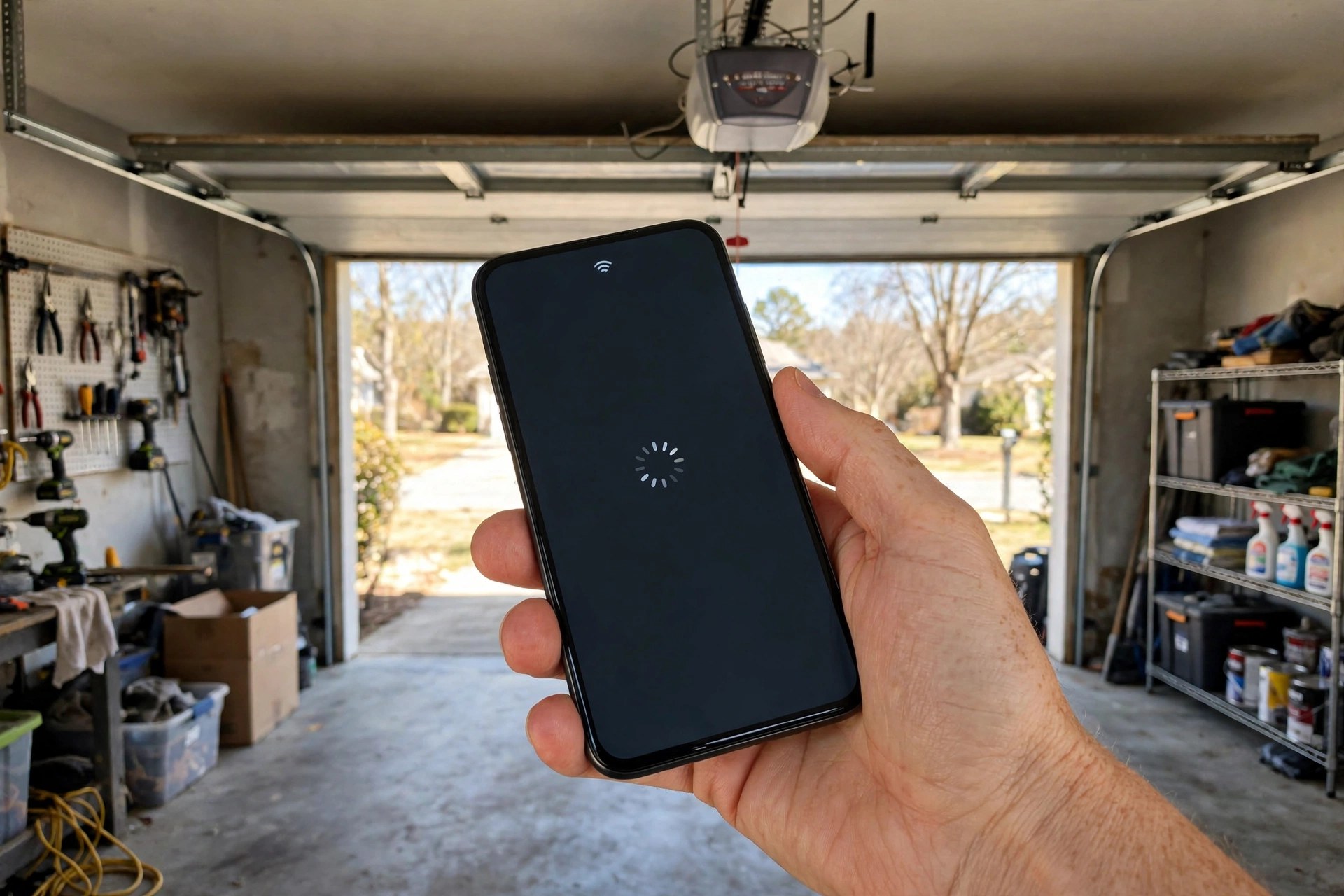
- Put the opener into Wi-Fi learn mode the same way: press and release the Learn button two or three times until it beeps and the blue light blinks.
- On your phone or laptop, open Wi-Fi settings and connect to the network whose name starts with “MyQ-“.
- Open a browser and type
setup.myqdevice.comin the address bar. Type the full address yourself. Do not let the browser autocomplete it, and do not add www or https in front of it. - Follow the on-screen prompts to pick your home Wi-Fi network and enter its password.
- When the light turns solid green, close the browser. Then open the MyQ app, sign in, and add the opener’s serial number.
One snag, however: the Wi-Fi scan list never appears on the setup page. If that happens, tap Erase WiFi on the same page. That clears old Wi-Fi details and usually makes the scan list show up next try.
And if the setup page will not load at all, the fallback address depends on your Learn button color. For yellow, try 192.168.0.1. For white, try 192.168.43.1. Those are local addresses for the opener itself, not websites, therefore they only work while your phone is on the MyQ- network.
How to Program Remotes and Keypads
Once the opener is online, remotes and keypads are a separate job. In other words, Wi-Fi setup does not program them, and a reset does not keep them. Every accessory must learn the opener, one at a time, through the Learn button.
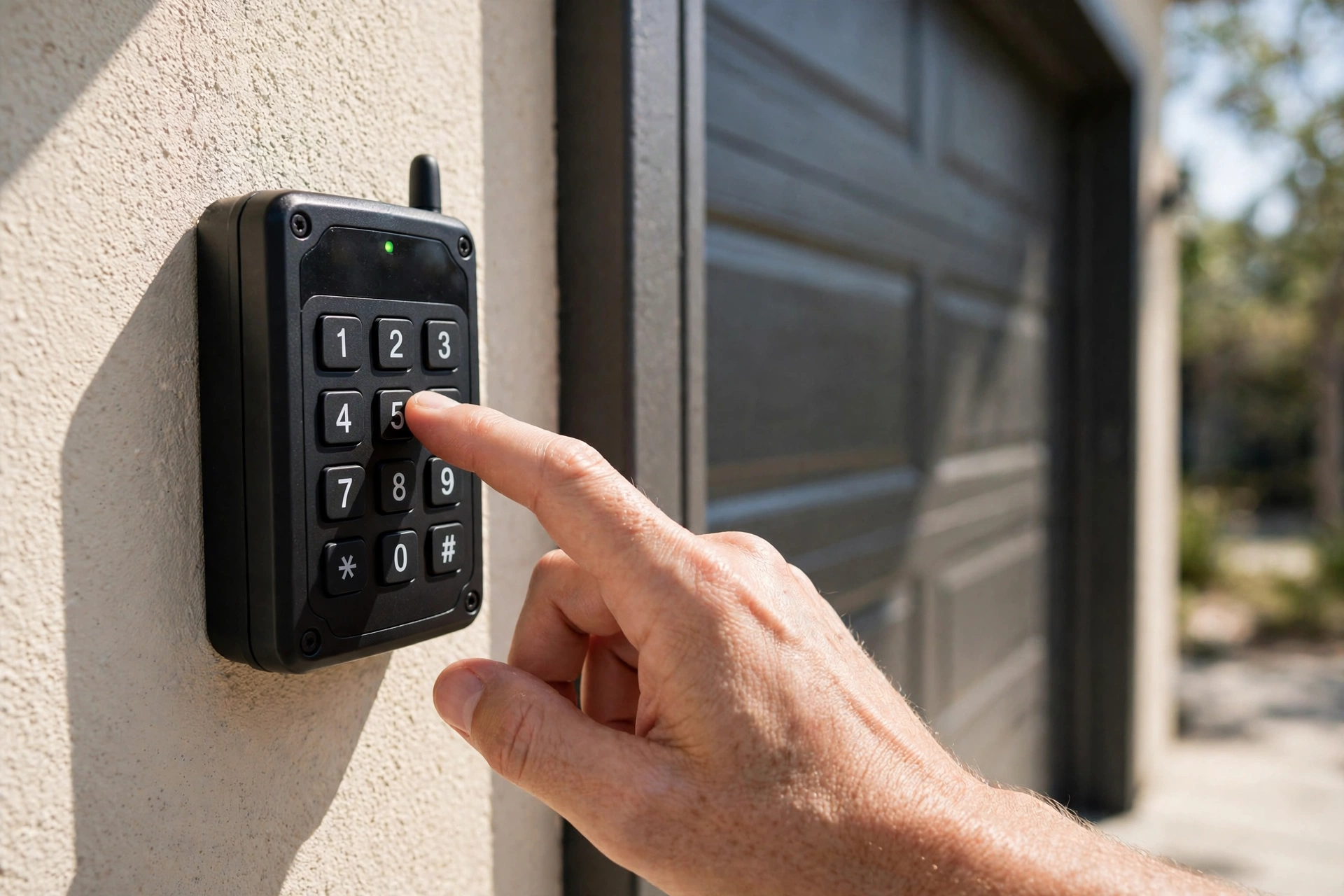
Program a Remote
- Press and release the Learn button on the opener motor. The LED next to it lights up.
- Within 30 seconds, press and hold the button on the remote you want to program.
- Watch for the opener lights to flash, or listen for a click. That flash means the opener learned the remote.
- Repeat for each remote. If the 30 second window closes, press Learn again and retry.
Does the remote work from the driveway but not from inside the car? That is usually a battery issue, not a programming failure. Swap the battery first. It is the cheapest and most common fix.
Program a Wireless Keypad
- Press and release the Learn button on the opener motor.
- Within 30 seconds, type your chosen 4-digit code on the keypad.
- Press and hold the Enter button until the opener lights flash.
- Test the code by closing the door with the keypad. If it works, write it down somewhere safe.
Video keypads follow the same idea but add a camera. The app therefore walks you through mounting and aiming as well. Our guide to the MyQ Smart Garage Video Keypad covers that setup if a camera keypad is what you bought.
What About HomeLink in Your Car?
HomeLink buttons in a car program the same way, but most cars need their own button sequence first, then the opener’s Learn button to finish. Check your car’s manual for its side. Note: a factory reset wipes HomeLink too, so you will redo the car after any full reset.
How to Reset Your MyQ Garage Door Opener
People use “reset” for three different things, and mixing them up causes headaches. Clearing Wi-Fi is not the same as clearing remotes, and neither is a factory reset. Here is how they differ.
Table: What each MyQ reset actually clears.
| Reset type | What it clears | When to use it |
|---|---|---|
| Clear Wi-Fi only | Saved Wi-Fi network and password | You changed routers or your Wi-Fi name |
| Clear remote codes | Remotes and keypads | You lost a remote or want old codes gone |
| Factory reset | Wi-Fi, remotes, keypads, HomeLink, MyQ accessories | Moving house, selling the opener, or Error 310 |
To clear remote and keypad codes, press and hold the Learn button until its LED goes out, about 6 seconds. Release it. Every remote and keypad code is now erased, and you must reprogram each one from scratch.
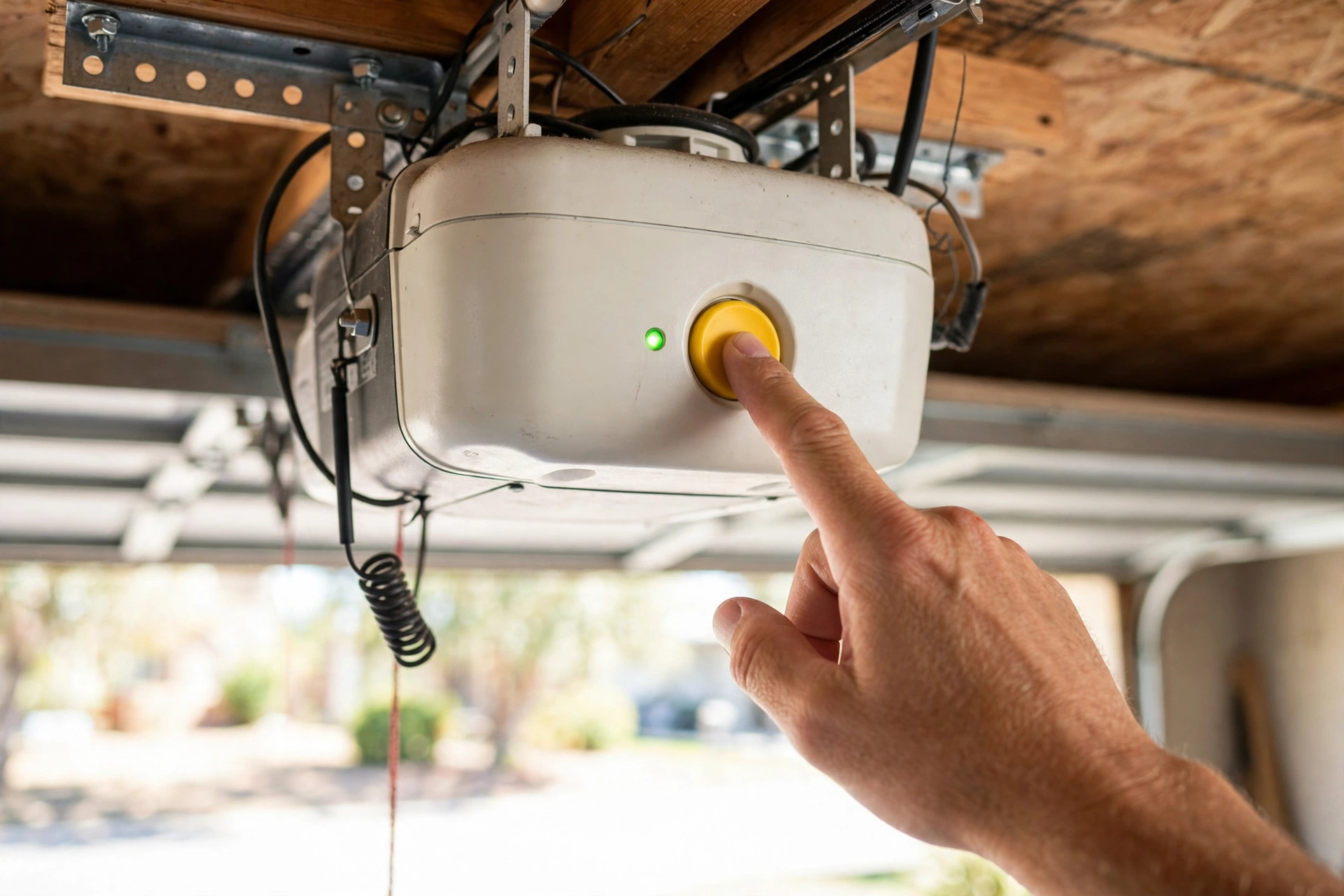
To clear Wi-Fi only, use Erase WiFi on setup.myqdevice.com instead, or remove the opener from the app and run setup again. This keeps remotes working, so it is the right choice after a router change. Your opener will not reconnect to a new router on its own.
A factory reset is the big one, recommended only for troubleshooting, ownership transfer, or account problems. On a Wi-Fi opener it removes remotes, keypads, HomeLink, and MyQ accessories, plus the device from your account. Afterward you set the opener up again and reprogram everything. The official steps are on Chamberlain’s factory reset support page.
One error code deserves mention. Error 310 means your opener’s serial number is already linked to another MyQ account, common with second-hand openers. A factory reset breaks that old link so you can claim the opener on your account.
After Setup: App Settings Worth Changing
Setup is done, but two minutes in the app make it work better. Turn on door alerts so you learn if the door stays open or opens unexpectedly. If your household shares the garage, add family members in the app instead of handing out your login. Each person gets their own access, removable without changing your password.
Also, check the door’s open and close history in the first week. It shows whether alerts fire when they should, and catches a door that creeps open alone. That is usually a remote with a stuck button or a neighbor’s remote on an old code, and a code clear fixes it.
Troubleshooting: When MyQ Will Not Cooperate
Most MyQ problems fall into a few buckets, and the LED tells you which one you are in. Read the light before you reset anything. Resetting first just creates more reprogramming work.
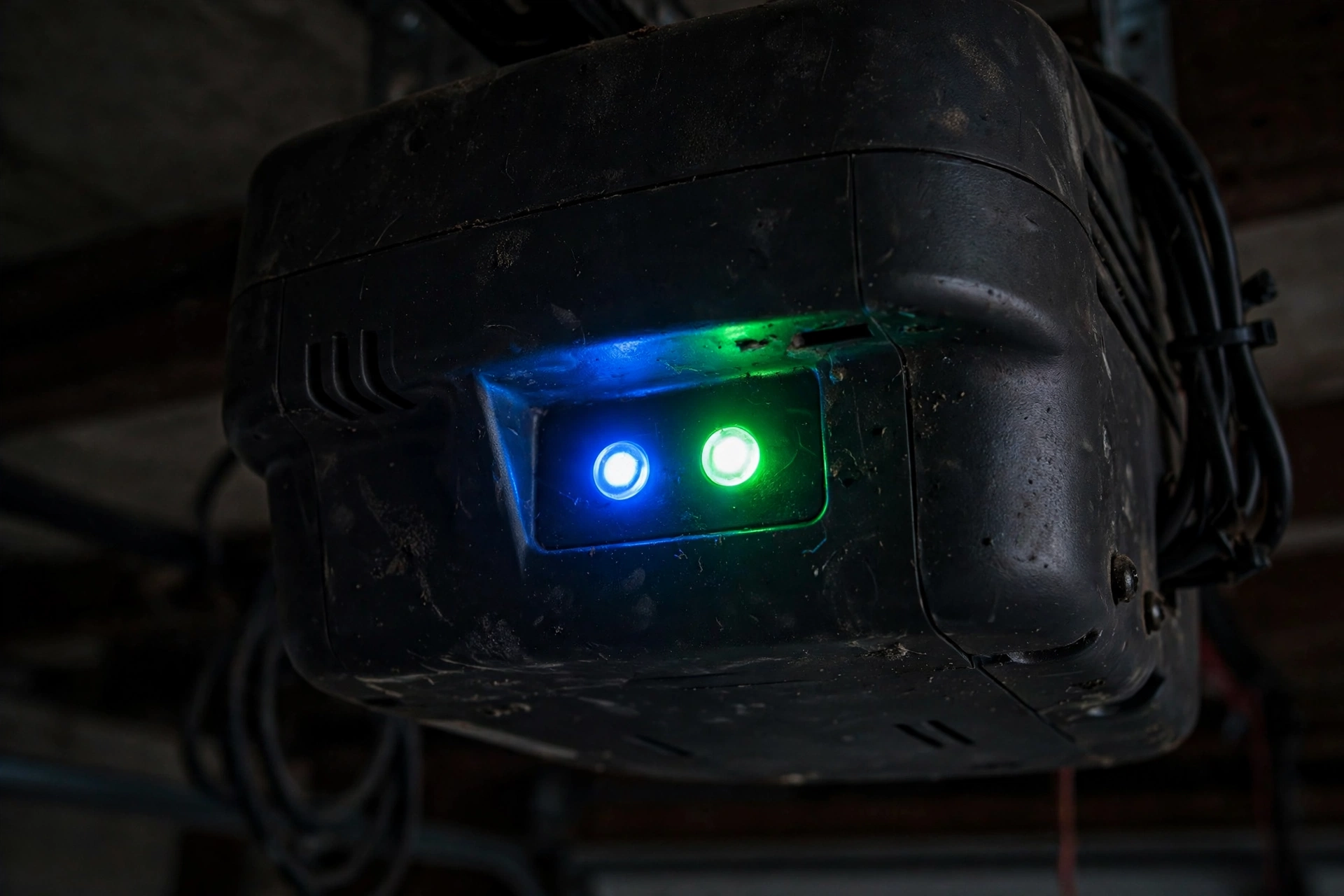
Table: What the opener LED is telling you.
| LED state | What it means | What to do |
|---|---|---|
| Blue, off | Wi-Fi is not turned on | Start Wi-Fi setup with the Learn button |
| Blue, blinking | Opener is in Wi-Fi learn mode | Finish setup in the app or browser now |
| Blue, solid | Phone is connected to the opener | Complete the Wi-Fi steps in the app |
| Green, blinking | Opener is trying to reach the internet | Wait a minute, then check your Wi-Fi password |
| Green, solid | Wi-Fi setup is done and the opener is online | Nothing, it is working |
Door works from the wall button but not from the app? Your opener is fine and your Wi-Fi link is not. Reconnect to Wi-Fi rather than resetting everything. If the door itself behaves oddly, grinding, reversing, or stopping halfway, that is a door problem, not a MyQ problem. Sensors out of line cause most of it. Our guide on how to reset a garage door sensor covers the sensor side, worth ruling out before you touch MyQ settings.
Still stuck? Power cycle the opener: unplug it for 30 seconds, including battery backup if it has one, then plug it back in and retry. It sounds too simple, and it works more often than it should.
MyQ App Alternatives and Manuals
Do you need the MyQ app at all? For first-time setup, yes. The app is how the opener joins your Wi-Fi and your account, and there is no way around it. After setup, some people control the door through a smart-home platform instead, but that still starts with a working MyQ setup.
One honest alternative: if you want app control without the MyQ ecosystem at all, a different brand opener is the clean break. Our Meross garage door opener guide covers one such option, including its app and HomeKit support. Switching brands is a bigger job than switching apps, so weigh it against living with MyQ once setup is done.
For manuals, skip generic web searches. Find the model number on the motor label, then search Chamberlain’s or LiftMaster’s support site for that exact model. Its manual has the right Learn button color, LED meanings, and reset steps. Generic guides cover the common cases. In contrast, your manual covers yours.
FAQs
How do I set up my MyQ garage door opener?
Install the MyQ app, sign in, and tap the plus sign to add a garage door opener. Press the Learn button on the motor until it beeps and the blue light blinks. Pick your 2.4 GHz Wi-Fi network, enter the password, and wait for a solid green light. Name the door, test it from the app, and setup is complete.
Why will my MyQ opener not connect to Wi-Fi?
The usual cause is the wrong Wi-Fi band. MyQ only works on 2.4 GHz, so a phone on a 5 GHz network will fail every time. Other common causes are a weak garage signal, mobile data pulling the phone off Wi-Fi mid-setup, and Bluetooth being off. Fix those four things, then retry setup standing close to the opener.
How do I reset my MyQ garage door opener?
It depends on what you want to clear. Hold the Learn button for about 6 seconds until its LED goes out to erase remote and keypad codes. Use Erase WiFi on the setup page to clear only Wi-Fi details. A factory reset clears everything, including HomeLink and accessories, so save it for ownership changes or Error 310.
What is setup.myqdevice.com?
It is the local setup page built into MyQ openers and hubs. When your phone joins the opener’s temporary MyQ- network, that address opens a page where you pick your home Wi-Fi network and enter its password. It is not a public website, so it only works while your phone is connected to the opener’s own network during setup.
Can I use MyQ without the app?
No, not for setup. The MyQ app is required to connect the opener to Wi-Fi and link it to your account, and there is no way to skip that step. After setup, your wall button, remotes, and keypads all work without the app. The app is only needed for phone control, alerts, and changing settings later on.
How do I program a new remote or keypad?
Press and release the Learn button on the opener motor, then work within 30 seconds. For a remote, press and hold its button until the opener lights flash. For a keypad, type your 4-digit code and hold Enter until the lights flash. Test the new accessory right away, and repeat the steps if the 30 second window runs out.
Conclusion
In short, that is the whole job. Connect on 2.4 GHz, watch the LED, program accessories one at a time, and reset only as much as the problem needs. If your opener is older and not Wi-Fi capable, a hub is the missing piece, not a new opener. Next step: open the MyQ app, check that your door responds, then add one family member so you are not sharing a login.