

The best USB WiFi adapter for most desktops is the TP-Link Archer TX20U Plus. It is a WiFi 6 adapter with two external antennas, it plugs into a USB 3.0 port, and it costs around $35. You get steady speeds, decent range, and current Windows drivers. No case opening needed.
- What is a USB WiFi adapter?
- The best USB WiFi adapter picks for most desktops
- Best overall: TP-Link Archer TX20U Plus
- Best budget: TP-Link Archer T3U Plus
- Best for WiFi 6E: NETGEAR Nighthawk A8000
- Best for WiFi 7: NETGEAR Nighthawk A9000
- How to pick the best USB WiFi adapter for your setup
- USB vs PCIe: which one should you buy?
- WiFi 6 vs WiFi 6E vs WiFi 7: what actually matters
- WiFi adapter for PC gaming: what to look for
- Ethernet to WiFi adapter and WiFi to Ethernet adapter explained
- How to set up a USB WiFi adapter
- Check your signal before you blame the adapter
- Mistakes that kill your signal
- FAQs
- Do I need a USB WiFi adapter for my desktop?
- Is a USB WiFi adapter better than a PCIe WiFi card?
- Does a USB WiFi adapter work on a laptop?
- Why is my USB WiFi adapter so slow?
- Can a USB WiFi adapter give me faster internet than my plan?
- Is WiFi 6E worth it on a USB adapter?
- Conclusion
That short answer fits most people. Still, the right pick depends on your router, your room, and what you do on the PC. A cheap nano dongle can work fine in the next room. Still, it can also drop out every evening on a gaming desktop two floors up.
What is a USB WiFi adapter?
A USB WiFi adapter adds wireless internet to a computer that has none. It can also replace weak built-in WiFi. You plug it into a USB port, install a driver, and connect like any other device. This is often the fastest fix, because most desktops ship without WiFi at all.
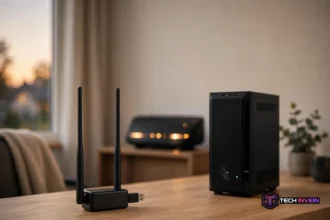
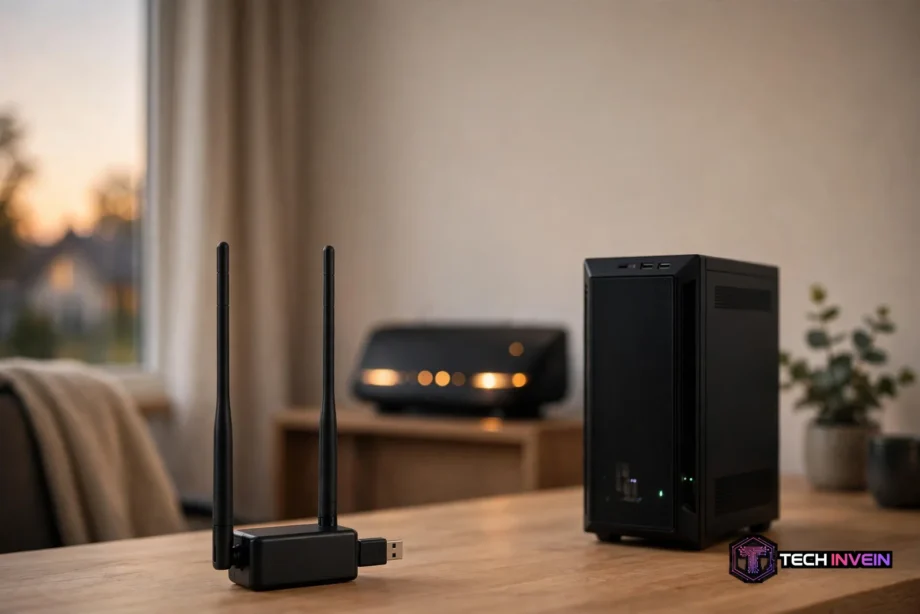
Adapters come in three shapes. For example, nano dongles are tiny and sit almost flush with the port. Stick adapters are a little larger and sometimes carry a small antenna. Desktop adapters have one or two tall antennas. They often sit on a USB cable or cradle, so you can place them where the signal is strongest.
Who needs one? Anyone with a desktop that only has an Ethernet port and no cable run to the router. Or anyone whose laptop WiFi keeps dropping. If your whole home network still needs planning, our guide to home network installation covers the router spot first.
The best USB WiFi adapter picks for most desktops
These picks come from 2026 roundups of live spec sheets. Prices are typical retail prices seen in November 2026, so check the current price before you buy.
Table: Best USB WiFi adapter picks compared.
| Adapter | Best for | WiFi standard | Typical price |
|---|---|---|---|
| TP-Link Archer TX20U Plus | Most desktops | WiFi 6 (AX1800) | $35 |
| TP-Link Archer T3U Plus | Budget buy | WiFi 5 (AC1300) | $20 |
| NETGEAR Nighthawk A8000 | WiFi 6E routers | WiFi 6E (AXE3000) | $90-$100 |
| NETGEAR Nighthawk A9000 | WiFi 7 routers | WiFi 7 (BE6500) | $120-$150 |
Best overall: TP-Link Archer TX20U Plus
The TX20U Plus is a WiFi 6 adapter rated AX1800, with two rotatable antennas. It suits most desktop owners who want reliable WiFi without thinking hard about specs, and it plugs into USB 3.0. WiFi 6 handles anything short of a gigabit fiber plan.
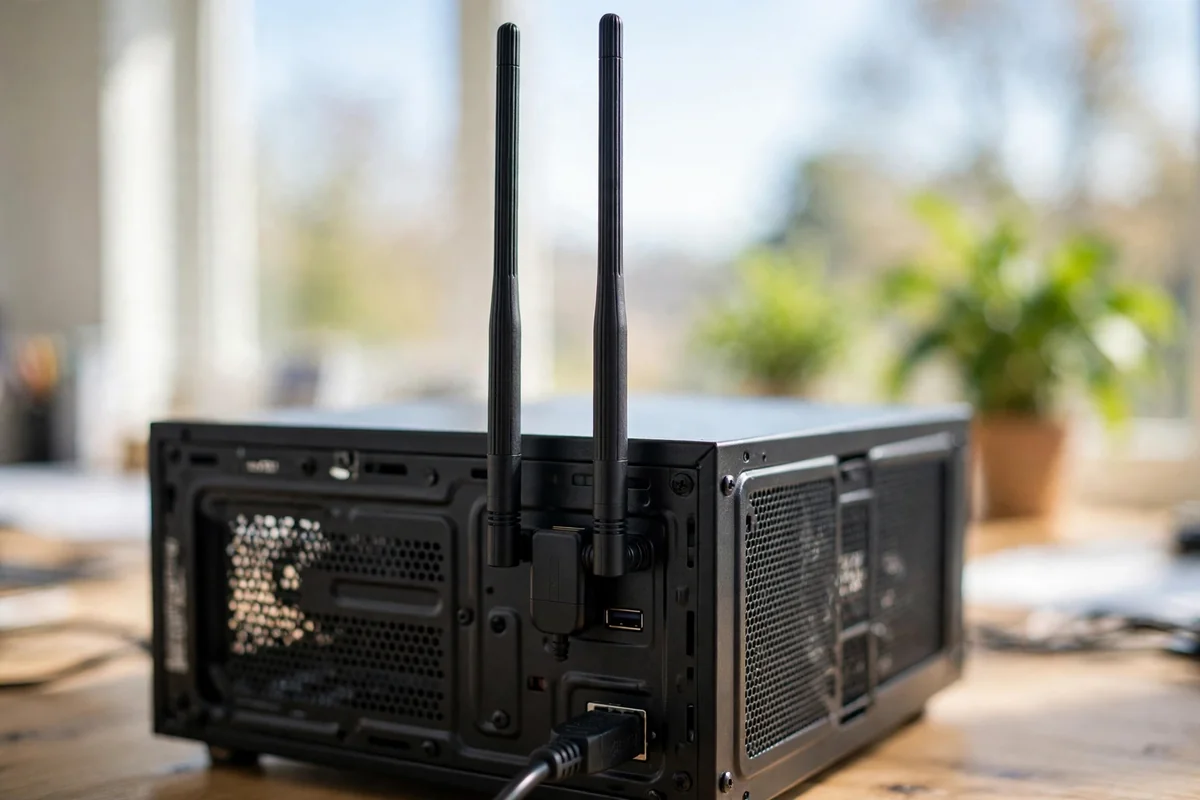
The antennas are the real reason this one leads. They stick out from the back of the PC instead of hiding behind a metal case. As a result, the signal stays steadier than a flush dongle. The only gap is the missing 6 GHz band. Step up to the A8000 below if your router supports it.
Best budget: TP-Link Archer T3U Plus
The T3U Plus is a WiFi 5 adapter rated AC1300 with a high-gain antenna. It costs around $20 and fixes the same basic problem: a desktop with no WiFi. For browsing, streaming, and calls on a slower plan, it does the job.
Skip it if your router is WiFi 6 or newer and your plan is fast. The adapter can’t use that speed. But on an older router, or as a spare in a drawer, it is hard to beat for the money.
Best for WiFi 6E: NETGEAR Nighthawk A8000
The A8000 is a tri-band WiFi 6E adapter rated AXE3000. Instead of plugging straight into a port, it sits on a small USB cable with a flip-up cradle. That puts the antenna on your desk, away from the case, which helps the signal a lot.
First, one warning applies to every 6 GHz adapter. The band only works if your router has a 6 GHz radio and your operating system supports it. The signal must also reach your desk. It also fades faster through walls than 5 GHz. A PC two rooms away may end up on 5 GHz anyway.
Best for WiFi 7: NETGEAR Nighthawk A9000
The A9000 is a WiFi 7 adapter rated BE6500. It lets a PC use the newest standard without opening the case, for around $120 to $150.
Be honest before you buy it. A WiFi 7 USB adapter can’t deliver WiFi 7 headline speeds, because the USB 3.0 link tops out at 5 Gbps and real-world speeds land near 1.7 Gbps. That’s still fast, but it’s not the box number. If your plan is under a gigabit, the TX20U Plus saves you money for the same daily experience.
How to pick the best USB WiFi adapter for your setup
First, start with your router, not the adapter. An adapter can’t outrun the router it talks to. A WiFi 7 stick paired with an old WiFi 5 router runs at WiFi 5 speeds. Check your router standard first, then match the adapter to it. If your router settings need a look, our guide on how to configure a router walks through them.
Next, check your USB ports. WiFi 6 and newer adapters need a USB 3.0 port, usually blue or marked SS. A USB 2.0 port caps speed at 480 Mbps in theory and much less in practice, so it chokes a fast adapter. Plug into a rear USB 3.0 port on a desktop, because front ports often share a slower internal hub.
Then think about distance. A nano dongle is fine when the router is in the same room. A desktop with two external antennas wins when the router is down the hall or on another floor. Cradle adapters win when the PC is under a desk, because you can lift the antenna into clear air.
Drivers decide whether the adapter still works in a year. Big brands like TP-Link, NETGEAR, and ASUS keep driver pages live and publish new Windows 11 drivers. Unbranded dongles often ship with no driver page at all. TP-Link keeps current drivers on its official Archer TX20U Plus support page.
USB vs PCIe: which one should you buy?
A PCIe WiFi card slots inside your desktop and connects straight to the motherboard. A USB adapter plugs into a port outside the case. Both add WiFi, but in fact they aren’t equal for a permanent desktop setup.
PCIe wins on speed and stability. A PCIe x1 slot carries about 8 Gbps, which is more than any current client WiFi radio needs. USB 3.0 tops out at 5 Gbps. As a result, that ceiling bites hardest on WiFi 7 adapters. PCIe cards also ship with two or three external antennas on a magnetic base. You can set them on top of the case. USB adapters, in contrast, share bandwidth with other USB devices, run hotter, and tend to have less steady drivers.
Heat is a real issue for USB dongles too. A small adapter has little room to shed heat. Long downloads or gaming sessions can push it to throttle or drop the connection until it cools. This PCIe vs USB WiFi adapter comparison breaks down the bandwidth and heat limits clearly.
So when does USB still win? When you cannot open the case. Rented PCs, work machines, small form-factor boxes, and laptops all rule out PCIe. USB also wins when you need to move the adapter between machines. The honest rule is simple. Buy PCIe if you can open the case and want the best connection. Instead, buy USB if you can’t or you need portability.
WiFi 6 vs WiFi 6E vs WiFi 7: what actually matters
In fact, WiFi 6 (802.11ax) is the sensible baseline in 2026. It handles crowded networks better than WiFi 5 and supports the speeds most home plans deliver. If your plan is 500 Mbps or slower, a WiFi 6 adapter is all you’ll ever notice. WiFi 6E adds the 6 GHz band, which is far less crowded. But it also fades faster through walls, and it only helps if your router and operating system both support it.
Finally, WiFi 7 (802.11be) adds 320 MHz channels and Multi-Link Operation, which uses several bands at once. Its headline speeds need a PCIe card or a wired link to show up fully. As a result, over USB the bus caps what you get. Buy WiFi 7 only if your router is WiFi 7 and your plan is gigabit or faster.
WiFi adapter for PC gaming: what to look for
Latency matters more than speed for gaming. A steady ping beats a link that spikes to 300 Mbps and then drops, because one drop can ruin a match.
For a gaming desktop, a PCIe card is the stronger pick when you can install one. Its direct bus link, better antennas, and cooler running mean fewer micro-drops during a match. A USB adapter can still work, but pick one with external antennas and a USB 3.0 link, and plug it into a rear port.
Whatever adapter you buy, wired Ethernet still beats wireless for competitive play. In fact, a cable gives lower latency and higher sustained speeds than any wireless adapter at any price. If a cable run is possible at all, run one. Our guide to smart home wiring design shows how to plan neat cable routes.
Ethernet to WiFi adapter and WiFi to Ethernet adapter explained
These two names sound alike and do opposite jobs. Buyers mix them up often. For example, an Ethernet to WiFi adapter gives a wired-only device a wireless connection. That’s the device this whole guide covers.
A WiFi to Ethernet adapter, also called a wireless bridge, does the reverse. It connects to your WiFi network and hands out a wired Ethernet port. You plug a device with only an Ethernet port, like a TV or printer, into the bridge with a cable. The bridge carries its traffic over WiFi.
How to set up a USB WiFi adapter
Setup takes about ten minutes. Download the driver first. Then follow these steps in order.
- Download the driver from the maker’s official support page before you plug the adapter in. Save it somewhere easy to find.
- Plug the adapter into a rear USB 3.0 port. On a laptop, use any USB 3.0 port and keep the antenna clear of the hinge.
- Run the driver installer you downloaded. Restart the PC if the installer asks you to.
- Click the WiFi icon in the taskbar, pick your network, and type the password.
- Run a speed test next to the router, then again at your desk. If the desk result is far worse, move the antenna before you blame the adapter.
If Windows says the device is unknown, then open Device Manager. Find the adapter under Network adapters, and point it at the driver folder you downloaded. If it stopped after a Windows update, reinstall the maker driver.
Check your signal before you blame the adapter
Here is a check most guides skip. Specifically, Windows can show your exact signal strength. In fact, that number tells you whether the adapter or the room is the problem. Press Windows key plus R, type cmd, and run netsh wlan show interfaces.
Run it twice: once with the adapter in its normal spot, and once with it moved into clear air. If the number jumps by 15 points or more, the fix was placement, not a new adapter.
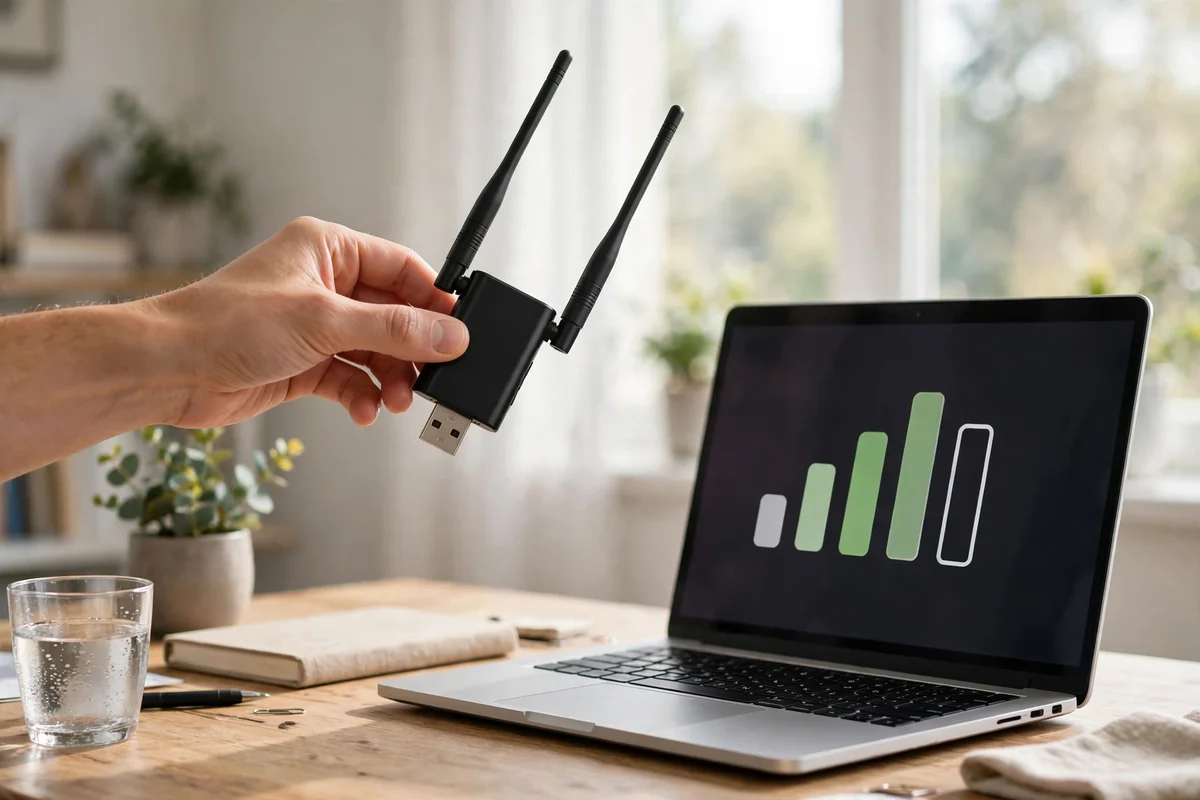
For example, below 50 percent, expect slow speeds and drops. Between 50 and 70 percent, most use is fine but gaming may stutter. Above 70 percent, the adapter is doing its job. This two-minute test stops people replacing a good adapter for a bad spot, which is the most common waste of money in home networking.
Mistakes that kill your signal
First, the most common mistake is a port buried behind a metal PC case. Metal blocks WiFi, so a short USB extension cable that lifts the adapter onto the desk can fix it.
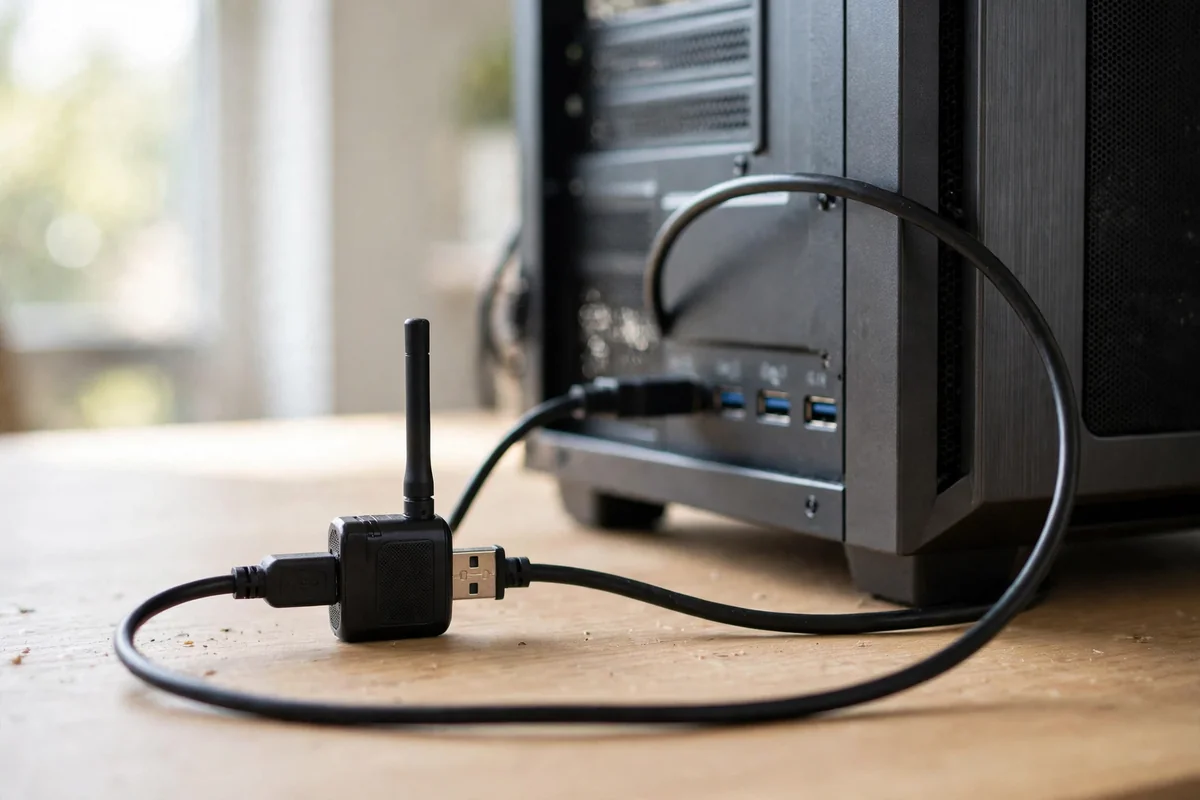
The second mistake is using a USB 2.0 port for a WiFi 6 adapter. The port caps the speed before the radio gets a chance, so use blue ports or ports marked SS.
The third mistake is buying a WiFi 7 adapter for a WiFi 5 router. Match the adapter to the router you own today. And if your laptop already has decent WiFi and only struggles in one room, the problem may be the router spot. Our guide on how to connect a laptop to WiFi covers the laptop-side fixes worth trying first.
FAQs
Do I need a USB WiFi adapter for my desktop?
Yes, if your desktop has no built-in WiFi and no Ethernet cable to the router. Most desktops ship with an Ethernet port only, and a USB adapter is the quickest fix. If you can run a cable, Ethernet is faster and steadier than any wireless adapter.
Is a USB WiFi adapter better than a PCIe WiFi card?
No, a PCIe card is usually faster and more stable for a permanent desktop. It uses a direct motherboard link with more bandwidth, runs cooler, and carries better antennas. USB wins when you cannot open the case or need to move the adapter between machines.
Does a USB WiFi adapter work on a laptop?
Yes, it works on most Windows laptops and can replace weak built-in WiFi. Plug it into a USB 3.0 port and install the maker’s driver. Pick a nano dongle for travel, since large antenna models stick out and can snap in a bag.
Why is my USB WiFi adapter so slow?
The usual causes are a USB 2.0 port, a weak signal, or a router older than the adapter. Move the adapter to a USB 3.0 port and lift the antenna into clear air. In fact, a buried adapter behind a metal case gets a far weaker signal. Also confirm your router supports the same WiFi standard as the adapter.
Can a USB WiFi adapter give me faster internet than my plan?
No. An adapter can only deliver what your internet plan and router provide. If your plan is 200 Mbps, no adapter will push you past that. What a better adapter does is waste less of the speed you pay for.
Is WiFi 6E worth it on a USB adapter?
It is worth it only if your router has a 6 GHz radio and your operating system supports 6 GHz. The router must also be close enough for that band to reach your desk. The band is less crowded but fades fast through walls. If any of those three is missing, buy a WiFi 6 adapter instead.
Conclusion
Finally, buy the TP-Link Archer TX20U Plus if you want the safe pick for most desktops. Spend more on the Nighthawk A8000 or A9000 only when your router already supports 6 GHz or WiFi 7. And if you can open the case, weigh a PCIe card before you settle on USB. Next step: check your router standard and USB ports, then order the adapter that matches them.