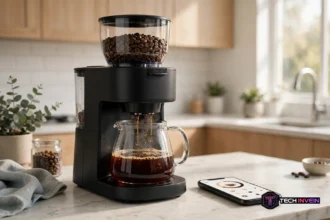

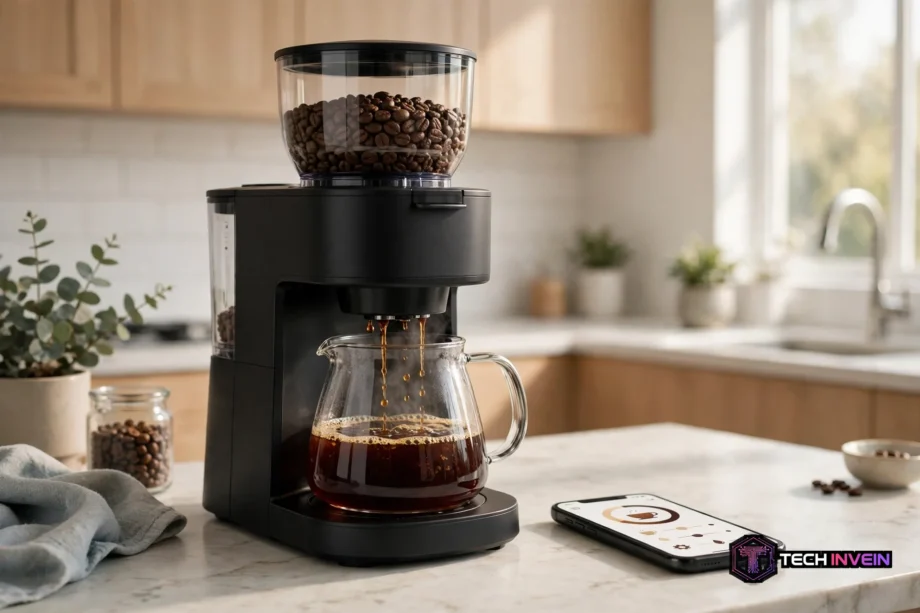
The atomi smart coffee maker lets you start a pot of coffee from your phone or with your voice. You set it up once, pick a brew strength, and let a schedule handle the rest. It suits busy mornings, shared homes, and anyone who wants coffee ready on time.
- What the atomi smart coffee maker does
- How to set it up with the app
- Voice control with Alexa and Google Assistant
- Scheduling your morning brew
- Brew strengths and getting good taste
- Cleaning and care
- Smart kitchen connectivity in plain terms
- Atomi smart coffee maker vs a regular coffee maker
- Who it suits and who should skip it
- Fixes for common problems
- FAQs
- Does it work with Alexa?
- Does it work with Google Assistant?
- Do I need Wi-Fi to brew coffee?
- Can I schedule coffee for weekdays only?
- What brew strengths does it offer?
- How do I clean it?
- Is it better than a regular coffee maker?
- Final take
It is still a drip coffee maker at heart. You add water, add ground coffee, and place the carafe in position. The smart part sits on top of that simple job. It adds remote control, timed brewing, and voice commands. So you get convenience without learning a complex machine.
What the atomi smart coffee maker does
The standard model brews up to 12 cups. Also, you can brew a small pot for one person or a full pot for guests. The carafe has markings that help you measure water with ease. A reusable filter cuts down on paper filter waste too.
Its main draw is control from anywhere in your home. Open the Atomi Smart app, pick the machine, and tap brew. You do not need to walk to the kitchen first. That helps on cold mornings and when your hands are full.
You also get a coffee ready alert on your phone. The machine chimes when brewing ends, so you know when to pour. A sensor checks that the carafe sits in place before brewing starts. This no spill design helps prevent a mess on the warming plate.
How to set it up with the app
Start with two facts before you plug it in. First, know your Wi-Fi network name and password. Second, note that this machine needs a 2.4 GHz Wi-Fi network. It will not connect to a 5 GHz network alone. Many routers offer both bands under one name, so check your router settings if setup stalls.
Next, download the free Atomi Smart app from your phone app store. Create an account if you do not have one yet. Then tap Add Device, or tap the plus sign at the top of the screen. Pick the coffee maker from the device list and follow the prompts.
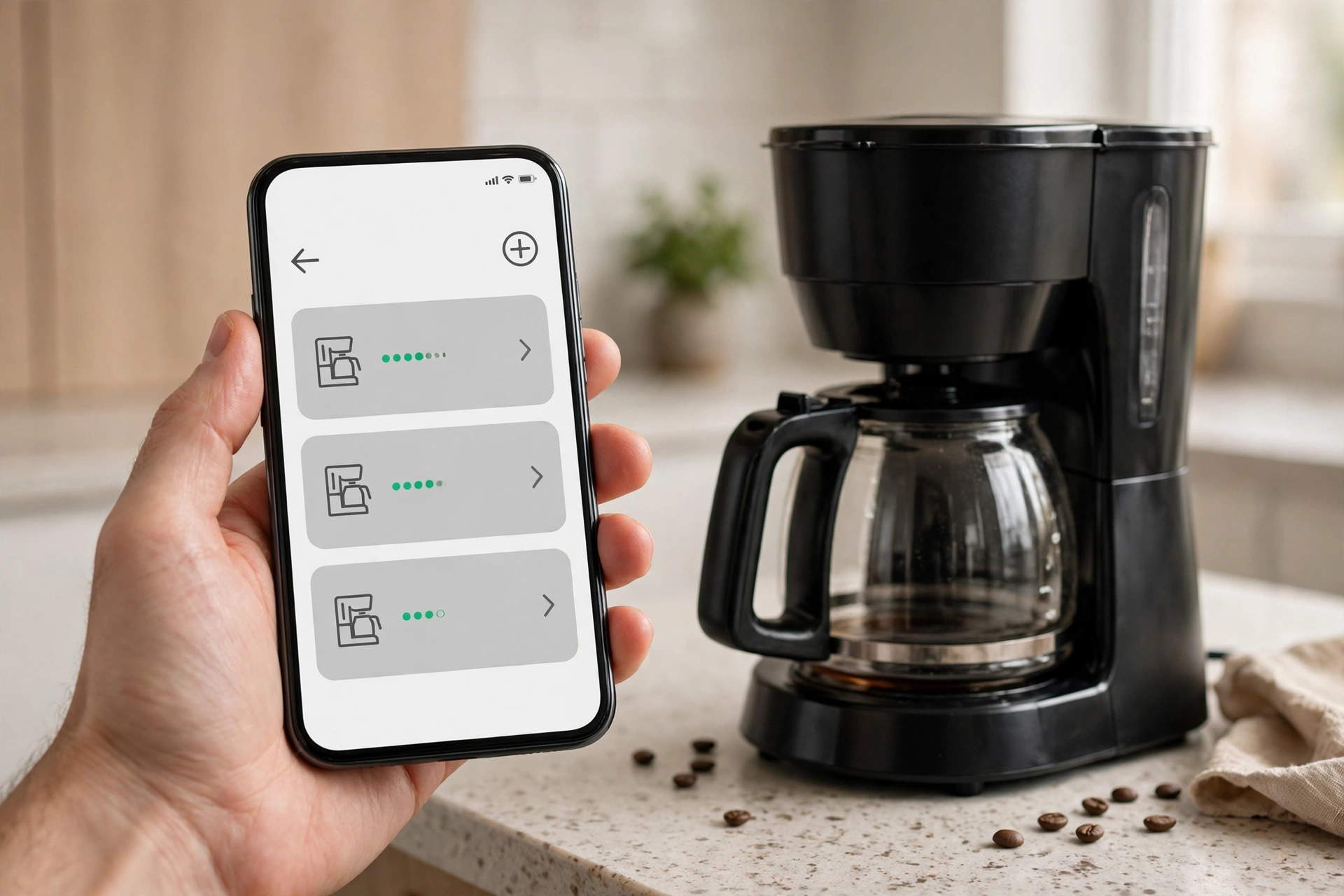
Then plug the machine into a standard outlet when the app asks you to. Enter your 2.4 GHz network name and password with care. A single wrong letter can block the whole setup. Keep your phone close to the machine during this step, since the signal needs to stay strong.
Once it connects, set the clock on the machine. The app walks you through this step in a few taps. Then test a short brew with water only. This flushes the system and confirms that the app link works. After that, you can brew coffee with confidence.
If your Wi-Fi signal feels weak in the kitchen, move the router closer or add a better spot for it. A stable network makes remote brewing far more reliable. For help with the basics, read this guide to home network installation before you start adding smart appliances.
For model specific steps and cleaning notes, check the Atomi Smart support guide. It covers the grinder model as well, so pick the section that matches your machine.
Voice control with Alexa and Google Assistant
After the app setup, link the machine to Alexa or Google Assistant. In the Alexa app, search for the Atomi Smart skill and link your account. In the Google Home app, search for the Atomi Smart service and link it the same way. This step takes only a few minutes.
Then you can use simple commands. Say, “Alexa, turn on the coffee maker.” Say, “Hey Google, turn on the coffee maker.” You can also ask for a brew strength change. For example, say, “Alexa, set the coffee maker to strong.” The machine will switch modes if it hears the name right.
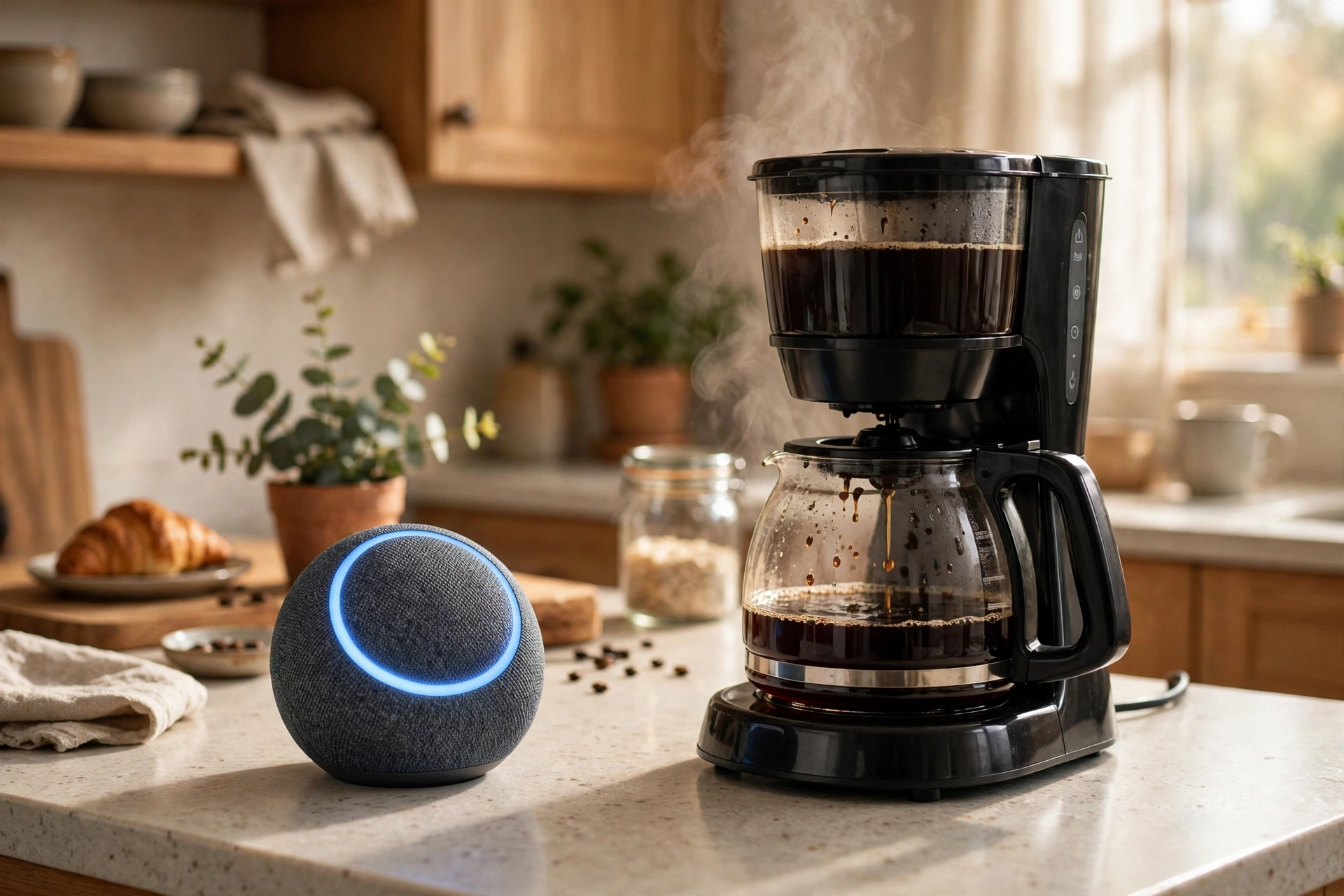
One catch deserves a note. A plain “brew coffee” command may need a routine on Alexa. You set the routine once in the Alexa app, with power on as the action. Then the short phrase works each time. It feels like extra work at first, yet it pays off daily.
Google Home routines work in a similar way. You can tie a morning routine to lights, news, and coffee in one phrase. If you want a sense of how voice routines feel in practice, see this guide to an E12 smart bulb with Google Home. The setup logic is much the same, even though the device differs.
Scheduling your morning brew
Scheduling is where this machine earns its keep. Open the app and tap Schedule. Pick a time, pick days of the week, and pick regular or strong brew. Then turn the schedule on and save it. The machine will brew at that time without a tap from you.
A weekday schedule suits most homes. For example, set it for 15 minutes before you wake up. By the time you reach the kitchen, coffee waits for you. For weekends, set a later time or turn the schedule off. The app lets you edit days with ease, so you need not redo the whole setup.
Always prep the night before. Fill the water tank to the cups you want. Add ground coffee and the filter. Place the carafe in position. A schedule cannot brew if the machine sits empty, so this nightly habit matters most.
Smart Scenes in the app add more options. You can build a scene that turns the machine on at a set time and off later. You can also set a shorter keep warm time than the default. The default keep warm time runs up to four hours. A shorter window saves energy and keeps taste fresher.
Brew strengths and getting good taste
The standard model offers two brew strengths: regular and strong. Regular suits a light, smooth cup. Strong slows the brew a bit and pulls more flavor from the grounds. It does not add caffeine in a magic way, yet the taste feels bolder.
Some grinder models add a middle step. They offer mild, medium, and bold, plus a choice of beans or powder. If you own that model, start with medium. Then move up or down based on taste. Fresh beans and a clean machine matter more than any strength setting.
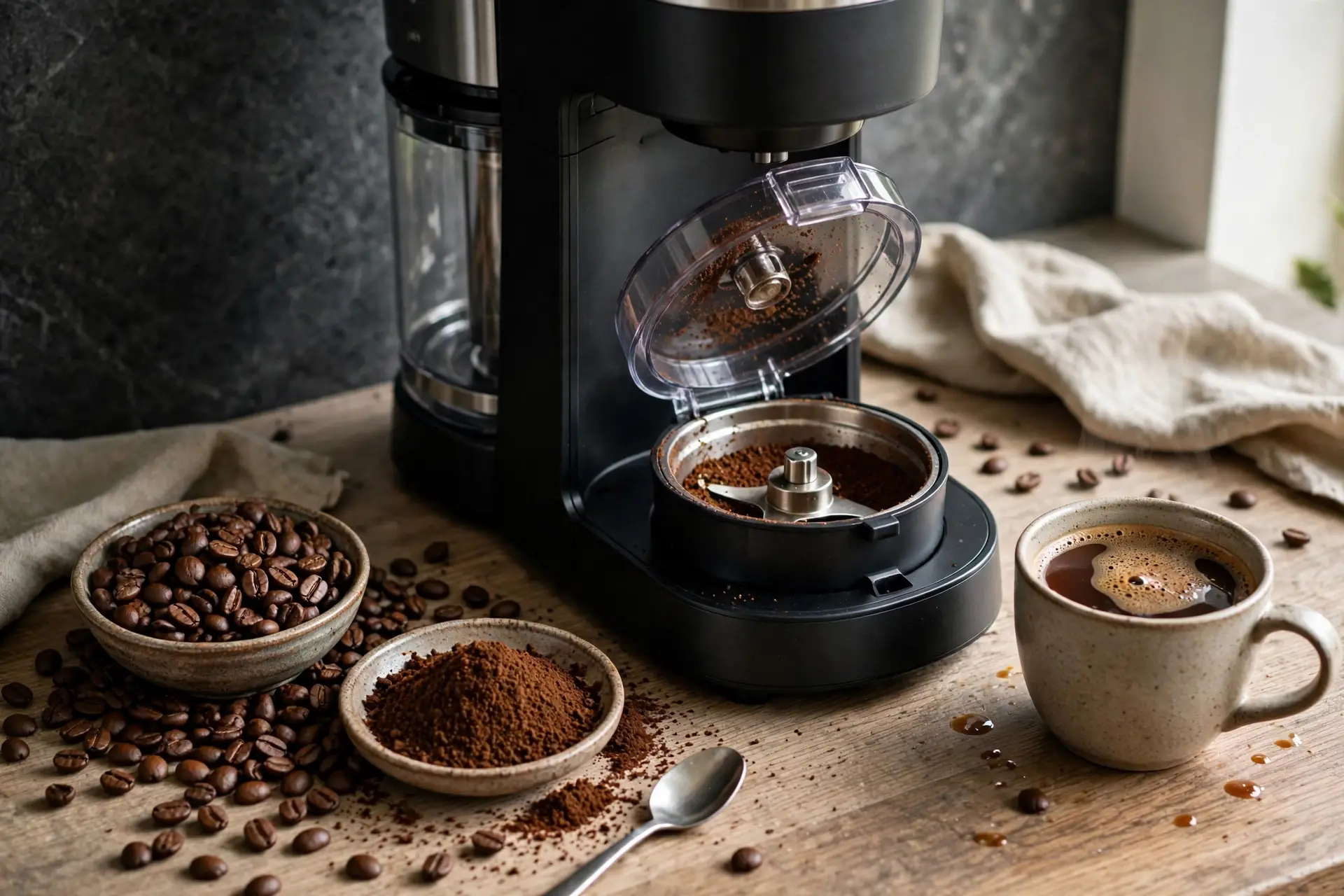
Also, use fresh, cold water each time. Stale water dulls flavor fast. Measure coffee with care, since too little gives a weak cup and too much gives a bitter one. Start with the scoop guide in the manual. Then adjust by small steps until the taste suits you.
Table: Brew strength choices
| Setting | Taste | Best for |
|---|---|---|
| Regular | Smooth and light | Daily drinking and large pots |
| Strong | Bolder and richer | Dark roasts and milky coffee |
| Medium on grinder models | Balanced | A safe start point for new users |
Cleaning and care
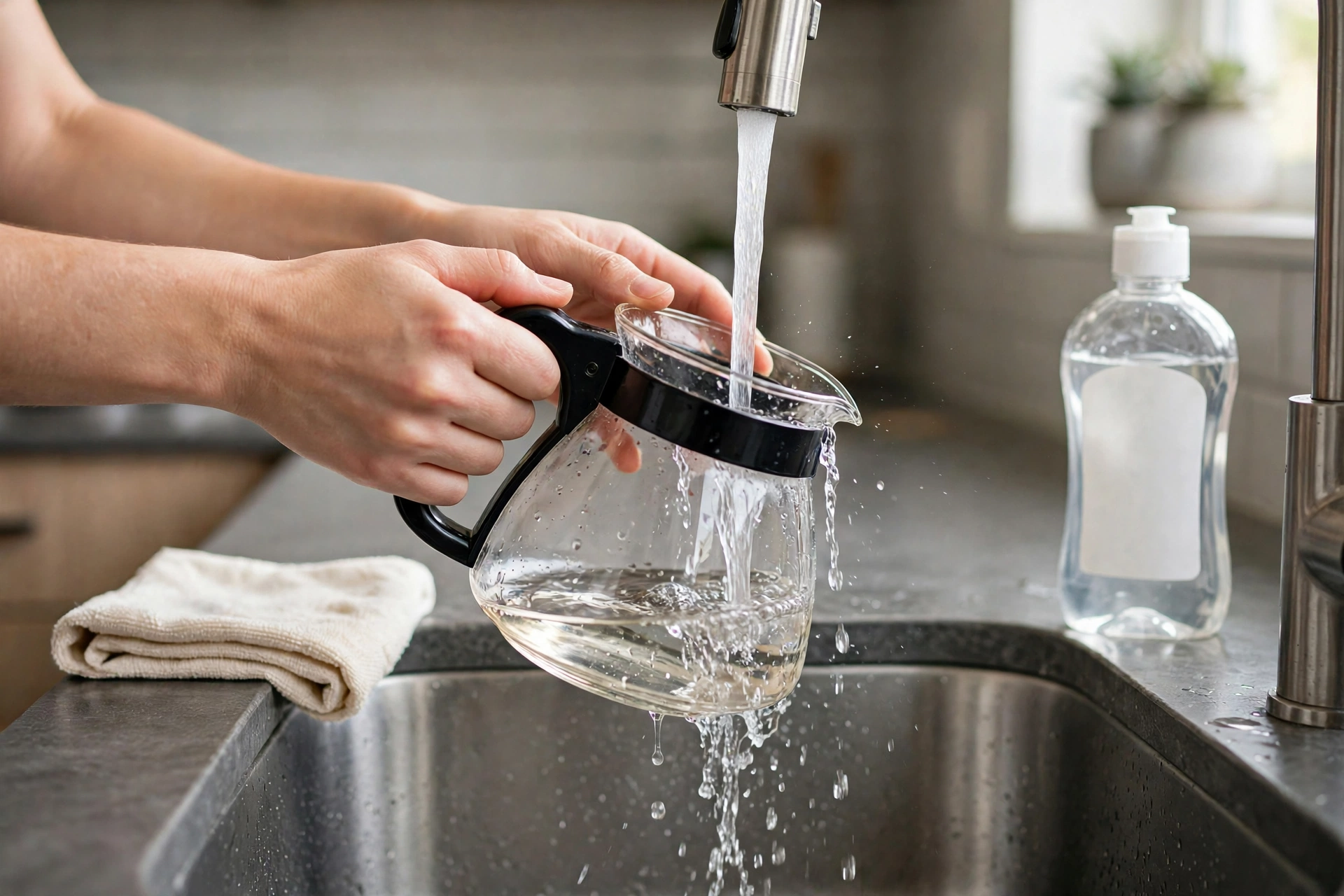
Daily care takes only a few minutes. Empty the used grounds after brewing. Rinse the carafe with warm water and mild soap. Wipe the warming plate once it cools. Never pour cold water on a hot plate, since the shock can harm it.
Next, descale the machine on a regular basis. Hard water leaves mineral scale inside the pipes. Scale slows brewing and dulls taste over time. Use a descaling mix made for coffee makers, or follow the manual for your model. Then run two rinse cycles with plain water.
One hands-on detail stood out in testing notes for this design. Holding the power button for 10 seconds resets the Wi-Fi pairing and makes the Wi-Fi light flash. That reset gave a clean path to reconnect after a router change, without a full factory reset. Keep that trick in mind if the app shows the machine as offline.
Smart kitchen connectivity in plain terms
First, note that a smart coffee maker does not work alone. It joins a home network with other smart kitchen gear. Each device speaks to the app or voice assistant through Wi-Fi. So a strong, steady network matters more than any single gadget.
This is where terms like bluetooth microwave oven and smart microwaves enter the picture. A bluetooth microwave oven pairs with a phone over a short range link. It may let you start, stop, or check cooking from nearby. Smart microwaves go a step further in some models. They can join Wi-Fi, take voice commands, or follow preset cooking programs.
Do not expect these devices to talk to each other in a deep way. Your coffee maker will not start your microwave, and your microwave will not brew coffee. They share a network and a voice assistant, not a single brain. That shared link still helps, since one voice phrase can run a morning routine across devices.
Before you buy more smart kitchen gear, check how each device connects. Some need Wi-Fi, some use Bluetooth, and some need a hub. A mixed home can work fine, yet it needs more setup care. Keep a simple list of each device, its app, and its voice name. That list saves time when a device drops offline.
Compatibility checks matter here as well. Just as you would check if a smart device works with your voice assistant, check the platform it needs. For a clear example of that check, read whether Govee works with Apple Home. The same habit applies to coffee makers, microwaves, and lights alike.
Atomi smart coffee maker vs a regular coffee maker
In contrast, a regular coffee maker does one job well. You press a button and it brews. It costs less, has fewer parts to fail, and needs no app. For a small home with a fixed routine, that simplicity wins.
The smart model adds remote control and scheduling depth. You can brew from bed, set weekly times, and use voice commands. It also sends alerts when coffee is ready. Those perks matter most if your schedule shifts or your mornings feel rushed.
On the other hand, smart features add points of failure. Wi-Fi drops can block remote brewing. App updates can change menus. Voice links can break after an account change. The machine still brews by hand when this happens, so you are not stuck. But the smart perks pause until you fix the link.
Table: Atomi smart coffee maker vs regular coffee maker
| Feature | Smart model | Regular model |
|---|---|---|
| Remote brewing | Yes, through the app | No |
| Voice control | Alexa and Google Assistant | No |
| Weekly schedule | Yes, with strength choice | Basic timer on some models |
| Manual brewing | Yes, with the power button | Yes |
| Setup effort | Higher, needs Wi-Fi and app | Lower, plug in and brew |
Who it suits and who should skip it
For instance, it suits early risers who want coffee ready on waking. It suits shift workers with odd hours, since schedules can shift by day. It suits shared homes too, since anyone with the app or a voice command can brew. It also suits tech fans who already use Alexa or Google Home.
It may not suit you if you hate apps or lack steady Wi-Fi. A weak network turns smart perks into daily frustration. It may also fall short if you want espresso, cold brew, or single serve pods. This is a drip machine, not an all in one coffee bar.
Fixes for common problems
First, if the app cannot find the machine, check the Wi-Fi band first. Switch your phone to the same 2.4 GHz network during setup. Move closer to the router and retry. If the Wi-Fi light keeps flashing, hold the power button for 10 seconds to reset pairing.
Then, if the machine shows as unavailable, refresh the device list in the app. Force close the app and open it again. Check that your home internet works for other devices. A router restart fixes many brief drops, and it costs only a few minutes.
Router settings can block smart devices in quiet ways. Guest networks, band steering, and strict firewalls all play a part. If setup keeps failing, this guide to how to configure a router can help you check the settings that matter most.
FAQs
Does it work with Alexa?
Yes, it works with Alexa once you link the Atomi Smart account in the Alexa app. You can turn it on and off by voice and change the brew strength. A short routine may be needed for a plain brew coffee phrase, but basic on, off, and strength commands work directly.
Does it work with Google Assistant?
Yes, it works with Google Assistant after you link the Atomi Smart service in the Google Home app. You can turn it on and off and ask about its status. Use the exact device name you saved in the app, since a mismatch can cause missed commands or wrong device responses.
Do I need Wi-Fi to brew coffee?
No, you can brew by hand with the power button when Wi-Fi drops. Remote brewing, schedules from the app, and voice control need a network link. Manual brewing still works, so a brief outage will not leave you without coffee in the morning.
Can I schedule coffee for weekdays only?
Yes, the app lets you pick which days a schedule repeats. Set a weekday time for work mornings and a later time for weekends, or turn a schedule off for rest days. Always prep water, grounds, and the carafe the night before, since an empty machine cannot brew.
What brew strengths does it offer?
The standard model offers regular and strong brew strengths. Regular gives a smooth daily cup, while strong gives a bolder taste from the same grounds. Some grinder models add a medium step and a choice of beans or powder, so check your model before you shop.
How do I clean it?
Rinse the carafe and reusable filter after each use and wipe the warming plate once cool. Descale on a regular basis if you have hard water, then run rinse cycles with plain water. Keep the carafe sensor clean, since drips and grounds can affect how it reads position.
Is it better than a regular coffee maker?
It is better if you value remote brewing, weekly schedules, and voice control in daily life. A regular maker wins if you want lower cost, simpler setup, and fewer things that can fail. Pick based on your routine, not the feature list, since both brew good drip coffee.
Final take
The atomi smart coffee maker earns its place through scheduling and voice control, not through fancy coffee tricks. It brews solid drip coffee, and it adds remote perks that save time on busy mornings. So it fits homes that already live with Alexa or Google Home.
Start with a simple next step. Finally, check that you have a 2.4 GHz Wi-Fi network, then download the Atomi Smart app and prep your first scheduled brew. If the first week feels smooth, the smart features will likely stick. If not, manual brewing still gives you a good cup.