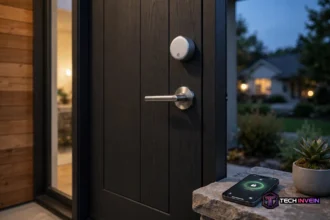




Yale smart locks are a strong pick for most homes in 2026. The Assure Lock 2 range covers keypad, fingerprint, and Apple Home Key entry in one family. You get keyless entry, guest codes, auto-lock, and app control, with no hub needed on Wi-Fi models. This guide explains each model and how to pick the right one.
- What Makes Yale Locks Different
- Which Yale Smart Locks Should You Buy in 2026
- Assure Lock 2: The Core Range Explained
- Yale Approach and Assure Lever: The Other Two Models
- How to Choose the Right Yale Lock
- Key Features That Matter in Daily Use
- Installation: What to Expect
- Battery Life and What Happens When the Batteries Die
- Common Mistakes to Avoid
- FAQs
- Are Yale locks good?
- Do Yale locks need Wi-Fi?
- How long do Yale lock batteries last?
- Can I install a Yale lock myself?
- What happens if a Yale lock battery dies?
- Do Yale locks work with Alexa and Google Home?
- Conclusion
What Makes Yale Locks Different
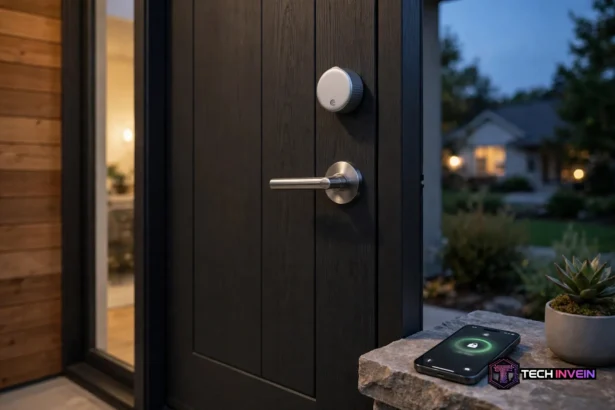
Yale has made locks since 1840, and that history shows in the hardware. The Assure Lock 2 looks like a normal deadbolt from the street. It does not shout that it is a smart device. So it suits homes where the front door should still look normal.
Most Yale locks share the same core idea. You lock and unlock with a code, your phone, or a key. Some models also add a fingerprint reader, while others add Apple Home Key, so you tap your iPhone or Apple Watch to get in.
One feature sets Yale apart from many rivals. DoorSense is a small sensor on the door frame. It tells the app whether the door is open or closed. Most locks only know if the bolt is out. Yale, by contrast, knows if the door itself is shut. That small detail changes how auto-lock behaves.

Which Yale Smart Locks Should You Buy in 2026
The range looks confusing at first, because Yale sells many versions of the same lock. Still, the choice comes down to three questions. Do you want a key? How do you want to unlock the door? And do you need Wi-Fi?
First, think about the key and the unlock method. Keyed models include a physical backup key, while key-free models only suit homes with a second door. A push-button keypad is simple and works in gloves. A touchscreen looks cleaner, and the Touch model adds a fingerprint reader.

Then decide on connection. Bluetooth models work with the app when you are near the door. Wi-Fi models let you lock and unlock from anywhere, get alerts, and share codes while you are away. Some models have Wi-Fi built in, while others need a small smart module, so check the exact model first.
Table: Yale smart lock models at a glance
| Model | Best for | How you unlock it | Connection |
|---|---|---|---|
| Assure Lock 2 Keypad | Simple keyless entry | Keypad code, app, key | Bluetooth, Wi-Fi with module |
| Assure Lock 2 Touchscreen | Clean look, no buttons | Touchscreen code, app, key | Bluetooth or built-in Wi-Fi |
| Assure Lock 2 Touch | Fingerprint entry | Fingerprint, touchscreen, app | Bluetooth or built-in Wi-Fi |
| Assure Lock 2 Plus | Apple households | Apple Home Key, code, app | Built-in Wi-Fi |
| Yale Approach | Renters and retrofit jobs | App, auto-unlock, existing key | Wi-Fi with bridge |
| Assure Lever | Doors with no deadbolt | Touchscreen code, app | Bluetooth or built-in Wi-Fi |
| Code Keypad Lock | Budget keyless entry | Keypad code only | Standalone, no app |
If you want one safe default, the Assure Lock 2 with Wi-Fi is the pick for most buyers. It gives you remote access, guest codes, and DoorSense in a normal deadbolt shape. Renters should look at the Yale Approach instead, because it keeps the existing deadbolt and keys. Our guide to the best smart locks of 2026 puts Yale in context with the other brands you may be weighing up.
Assure Lock 2: The Core Range Explained
The Assure Lock 2 is a full deadbolt replacement with an ANSI/BHMA Grade 2 rating, the standard residential grade. You remove your old deadbolt and fit the Yale lock in its place. It takes longer than a retrofit, but you get a fresh bolt, a new keypad, and the full feature set. Most owners fit one in under an hour.
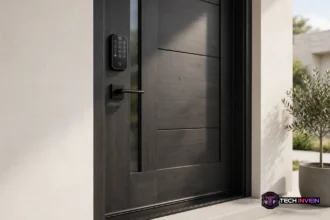
The keypad version uses real buttons that work in rain and with gloves. The touchscreen version uses a smooth glass panel that stays dark until you tap it. Both take the same codes and run the same app, so pick the one that feels better to you, because the smarts inside are the same.
The Touch model is the one to buy if fingerprints matter to you. It reads a finger in about a second and still keeps the touchscreen as a backup. That helps when your hands are wet and the reader misses on the first try.

Yale Approach and Assure Lever: The Other Two Models
Not every door needs a full deadbolt swap. The Yale Approach is a retrofit lock that fits over your existing deadbolt on the inside of the door. You keep your old keys. Your outside hardware also stays the same. That makes it the best Yale option for renters and for anyone who does not want to change the look of the door.
The Approach installs in about ten minutes with a screwdriver. You remove the inside thumb turn, fit an adapter, and clip the lock on. A small Wi-Fi bridge plugs into a nearby outlet for remote access, and the DoorSense sensor goes on the frame.
Our retrofit smart lock guide walks through the same idea in more depth, including which doors suit a retrofit and which ones need a full replacement instead.
The Assure Lever fits doors with a single bore hole and no deadbolt, like a side door or an office door. It has a touchscreen keypad and a lever handle in one unit. It runs on four AA batteries like the rest of the range, and it works with the same Yale Access app.
How to Choose the Right Yale Lock
Start with your door, not the lock. Measure the thickness and check the bore hole size before you order. Also check that your deadbolt works smoothly by hand right now. If the bolt sticks, fix that first. A smart lock cannot fix a bad door, because the motor fights the same drag your hand feels.
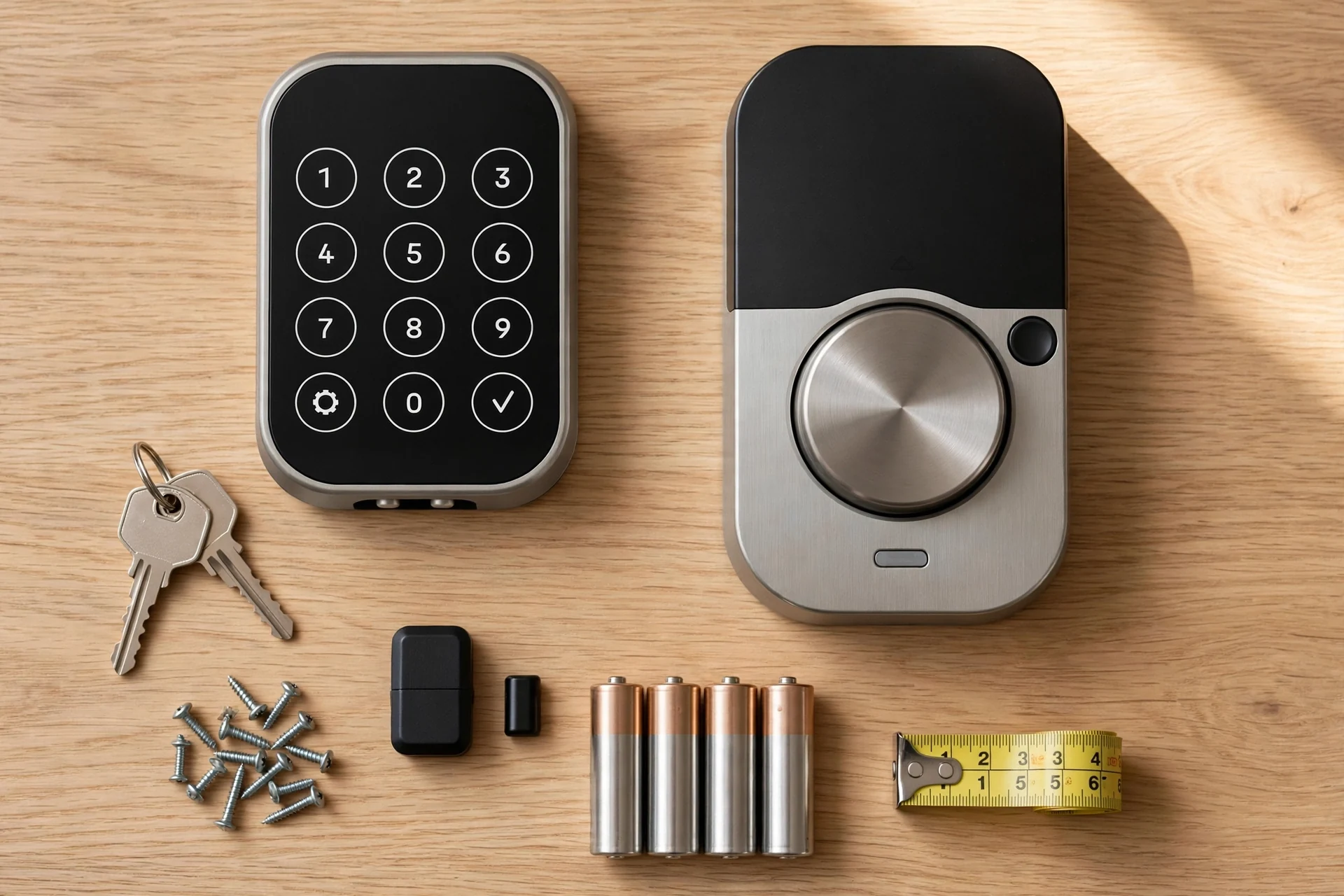
Think about who uses the door. A family with kids may prefer fingerprint or a simple code each child can remember. A household with guests, cleaners, or a dog walker needs scheduled codes that only work at set times. Yale handles all of these through the app. Still, only Wi-Fi models let you change codes while you are away from home.
Your phone matters too. Apple Home Key only works with iPhone and Apple Watch. Fingerprint models work with any phone. Voice control through Alexa or Google Home needs a Wi-Fi model. If you are not sure which system you will use in a year, then a Wi-Fi model with a keypad keeps the most doors open.
Do you need a key? That is the question buyers skip, and it causes the most regret. A keyed model gives you a backup when the batteries die or the electronics fail. A key-free model looks cleaner but leaves you with only the 9V battery jump on the outside. So keep a 9V battery handy if you pick key-free, and test the jump contacts once.
Key Features That Matter in Daily Use
Entry codes are the heart of a Yale smart lock. You can create a code for each person and set times when each code works. A cleaner gets a code that works on Tuesday mornings only. A guest gets a code that stops working after checkout. You can delete a code in seconds when someone no longer needs access, which beats collecting spare keys. Also keep your master code private, because it can change settings and add users.
DoorSense is the feature owners praise most once they live with the lock. The sensor tells the app if the door is open, closed, or ajar. Auto-lock then waits until the door is shut before it throws the bolt. Without DoorSense, a lock can only use a timer, and a timer can fire while the door is still open. That is how a bolt hits the frame instead of the strike plate.
Auto-lock itself is simple to set. You pick a delay from 30 seconds to 30 minutes in the app, and the lock secures itself after that time. It is the feature that stops the “did I lock the door?” worry on the drive to work. Pair it with DoorSense and it becomes reliable instead of just automatic. Auto-unlock, by contrast, uses your phone to sense when you arrive, so test it for a week before you trust it.
Activity history is the quiet win. The app logs who locked or unlocked the door and when. One honest note: Yale’s app gets mixed reviews from owners, and Wi-Fi models use batteries faster than Bluetooth-only ones. That is the trade for remote access, so keep spare AA batteries at home.
Installation: What to Expect
A full Assure Lock 2 install is a do-it-yourself job for most people. You need a Phillips screwdriver and about 30 to 45 minutes. The box includes a door checker template, and the Yale Access app walks you through setup with videos.
Do the door check first. Yale includes a paper template that shows if your door and frame suit the lock. Use it, because the most common install failure is a misaligned strike plate. Then the bolt rubs or will not extend fully. If the bolt does not slide smoothly by hand with the door open, adjust the strike plate before you fit the smart lock.

Fit the outside keypad first, then feed the cable through the door and connect it inside. Take care not to pinch the cable when you tighten the interior unit, because a pinched cable causes power faults that look like a dead lock. Next, scan the QR code in the app, create your master code, and run the handing process, which teaches the lock which way your door swings.
Battery Life and What Happens When the Batteries Die
Yale smart locks run on four AA alkaline batteries. Yale’s own support pages explain how to change them and how to stretch battery life on Wi-Fi models. Low-battery warnings come through the app and on the lock itself, so you should get days of warning before the lock stops working.
Wi-Fi models use more power than Bluetooth models because the radio stays connected to your network. Cold weather also shortens battery life, because the motor works harder in the cold.
When the batteries die, a keyed model still opens with its key. A key-free model needs a 9V battery held against the contacts on the outside of the lock, which gives it enough power for one unlock. Our guide to smart lock battery drain covers the most common causes, from weak Wi-Fi signal to a dragging bolt that forces the motor to work overtime.
Common Mistakes to Avoid
The biggest mistake is buying before measuring the door. Yale locks fit standard deadbolt prep, but older doors, thick doors, and doors with an odd backset can need parts you did not expect. The paper template in the box takes two minutes to check. Use it before you open the sealed bags, so you can return the lock if it does not fit.
The second mistake is skipping the handing step in the app. The lock needs to learn the swing and bolt travel of your door. If you rush past it, then the lock may think it is locked when the bolt is only half out. That is a security gap, not a small glitch.
The fourth mistake is ignoring the door itself. A door that swells in summer or sags on its hinges will fight the lock. If you have to lift the handle or push the door to lock it by hand, the smart motor will struggle too. Fix the hinges or the strike plate first.
Here is the check most guides skip. Test your lock on the coldest morning you can, not on a mild afternoon. Cold stiffens the door and weakens batteries at the same time. If the bolt extends slowly, adjust the strike plate a little until it runs free. Also, that one check separates locks that work all winter from locks that jam in January.
One more check matters for Yale’s own keypad lock owners. If you already have a Yale keypad on another door, read our Yale keypad lock guide to see how codes and models differ before you buy a second lock that works differently from the first.
FAQs
Are Yale locks good?
Yes, for most homes. The Assure Lock 2 range is well built, carries a Grade 2 rating, and offers keypad, fingerprint, and Apple Home Key options. DoorSense and auto-lock work well in daily use. Still, Wi-Fi models use batteries faster, and some owners find the app fiddly.
Do Yale locks need Wi-Fi?
No, not all of them. Bluetooth models work with the Yale Access app when you are near the door, and the Code Keypad Lock needs no connection. Wi-Fi is only needed for remote locking, alerts, and code changes while you are away. So if you only need codes at the door, a Bluetooth model saves battery and costs less.
How long do Yale lock batteries last?
Yale does not publish one fixed number, because use, weather, and Wi-Fi signal all change the result. Most owners get many months from four AA batteries, with Wi-Fi models lasting less than Bluetooth ones. Cold weather shortens life further. Still, the lock warns you in the app when batteries run low, so replace all four at once when it does.
Can I install a Yale lock myself?
Yes, in most cases. A full Assure Lock 2 swap takes about 30 to 45 minutes with a Phillips screwdriver, and the app guides you through setup. The Yale Approach retrofit takes about ten minutes. First, check the door template, fix any bolt alignment problems, and then test every unlock method before you put the tools away.
What happens if a Yale lock battery dies?
A keyed model still opens with its physical key, so keep one somewhere safe outside the house. A key-free model uses 9V battery contacts on the outside keypad to give it enough power for one unlock. Hold a 9V battery to the contacts, enter your code, and then replace the AA batteries inside as soon as you are in.
Do Yale locks work with Alexa and Google Home?
Yes, Wi-Fi models work with Amazon Alexa and Google Home for voice locking and status checks. Apple Home support is available on the right models, and the Plus model adds Apple Home Key for tap-to-unlock with an iPhone or Apple Watch. Bluetooth-only models need a module or bridge for full voice and remote features. So check the model first.
Conclusion
Yale smart locks suit buyers who want a normal-looking deadbolt with smart features that work every day. Pick a keyed Wi-Fi Assure Lock 2 for most homes, a Touch for fingerprint entry, a Plus for Apple Home Key, or an Approach if you rent. Measure your door first and keep a spare 9V battery handy.
Then check the current models on the official Yale store before you order.