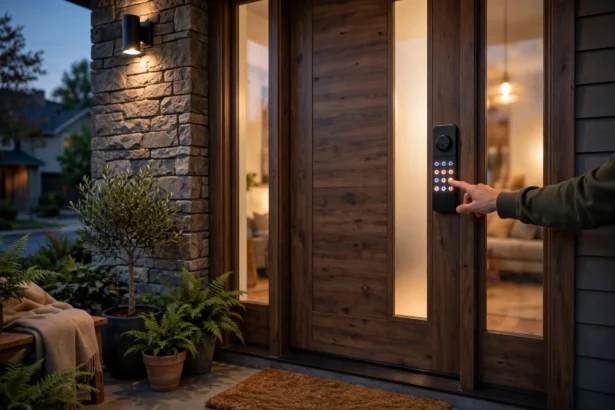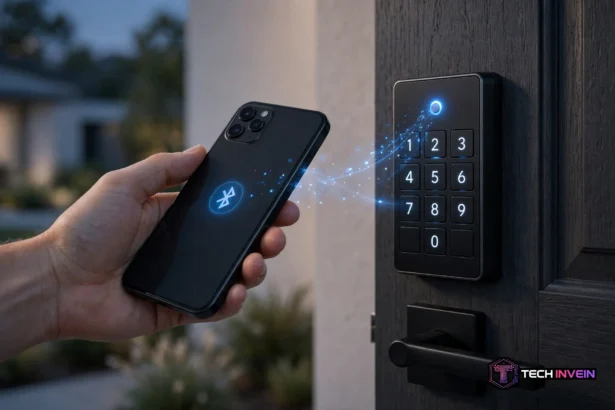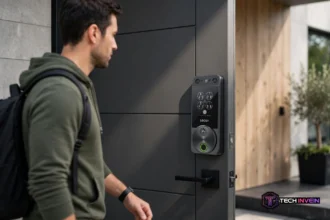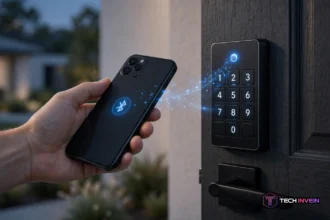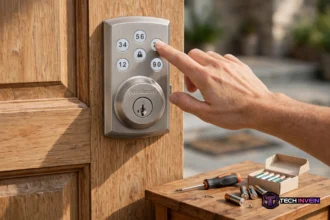

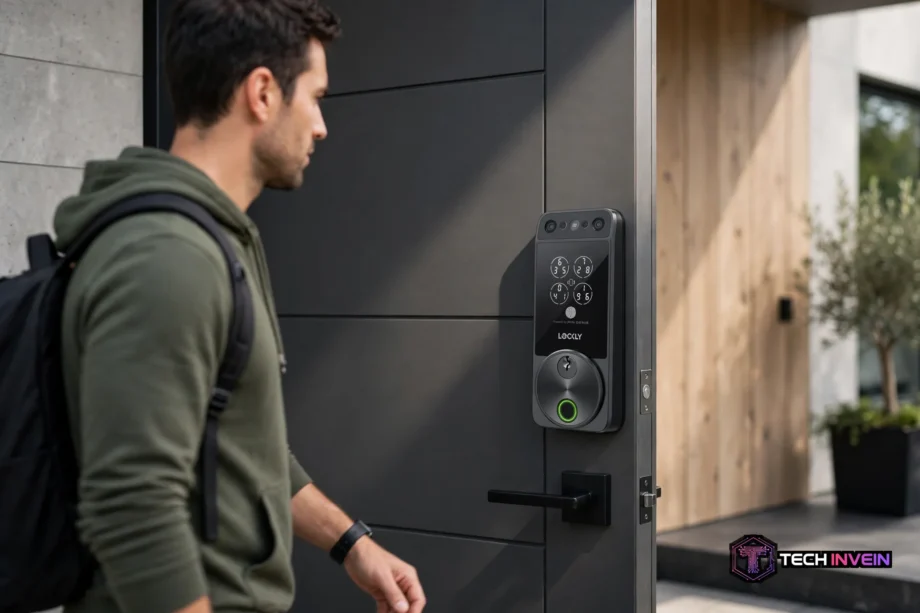
The lockly visage zeno series smart lock is a deadbolt that unlocks when it sees your face. You walk up to your door, and it opens in under 1.5 seconds. No keys, no codes, and no phone in your hand. It also gives you a fingerprint reader, a shuffling PIN keypad, Apple Home Key, and a physical key as backup.
- What Is the Lockly Visage Zeno Series Smart Lock?
- How Facial Recognition Works on the Visage
- Other Ways to Unlock Your Door
- Lockly Visage Zeno Series Smart Lock Setup: Step by Step
- Built-in Wi-Fi and Smart Home Control
- Battery Life and Charging
- Visage vs Other Zeno Series Models
- Common Mistakes to Avoid
- FAQs
- Does the Lockly Visage work without Wi-Fi?
- How many faces and fingerprints can the Visage store?
- Can the Visage be fooled by a photo of my face?
- Does the Lockly Visage work with Apple HomeKit?
- How long does the battery last on the Visage?
- Is the Lockly Visage hard to install?
- Final Thoughts
What Is the Lockly Visage Zeno Series Smart Lock?
The Lockly Visage is the face-recognition model in Lockly’s Zeno Series. The Zeno Series is Lockly’s newest line of smart deadbolts, and it also includes the PIN Genie Pro, Secure Pro, and Vision models. Visage sits near the top of that line because face unlock is its main feature.
So what makes it different from a normal smart lock? Most smart locks ask you to type a code or tap your phone. Visage adds a camera and radar sensor to the outside unit. The radar spots you as you approach, and the dual infrared cameras check your face.
It comes in two finishes, Satin Nickel and Matte Black. The outside unit is large, about 6 inches tall and 2.5 inches wide, and it weighs close to five pounds with both units fitted. That size is worth knowing before you buy. It looks like a piece of tech on your door, not a plain lock.
The lock runs on two rechargeable 10,000 mAh lithium batteries. Lockly says each charge lasts about six months, and you get a spare battery in the box. So you can swap in the charged one and charge the flat one later. Your door is never left without power while you wait.
How Facial Recognition Works on the Visage
Face unlock on the Visage uses two infrared cameras plus radar. The radar wakes the lock when you walk toward the door. Then the cameras scan your face from about 2.6 feet away.
First, you enroll each person through the Lockly Home app. The admin must stand near the lock with Bluetooth on, and the person being enrolled stands in front of the door. The lock’s own camera does the scan, not your phone camera.
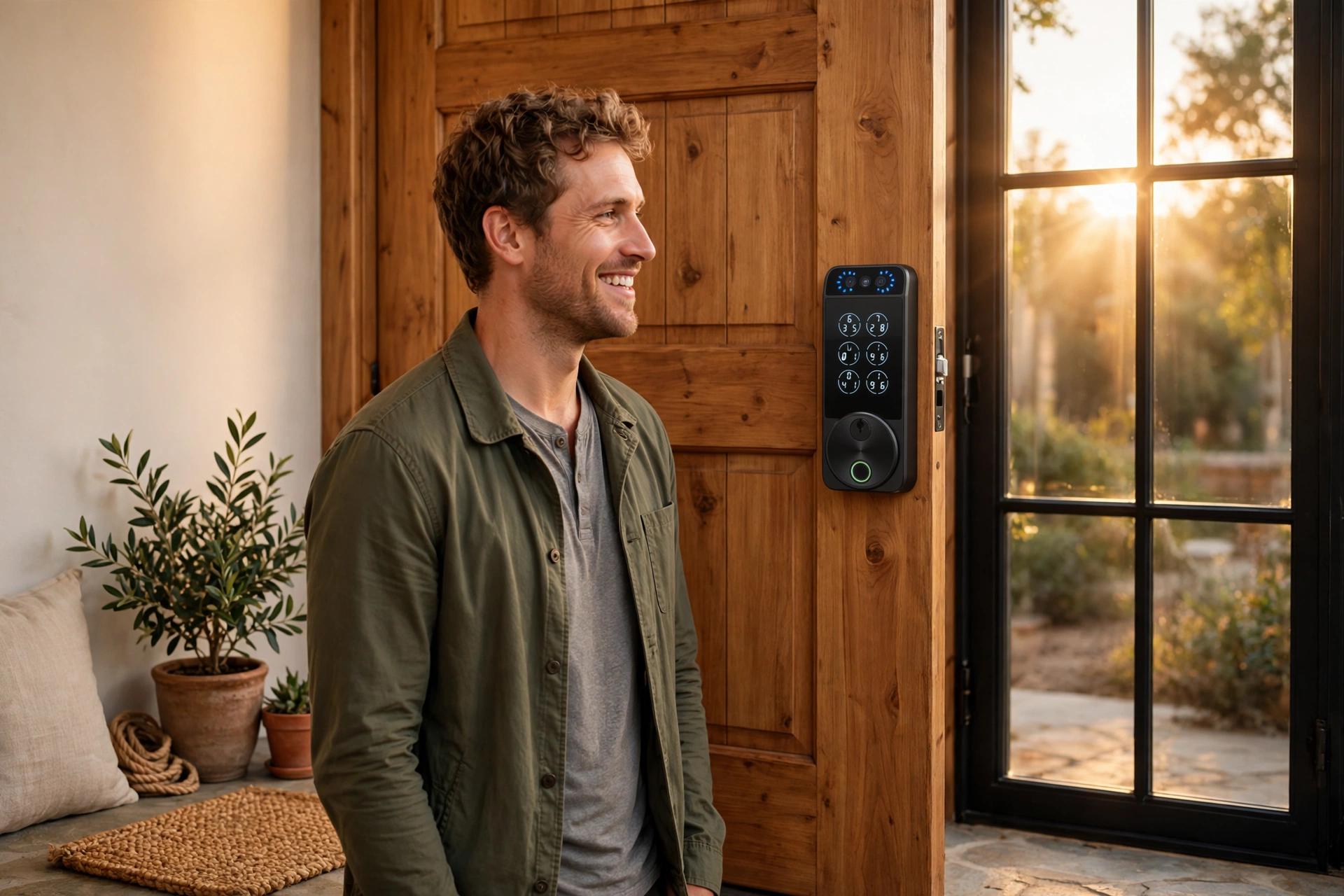
You can store up to 100 facial profiles on the lock. That is far more than most homes need, but it also suits a small office or a rental with many users. Also, the lock can work in two modes. In auto mode, it scans as soon as it senses you. In tap mode, you tap the screen first to wake the scanner.
Can a photo fool it? No, the infrared depth scan cannot be tricked by a printed photo. That matters, because a normal camera alone could be fooled that way. Lockly also warns that twins should use a PIN or fingerprint instead of face unlock. The same advice applies to children under 13.
Other Ways to Unlock Your Door
Face unlock is the headline, but it is not the only way in. The Visage gives you six ways to open your door. That matters on a dark night, in rain, or when your hands are full. If one method fails, you still have five more.
Fingerprint Reader
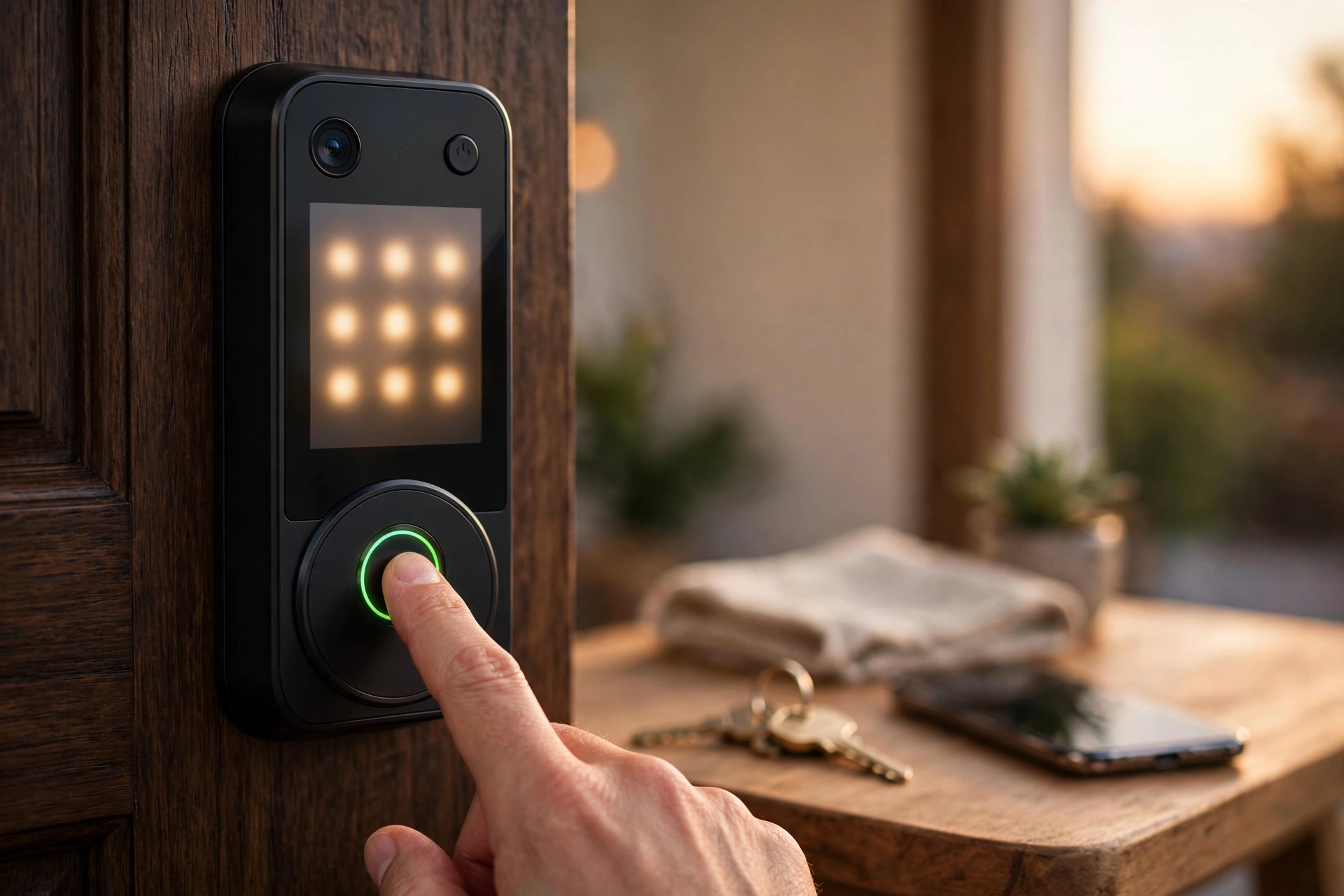
The 3D fingerprint sensor reads your print in 0.2 seconds. It uses AI learning, so it gets better at reading your finger over time. You can store up to 99 fingerprints, and each person can add more than one finger.
If your fingerprint fails, wipe the sensor and your finger, then try again. Cold or wet fingers cause most failed reads, so try a different enrolled finger next.
PIN Genie Keypad
The PIN Genie keypad shuffles its numbers after every use. The digits move to new spots on the screen, so a watcher cannot learn your code from your hand movements. Your code can be 4 to 8 digits long.
You can set up to 49 PIN codes in the Lockly app. So each family member, cleaner, or guest can have a code of their own. You can also delete one code without changing the rest.
Change the default code first. The factory code is 123456, and it stops working once you set your own code. Still, do not leave it active for even one night. Set your own code during setup, before you add anyone else.
Apple Home Key, App, and Physical Key
If you use an iPhone or Apple Watch, Apple Home Key lets you tap your device on the lock to open it. The digital key lives in your Apple Wallet after you pair the lock with Apple Home. A home hub, such as an Apple TV, iPad, or HomePod, is needed for remote control through Apple Home.
The free Lockly Home app locks and unlocks the door from anywhere, with no monthly fee. You can also check the lock status, see who came in, and get alerts when the door is left open. Voice control works with Siri, Alexa, and Hey Google. And if all else fails, the physical key in the box opens the door like a normal lock.
Lockly Visage Zeno Series Smart Lock Setup: Step by Step
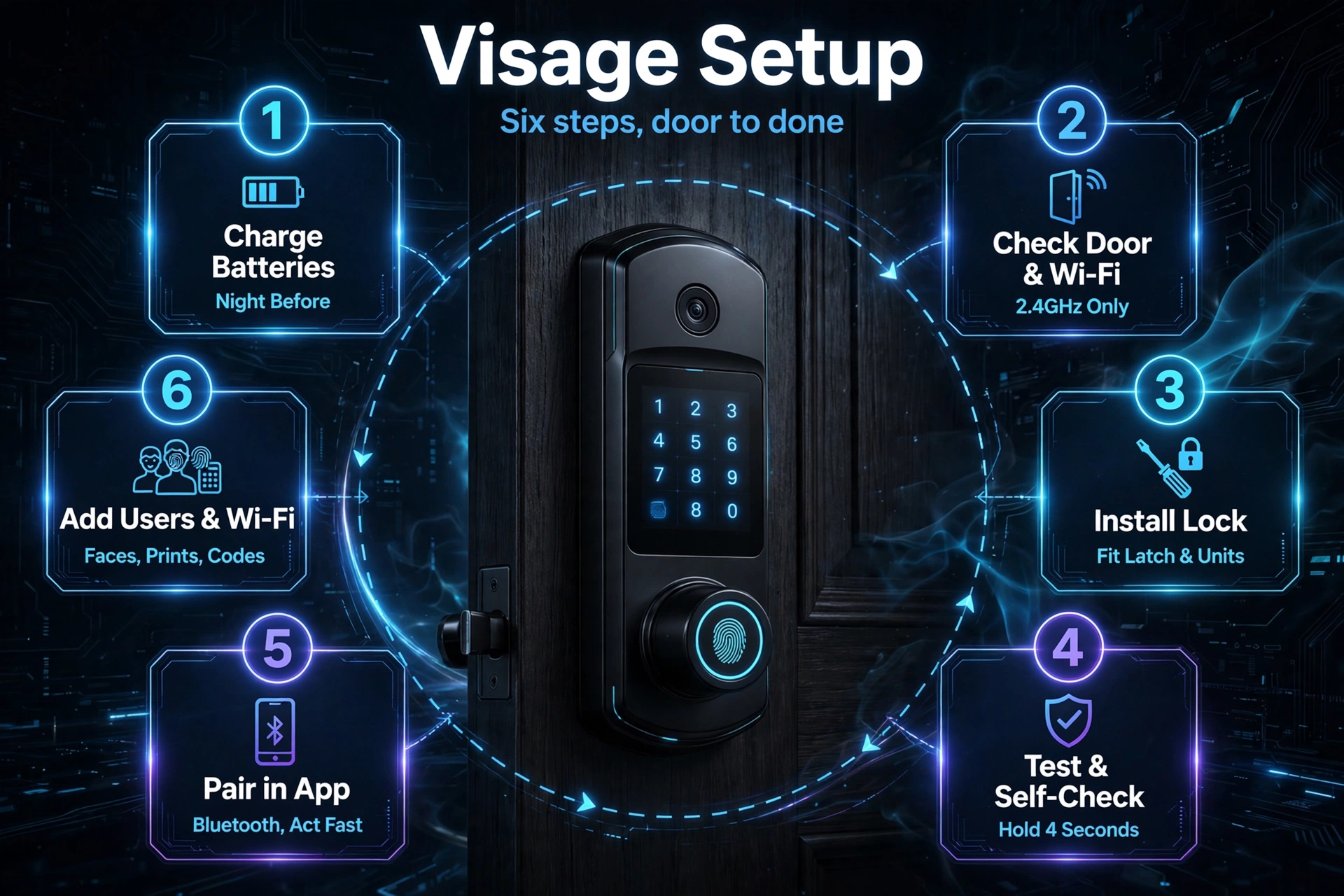
Setup has two parts: fitting the lock on your door, and setting it up in the app. Most people finish the physical install in about 15 minutes with basic tools. So set aside an hour for the whole job.
Before You Start
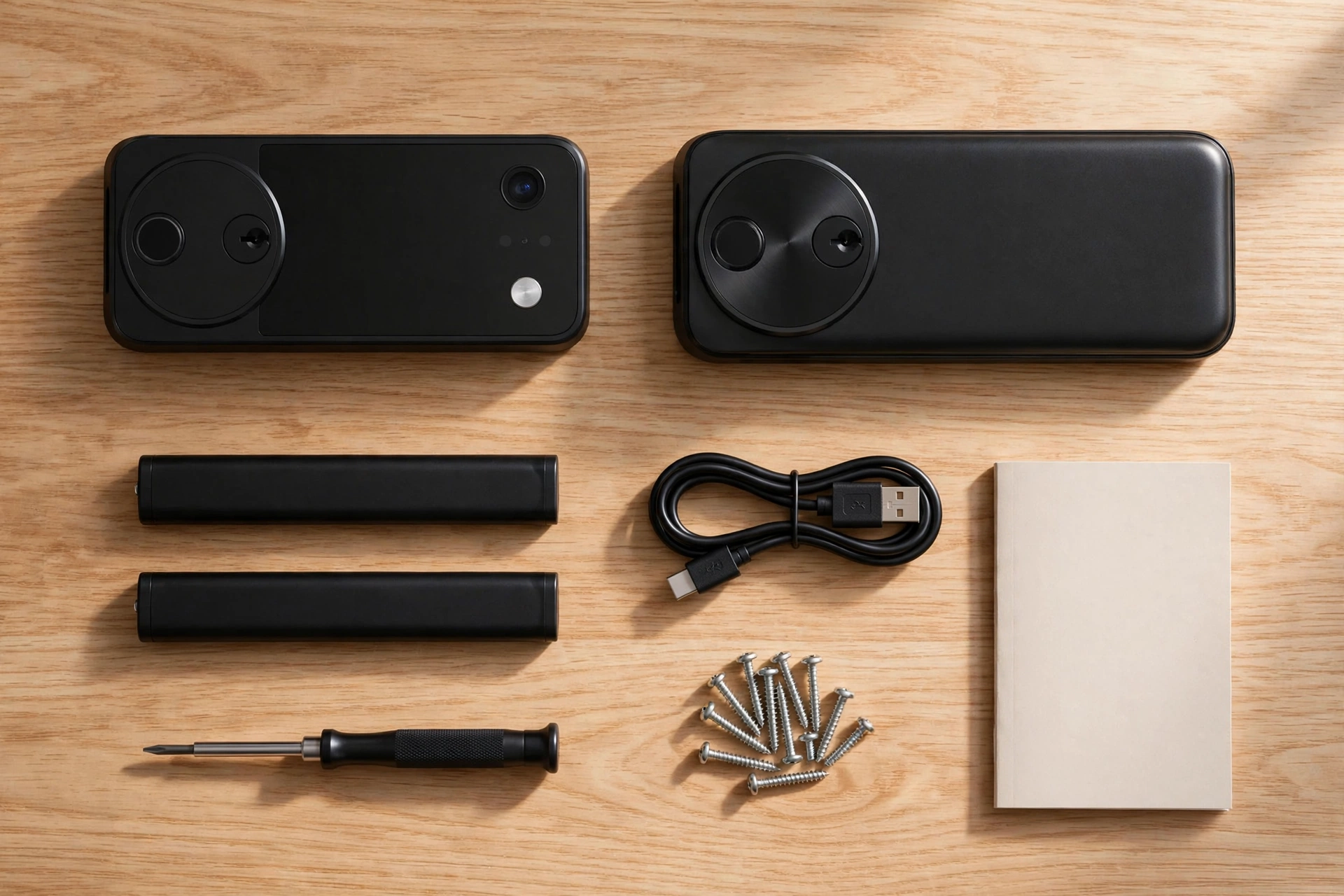
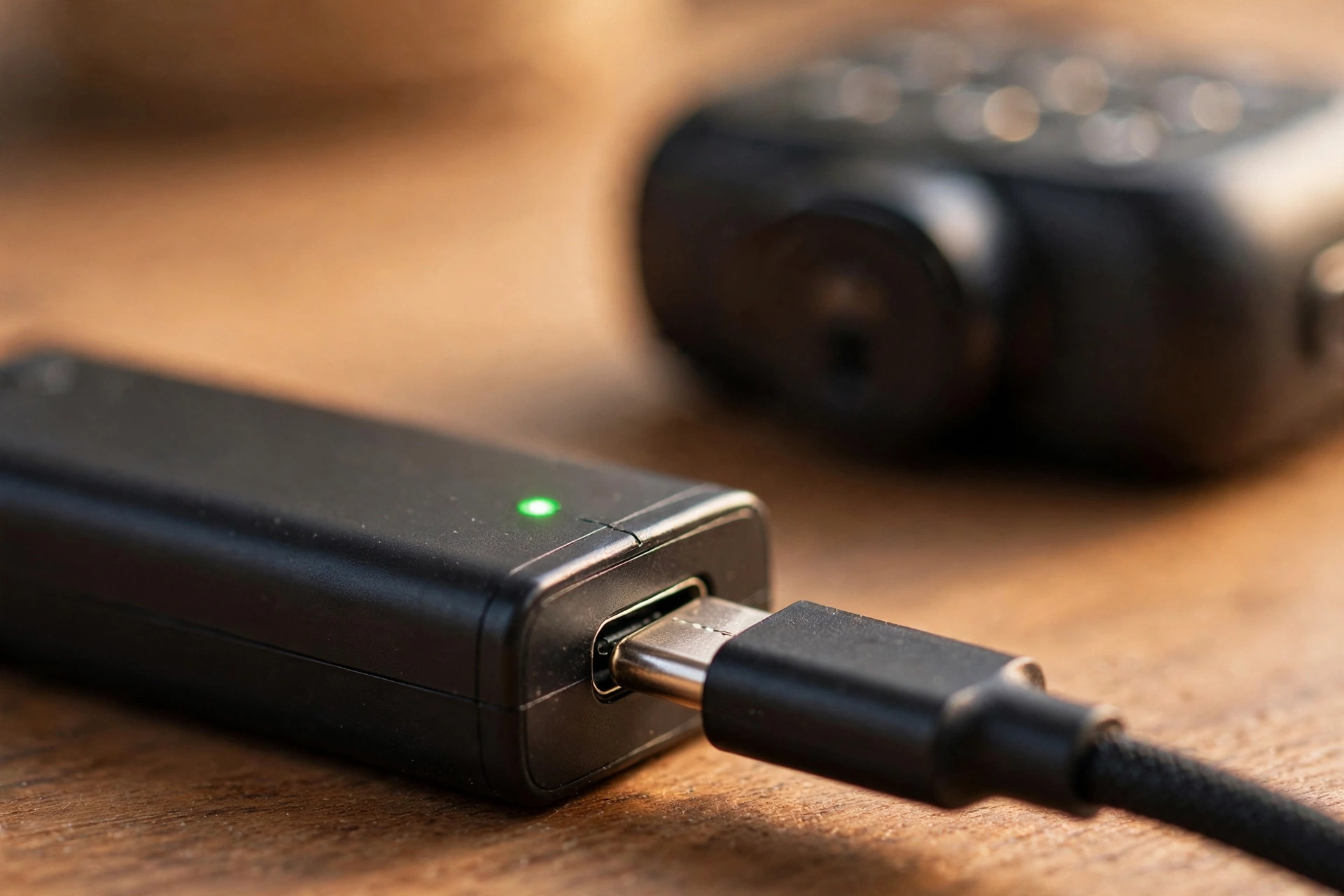
First, charge both batteries fully before you begin. A full charge takes about 12 hours on a 5V USB adapter, so plug them in the night before. Also, keep the activation card that comes in the box. It holds your lock serial number and activation code, and you need it for setup and for any future reset. Put it somewhere safe, not in a drawer you will forget.
Next, check your door. The Visage fits a standard deadbolt setup, and the box includes an install template. Also, make sure your Wi-Fi reaches your front door. The lock uses 2.4GHz Wi-Fi, so it will not join a 5GHz-only network.
Install the Lock on Your Door
Start by fitting the deadbolt latch into the edge of your door. Then mount the exterior unit, and feed its cable through the cross bore hole. Next, fit the interior mounting plate, and connect the cable to the interior unit.
Before you close the door, test the lock by hand. Turn the thumbturn and watch the bolt extend and retract. If it sticks, loosen the screws a little and shift the unit until the bolt moves freely. A tight bolt is the most common install fault, and it causes jams and battery drain later.
Then press and hold the red Program button for 4 seconds. The lock runs a self-check and moves the deadbolt in and out a few times. If the self-check fails, check the cable connection and the bolt alignment again. Do not move on to the app until the self-check passes.
Add Faces, Fingerprints, and Codes in the App
Download the Lockly Home app and create an account. Tap the plus sign to add a device, then follow the prompts to pair your lock. Bluetooth pairing stops 10 minutes after the lock powers on, so pair it soon after you fit the battery. If you miss the window, press the Program button and tap BL on the keypad to turn Bluetooth pairing back on.
Next, add your users. Go to the lock page, tap Permissions, then tap Add User. Enter the name and user type, then add a face, a fingerprint, or a code for that person. For a face, the person stands in front of the door while the admin stays near the lock with the phone. For a fingerprint, they place a finger lightly on the sensor until they hear a beep.
Then connect the lock to your Wi-Fi in the app. Built-in Wi-Fi gives you remote control with no extra hub. You can lock the door from work, check if it is locked, and get alerts on your phone. Also, add the lock to Apple Home if you want Home Key. You will find the HomeKit setup code under the battery cover on the interior unit.
Built-in Wi-Fi and Smart Home Control
The Visage connects straight to your 2.4GHz Wi-Fi network. Older Lockly models needed a separate Wi-Fi hub for remote access, but the Zeno Series has it built in. So you can check and control the lock from anywhere without buying extra gear.
Through the app, you can lock or unlock the door, view activity, and manage users. You can also set auto-lock, so the door locks itself after a set time. You can also get an alert when the door stays open.
Apple Home support is a big part of this lock. It works with Home Key, Siri, and automations in the Home app. You can also use Alexa or Google Assistant for voice control. If you already run a smart home, check how the lock fits your setup before you buy. Our guide to Matter vs Zigbee explains how smart home standards affect what works together.
Battery Life and Charging
Two 10,000 mAh batteries come in the box, and Lockly rates each charge at about six months. Real life varies with use. A busy front door with face scanning on all day will drain faster than a quiet side door.
When a battery runs low, the app warns you well before it dies. Swap in the spare, then charge the flat one with a USB cable. The swap takes under a minute.
Face scanning uses more power than a code, so watch your first month of use. If the battery drops fast, switch to tap mode and check that auto-lock is not cycling the bolt all day. If you want more detail on this problem, read our guide on why a smart lock battery drains fast.
Visage vs Other Zeno Series Models
The Zeno Series has four models, and Visage is the face-recognition one. The PIN Genie Pro is the entry model with the shuffling keypad. Secure Pro adds the fingerprint reader. Vision adds a 2K video camera, a doorbell, and two-way talk on top of everything Visage has.
Table: Zeno Series models at a glance
| Feature | Visage | Secure Pro | Vision |
|---|---|---|---|
| Face recognition | Yes | No | Yes |
| Fingerprint reader | Yes | Yes | Yes |
| PIN Genie keypad | Yes | Yes | Yes |
| Apple Home Key | Yes | Yes | Yes |
| Video camera and doorbell | No | No | Yes |
| Built-in Wi-Fi | Yes | Yes | Yes |
Choose Visage if you want hands-free entry and you do not need a camera. Choose Vision if you also want to see who is at the door. Choose Secure Pro if face unlock does not interest you. And if you are still weighing options, our roundup of the best smart locks for 2026 compares the top picks side by side.
Common Mistakes to Avoid
Most Visage problems come from setup, not from the lock itself. The first mistake is skipping the full battery charge. A half-charged battery can drop out during pairing, and then you start over.
The second mistake is enrolling faces in bad light. Bright sun behind the person, or a dark porch with no light, can give you a weak scan. Enroll faces in normal daylight, with the person facing the door.
The third mistake is leaving the default PIN code active. Change it during setup, and give each person their own code. Shared codes are hard to revoke, and you cannot tell who came in. If you ever need to wipe a code and start over, our guide on how to reset a smart lock keypad code shows the steps.
Before you hand out codes to the whole household, test every method yourself first. Unlock with your face, then with your finger, then with your code. That quick test shows you which method works best for you, and it catches a bad enrollment before it locks someone out.
The fourth mistake is enrolling only one unlock method per person. Give each person a face and a fingerprint, or a face and a code. Then a wet finger or a missed scan is a small delay, not a lockout. Cold fingers cause many failed reads, and our guide to smart lock cold weather problems covers what cold does to a lock.
FAQs
Does the Lockly Visage work without Wi-Fi?
Yes, it works without Wi-Fi for local unlocks. Face, fingerprint, PIN, and the physical key all work offline. Wi-Fi is only needed for remote control, alerts, and app access from outside the home. So a router outage will not lock you out of your own house.
How many faces and fingerprints can the Visage store?
The Visage stores up to 100 facial profiles and up to 99 fingerprints. You can also set up to 49 PIN codes in the Lockly app. That is more than enough for a family, and it also suits a small rental or office. Each user can hold a face, a fingerprint, and a code at the same time.
Can the Visage be fooled by a photo of my face?
No, a photo cannot fool it. The lock uses dual infrared cameras that scan depth, not just a flat image. A printed photo has no depth, so the lock rejects it. Lockly still advises twins to use a PIN or fingerprint, since their faces are very close. Children under 13 should also use a code or fingerprint.
Does the Lockly Visage work with Apple HomeKit?
Yes, it works with Apple Home and supports Apple Home Key. You can unlock it by tapping your iPhone or Apple Watch on the lock. The HomeKit setup code sits under the battery cover on the interior unit. You need a home hub, like an Apple TV or HomePod, for remote control through Apple Home.
How long does the battery last on the Visage?
Lockly rates each 10,000 mAh battery at about six months per charge. Two batteries come in the box, so you can swap in a fresh one while the other charges. Heavy use, always-on face scanning, and a dragging bolt all shorten battery life. Tap-to-wake mode and a clean install help the battery last longer.
Is the Lockly Visage hard to install?
No, most people fit it in about 15 minutes with basic tools. The box includes a template and the app guides you step by step. The main work is fitting the latch, mounting both units, and passing the cable through the door. Test the bolt by hand before you close the door, then run the self-check.
Final Thoughts
The Lockly Visage Zeno Series smart lock suits anyone who wants to walk in with empty hands. Face unlock is fast, the backup methods are strong, and built-in Wi-Fi means no extra hub. Just measure your door first and change the default code on day one.
Ready to decide? Check the current specs on Lockly’s own Zeno Series page before you buy.